Two-Factor Authentication (2FA) Guide
Introduction What is 2FA? Two-Factor Authentication (2FA) is a security measure that protects your account by requiring two forms of identification: Your l
Introduction
What is 2FA?
Two-Factor Authentication (2FA) is a security measure that protects your account by requiring two forms of identification:
- Your login credentials (username and password).
- A one-time passcode sent to a secondary device or generated by an authentication app on your mobile device.
This additional step significantly reduces the risk of unauthorized access.
Why Use 2FA?
2FA provides an extra layer of security for your data. Even if someone gains access to your username and password, they would still need the unique one-time passcode, which is accessible only through your designated authentication app.
How Does 2FA Work?
Once enabled, 2FA requires:
- Your login credentials (username and password).
- A one-time passcode sent to a secondary device via SMS, email or generated by an authentication app, such as Google Authenticator, Authy, or Microsoft Authenticator (available on iOS and Android).
Setup Instructions
General Setup Steps
1. Log in to your account.
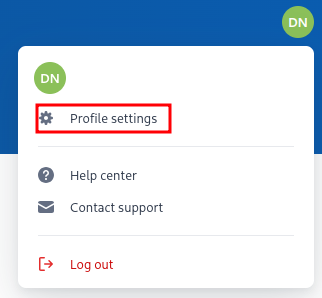
2. Access Profile Settings:
- Click the circle with your initials in the top-right corner.
- Select “Profile Settings.”
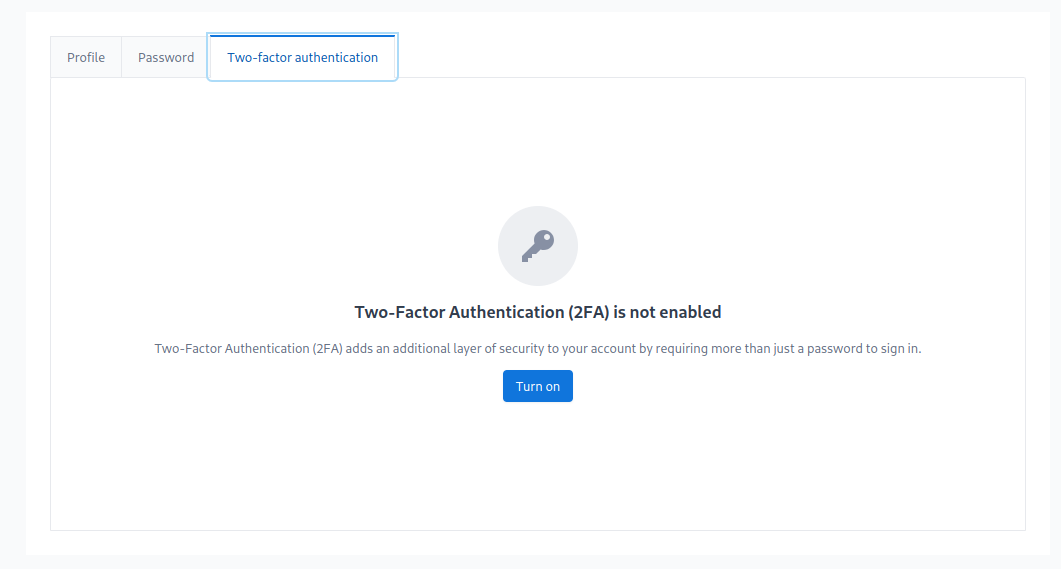
3. Enable Two-Factor Authentication (2FA):
- Go to the "Two-Factor Authentication" tab.
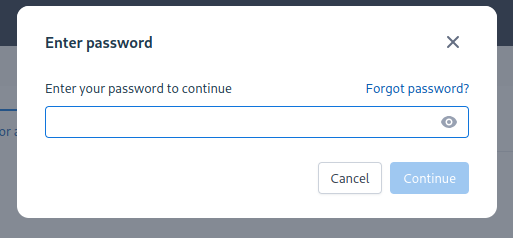
- Click "Turn On" and enter your password to proceed.
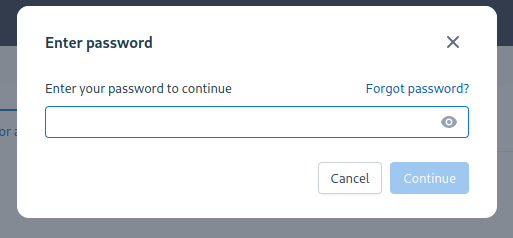
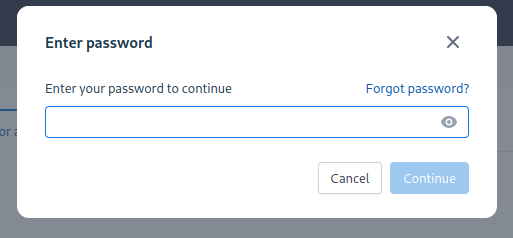
4. Provide your password to continue:
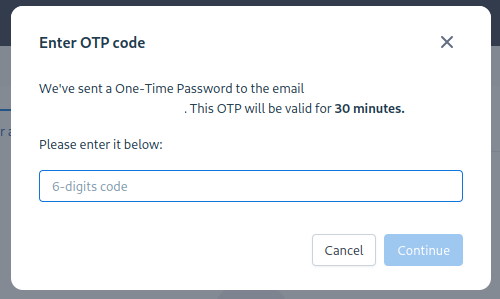
5. Verify OTP Sent to Your Email:
- Check your registered email for a One-Time Passcode (OTP).
- Input the OTP to proceed.
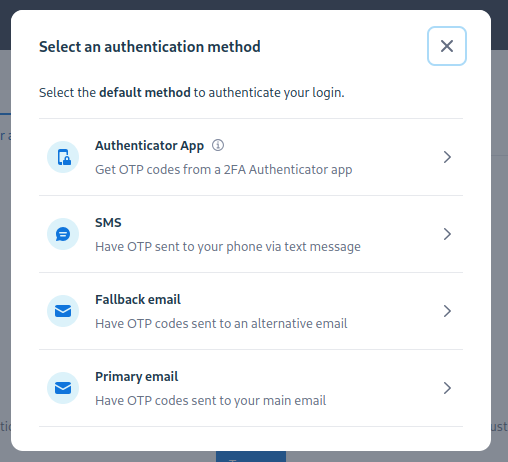
6. Choose an Authentication Method:
- On the method selection screen, pick from options like Authenticator App, SMS, or Fallback Email.
Setting Up 2FA with an Authenticator App (Recommended)
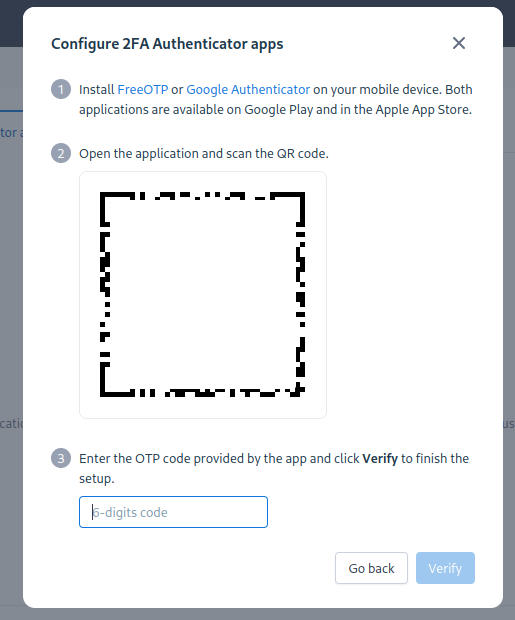
- Select "Authenticator App" from the method selection screen.
- Open a 2FA app (e.g., Google Authenticator, FreeOTP).
- Scan the displayed QR code.
- Enter the generated passcode and click "Verify."
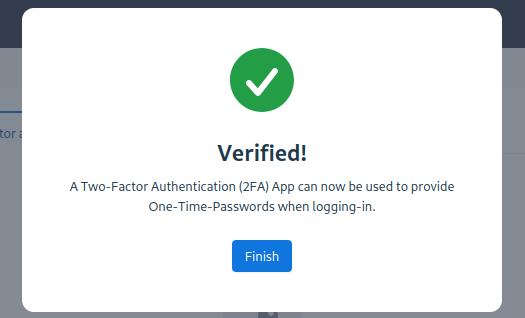
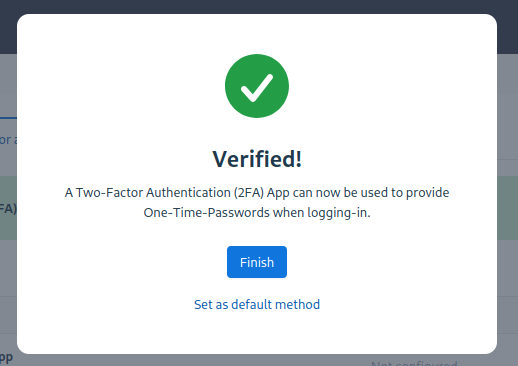
- Click "Finish" to complete the setup.
Setting Up 2FA via SMS
- Select "SMS" on the method selection screen.
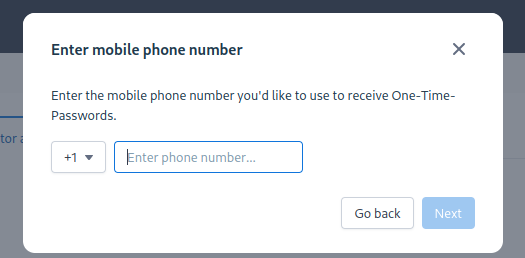
- Enter your mobile phone number.
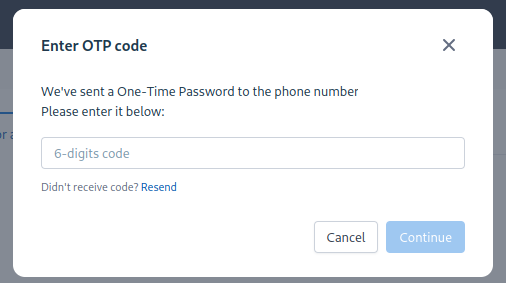
- Input the OTP sent to your phone and click "Continue."
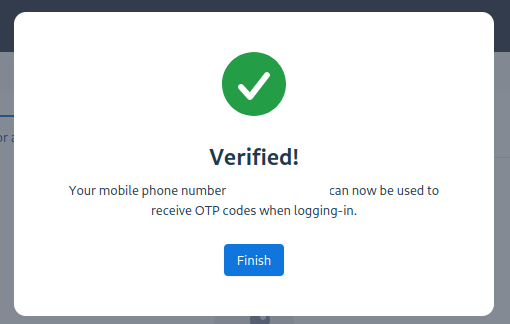
- Click "Finish" to finalize the setup.
Setting Up 2FA with a Fallback Email Address
- Select "Fallback Email" from the method selection screen.
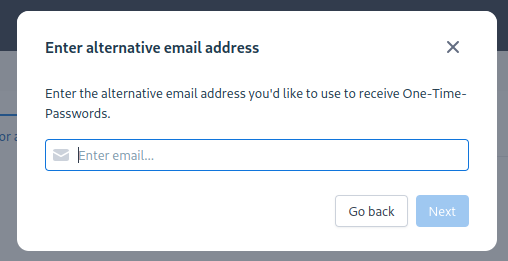
- Enter an alternate email address to receive OTP code.
- Input the received OTP and click “Continue.”
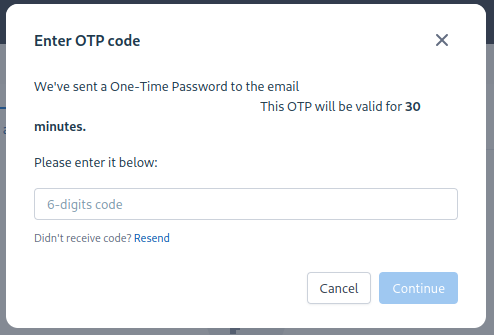
- Click "Finish" to complete the setup.
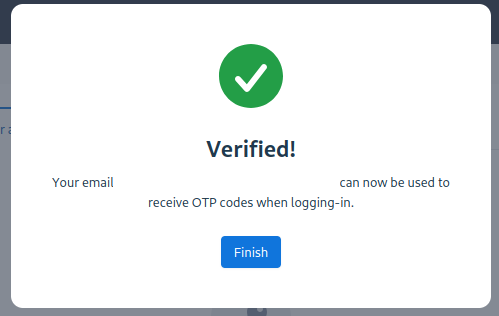
Setting Up 2FA with Your Primary Email Address (Not Recommended)
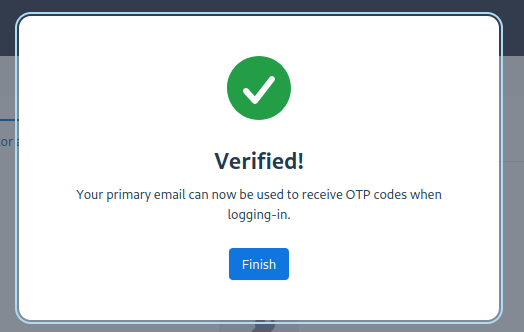
- Select "Primary Email" on the method selection screen.
- Click "Finish" to enable this method.
Adding Additional 2FA Methods
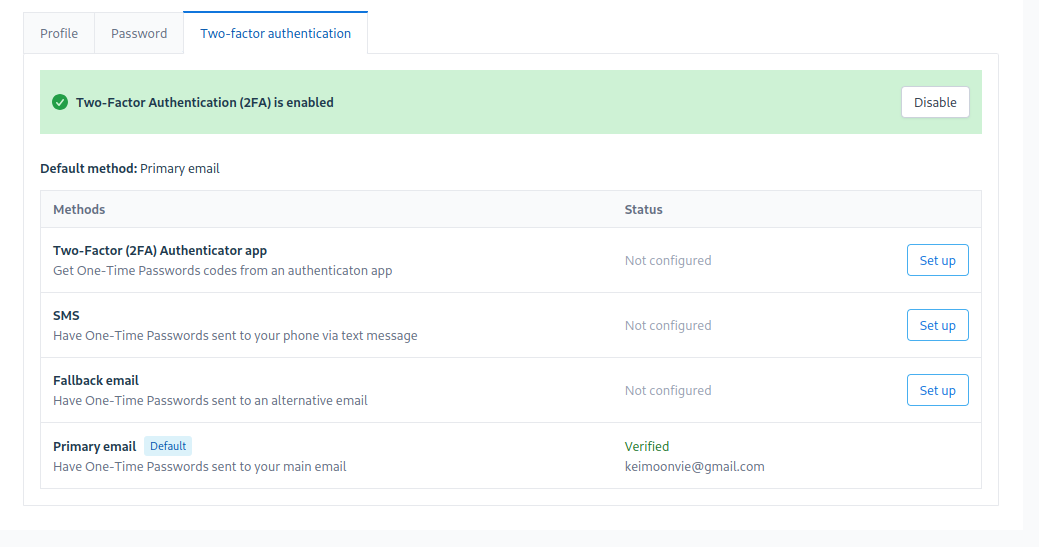
- Navigate to the "Two-Factor Authentication" tab.
- Click the "Set Up" button for the desired method.
- Provide your password
- Follow the instructions provided for the selected method.
- Optionally, set the new method as your default by clicking "Set as Default Method."
Changing the Default Authentication Method
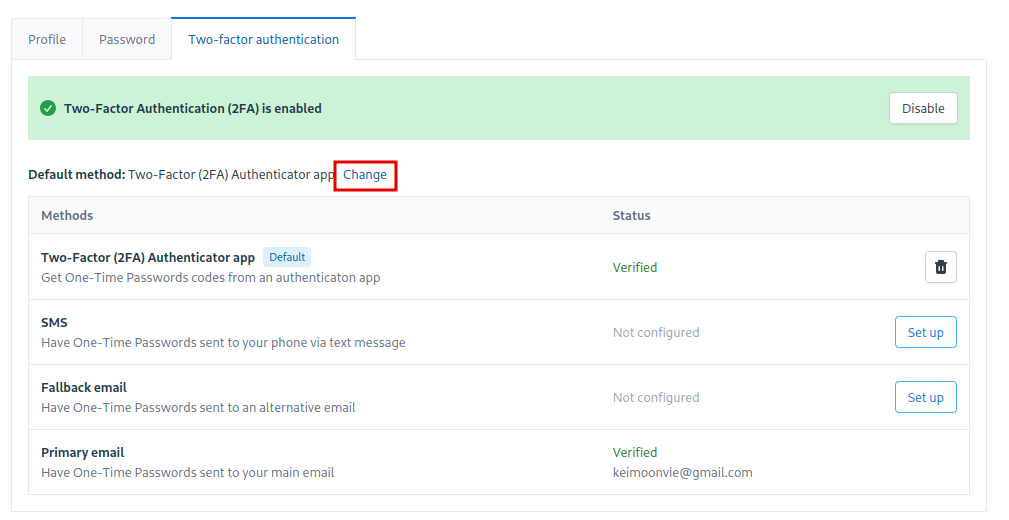
- If multiple methods are enabled, click "Change" next to the current default option.
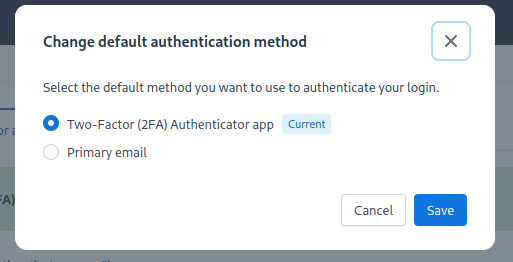
- Select your preferred method and click “Save.”
Removing an Authentication Method
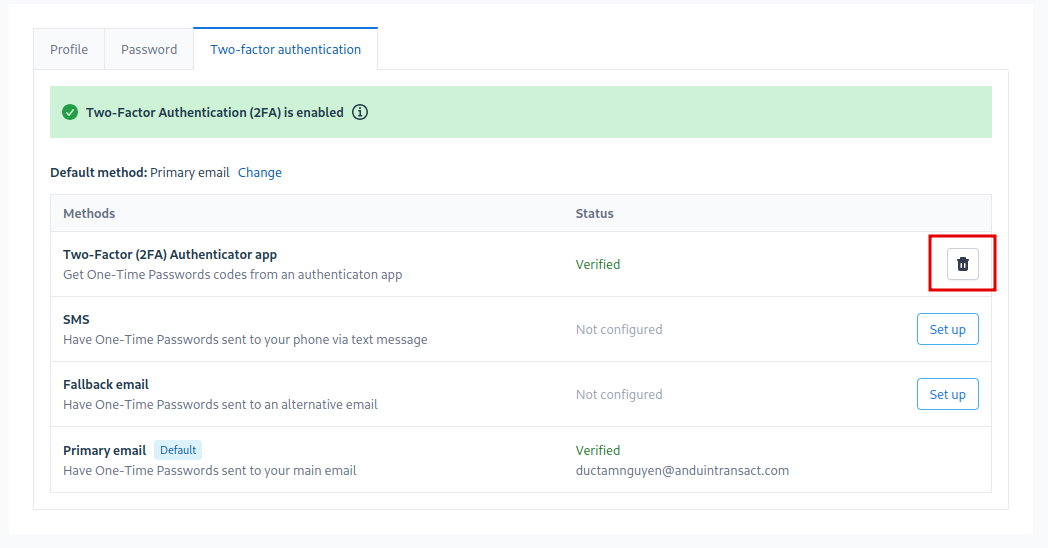
- Go to the "Two-Factor Authentication" tab.
- Click the "Trash" icon next to the method you wish to remove.
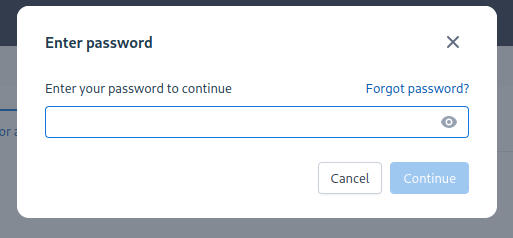
- Enter your password to confirm.
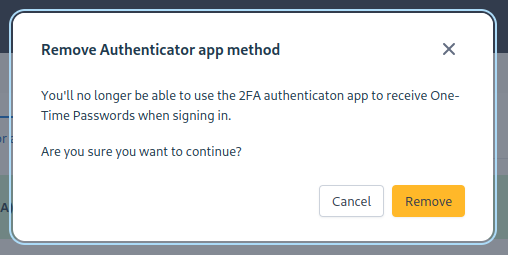
- Click "Remove" to finalize the deletion.
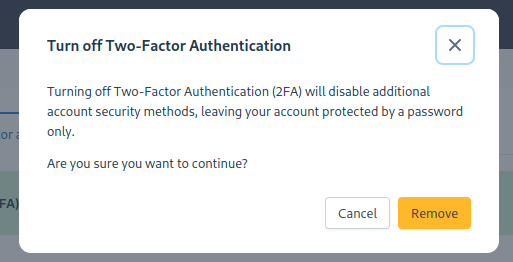
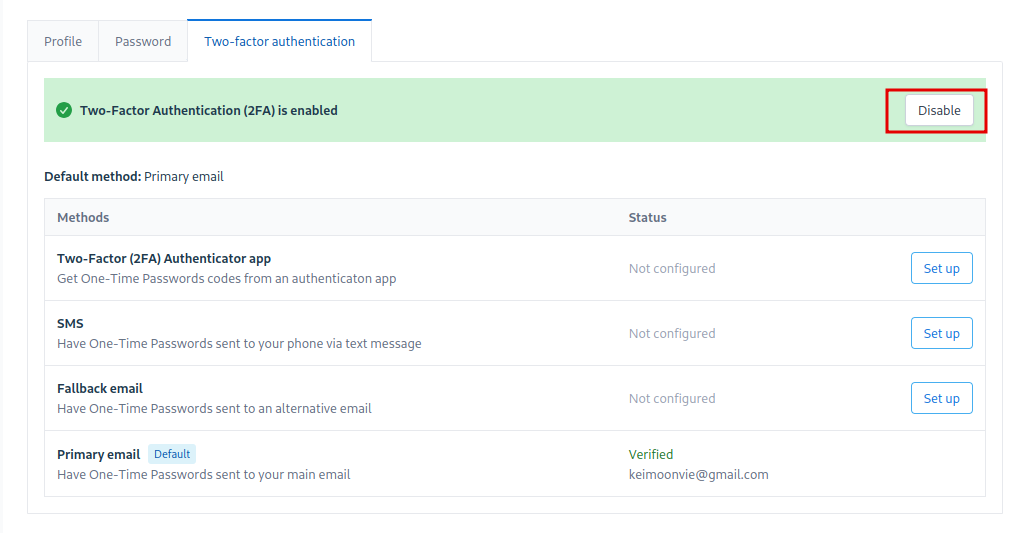
Disabling Two-Factor Authentication
- Click "Disable" in the "Two-Factor Authentication" tab.
- Enter your password to proceed.
- Confirm by clicking "Remove."