

Add Additional Signer
To add additional signatures, click on the Add e-signature button: Click on the Click here button next to More than one signer?: Click the Add anot
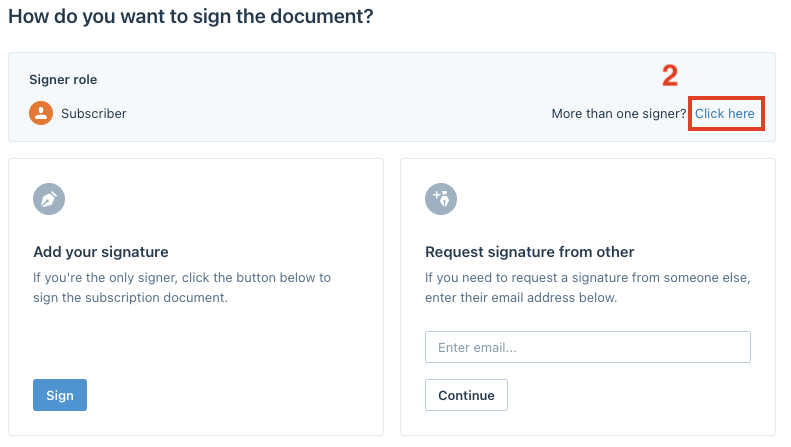
To add additional signatures, click on the Add e-signature button:

Click on the Click here button next to More than one signer?:
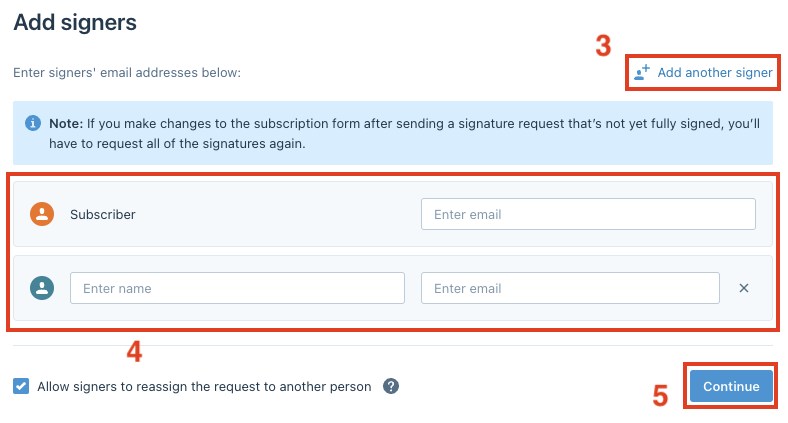
Click the Add another signer button and enter signers' names and email addresses, then choose Continue:
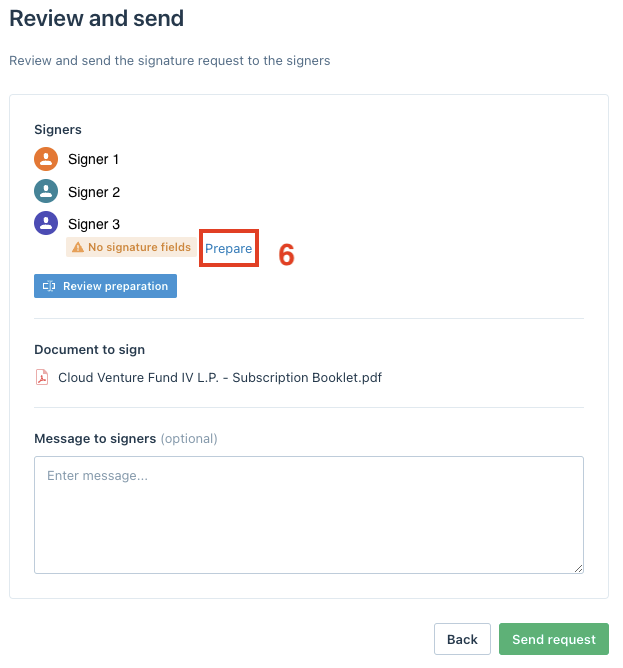
Click on the Prepare button to prepare signature fields for the additional signer:
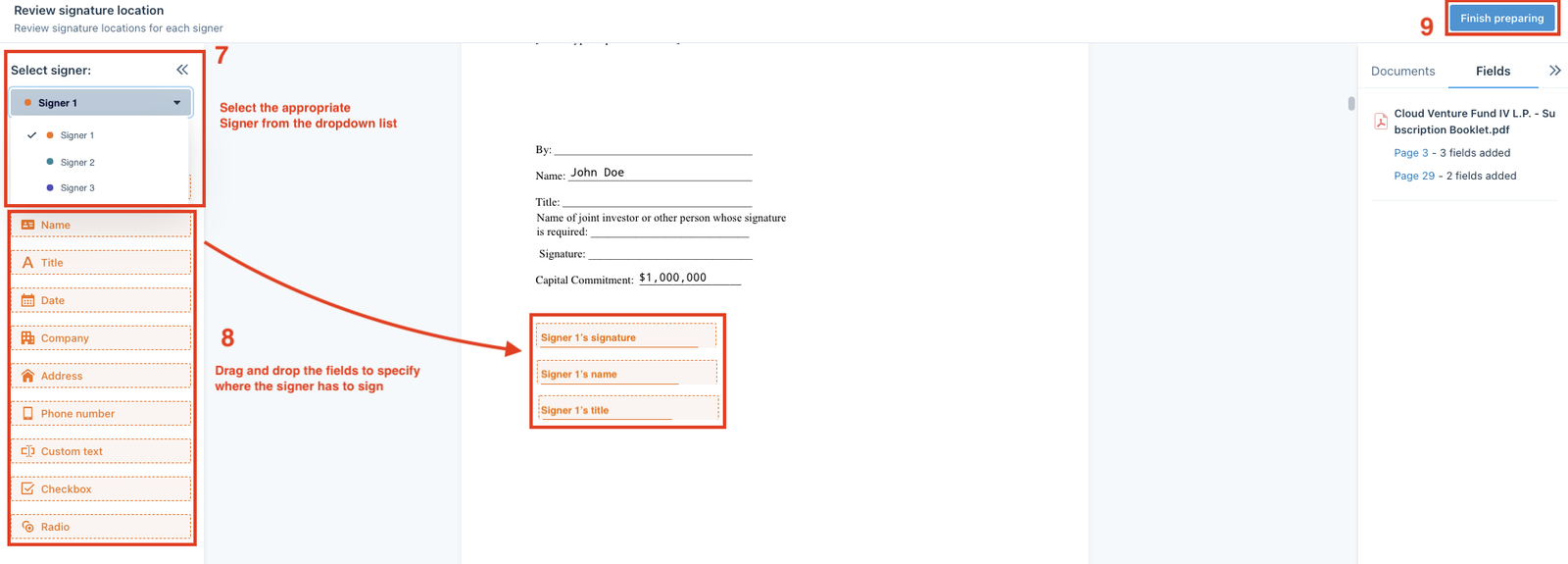
Select the appropriate Signer from the dropdown list. Drag and drop the signature fields in the toolbox to the documents to specify where the signer has to sign, then choose Finish preparing:
Add a message to signers (optional), then click Send request:

Each signer will receive an email with a call-to-action link that will bring them directly to the documents to sign.