

Explained: Advisor entity whitelist email domain
Overview This guide explains the purpose and impact of using a whitelist email domain for both fund managers and advisors, as well as step-by-step instruct
Overview
This guide explains the purpose and impact of using a whitelist email domain for both fund managers and advisors, as well as step-by-step instructions to configure and manage it effectively.
Why Use a Whitelist Email Domain?
A whitelist email domain enables Automatic Advisor Addition. This means that after the first advisor accepts the fund invitation and grants the Advisor Entity access to the fund, other advisors invited by the fund, if carry the Advisor Entity domain, will be automatically added to the Advisor Entity and grant access to the fund.
It helps automatically add the advisors invited by fund managers to the advisor entity and thus streamlines onboarding advisors to the fund.
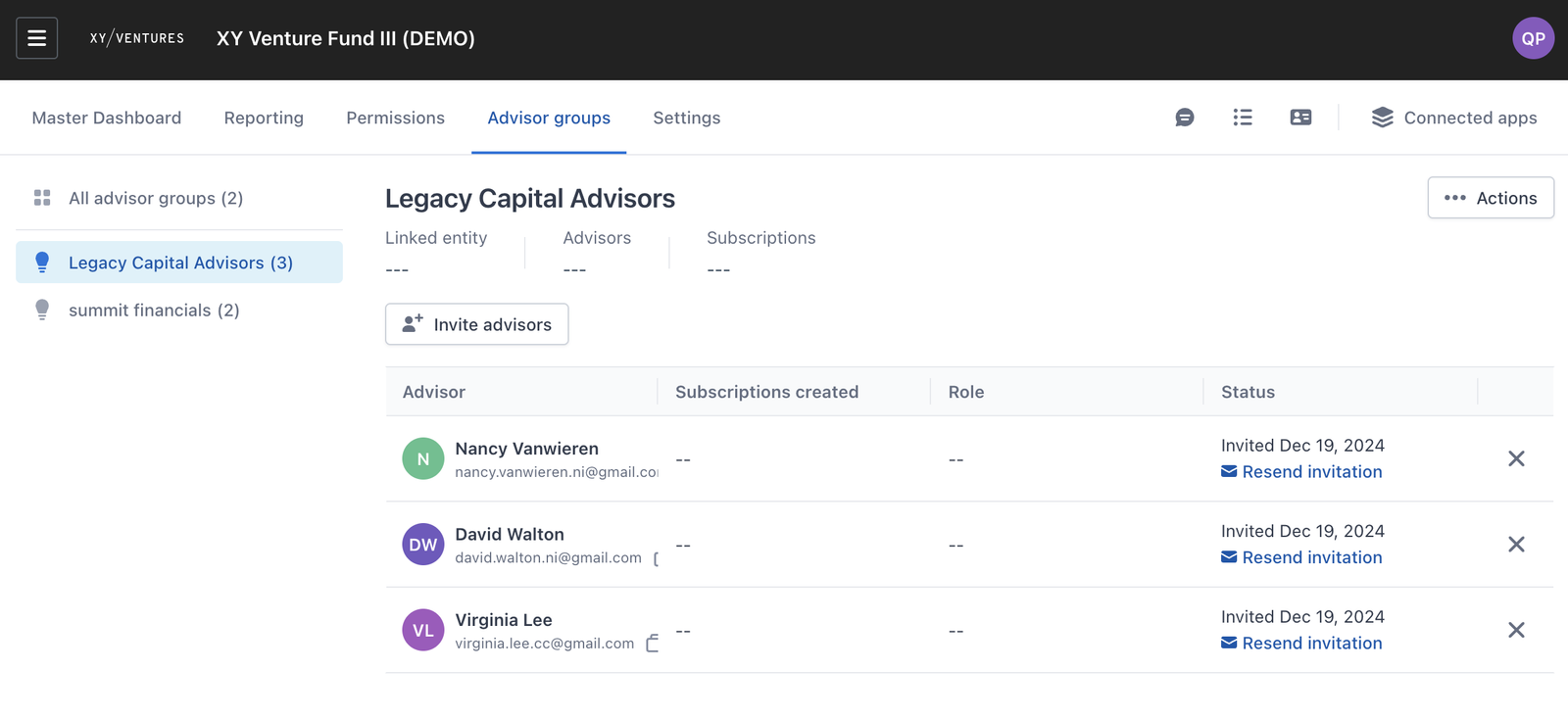
Screenshot of Legacy Capital advisor group (Fund Subscription app) after the fund manager invited advisors from this entity to join fund. Note that all of these advisors carry the same email. (Gmail.com is used for demonstration only)
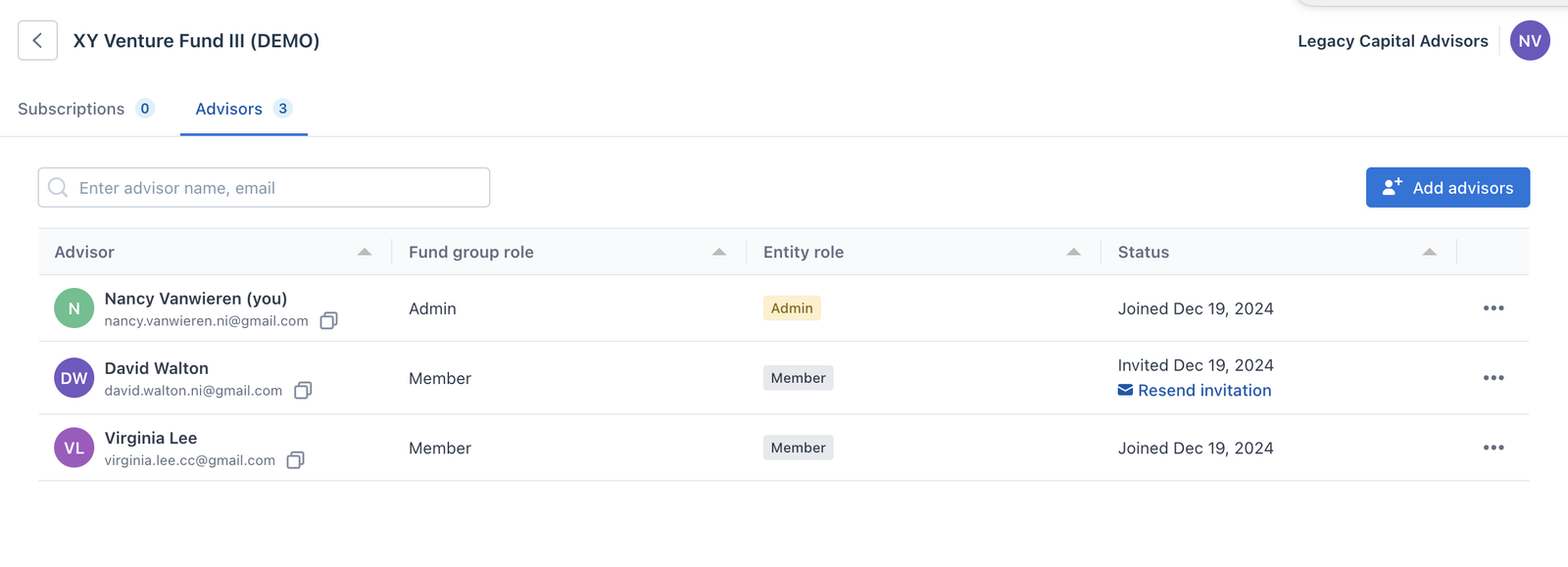
Screenshot of advisor admin from Legacy Capital after they accept the fund invitation. David Walton is automatically added because he carries the email domain associated with the advisor entity (@gmail.com)
Impact of Not Having a Whitelist Domain
Without a whitelist domain, the following issues may arise:
- Advisors Not Automatically Added: Advisors added by fund managers are not automatically included in the advisor entity or as members of the fund. We defined this advisor is not qualified for auto-adding because he carries a different email domain.
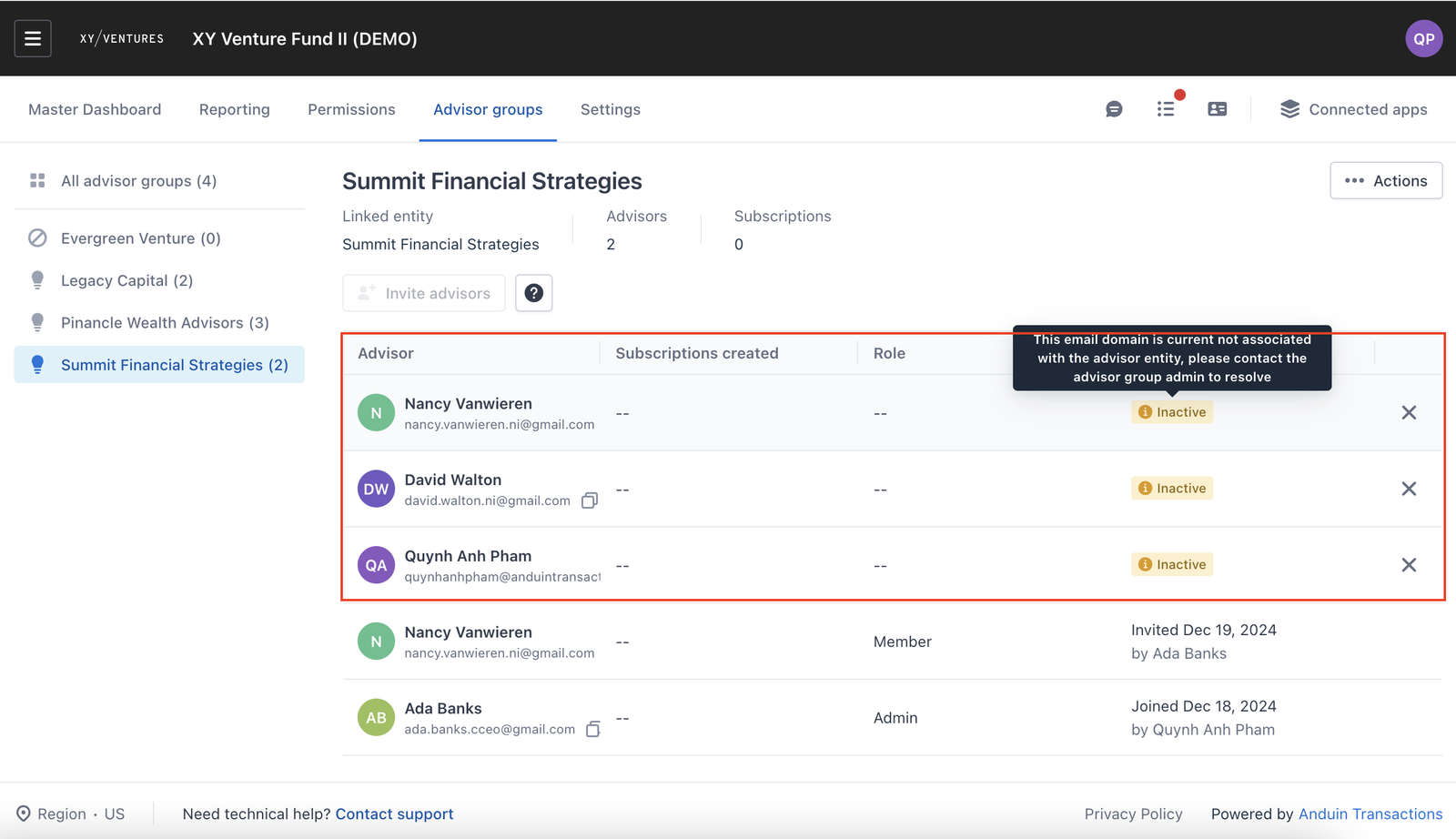
Screenshot of advisor group who accepted invitations to join fund but there are still pending members.
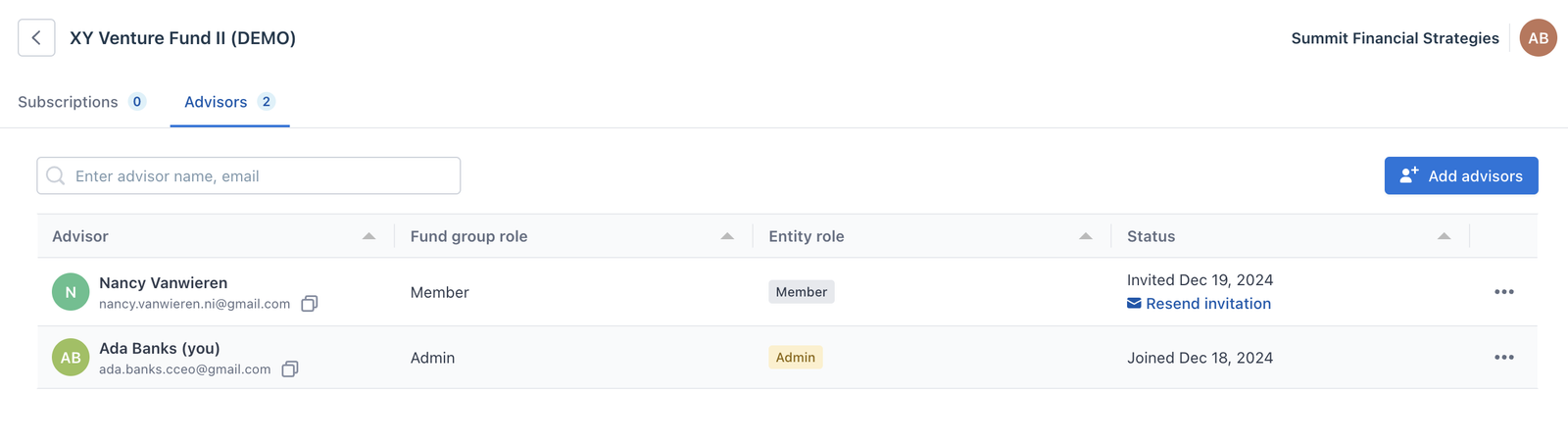
Screenshot from advisor's view on who in the advisor entity has access to the fund. Note that advisors who are “inactive” in the screenshot above do not presented here.
- Access Denial: Advisors attempting to access invitations may encounter a "No Access" screen. Refer to this error page for an explanation.
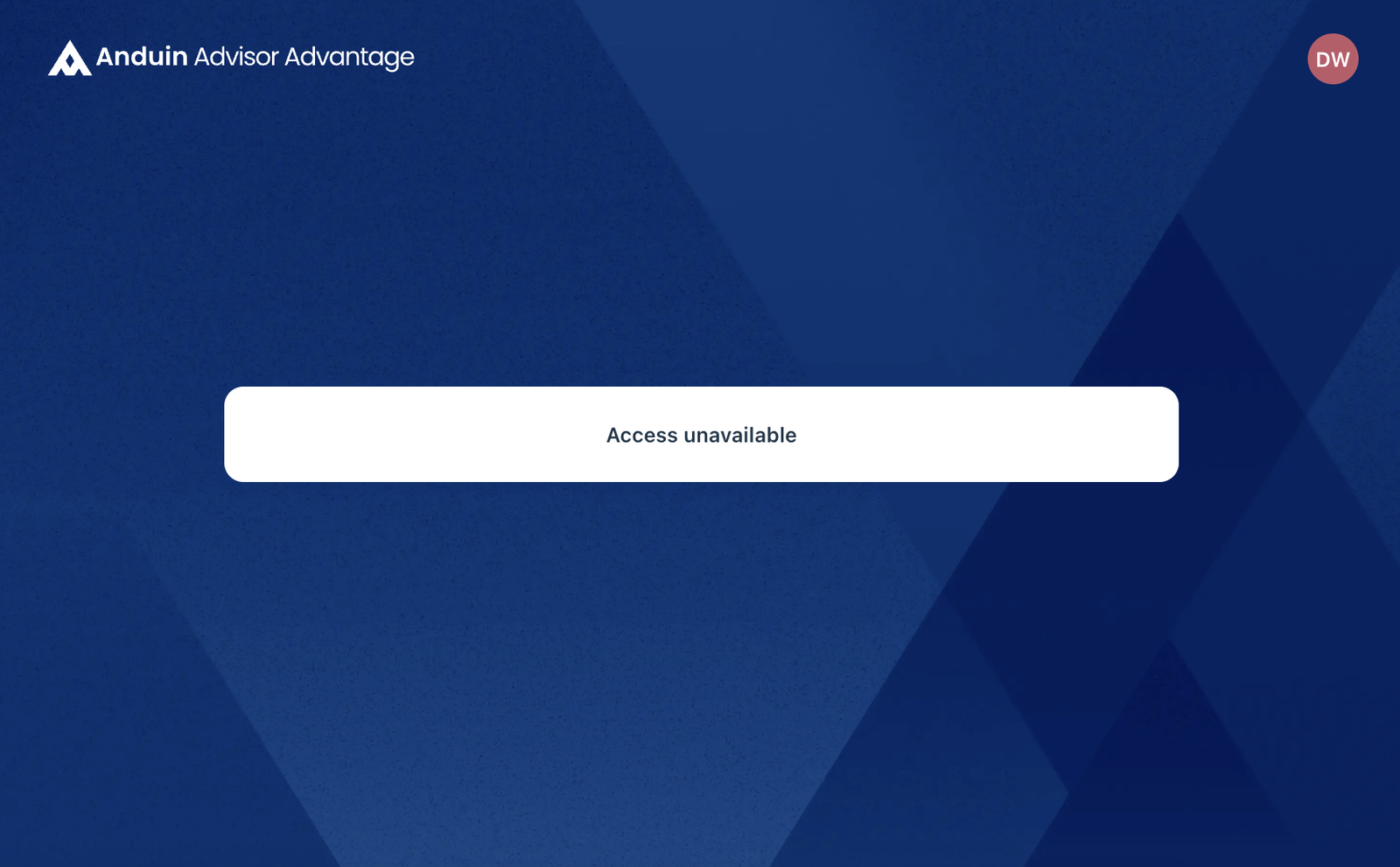
Screenshot of what happened when “inactive” advisors try to access invitations from fund managers
→ Workaround: Fund managers manually reach out to Advisor Admin to add these advisors to the linked entity and grant them access to the fund
Reference: Error Handling: The account has no access as an advisor
How to Use a Whitelist Domain
1. When Creating a New Entity:
- During the setup process, specify the desired email domain(s) to whitelist.
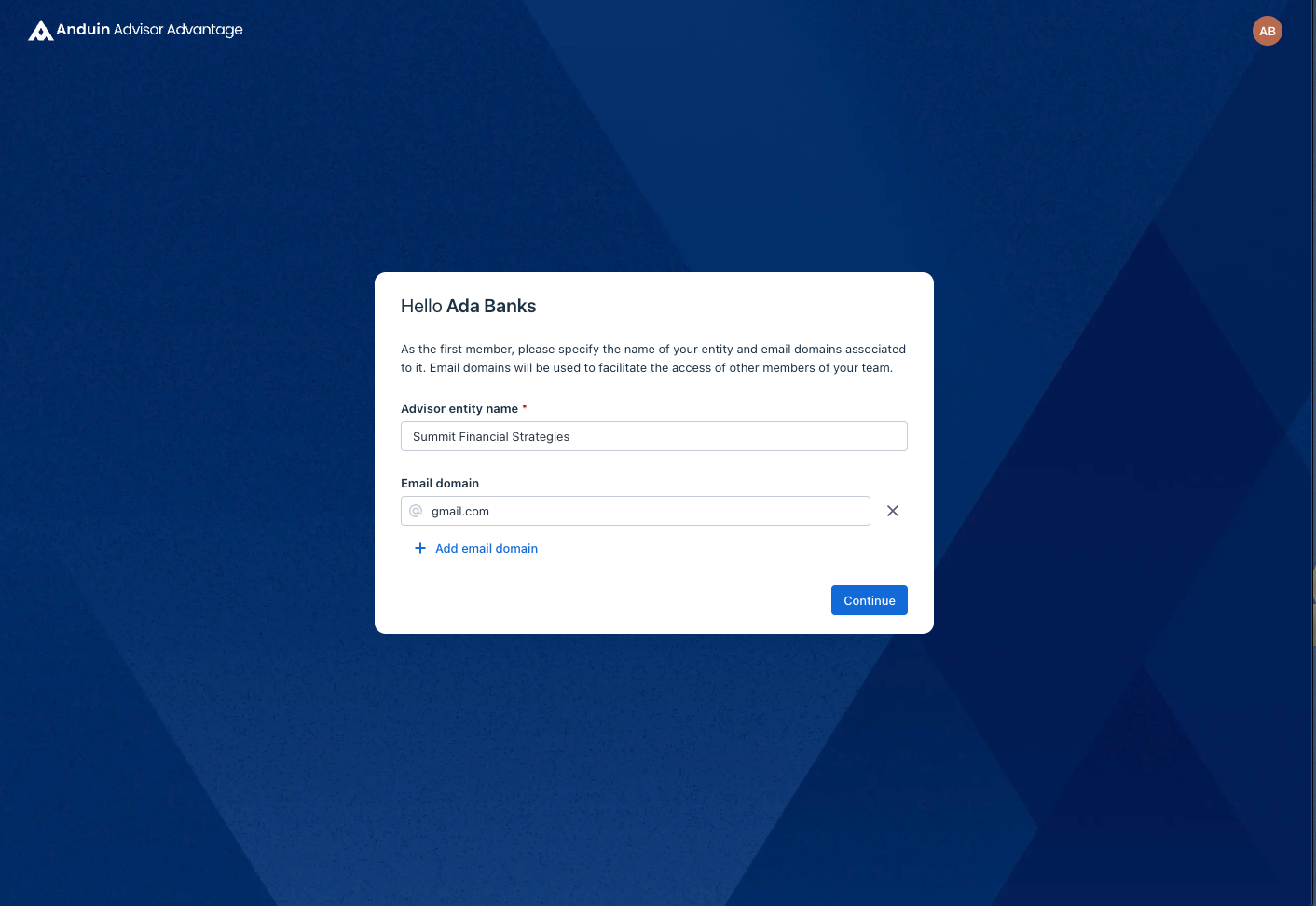
Screenshot of the first advisor creating Advisor Entity
2. Add Email Domain:
- Navigate to the “Entity Setting”
icon of Advisor Entity.
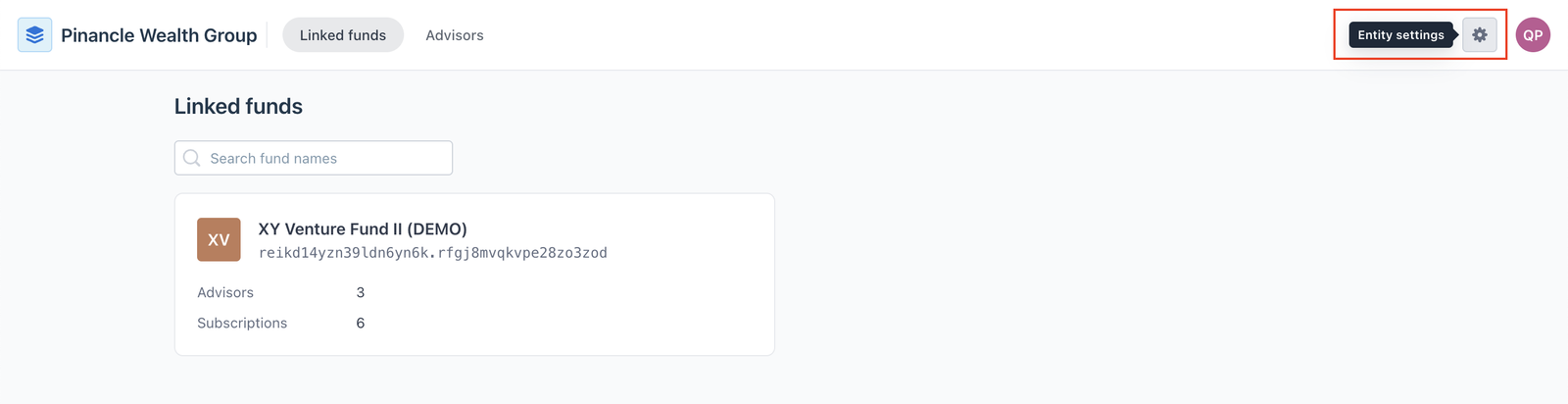
Screenshot of Advisor Advantage homepage
- Select "Add email domain" and input the new domain to whitelist.
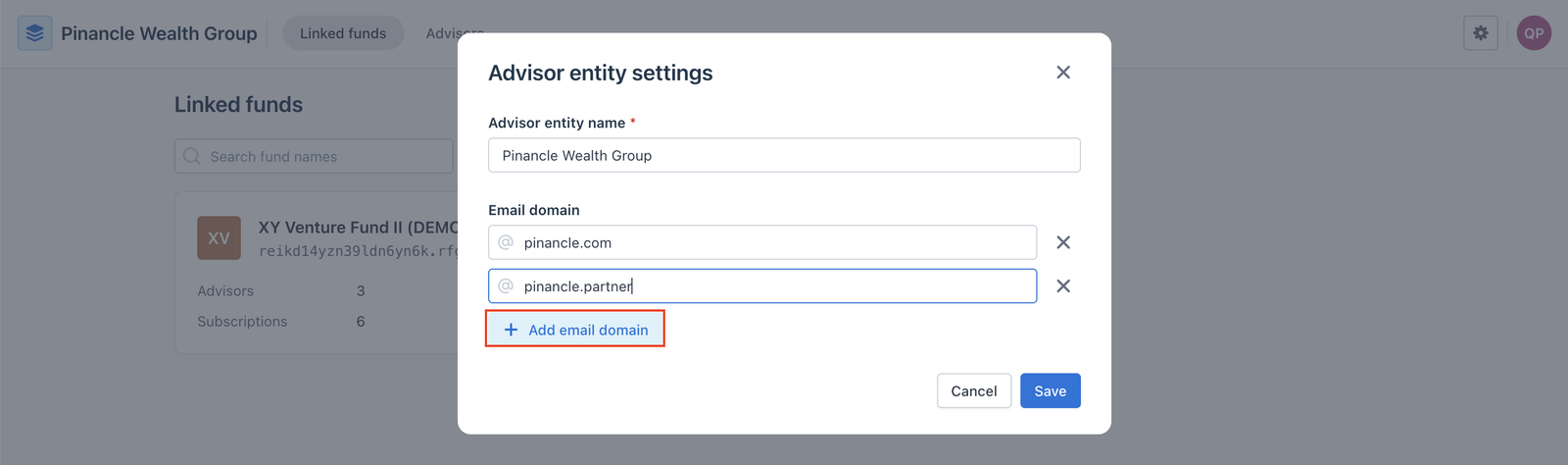
Screenshot of Advisor Entity settings modal
3. Remove a Domain:
- Navigate to the “Entity Setting”
- Identify the domain you wish to remove and select "X” to remove
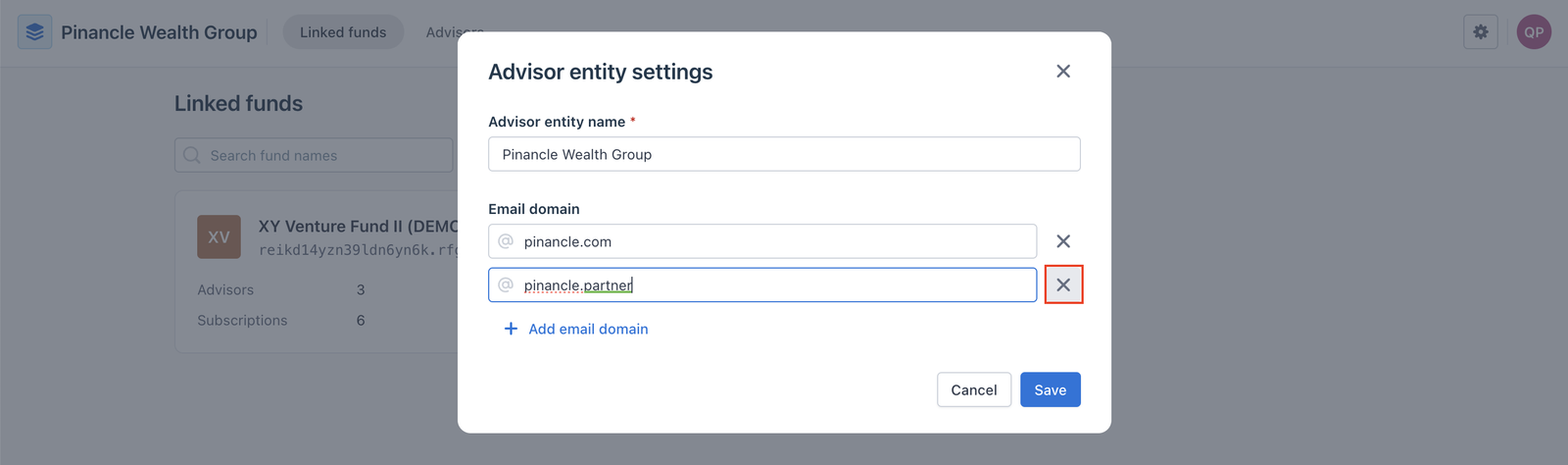
Screenshot of Advisor Entity settings modal