

Create & Manage landing pages
Introduction The Landing Page feature lets you build professional, branded web pages for your investors. This guide covers how to create and edit page info
Introduction
The Landing Page feature lets you build professional, branded web pages for your investors. This guide covers how to create and edit page information, update the page URL, duplicate a page, and delete a page.
Where to find this feature
Go to your IDM Firm in the Anduin IDM app
→ Navigate to the Portal tab
→ Scroll to the Landing Pages section
→ Use the Page Management tab to create and manage your pages
Pre-condition
Before you begin, ensure your IDM Firm has the Landing Page feature enabled. Contact your Anduin support representative to activate it.
1. Create your Home Page
- In Page Management, click Build landing page
- Enter the Home Page name
- Select a template
- You’ll be directed to the web builder to start customizing your content
Note: Each IDM Firm can only have one Home Page.
2. Create additional Opportunity Pages
- In Page Management, click Add Page
- Fill in the details in the modal:
– Page name: for internal tracking – URL path: e.g. /technology-fund – Page category: helps organize pages on the Resources page
- Click Next, choose a template, then click Create.
3. Edit Page Information
- In Page Management, click the (…) menu on the page row
- Select Edit page information
- Update the fields in the modal and click Save.
4. Edit Page URL
Each page URL consists of two parts:
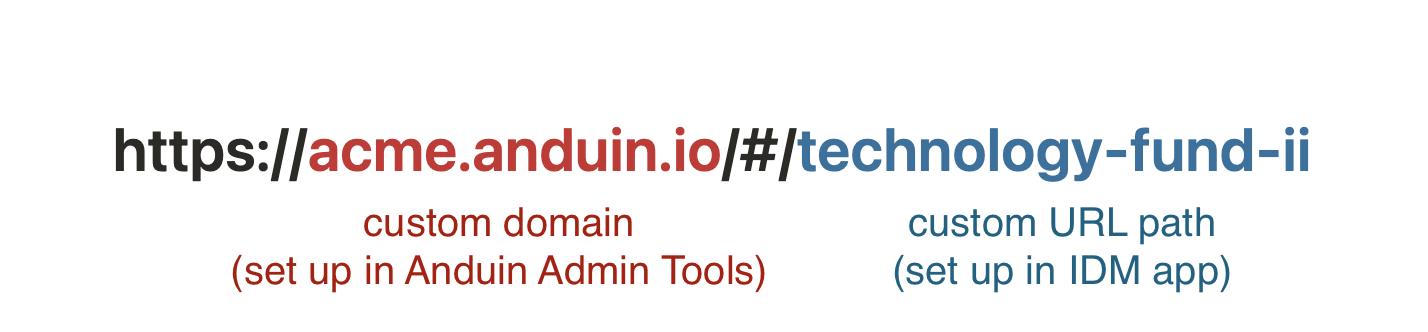
- Domain: Defaults to Anduin’s domain (not editable here)
- Path: This is customizable
To edit the path:
- Click Edit Page Detail
- In the Page URL field, enter a custom path
- Leave blank if you want the system to auto-generate one
Contact your Anduin support representative if you want to customize the domain part of the page.
5. Publish or Unpublish a Page
- To make a page visible to invited guests, click the (…) menu and choose Publish
- To hide it from view, choose Unpublish. Once the page is “Unpublished”, the page URL will no longer be accessible.
Each firm has a limit on the number of published pages, depending on the package signed with Anduin. You can check your current usage and limit at the top right corner of the Page Management tab. What happens if my firm exceeds the limit? An Anduin representative will reach out to discuss upgrade options if needed.
6. Duplicate a Page
- Useful when creating similar pages
- Click the (…) menu
- Choose Duplicate page
- A copy of the page will appear in the list
7. Delete a Page
- Click the (…) menu
- Select Delete page
Note: Deletion is permanent and cannot be undone.