

Style Presets
Introduction Style presets help you keep a consistent look and feel across all your landing pages. You can set predefined styles for colors, text, and butt
Introduction
Style presets help you keep a consistent look and feel across all your landing pages. You can set predefined styles for colors, text, and buttons—and reuse them anytime. This saves time and ensures brand consistency. If your branding changes, just update the preset and it will automatically apply across all widgets using it.
Where to find this feature
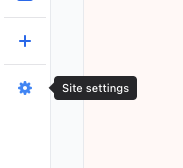
- Click the Site Settings icon on the left sidebar
- The style settings panel will appear
- From here, you can create and manage presets for:
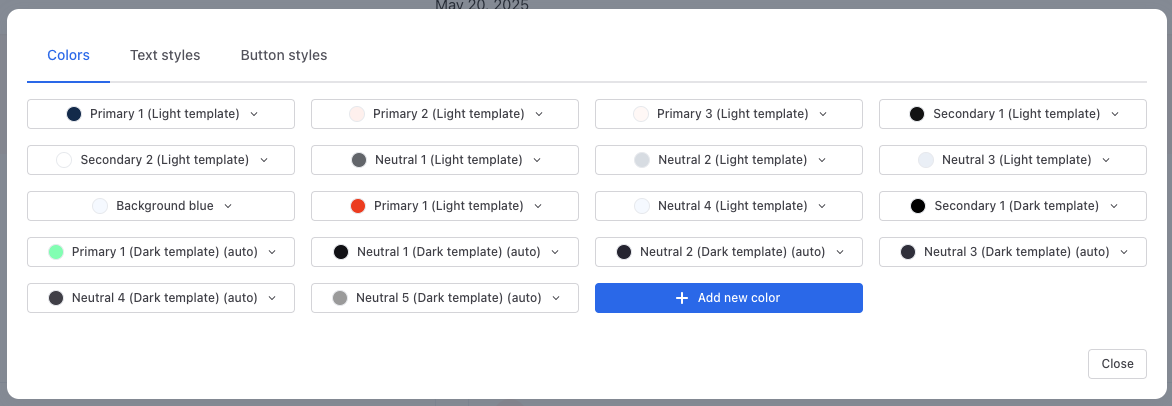
– Color – Text – Button
Create a new style preset:
Color style preset
- Click Add new color
- Enter a name
- Use the color picker or enter a hex code to define the color
- Click Save
You can later use this color for buttons, text, or background fills.
Text style preset
- Click Add new text style
- Enter a name
- Customize the following:
– Font – Font weight (e.g. Normal, Bold) – Size (e.g. 16px) – Line height (e.g. 24px)
- Click Save
This defines how your widget text will appear across pages.
Button style preset
- Click Add new button style
- Enter a name
- Under Text, set:
– Use a preset or define font, weight, size, line height
- Under Color, choose:
– Text color (preset or custom) – Hover text color – Border color, width
- Under Fill, set:
– Background color – Hover fill color
- Under Layout, define:
– Button alignment (left, center, right) – Padding (left, right, top, bottom) – Radius and shadow
- Click Save
Apply a preset to a widget
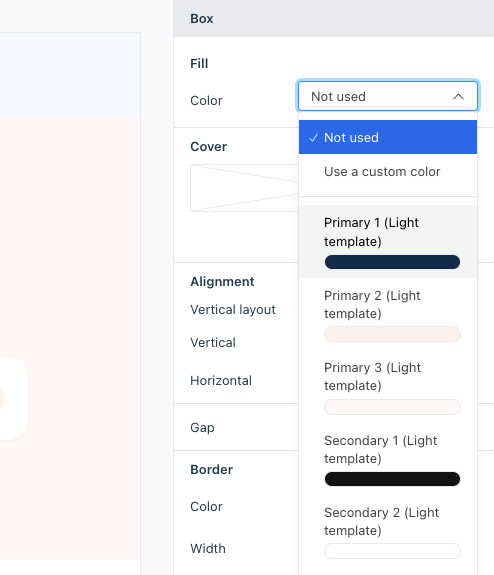
- Select a widget on your page
- In the right sidebar, find the Style dropdown
- Choose the desired preset under Color, Text, or Button
Notes
- Presets are reusable across all pages in your site
- Editing a preset will instantly update all widgets using it