

Fund subscription widget
Show each investor their Fund Subscription orders on your landing page, and choose what investors with no orders see.
Show investors their Fund Subscription orders right on your landing page. Each investor sees only the orders they're part of, and can open any of them in one click.
Where to find it: in the landing page builder, under the Investor widgets or the Fund Subscription section templates.
1 · Add the widget to your page
1. Start from a ready-made section
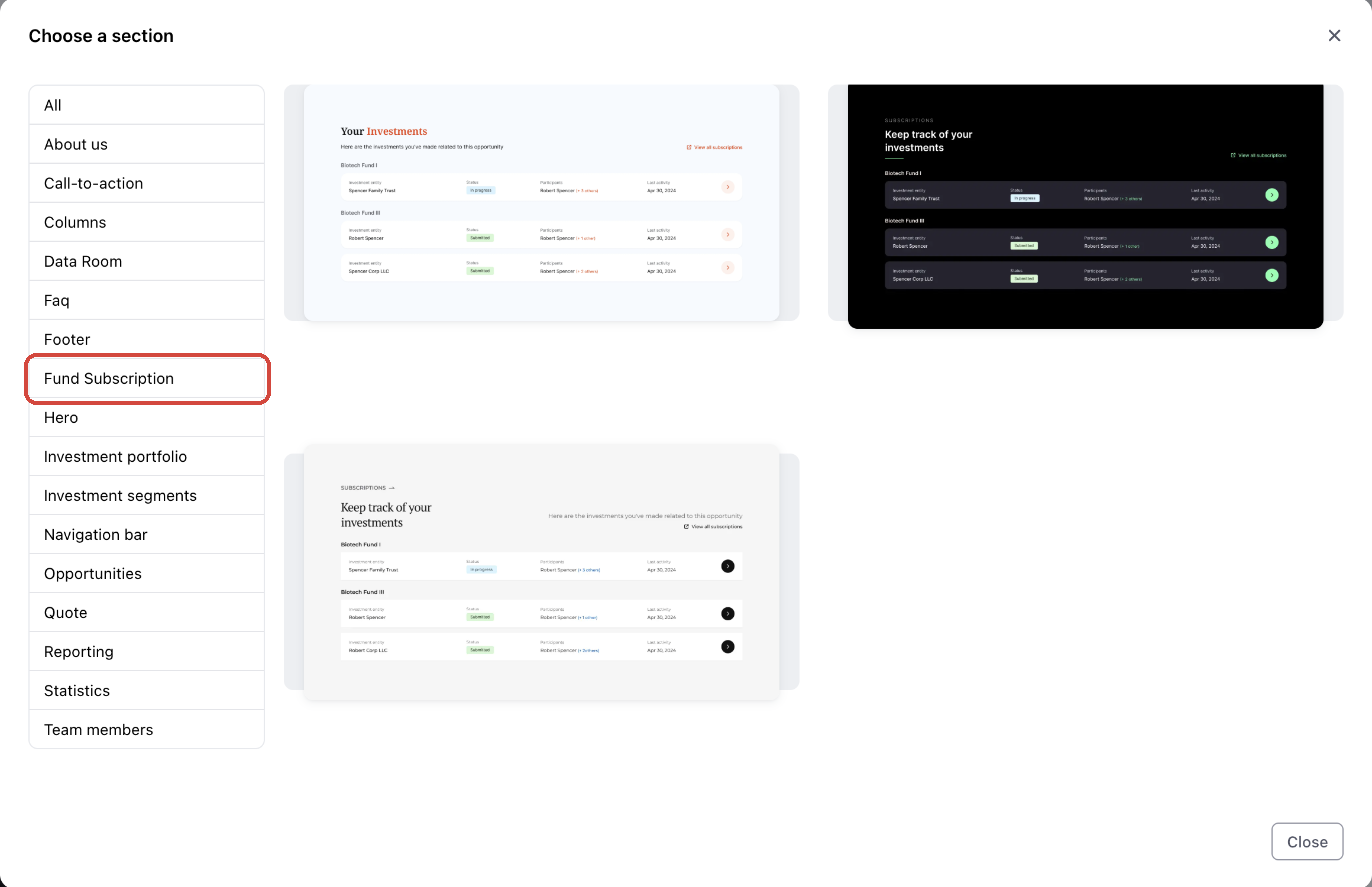
Click the section that should sit above the new one, then click Add Section → Template section. In the Choose a section dialog, select the Fund Subscription category and pick a layout. Each template comes with a heading, a short description and the widget.
2. Or add just the widget
Open the Add widgets panel (the + icon in the left toolbar), go to the Investor category and add Fund subscription.
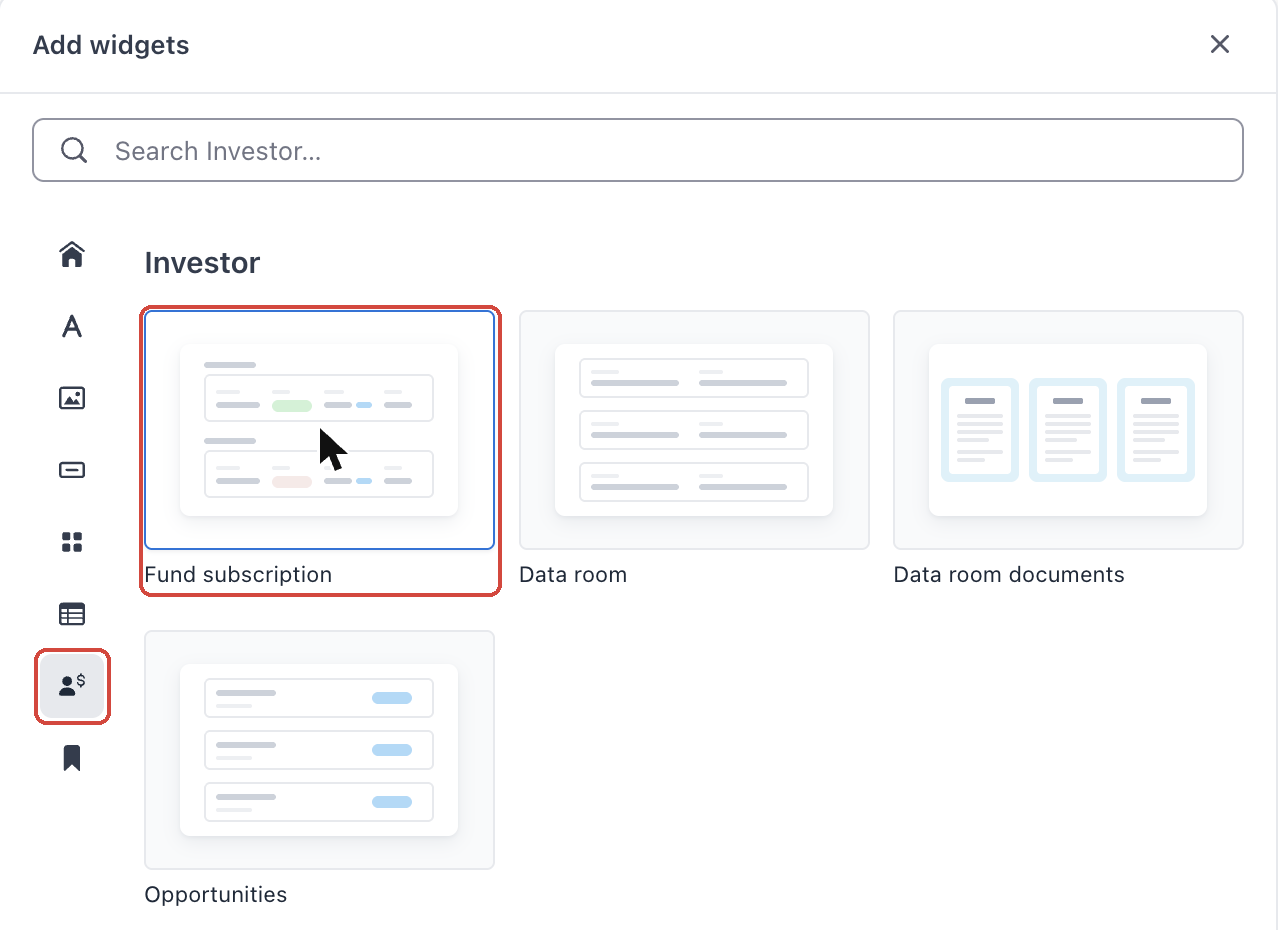
Tip: When you select the widget, its settings panel is titled FundSub.
2 · Choose which workflows to show
1. Link your Fund Subscription workflows
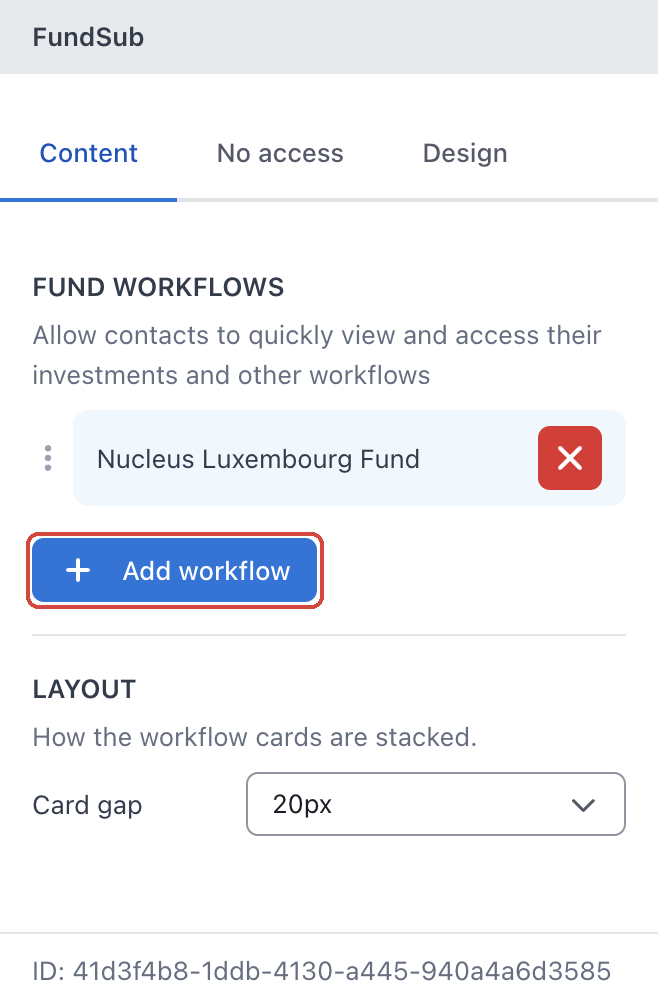
Select the widget. On the Content tab, under FUND WORKFLOWS, click Add workflow.
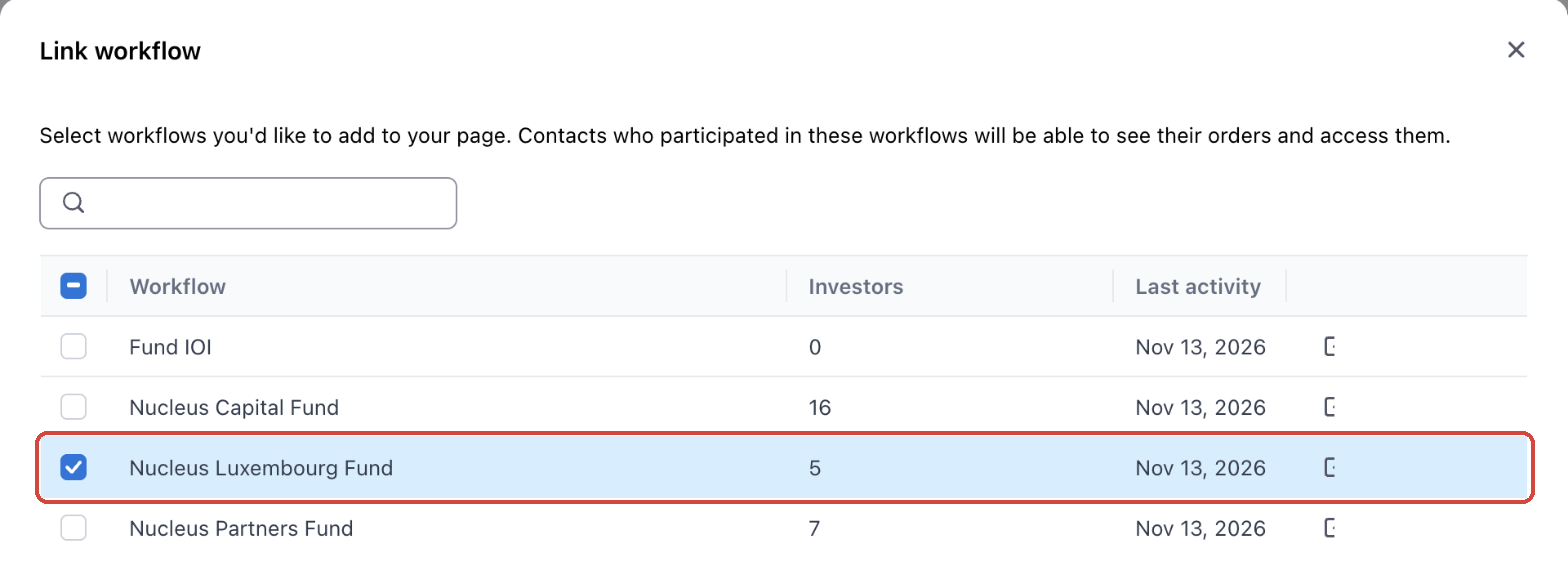
In the Link workflow dialog, tick the workflows to show and click Save. The list shows how many investors each workflow has and when it was last active. Contacts who took part in these workflows can see their orders and open them.
Tip: If a workflow you expect isn't in the list, contact your Anduin representative.
2. Reorder or remove workflows
Drag a workflow by its handle to change the order on the page, or click the red × to remove it.
3. Adjust the spacing
Under LAYOUT, use Card gap to set the space between workflow cards.
3 · What investors see
Each workflow appears under its fund name, with one card per order the investor is part of.
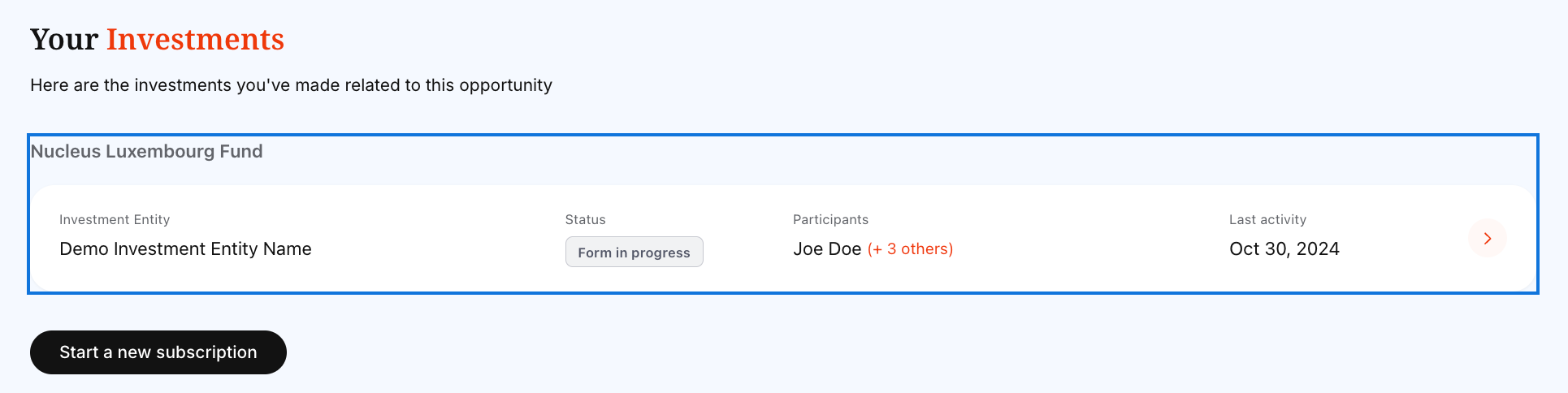
| On the card | What it shows |
|---|---|
| Fund name | The workflow the orders belong to, shown above its cards. |
| Investment Entity | The entity the investor is subscribing through. |
| Status | Where the order is in Fund Subscription, for example Form in progress or Submitted. See Learn about the Subscription Statuses in Fund Subscription. |
| Participants | Who is working on the order, for example Joe Doe (+ 3 others). |
| Last activity | The date of the most recent activity on the order. |
| Arrow button | Opens the order in Fund Subscription in a new tab. |
Tip: In the builder, the card shows sample data such as Demo Investment Entity Name. Investors see their own orders. Use Preview to check the page as an investor.
4 · Decide what investors with no orders see
Investors who haven't taken part in any of the linked workflows see a no access message instead of cards.
1. Open the "No access" tab
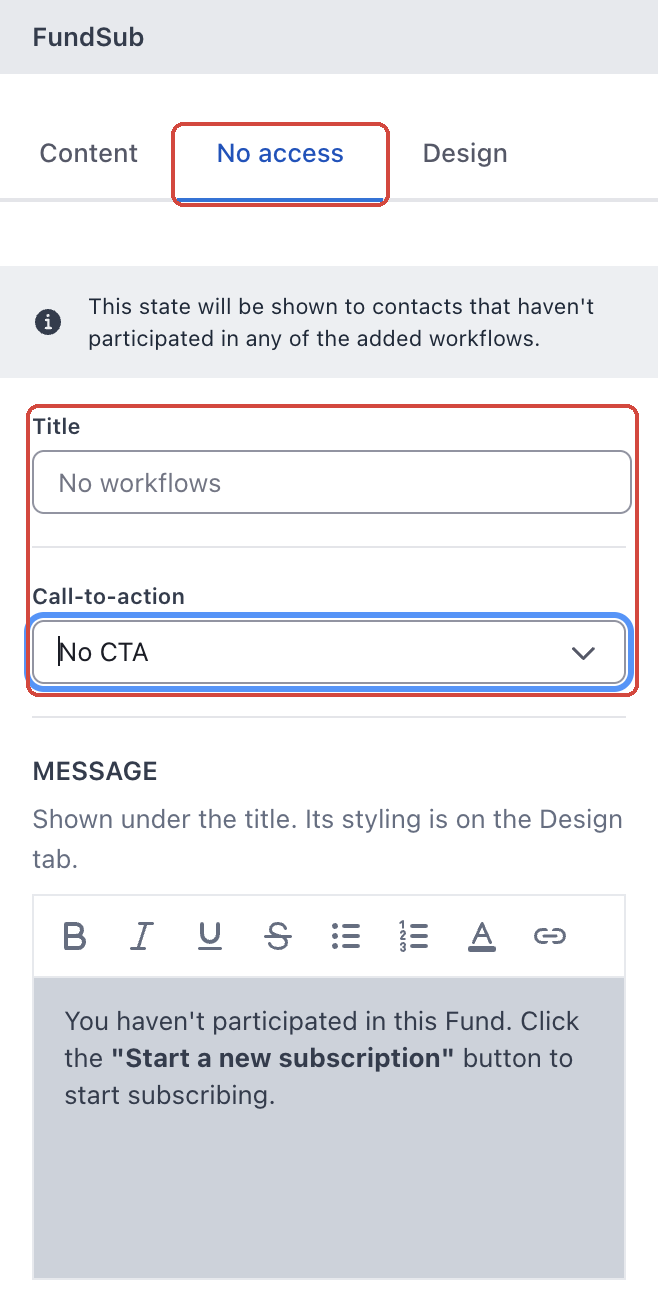
Select the widget and switch to No access. While this tab is open, the canvas shows what these investors will see.
2. Write the title and message, and add a button if you want
- Title: the heading, No workflows by default.
- Call-to-action: choose No CTA, or Custom URL to add a button that links to your own page.
- MESSAGE: the text under the title. You can format it with bold, lists and links.
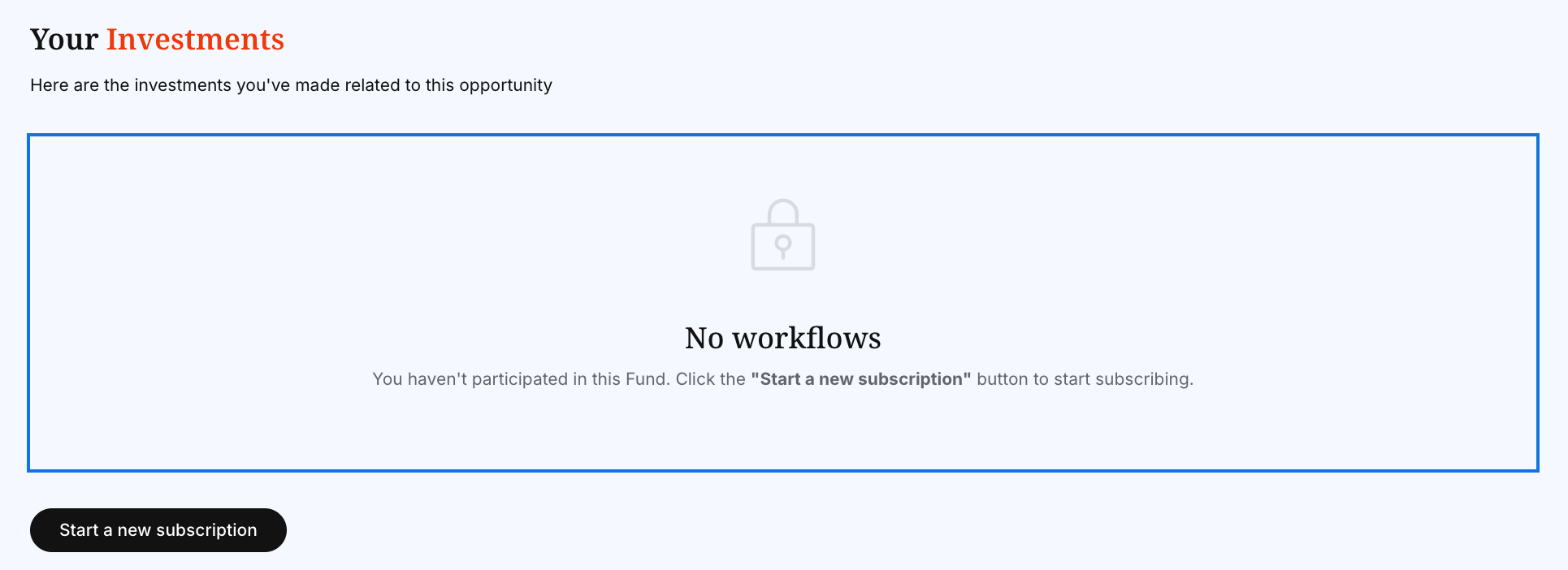
Tip: Pair the widget with a Start a new subscription button on the page, and use the message to point investors to it, as in the example above.
5 · Match the cards to your brand
Select the widget, open the Design tab and choose Cards. Under WORKFLOW CARDS, pick a color from your style presets or a custom color for each part of the card:
| Setting | What it changes |
|---|---|
| Workflow title color | The fund name above the cards. |
| Card background color | The card itself. |
| Label text color | The small labels, such as Investment Entity and Status. |
| Value text color | The values under each label. |
| Link color | Highlighted text such as (+ 3 others). |
| Arrow icon color | The arrow on the card's button. |
| Circle background color | The circle behind the arrow. |
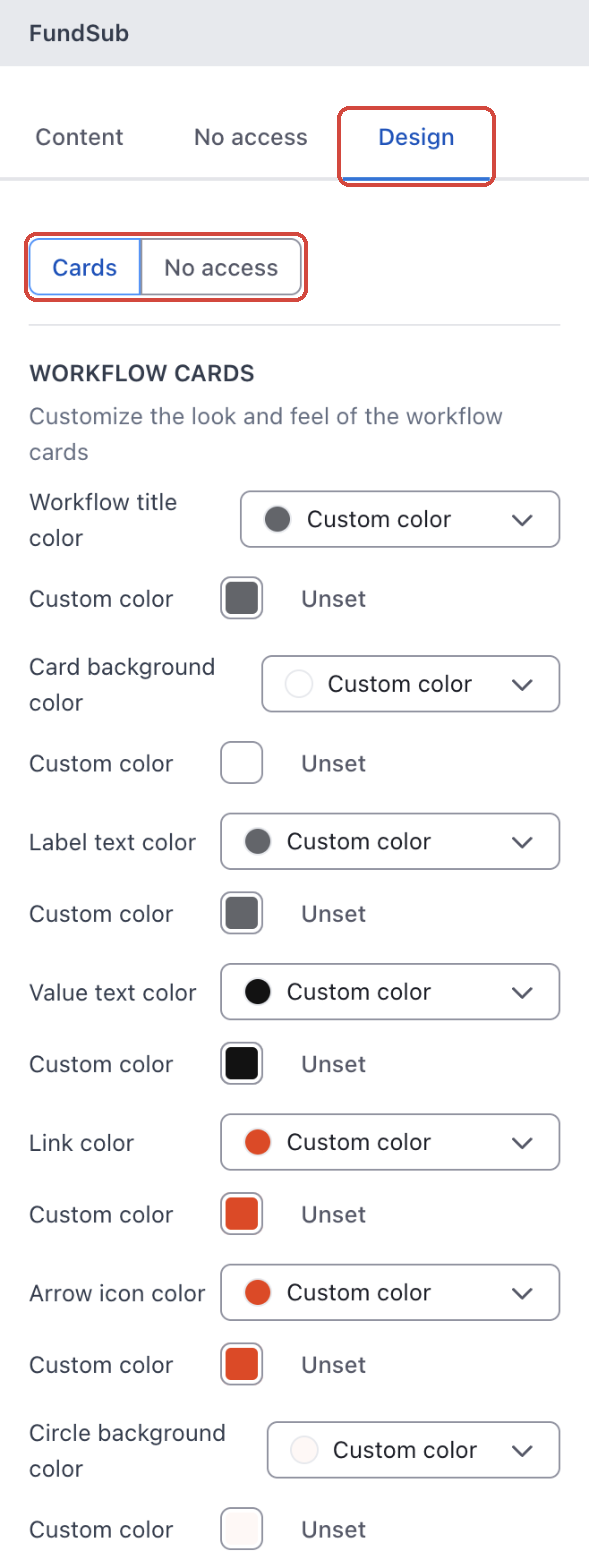
To style the no access message, switch to No access at the top of the Design tab.
Good to know
- Investors only see their own orders. The widget only shows orders in the workflows you linked, and only the ones each investor takes part in.
- No orders means the no access message. Investors who haven't taken part in any linked workflow see the message from section 4.
- The builder never shows real orders. You always see sample data while editing. Use Preview to check the investor view.