
Button widget
Add a call-to-action button that opens a web address, opens another page, or scrolls to a section on the same page.
Add a button to your landing page to point contacts to their next step, for example opening an external website, going to another page of your site, or jumping to a section further down the same page.
Where to find it: in the landing page builder, open Add widgets (the + icon in the left toolbar) and go to the Button category. You can also search for "button", "link" or "call to action".
1 · Add the widget
Open the Add widgets panel, go to the Button category and add one of the four types:
| Type | Starting look |
|---|---|
| Button | Solid button filled with your accent color |
| Outline button | Border only, no fill |
| Minimal button | Light, tinted fill |
| Text button | Label only, no fill or padding |
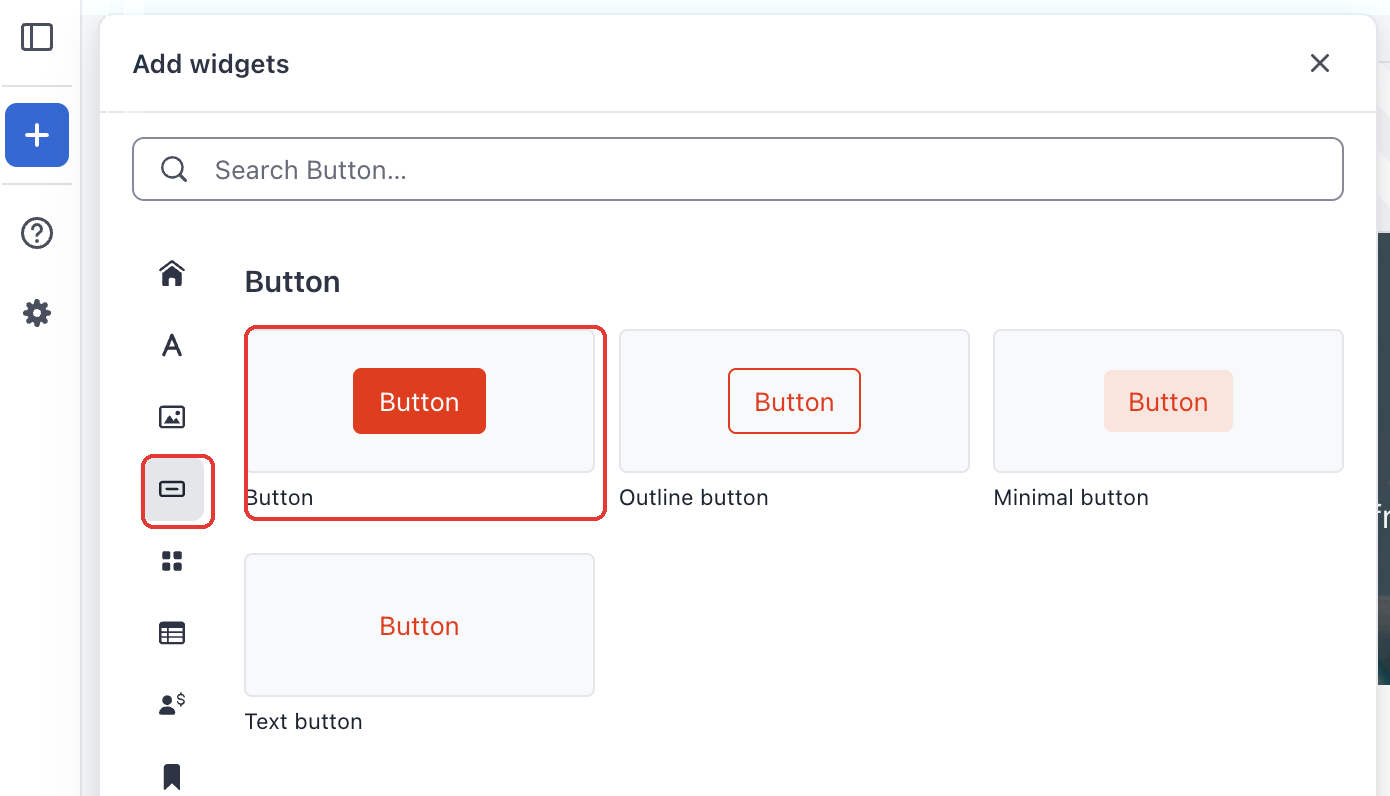
Tip: All four types have the same settings and only start with a different look, so you can restyle any of them later.
2 · Write the label
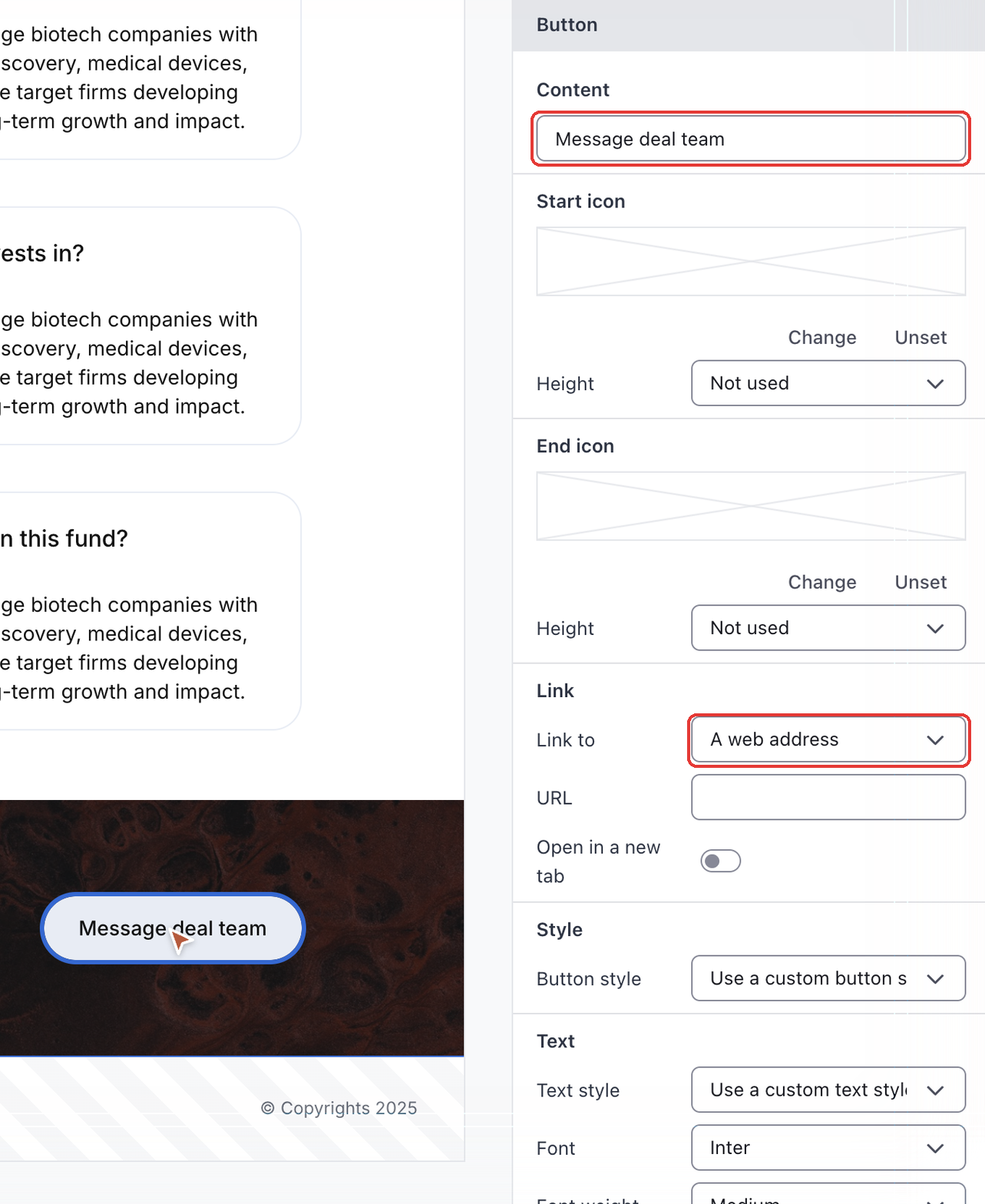
Select the button on the page. In the settings panel, type the button text under Content.
To show an icon before or after the label, use Start icon or End icon: click Change to pick an image from your assets, or Unset to remove it. Leave Height on Not used to match the icon to the text size.
Good to know: Clicking a button in the builder selects it and doesn't follow its link. Use preview to try it out.
3 · Choose where the button goes
Under Link, open Link to and pick what the button does:
| Link to | What to set | When contacts click |
|---|---|---|
| A web address | Paste the address in URL. Turn on Open in a new tab to keep your page open. | Opens the address |
| A page | Choose one of your site's pages under Page. | Opens that page |
| An element on this page | Click Choose an element, then click the part of the page to go to. | Scrolls to it |
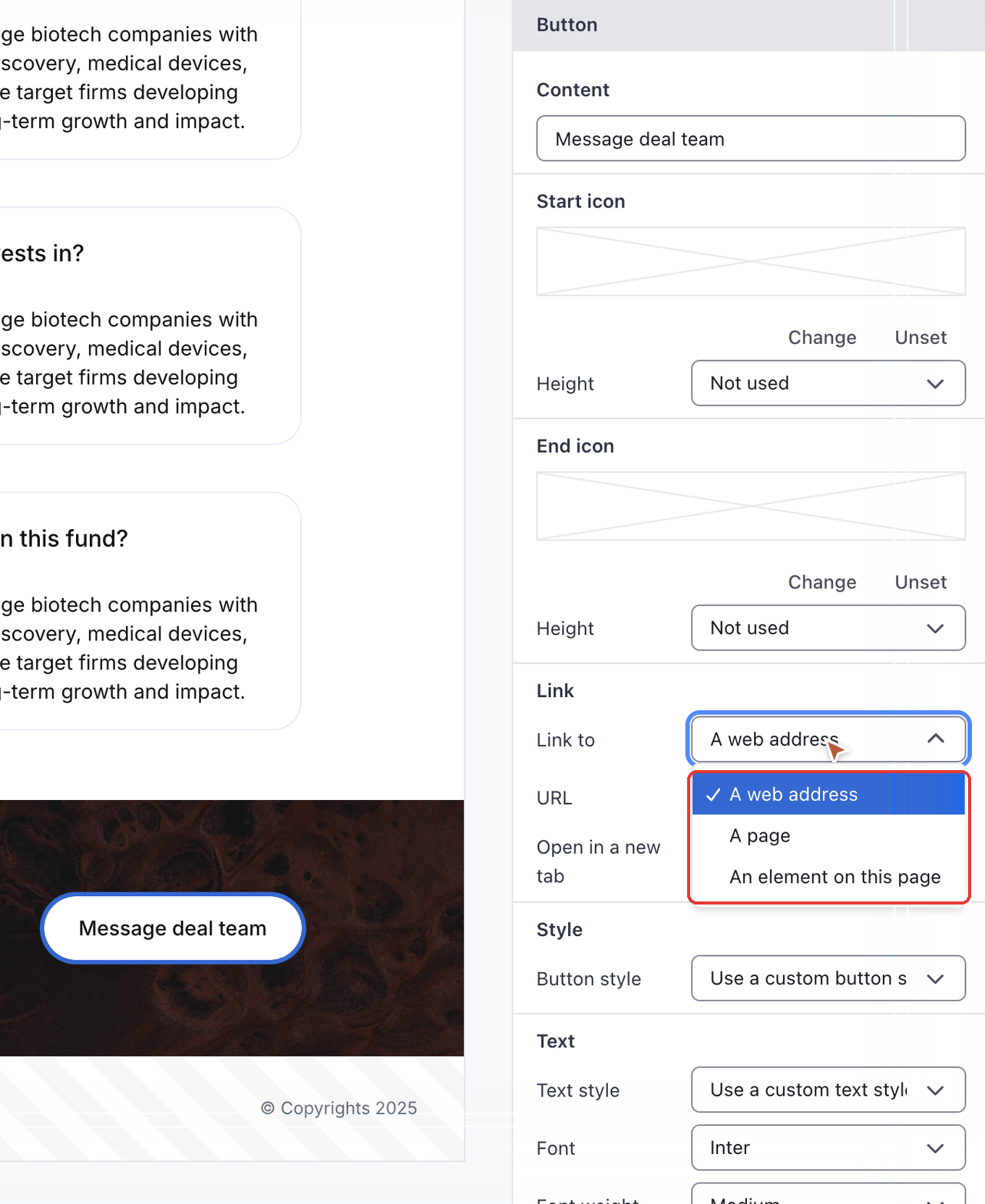
Note: Link to appears only when your site has more than one page. Otherwise you'll just see the URL field.
Scroll to a section on the same page
- Choose An element on this page, then click Choose an element.
- Move your cursor over the page. The item under the cursor is outlined and named in the settings panel. Click to pick it, or press Cancel or Esc to stop.
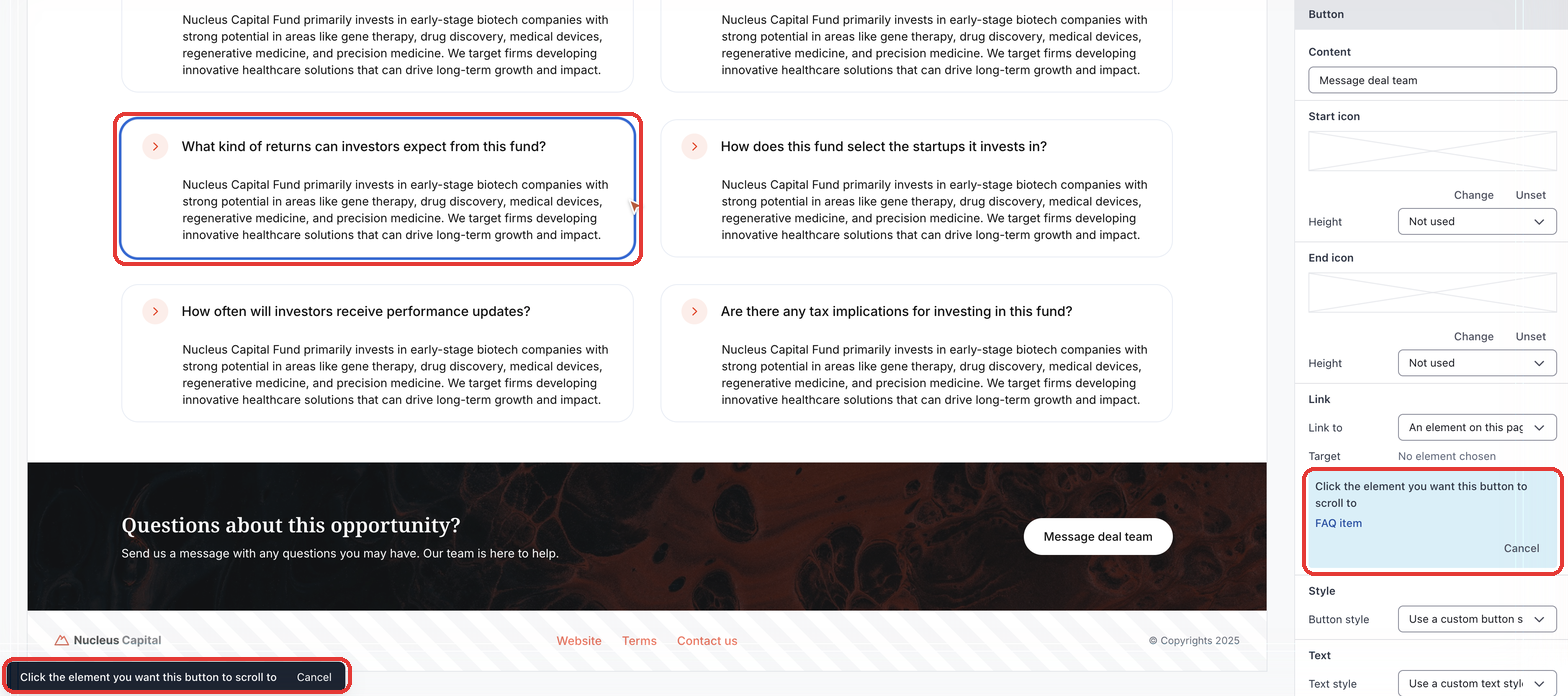
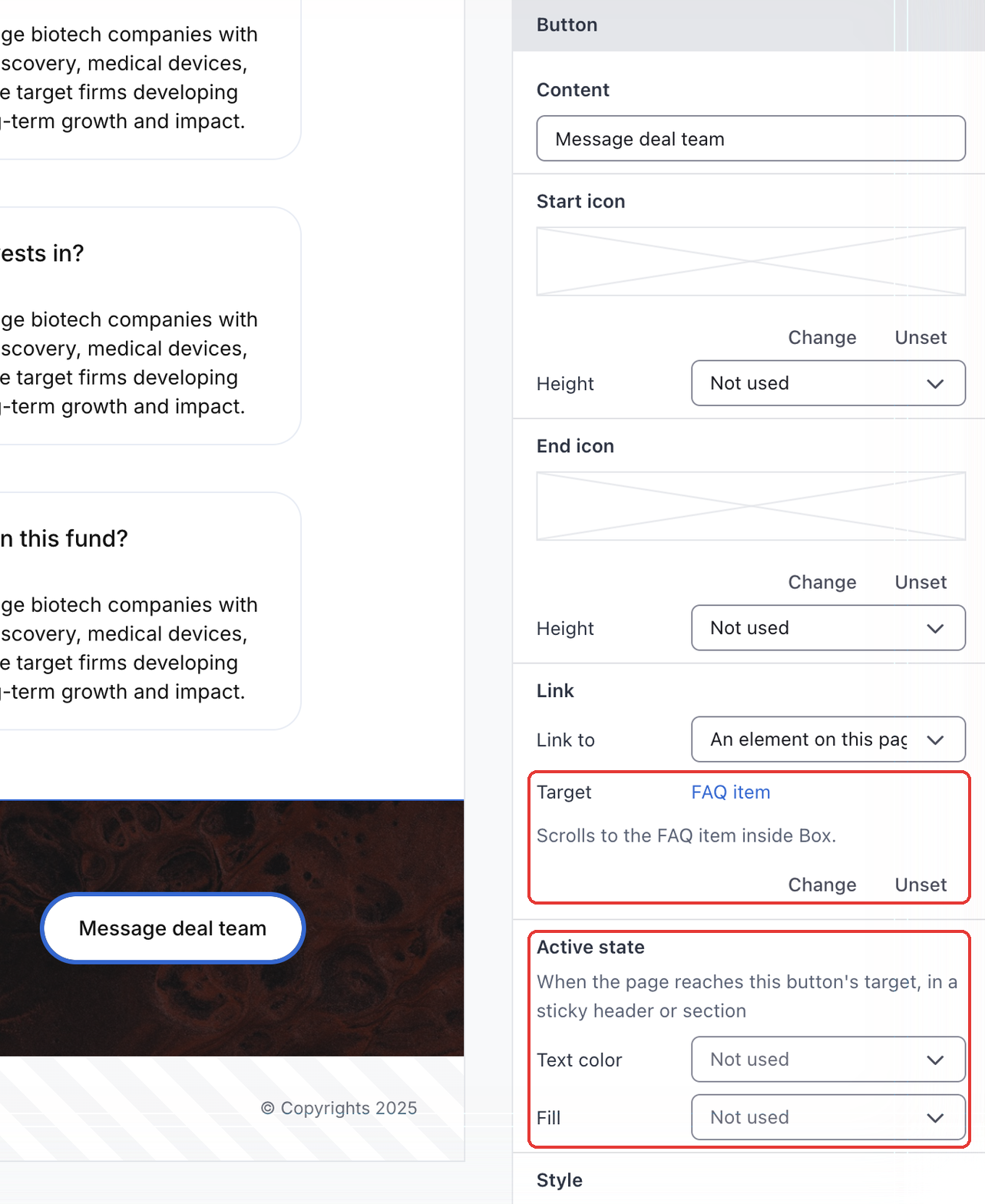
- Target now shows what the button scrolls to. Click Change to pick something else, or Unset to clear it.
If an item can't be picked, the panel tells you why, for example "can't scroll to itself", "hidden on this device" or "in the shared header or footer".
Active state: when a button that scrolls to an element sits in a sticky header or section, it can switch to a different Text color and Fill once the page reaches its target, so contacts can see where they are. Leave both on Not used to keep the normal look.
Note: Buttons in the page header and footer can't scroll to an element, because the header and footer appear on every page and the target doesn't.
4 · Style the button
Under Style, pick a saved Button style to apply your site's look in one click. Saved styles come from your style presets. While a saved style is applied, the Text, Border, Fill, Layout and Padding settings are hidden because the style controls them.
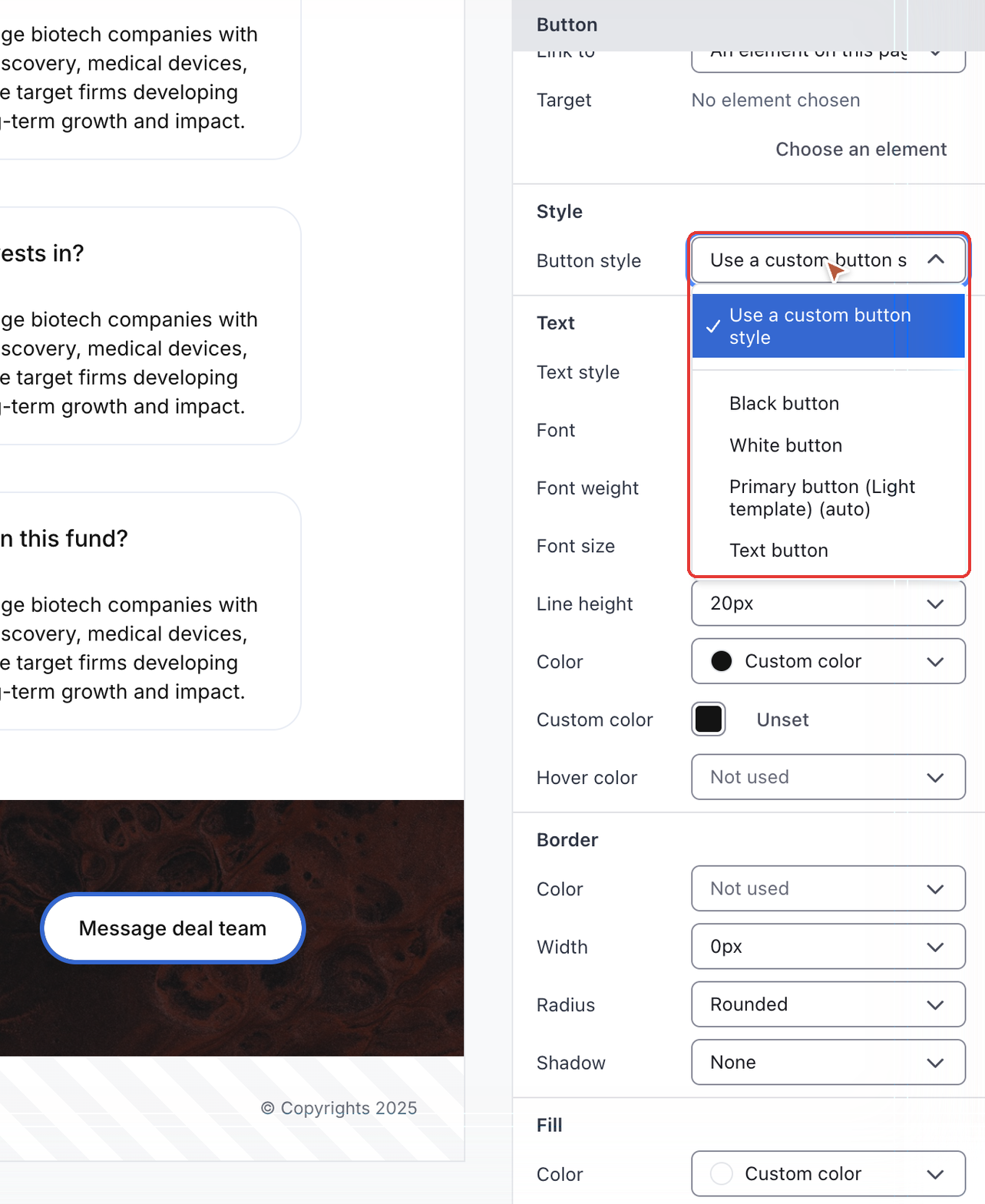
To style the button yourself, choose Use a custom button style and adjust:
| Settings | What you can change |
|---|---|
| Text | Text style, font, weight, size, line height, color and hover color |
| Border | Color, width, radius and shadow |
| Fill | Background color and hover color |
| Layout | Alignment: left, center or right |
| Padding | Space inside the button on each side |
| Size | Max width: Fit content, 100% or a fixed width |
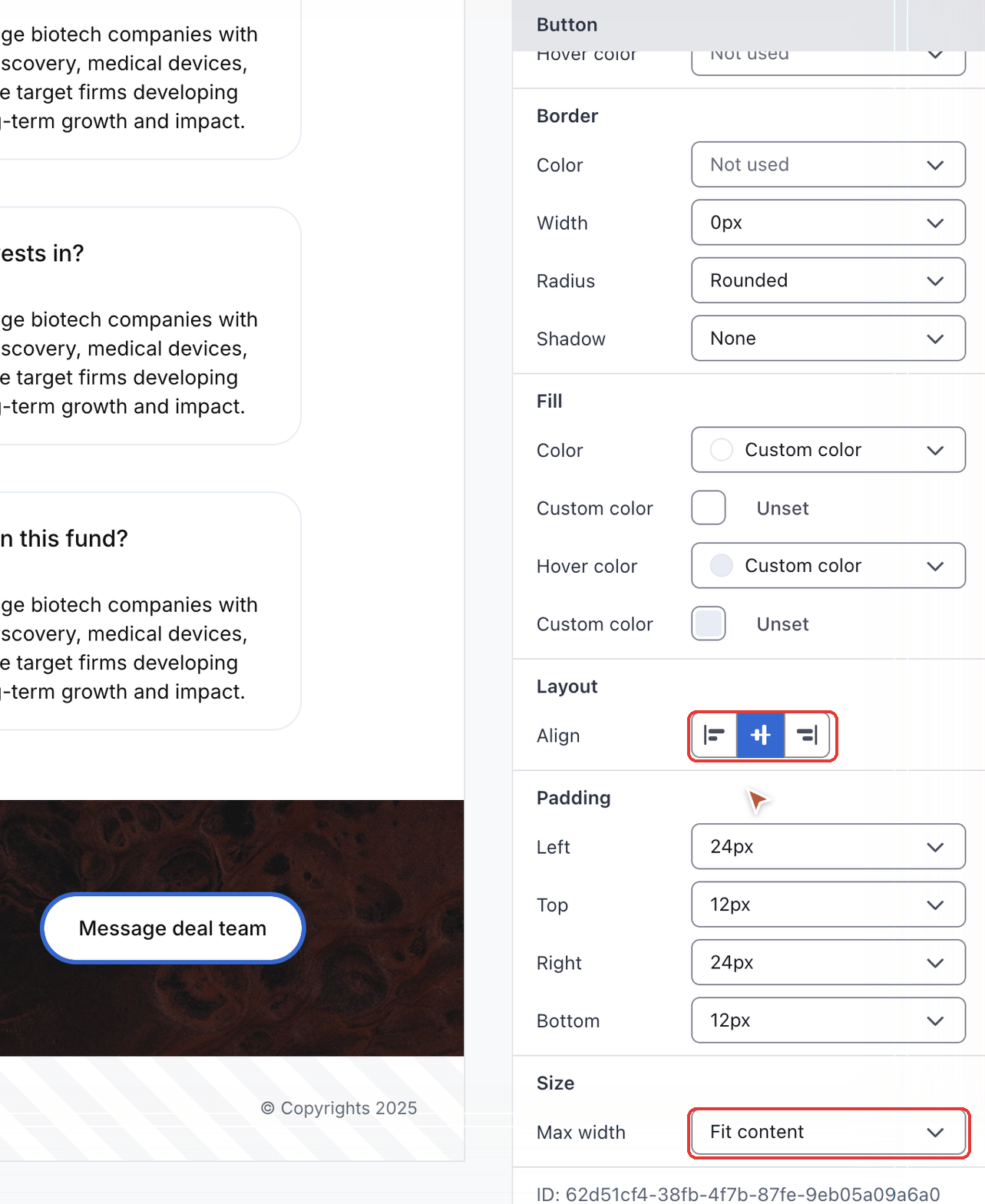
Tip: Colors, sizes, padding and width can be set separately for each screen size. Switch the device preview at the top of the builder, then change the value for that screen.
5 · What contacts see
| Situation | What happens |
|---|---|
| The button has a link | Clicking opens the address or page, or scrolls to the target |
| No link is set, or the linked page or section was deleted | Nothing happens on click. In the builder, the settings show Select a page or No element chosen so you can fix it |
Button clicks are counted in your landing page engagement insights. Clicks made while a team member uses View Portal as contact aren't counted.