

Style your system pages: Resources, Documents, Inbox and Profile
Match the Resources, Documents, Inbox and Profile pages to your other landing pages: page heading, colors and Resources tabs.
System pages are the ready-made pages every contact gets in your Investor Portal. You can't delete them, but you can style them so they match the rest of your landing pages.
Where to find it: Go to Portal → Landing pages and open the System pages tab.
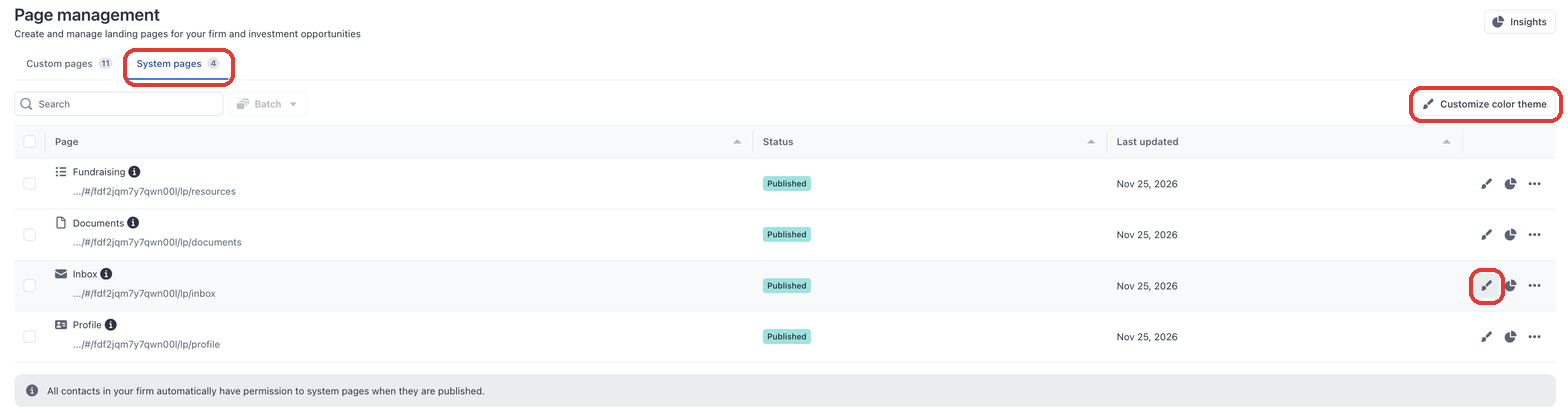
What each system page is for
| Page | What contacts see |
|---|---|
| Resources | Every page, subscription and data room they can access, in one place. |
| Documents | The documents your firm has shared with them. |
| Inbox | Messages your firm has sent them. |
| Profile | Their own profile information. |
Depending on your plan, you may not have all four. Every contact in your firm can see a system page once it's published. The content is filled in for each contact automatically, so you don't add it yourself.
Good to know: You can rename a system page, for example, from Resources to Fundraising. Click ⋯ → Edit page details next to the page.
1 · Open a system page in the builder
In the System pages tab, click the pencil icon next to the page. Each system page has three parts:
| Part | Can you change it? |
|---|---|
| Header and footer | Yes. They're shared with all your landing pages. See Page Header & Footer. |
| Page heading (the title and subtitle at the top) | Yes. It's a regular Container with two Text widgets, and you can add more widgets to it. |
| System widget (the inbox, profile, documents or resources list) | Only its colors, and the tabs on Resources. |
Good to know: In the builder, the system widget shows sample data. Contacts see their own.
2 · Style the page heading to match your other pages
The page heading is the area with the page title and short description. Style it the same way as the headings on your other pages.
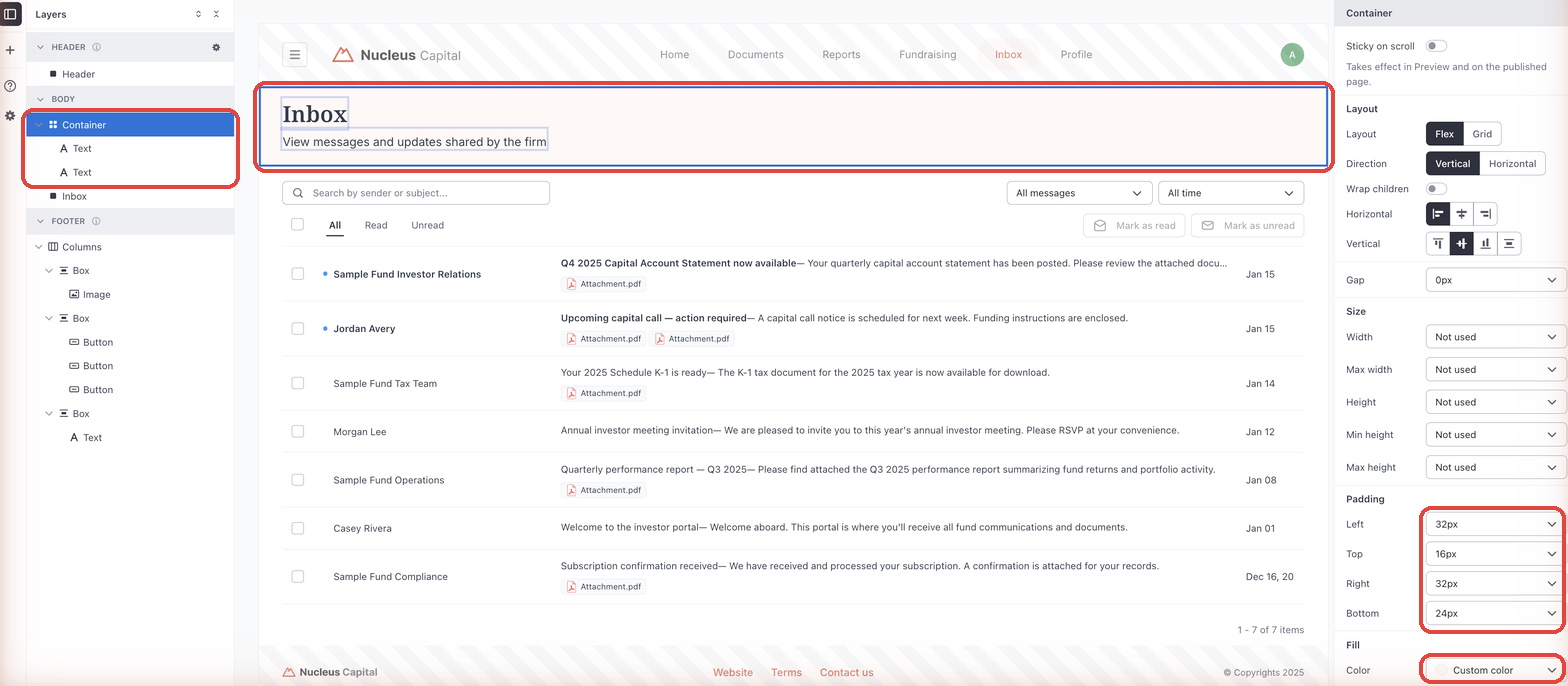
- In Layers, select the Container above the system widget. It holds the page title and subtitle.
- Change its Fill color, Padding and Layout settings to match the heading on your other pages.
- Select each Text widget and apply the same Text style you use for titles and subtitles on your other pages.
- To add more to the heading, such as another line of text, a button or an image, click ⋮ next to the Container in Layers and choose Add widget inside. You can also drag a widget from Add widgets into it.
- Click Save changes, then Publish.
Tip: The fastest way to match exactly is to reuse a heading. On one of your other pages, right-click its heading and choose Save as widget. Then add it to each system page from Add widgets → Saved, and delete the old heading. See Saved widgets.
You can also add your own sections above or below the system widget, for example, an introduction, an image or a contact button. Right-click the system widget and choose Add section above or Add section below.
3 · Change the colors of the system widgets
The system widgets use one color theme, shared by all four system pages.
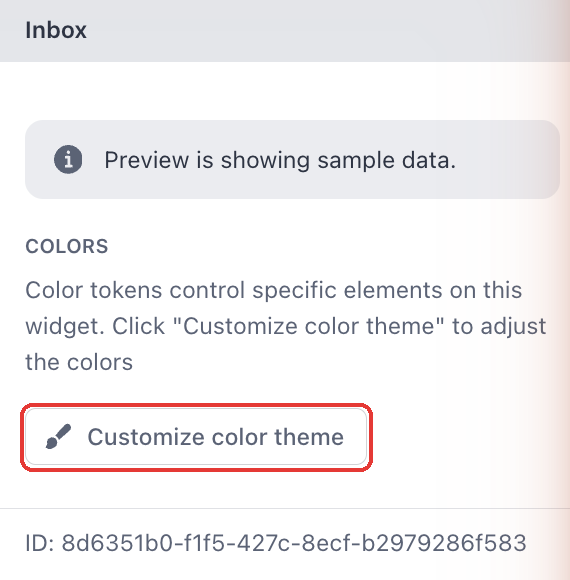
- Select the system widget and click Customize color theme, or click Customize color theme in the System pages tab.
- Enter your Primary color, for example, your brand color. A matching set of shades is created for you.
- To pick each shade yourself, turn on Choose color set manually and set Primary 1, Primary 2 and Primary 3.
- Use the Resources, Document, Inbox and Profile tabs to preview each page.
- Click Save.
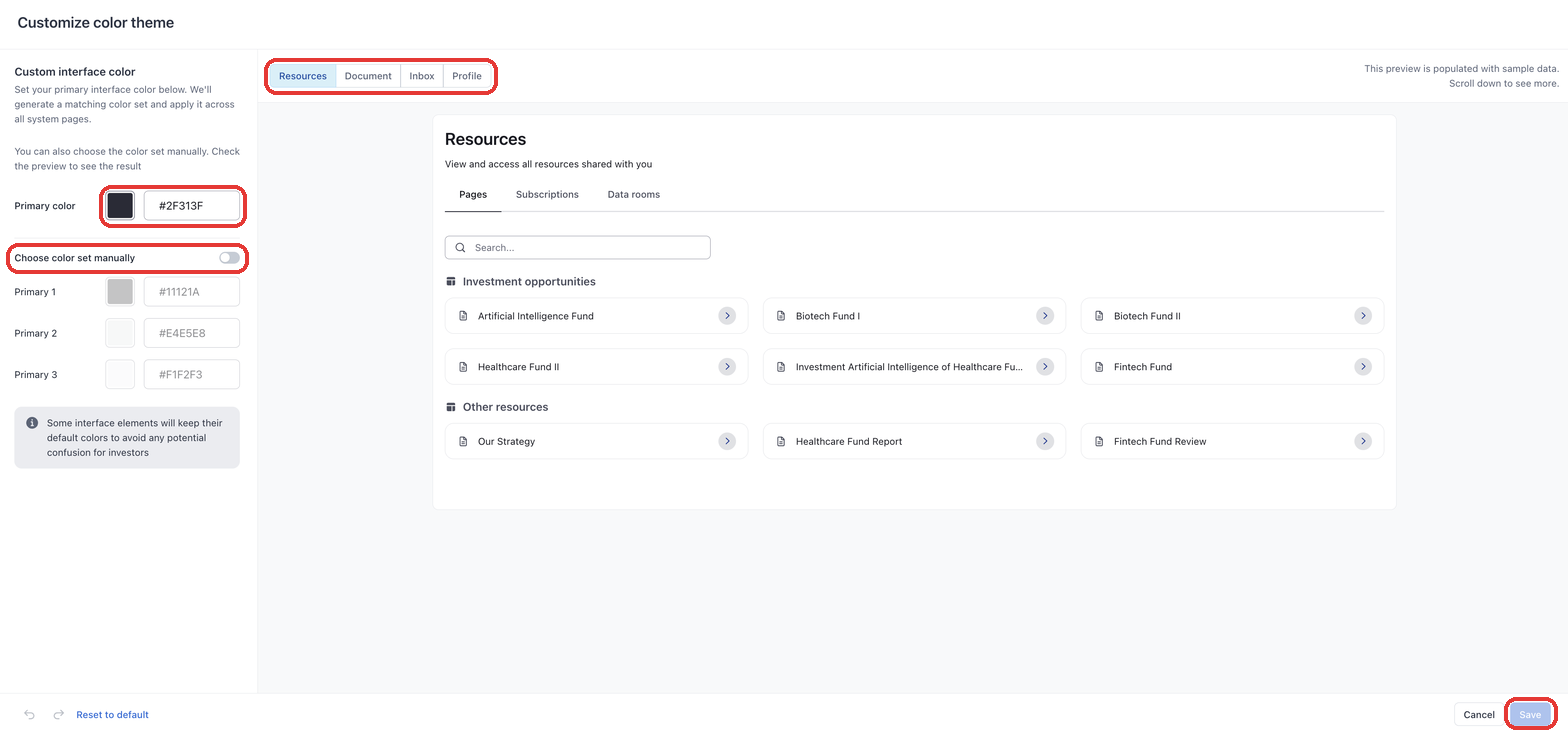
To go back to the original colors, click Reset to default, then Save.
Good to know: A few interface elements keep their default colors, so contacts aren't confused by them.
4 · Choose the tabs on the Resources page
The Resources widget has tabs for Pages, Subscriptions and Data rooms. Select the widget to:
- Show or hide a tab with its switch. At least one tab must stay visible.
- Rename a tab (up to 24 characters).
- Drag tabs to change their order.
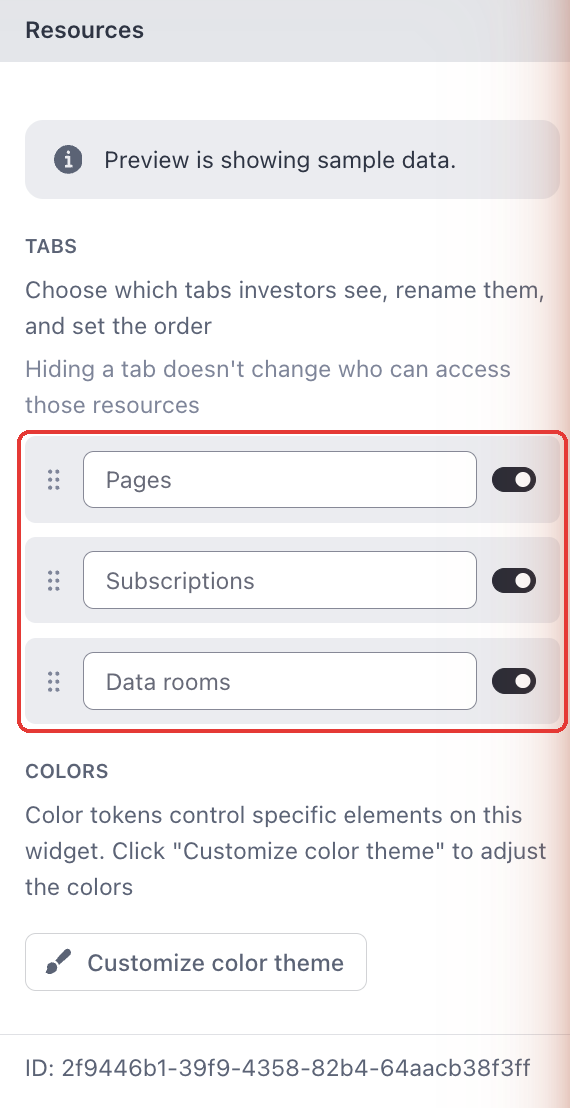
Hiding a tab doesn't change what contacts can access. It only hides the tab.
FAQs and tips
1. How do I make the heading look like my other pages?
Apply the same text styles and Container settings, or reuse the heading from another page with Save as widget. See step 2.
2. Can I change the font in the inbox, profile or documents list?
No. System widgets use a fixed font. You can change the font of the page heading and of any sections you add, and the colors of the system widget.
3. Can I change the layout of a system widget, or move or delete it?
No. The system widget stays in place, and its layout is fixed. You can add your own sections above or below it, and on the Resources page you can hide, rename and reorder the tabs.
4. Why does the system widget show names and messages I don't recognize?
It's sample data, so you can see the design in the builder. Each contact sees their own information.
5. I changed the color theme. Do I need to change each system page?
No. The color theme applies to all four system pages at once.