

Video widget
Add a video to your landing page by uploading a file or pasting a YouTube or Vimeo link.
Add a video to your landing page, either by uploading a file or by pasting a link from YouTube or Vimeo. Use it for a fund overview, a manager introduction or a recorded webinar.
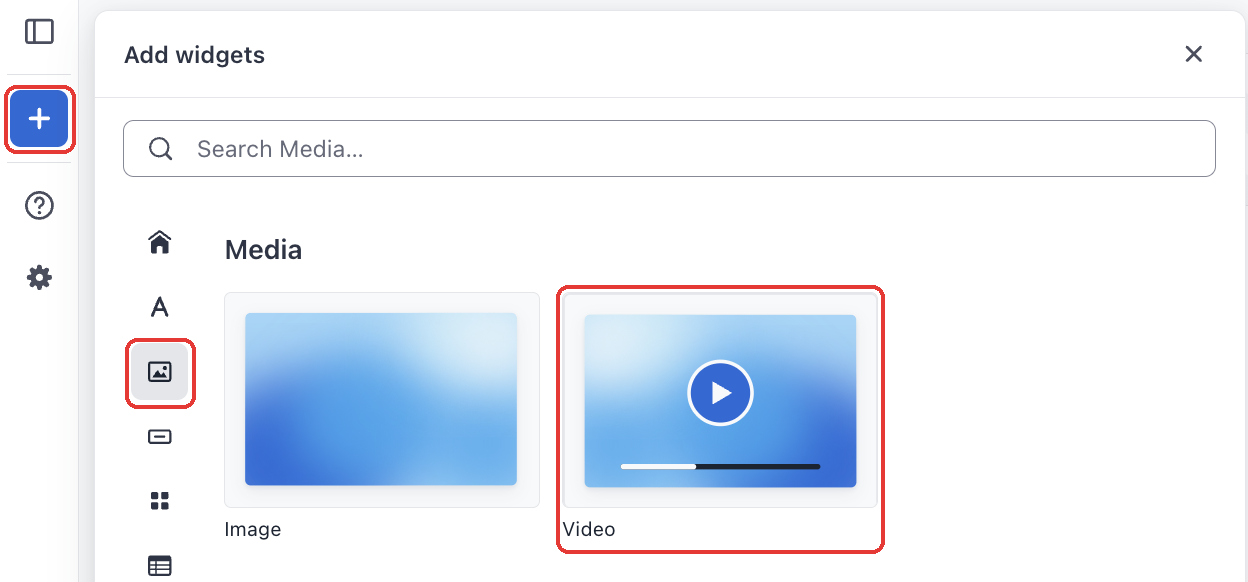
Where to find it: in the landing page builder, open Add widgets (the + icon in the left toolbar) and go to the Media category. You can also search for "video".
1 · Add the widget
Open the Add widgets panel, go to the Media category and click Video. Then click on the page where you want the video to go.
2 · Choose where the video comes from
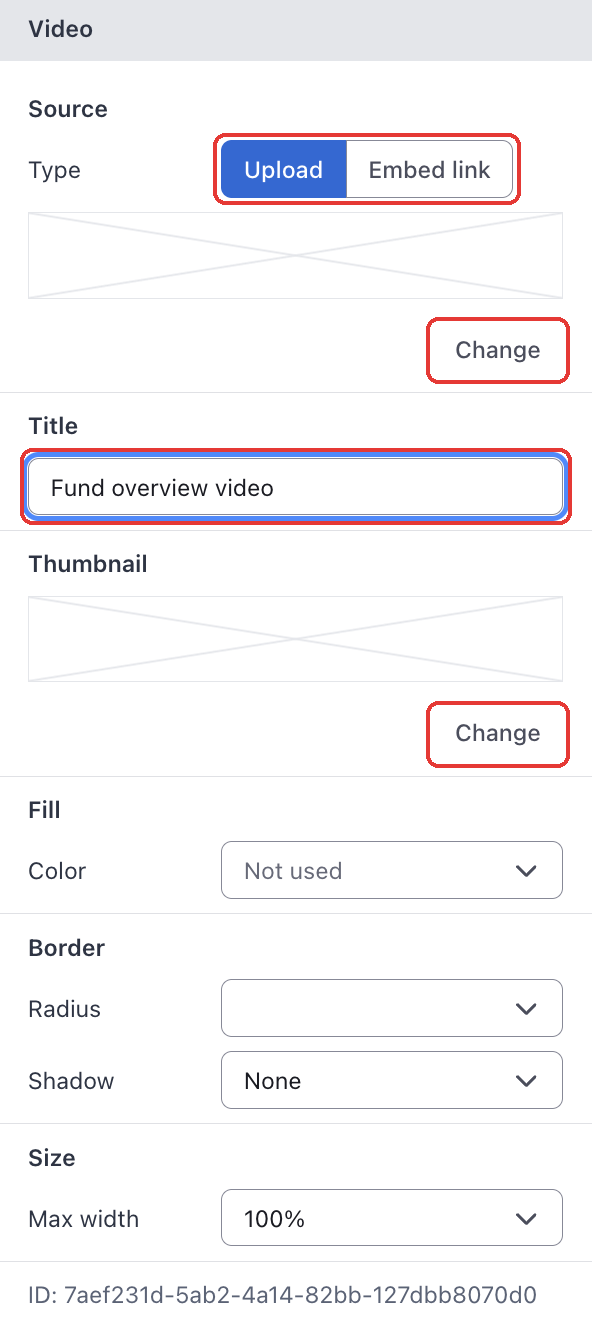
Select the video widget on the page. In the settings panel, under Source → Type, choose how to add your video:
| Type | Use it when | What you set |
|---|---|---|
| Upload | You have the video file on your computer | The video file and an optional Thumbnail |
| Embed link | The video is already on YouTube or Vimeo | The link and the Aspect ratio |
Upload a video file
- Under Source, click Change.
- Pick a video under Existing files, or go to Upload and click Choose a file.
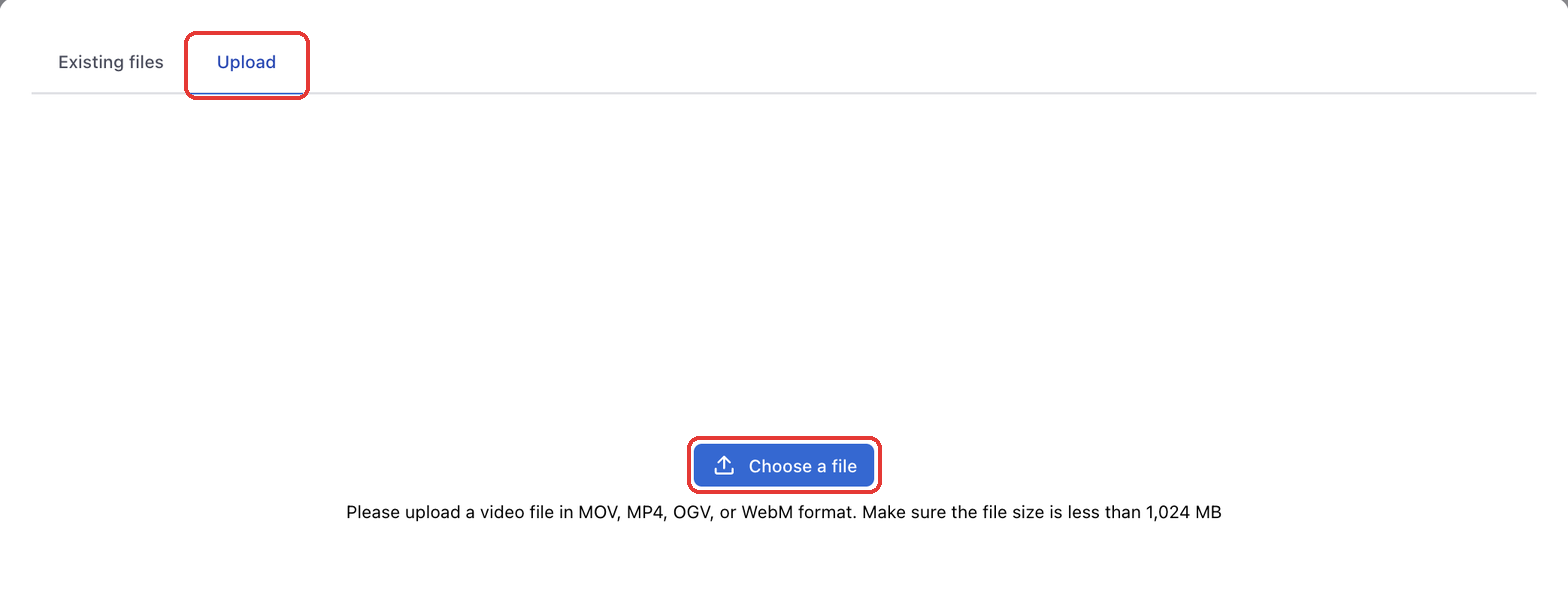
Note: Upload a video in MOV, MP4, OGV or WebM format, under 1,024 MB.
- Optionally, under Thumbnail, click Change to pick the image contacts see before they press play.
Embed a YouTube or Vimeo video
- Click Embed link.
- Paste the video's link into the box, for example a YouTube watch link or a Vimeo link. The link from the provider's Share → Embed option works too.
- Under Aspect ratio, pick the shape that matches your video: 16:9 (widescreen), 9:16 (vertical), 4:3 or 1:1 (square).
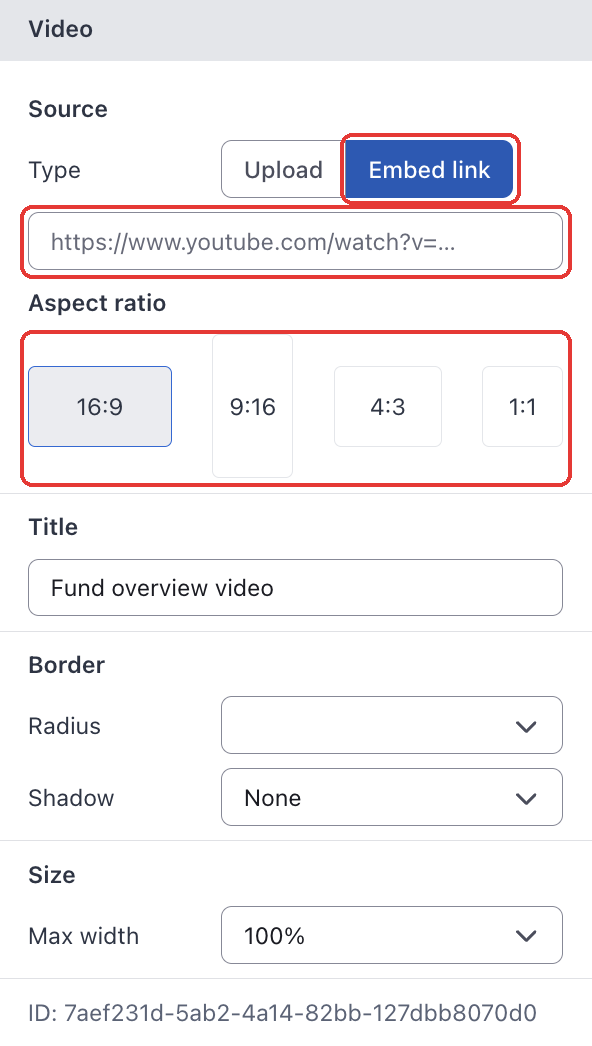
Note: Thumbnail and Fill are only available for uploaded videos. YouTube and Vimeo show their own preview image.
3 · Name the video
Under Title, give the video a short name, for example "Fund overview". Contacts don't see it on the page. It's the name your landing page insights use for this video, so you can tell your videos apart there.
4 · Style the video
| Settings | What you can change |
|---|---|
| Fill → Color | A color layer over the thumbnail, shown until the video plays (uploaded videos only). A semi-transparent color tints the thumbnail |
| Border | Radius (rounded corners) and Shadow |
| Size → Max width | How wide the video can get, for example 100% of the space it sits in |
Tip: To place a video next to text, put them together in a Container widget.
FAQs and tips
1. How do I resize a video?
There are two ways:
| Option | How | Best for |
|---|---|---|
| Max width | Select the video and go to Size → Max width. Choose 100% (as wide as the space it sits in), Fit content (the video's own size) or a set width from 64px to 1,472px | Quick sizing from a list of widths |
| Put the video in a container | Add a column layout, such as 2 columns from the Layout category, and drop the video into a column. The video fills the column's width. Select the container and, under Columns, set that column to Fixed and enter any width in pixels | An exact width, or a video next to text |
Either way, the height follows the width automatically. An uploaded video keeps its own shape, and an embedded video uses the Aspect ratio you picked. See Container widget for more on columns.
Tip: Widths can be set separately for each screen size. Switch the device preview at the top of the builder, then change the value for that screen.
2. Can I trim a video or make it start at a certain time?
No, trimming isn't supported in the builder, and a start time added to a YouTube link (for example ?t=30) is ignored, so the video always plays from the beginning. Trim the video before you upload it or post it on YouTube or Vimeo.
3. Does my YouTube or Vimeo video need to be public?
An embedded video plays from YouTube or Vimeo, so contacts must be able to view it there. Public and unlisted videos work. A private video won't play on your page. An uploaded video is stored with your landing pages, so you don't need to host it anywhere else.
4. Can I switch between Upload and Embed link?
Yes, at any time. The widget shows the source for the type you choose.