

Upload a custom font
Add your firm's brand font to the Landing Page Builder and use it on every page.
Use your firm's own brand font on your landing pages. Upload the font files once, and the font is available on every page of your firm, next to the built-in fonts.
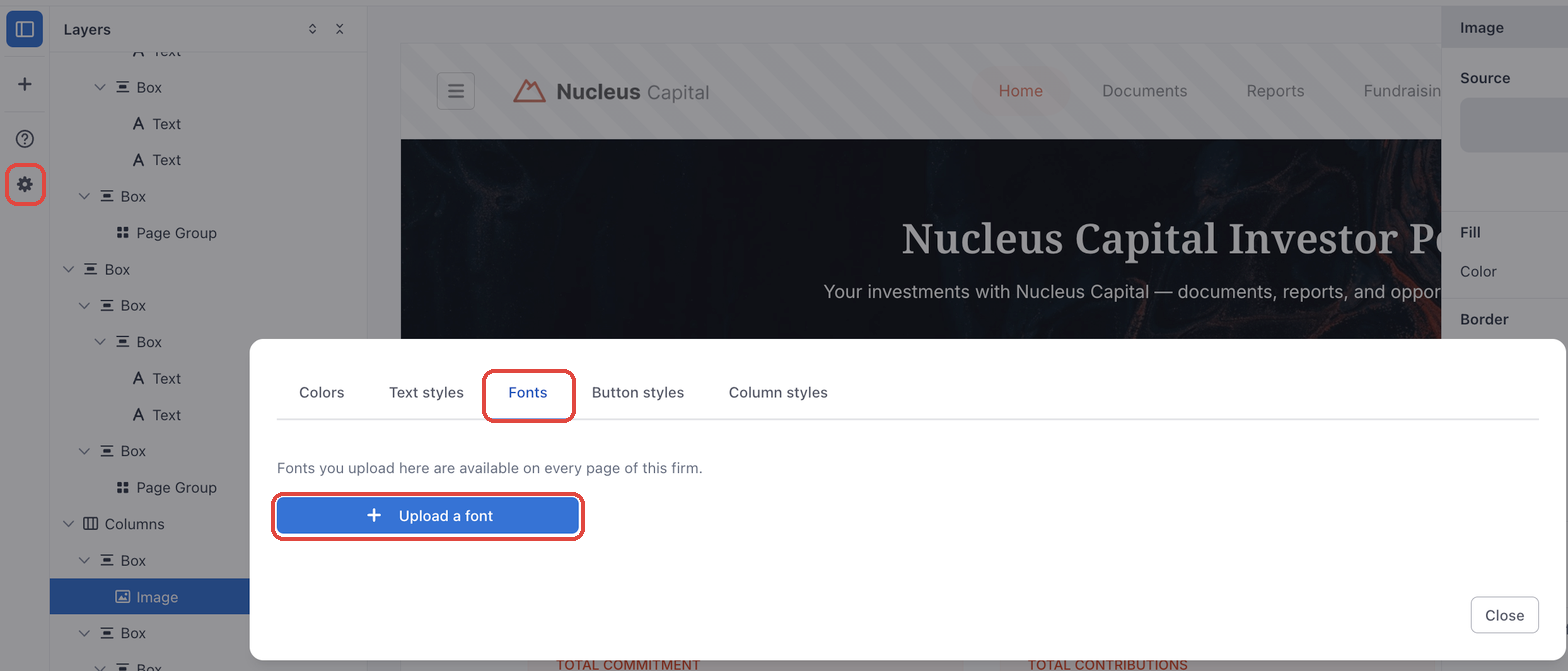
Where to find it: In the Landing Page Builder, click the Site settings icon (⚙) in the left rail, then open the Fonts tab.
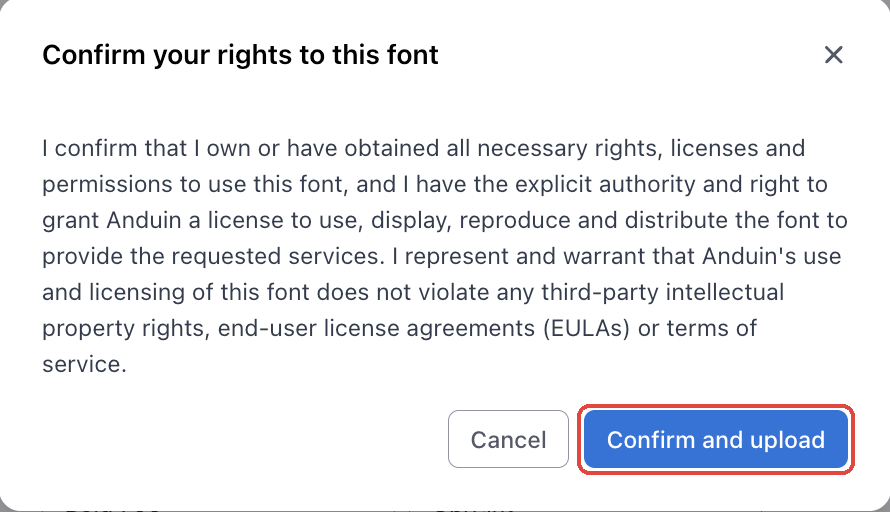
Before you upload: Make sure your firm has a licence that allows the font to be used on a website. You'll be asked to confirm this before the upload finishes.
1 · Open the Fonts tab
- Open any page in the Landing Page Builder.
- Click the Site settings icon (⚙) in the left rail.
- Open the Fonts tab and click Upload a font.
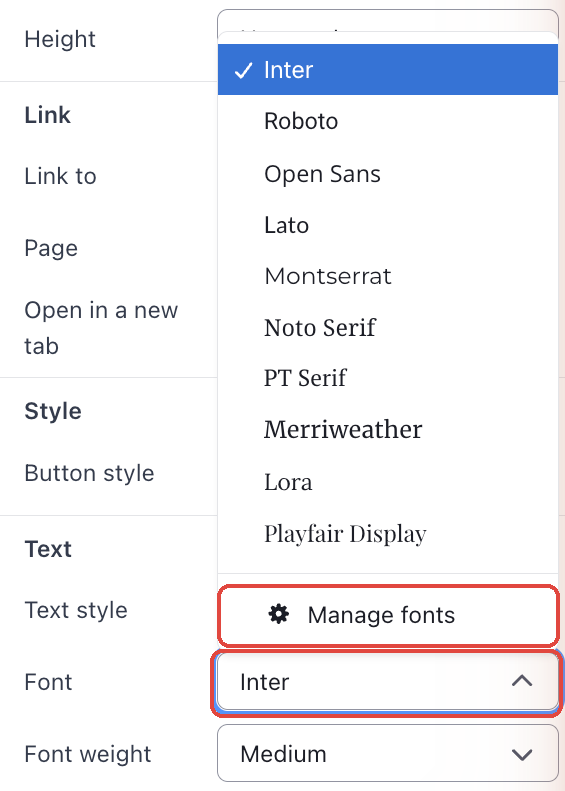
Tip: You can also get here from any font field. Open the Font dropdown on a widget and choose Manage fonts at the bottom of the list.
2 · Choose your font files
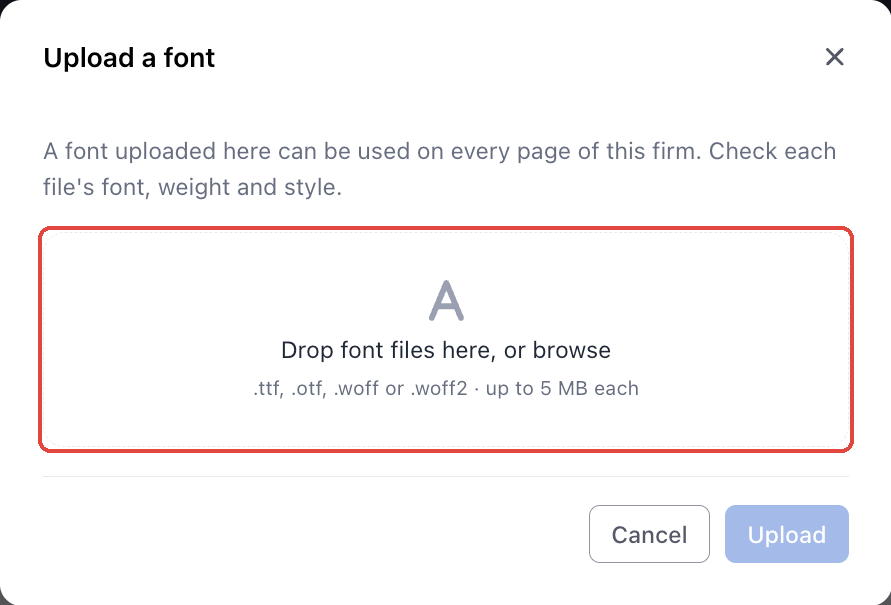
Drag your font files into the box, or click it to browse.
| Requirement | Details |
|---|---|
| File types | .ttf, .otf, .woff or .woff2 |
| File size | Up to 5 MB per file |
| Files per upload | Up to 40 files at a time |
Most fonts come as one file per weight and style (for example, a Regular file and a Bold file). Upload all the files you need together, and they're grouped into one font.
3 · Check the font name, weight and style
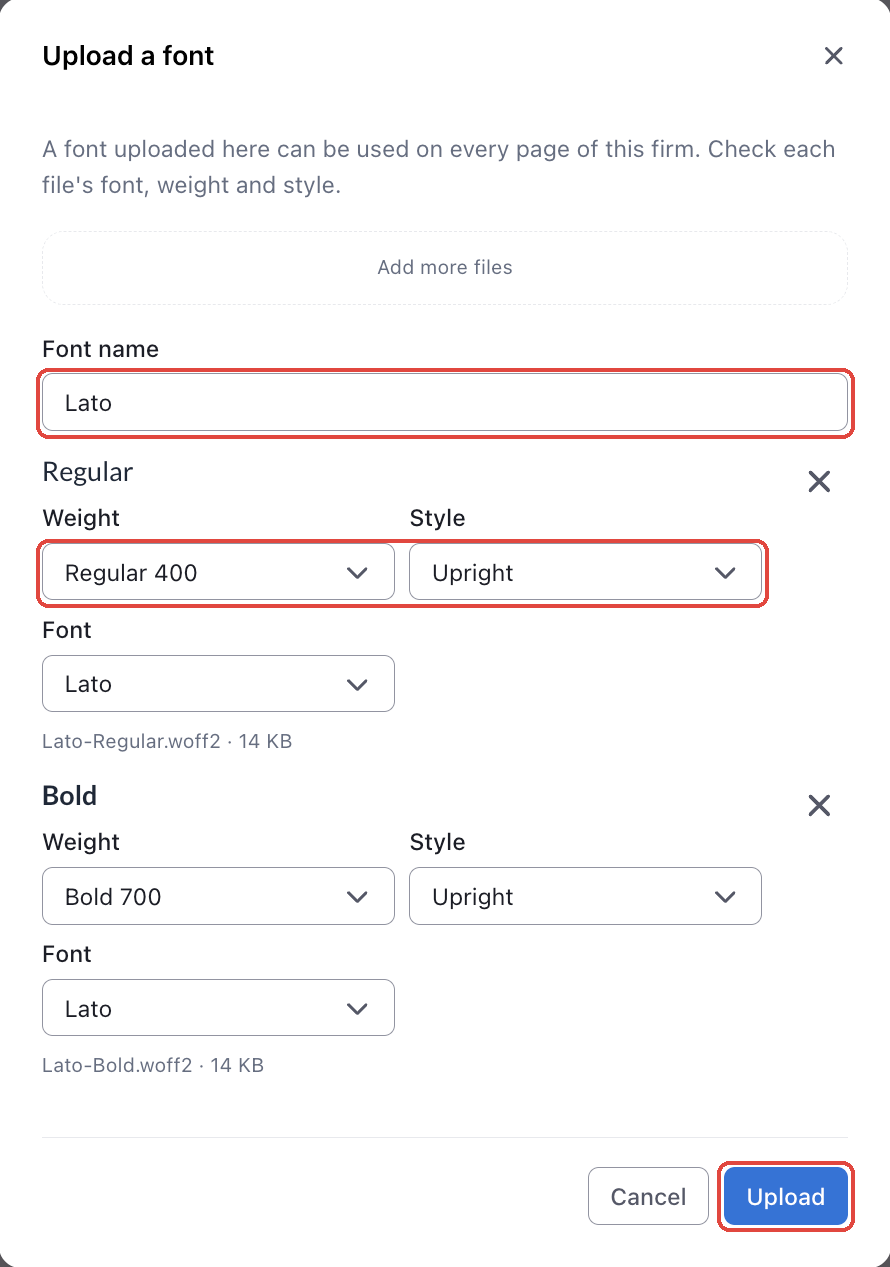
The builder reads each file and fills in its details for you. Each file shows a preview in the font itself, so you can check that it looks right.
| Field | What it means |
|---|---|
| Font name | The name you'll pick from the font dropdowns, for example, your brand font's name. You can change it (up to 100 characters). |
| Weight | How thick the letters are, from Thin 100 to Black 900. |
| Style | Upright or Italic. |
| Font | Which font this file belongs to. Choose New font to split a file into a separate font. |
Change anything that isn't right, remove files you don't want with ✕, or click Add more files. When everything looks right, click Upload.
Good to know: If two files in the same font have the same weight and style, you'll be asked to change or remove one of them before you can upload.
4 · Confirm your rights and upload
Read the statement in Confirm your rights to this font and click Confirm and upload.
The font then appears in the Fonts tab and in every font dropdown in the builder.
5 · Use the font on your pages
Uploaded fonts appear at the top of every font dropdown, under MY FONTS, above the built-in fonts. You can use them:
- In a widget's own text settings, for example, the Font field of a Button or a Text widget that uses a custom text style.
- In Site settings → Text styles and Button styles, so every widget that uses that style picks up the font.
Tip: Set your font in a site text style rather than widget by widget. It's faster, and your pages stay consistent.
After you change fonts, click Save changes, then Publish for contacts to see them.
6 · Rename, add variants or delete a font
In the Fonts tab, click a font's name to open its menu.
| Action | What happens |
|---|---|
| Rename | Changes the name shown in the font dropdowns. Pages already using the font keep working. |
| Manage variants… | Shows each weight and style in the font. Click Add variants to upload more files to it (for example, an Italic), or remove a weight you don't need. |
| Delete | Removes the font from your firm. Any page still using it falls back to the default font. |
Good to know: If you upload a file with the same weight and style as one already in the font, you'll be asked whether to Replace it.
FAQs and tips
1. Which pages can use my uploaded font?
Every page in your firm. You only need to upload a font once.
2. My file was rejected. Why?
The most common reasons are:
| Message | What to do |
|---|---|
| Only .ttf, .otf, .woff and .woff2 fonts can be uploaded | Convert the file to one of these formats, or ask your designer for a web font version. |
| Larger than 5 MB | Use the .woff2 version of the font, which is usually much smaller. |
| This file isn't a valid font | The file may be damaged. Download it again from your font provider. |
3. Can I upload a variable font?
Yes. A variable font covers a range of weights in one file. It's shown as Variable, followed by its weight range, for example, Variable 100–900.
4. Bold or italic text looks off in my font. What's wrong?
The font is probably missing that weight or style, so the browser is imitating it. Open the font's Manage variants… and add the Bold or Italic file.
5. Can I use a font from Google Fonts or Adobe Fonts?
Check the built-in fonts first, since several popular fonts are already included. Otherwise, download the font files you're licensed to use and upload them here. Fonts can't be linked from another website.