

Investor Documents widget
Give each investor a searchable list of the documents shared with them, as a flat list or grouped by type.
Investor Portal plan only: The Investor Documents widget is part of the Investor Portal plan. If you're interested, contact your Anduin representative to upgrade your plan.
Give investors a list of the documents you've distributed to them, such as capital call notices, distribution notices and quarterly reports. Investors can search, sort, open and download their documents, and switch between a flat list and a view grouped by document type.
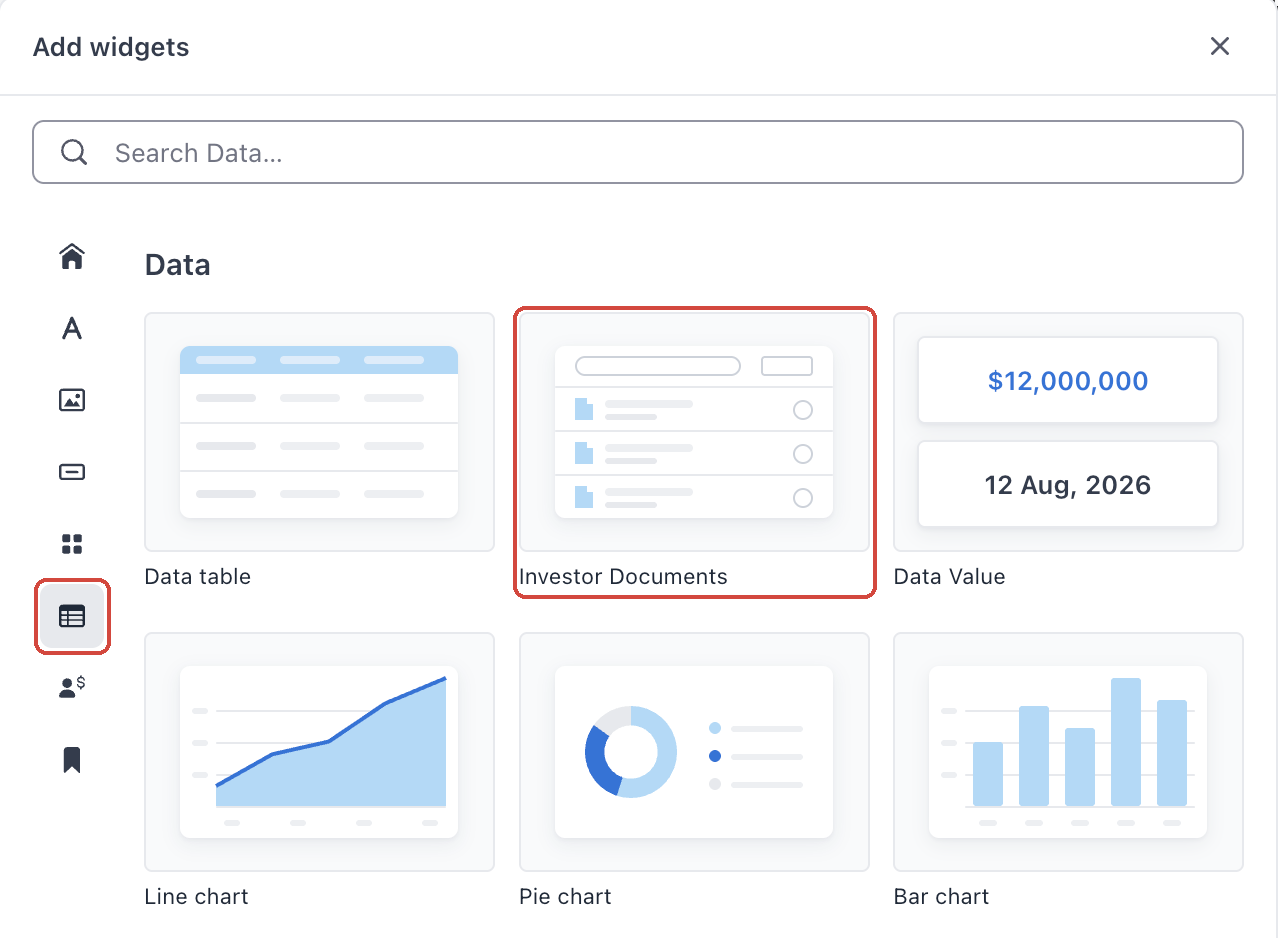
Where to find it: in the landing page builder, open Add widgets (the + icon in the left toolbar), go to the Data category and choose Investor Documents.
Who sees what: Investor Documents shows the same documents as the investor's portal Documents page: everything you've distributed to them in Investor Data Management. Each investor sees only their own documents, while admins see every document. The builder shows sample documents. To check what a specific investor will see, go to Contacts, click ⋯ on their row and choose View Portal as contact (or use the same button on the contact's page). The portal opens read-only in a new tab, exactly as that contact sees it.
1 · Add the widget
Open Add widgets, select the Data category and click Investor Documents, then click the spot on the page where it should go. The widget is ready to use straight away; there's no dataset to choose.
2 · General settings
| Setting | What it does |
|---|---|
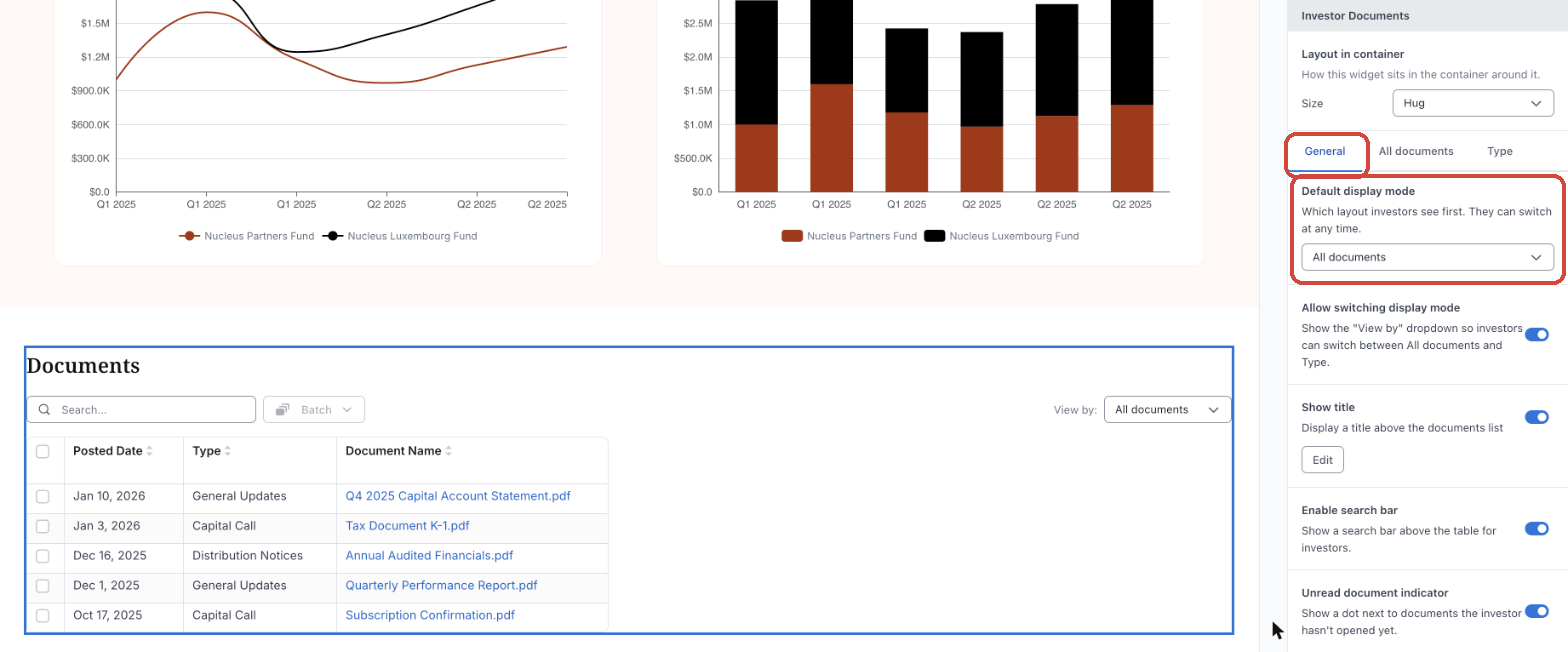
| Default display mode | Which view investors see first: All documents (one list) or Type (grouped by document type). |
| Allow switching display mode | Shows the View by dropdown so investors can switch between the two views. |
| Show title | Shows a title above the list (default: Documents). Click Edit to change it. |
| Enable search bar | Shows a search box above the list. |
| Unread document indicator | Shows a dot next to documents the investor hasn't opened yet. Read status is shared with the portal Documents page. |
| Handle parameter | Uses URL parameters to control which documents are shown, for example on an investment detail page. |
| Default sorting | The order documents appear in when the widget loads. |
3 · Set up the All documents view
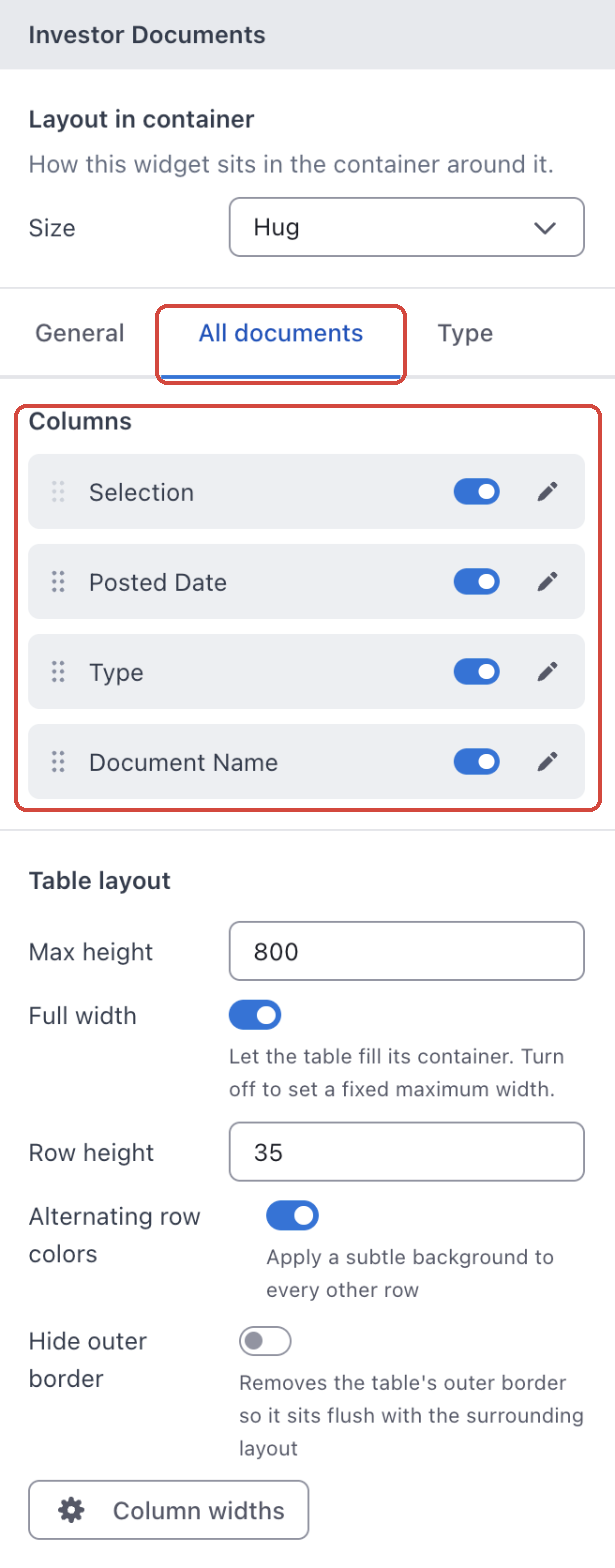
Open the All documents tab.
| Setting | What it does |
|---|---|
| Columns | Selection, Posted Date, Type and Document Name. Turn each one on or off, drag to reorder, or click the pencil to rename and style it. Selection adds checkboxes so investors can select several documents and use Batch → Download or Mark as read. View-only documents are skipped when downloading. |
| Table layout | Max height, full width, row height, alternating row colors, hide outer border and column widths. |
4 · Set up the Type view
Open the Type tab. Documents are grouped into a section per type, such as Capital Call, Distribution Notices and General Updates. Turn on Expand all sections by default to open every section when the page loads; when it's off, sections start collapsed.

Remember to Save changes and Publish the page when you're done.