

Saved widgets
Save a widget you've designed and add it again on any landing page, or share it with everyone in your firm.
Save any widget you've built, from a single button to a container with everything inside it, and add it again on any of your landing pages. You can keep saved widgets to yourself or share them with everyone in your firm.
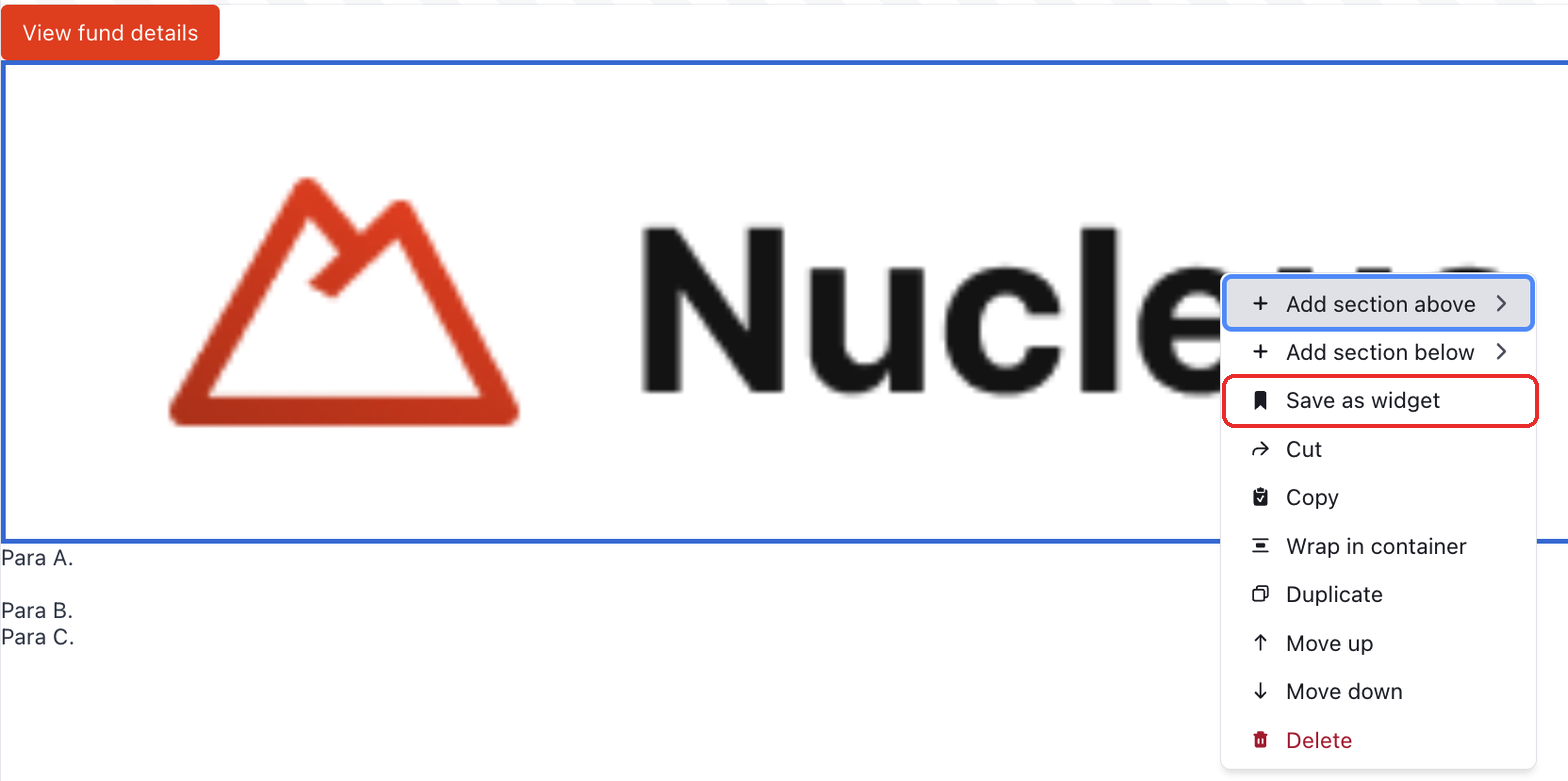
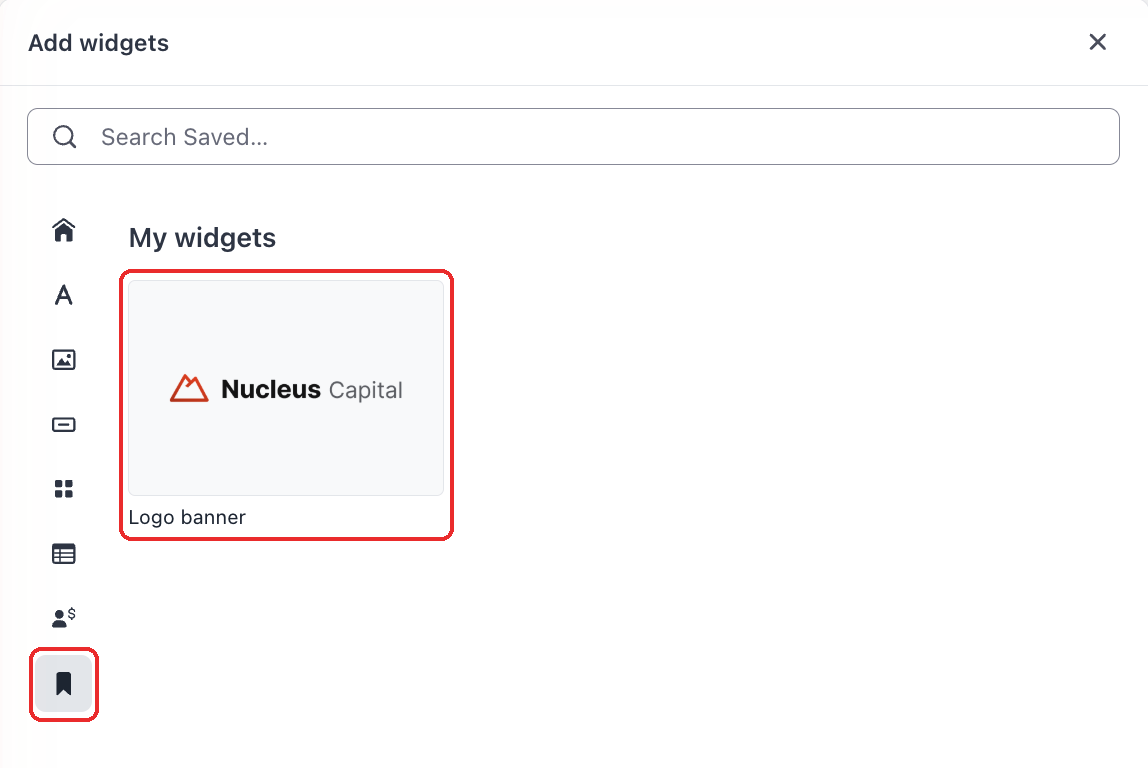
Where to find it: to save, right-click a widget on the page and choose Save as widget. To add a saved widget, open Add widgets (the + icon in the left toolbar) and go to the Saved category.
1 · Save a widget
- Right-click the widget on the page and choose Save as widget.
- Give it a Name. The name starts as the widget's name in the layers panel, and you can change it.
- To let your teammates use it too, tick Share with everyone in the firm.
- Click Save.
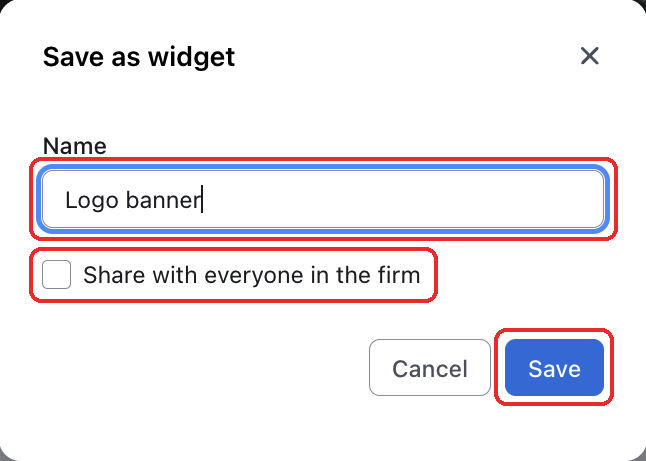
Note: If you type the name of one of your own saved widgets, the button changes to Replace and the dialog tells you which saved widget will be replaced.
2 · Add a saved widget to a page
- Open Add widgets and go to the Saved category.
- Find the widget under My widgets or Shared by my firm. You can search by the widget's name or by the name of the teammate who shared it.
- Click the tile, then click on the page where you want it to go.
The widget is added as a copy. You can change it on the page without affecting the saved widget, and later changes to the saved widget don't change pages that already use it.
3 · Rename, share or delete a saved widget
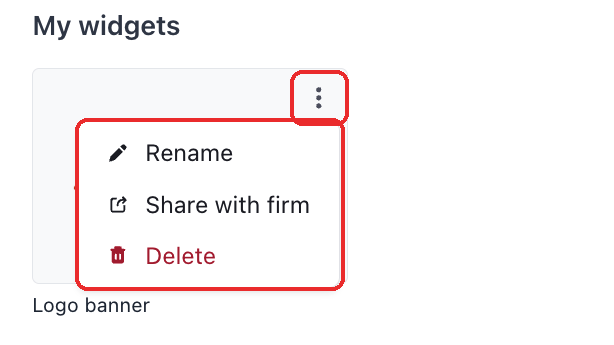
Hover over one of your own saved widgets in the Saved category and click the ⋮ menu:
| Option | What it does |
|---|---|
| Rename | Change the saved widget's name |
| Share with firm / Stop sharing | Make it available to everyone in your firm, or keep it to yourself again |
| Delete | Remove it from your saved widgets |
Deleting a saved widget doesn't remove it from your pages. Pages that already use it keep their own copy and won't change.
Who can do what
| Saved widget | Who can see and add it | Who can rename, share or delete it |
|---|---|---|
| Not shared | Only you | You |
| Shared with your firm | Everyone in your firm | Only the person who saved it |
Limits
| Limit | Details |
|---|---|
| Your own unshared widgets | Up to 50 per person |
| Shared widgets | Up to 100 per firm |
| Size | Very large widgets, such as a long section with lots of content, may be too big to save. You'll see This widget is too large to save. Save a smaller part of it instead |
FAQs and tips
1. How do I use the same image on several pages?
Save the image as a widget, then add it from the Saved category on each page. The Existing files list in the assets manager only shows images already on the page you're editing.
2. I updated a saved widget. Why didn't my pages change?
Pages keep the copy they were given when you added the widget. To use the new version, delete the old copy on the page and add the saved widget again.
3. How do I update a saved widget?
Change the widget on a page, right-click it and choose Save as widget with the same name. Click Replace to overwrite your saved version.
4. Can I save a whole section?
Yes. Right-click the container that holds the section and choose Save as widget. Everything inside it is saved together.