

Edit widgets on your page
Select, move, copy, duplicate and delete widgets in the Landing Page Builder, and undo mistakes.
Select, move, copy, duplicate and delete widgets on your landing page, and undo a change if you make a mistake.
Where to find it: In the Landing Page Builder, use the Layers panel on the left, or work on the page itself.
1 · Select widgets
| To select | Do this |
|---|---|
| One widget | Click it on the page, or click its name in Layers. |
| Several widgets | Hold Shift and click each one. Settings you change apply to all of them. |
| Nothing | Press Esc. |
Tip: Small or nested widgets are easier to pick in Layers. Click the arrow next to a container to show what's inside it.
2 · Use the widget menu in Layers
Hover a widget in Layers and click ⋮ to open its menu.
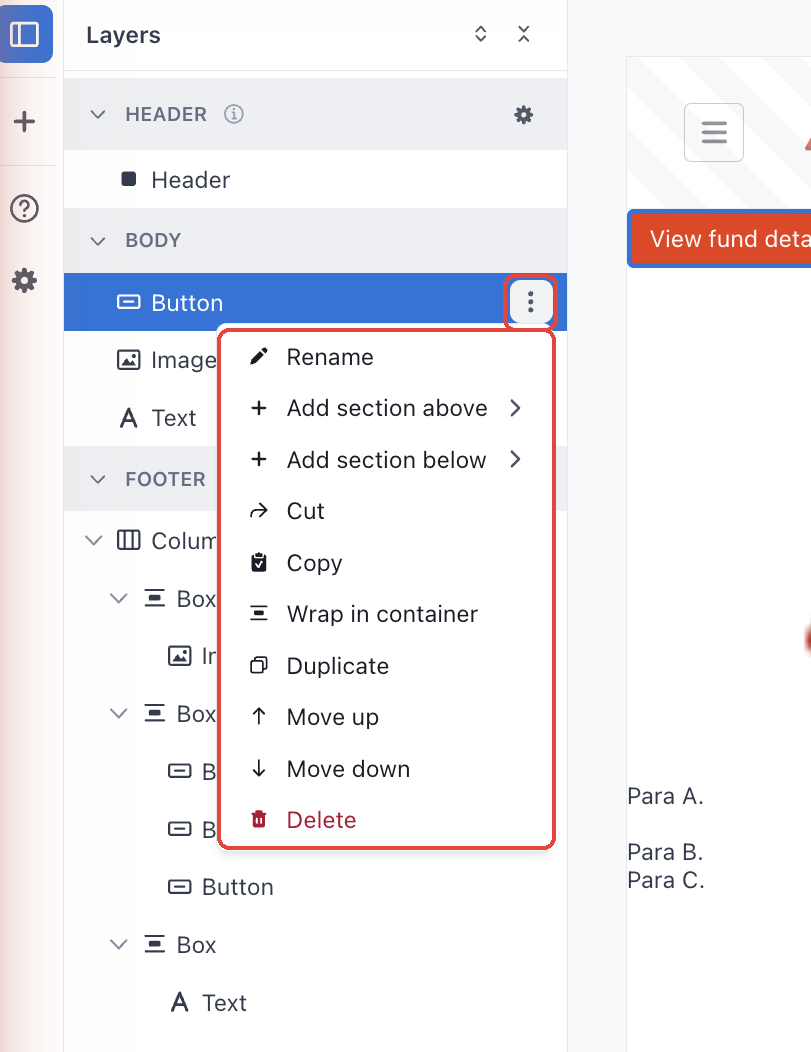
| Action | What it does |
|---|---|
| Rename | Changes the widget's name in Layers only. Contacts never see it. |
| Add section above / below | Adds a new section, from a template or blank, above or below this one. |
| Cut / Copy / Paste | Moves or copies the widget. Paste shows up once you've copied something. You can paste on another page too. |
| Wrap in container | Puts the widget inside a new container, so you can add a background, border or spacing around it. |
| Remove container | Shown on containers. Removes the container and keeps the widgets that were inside it. |
| Duplicate | Adds a copy right after the widget. |
| Move up / Move down | Moves the widget one place. In a row, these show as Move to left / Move to right. |
| Delete | Removes the widget and everything inside it. |
You can also drag a widget in Layers to move it to another place.
3 · Use the menu on the page
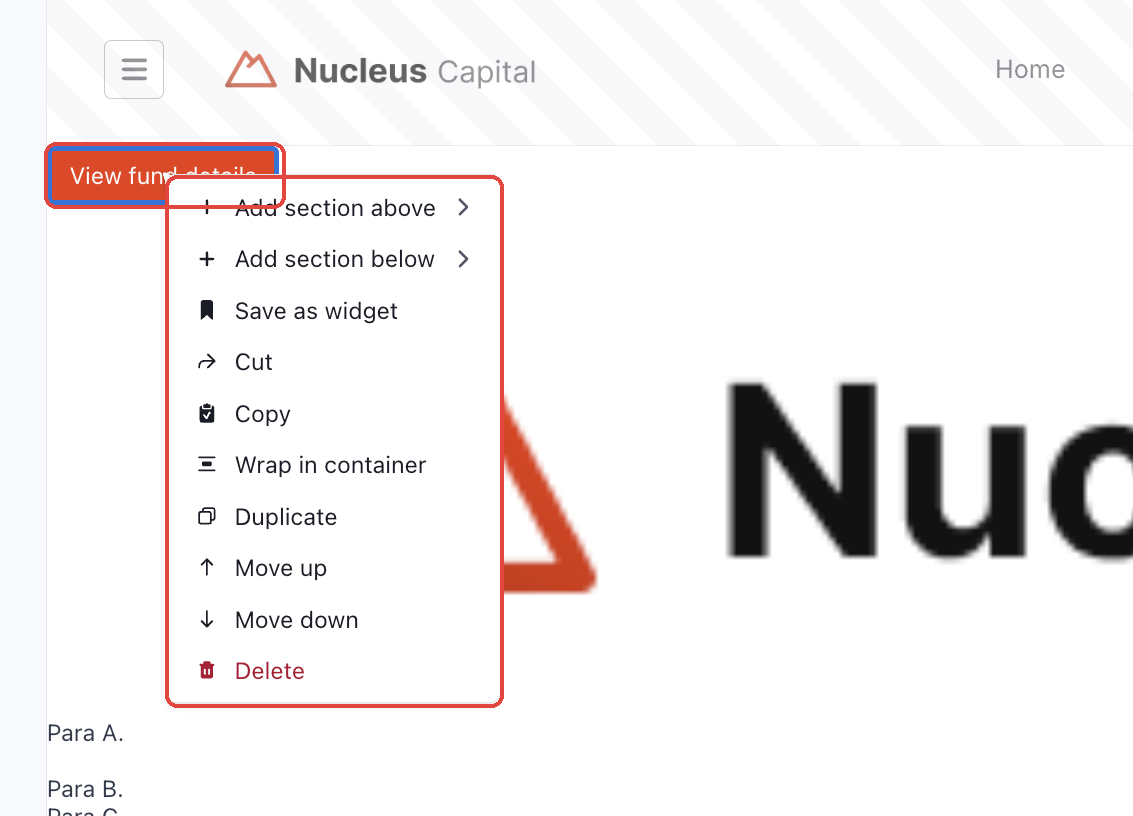
Right-click a widget on the page to open the same menu. It also has:
- Save as widget, to reuse the widget on other pages. See Saved widgets.
- Show spacing overlay, on containers, to see their padding and gaps.
You can also drag a selected widget on the page to move it.
4 · Undo and redo
Use the Undo and Redo arrows at the top right of the builder.

Your changes are kept as you work, but contacts only see them after you click Save changes and then Publish.
5 · Keyboard shortcuts
Click an empty spot on the page first, so the shortcut doesn't go to a text box. On Windows, use Ctrl instead of ⌘.
| Shortcut | Action |
|---|---|
| ⌘ C / ⌘ X / ⌘ V | Copy, cut, paste |
| ⌘ D | Duplicate |
| ⌘ G | Wrap in container |
| ⌘ Shift G | Remove container |
| ⌘ ↑ / ⌘ ↓ | Move up / move down |
| Delete or Backspace | Delete the selected widgets |
| ⌘ Z / ⌘ Y | Undo / redo |
| Esc | Clear the selection |
| Shift F10 | Open the widget menu |
FAQs and tips
1. I deleted a widget by mistake. Can I get it back?
Yes. Click Undo, or press ⌘ Z (Ctrl Z on Windows), before you leave the builder.
2. How do I copy a widget to another page?
Select it and choose Copy. Open the other page, select the widget you want it to follow, and choose Paste. To reuse a widget often, use Save as widget instead.
3. Why can't I move or delete some widgets?
Some parts of the page, such as parts of the header and footer, are part of the layout and can't be moved or deleted. Their menus only show the actions you can use.