

Text widget
Add headings, paragraphs and highlighted numbers to your landing page, and style them with your site's text styles.
Add headings, paragraphs, short descriptions or a highlighted number to your landing page. You can format the words, link them, and style them with your site's text styles.
Where to find it: in the landing page builder, open Add widgets (the + icon in the left toolbar) and go to the Text category. You can also search for "text", "heading" or "paragraph".
1 · Add the widget
Open the Add widgets panel and go to the Text category. Click a tile, then click on the page where you want the text to go.
| Tile | What you get |
|---|---|
| Text | Plain text with no text style applied |
| One tile per text style | Text that already uses one of your site's text styles, for example a heading or paragraph style |
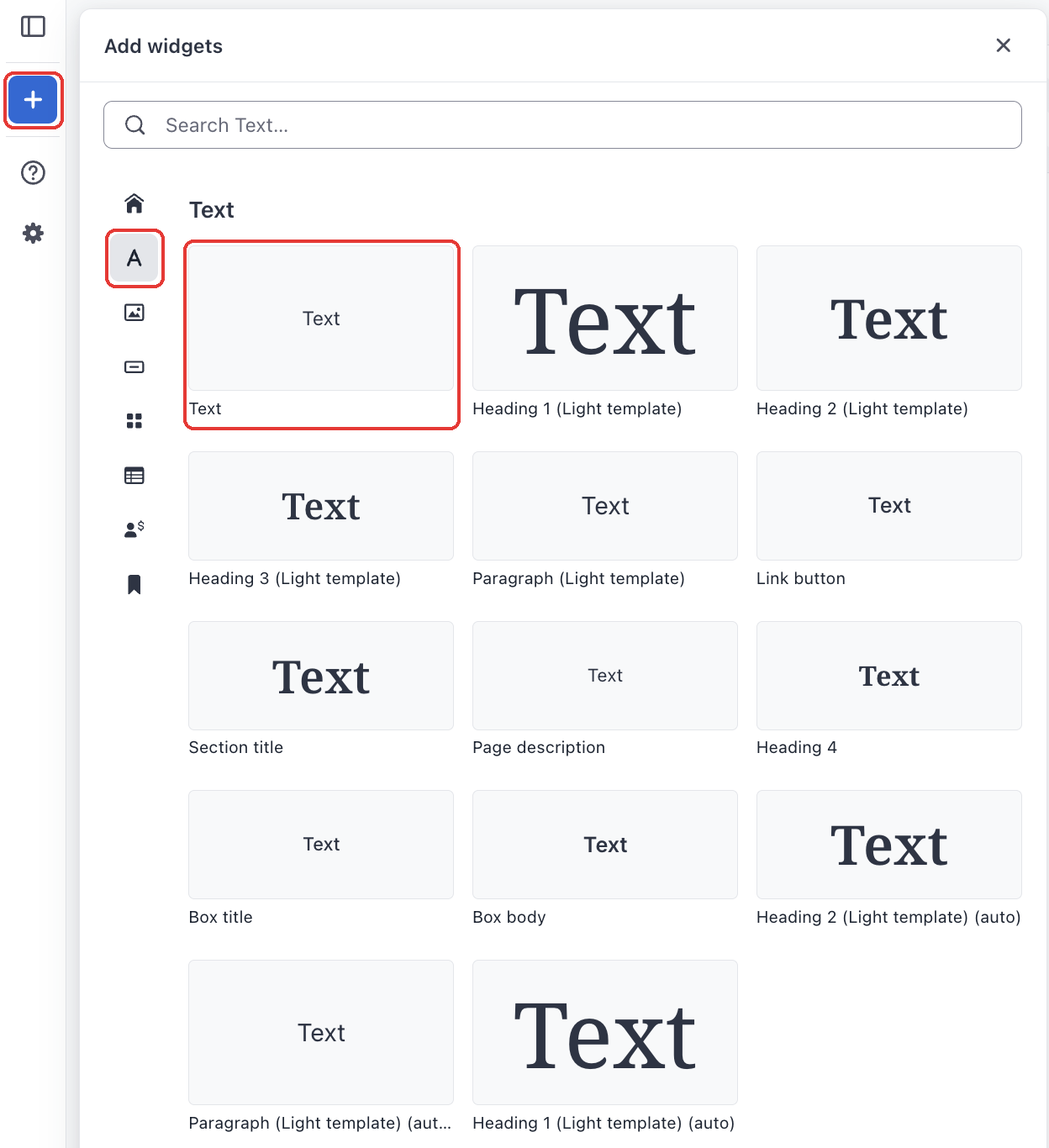
Tip: The tiles after Text come from your site's text styles, so the list matches your brand. To add or change these styles, see Style Presets.
2 · Write and format the text
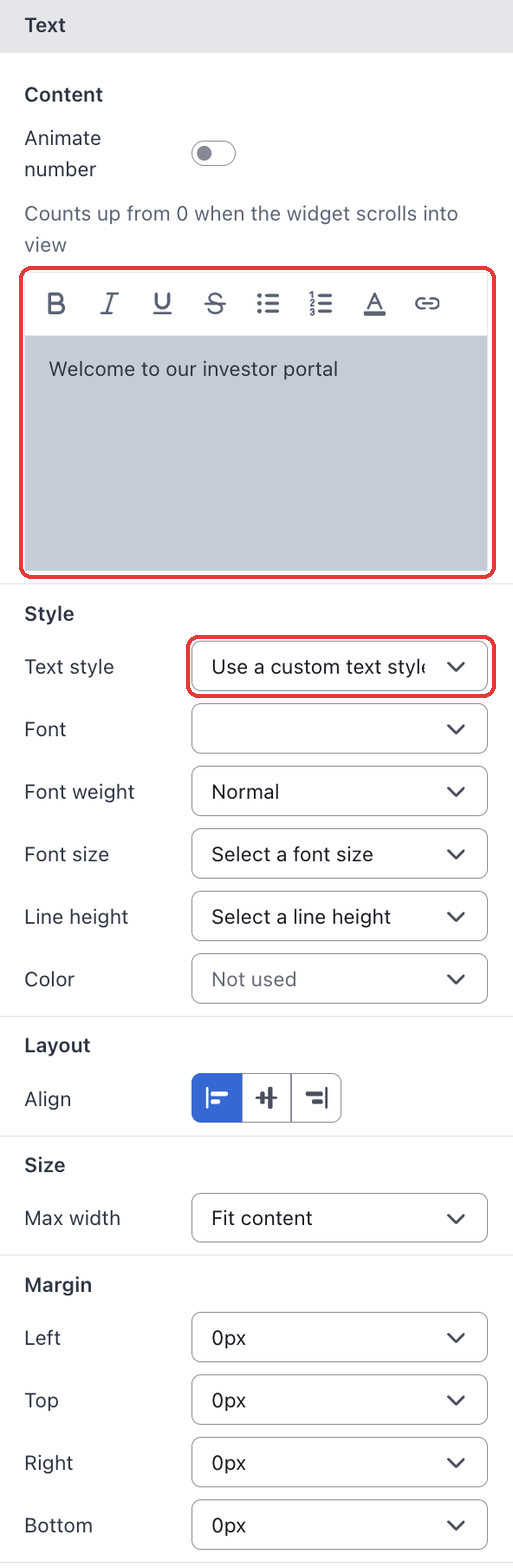
Select the text widget on the page. In the settings panel, type your text in the editor under Content.
Use the toolbar above the editor to format the words you select:
| Button | What it does |
|---|---|
| B, I, U, S | Bold, italic, underline, strikethrough |
| Bulleted and numbered list | Turn lines into a list |
| Text color | Color the selected words |
| Insert link | Link the selected words to a web address |
3 · Show an animated number (optional)
Use this for a headline figure, for example assets under management or the number of portfolio companies. The number counts up from 0 when the widget scrolls into view.
- Under Content, turn on Animate number.
- Fill in the fields:
| Field | What to enter | Example |
|---|---|---|
| Prefix | Optional text before the number | $ |
| Number | The number itself (required). Numbers only, with an optional decimal point or minus sign | 2.4 |
| Suffix | Optional text after the number | B, %, + |
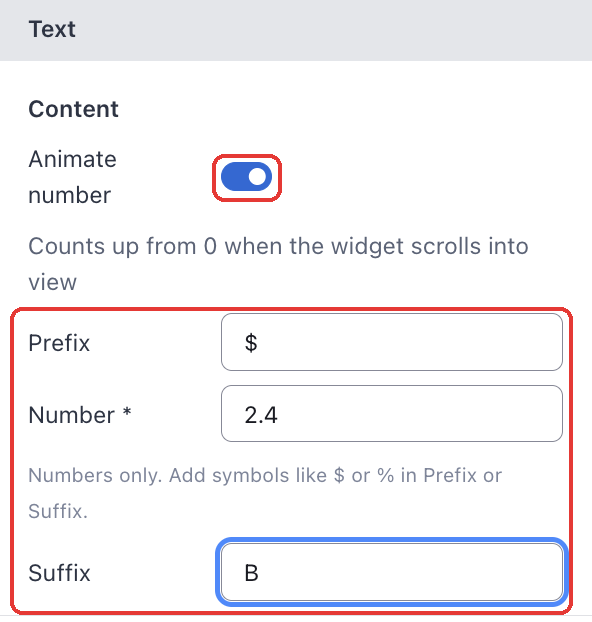
Note: Put symbols like $ or % in Prefix or Suffix, not in Number. If you paste text that has no number in it, the field shows Must be a number.
To go back to normal text, turn Animate number off. The editor opens again with the text the number left behind.
4 · Style the text
Under Style, pick a Text style to use one of your site's text styles. The font, weight, size and line height then follow that style, and update everywhere when the style changes.
To style this text on its own, choose Use a custom text style and set:
| Setting | What you can change |
|---|---|
| Font, Font weight, Font size, Line height | The type. Sizes and line heights are picked from a list |
| Color | The text color |
| Layout → Align | Left, center or right |
| Size → Max width | Fit content (as wide as the text), 100%, or a set width |
| Margin | Space around the text on each side |
Tip: Alignment, max width and margin can be set separately for each screen size. Switch the device preview at the top of the builder, then change the value for that screen.
5 · How formatting works with text styles
The text style and the formatting you add in the editor work in layers. The text style sets the look of the whole widget, and formatting from the toolbar changes only the words you selected.
| Comes from | |
|---|---|
| Font, size and line height | The text style (or your custom settings) for the whole widget |
| Bold, italic, underline, lists and links | The toolbar, for the selected words only. They keep the widget's font and size |
| Color of the whole widget | The Color setting under Style |
| Color of selected words | Text color in the toolbar. This wins over the Color setting |
Note: Words you colored in the editor keep that color even if you change Color later or switch to another text style. To bring them back in line, select the words in the editor and change or remove their color.
Pasting text from somewhere else
Text you paste from a document, email or website can bring its own colors, fonts or a background color with it. These work like Text color: they override the widget's style for the pasted words.
Tip: To paste only the words and keep your text style, paste without formatting: Ctrl + Shift + V on Windows, or Cmd + Shift + V on Mac.
FAQs and tips
1. How do I add space between paragraphs?
Pressing Enter twice shows an empty line in the editor, but empty lines are removed on the page, so the paragraphs end up right under each other. Use one of these instead:
| Option | How | Best for |
|---|---|---|
| Add a space on the empty line | Press Enter, type a single space, then press Enter again. The line with the space is kept, so it shows as an empty row | A quick gap inside one text widget |
| One text widget per paragraph | Put each paragraph in its own text widget and set Margin → Bottom on each one | Exact control over the size of the gap |
| Text widgets in a Stack | Add a Stack from the Layout category, drop the text widgets in, and set the gap once on the Stack. See Container widget | Several paragraphs with the same, even spacing |
Note: Shift + Enter doesn't add a line break that is kept. It works like Enter.
2. How do I add superscript, for example a footnote mark or ®?
The toolbar has no superscript button, but superscript you paste in is kept. Choose one of these:
| Option | How |
|---|---|
| Paste it from a document | Type the text in Word or Google Docs, apply superscript there, then copy it and paste it into the editor with a normal paste (Ctrl + V or Cmd + V) |
| Use superscript characters | Copy and paste ready-made characters such as ¹ ² ³ ⁴ ⁵ ⁶ ⁷ ⁸ ⁹ ⁰ ® ™. They work like any other letter, so they also survive pasting without formatting |
Note: Pasting without formatting (Ctrl + Shift + V or Cmd + Shift + V) removes superscript along with the other formatting. Use a normal paste for text that has superscript.
3. Can I edit several text widgets at once?
You can select several and style them together, but Content must be edited one widget at a time.
4. What happens to my text when I change a text style?
Widgets that use the style update their font, size, weight and line height. Widgets on Use a custom text style keep their own settings. Colors you set in the editor stay as they are.