

For GPs: Create a Document Request
Introduction This guide is intended for Fund Managers (GPs) to create AML/KYC document requests in the IDM app. You can create requests in two modes depend
Introduction
This guide is intended for Fund Managers (GPs) to create AML/KYC document requests in the IDM app.
You can create requests in two modes depending on your workflow:
- Batch Request (for multiple Clients and IEs)
- Single Request (for a specific IE)
Both flows help you request confirmations, renewals, or new documents in a structured and trackable way.
1. Batch request creation
Step 1: Select Clients
Go to the Clients tab > All Clients dashboard. Select the Clients whose documents you need to update.
- Tips: You can utilize the Search, Filter features and Document filters at the top of the page to quickly look for Clients to select.
- You can select up to 100 clients.
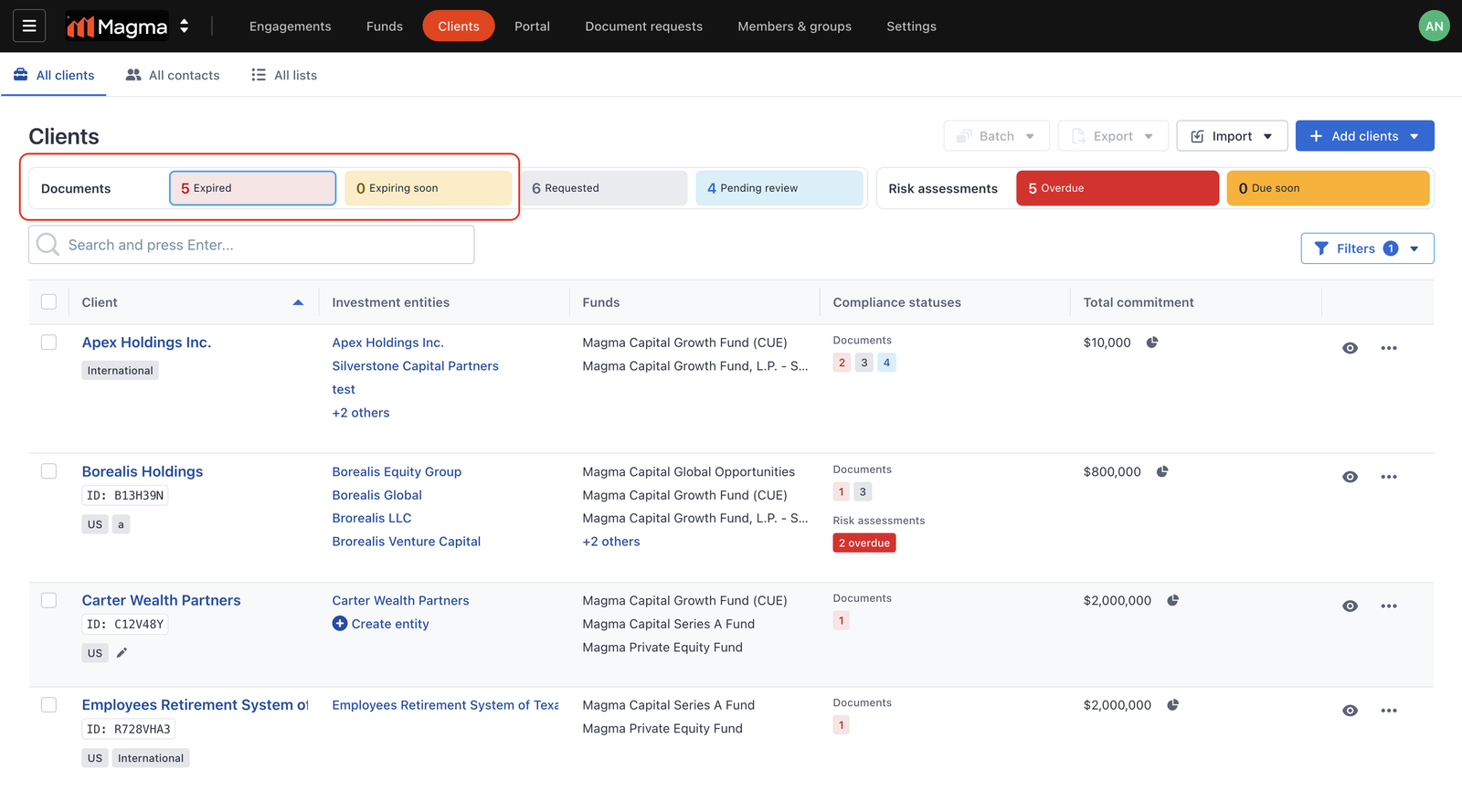
Step 2: Initiate the request creation
After selecting the Clients, click the Batch menu, select Create document requests.
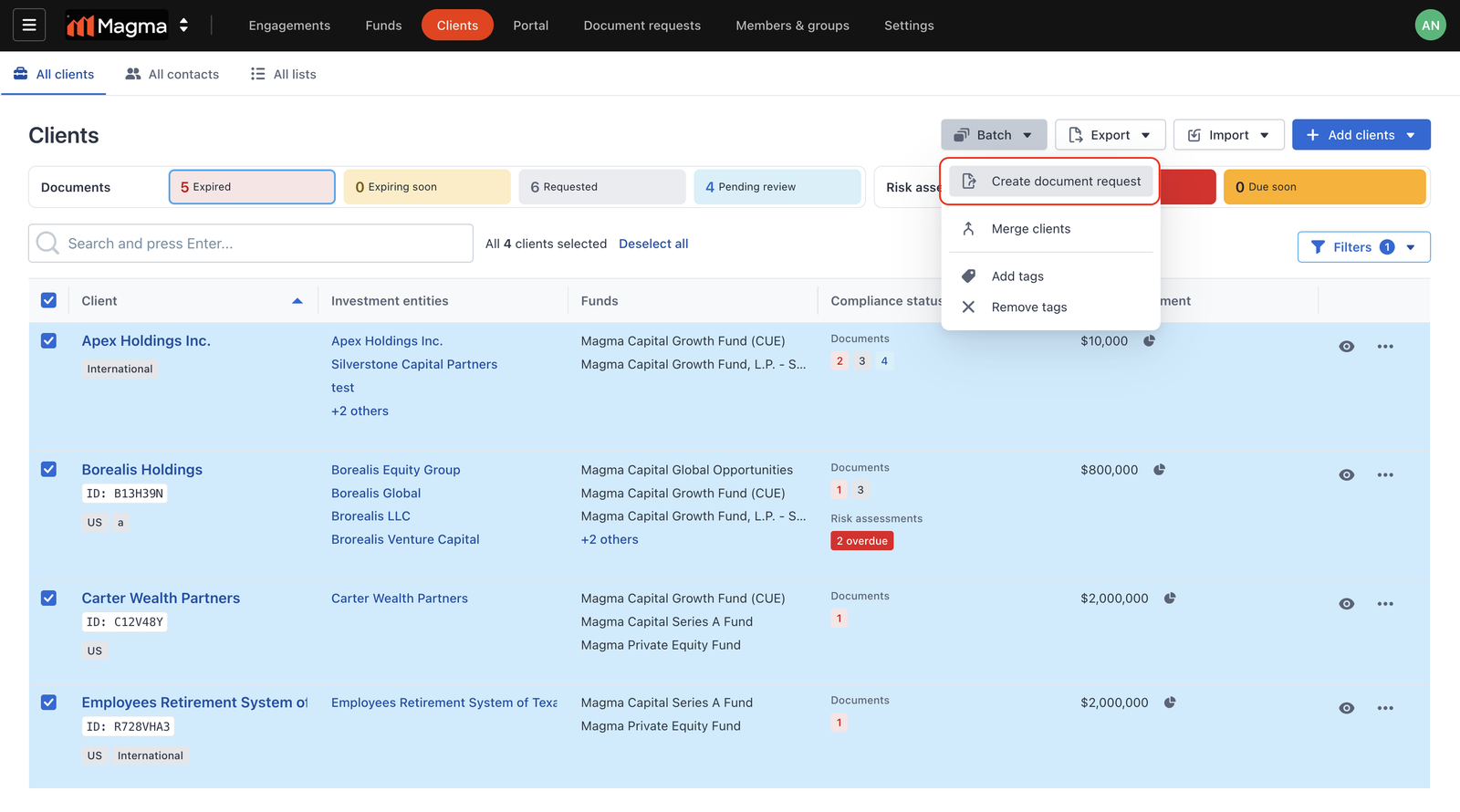
A request creation wizard will appear.
Step 3: Select documents
In the request creation wizard, the first step is Create Requests. Here, you will see all Investment Entities (IEs) from the Clients you selected, along with any existing AML/KYC documents currently on file.
For each IE, you may request one or more of the following:
A. Renewal of Existing Documents
The system automatically preselects documents that are Expired or Expiring soon.
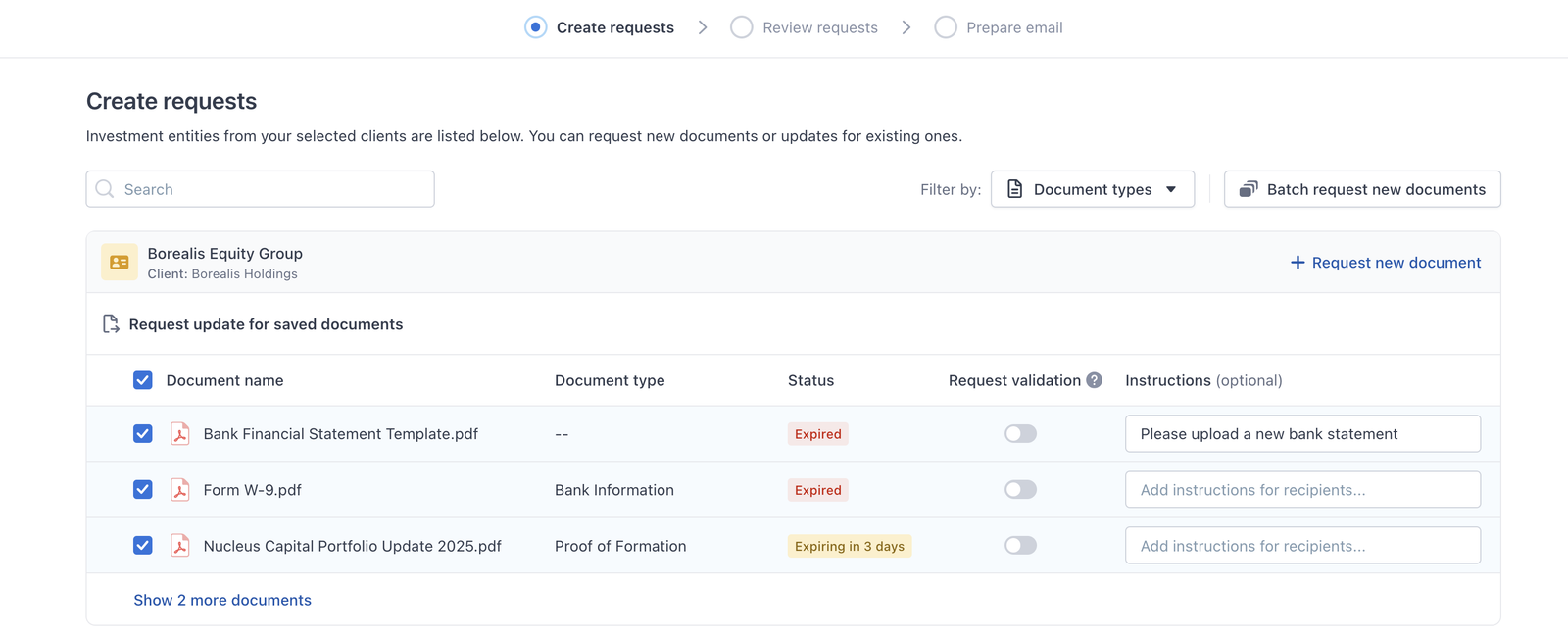
If you want to request additional items:
- Click Show more documents to view all existing files
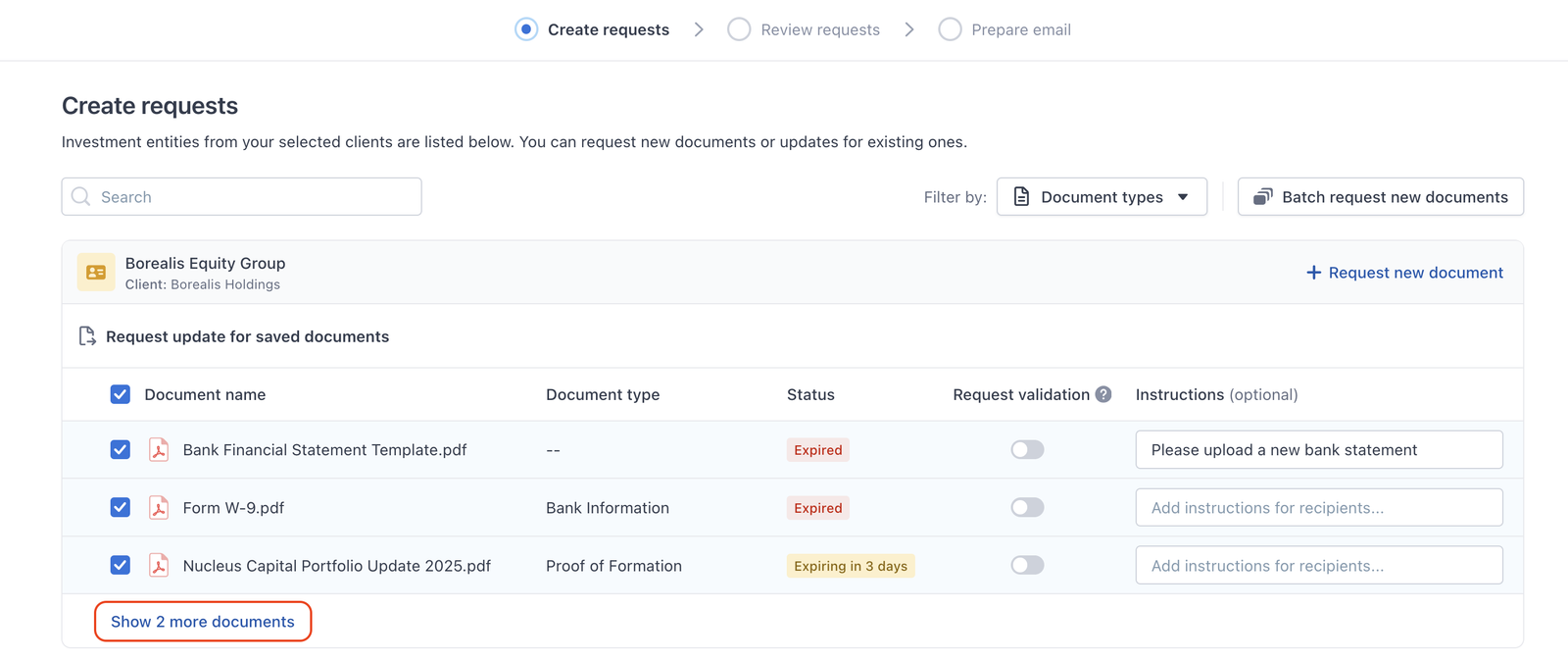
- Select the documents that require renewal
- (Optional) Add instructions to clarify what investors need to provide
B. Validation of Existing Documents
If a document appears valid but you would like the investor to confirm it:
- Turn on the Request validation toggle for that document
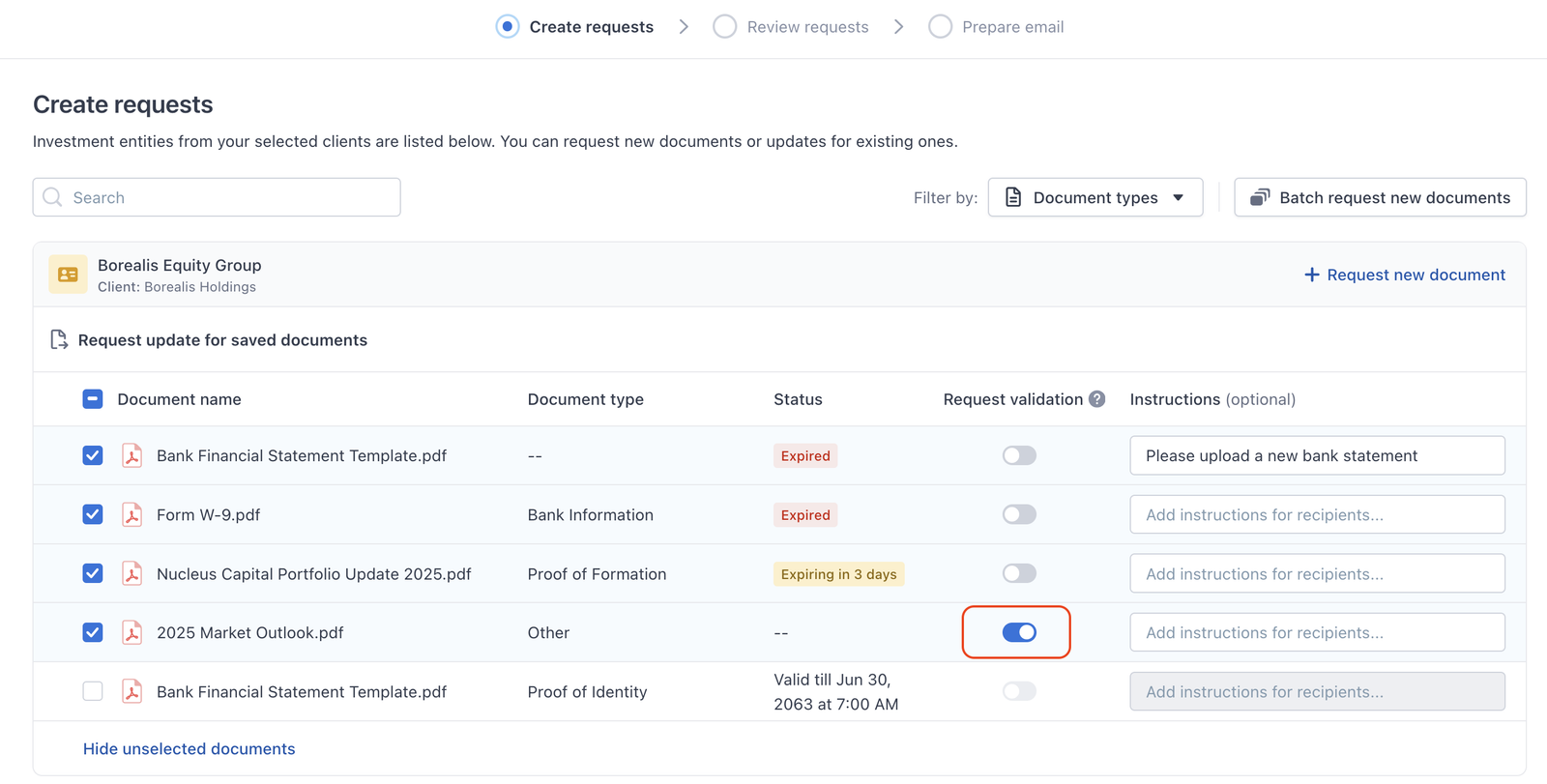
This prompts the LP to review the file and confirm whether it remains accurate and up to date.
C. Submission of New Documents
You may also request brand-new documents that are not yet available in the system. You can do this per IE or in batch across multiple IEs.
- Request new documents for an individual IE
– Click Request new document on the top-right of the IE card 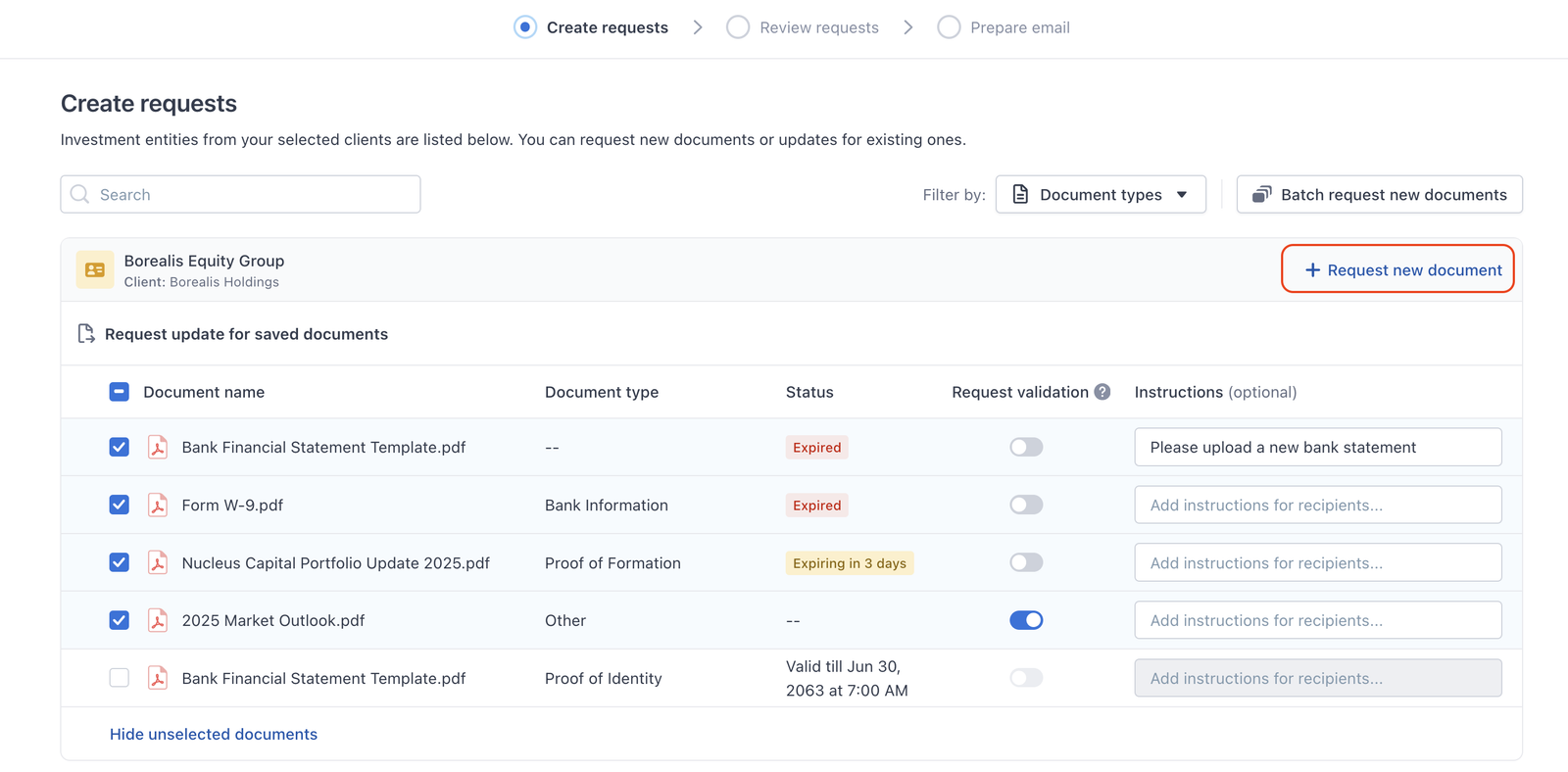
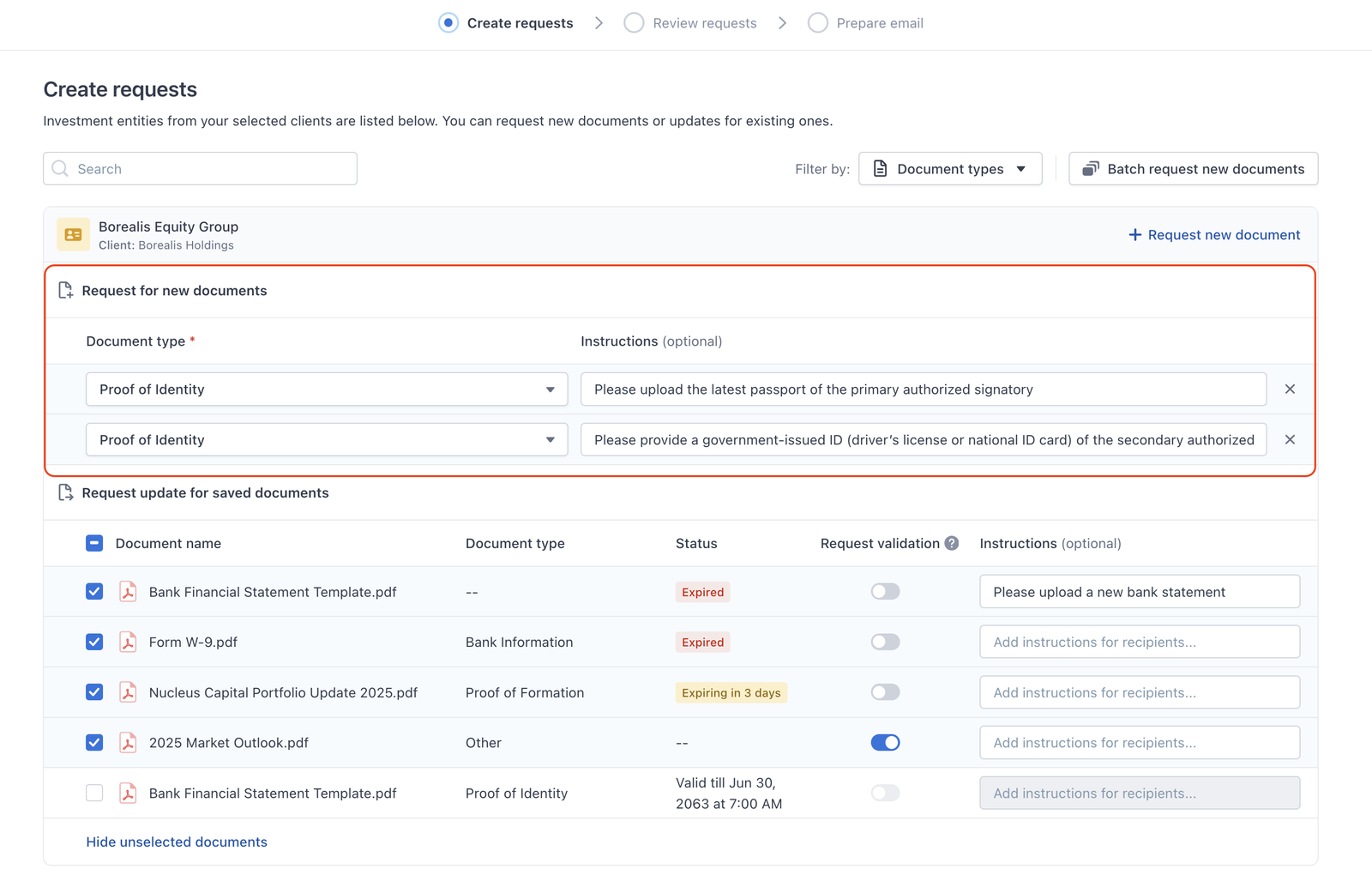
- Batch-request new documents for multiple IEs
– Click Batch request new documents 
Step 3: Review request
In the second step, Review Requests, you will see a consolidated summary of all IEs that have selected documents.
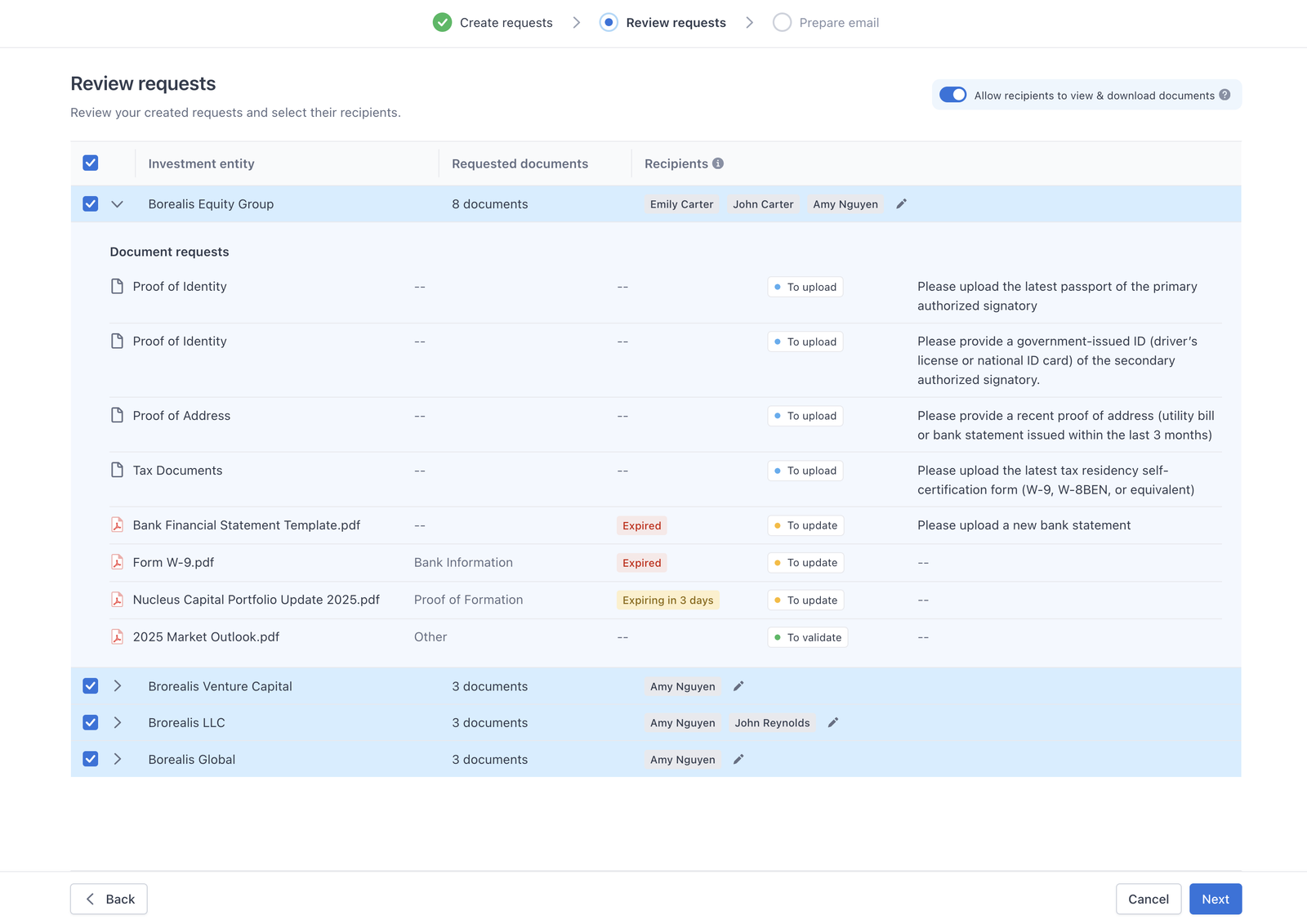
From here you can:
- Review the selected documents
- Review & edit recipients
– Click this button to edit the recipient list 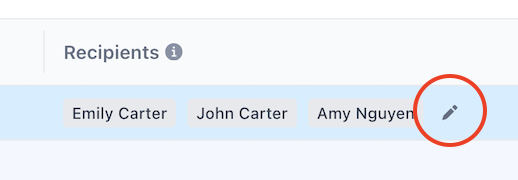
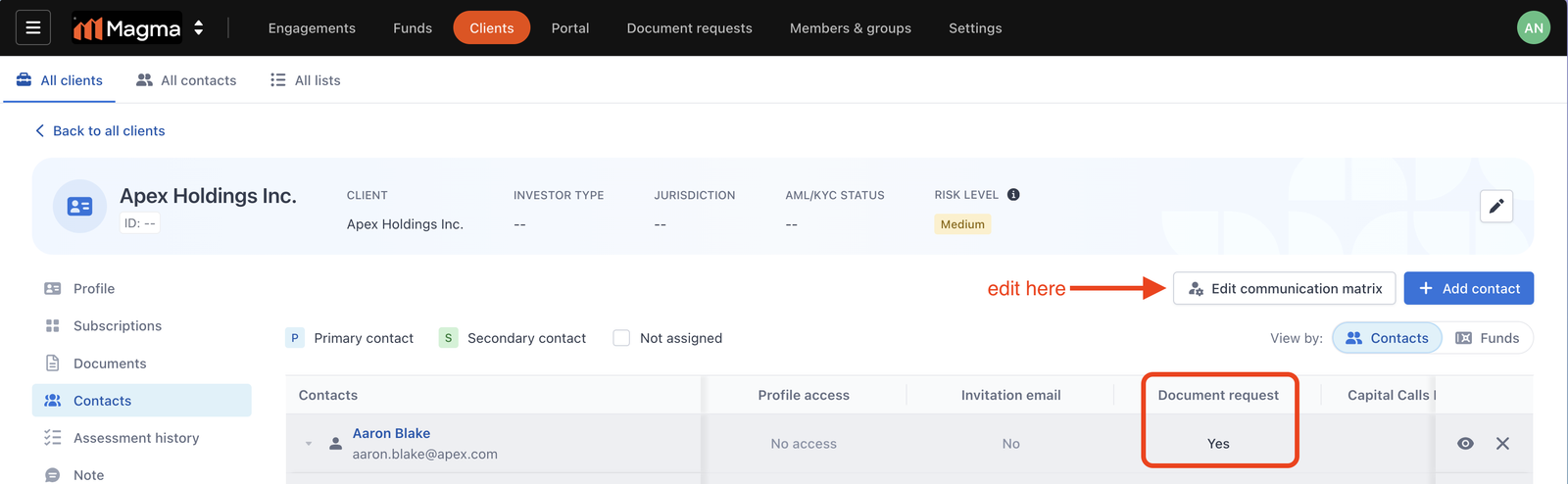
Important note
IEs without recipients will be skipped when you move to the next step.
Step 4: Prepare email
In the final step, you can review and edit the email message that will be sent to investors.
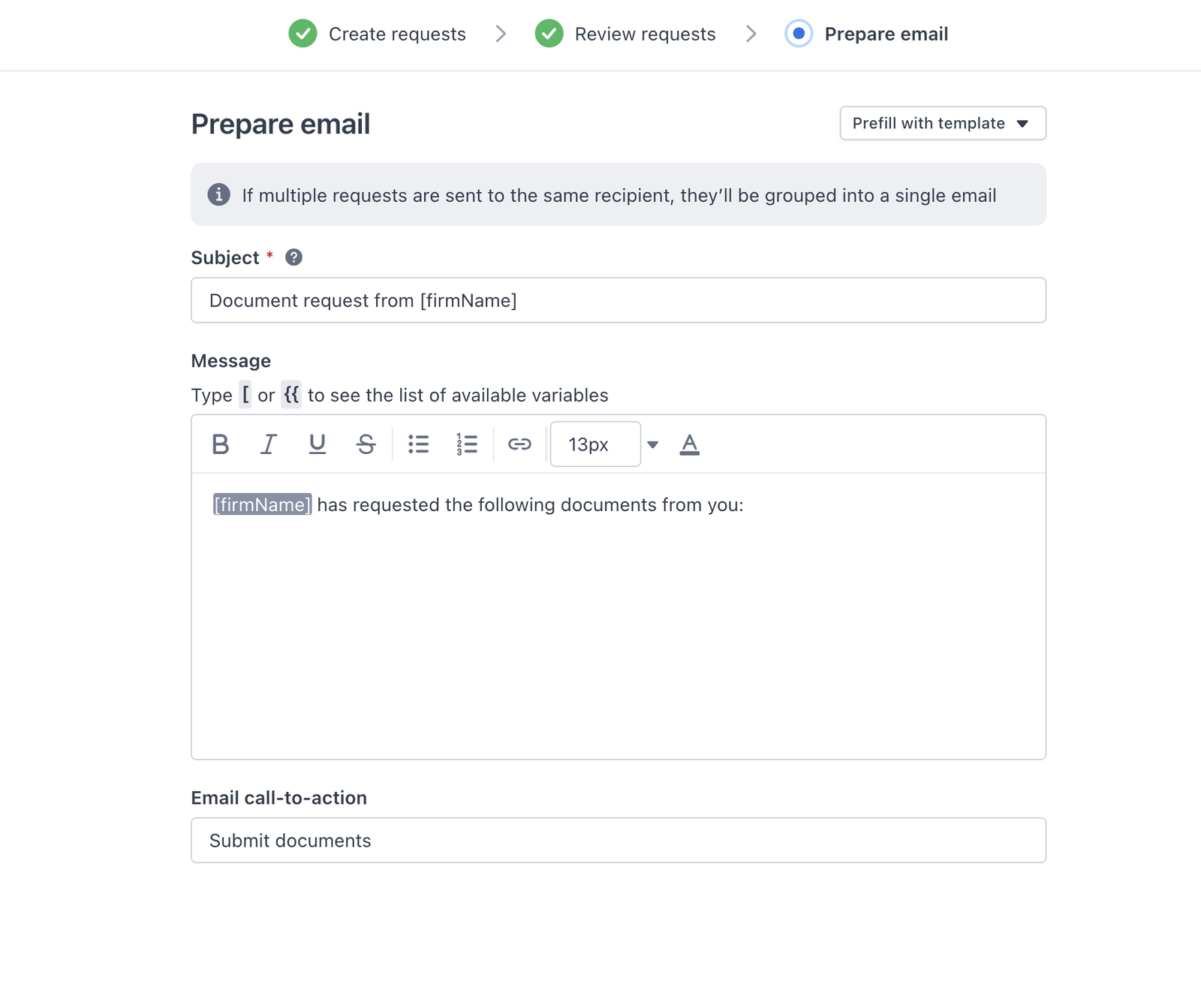
Please note:
- The same email message will be applied to all recipients in this batch.
- If a recipient is associated with multiple IEs in this batch, they will receive one consolidated email listing all requested documents across those IEs.
- For batch requests, we recommend using a generic, cross-IE friendly message.
You may also prepare and apply an email template in this step to streamline your workflow.
Step 5: Send requests
After completing all preparation steps, click Send Request.
Once sent:
- A separate request will be created for each IE and can be tracked in the Document Request tab.
- Your investor contacts will receive an email prompting them to fulfill the request.
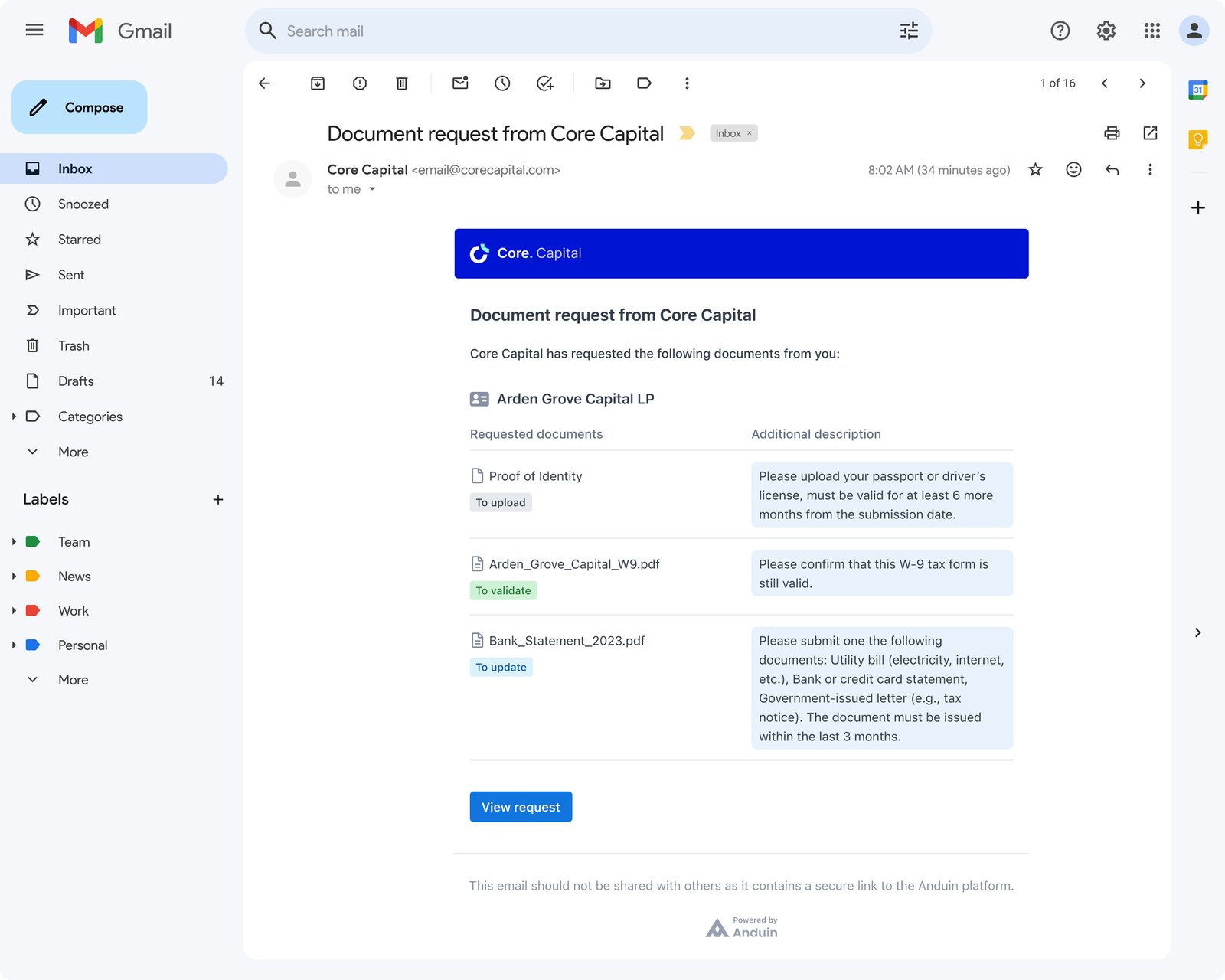
This completes the request creation process.
Important notes
- You cannot edit a request after it has been sent.
- If you need to do so, please cancel the request and create a new one.
2. Request documents for one Investment entity
Apart from the batch action, you can also request documents for one specific investment entity (IE).
Step 1: Go to the IE’s Documents tab
From the IE detail page, open the Documents tab to see all documents associated with this entity.
Step 2: Start requesting documents
- Click the Request document button to start
- Optionally, you can select a few documents that you want to renew before starting the request, this will autofill the documents in the modal for you.
If you want the LP to renew or re-submit certain documents, select them before initiating the request.
Step 3: Configure your request in the modal
Within the modal, you can:
- Select documents for:
– Validation – Renewal – New submission
- Customize the email message
– You can select a template to prefill
- Update recipients
– Recipients are prefilled from the IE contact's “Document request” permission – You can add more recipients if needed
Step 4: Send the request
- When all items look correct, click Send request.
- LPs will receive an email with your message and can start uploading documents.