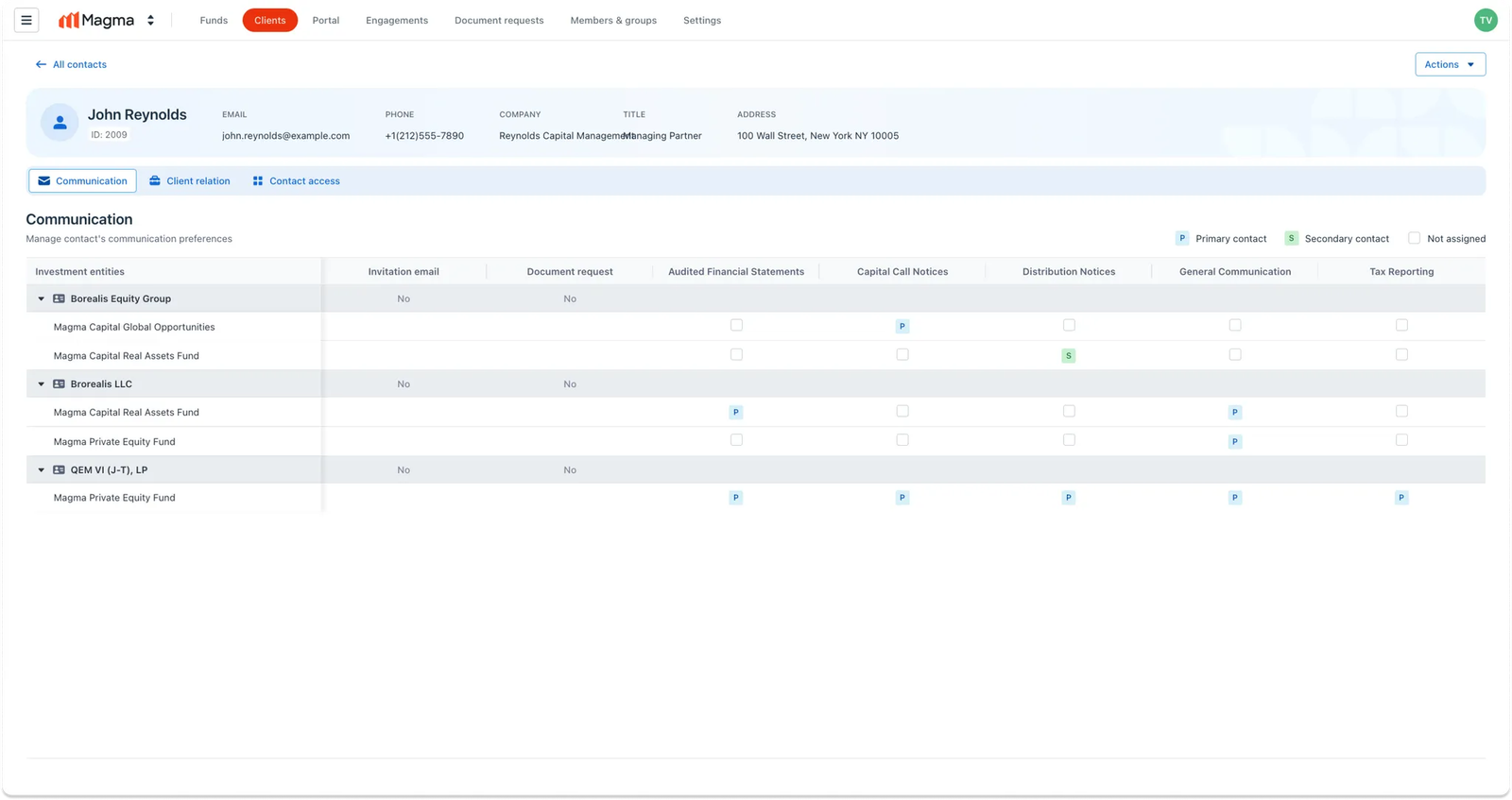
Set up a contact matrix across entities & vehicles
Introduction After setting up communication types for the firm and each fund legal entity, the next step is to assign the right contacts to the right types
Introduction
After setting up communication types for the firm and each fund legal entity, the next step is to assign the right contacts to the right types using the contact matrix.
Contact matrices define a contact’s permissions to access specific documents shared through portal workflows, making it easy to control who receives which updates. By linking contacts to specific communication types, users can make sure that only the right people, based on their role, get access to certain information or documents.
This guide will walk through how to set up and manage the contact matrix across investment entities and fund legal entities.
Guideline
Where to find this feature?
In the Clients tab of IDM, head to sub-tab All contacts. From this contact dashboards, choose the specific contact that you wish to modify its contact matrix
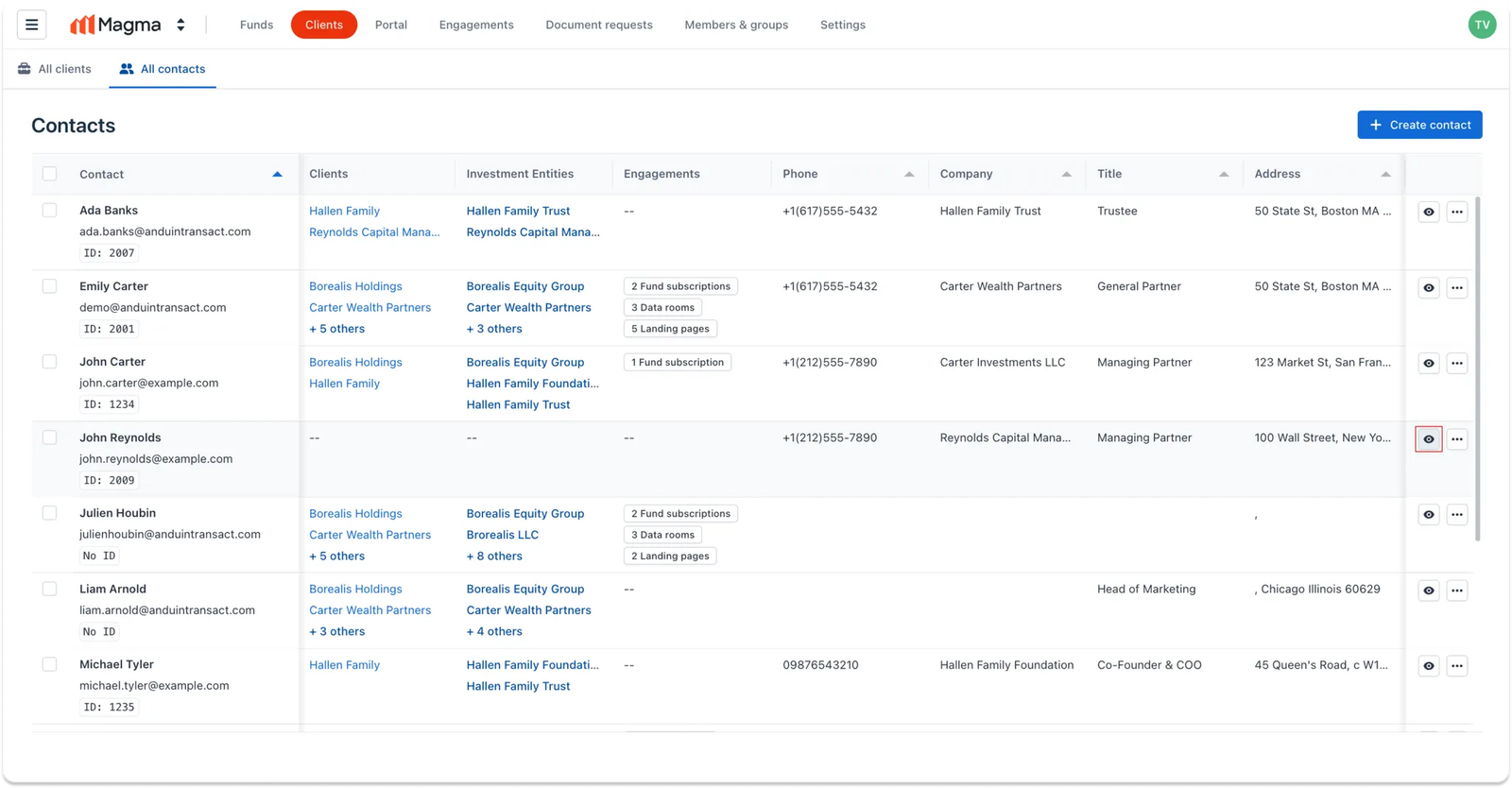
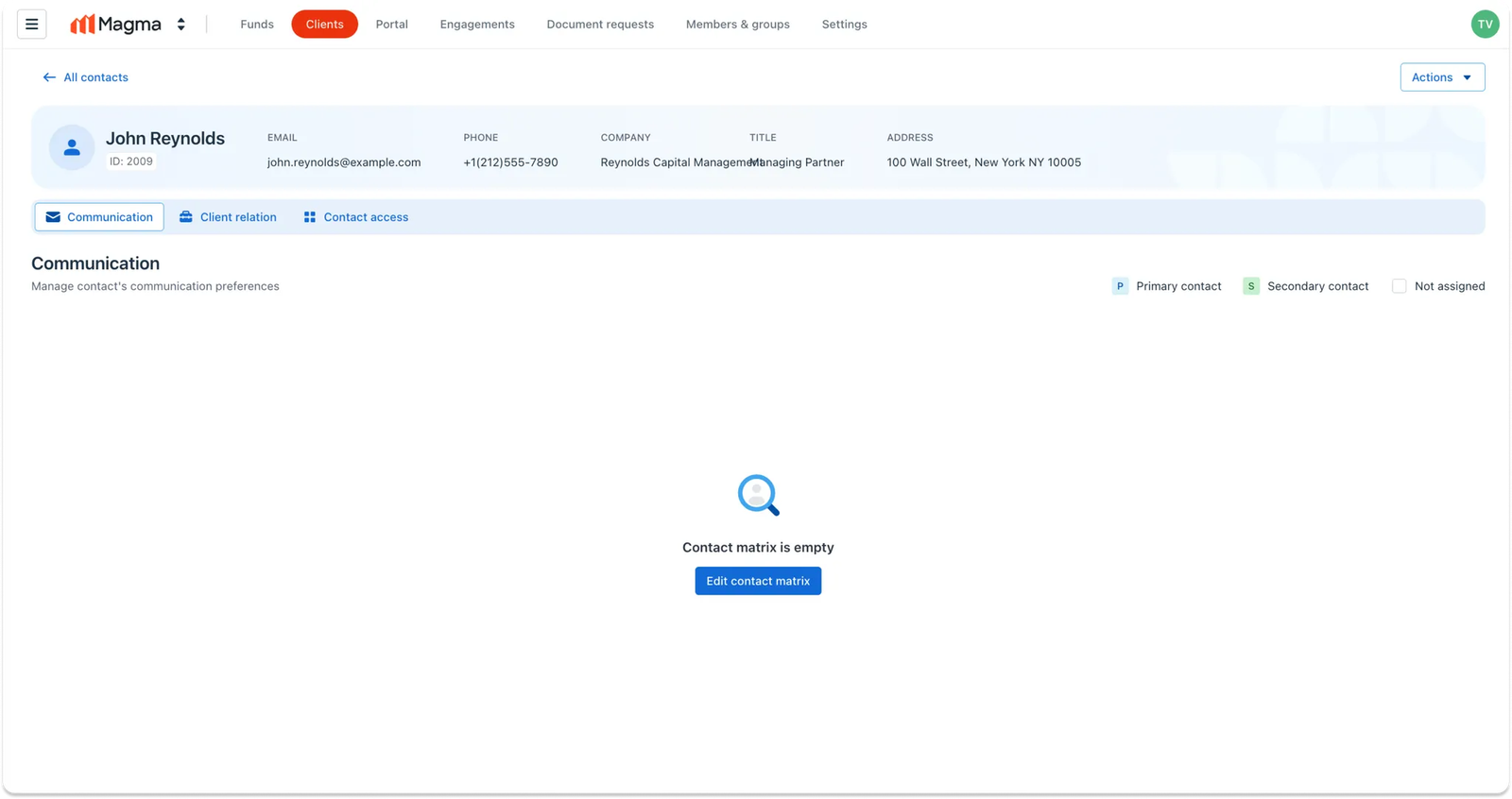
Step 0: Begin with the contact detail view
Click Edit contact matrix
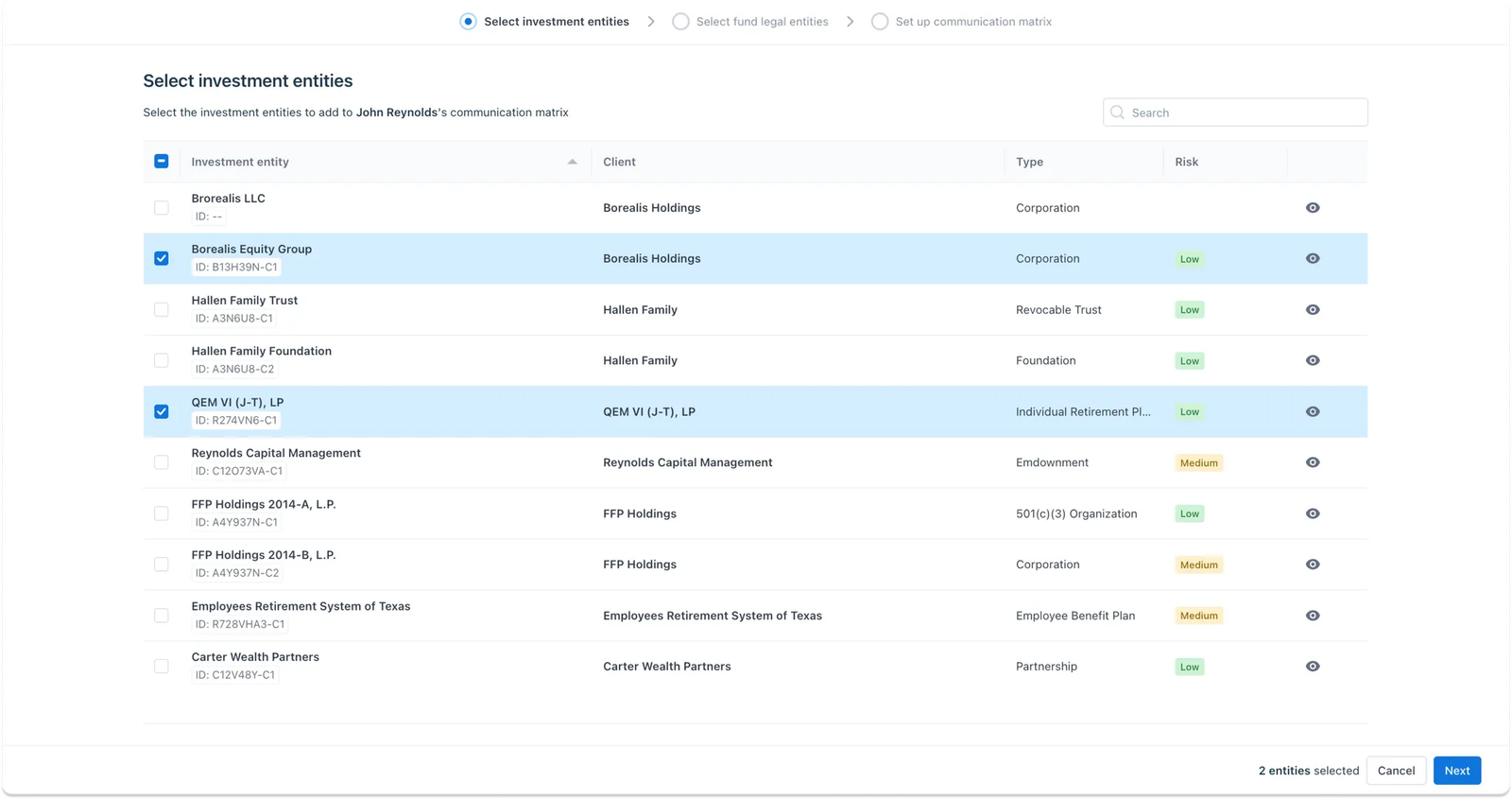
Step 1: Select investment entities
In this first step, you’ll first see a list of all investment entities in the firm. Here, you can use the checkboxes to select the ones this contact should be associated with.
To view more details of an entity, click the eye icon to open its full profile in a new tab. This can help confirm your selection before moving on.
Click Next to continue.
Step 2: Select fund legal entities
For each investment entity, select the fund legal entities (FLEs) for which you want to create a contact matrix.
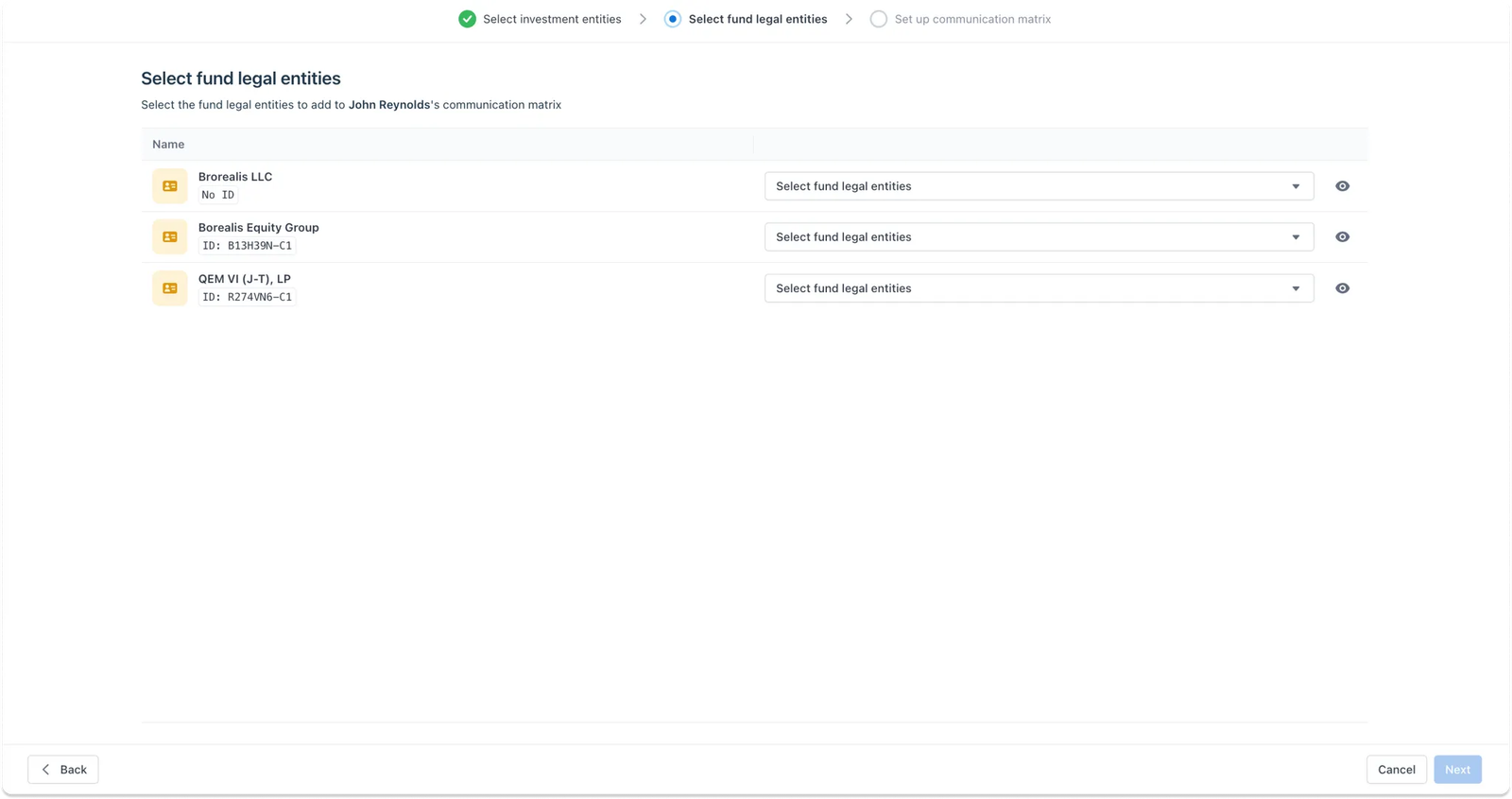
Use the dropdown under each investment entity to select the correct FLEs. Click Next when you're ready to move on.
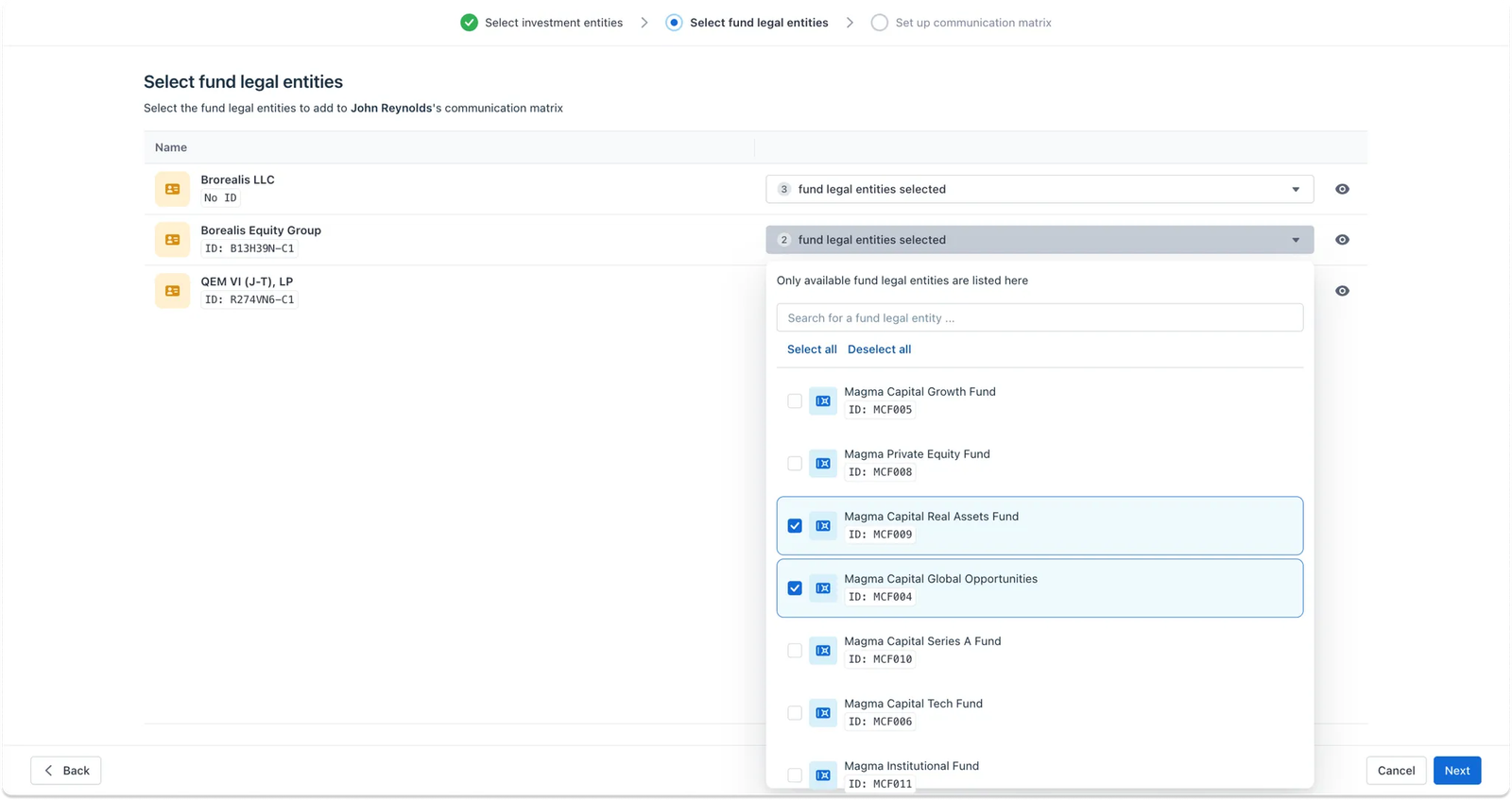
Step 3: Set up communication matrix
Based on your selections in the previous steps, a contact matrix will be generated.
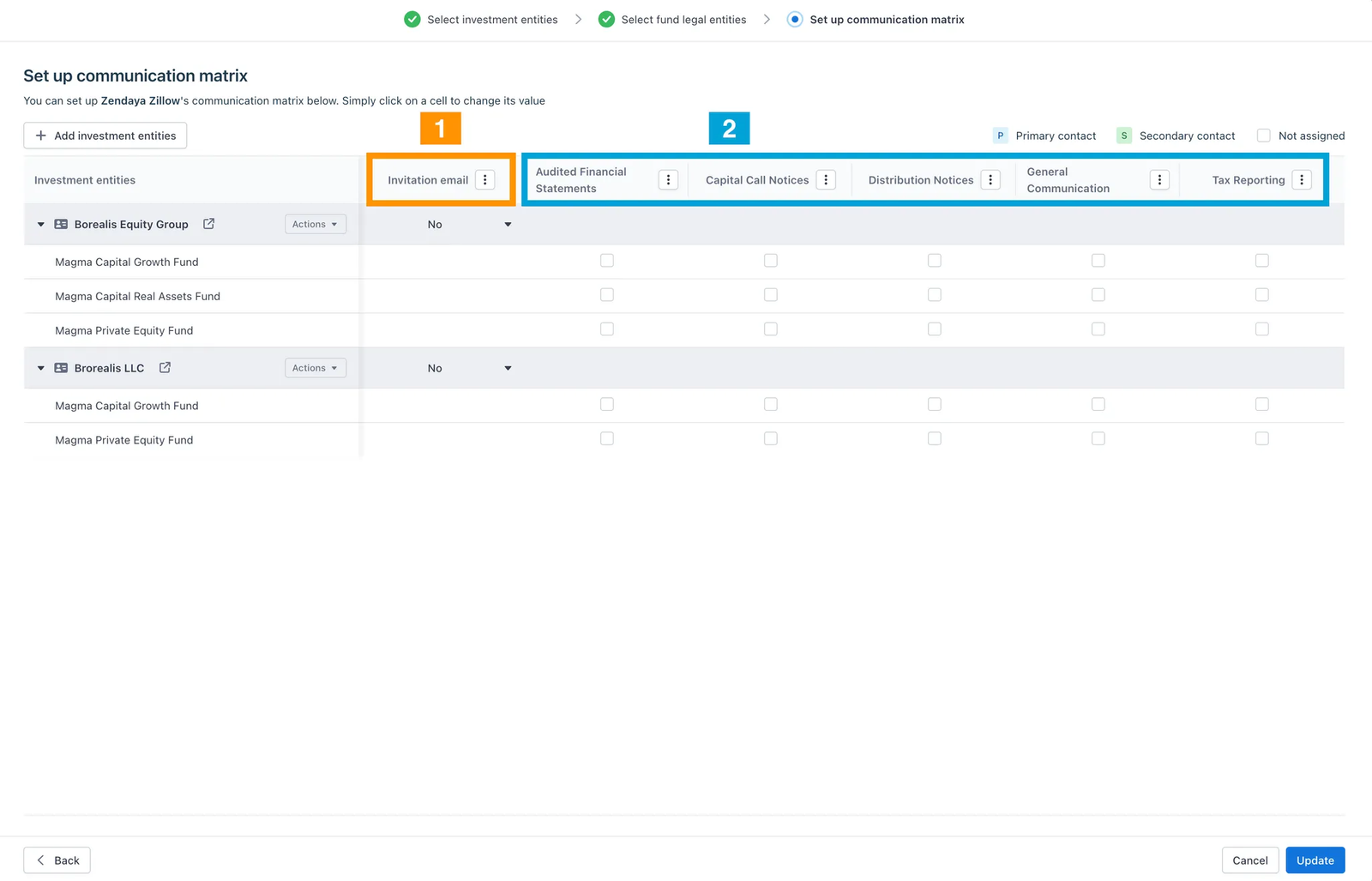
- On the left: investment entities and their linked fund legal entities
- On the top: a combined list of communication types across all selected IEs & FLEs, including: 1. Invitation email: This defines whether the contact is authorized to receive Anduin’s Fund Subscription invitation on behalf of the IE 2. Portal communication types: Depending on your Firm’s setting, you will see the list of all supported communication types.
Set up communication preferences
1. Invitation email:
- Click the cell to reveal the options “Yes/No”.
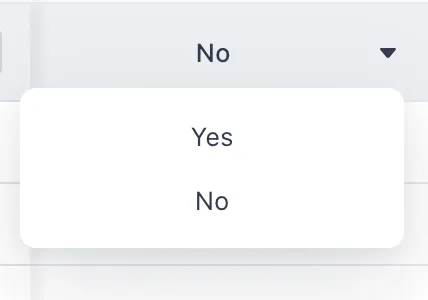
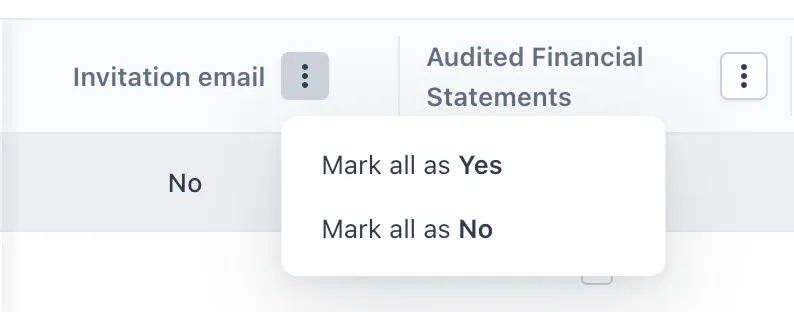
- You can also batch update this value by clicking the “Invitation email” header row.
2. Portal communication types:
To assign the contact’s communication preferences, click the white checkbox on each FLE row.
- 1 click = assign as Primary
- 2 clicks = assign as Secondary
- 3 clicks = Unassign
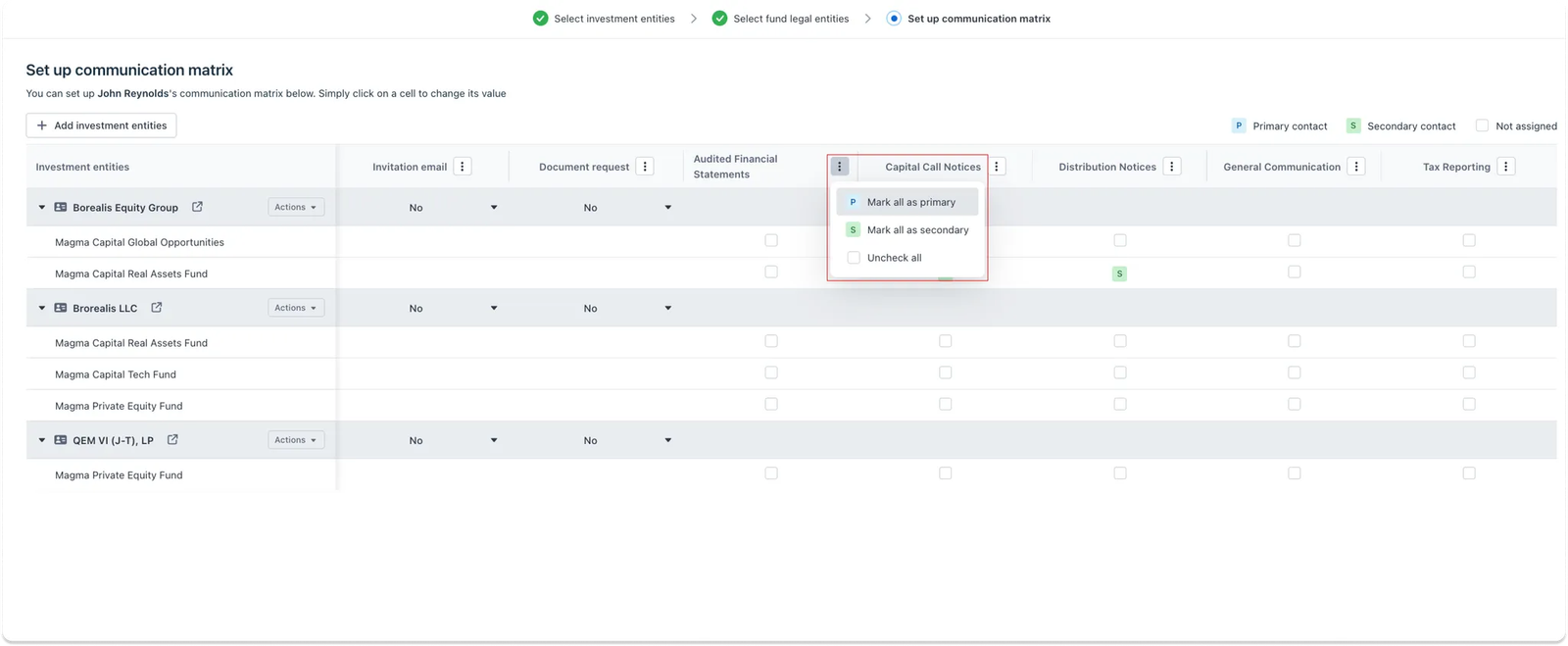
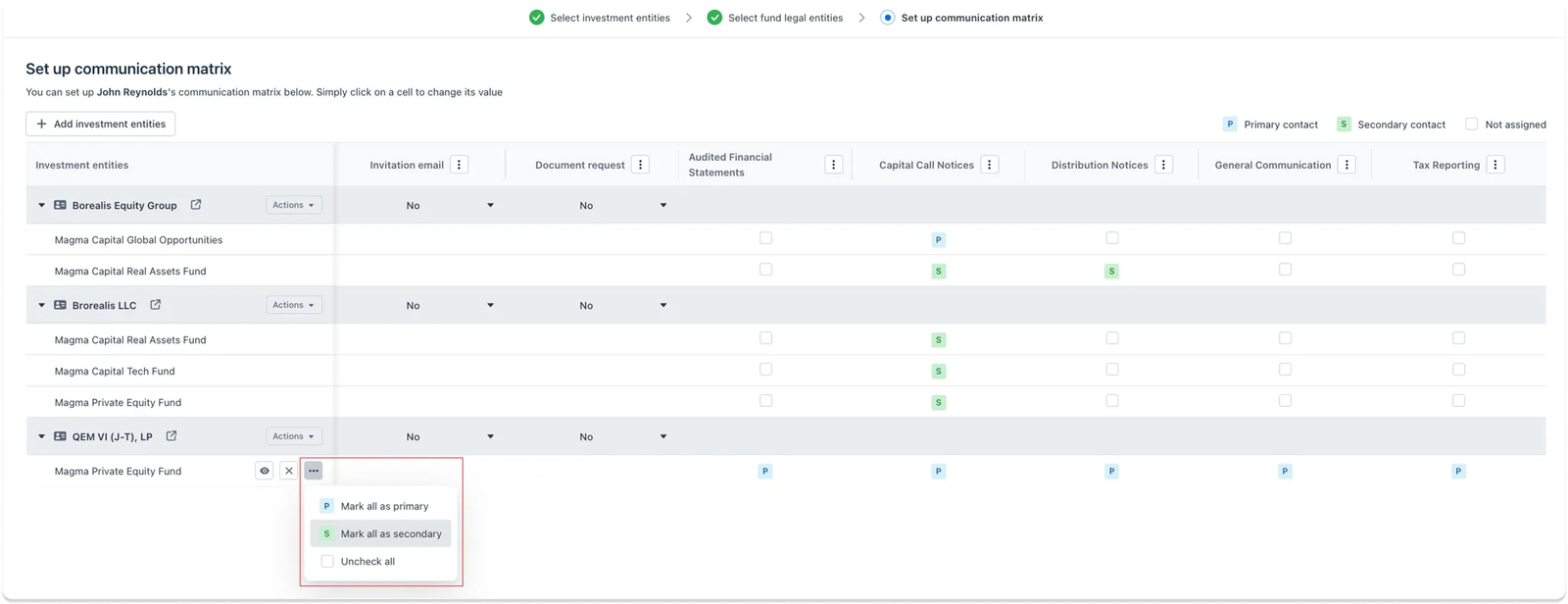
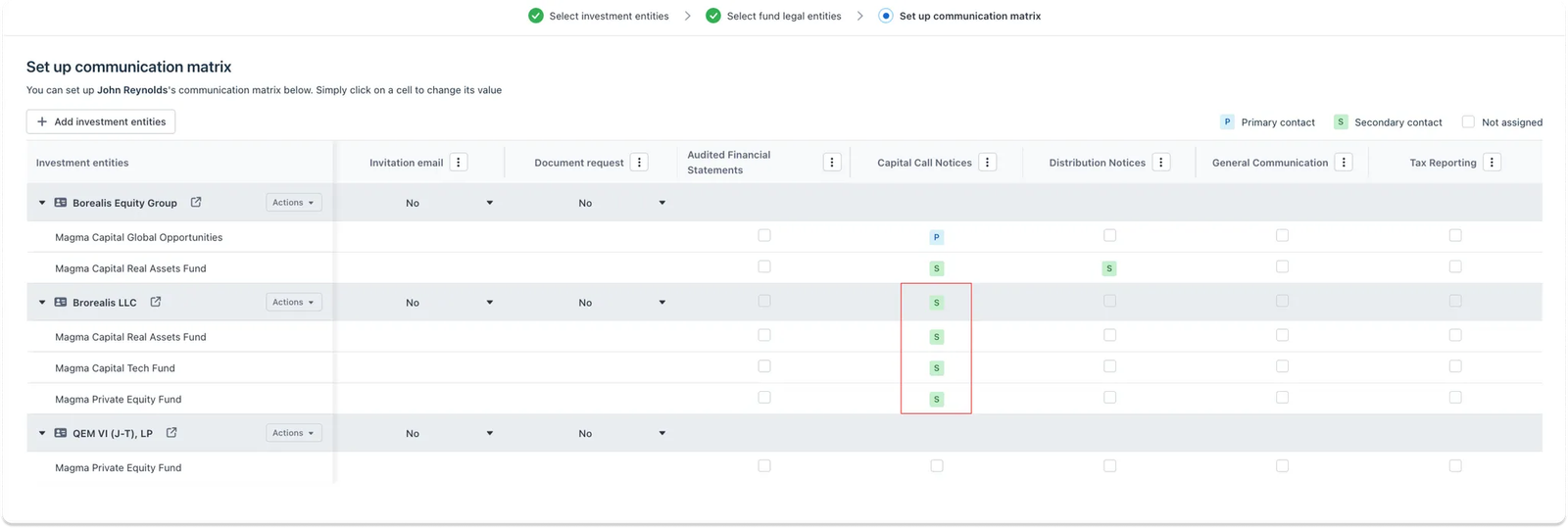
Batch assigning is also supported:
- By communication types:
- By fund legal entities:
- By investment entities:
Notes:
During this step, you can still add or remove investment entities and fund legal entities to the table as needed
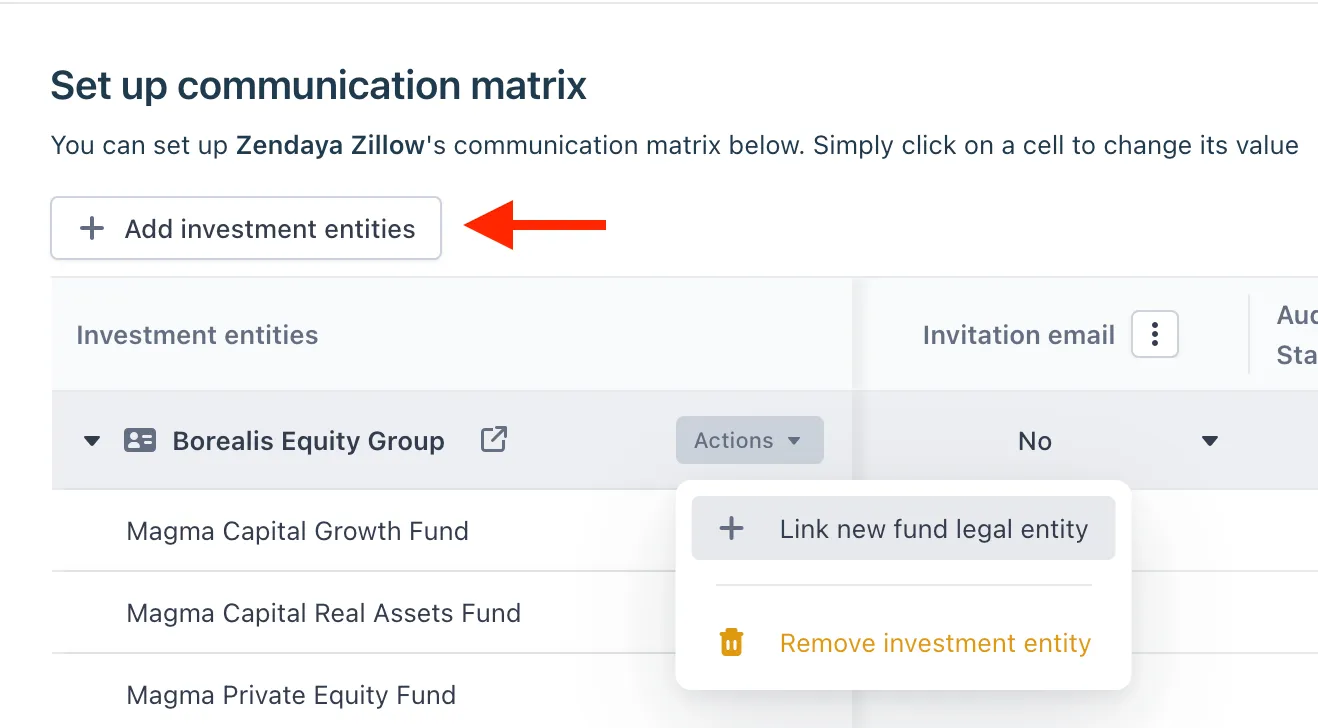
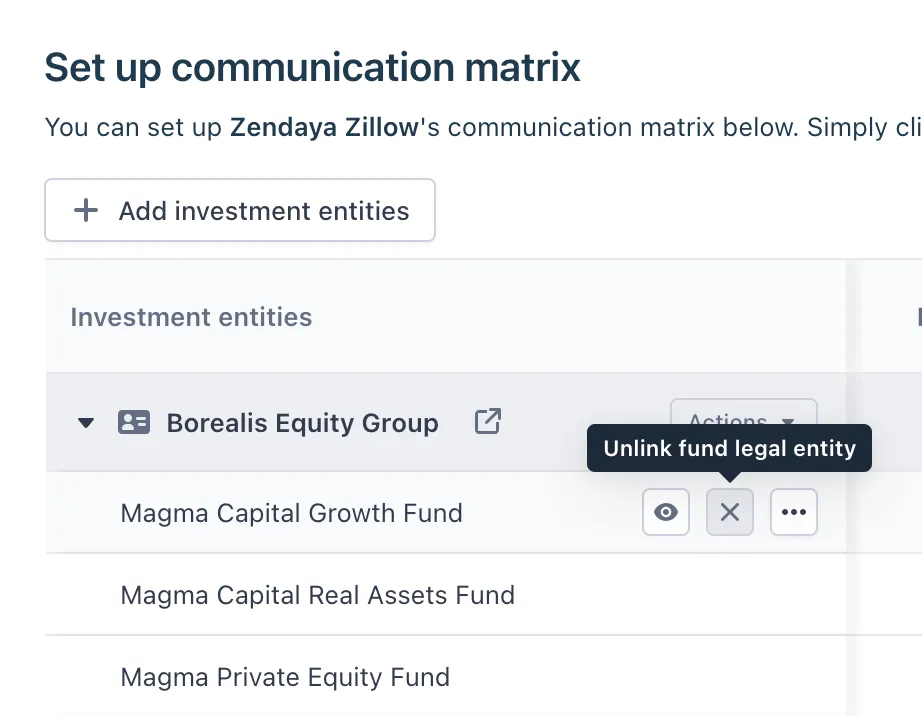
Once you're done, click Update. The new contact matrix will be saved and reflected under the Communications section of the contact's profile.
Note: Saving an empty contact matrix is equivalent to removing existing communication settings for an IE & FLE combination.