

Set up terms of access for your Investor Portal and landing pages
Require investors to accept your terms before they can open your Investor Portal or landing pages, and control who re-accepts when you update them.
Ask investors to accept your terms, for example confidentiality or acceptable-use terms, before they can see anything in your Investor Portal, including your landing pages. You write the terms once and activate them, and each investor is asked to accept them the first time they open the portal. When you publish an updated version, you decide who has to accept again.
Where to find it: in Investor Data Management, go to Portal → Terms of access.
Note: You need permission to manage the Portal and landing pages to see this tab. The tab becomes available once landing pages are turned on for your firm.

1 · Create the terms of access
Click Create new and fill in the form. The preview on the right shows exactly what investors will see as you type.
| Field | What it does | Limit |
|---|---|---|
| Terms of access name | Internal name to help your team tell terms apart. Investors never see it. | 256 characters |
| Display title | The heading investors see at the top of the terms | 100 characters |
| Acceptance button | The label on the button investors click to accept, for example "I agree" | 50 characters |
| Require investors to review the all terms of access before accepting | When ticked, the acceptance button stays disabled until the investor scrolls to the end of the terms | Off by default |
| Content | The terms themselves. You can use bold, italic, underline, strikethrough, bulleted and numbered lists, links, font size and text color. | 20,000 characters |
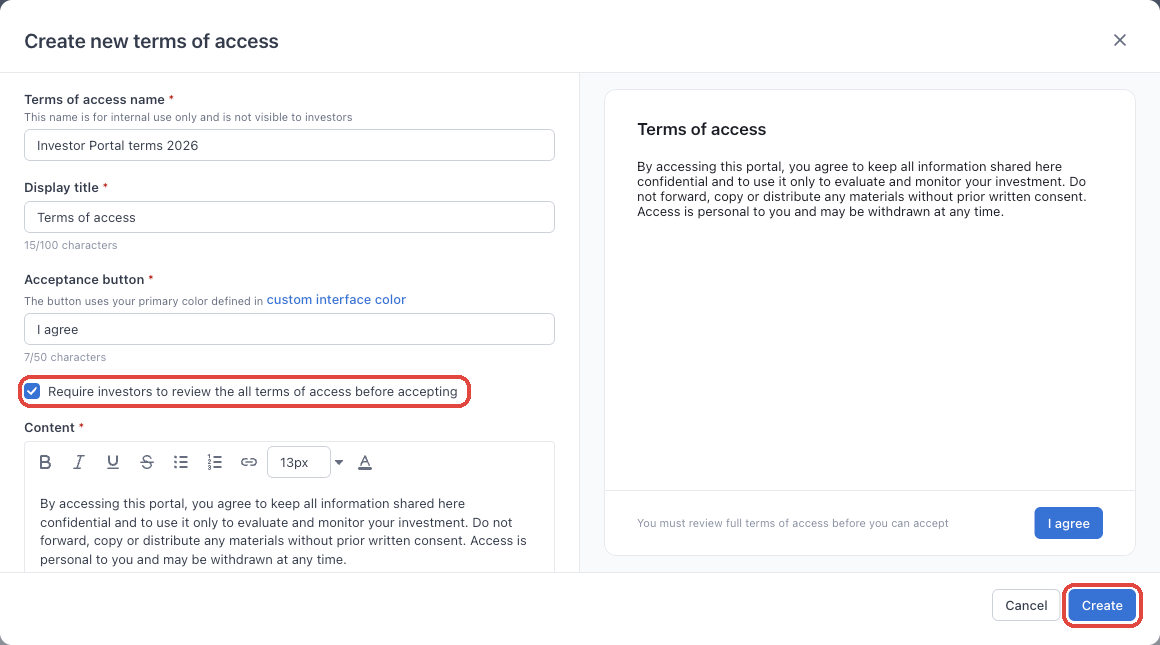
The acceptance button uses your portal's primary color. To change it, click custom interface color under the field.
Heads up: The color you pick under custom interface color is saved to your portal's color theme, so it changes your landing pages too, not just the terms of access.
When you're happy with the preview, click Create.
2 · Activate the terms
Right after you click Create, you're asked whether to activate the new terms:
| Option | What happens |
|---|---|
| Activate | The terms go live immediately. All investors must accept them before they can open the portal. |
| Don't activate | The terms are saved as Inactive. Nobody is asked to accept them until you activate them. |
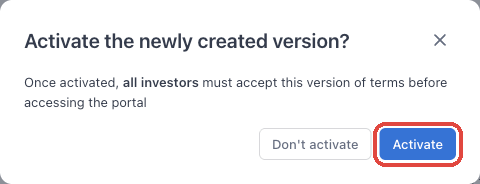
Note: Only one terms of access can be active at a time. If another one is already active, you're asked to confirm that it will be deactivated first.
To activate inactive terms later, open them from the list with the eye icon (or use ⋯ → Activate) and click Activate.
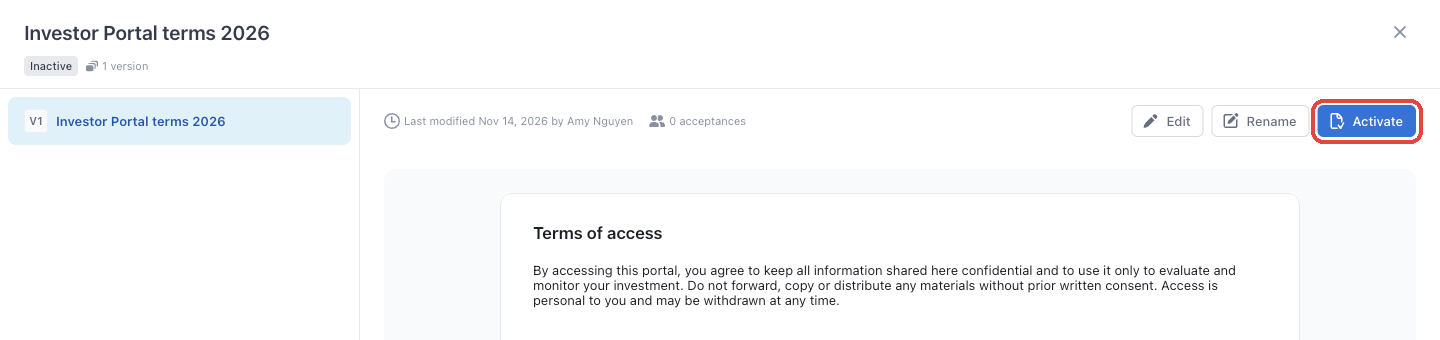
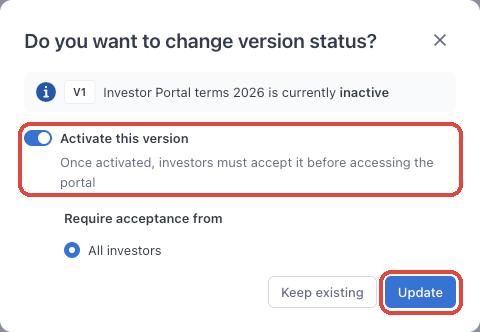
In the Do you want to change version status? dialog, keep Activate this version turned on and click Update.
3 · What investors see
The next time an investor opens any page of your Investor Portal, including a landing page, the terms appear in a window before the page loads.
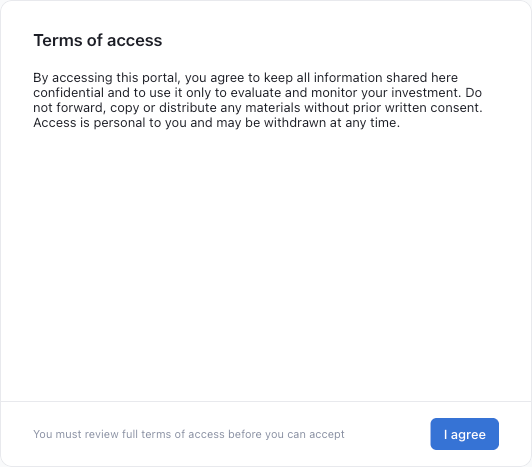
| What the investor does | What happens |
|---|---|
| Clicks the acceptance button | Their acceptance is recorded and the page opens. They're not asked again for this version. |
| Closes the window without accepting | The page stays blocked with Access restricted: Please accept all terms of access to access this page. The terms appear again the next time they open the portal. |
| Tries to accept without scrolling (when review is required) | The acceptance button stays disabled until they reach the end of the terms. |
Acceptance is recorded for each person who signs in. If several contacts share an investment entity, each of them accepts on their own.
4 · Update your terms
To change the wording, open the terms and click Edit (or use ⋯ → Edit content in the list).
| Situation | What happens when you save |
|---|---|
| Nobody has accepted this version yet | Your changes are saved to the same version. |
| At least one investor has accepted this version | Your changes are saved as a new version (V2, V3 and so on). You can name the version and choose whether to activate it right away. |
When you activate a new version, choose who has to accept it:
| Require acceptance from | Who is asked to accept |
|---|---|
| All investors | Everyone, including investors who accepted an earlier version |
| Only investors who haven't accepted these versions | Investors who already accepted any of the versions you select can skip this one. Useful for small wording fixes. |
You can change this choice later from the active version's detail view with Edit setting. To change it on an inactive version, activate it first.
5 · Manage your terms of access
Each row in the list has an ⋯ menu:

| Action | What it does |
|---|---|
| Rename | Changes the internal name. Investors don't see it. |
| Edit content | Edits the latest version, or lets you pick which version to edit when there are several. |
| Activate / Activate another version | Makes the chosen version the one investors must accept. |
| Deactivate | Shown for active terms only. Investors no longer need to accept anything to open the portal. Takes effect immediately, and past acceptances stay on record. |
| Delete | Permanently removes the terms of access, all of its versions and every acceptance recorded for them. This can't be undone. |
In the detail view you can also see each version's number of acceptances and rename a version (version names are internal too).
Good to know
- One set of terms for the whole portal. The active terms of access cover your Investor Portal and every landing page investors open in it. You can't set different terms for individual landing pages.
- Previewing as a contact skips the terms. When you use Contacts → ⋯ → View Portal as contact, the terms aren't shown and no acceptance is recorded for that contact.
- Seeing who accepted. Each version shows how many investors accepted it. For the full list of who accepted and when, contact your Anduin representative.
- Data room terms are separate. If a landing page shows documents from a data room that has its own terms of access, investors accept those data room terms separately when they open the documents.