Manage the Firm Settings in IDM
Introduction The “Settings” tab provides a centralized hub to configure all preferences, making your investor data management process more convenient and t
Introduction
The “Settings” tab provides a centralized hub to configure all preferences, making your investor data management process more convenient and tailored to your firm’s specific needs.
This guide details how you can utilize the “Settings” tab in IDM, currently covering the “General” and “Notifications”. Other sections will be updated soon.
General tab
1. Firm name
Used for Firm - defines the name of this IDM firm space
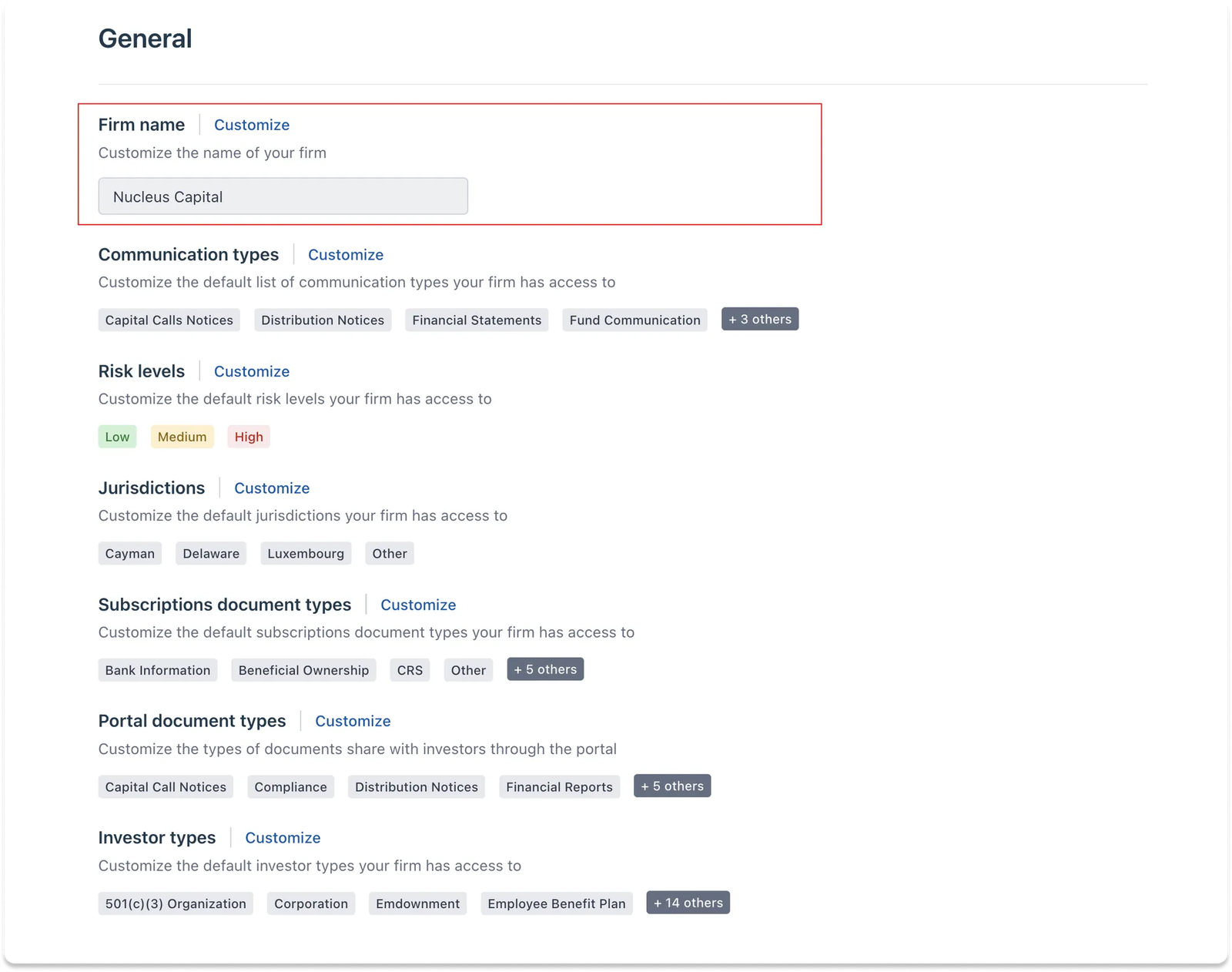
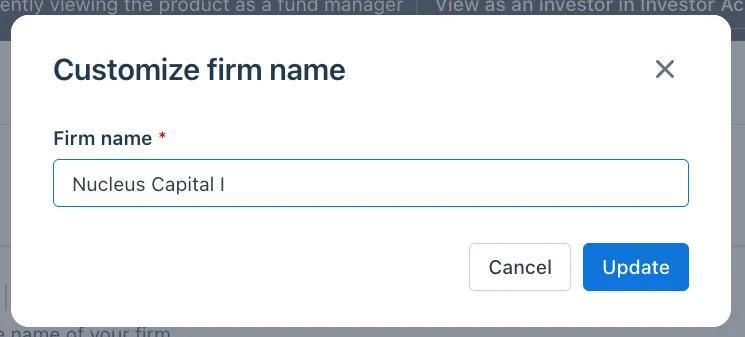
Select the Customize button to change the firm name
💡 Where will this apply?
- Visible in the navigation menu
- Shown in all emails sent from IDM, including invitations, notifications, document requests, and document distributions, etc.
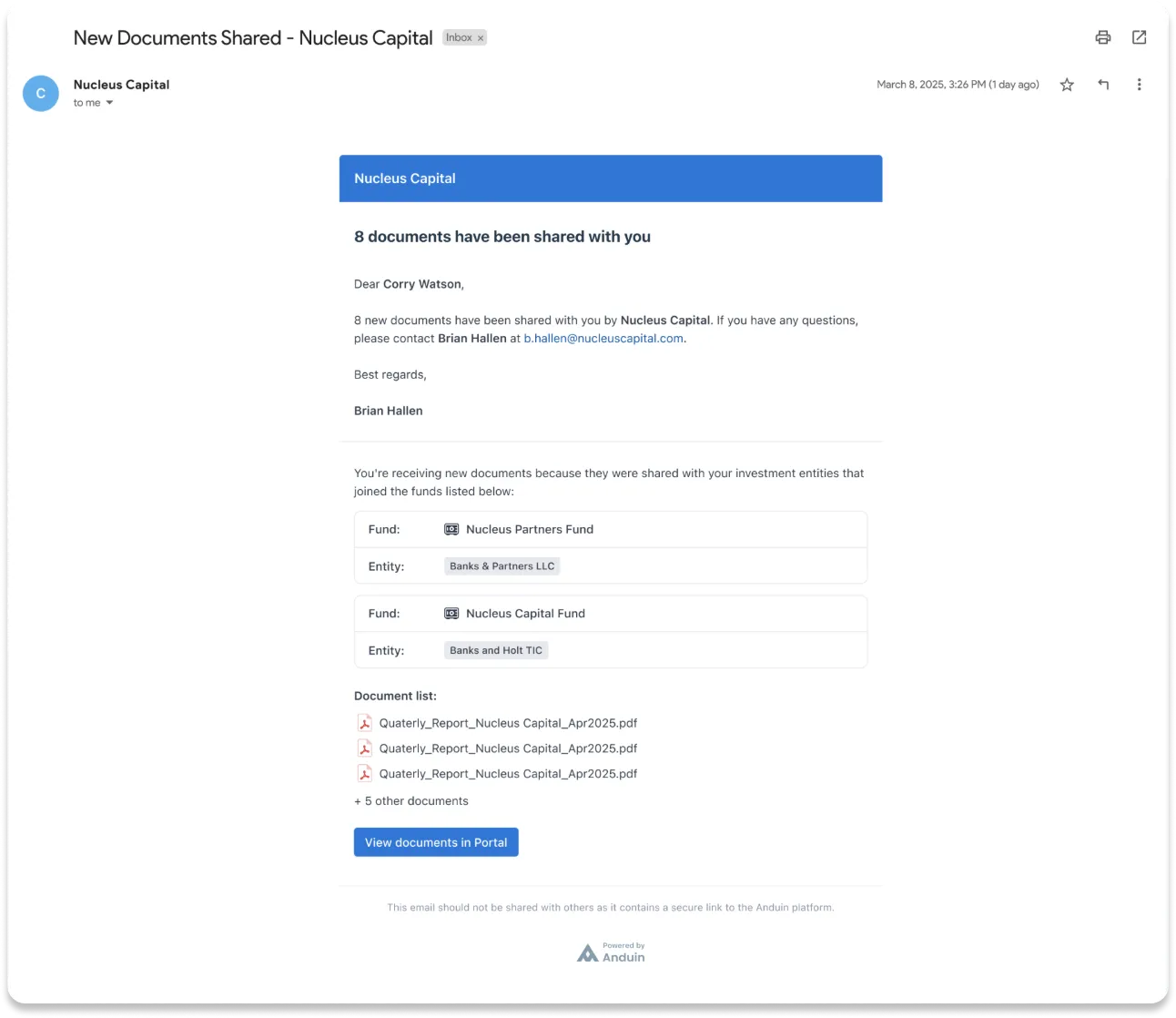
2. Communication types
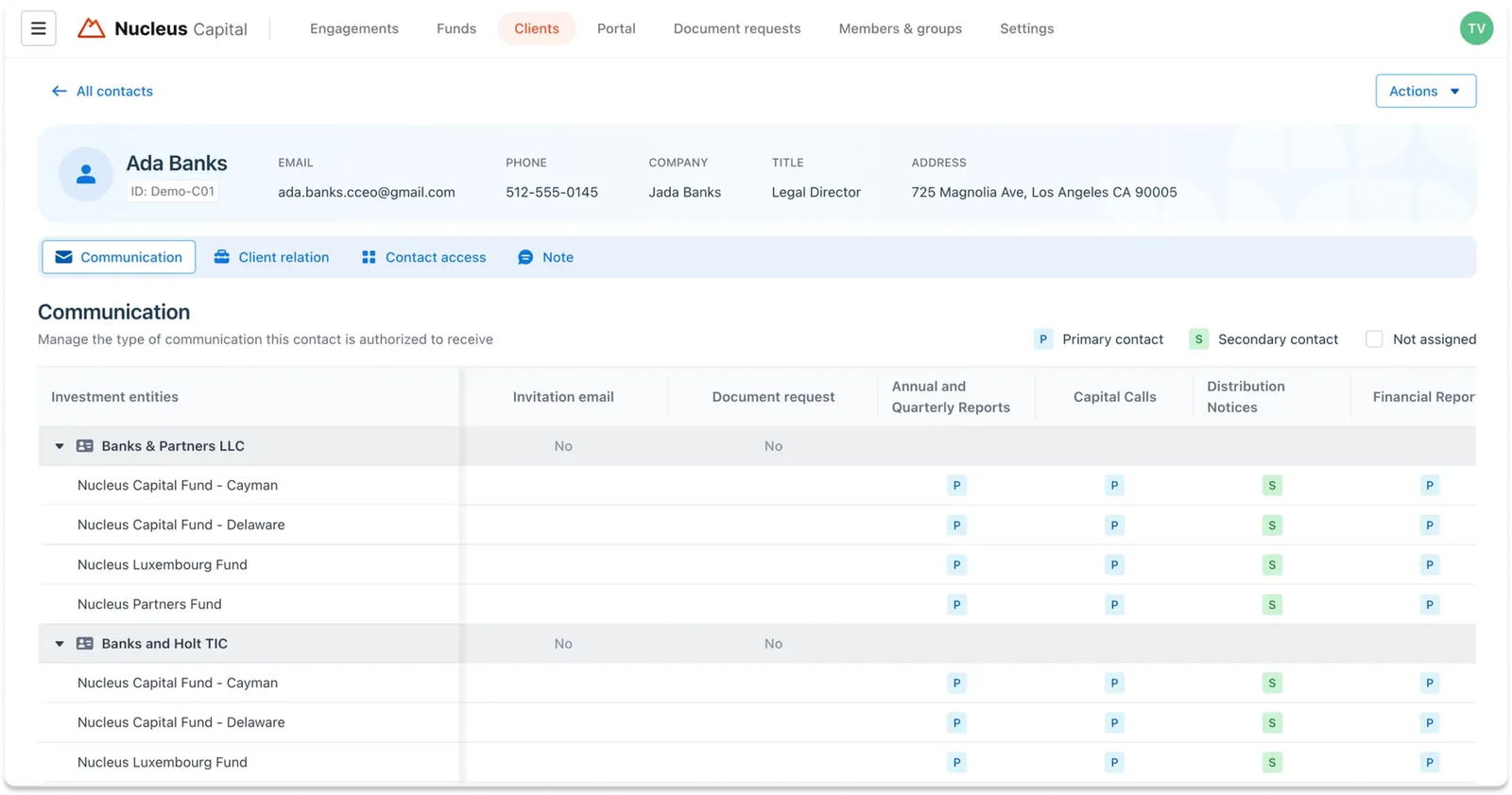
Used for Contacts - defines a contact's permissions within investment entities across different funds to ensure that the person receives the appropriate documents or updates via the investor portal
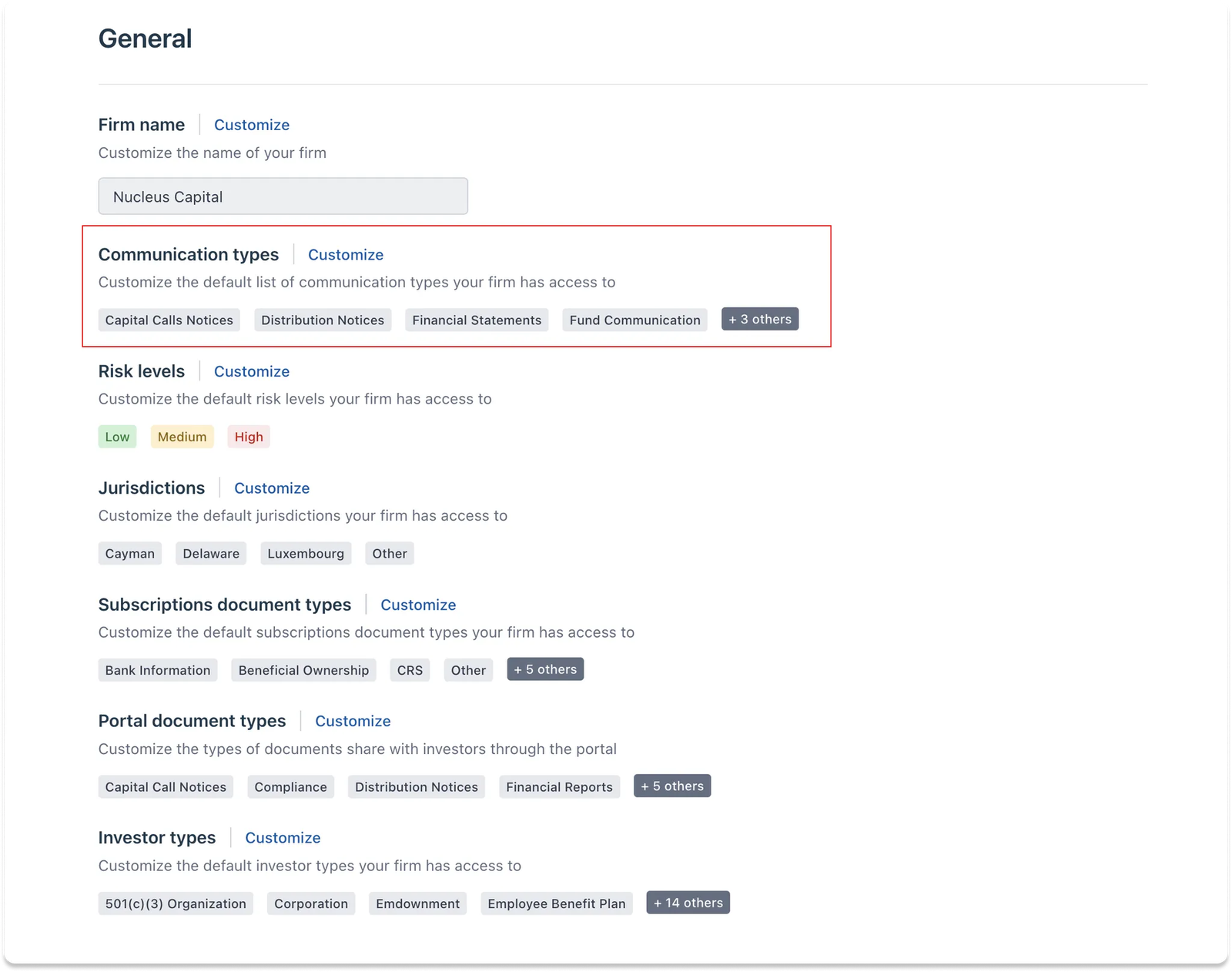
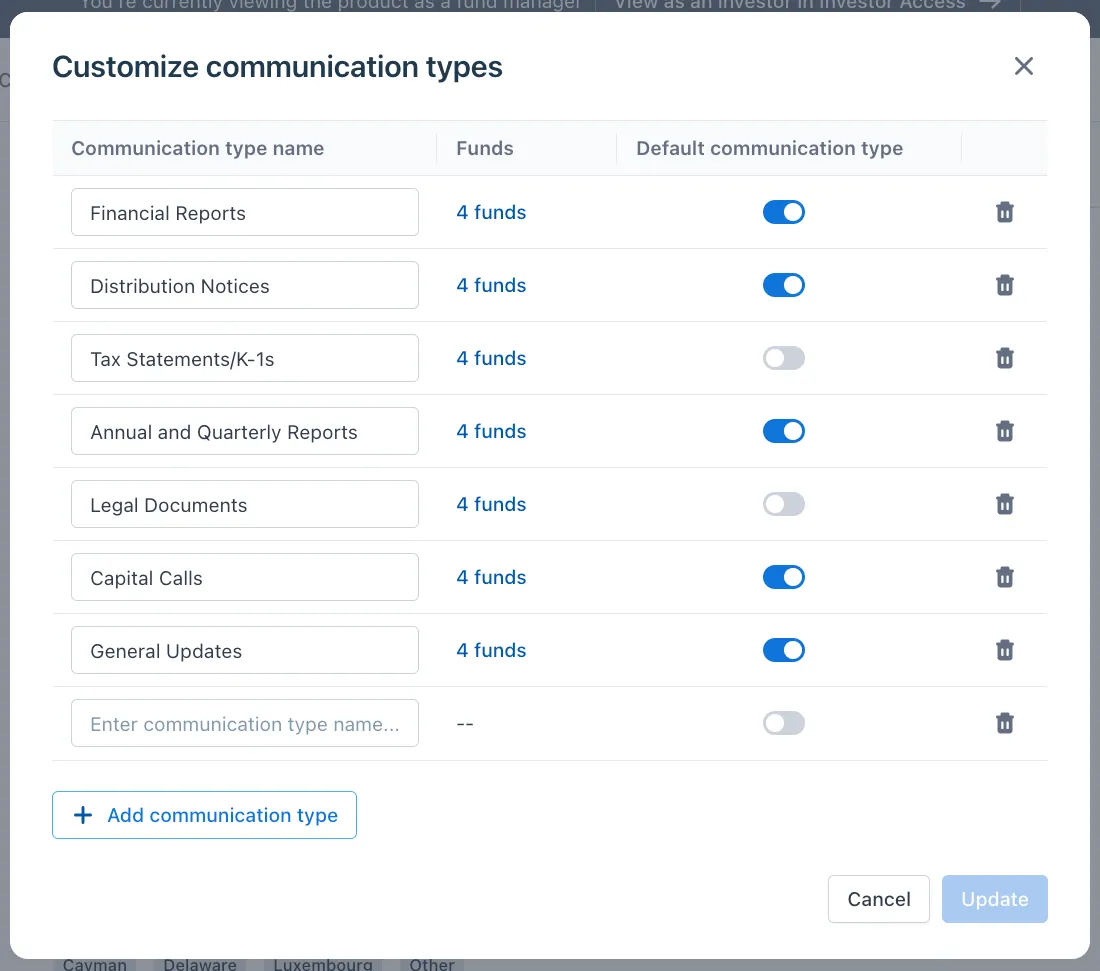
Select the Customize button to configure the list of communication types that best suit the needs of each fund legal entity
Within this modal, you can toggle which types should be added by default when creating a new fund legal entity, and freely add or remove communication types as needed.
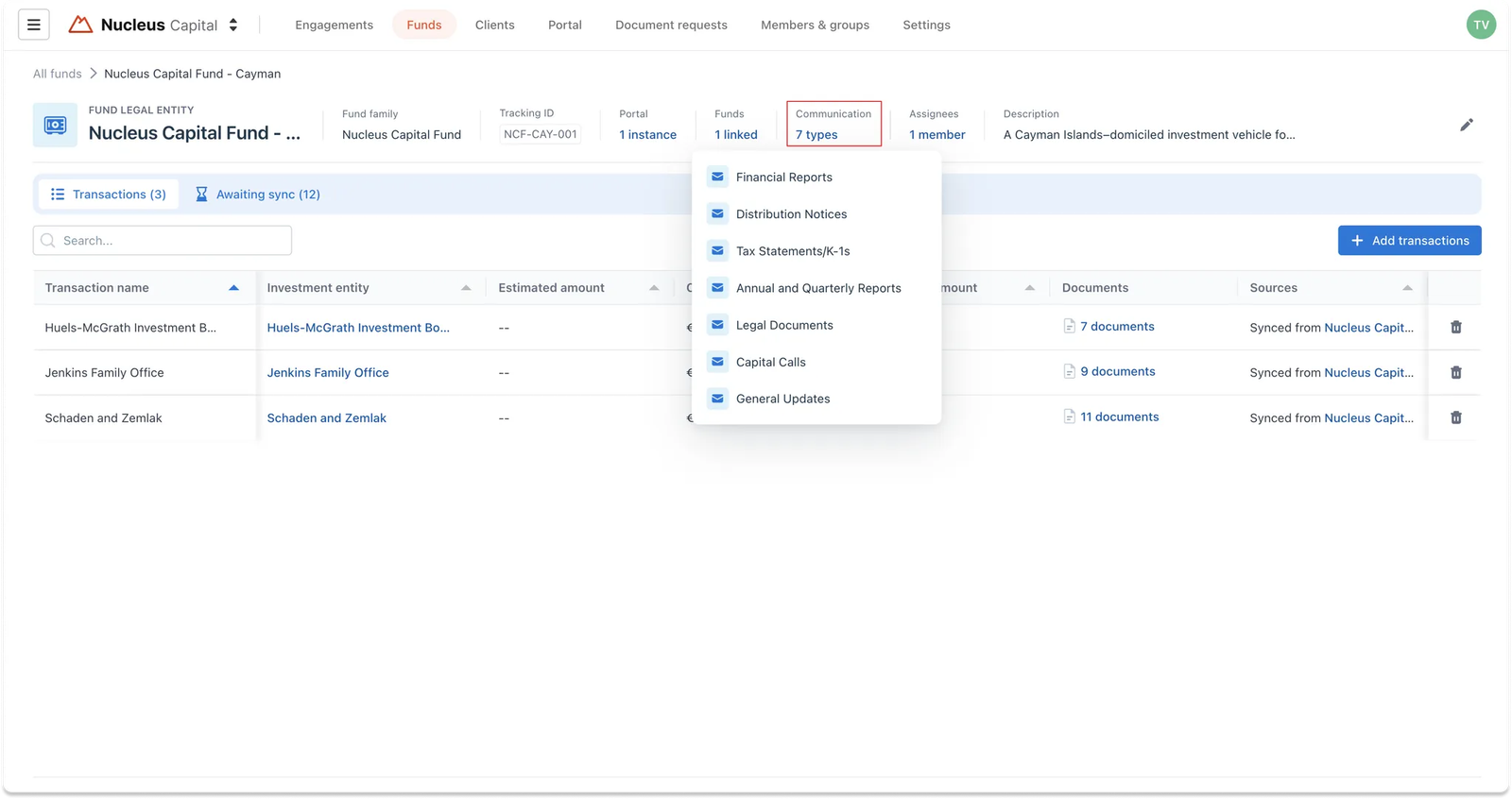
💡 Where will this apply?
- Communication types can be assigned at the Fund Legal Entity (FLE) level to specify which types are relevant to each fund. Navigation: Funds tab > Fund legal entity detail > Communication types
- Each contact will also be granted permissions based on communication types Navigation: Clients tab > All contacts tab > Contact detail > Communications tab
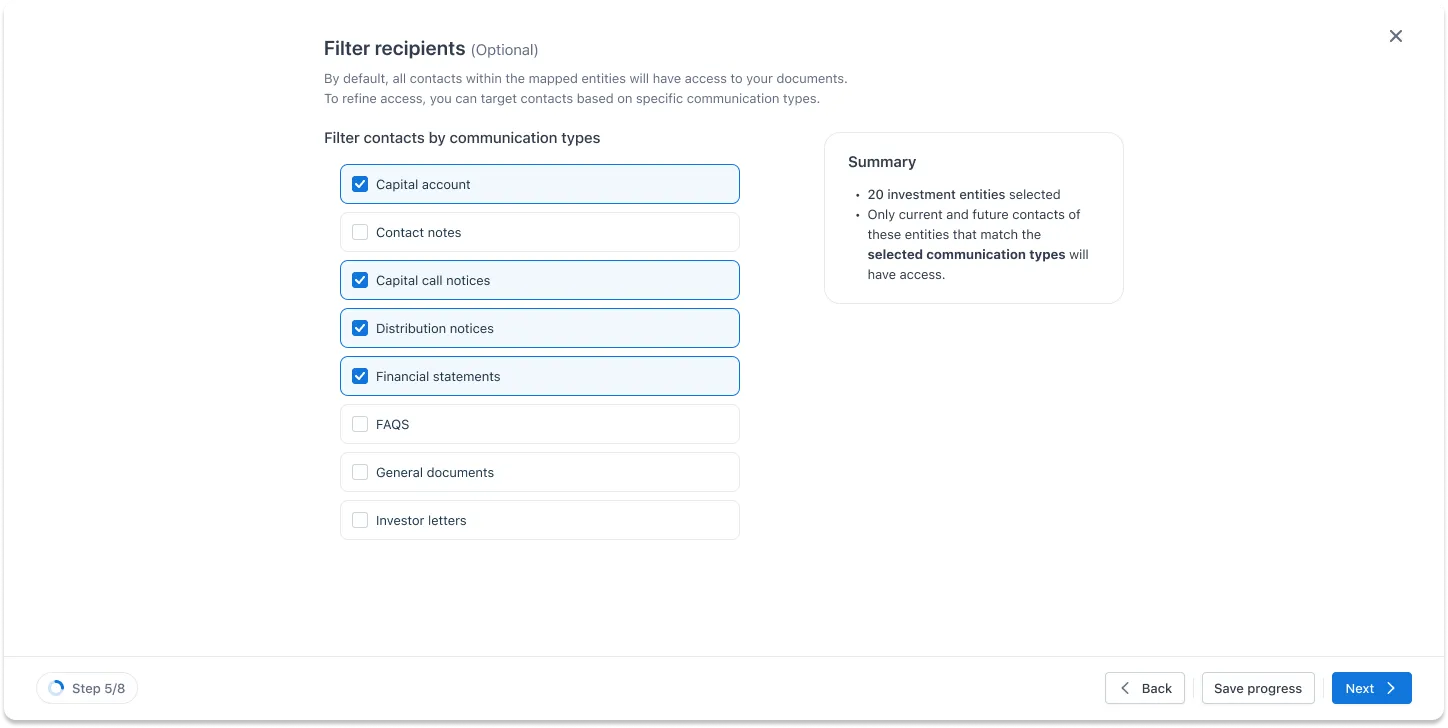
- During document sharing, communication types help filter and target the right recipients Navigation: Portal tab > Documents tab > “Upload & share” > … > Narrow down recipient step
3. Risk levels
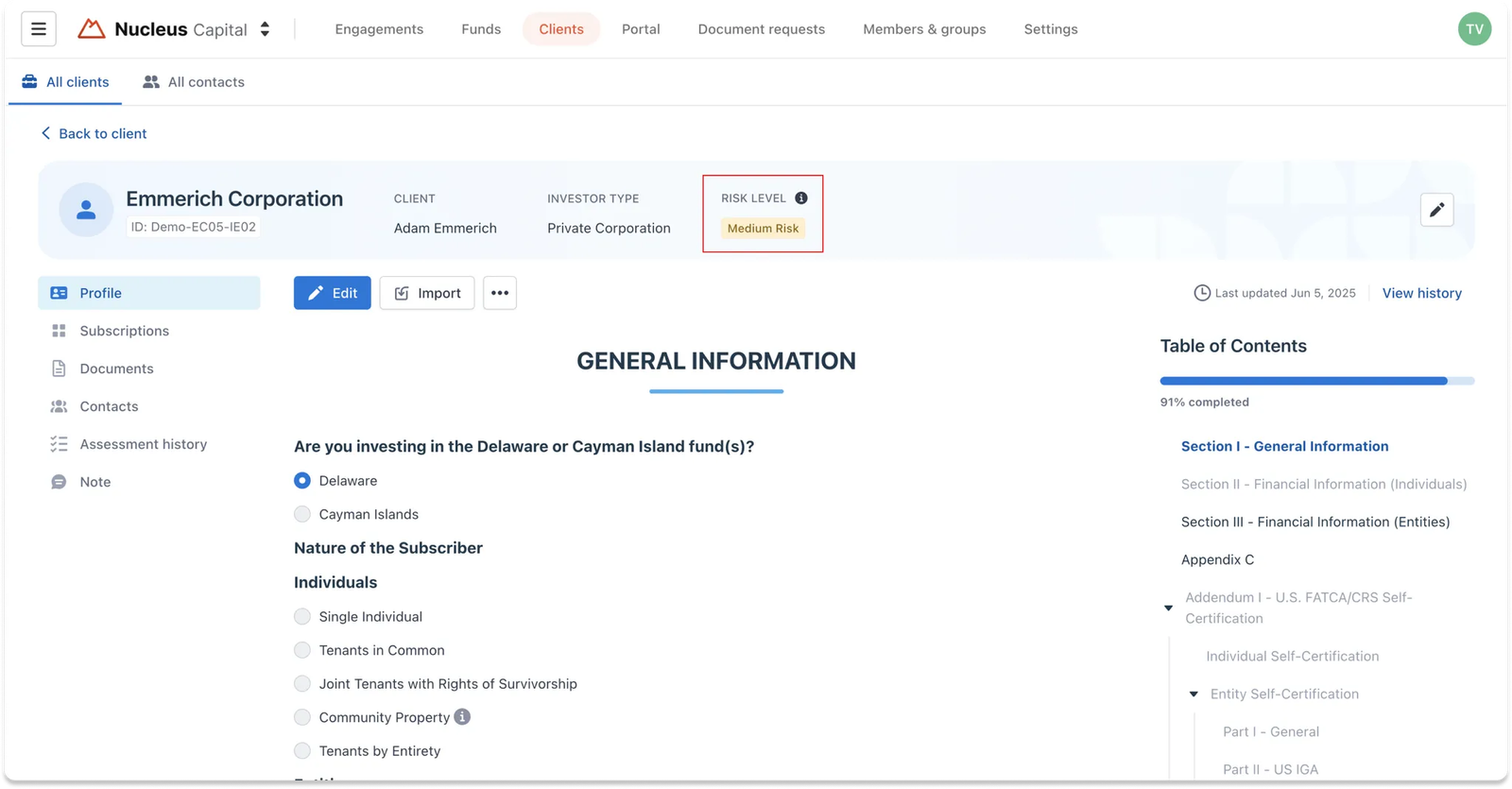
Used for Investment entities – defines the risk level options your firm uses to classify investors
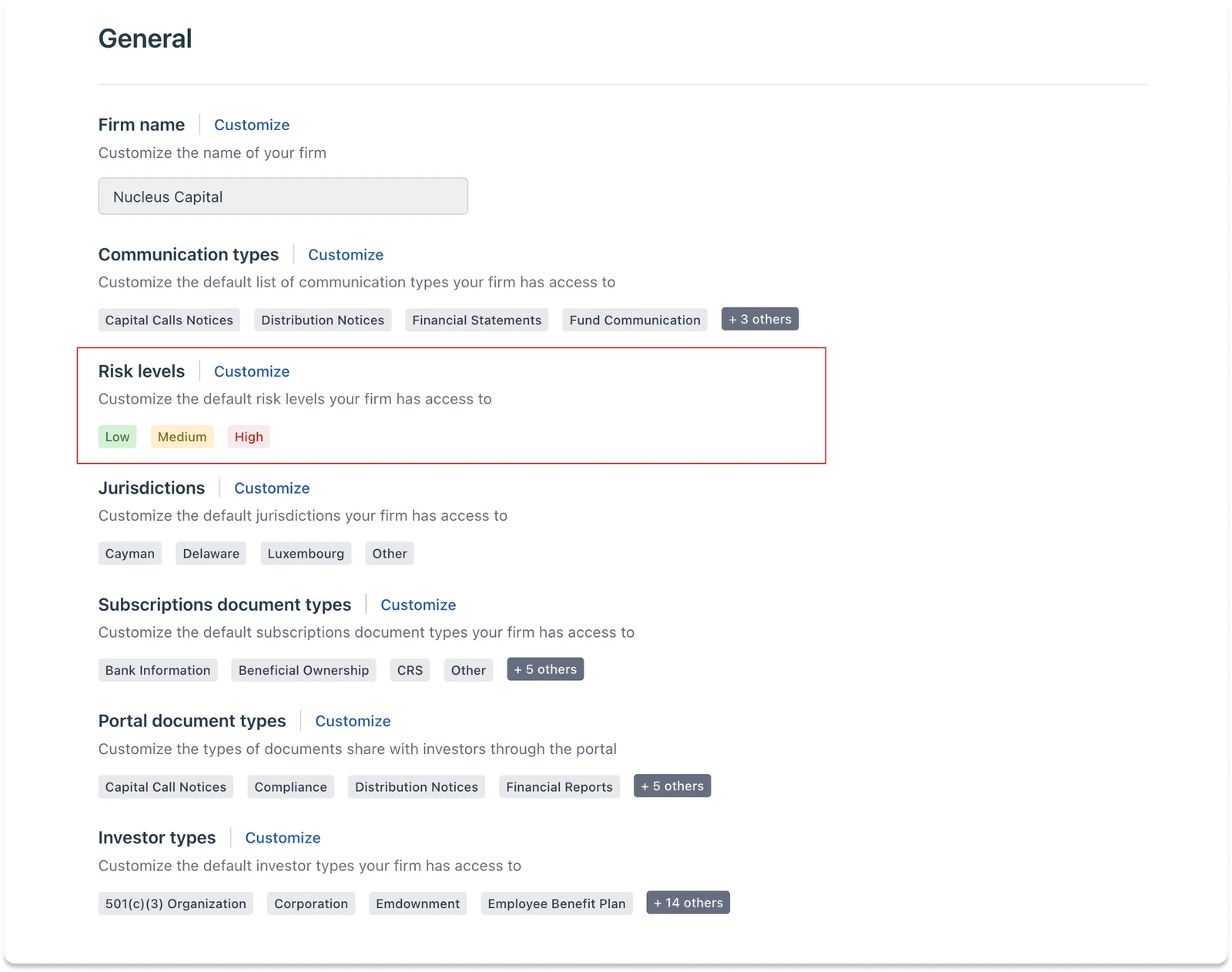
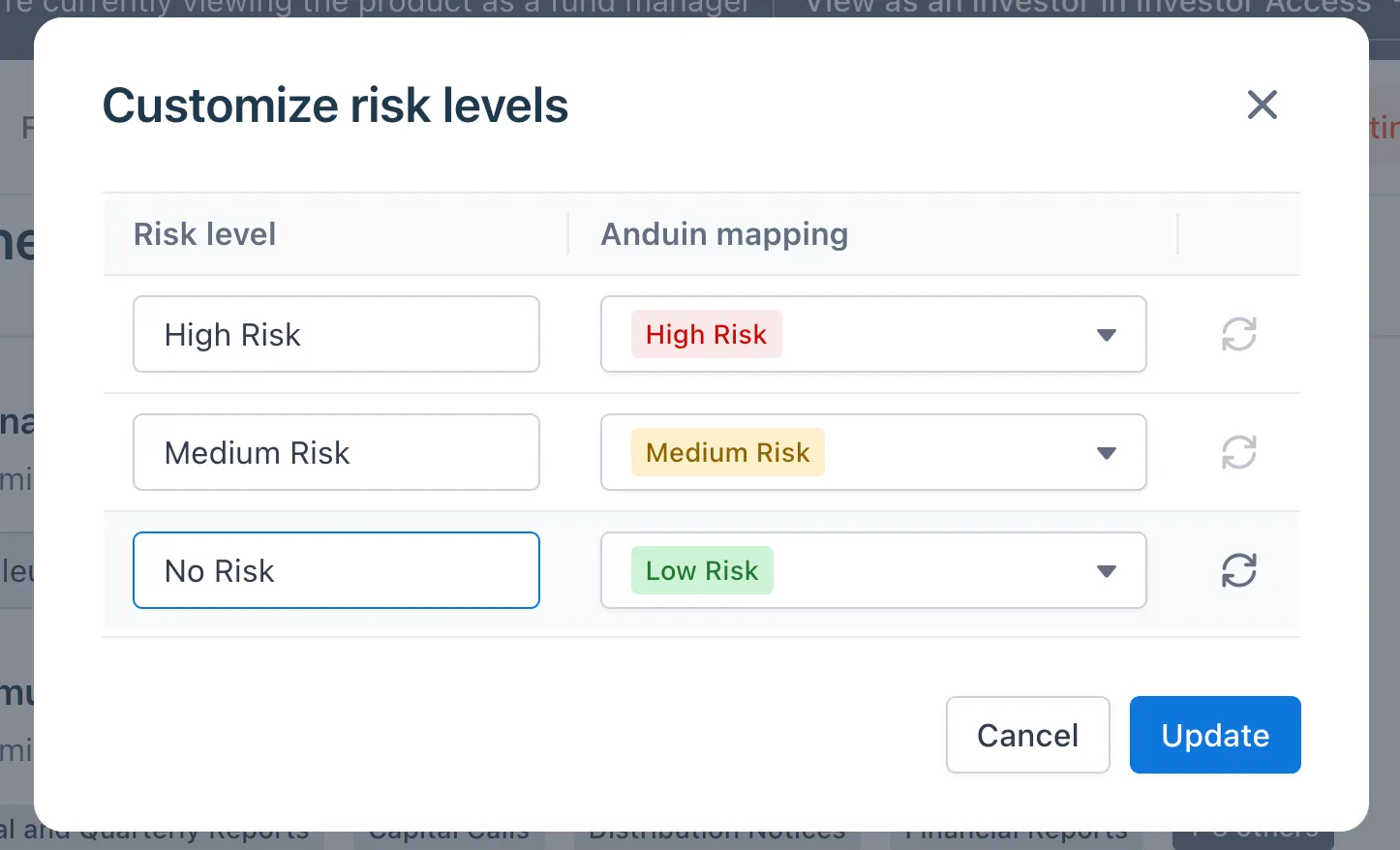
Select the Customize button to rename each risk level freely. Currently, IDM provides 3 fixed levels.
💡 Where will this apply?
Navigation: Clients tab > Investment entity detail
4. Subscription document types
Used for subscription documents - defines the list of categories to classify an investor’s subscription documents
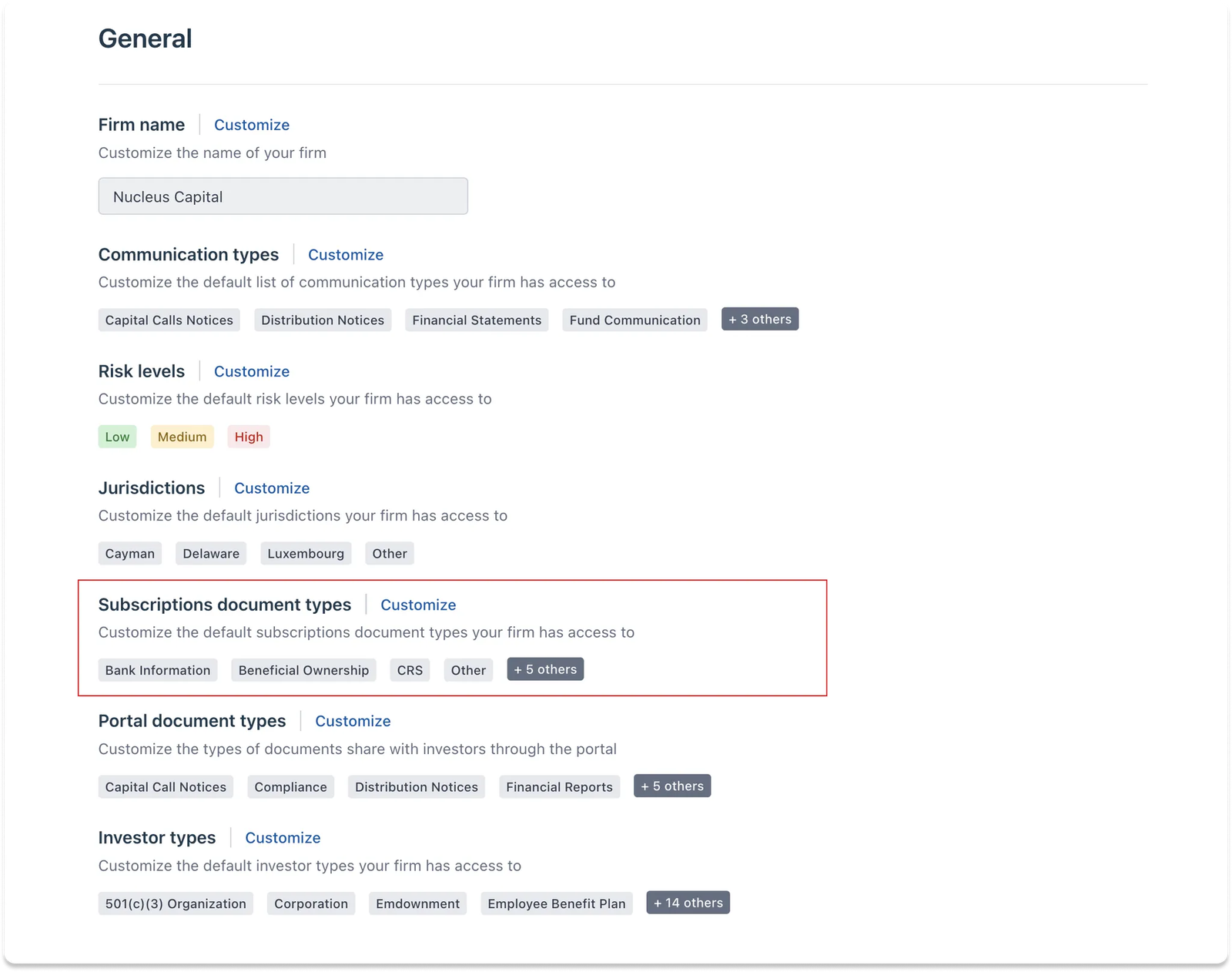
- Select the
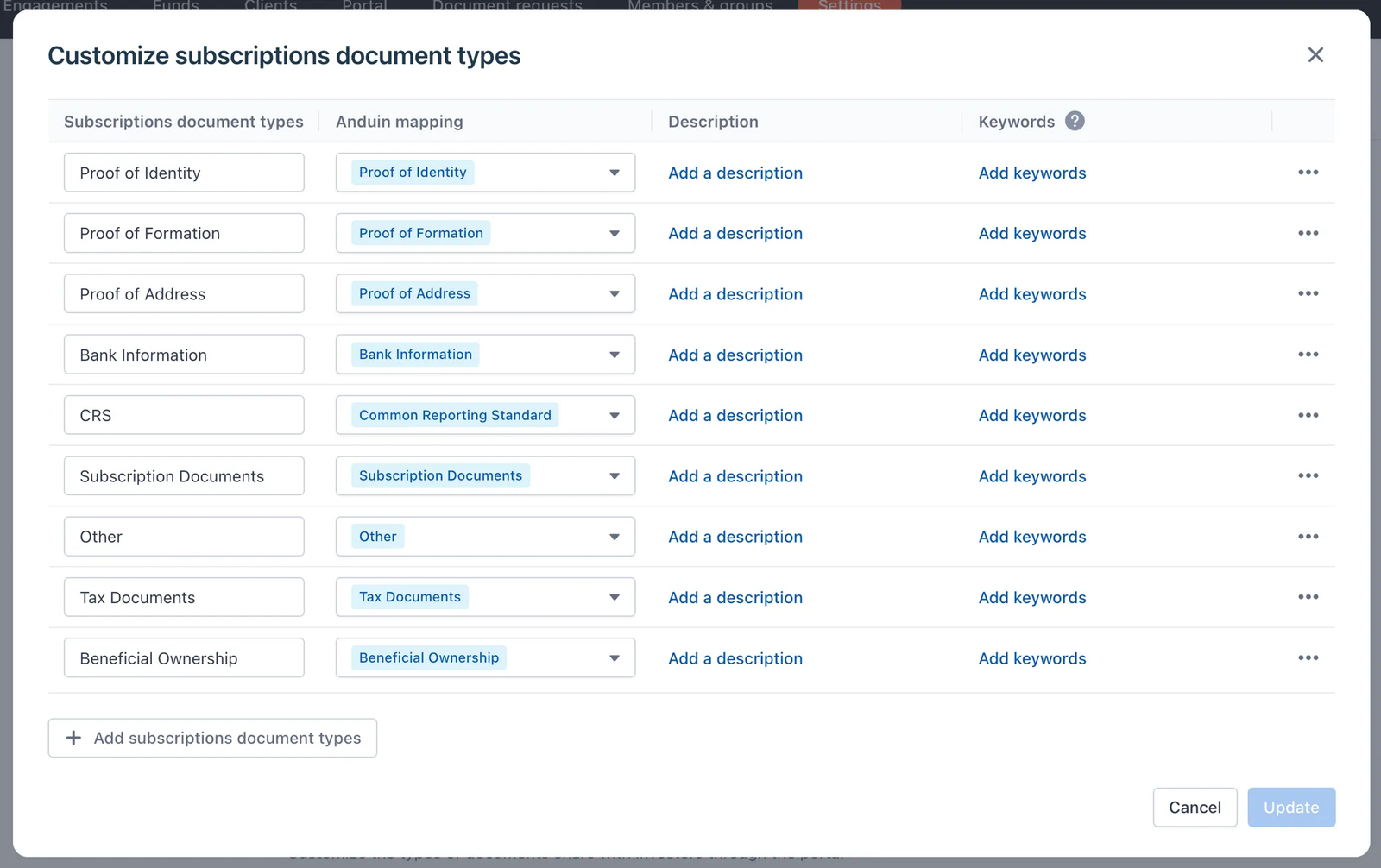
Customizebutton to configure the list of subscription document types that your firm typically collects from investors - Within this modal, you can rename, add, remove, or add descriptions to each type as needed.
- Although you can rename each document type to your preferences, it's important to select the correct Anduin mapping so the system recognizes the document type. This ensures automations, like expiration date extraction and reminder alerts, work as expected.
– For example, whether it's labeled “Passport” or “Driver’s License”, both should map to “Proof of Identity” for consistent processing.
- You can also input commonly seen keywords found in investor documents, which helps the system automatically categorize documents when they’re imported or uploaded into IDM.
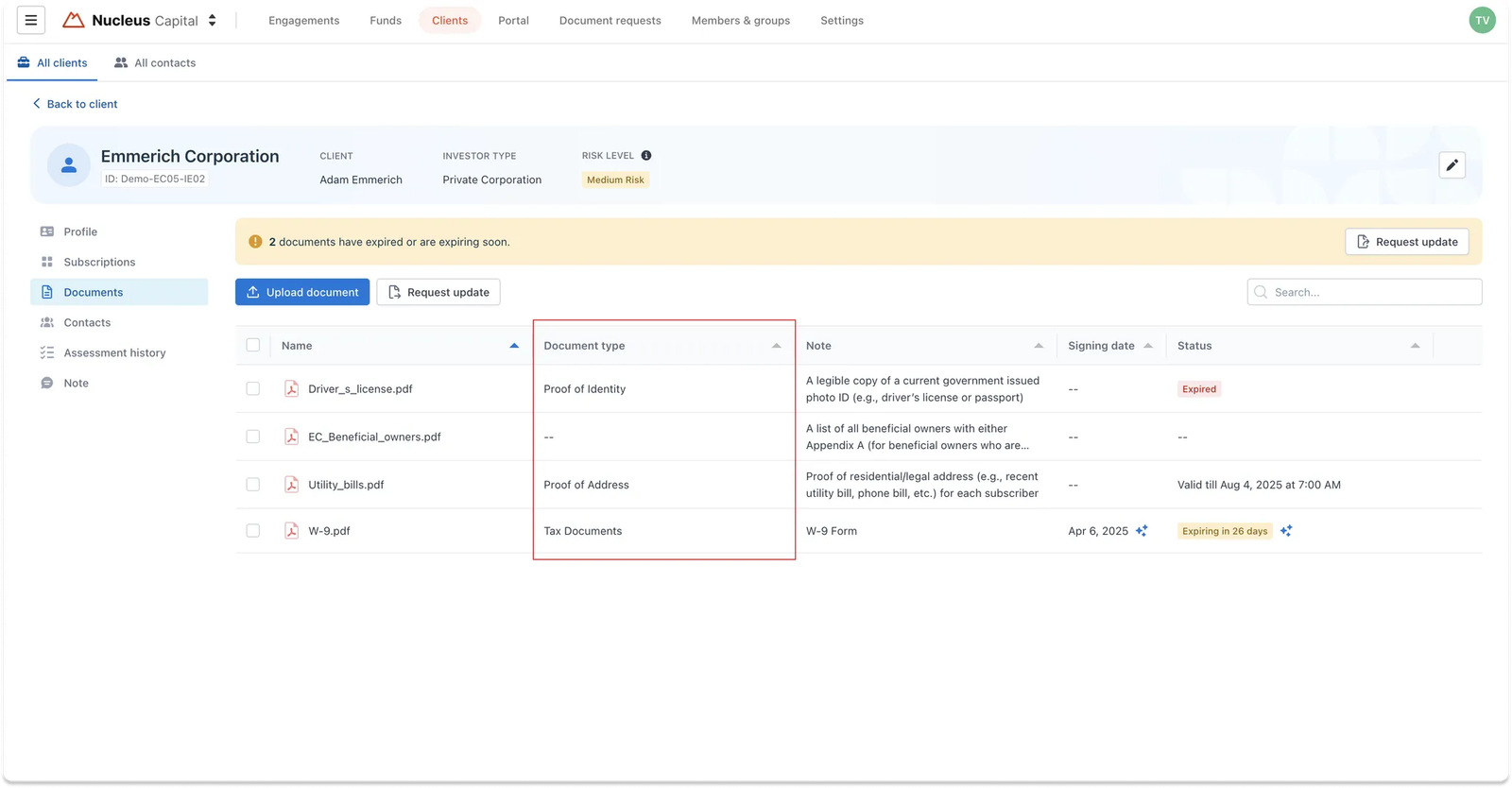
💡 Where will this apply?
Navigation: Clients tab > Investment entity detail > Documents tab
5. Portal document types
Used for documents in the portal - defines the list of categories to classify documents that you share with your investors via the Portal
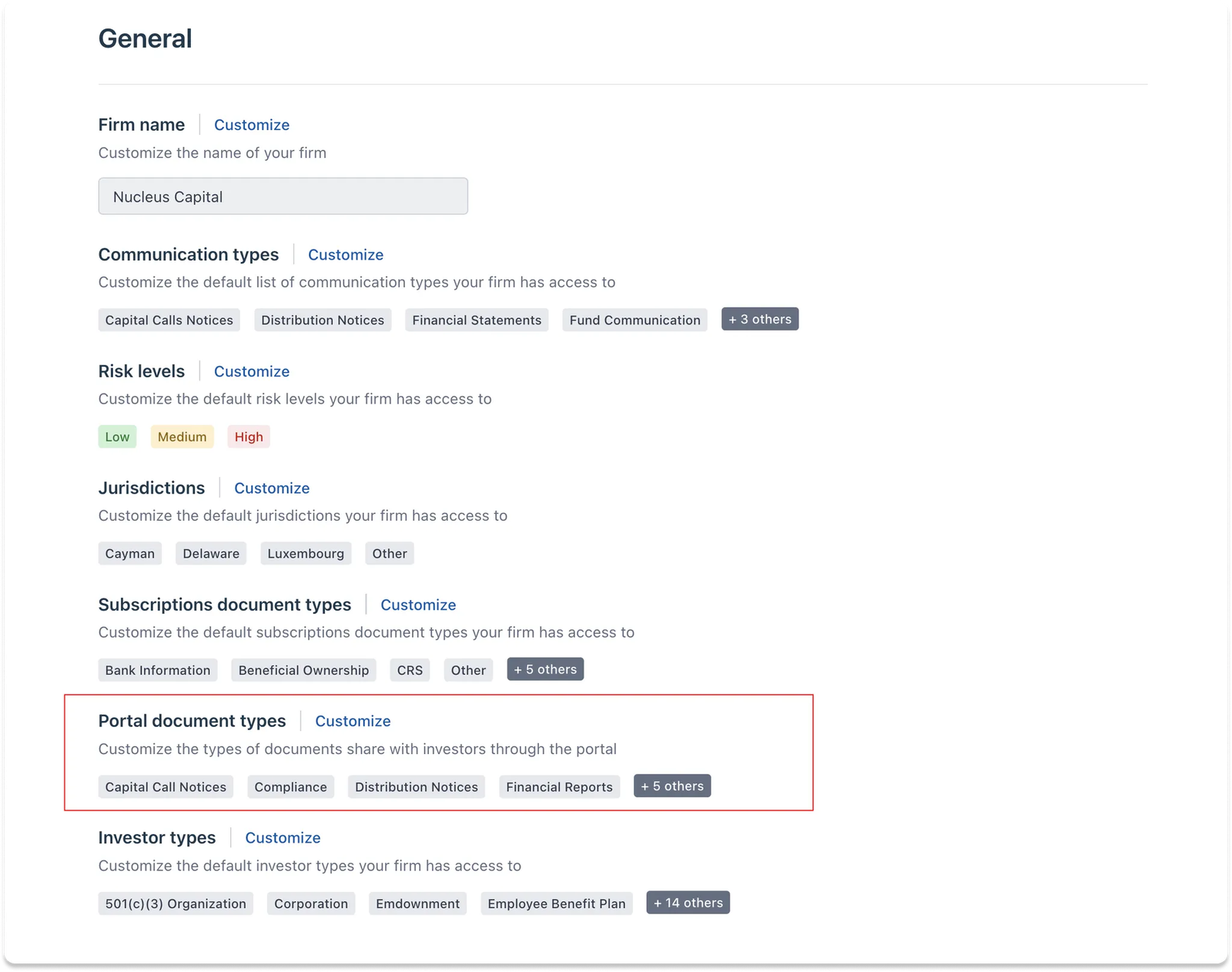
- Select the
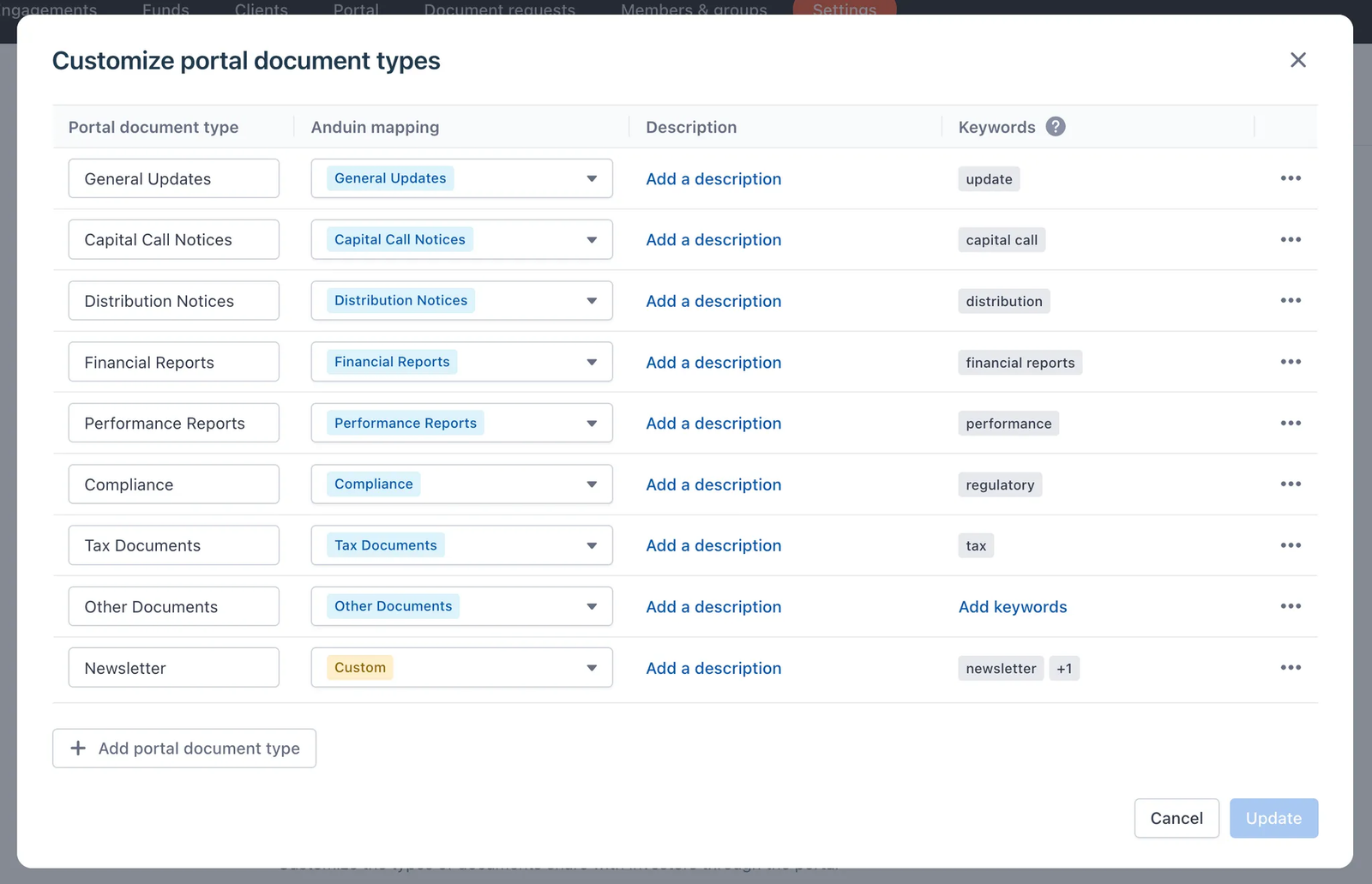
Customizebutton to configure the list of portal document types that you typically share with your investors - Within this modal, you can rename, add, remove, or add descriptions to each type as needed
- You can also input commonly seen keywords found in your documents, which helps the system automatically categorize documents when you upload them in the document distribution workflow
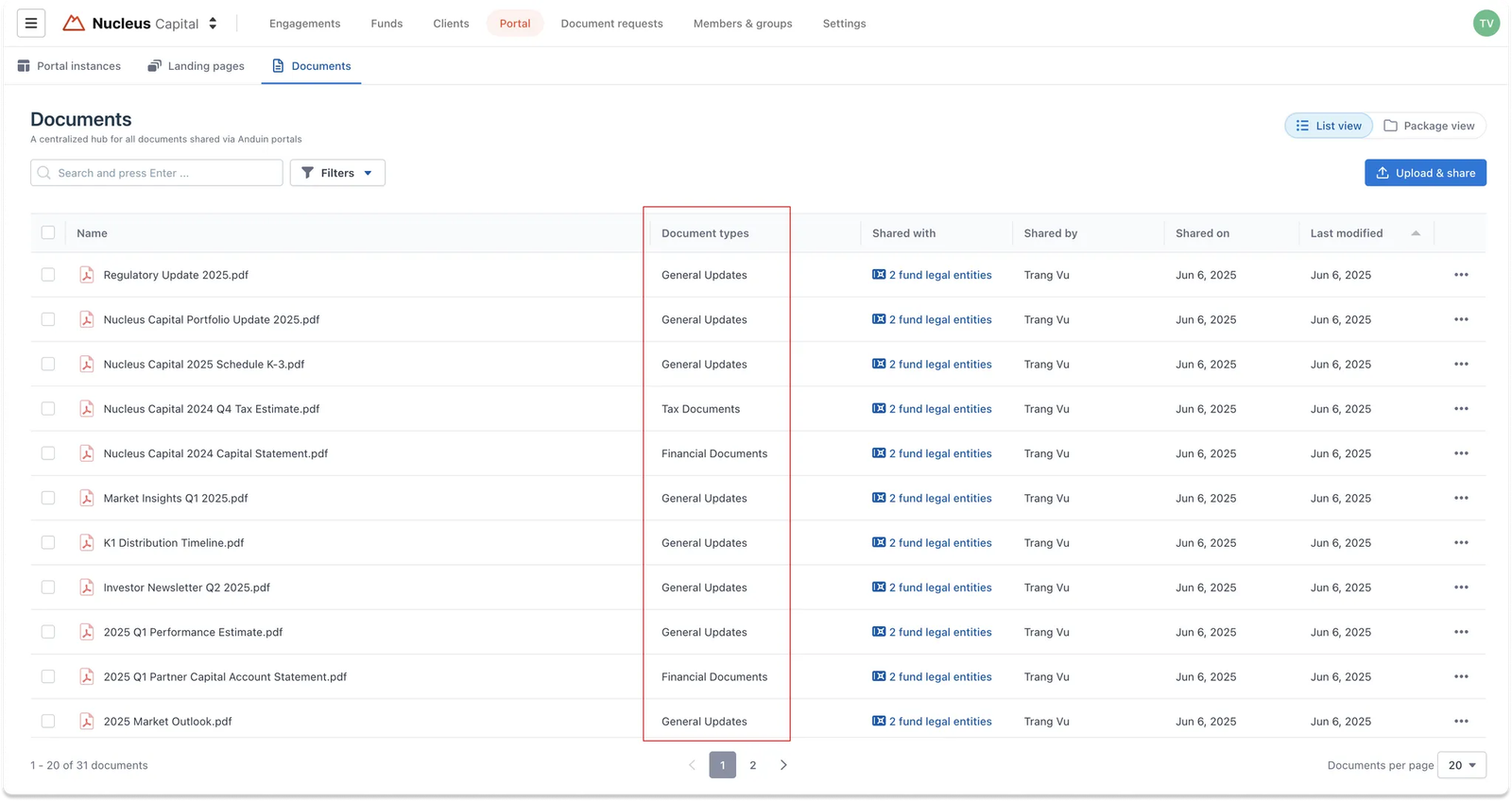
💡 Where will this apply?
- Document types are assigned to each document and shown in the GP Portal's Documents dashboard. Can use document types to quickly filter out documents Navigation: Portal tab > Documents tab
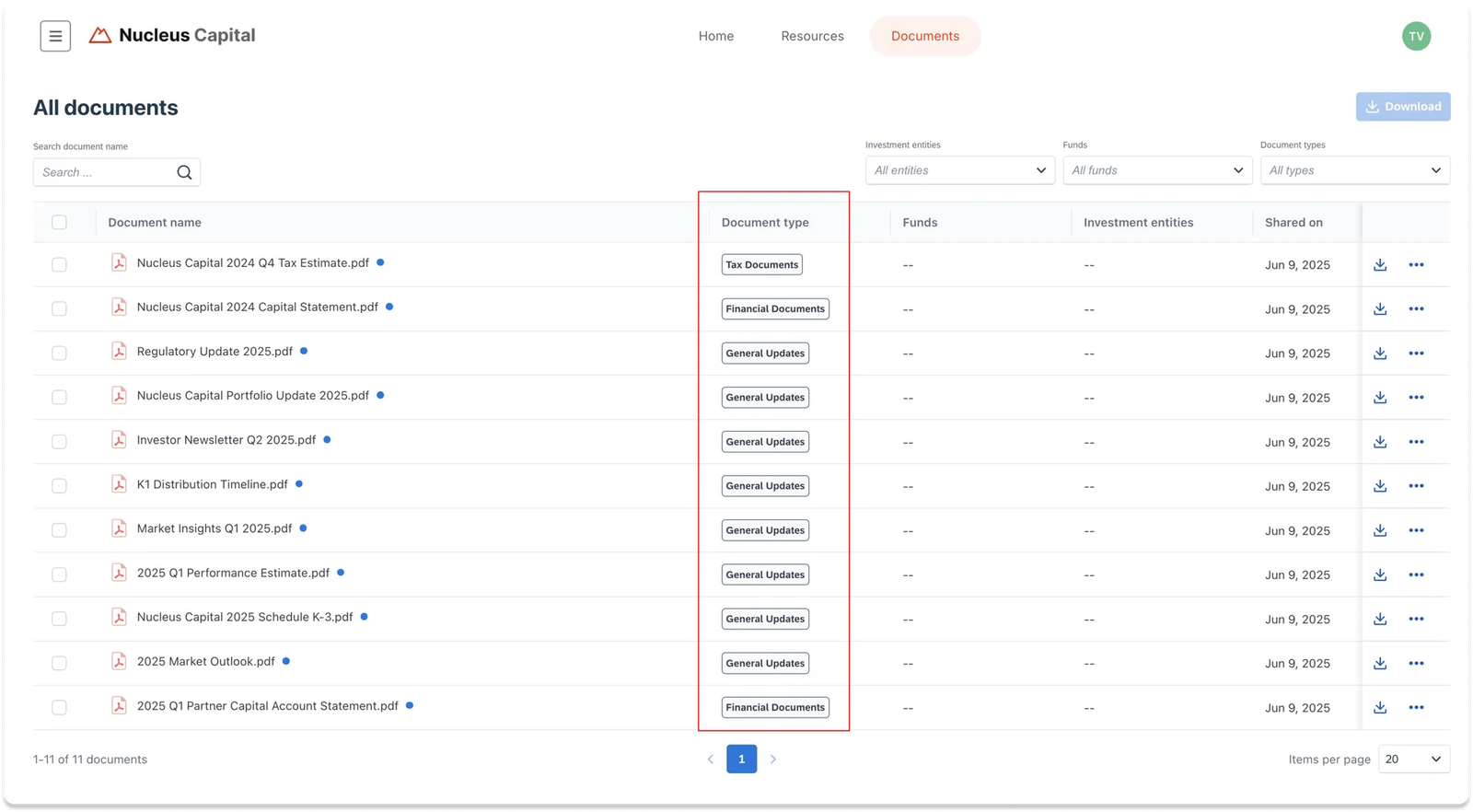
- Document types are also visible to investors in the LP Portal when they access their documents. Can use document types to quickly filter out documents Navigation: LP portal > Documents tab
6. Investor types
Used for Investment entities – defines the categories to classify an investor's legal entity
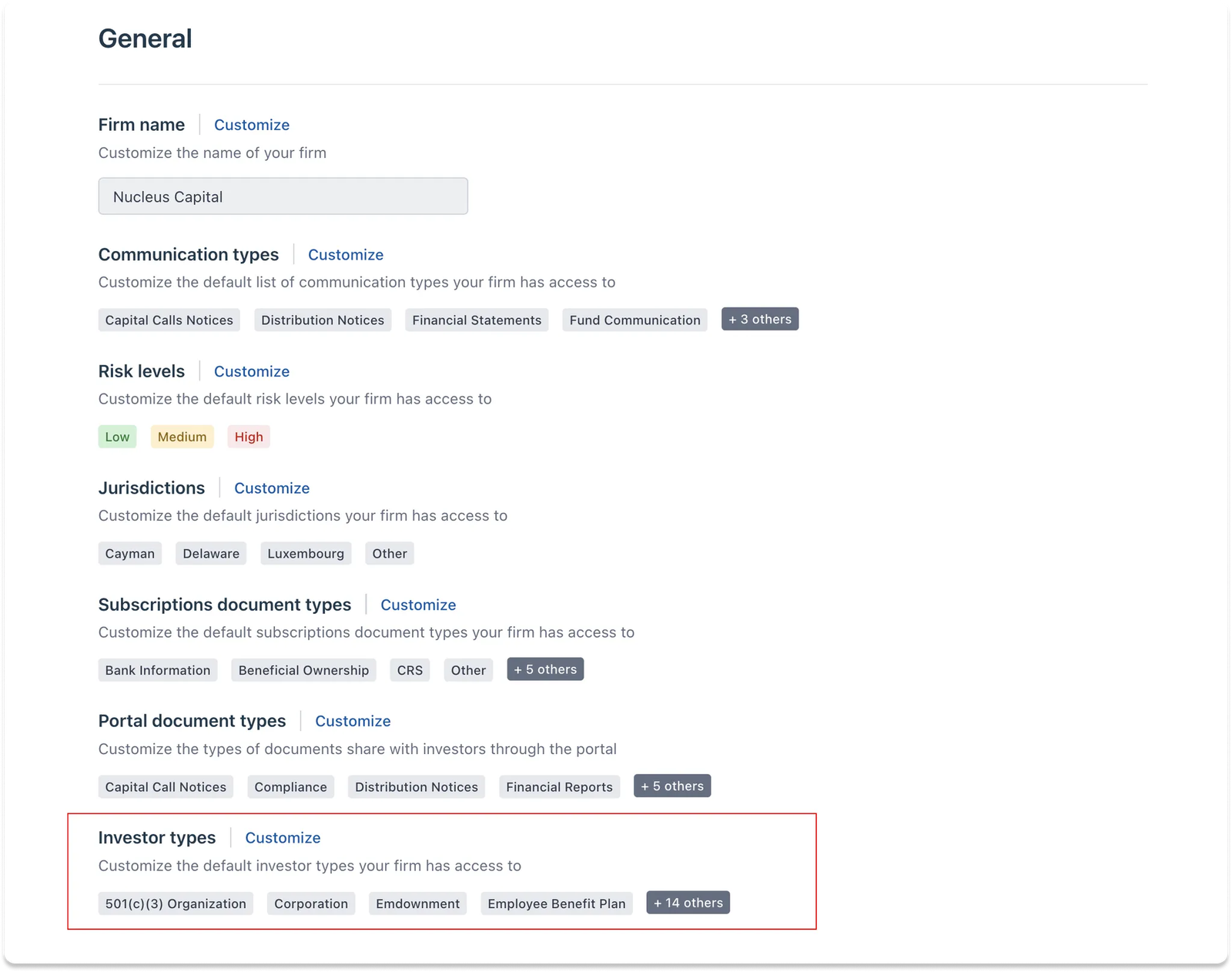
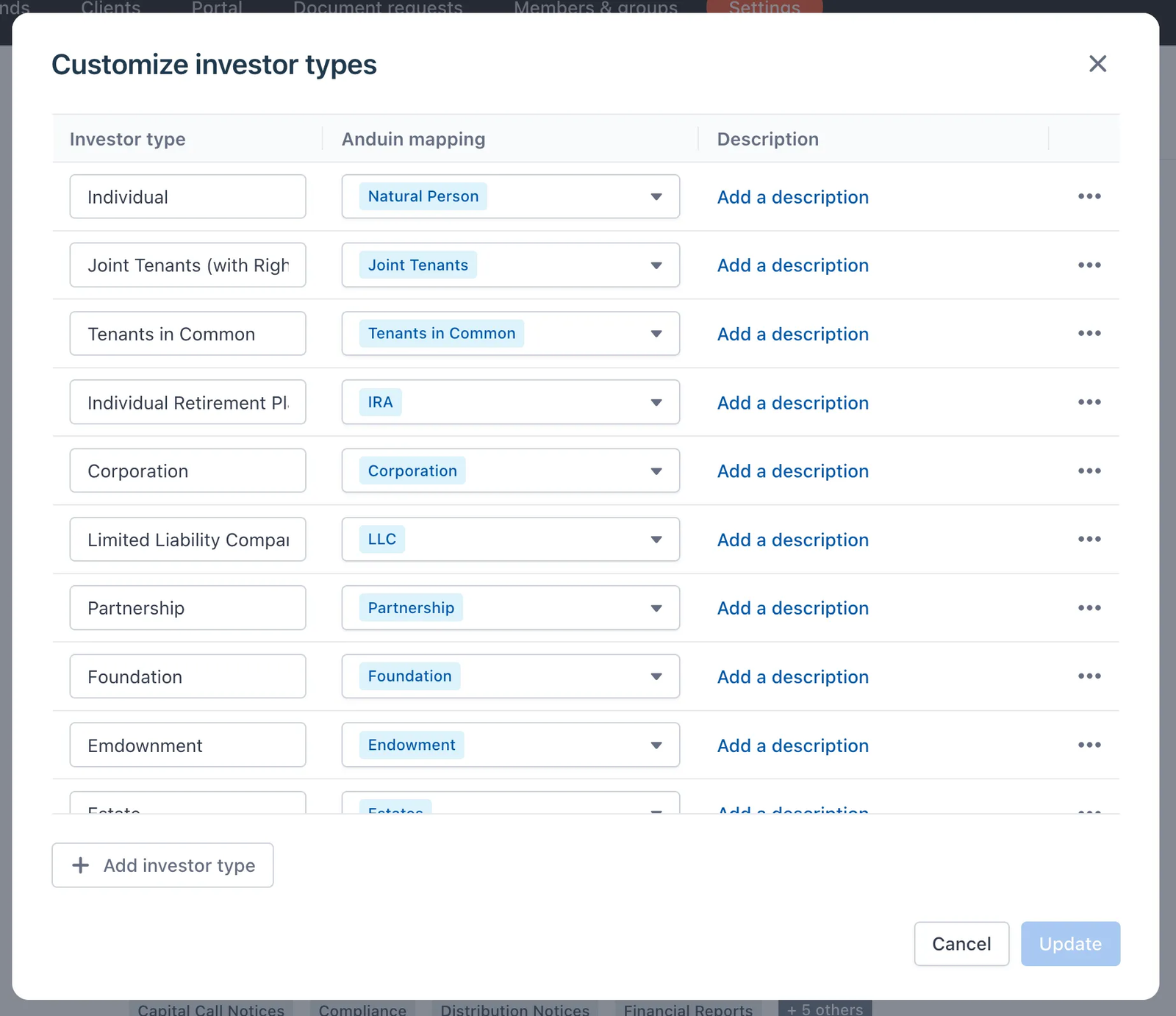
Select the Customize button to configure the list of legal entities that are applicable to your investors
Within this modal, you can freely rename, add new, remove, or add descriptions for each type as needed
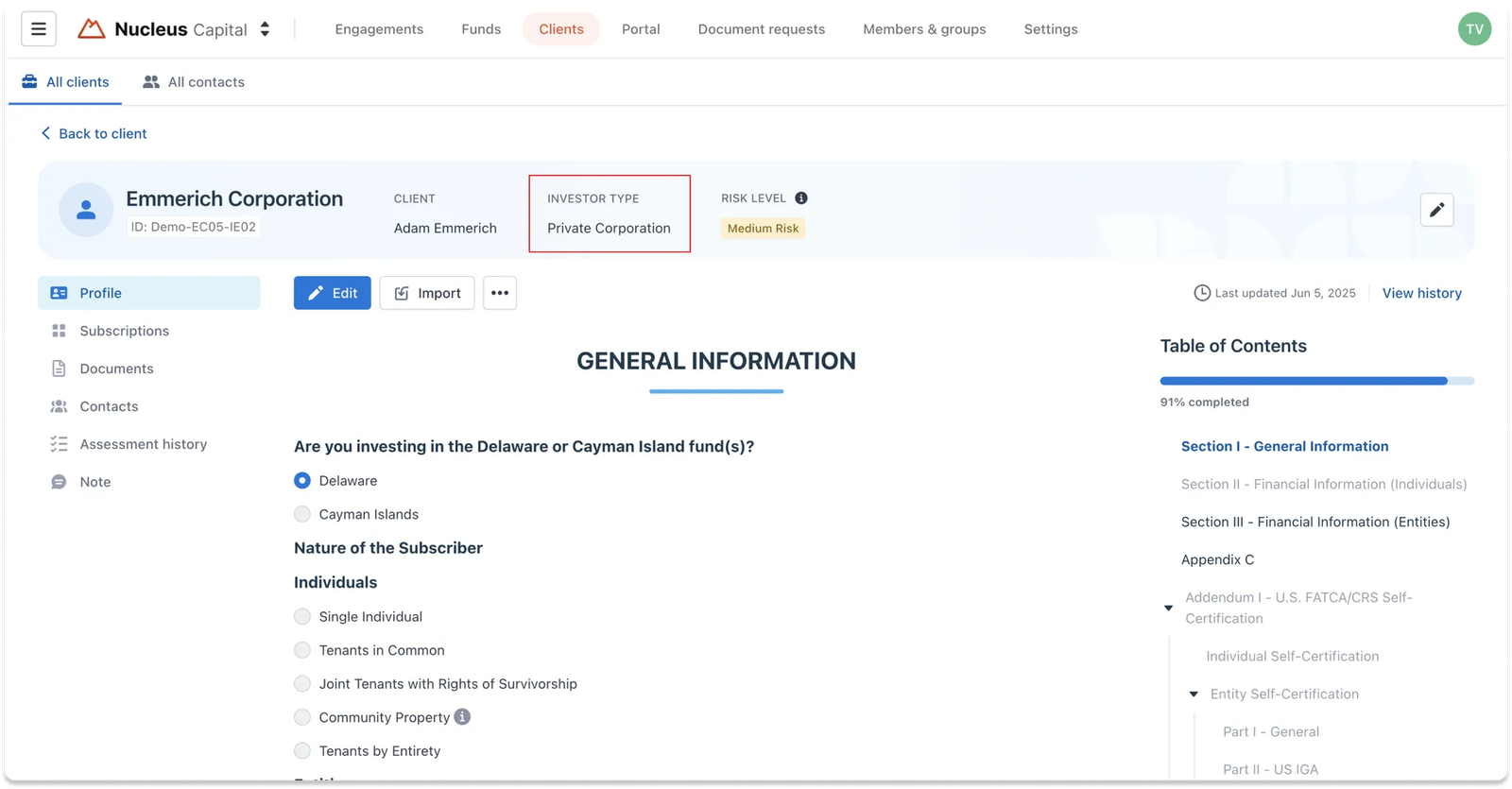
💡 Where will this apply?
- Investor types are assigned to each investment entity Navigation: Clients tab > Investment entity detail
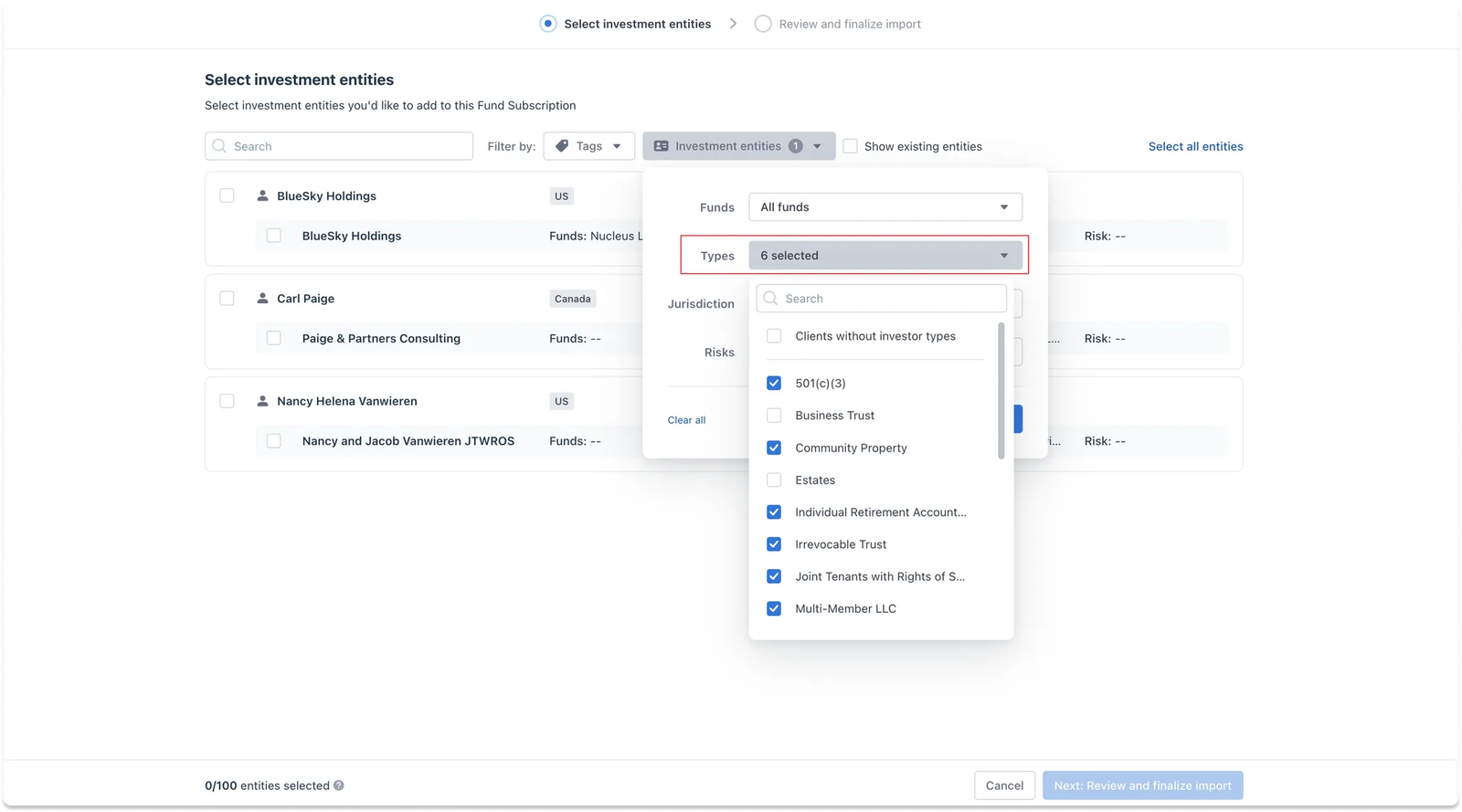
- When adding investors from IDM to FundSub, investor types can help quickly filter and locate the relevant Investment Entities Navigation: Fund Subscriptions > “Add investors” > “Add from IDM”
Notifications
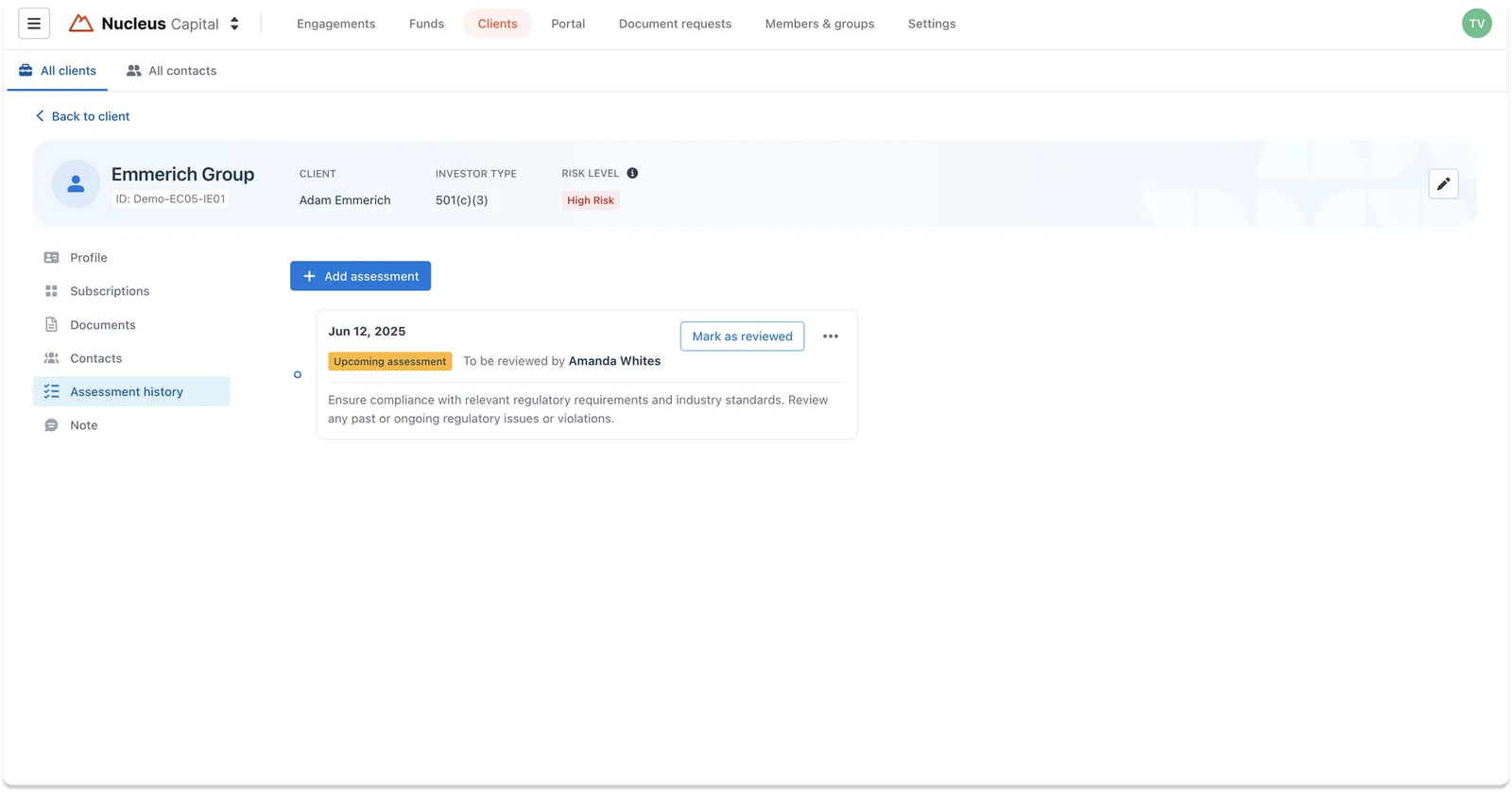
1. Assessment due
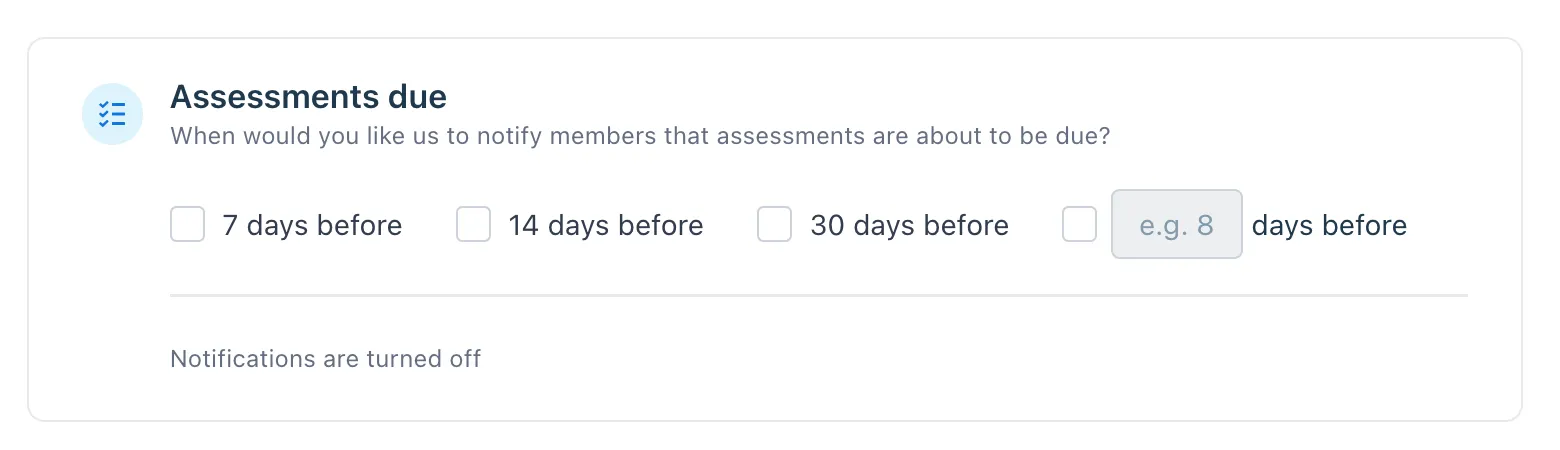
Defines when the system will send notifications to remind IDM members about an investor’s upcoming assessment due
Users can choose from preset options like:
- 7 days before
- 14 days before
- 30 days before
- Or set a custom number of days in advance
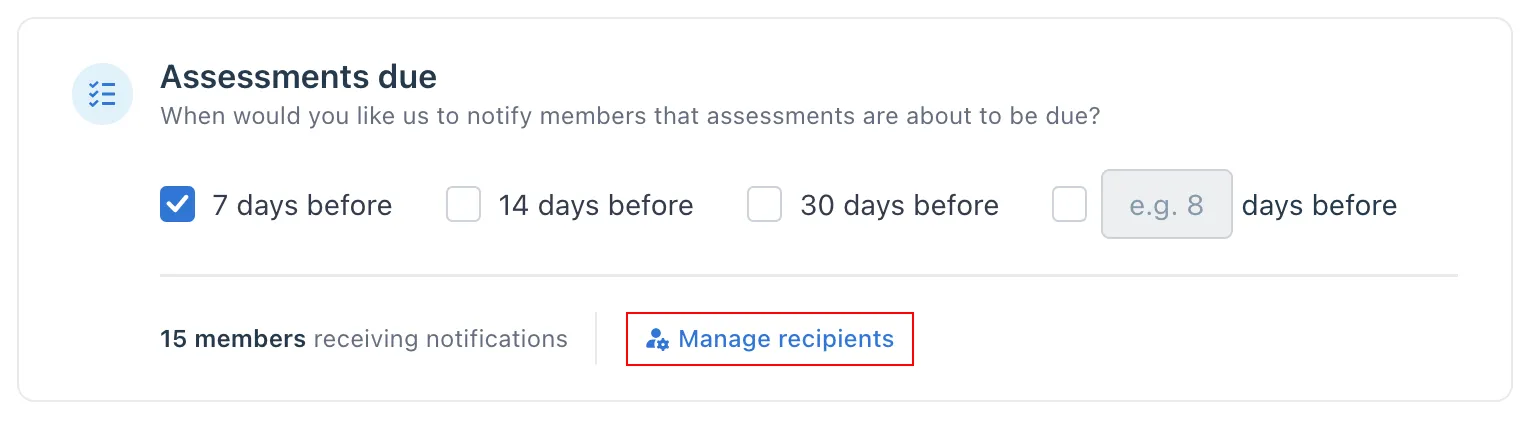
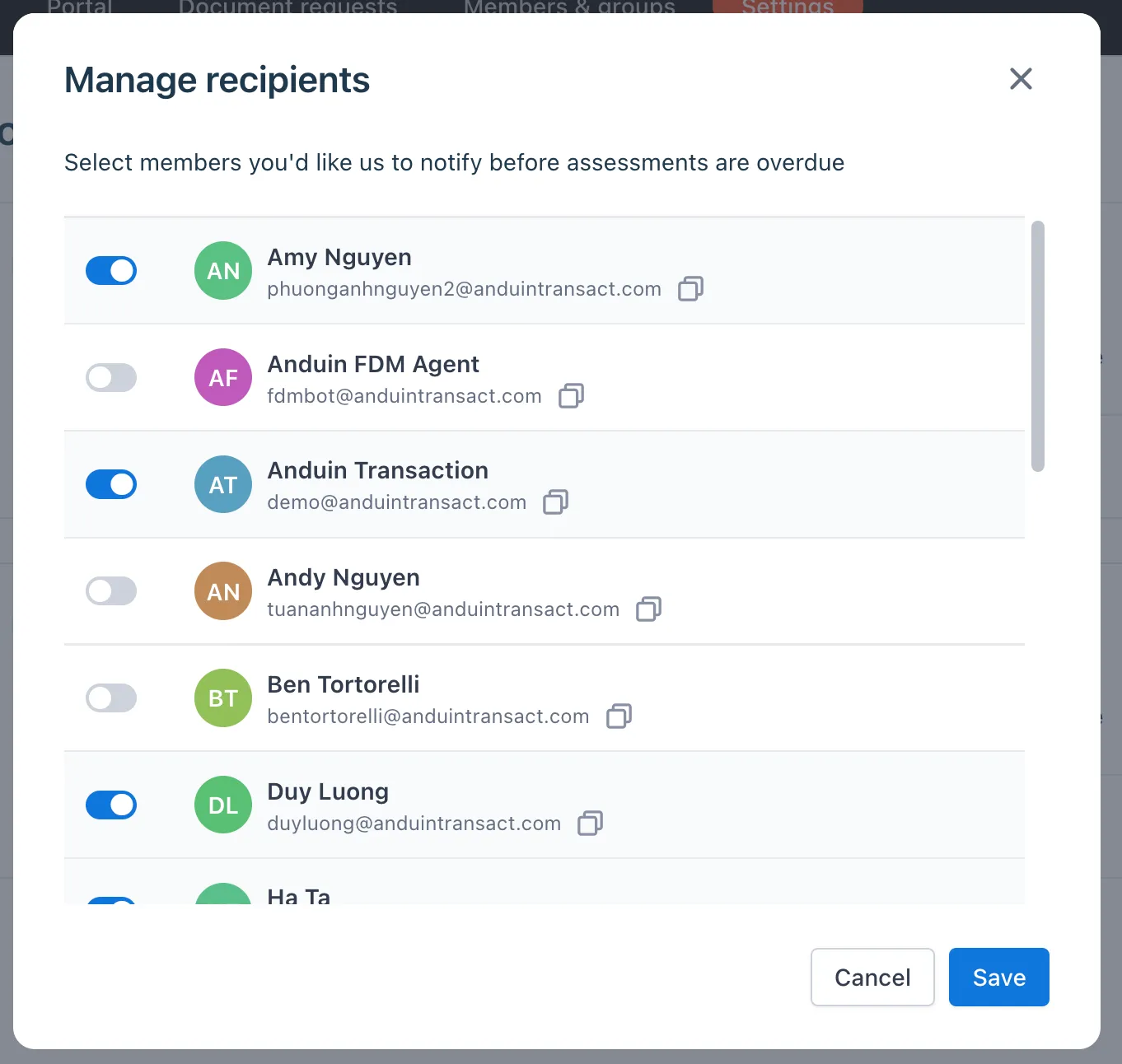
When notifications are turned on, you can click Manage recipients to choose which IDM members should receive the reminder, ensuring only the relevant team members are informed.
2. Documents expiring soon
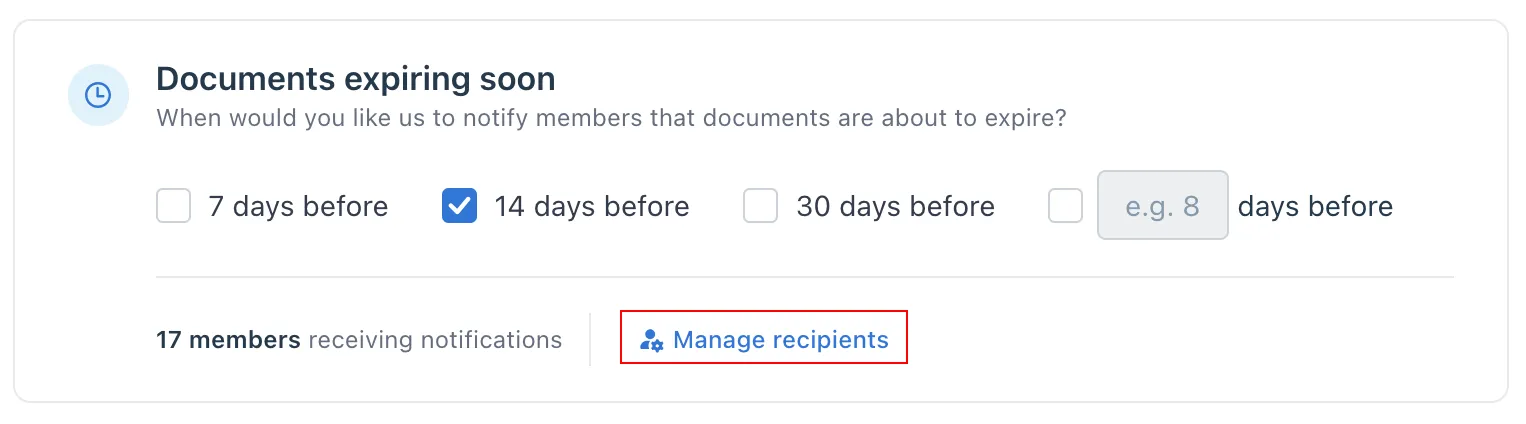
Defines when the system will remind IDM firm members to follow up with investors for updated documents
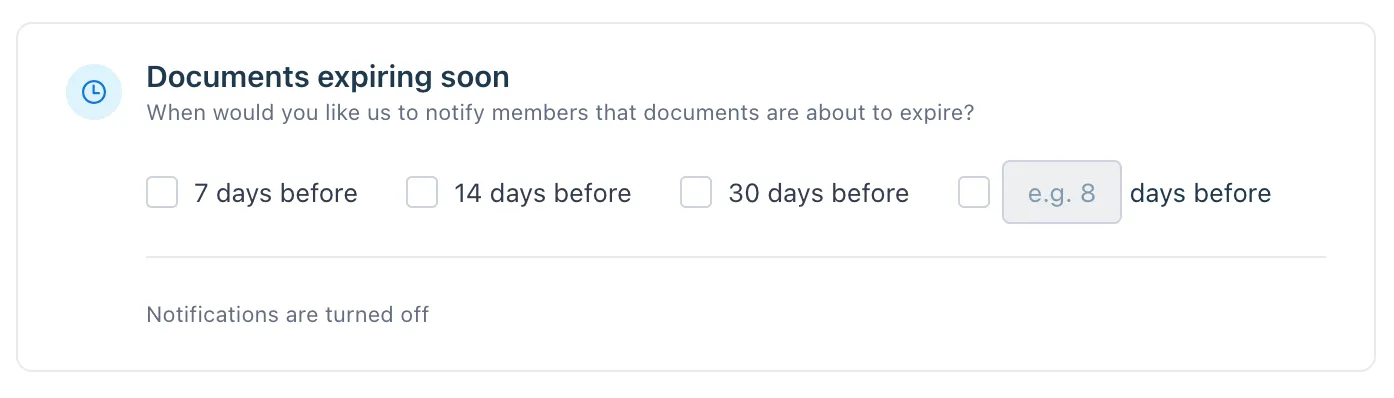
Users can choose from preset options like:
- 7 days before
- 14 days before
- 30 days before
- Or set a custom number of days in advance
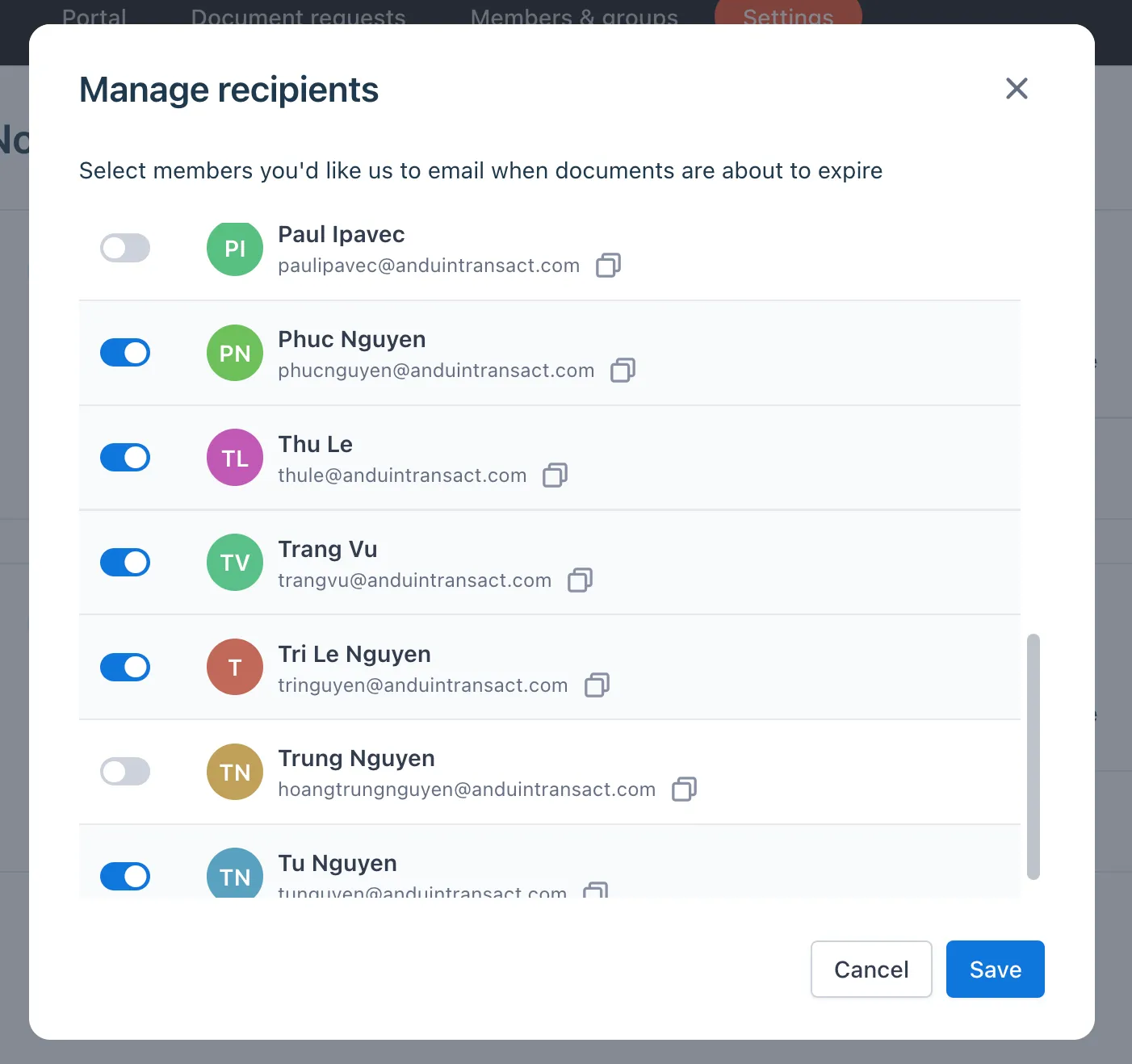
When notifications are turned on, you can click Manage recipients to choose which IDM members should receive the reminder, ensuring only the relevant team members are informed.