

Invite investors to the Investor Portal
Introduction This guide provides step-by-step instructions on how to onboard new investors to the Anduin Investor Portal. It explains the invitation workfl
Introduction
This guide provides step-by-step instructions on how to onboard new investors to the Anduin Investor Portal. It explains the invitation workflow used to grant investors access to key assets - including new investment opportunities, shared documents, and ongoing communications.
It also walks through how fund admins can configure a branded, professional invitation email template and understand the investor experience after receiving the invitation.
Guideline
Before you begin: Prepare email templates and design presets (optional)
Before sending investor invitations, firms can prepare invitation email templates and design presets in advance to deliver a more consistent and professional experience. These settings are managed in Firm settings > Email templates.
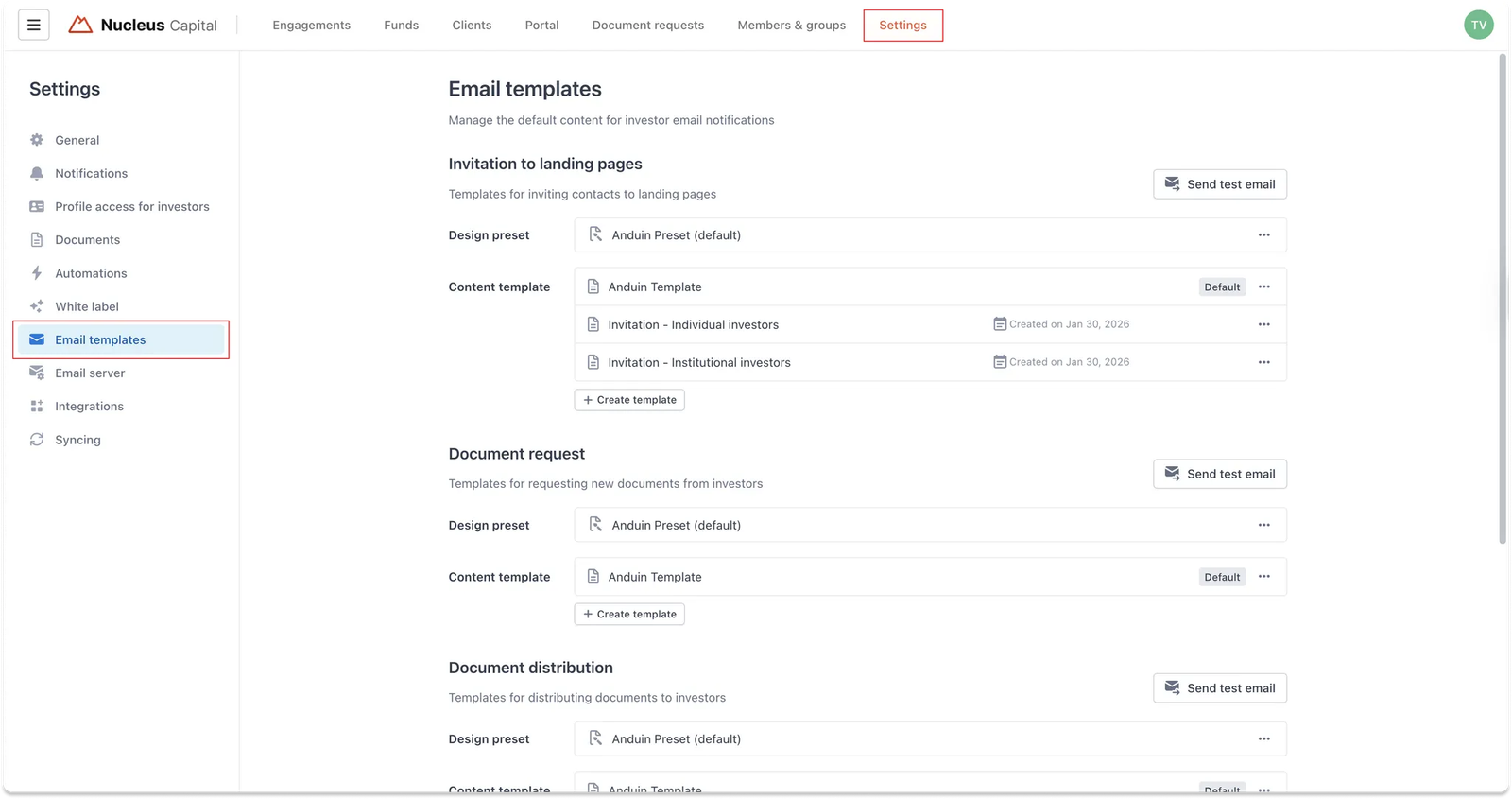
For landing page invitations, navigate to the email type labeled "Invitation to landing pages". From here, firms can configure both the content and design of the invitation email.
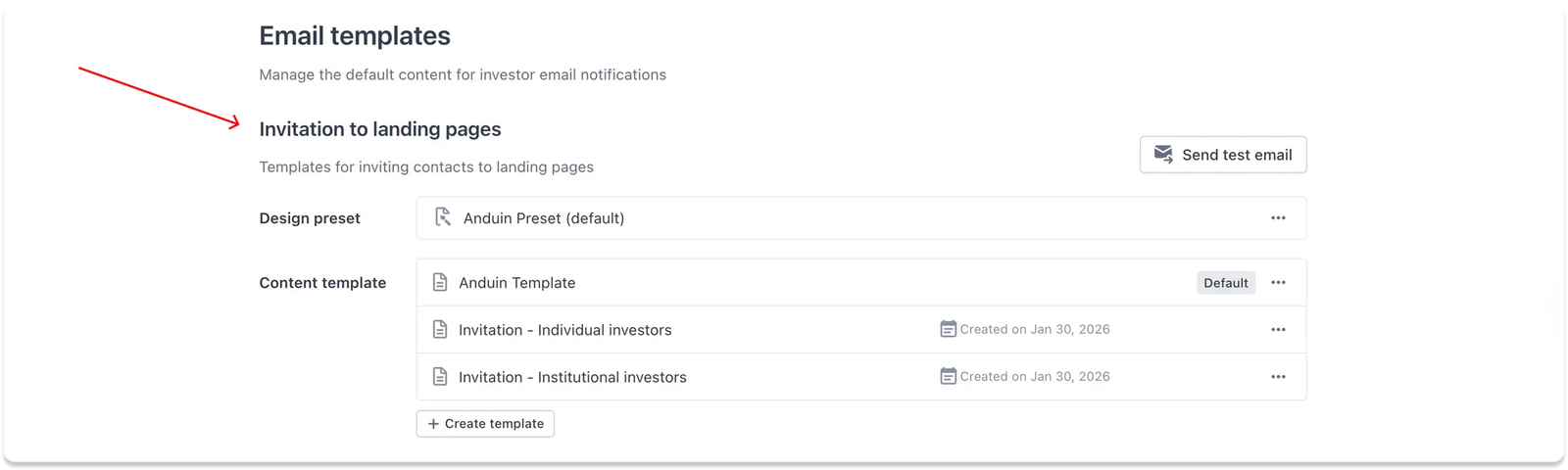
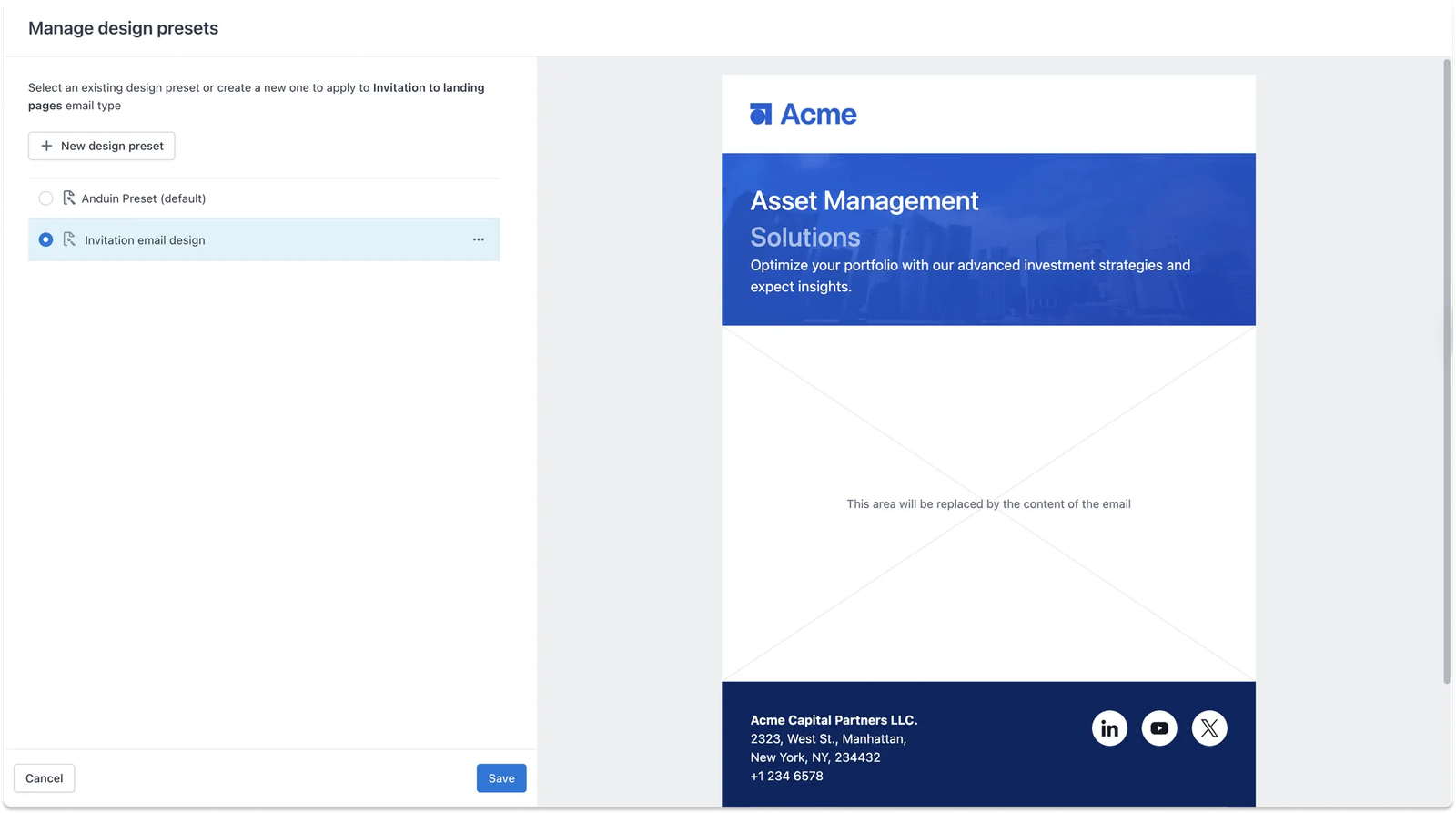
- Design presets control how the email looks, such as layout, colors, and branding elements. These presets help reinforce firm branding and create a polished first impression for investors.
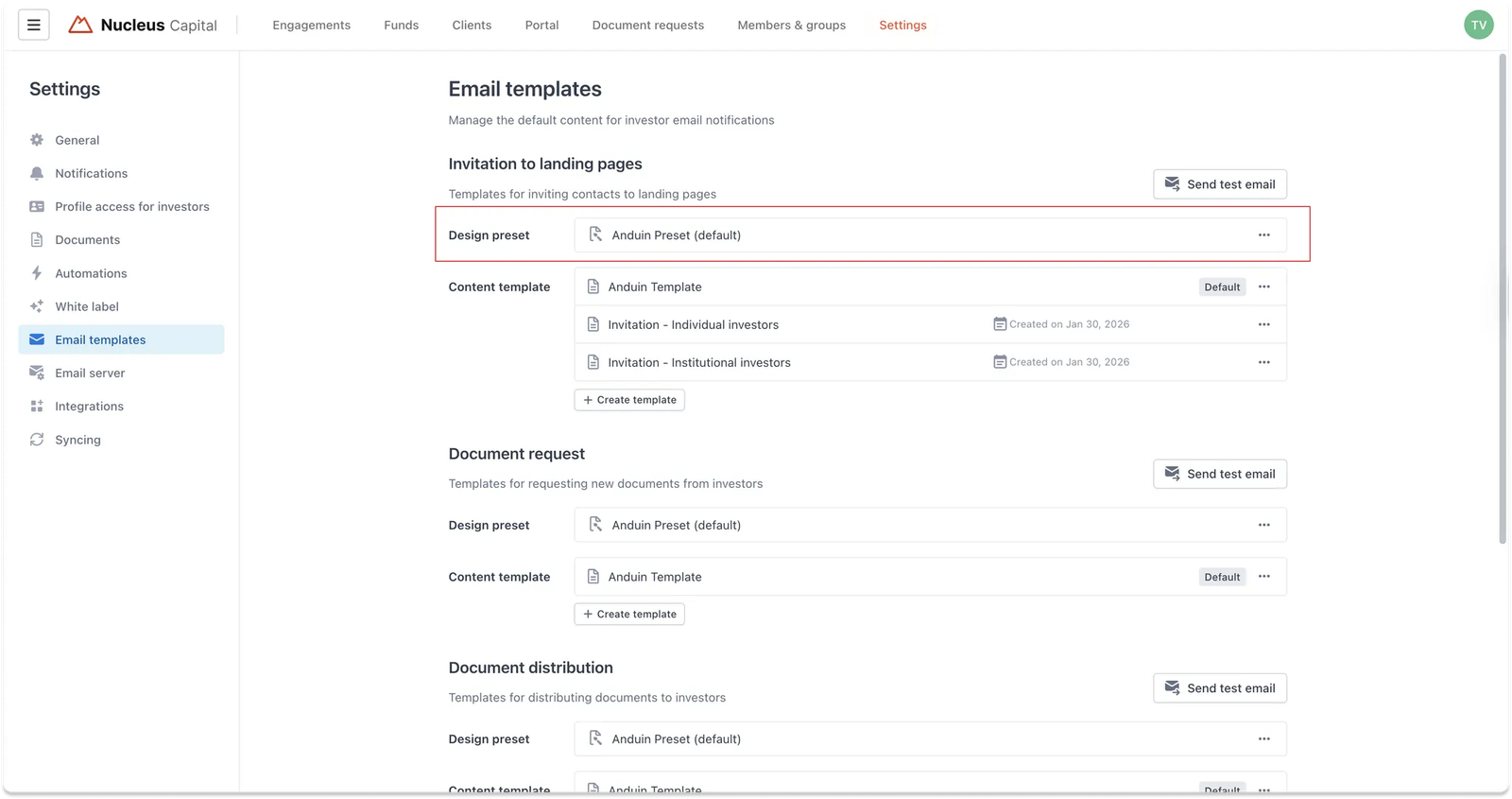
– You can have multiple design presets, but can only apply one. – By default, the Anduin Preset is applied, offering minimal customization with logo and header color. 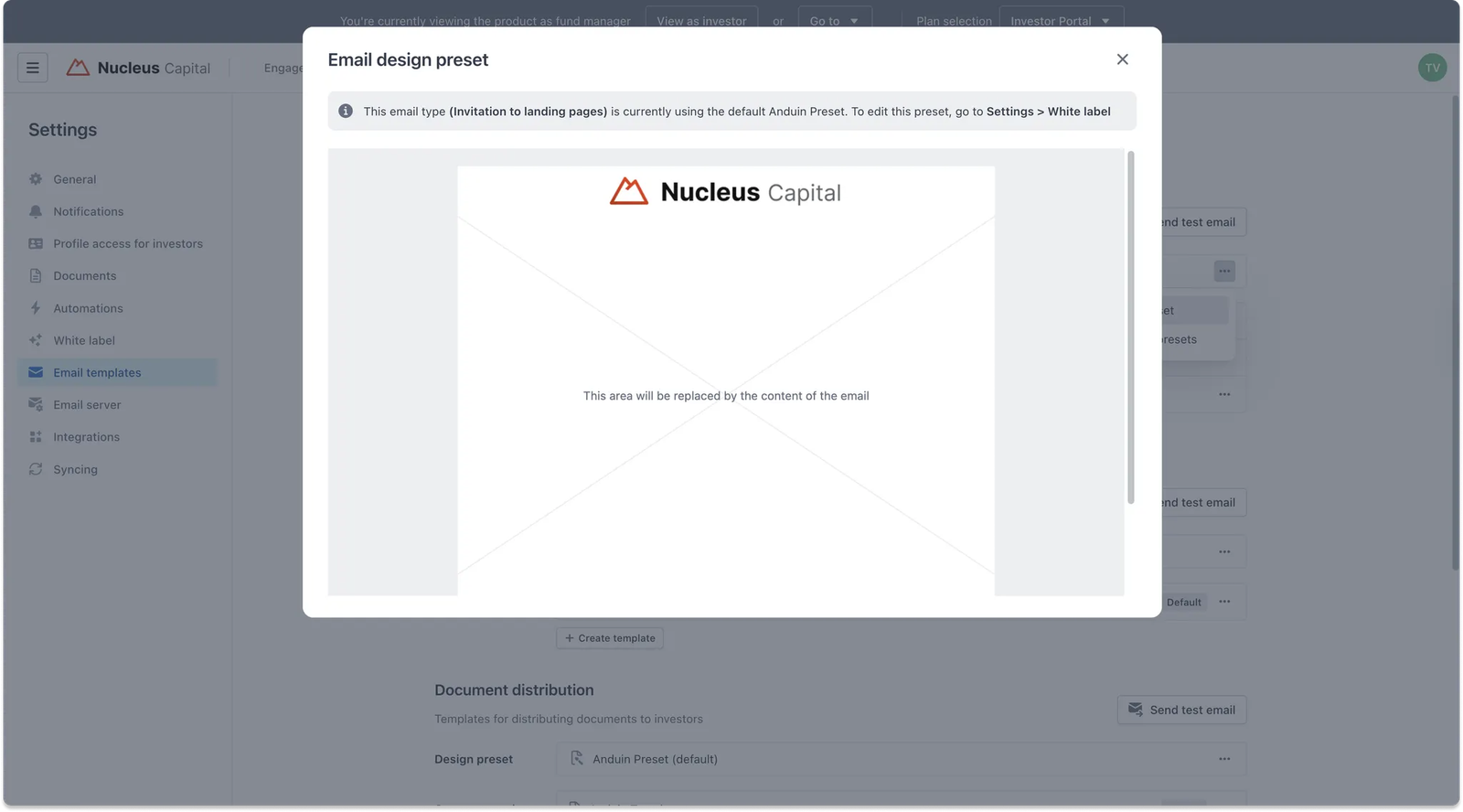
- Content templates define what the email says, including the subject line, message body, and call-to-action text. Templates are reusable and support multiple variations. For example, when working with different investor groups, firms often create a separate template for each group and apply the appropriate one during the invitation flow, instead of rewriting the email each time.
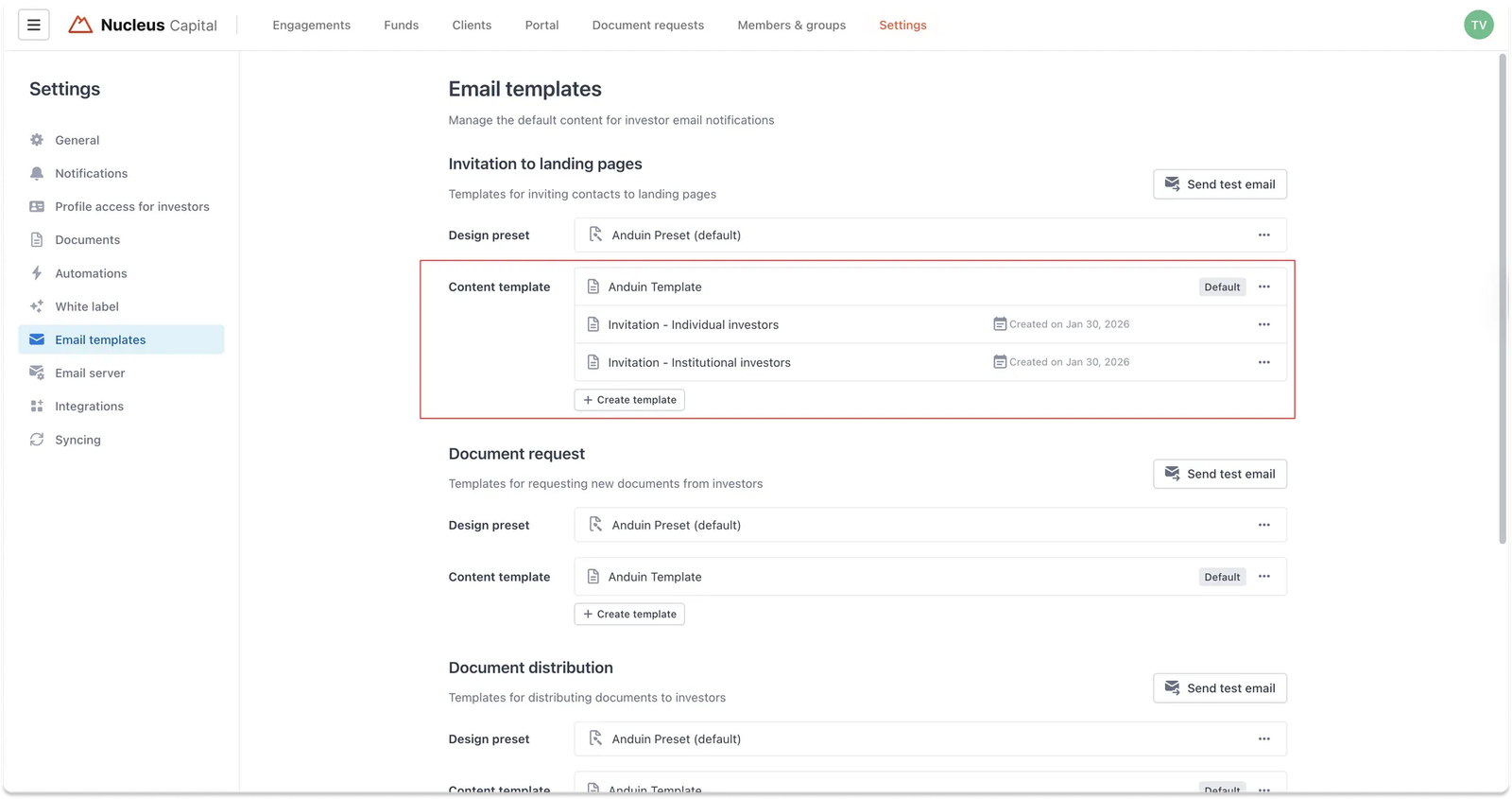
– You can prepare multiple content templates and switch between them directly in the email workflow – By default, the Anduin Template is set as the default. – Select Create template to open a modal where the subject, message, and call-to-action can be prepared in advance.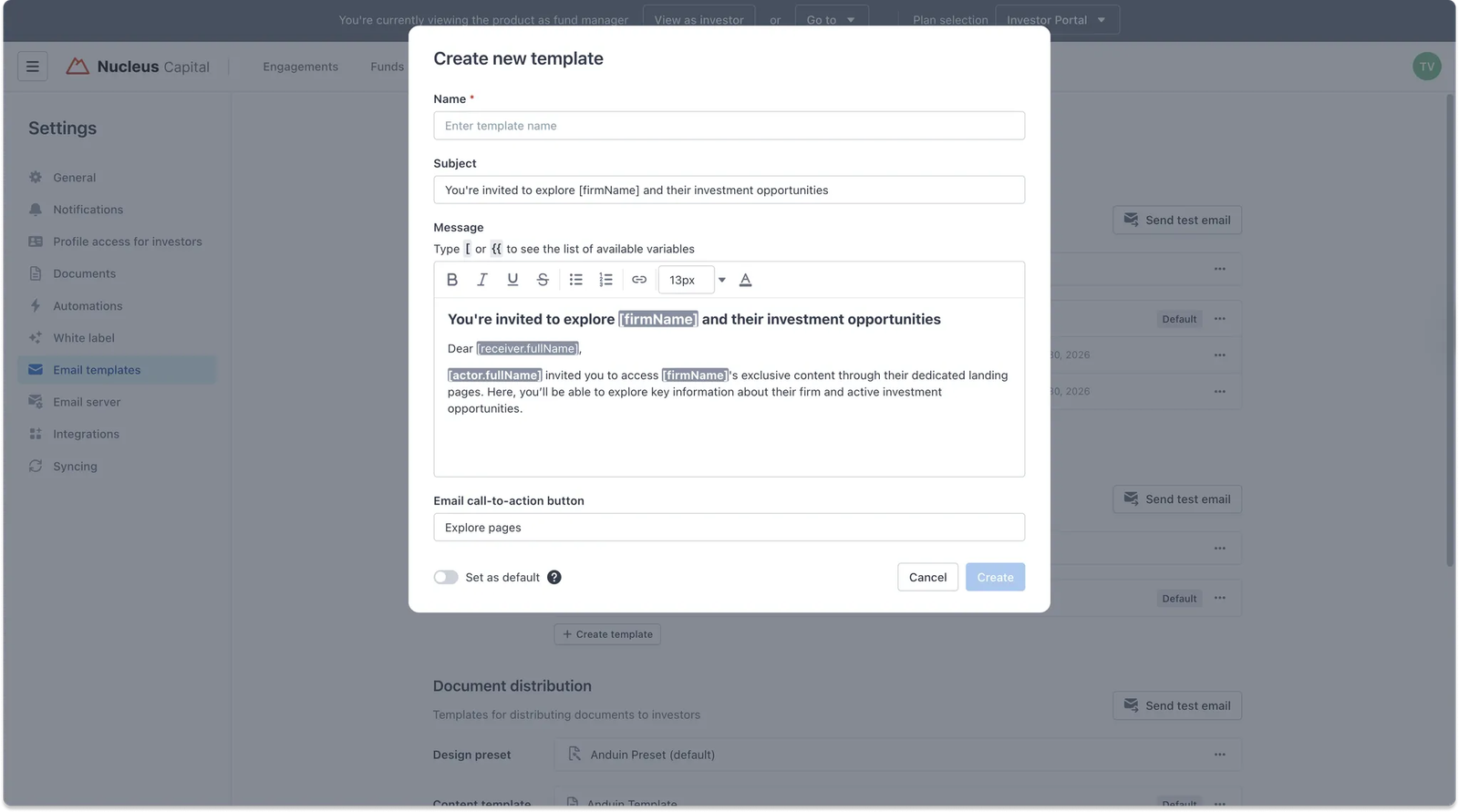
Preparing templates and design presets ahead of time streamlines the invitation process and improves the overall presentation of invitation emails.
Where to start?
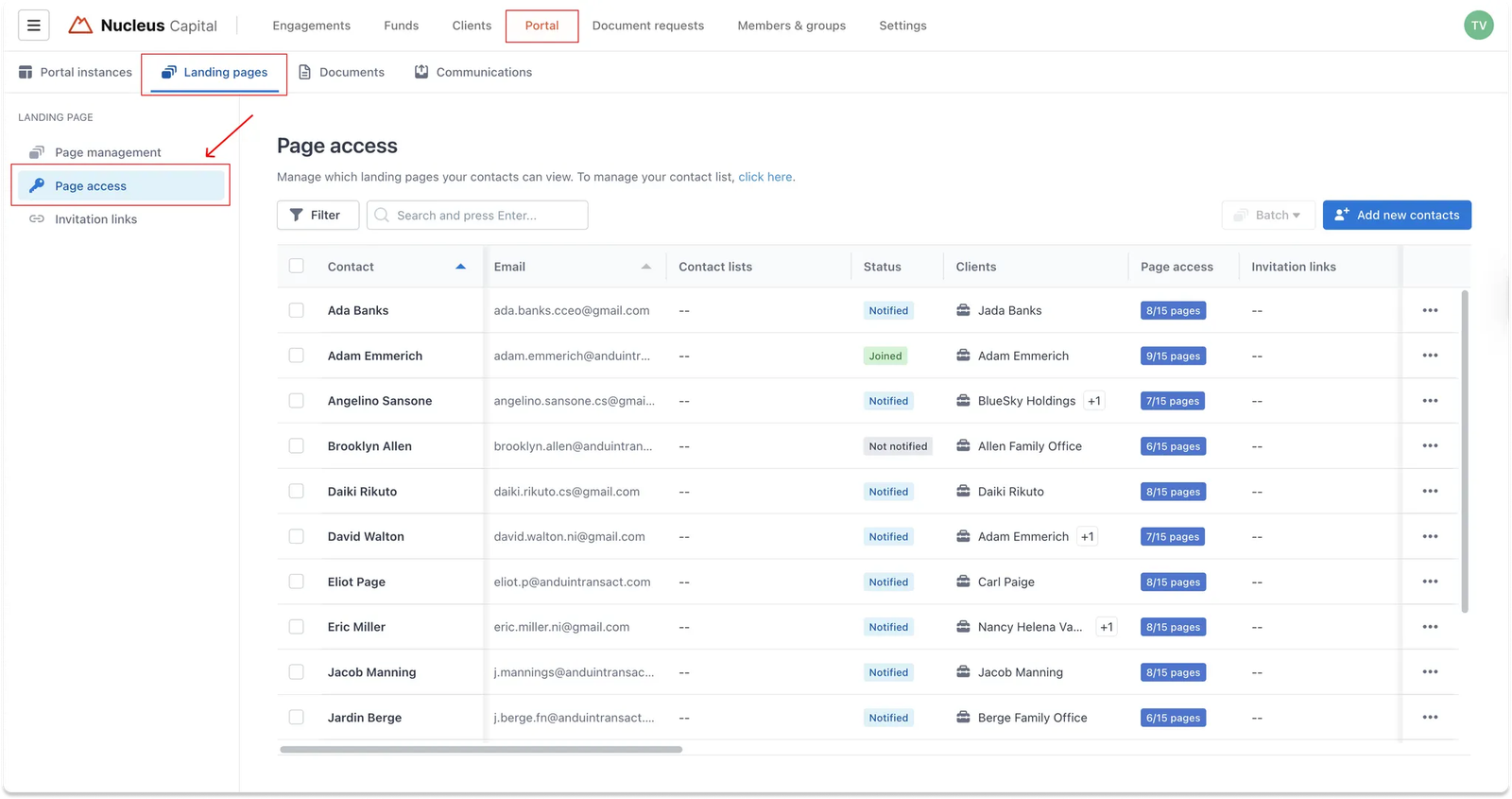
In the IDM app, go to the Portal tab. There, go to the Landing pages sub-tab, and open the Page access section. Here, you can configure landing page access for each contact and send invitation emails.
Pre-condition: Prepare investor contacts and page access
Before you begin, confirm that:
- Investor contacts have already been created in IDM, and
- Landing pages are published, with page access granted for those contacts.
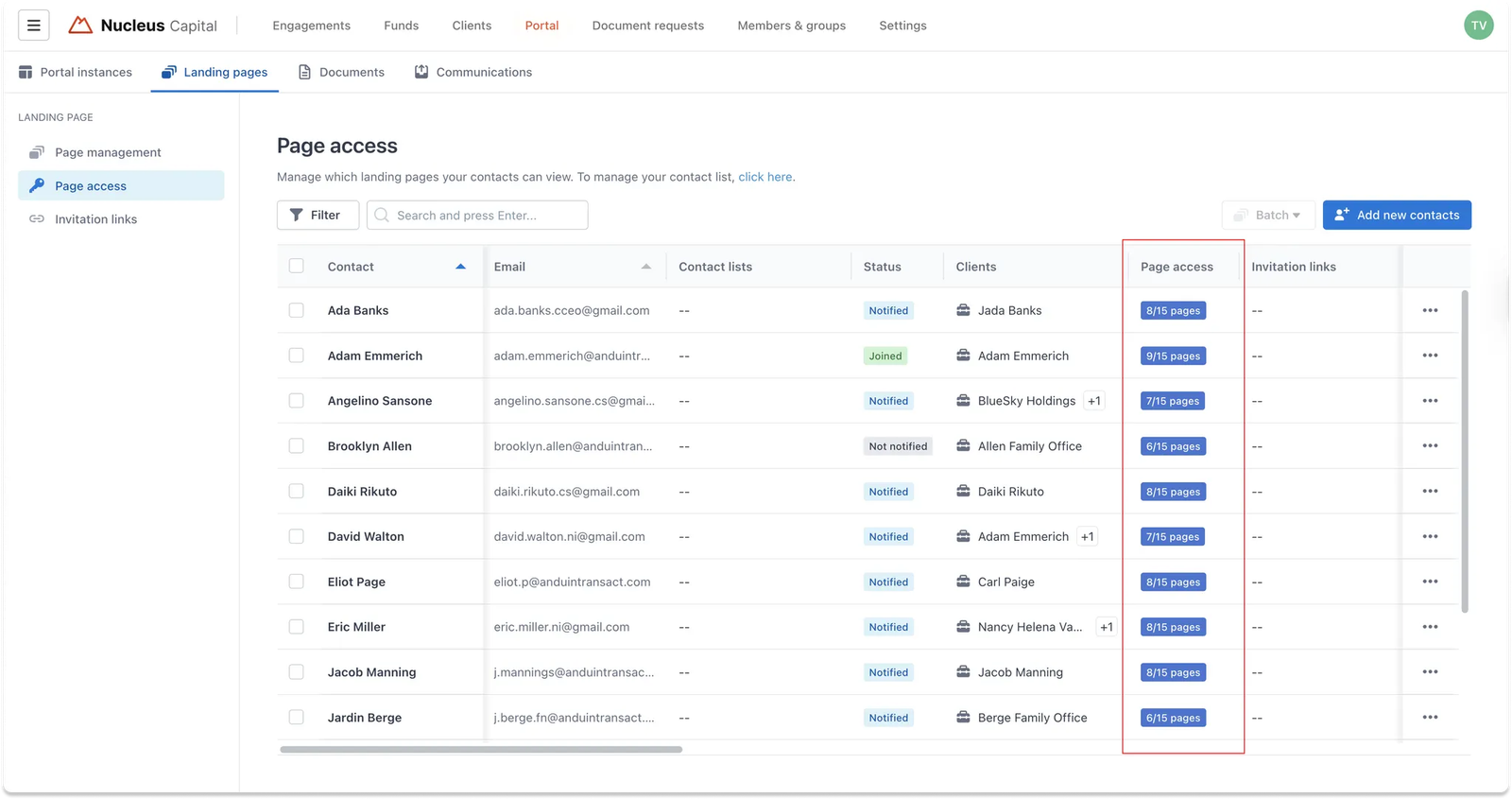
Page access controls which landing pages each investor can view. Configuring this in advance ensures that, when sending the invitation email, you can select the desired page as the destination for your recipients to land on.
Step 1: Select contacts to invite
With setup complete, the next step is to choose who should receive the invitation.
Select one or more contacts and click Batch > Notify contact to begin.
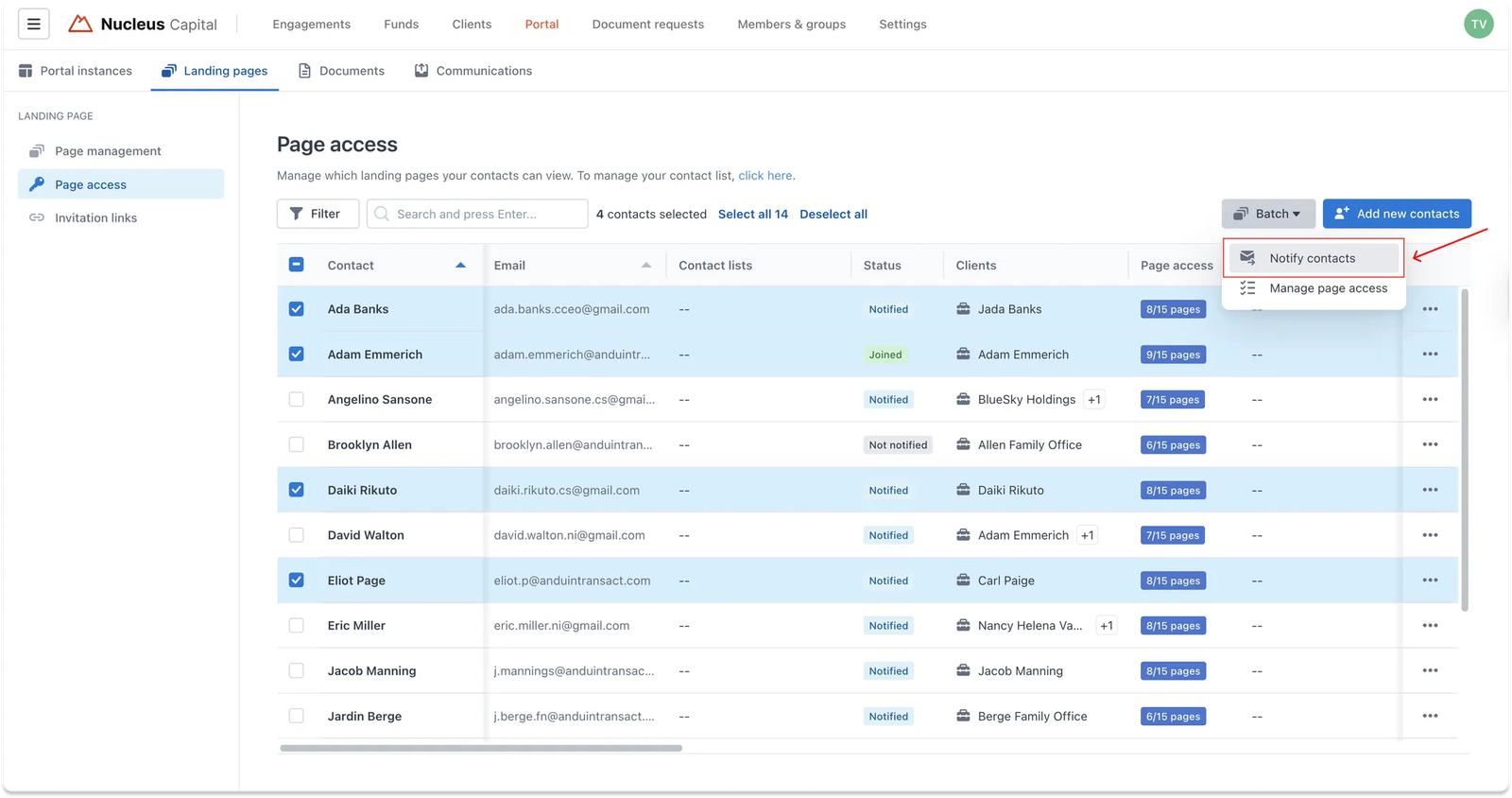
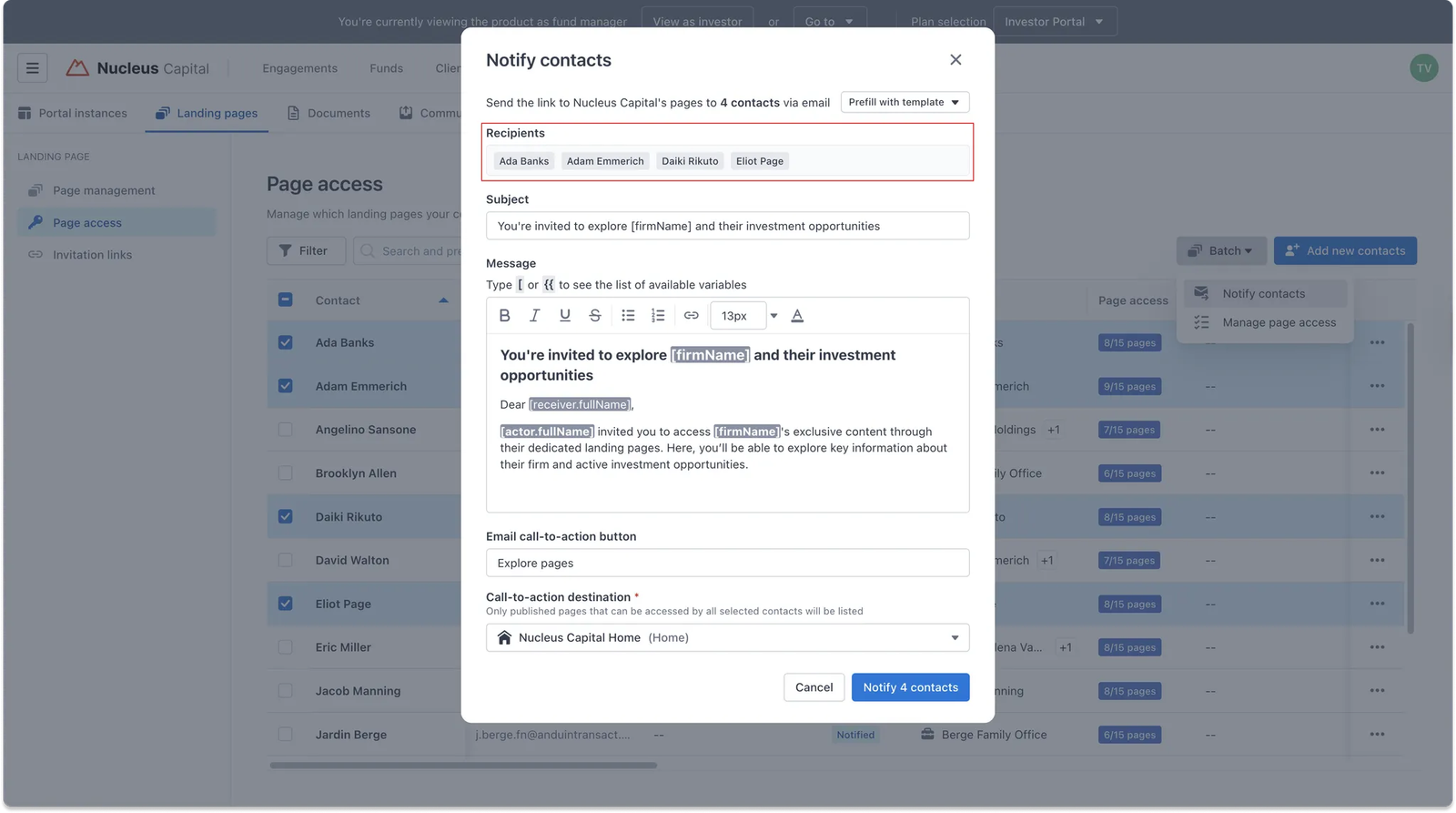
This action opens the email modal, where all selected contacts are automatically prefilled in the "Recipients" field.
Step 2: Apply template & customize the email content
Once the email modal opens, the app helps you get started by pre-filling the "Subject", "Message" body, and "Call to action button" using the default invitation template you configured earlier in Settings > Email templates.
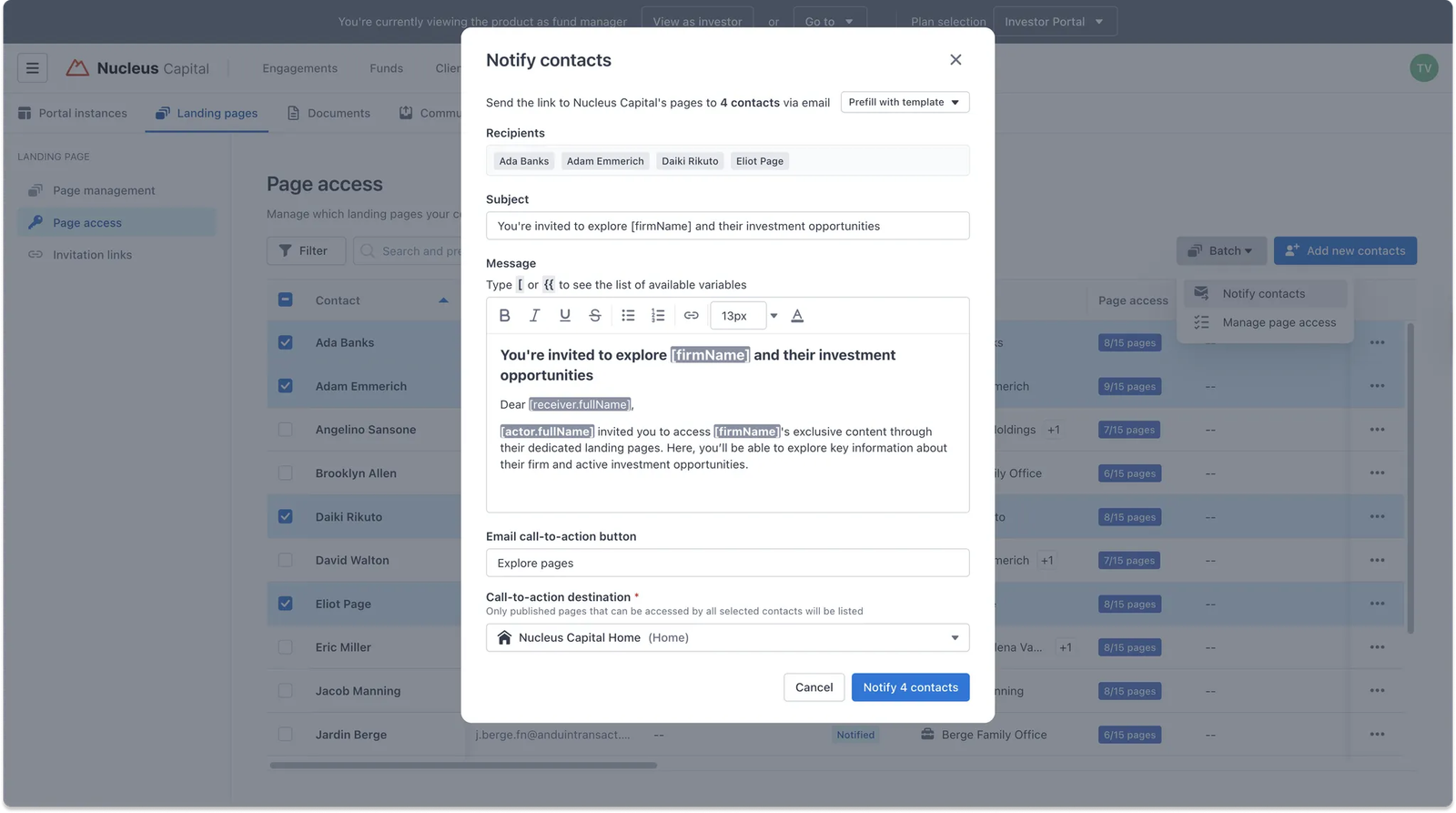
In here, you can still use the “Prefill with template” dropdown to switch to a different template as needed. The same dropdown also lets you create a new template or edit an existing one, without leaving the invitation flow.
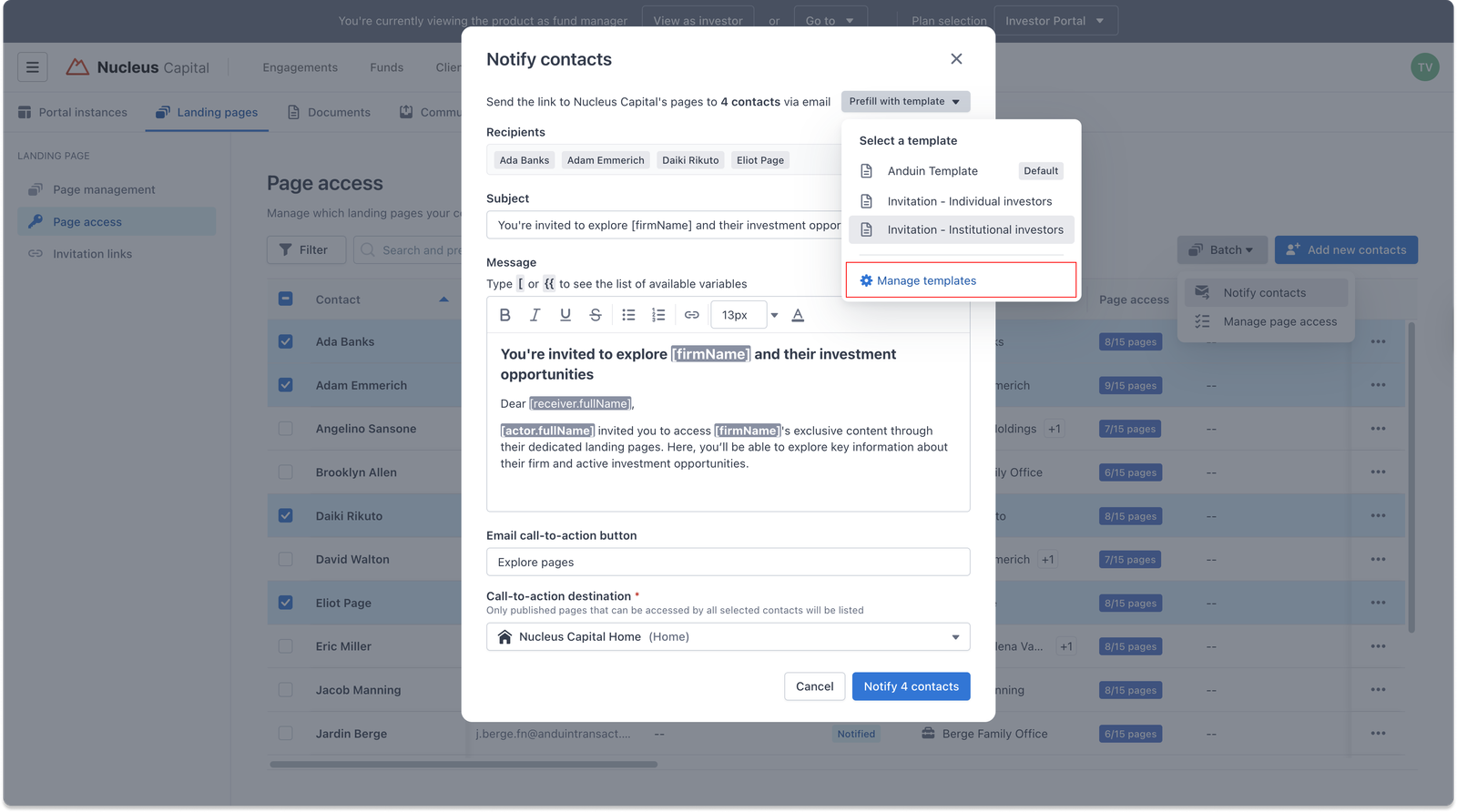
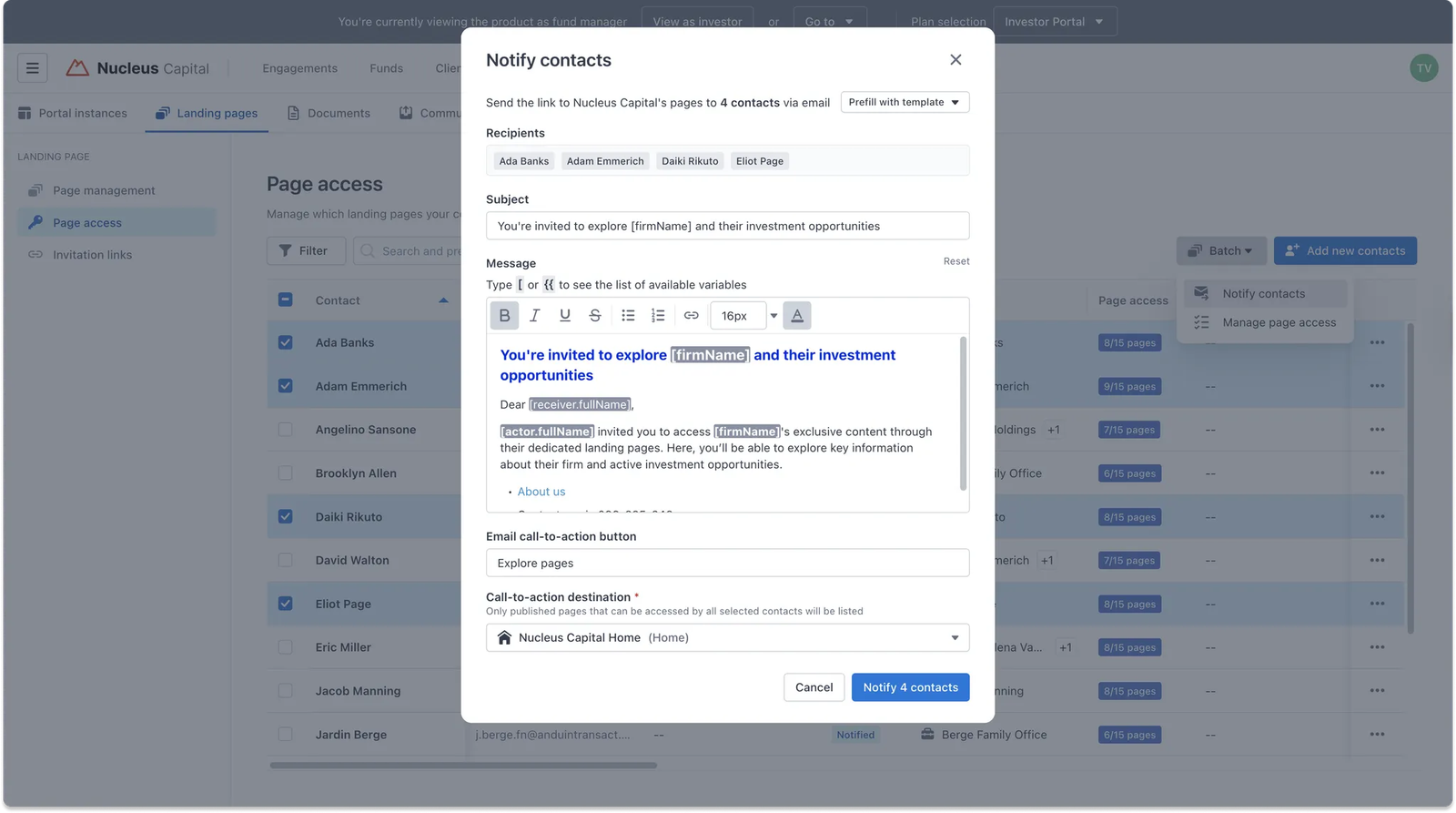
Even after a template is applied, the email remains fully editable for you. This step allows you to review the content and make any adjustments needed before sending. A lot of formatting options, such as text styling, font size, and embedded links, are available to help fine-tune the message.
Step 4: Personalize emails with dynamic placeholders
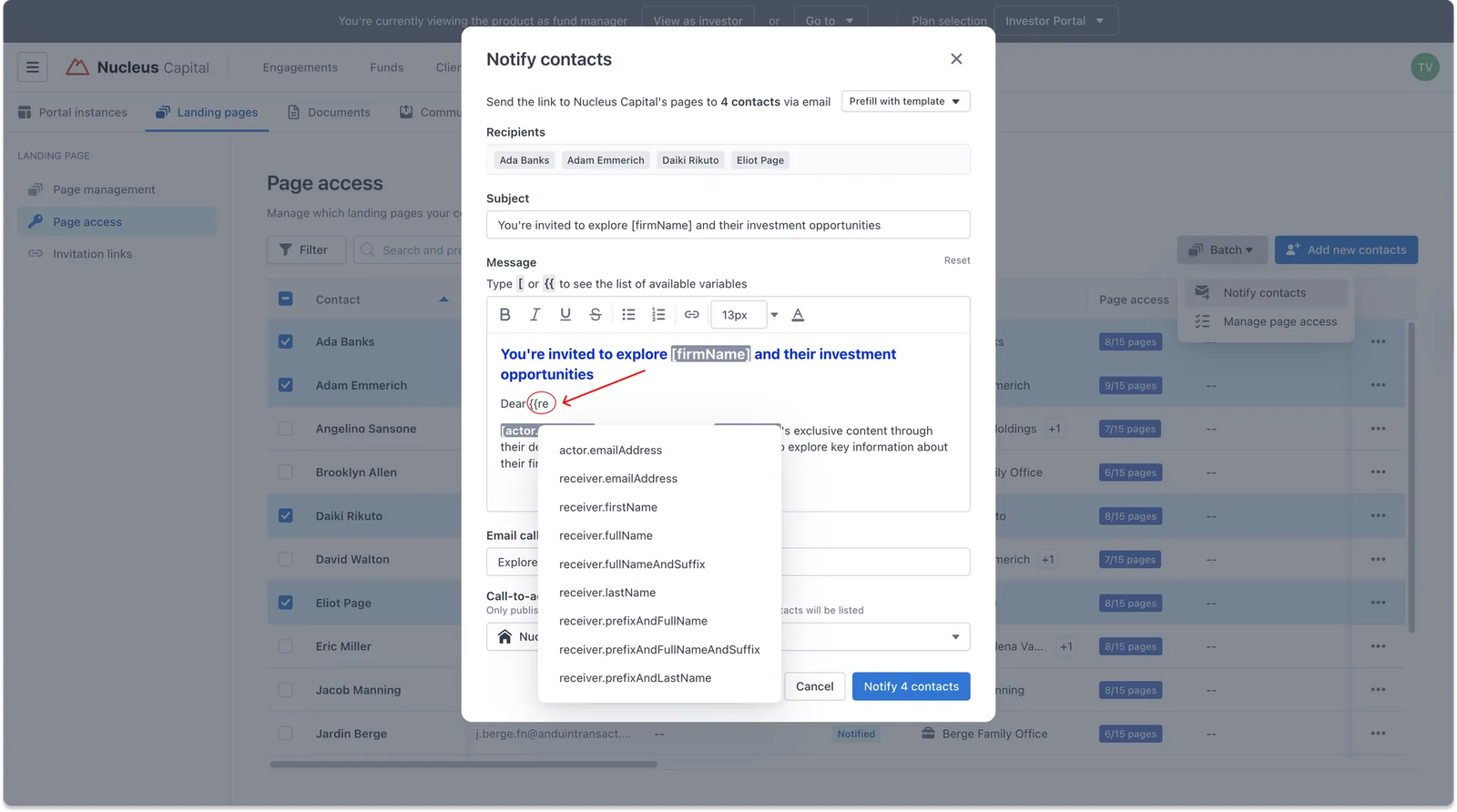
To make each invitation feel more personal, especially when inviting multiple investors at once, dynamic placeholders can be leveraged in the email content.
Typing "(" or "{{" in the editor opens a list of supported placeholders. Only placeholders shown in the list are supported.
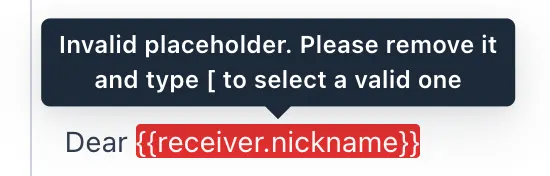
Any unsupported placeholders are highlighted in red and must be replaced before sending.
When the email is delivered, supported placeholders will automatically be replaced with actual data, such as the investor’s name or firm name.
Step 5: Choose the destination page
Next, define where investors should land when they click the call-to-action button in the email.
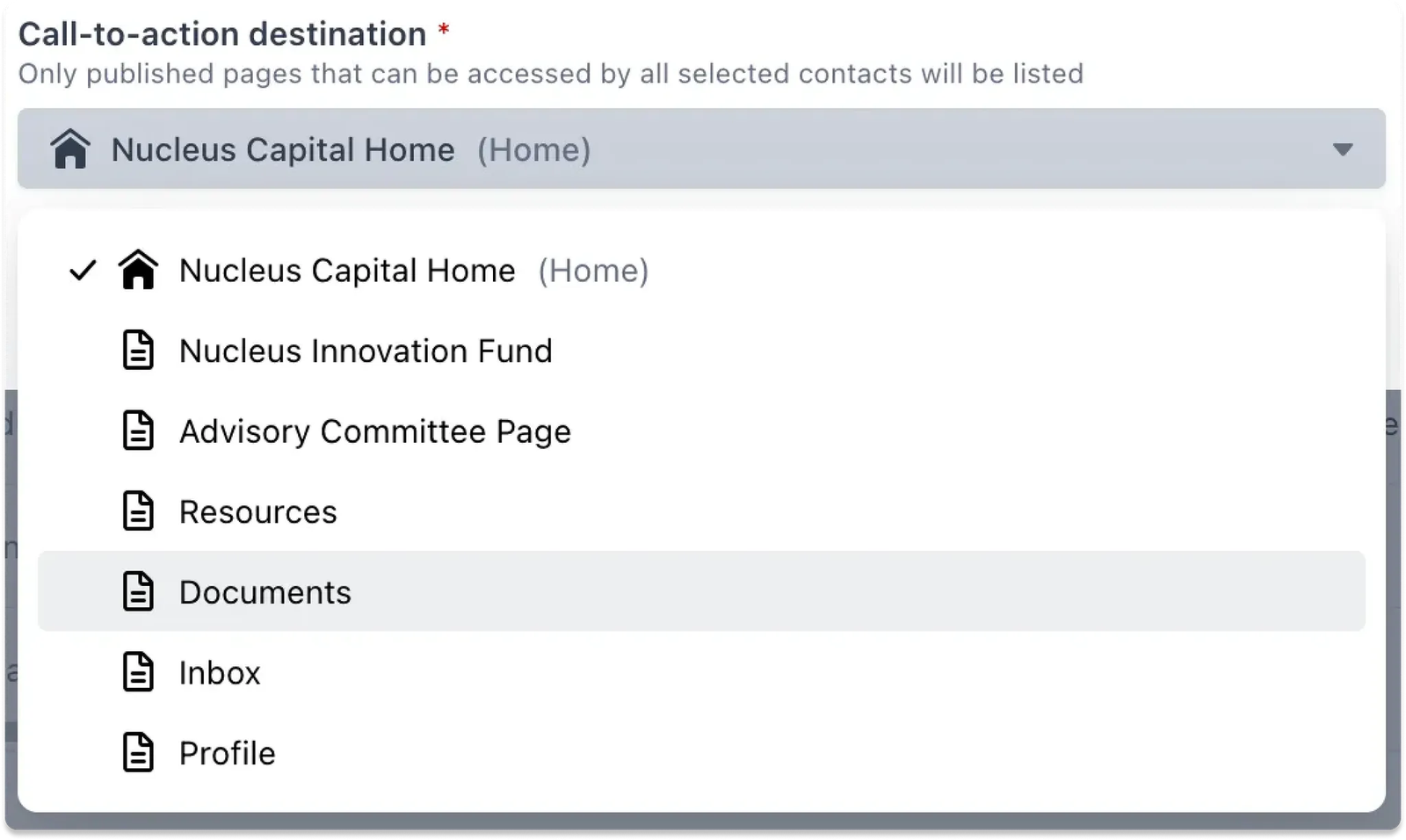
By default, the app selects a published page that all selected contacts already have access to.
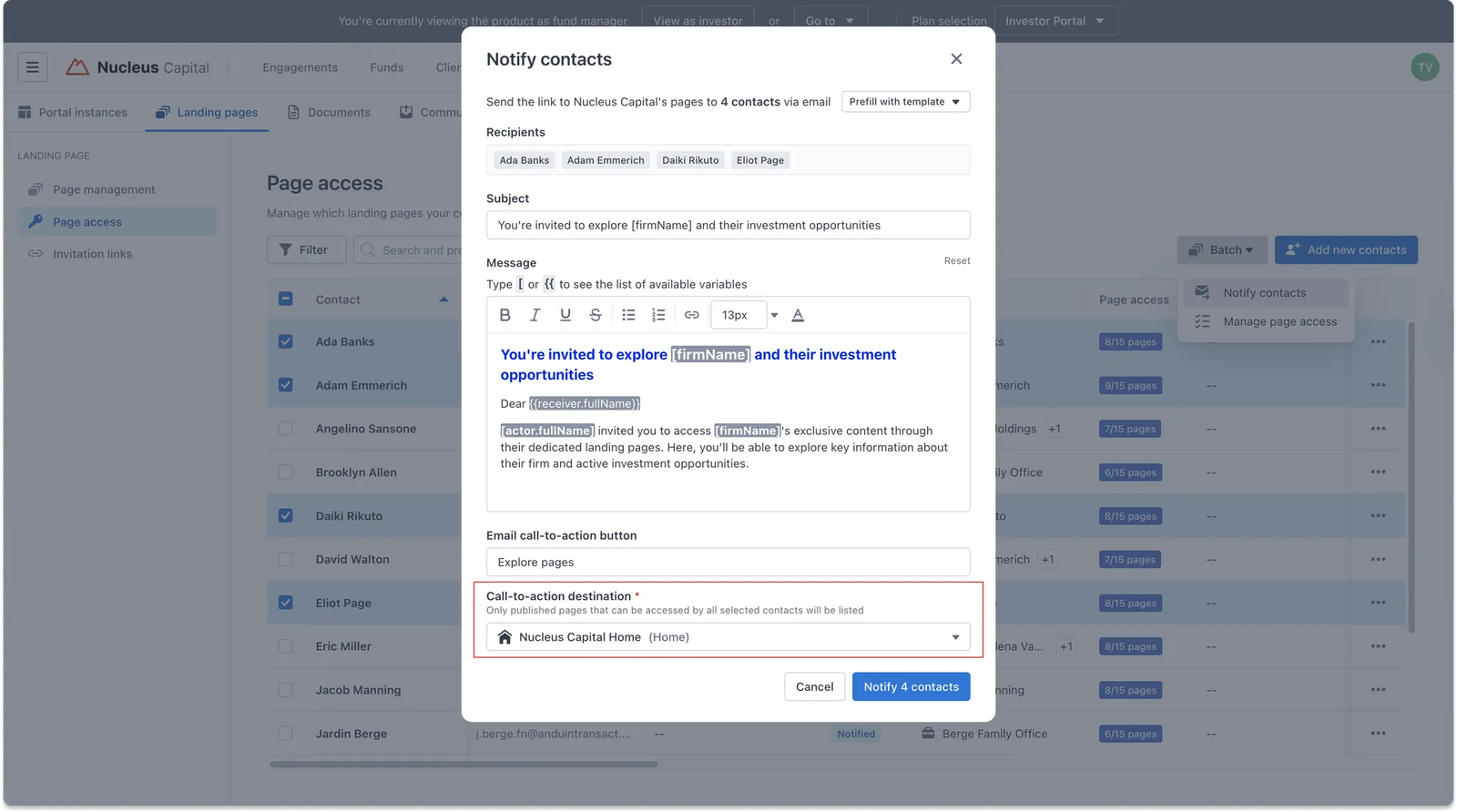
You can open the dropdown to choose a different page if needed. The list only includes published pages that the selected contacts are permitted to access.
Step 6: Send the invitation
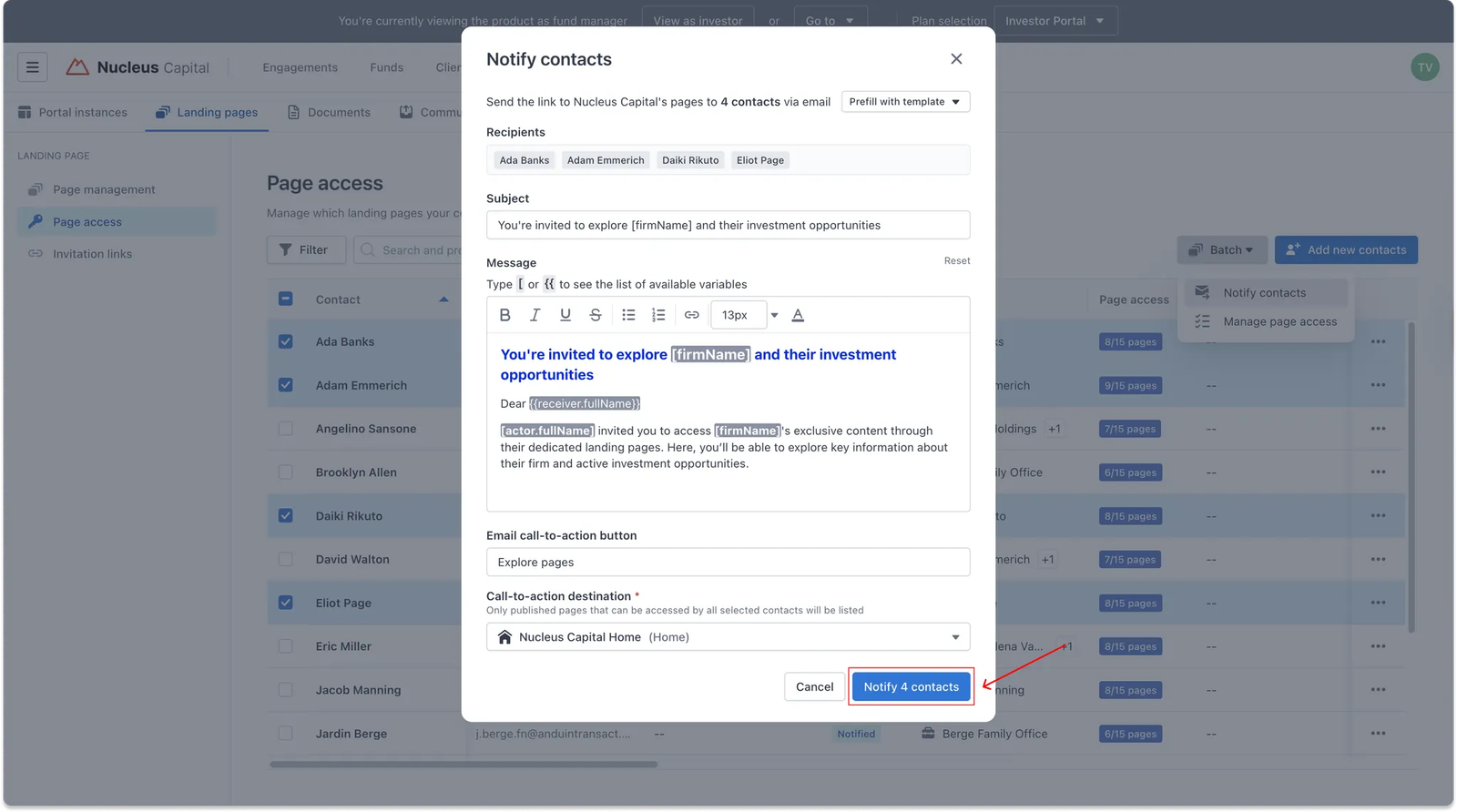
After reviewing the email content and confirming the destination page, click "Notify" to send the invitation.
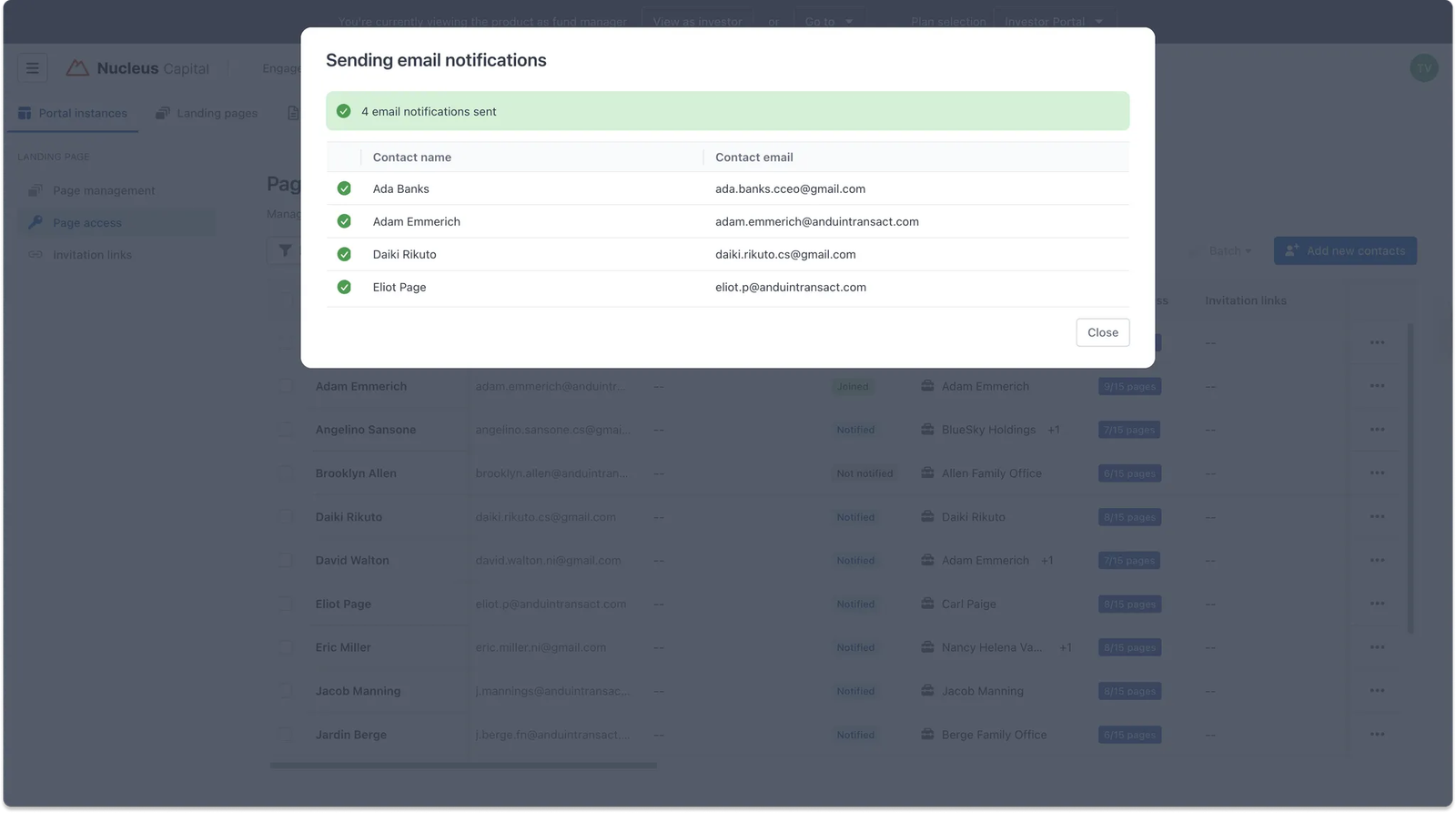
Once confirmed, the system displays the status so you can verify that invitation emails have been successfully sent.
Investor experience
From the investor’s perspective, the experience is straightforward.
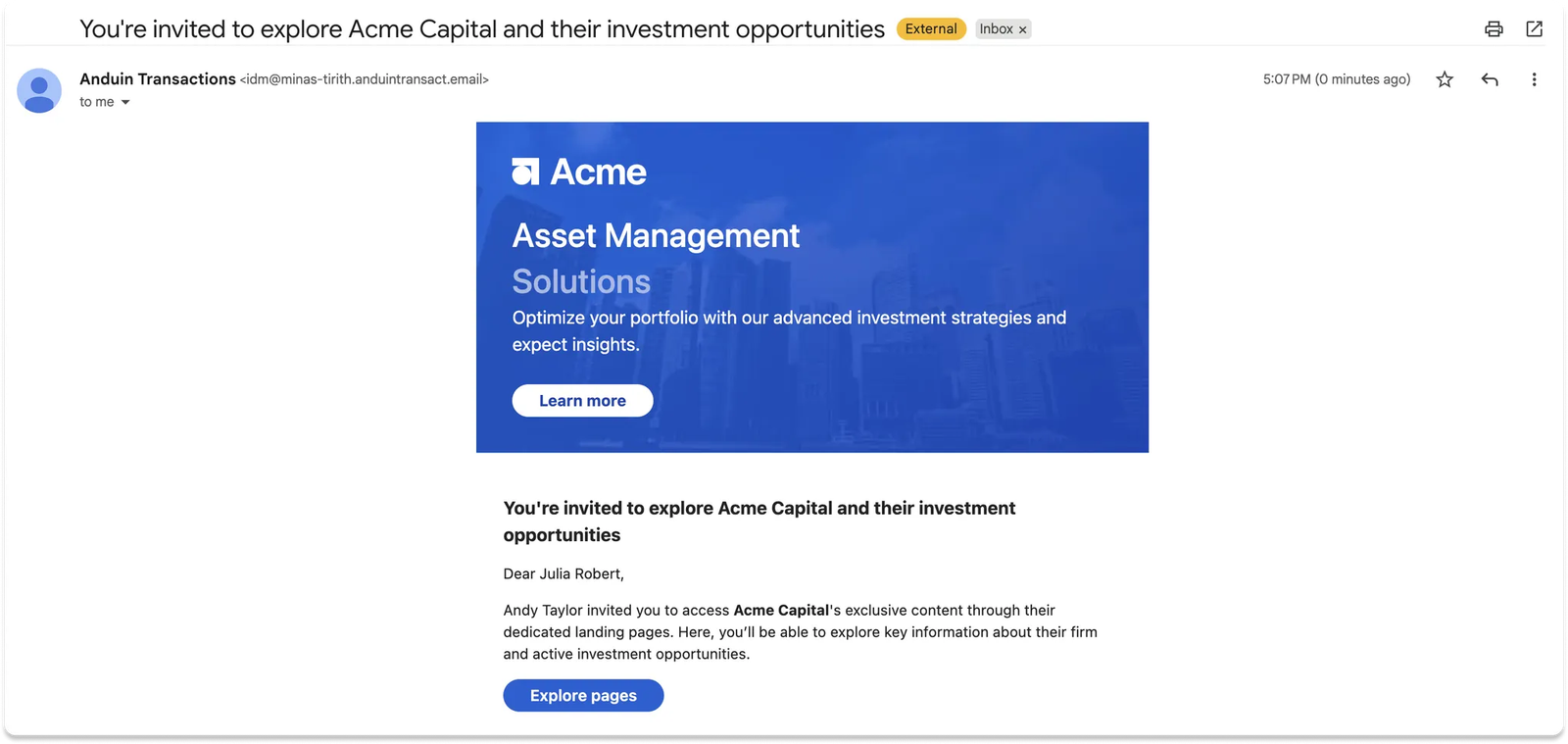
After receiving the invitation email, investors click the call-to-action button and are taken directly to the selected page in the Investor Portal.
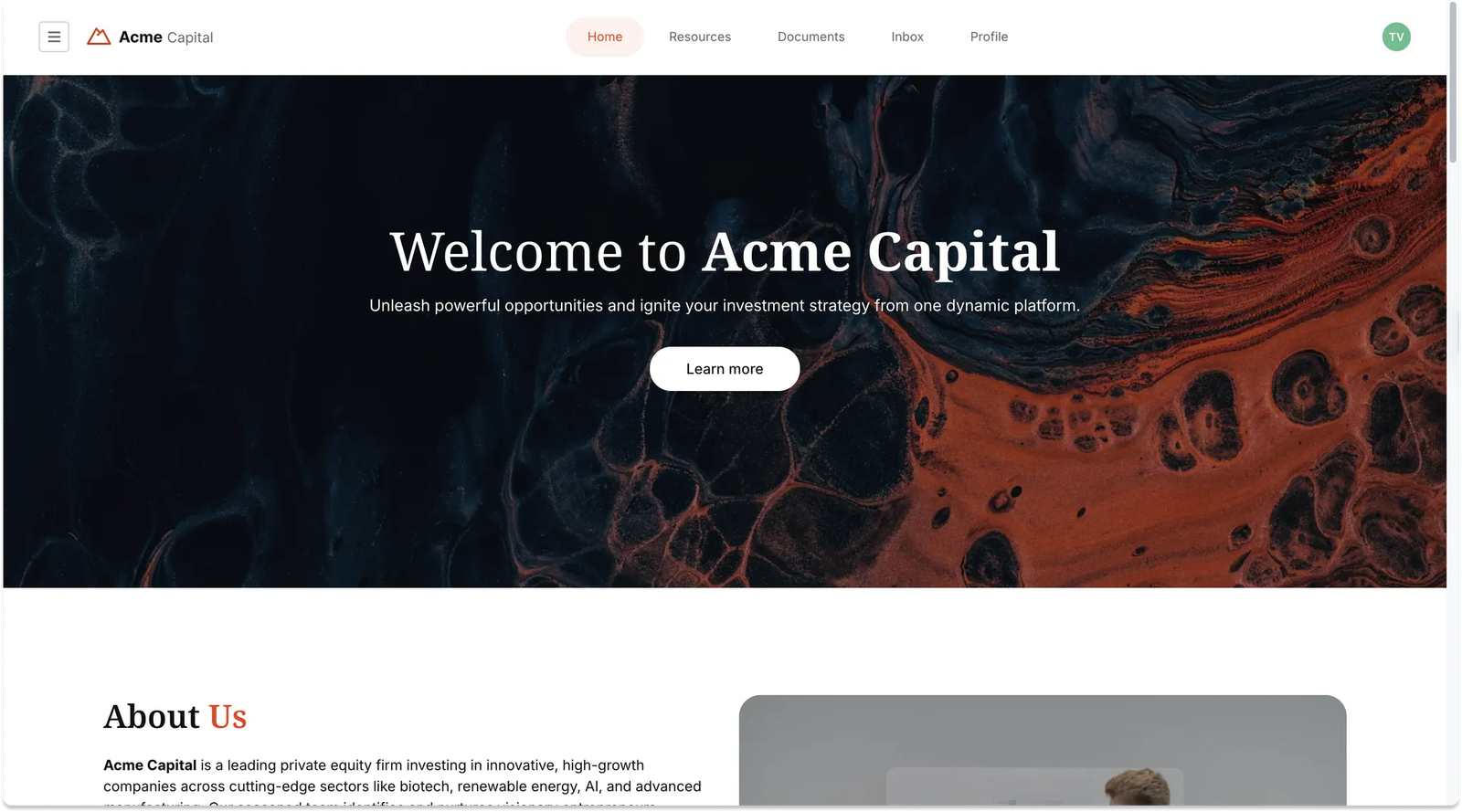
The navigation menu reflects only the pages they have access to, along with the following system pages available to all contacts:
- Resources page: Lists all pages, subscriptions, and data rooms (if applicable) available to the investor.
- Documents page: Provides access to all documents shared with the investor.
- Inbox page: Displays all messages sent from the firm.
- Profile page: Allows investors to view their profile information.