Distribute multiple document packages in one go
Introduction Fund managers often need to send out very different documents at the same time — fund-level documents like financial statements alongside inve
Introduction
Fund managers often need to send out very different documents at the same time — fund-level documents like financial statements alongside investor-level documents like capital call notices. These can span multiple funds, legal entities, and investment entities.
Posting each document type separately works, but it means your investors receive a separate email for every posting. This guide shows you how to prepare several document packages — one per document type — and release them together, so each investor receives a single email covering everything they're entitled to, no matter how many documents, funds, or entities are involved.
Why create one package per document type?
- Different distribution methods: Fund-level documents are typically shared to a whole group (group share), while investor-level documents are matched one-to-one with each recipient (private share). Keeping them in separate packages lets each use the method it needs.
- Easier to manage & fewer mistakes: Separating the work by document type keeps each package focused and simple to review before it goes out.
Guideline
Where to find this feature?
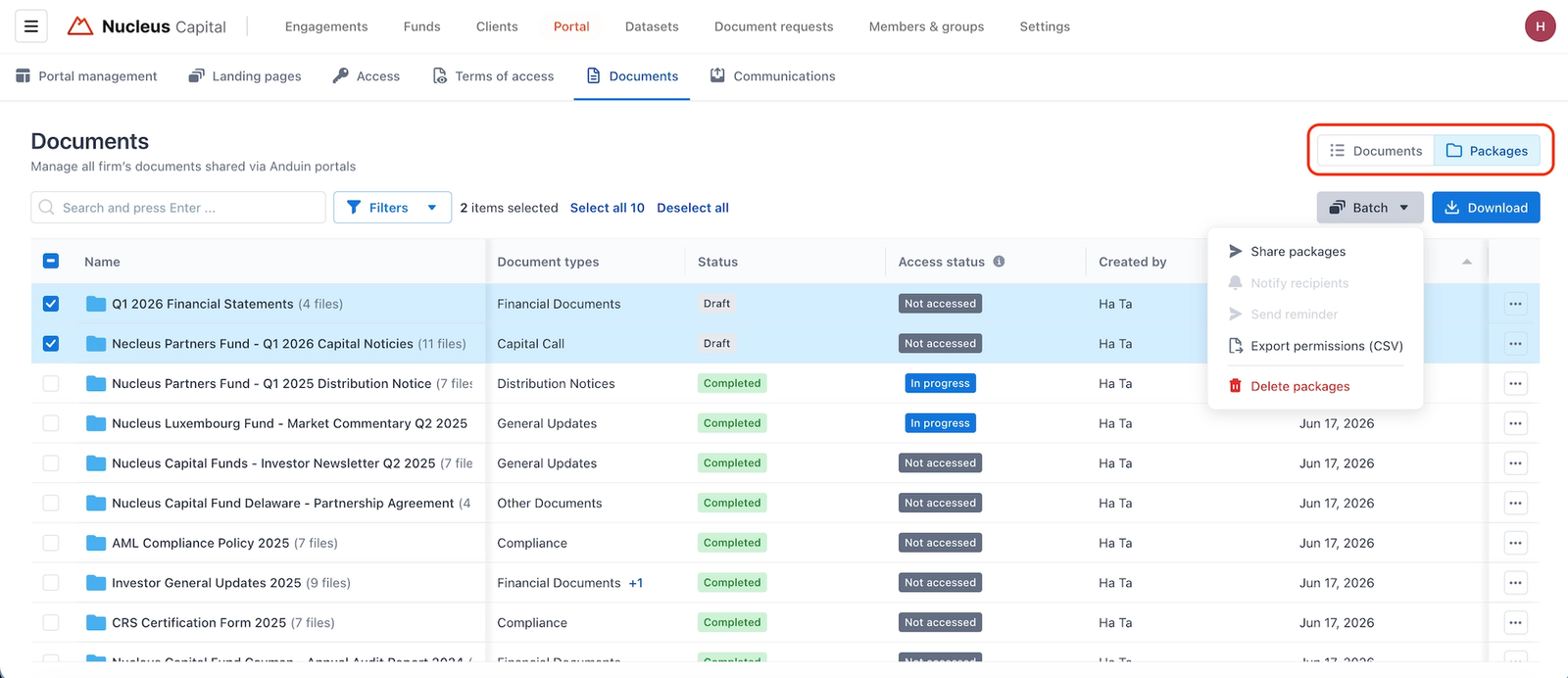
Go to the Documents tab under the main Portals tab, then switch to the Packages view using the toggle in the top-right corner. Batch actions become available from the Batch dropdown once you've selected one or more packages.
Step 1: Create one package per document type
For each document type you want to distribute, create a separate document package and add the relevant files. For example:
- A group share package for fund-level documents (e.g., financial statements).
- A private share package for investor-level documents (e.g., capital calls), where each file is matched to its investment entity.
Repeat until you have one package ready for each document type you plan to send.
Need a refresher on building a package?
See the guides for the group share method and the private share method.
Step 2: Choose how investors get access
You can release all the packages together in one of two ways. Both result in a single consolidated email per investor — the difference is when investors can access the documents.
Option 1: Save as draft, then batch publish
Use this when investors should not have access until everything is published.
- Build each package and save it as a draft (don't complete it yet).
- In the Packages view, select all the draft packages you want to release.
- Click Batch → Share packages.
Option 2: Complete without notifying, then batch notify
Use this when the documents can be available immediately, but you want to control when investors are notified.
- Complete each package, but turn off notifications at the sharing settings step so no email goes out.
- The documents go live on the portal the moment each package is completed — investors simply haven't been told yet.
- When you're ready, go to the Packages view, select the completed packages, and click Batch → Notify recipients.
Key difference
With Option 1, investors have no access until you publish the packages. With Option 2, documents are accessible as soon as each package is completed — only the notification email is delayed.
Step 3: What investors see
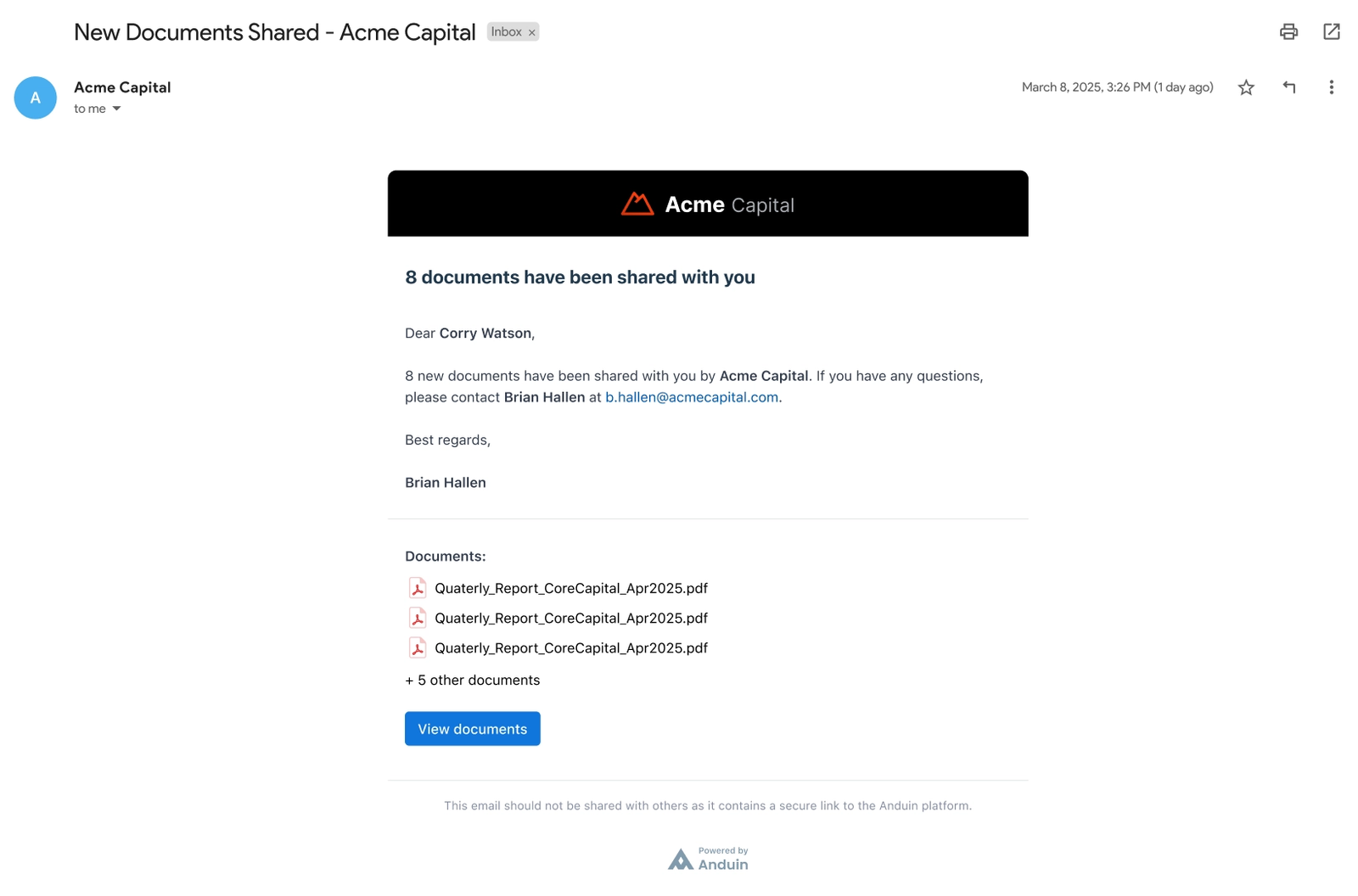
Whichever option you choose, each investor receives a single email covering every document they're supposed to receive — even when those documents span multiple types, funds, or entities.
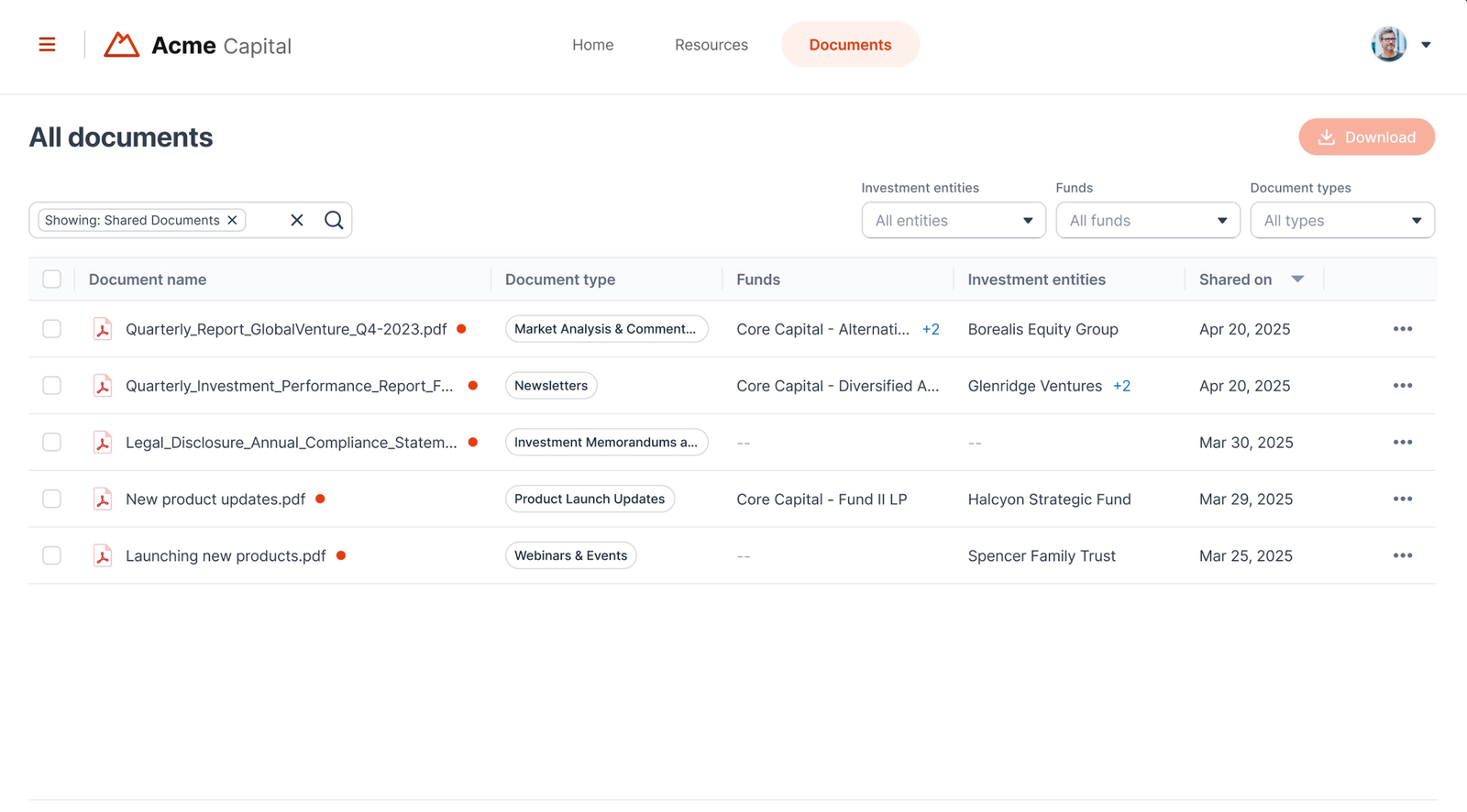
On the Investor Portal, investors can still filter documents by type, so consolidating delivery into one email doesn't make anything harder to find.