

Import investor data from past funds to IDM
Introduction If you have previously conducted fundraises with Anduin, you can easily import investor data from past funds, including investor profile data,
Introduction
If you have previously conducted fundraises with Anduin, you can easily import investor data from past funds, including investor profile data, documents, and contacts, to structurally store them in our Investor Data Management (IDM) for better data management and reusability.
This guide provides instructions on how to transfer data from our Anduin Subscription application to our Investor Data Management application.
Where to find this feature?
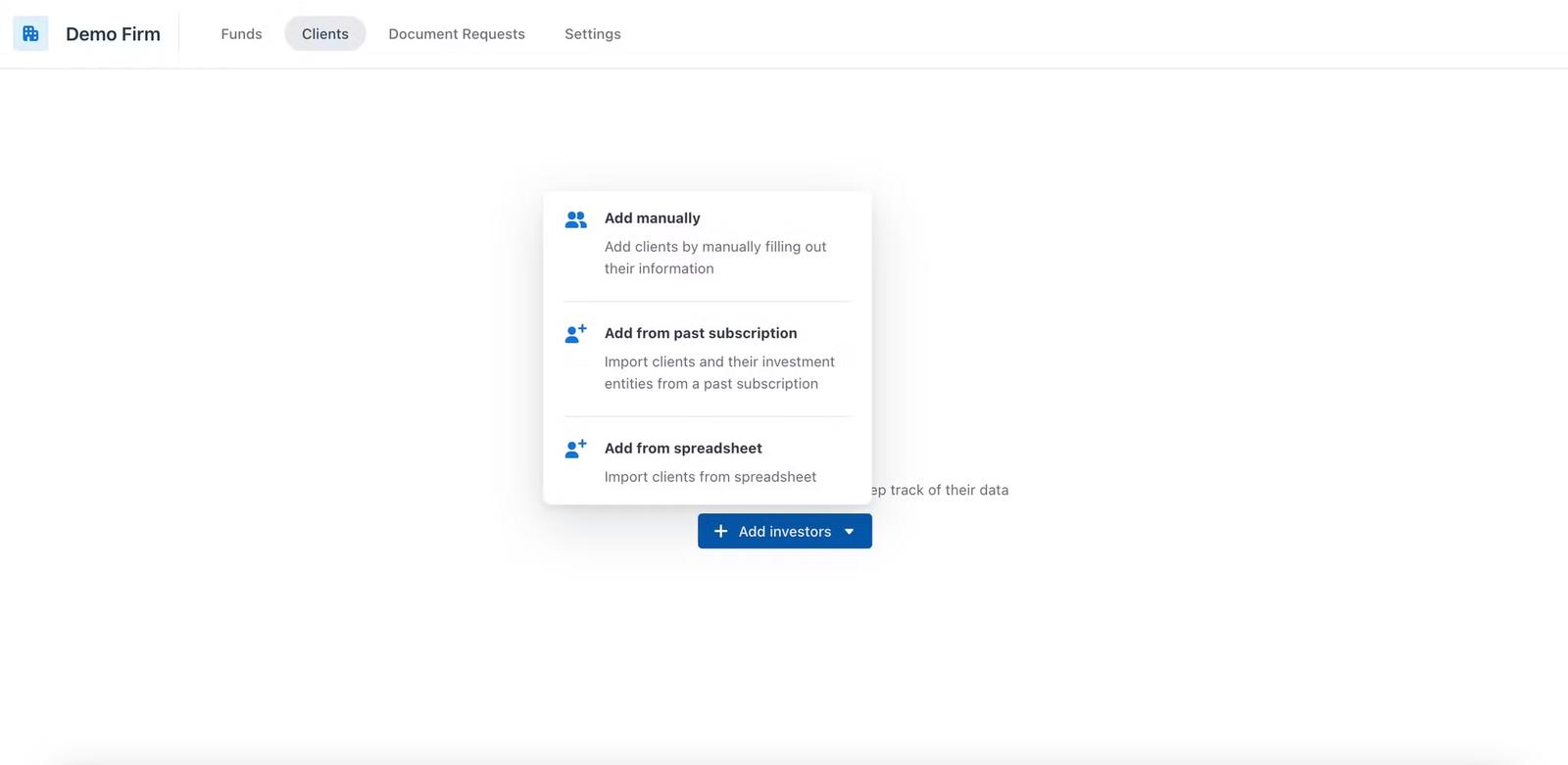
To access this feature in IDM, navigate to the "Clients" tab. Click on the "Add investors" button and select the "Add from past subscription" option. This action will launch the import wizard.
Guideline
Step 1: Select a Fund to Import Investor Data From
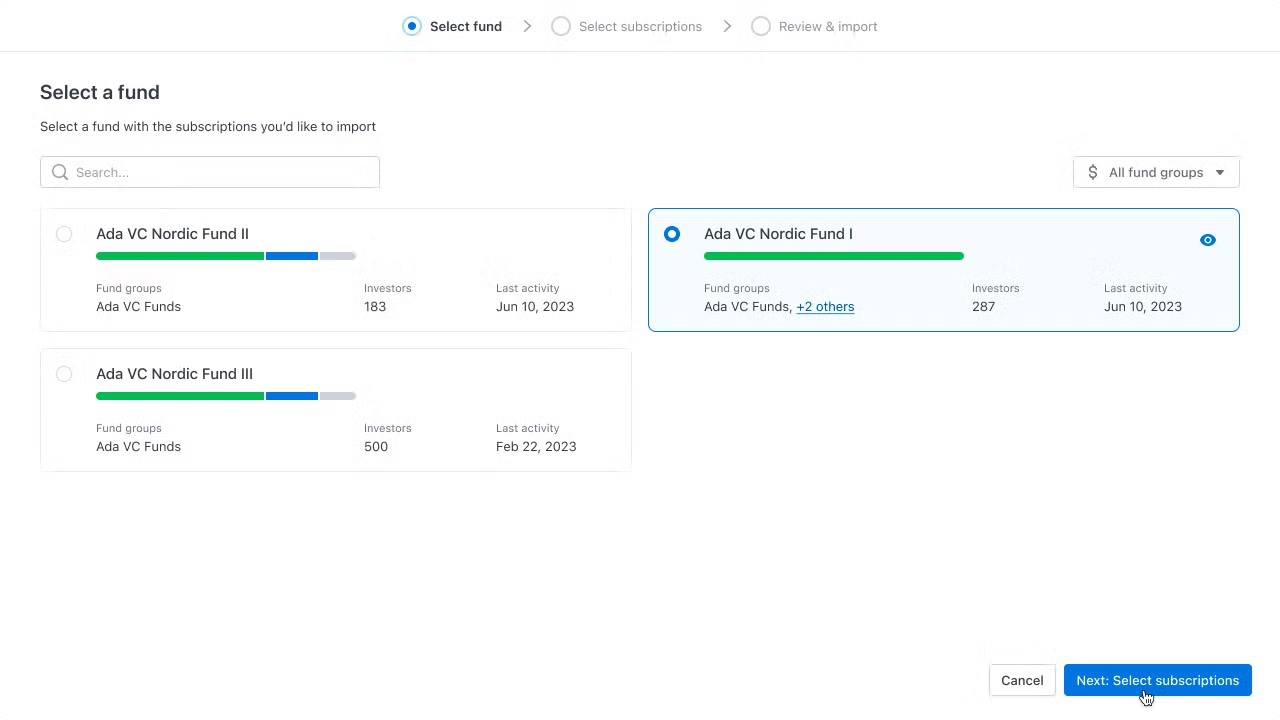
In this step, you will see all the funds that you have access to. Select the fund you want to import data from, then click "Next: Select subscriptions".
Step 2: Select the subscriptions
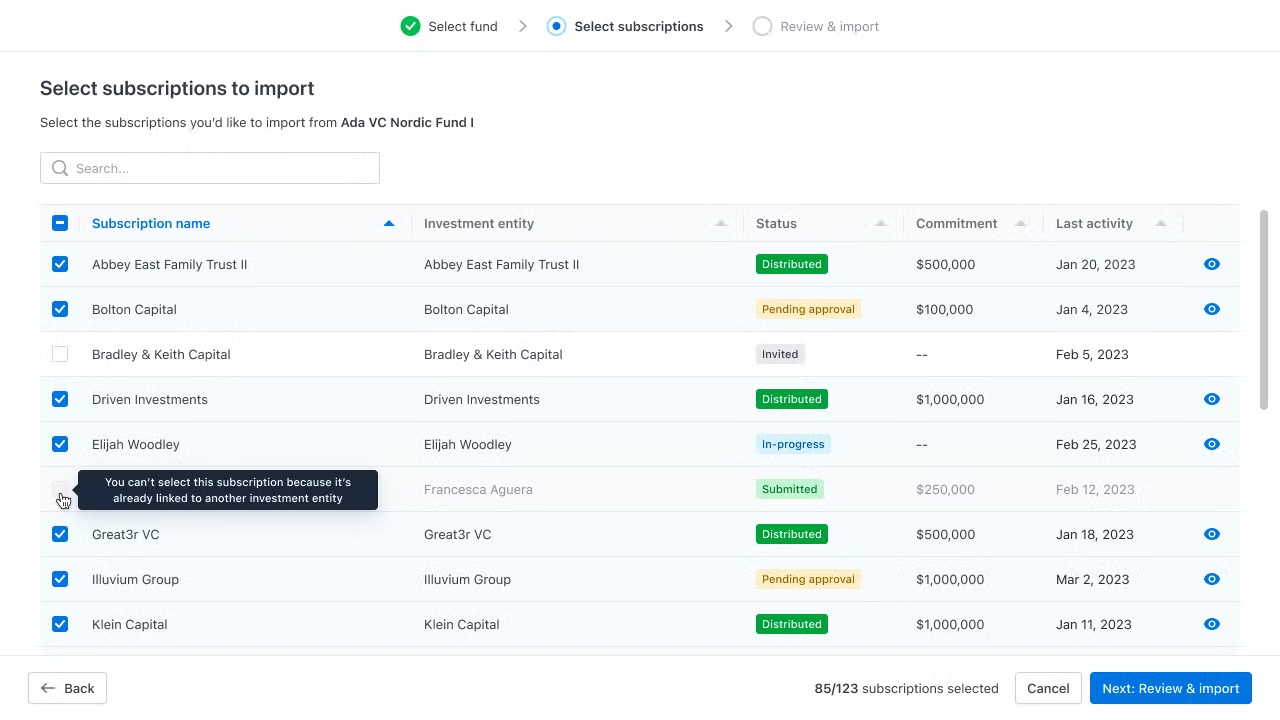
At this stage, you will see all the subscriptions associated with the previously selected fund.
Choose the subscriptions you wish to import, then click "Next: Review & import".
Note: If an order has already been linked with an investment entity in IDM (indicating that you have previously imported that investor data into IDM), you will not be able to select it here.
Step 3: Review before importing
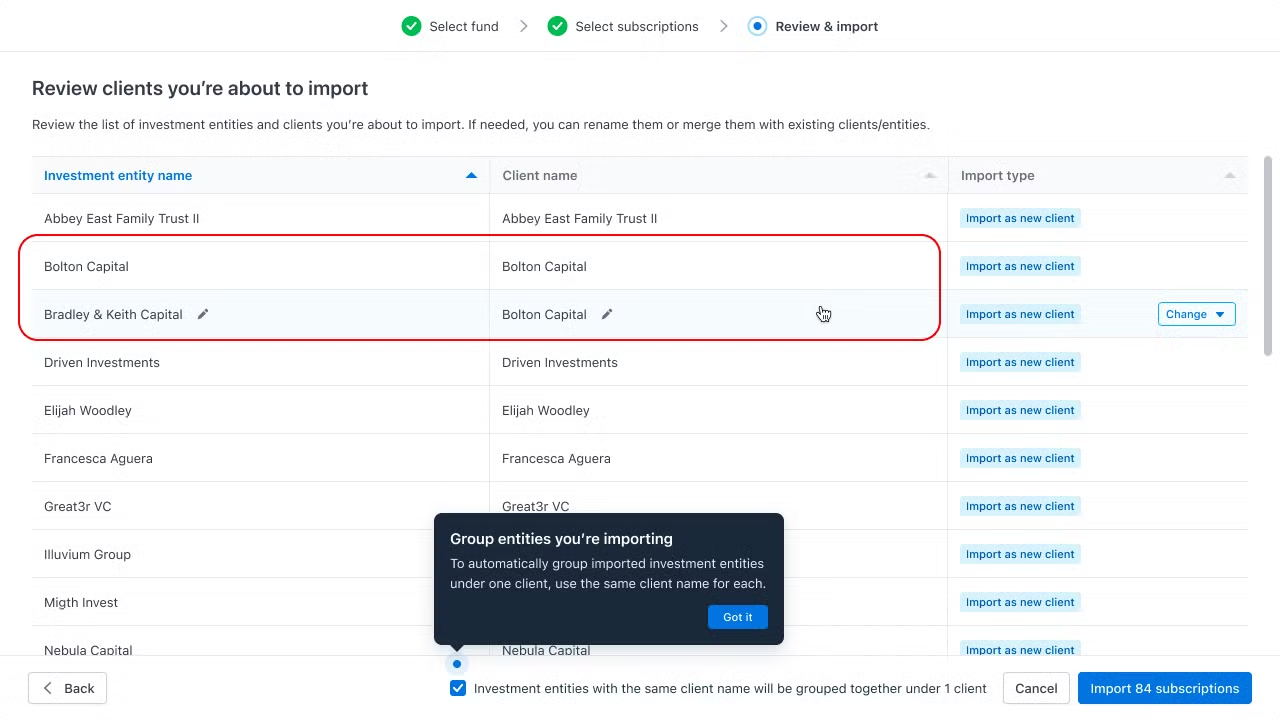
Based on the subscription data, our system will automatically suggest client and investment entity names for your import, using the selected orders' subscriber names. You can hover over each row to rename them if necessary.
To group investment entities under a single client, use the same client name for each relevant row.
We will assist in preventing data duplication by highlighting potential duplicates if the names are at least 70% similar. Duplication can occur at either the client or investment entity level, and you will have various options to resolve conflicts (refer to the "Import Types" section below).
You will not be able to initiate the import process until all potential duplicates have been assigned a resolution. However, you can use the "Batch Resolve" option to expedite this task.
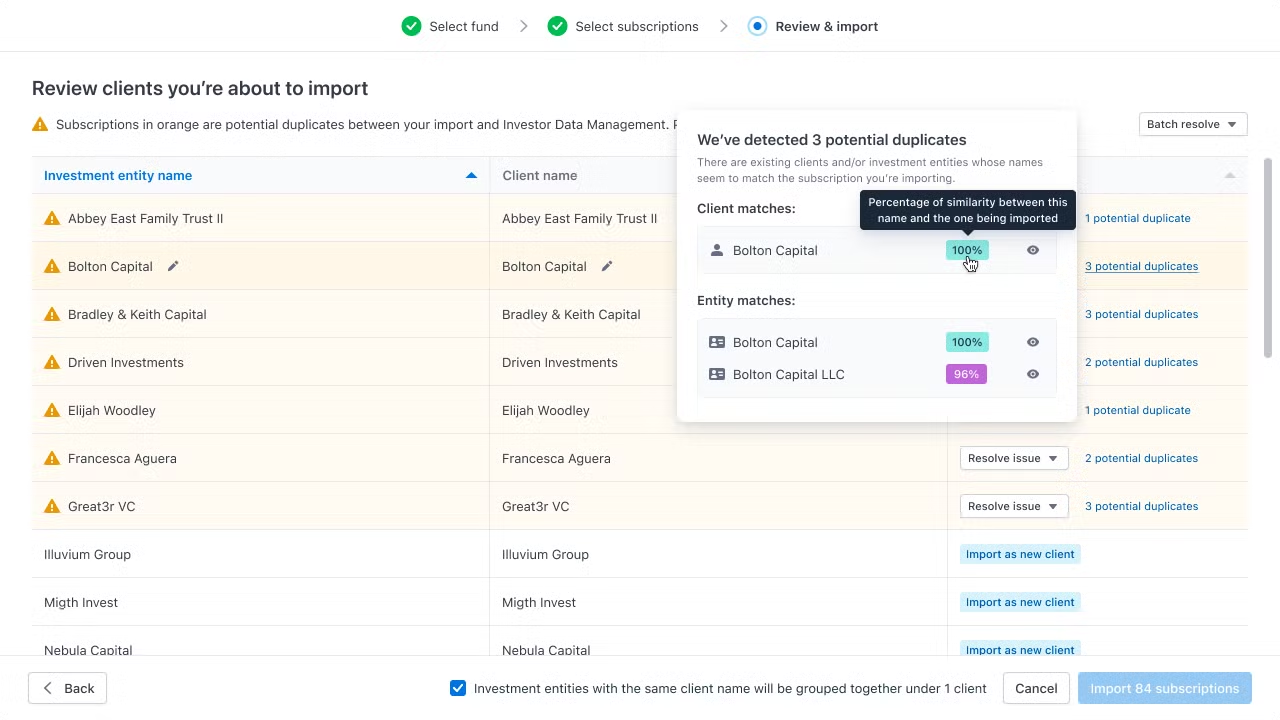
Duplicates with existing investors in IDM detected
Import types
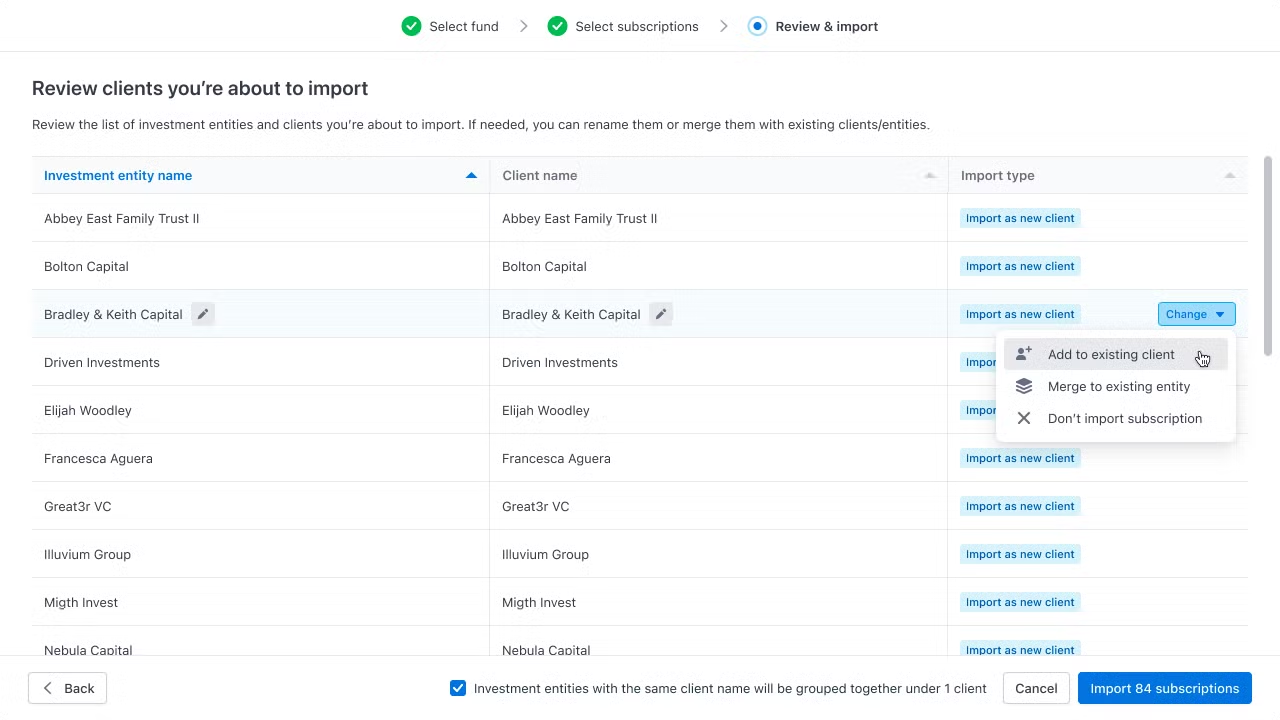
Selecting “Import type” allows the user to decide how the data of each subscription should be imported
By default, data will be imported as a new client if there is no duplication detected. However, there are always 4 available options when importing data:
| Option | User experience |
|---|---|
| Import as a new client | A new client will be created in IDM A new investment entity will be created under this client All subscription data (profile, documents, contacts) will be imported to the investment entity |
| Add to existing client | A new investment entity will be created under the selected client All subscription data (profile, documents, contacts) will be imported to the investment entity |
| Merge to an existing entity | No new investment entity or client will be created Profile data: If the existing investment entity already contains data in the same fields, the application will prompt you to review and choose which data (the existing data in the application or the new data to be imported) should be retained after the import process is complete. Otherwise, subscription data will be appended to existing profile data. Contacts and documents from the subscription will be appended to the existing investment entity |
| Don’t import subscription | The subscription will be skipped during the import process. |
Step 4: Review & Import
Once all of the duplicates are resolved, you will be able to start the import. Click the “Import subscriptions” button at the bottom right corner of the screen.
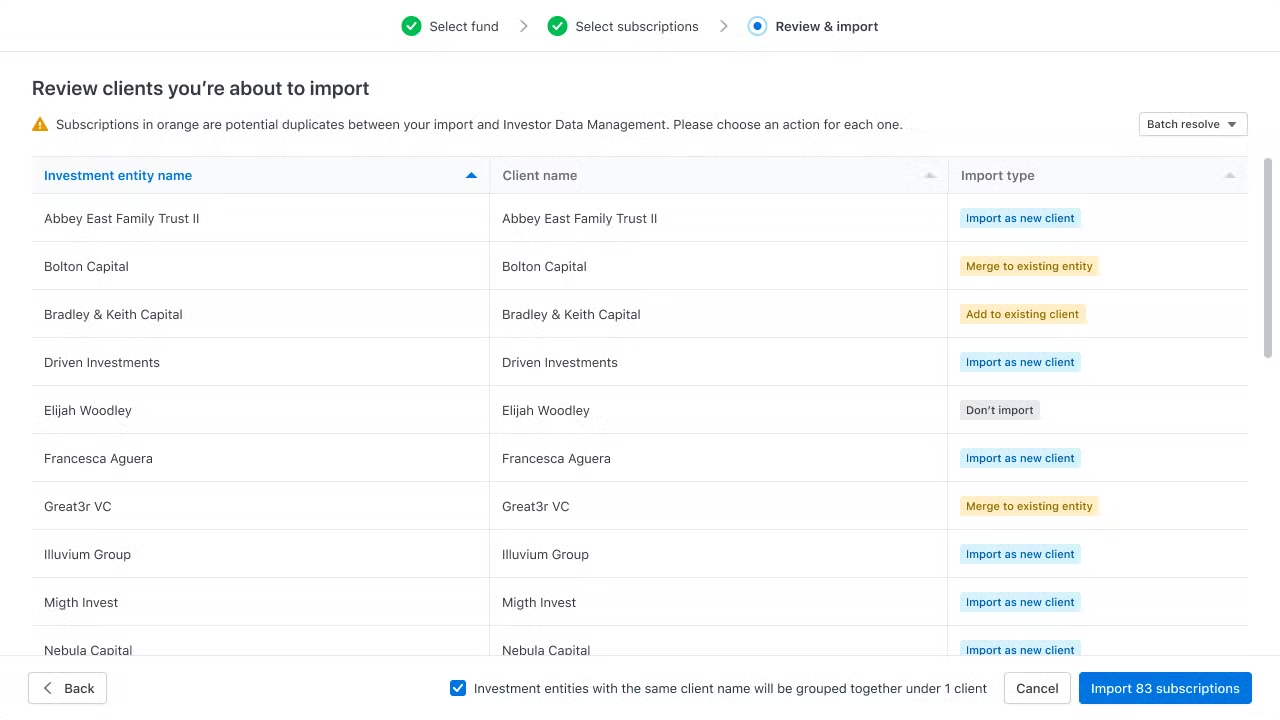
Completion!
At the end of the process, your data will be seamlessly migrated and smartly organized within our data hub.
- Having investors submit offline PDFs?
- Having a CRM system that needs to be integrated with IDM for seamless data updates?
Contact our team to learn more!