

Data & Document Prefill During Invitation on Fund Subscription with IDM
Introduction This feature is designed to assist Fund Managers in generating FundSub invitations for their existing investors. To streamline the flow, our s
Introduction
This feature is designed to assist Fund Managers in generating FundSub invitations for their existing investors. To streamline the flow, our system will pre-fill the subscription form with data stored in Investor Data Management appI and mark any documents on file as provided, eliminating the need for investors to input or submit that information again.
Pre-condition
Since this feature is in the early development phase, it's not available in all environments. Therefore, please contact our Anduin support team to ensure that it is enabled for your Fund Subscription environment.
Guideline
Step 1: Add investors from Investor Data Management
In the Fund Subscription app - Master Dashboard tab, click Add investor and select the Import from Investor Data Management option to trigger the flow.
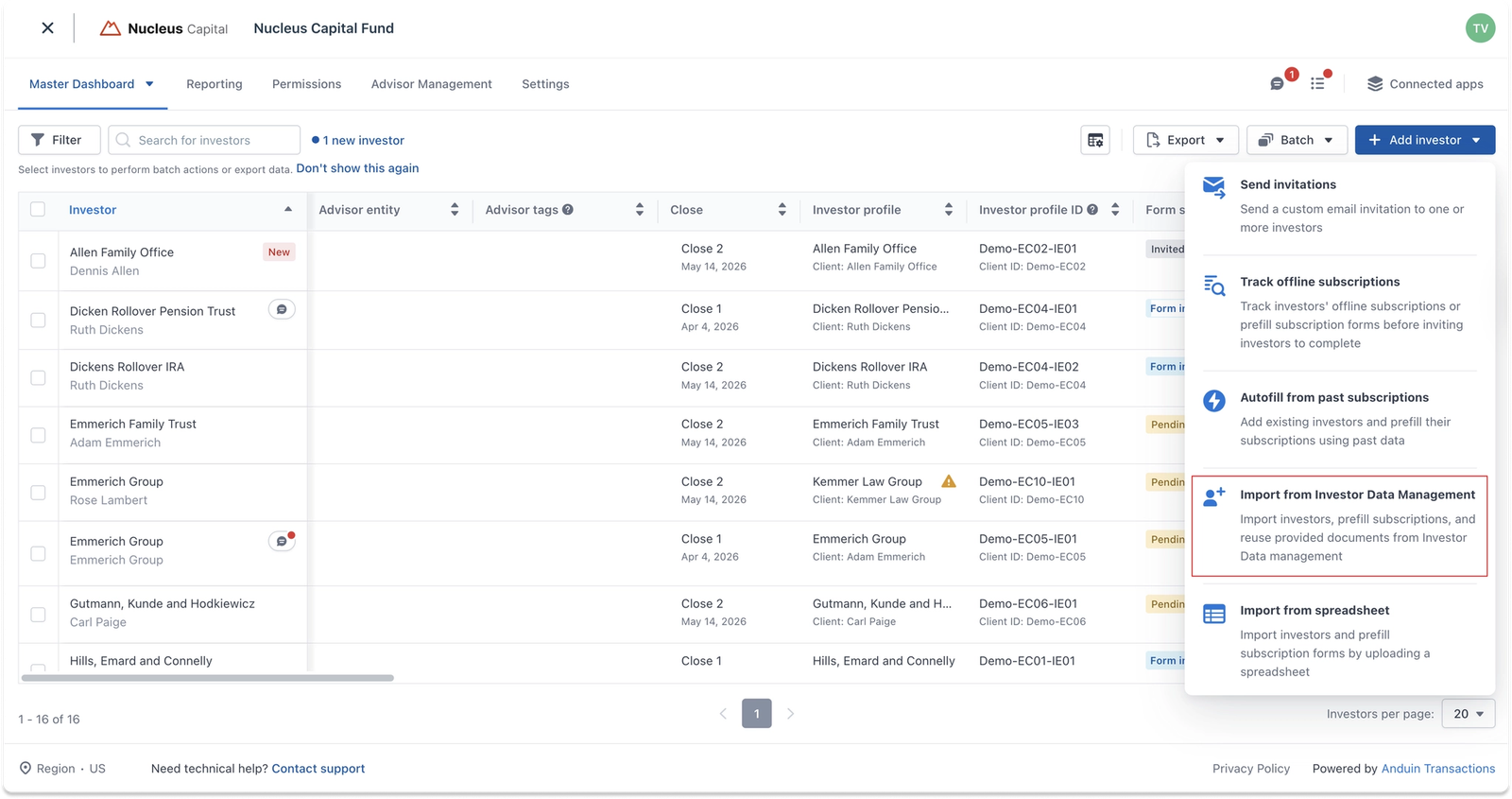
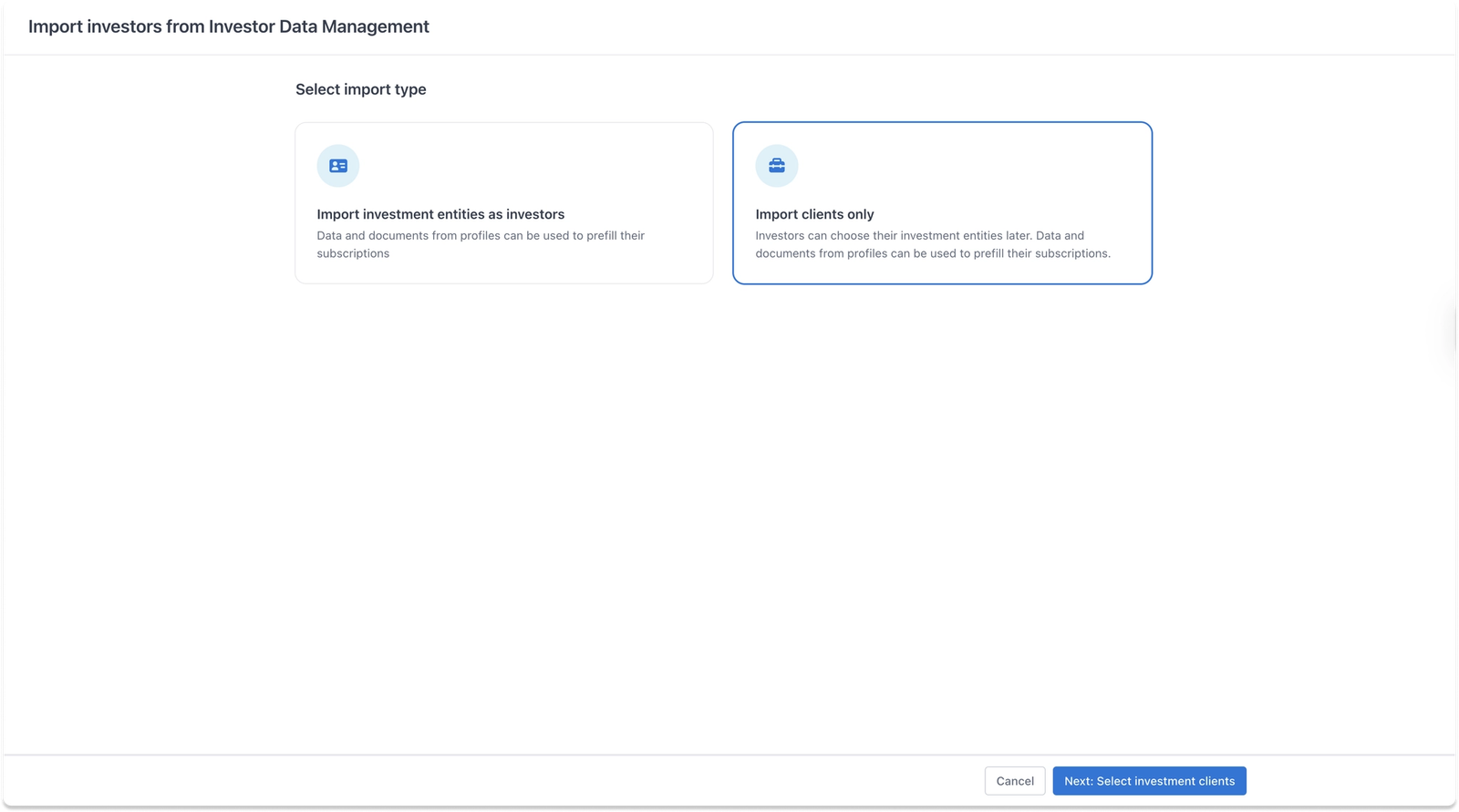
From here, you will have two options to invite investors to Fund Subscription:
- Option A: Import investment entities as investors — Select a specific Investment Entity (IE) from IDM and immediately use data from that IE to prefill the subscription, including profile data, AML/KYC documents, and contacts as collaborators.
- Option B: Import clients as investors — Select a client to link with the new subscription first, with collaborator information prefilled from the client level. The specific IE can be linked later, at which point profile data and documents will also be prefilled.
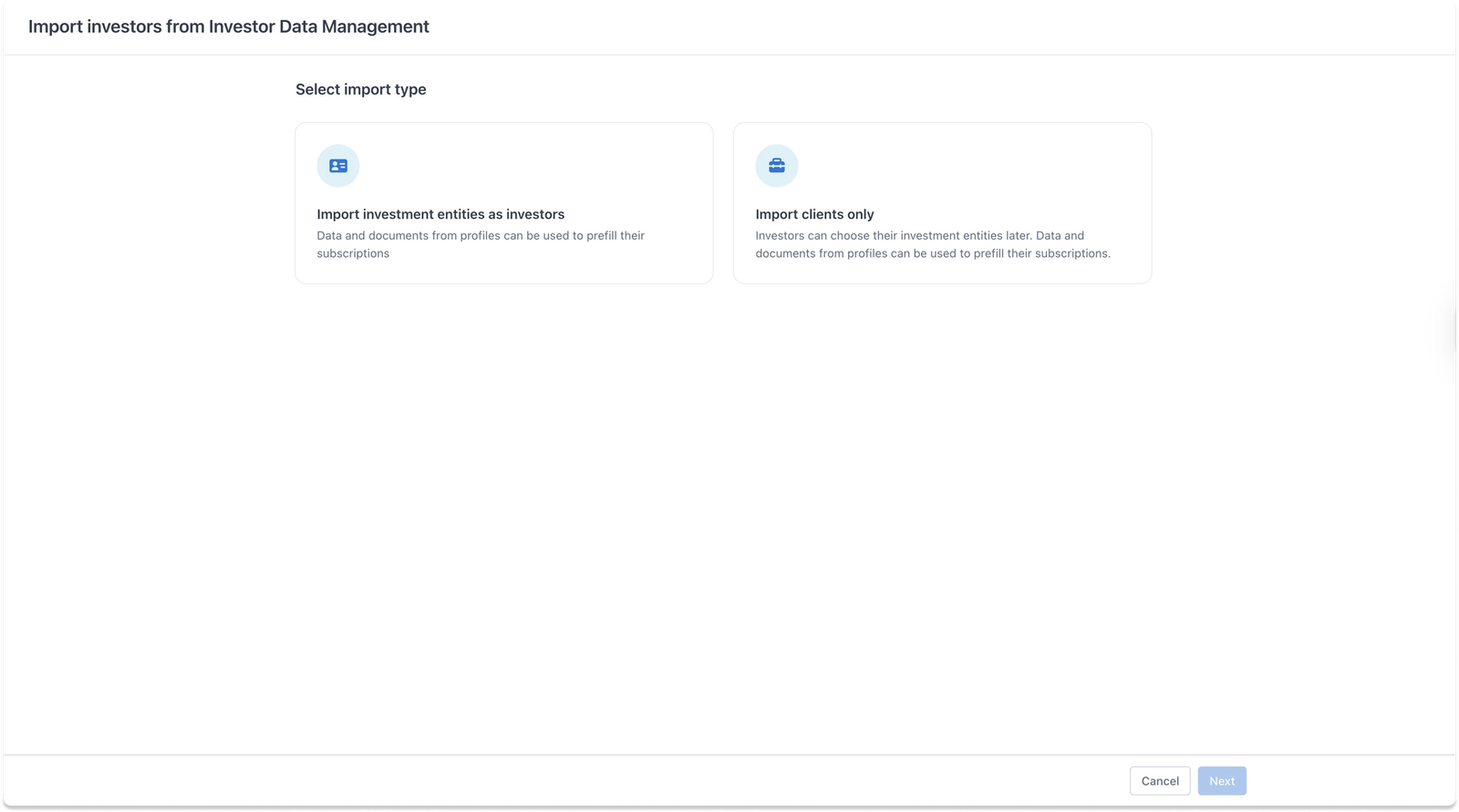
Option A. Import investment entities as investors
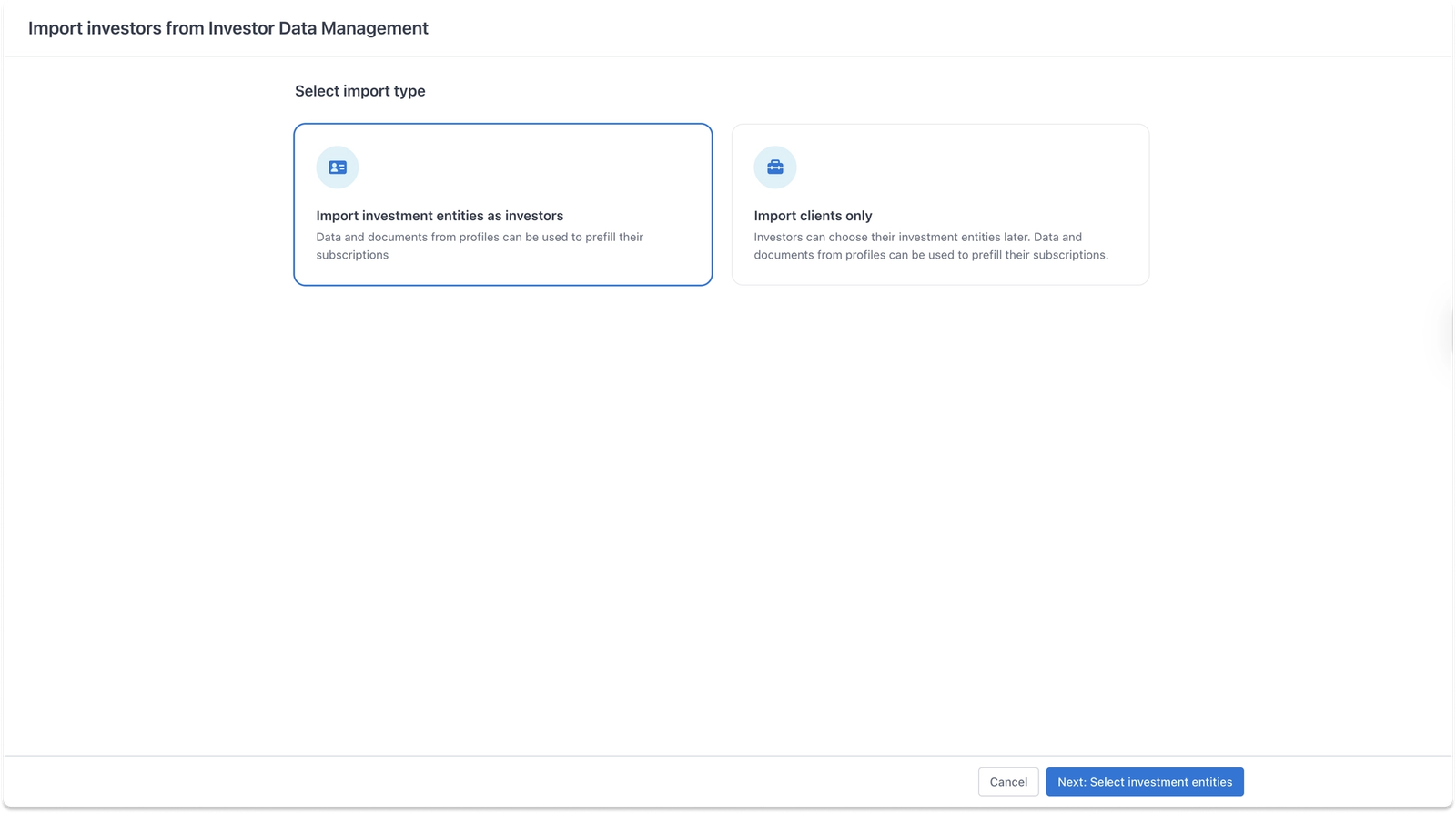
Step 2: Select investment entities
Select the Investment Entities (IEs) stored in IDM that you would like to invite to the new fund. The list only shows IEs that are not already linked to an existing investor in this Fund Subscription. You can use different filters such as past funds, investor type, or jurisdiction to narrow down the list.
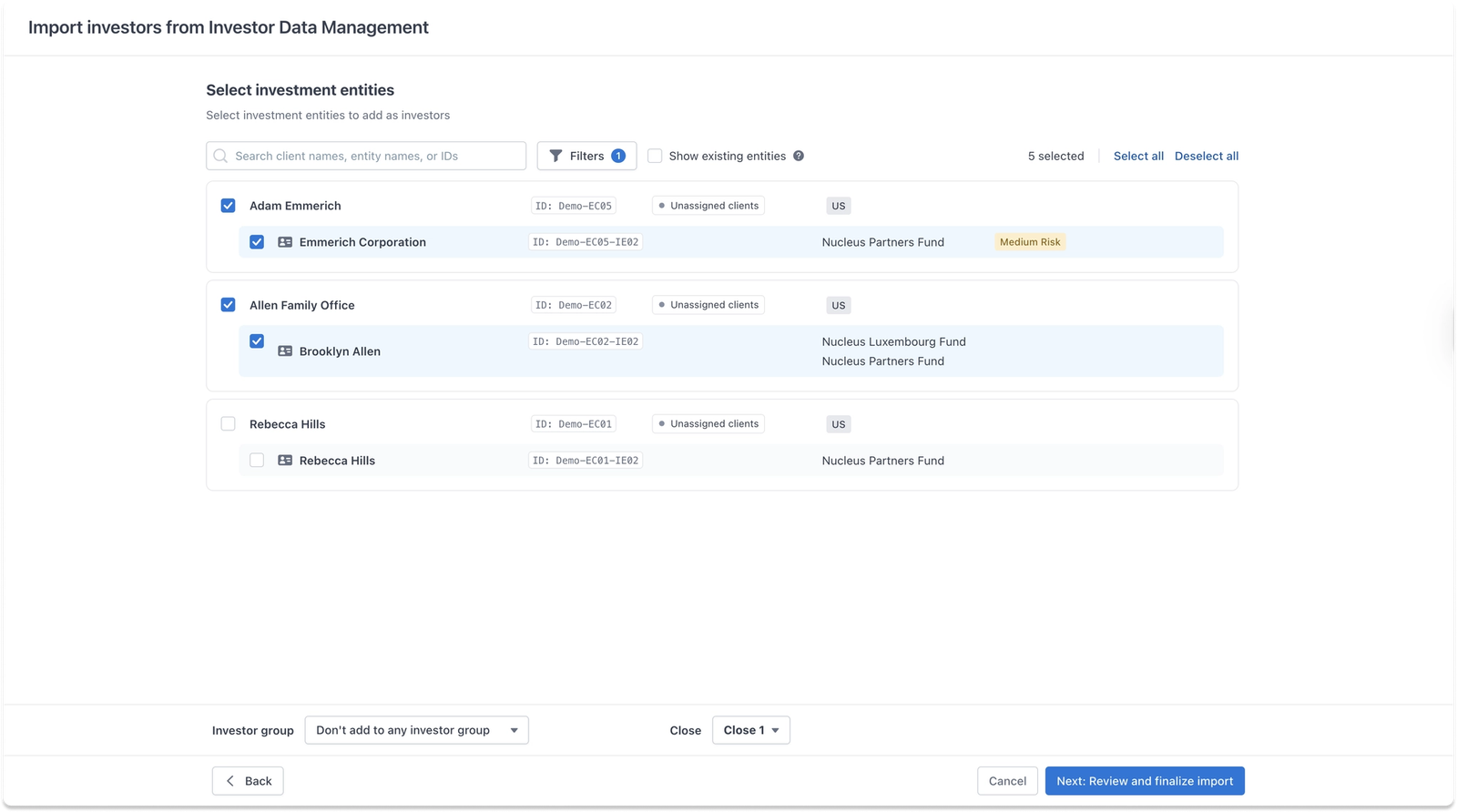
Note: to optimize system performance, only up to 100 investment entities can be selected per batch.
Once ready, click Next: Review and finalize import to continue.
Step 3: Review the pre-filled data
Before sending out invitations, review the list of investors and their pre-filled data. For each IE, the app automatically pulls data from IDM to fill out the subscription - so investors spend less time filling out forms, and Fund Managers spend less time chasing information they already have.
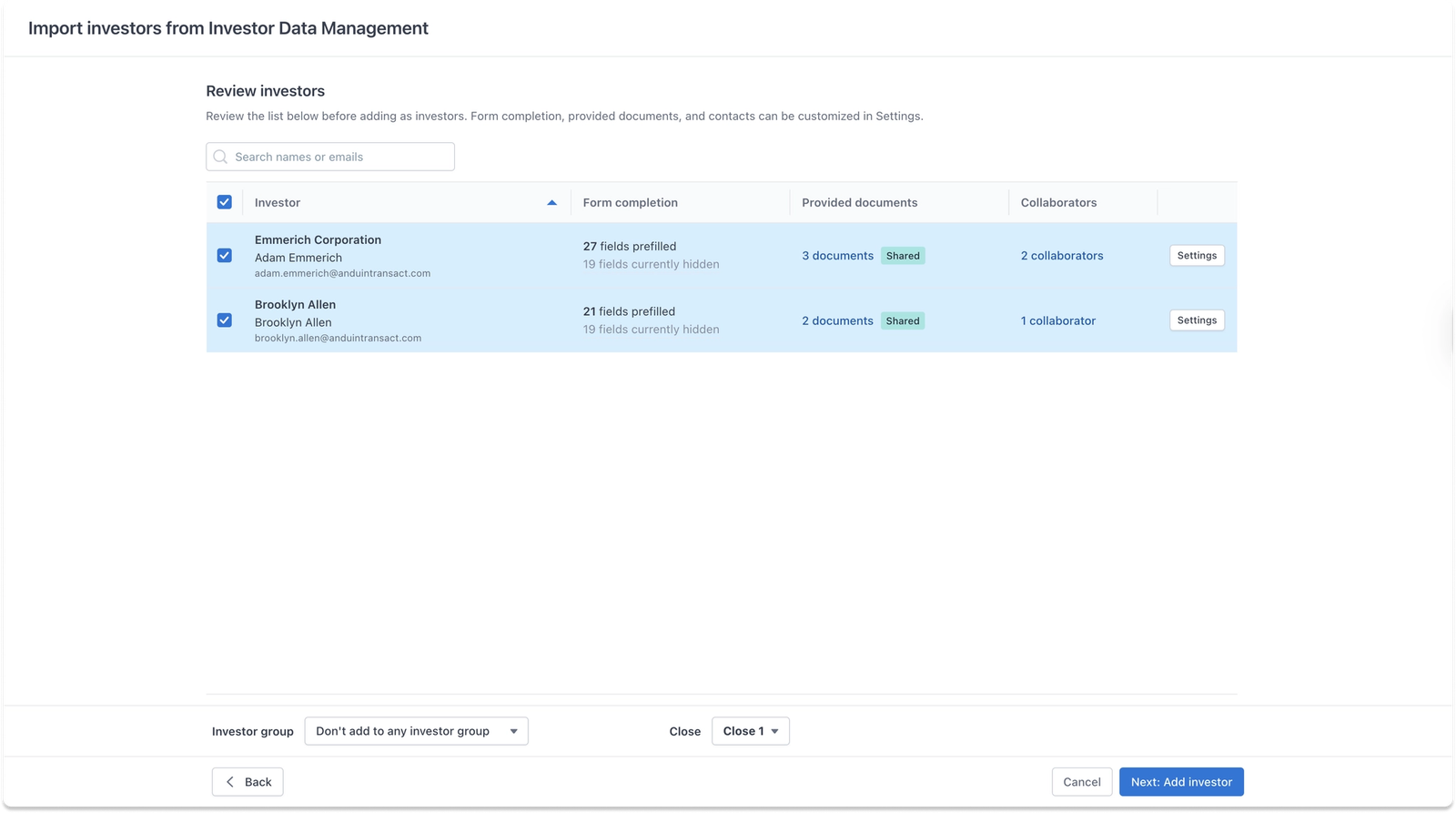
How does prefilling work?
When a Fund Manager selects an IE to invite, the app will automatically pull 3 types of data from that IE's profile in IDM into the new Fund Subscription:
1. Profile data: The IE's profile data fields stored in IDM are used to autofill the subscription form. The number of prefilled fields is shown in the "Form completion" column.
2. AML/KYC documents: The app runs a heuristic match to determine which documents are required for the subscription, then checks whether a corresponding document stored under that IE in IDM satisfies those requirements. Matched documents are automatically marked as
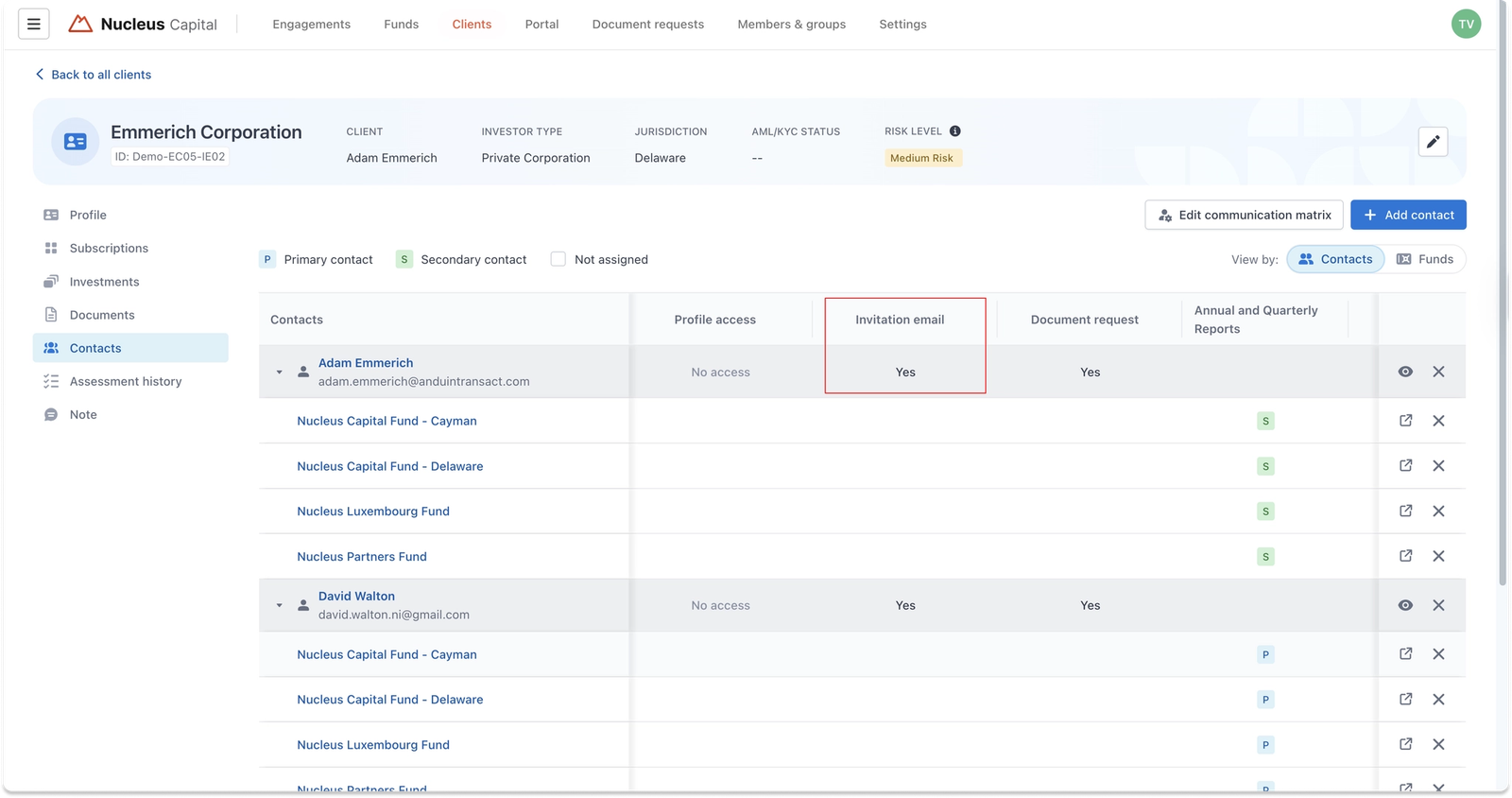
Shared- meaning they will be prefilled and made available for the investor to preview and update only if needed. The number of prefilled documents is shown in the "Provided documents" column.3. Contacts (Collaborators) Contacts associated with the IE in IDM are automatically brought over as collaborators on the new subscription. Note that only contacts with
"Invitation email = Yes"set in the IDM communication matrix will be prefilled as collaborators.
The number of collaborators added is shown in the "Collaborators" column.
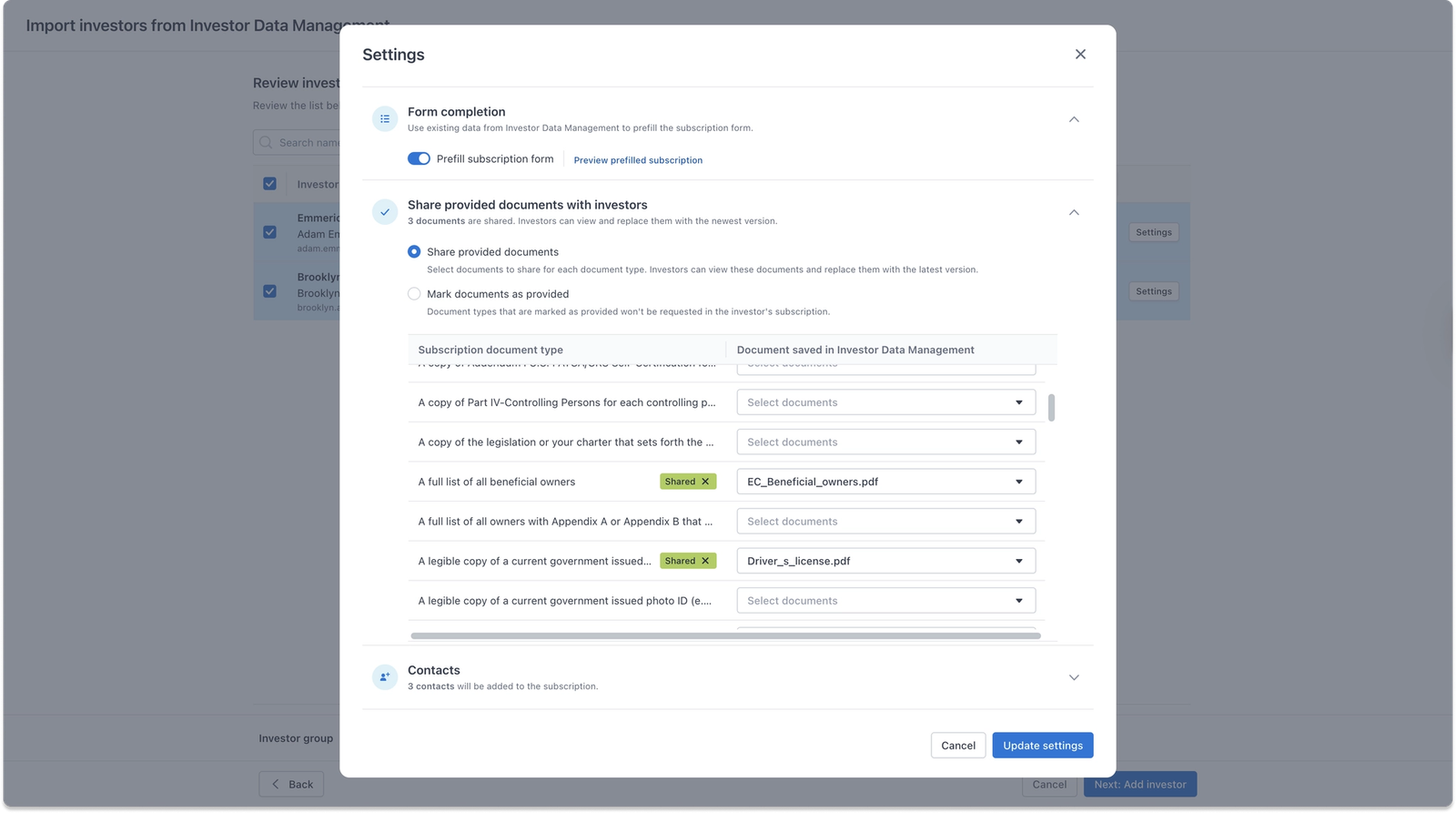
The pre-filled data can still be modified before sending invitations. Click the Settings button next to each IE to customize which data to include or exclude.
Note: In the Settings, you also have the option to mark documents as "Provided" instead of "Shared." Marking a document as "Provided" means the document is collected automatically and will not be surfaced in the subscription for the investor to review or resubmit.
Once ready, click Next: Add investors.
Step 4: Send out invitations
Users will have the option to send invitations via email or create offline subscriptions for now (which means the investors will not receive any email).
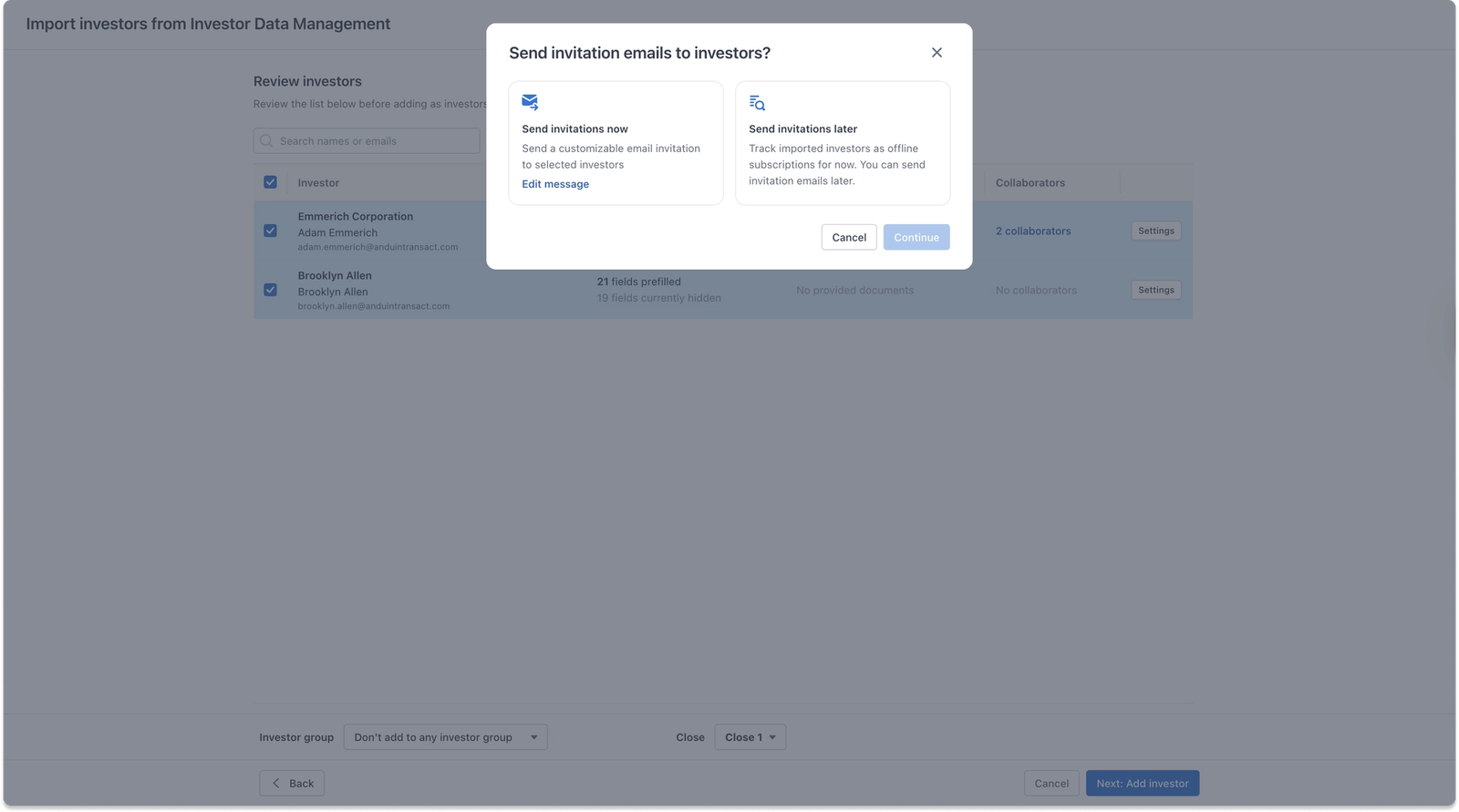
If you choose to send invitation emails right away, you will have the option to customize the message further by clicking Edit message if needed.
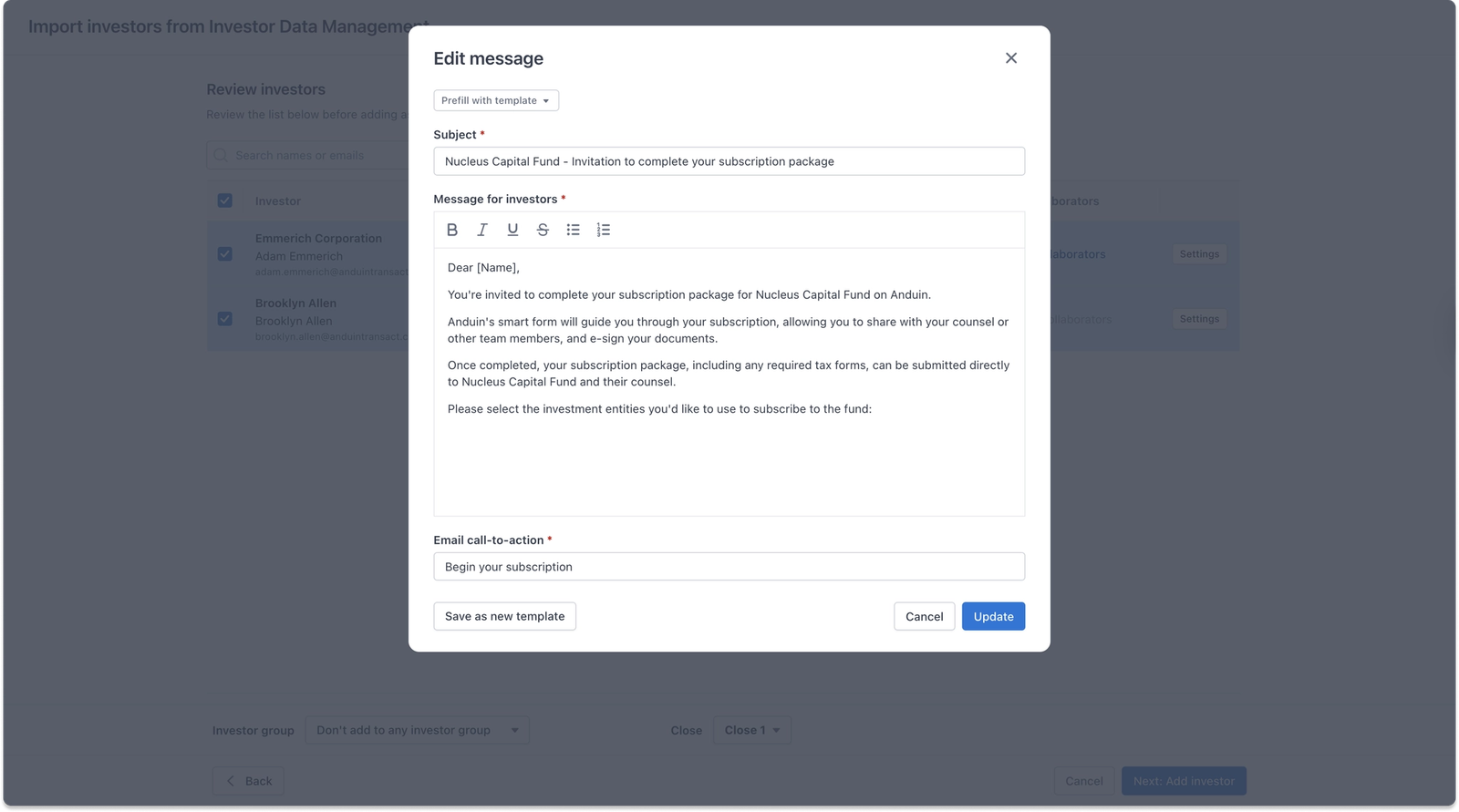
Finally, click Add investors to start the fundraising
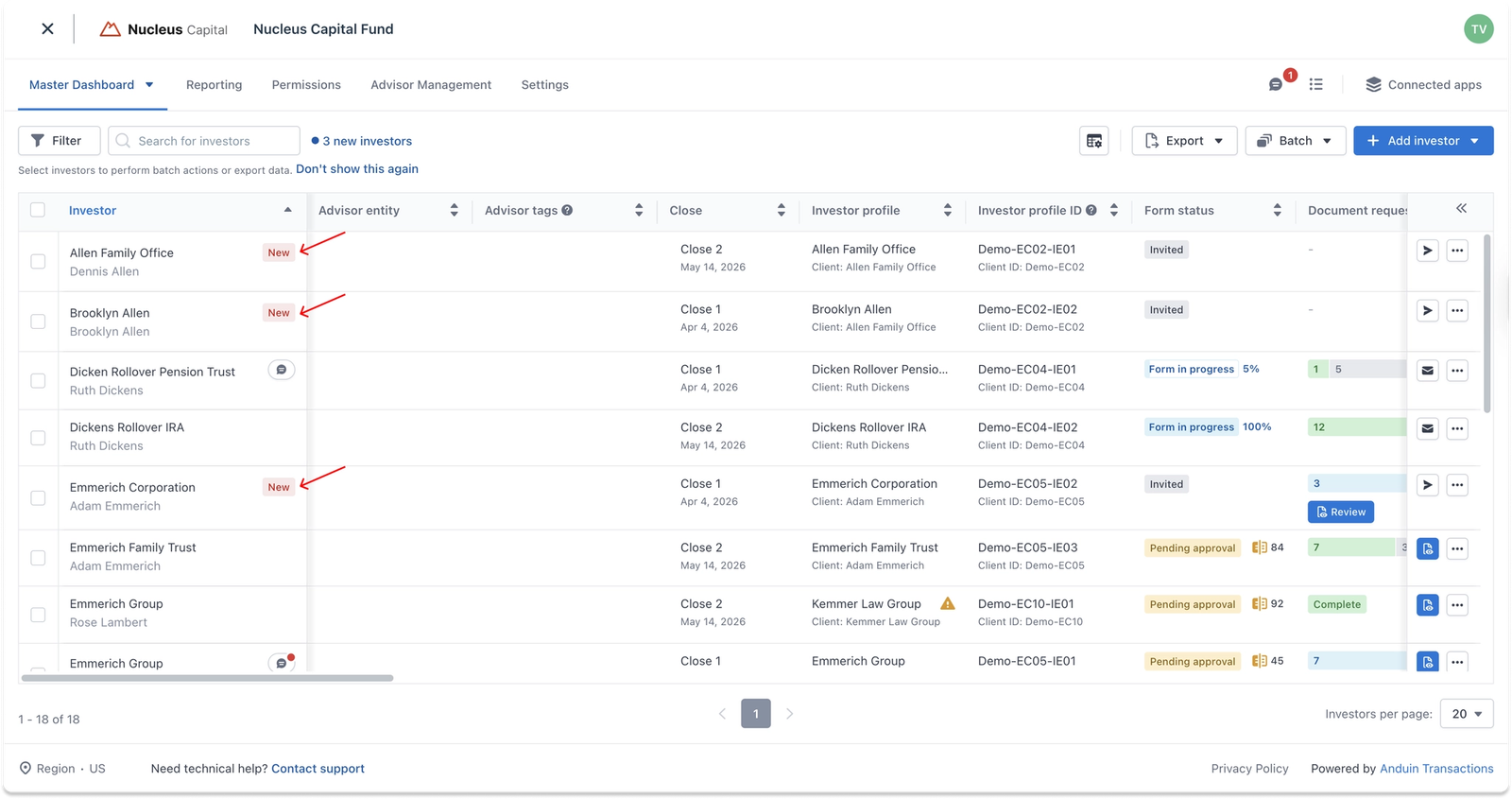
Upon completing the flow, you will see that the new investor invited will be shown on the dashboard with a “New” tag.
Investor Experience
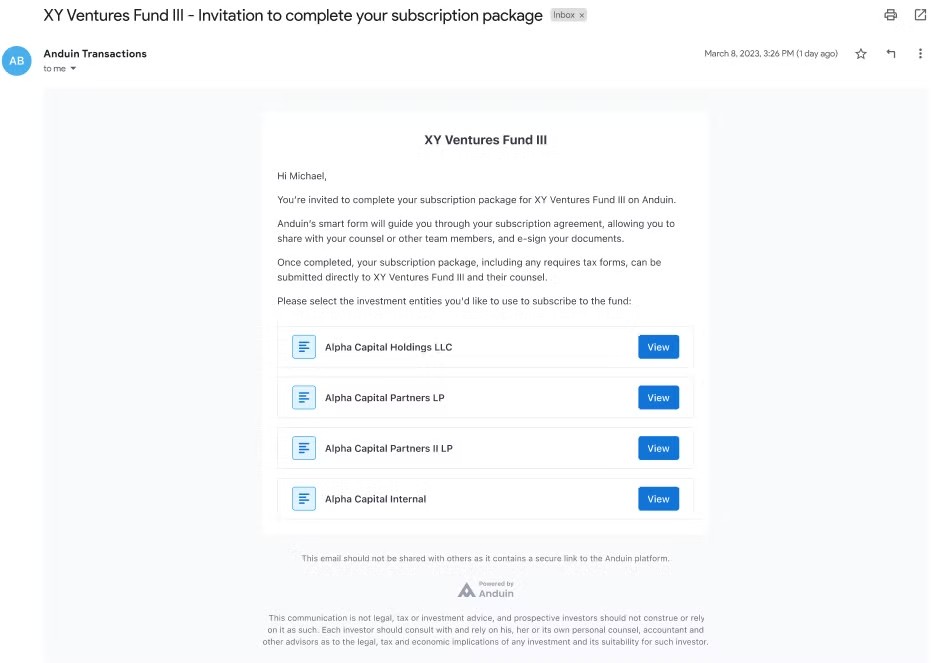
If an investor has multiple investment entities, and the fund is uncertain about which one will be used in the new fund, the investor will receive an email containing prepared packages for all invited investment entities. They can then select the ones they wish to invest in.
Option B. Import clients only
Step 2: Select clients
Select the clients stored in IDM that you would like to invite to the new fund. The list only shows clients that are not already linked to an existing investor in this Fund Subscription.
You can use different filters such as past funds, client groups, or tags to narrow down the list.
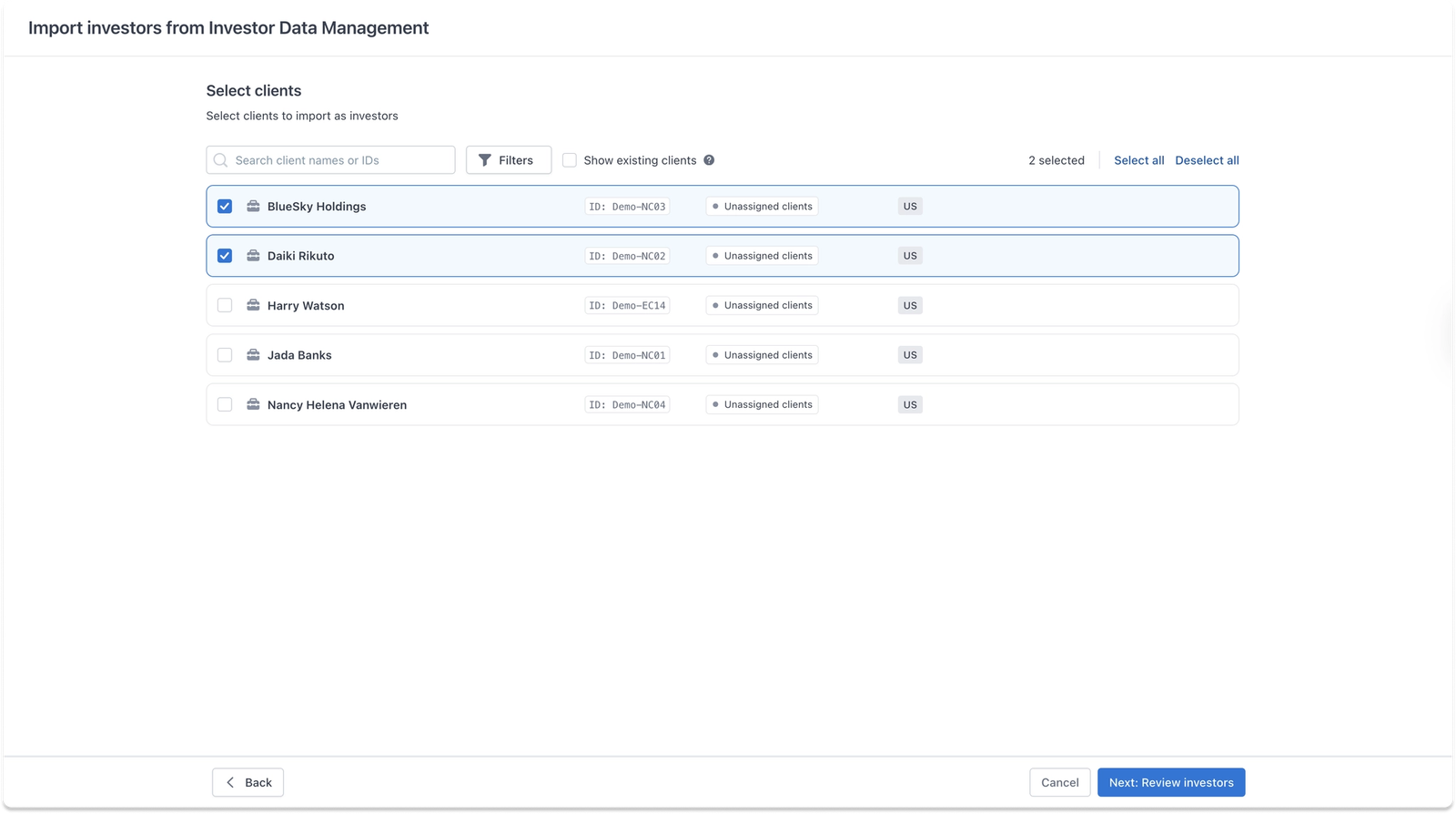
Note: To optimize system performance, only up to 100 clients can be selected per batch.
Once ready, click Next: Review and finalize import to continue.
Step 3: Review the pre-filled data
When importing at the client level, the app will prefill collaborator information from the client's contacts in IDM. Profile data and AML/KYC documents will not be prefilled at this stage, as those are tied to the IE level. The specific IE can be linked to the subscription at a later stage, at which point the system will automatically pull in the IE's profile data and AML/KYC documents as well, similar to the prefilling mechanism when importing using IEs from IDM.
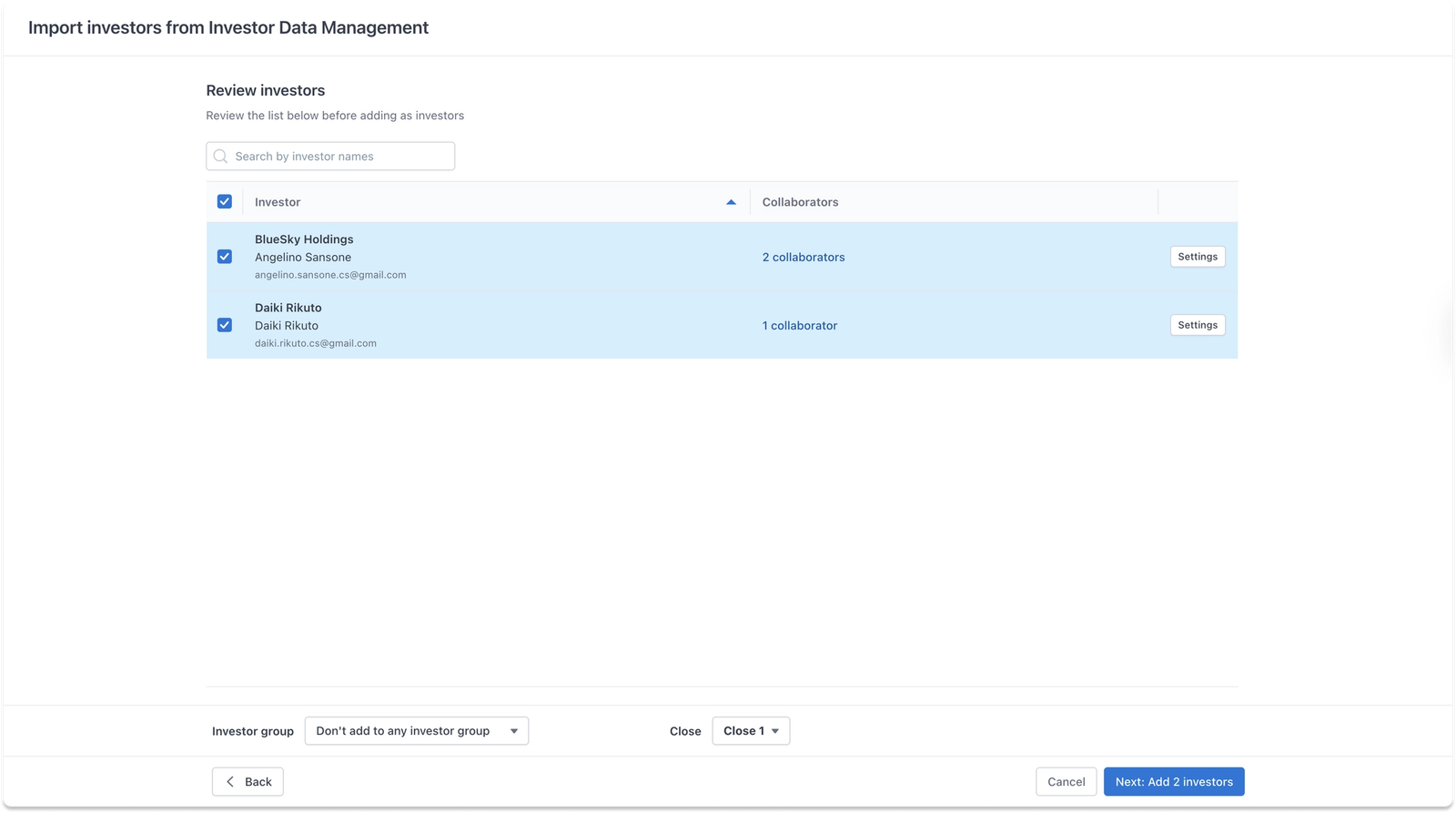
The pre-filled data can still be modified before sending invitations. Click the Settings button next to each client to customize which contacts to add or remove.
Once ready, click Next: Add investors.
Step 4: Send out invitations
Users will have the option to send invitations via email or create offline subscriptions for now (which means the investors will not receive any email).
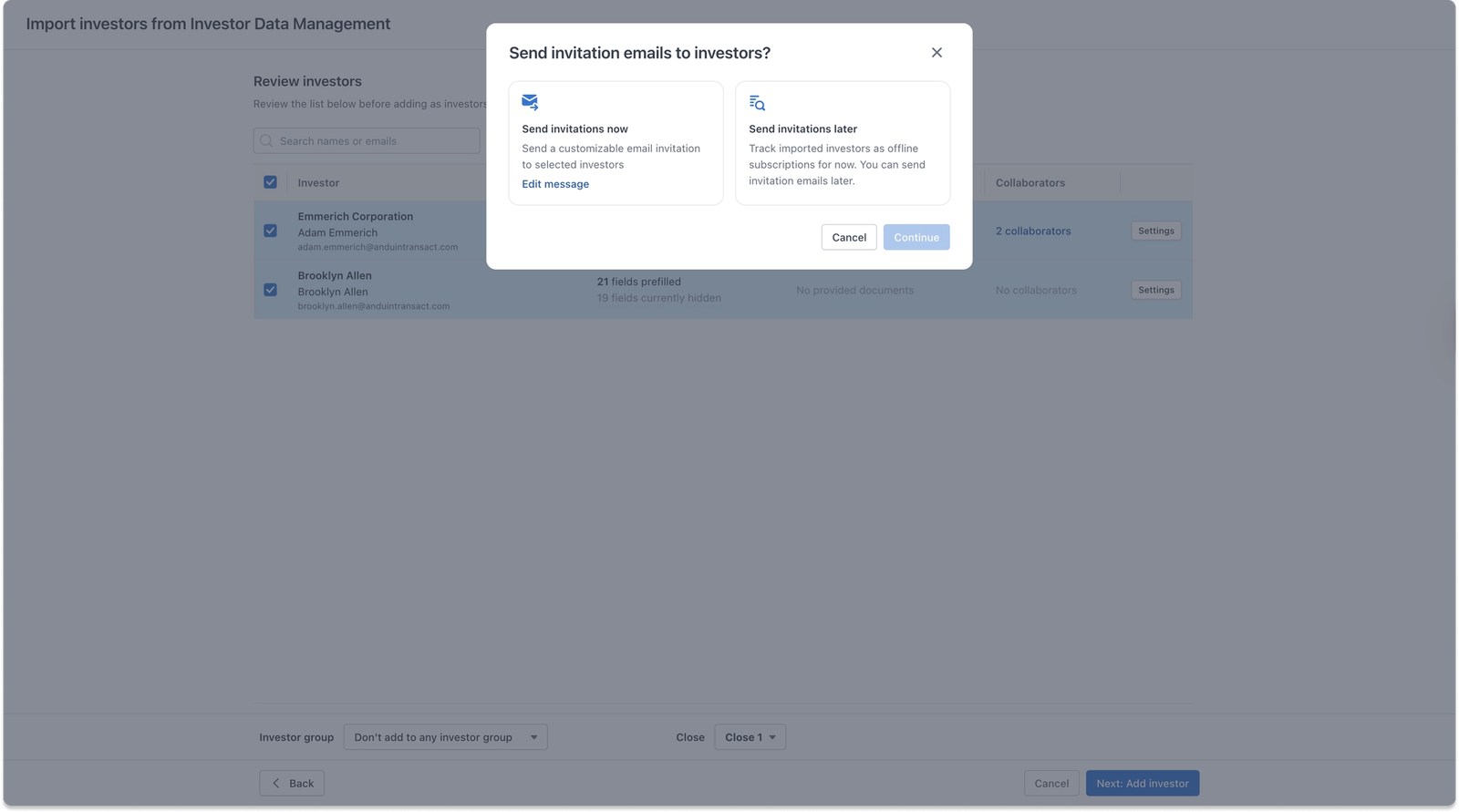
If you choose to send invitation emails right away, you will have the option to customize the message further by clicking Edit message if needed.
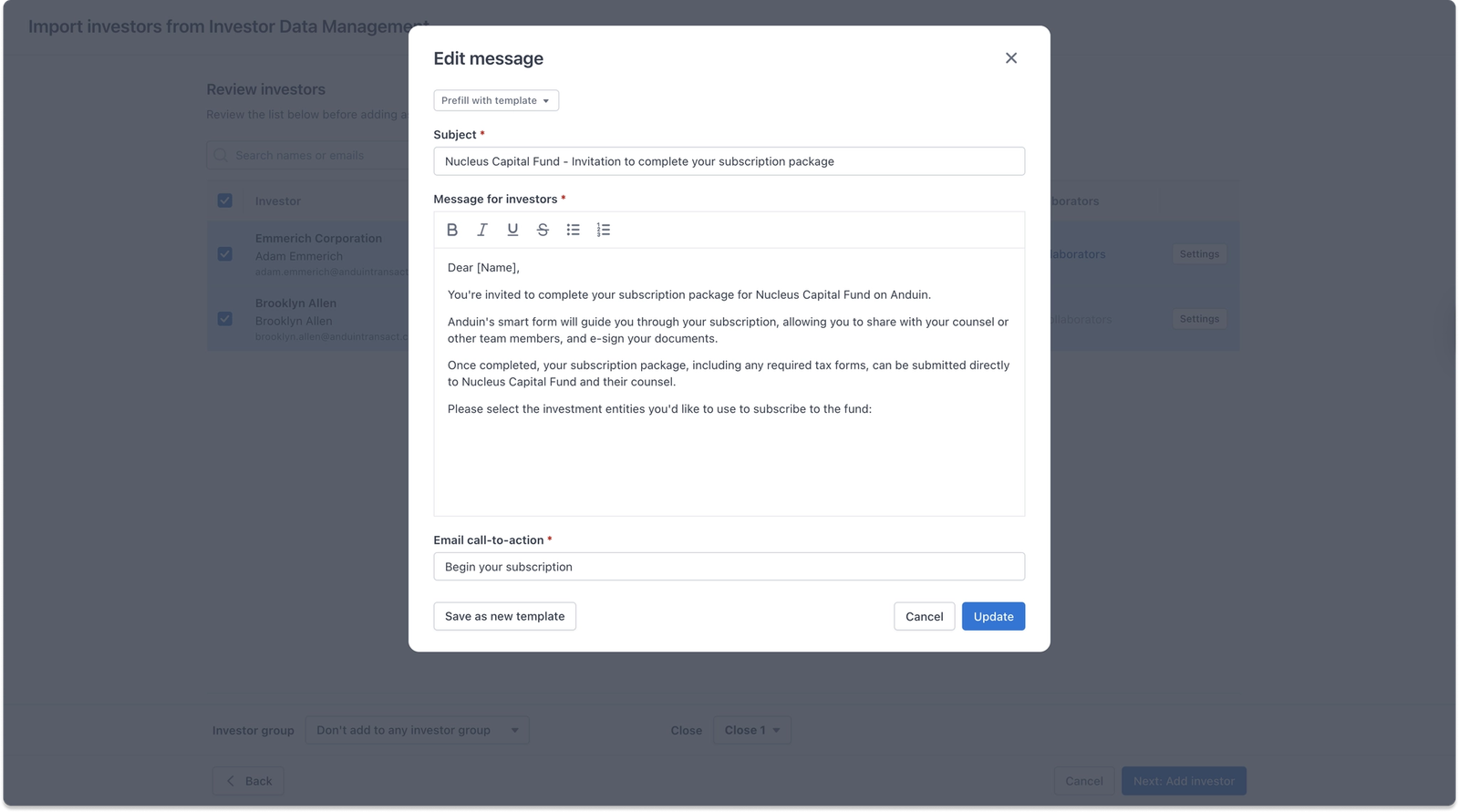
Finally, click Continue to start the fundraising.
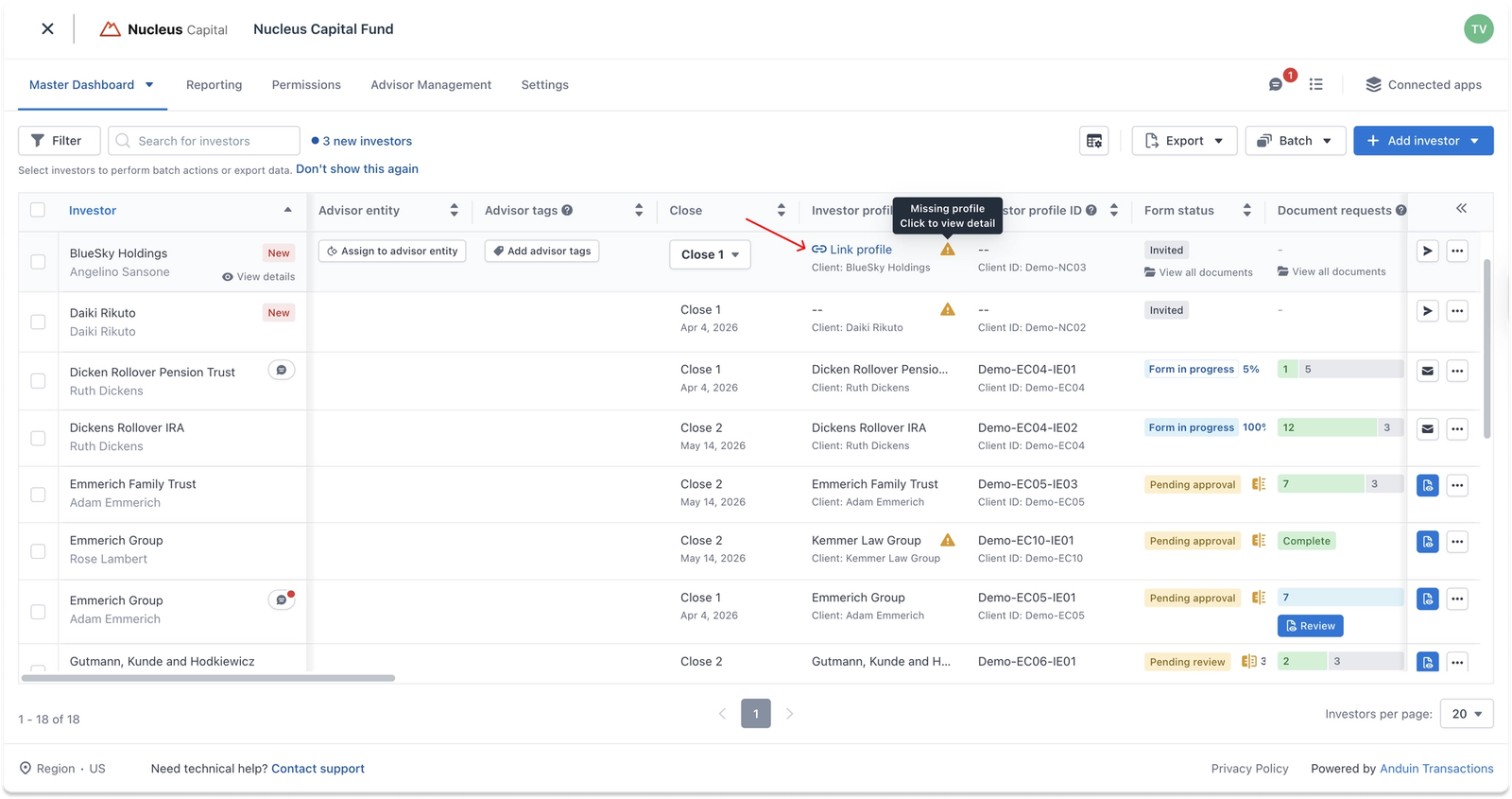
Upon completing the flow, the newly invited investors will appear on the dashboard with a "New" tag. Since no IE was selected at this stage, the "Investor profile" column will show "--" with a "Missing profile" warning indicator. Fund Managers can click Link profile on that investor to link an IE at any time. Once linked, the IE's profile data and AML/KYC documents will be automatically prefilled into the subscription.
Investor Experience
Once the investor opens their invitation, they will be greeted with a prompt to choose which Investment Entity they want to use for this subscription. For each IE, they can see upfront how many fields, documents, and contacts are available to prefill - so they know what to expect before making a selection.
They can also click Preview profile to take a closer look at an IE's data before committing.
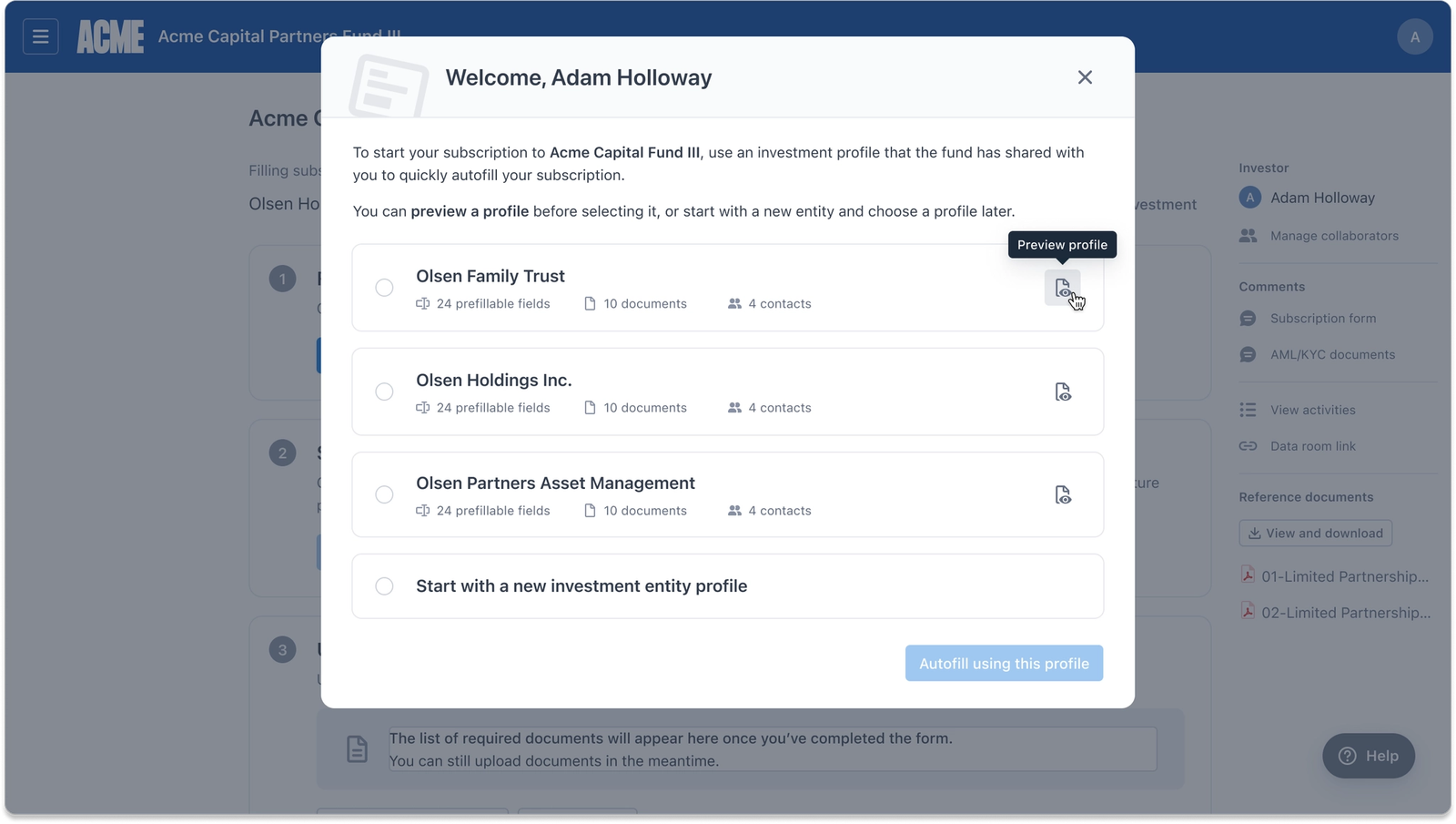
Once they've picked the right one, simply clicking Autofill using this profile will pull all the relevant data into the subscription form automatically.
If none of the existing IEs apply, the investor can always choose Start with a new investment entity profile to set up a fresh one instead.