Monitor document engagement and send reminders with portal document insights
Introduction After sharing documents with investors, fund admins often need to know whether those documents have actually been opened, and which recipients
Introduction
After sharing documents with investors, fund admins often need to know whether those documents have actually been opened, and which recipients still require follow-up. Document insights gives fund admins a clear view of document engagement directly from the Portal, showing at a glance which files have been accessed and making it simple to follow up with anyone who hasn't engaged yet.
This guide walks through how to monitor engagement status across the Documents dashboard, dive into detailed insights for a specific file, and send reminders to investors who haven't viewed or downloaded a document.
Guideline
Where to find this feature?
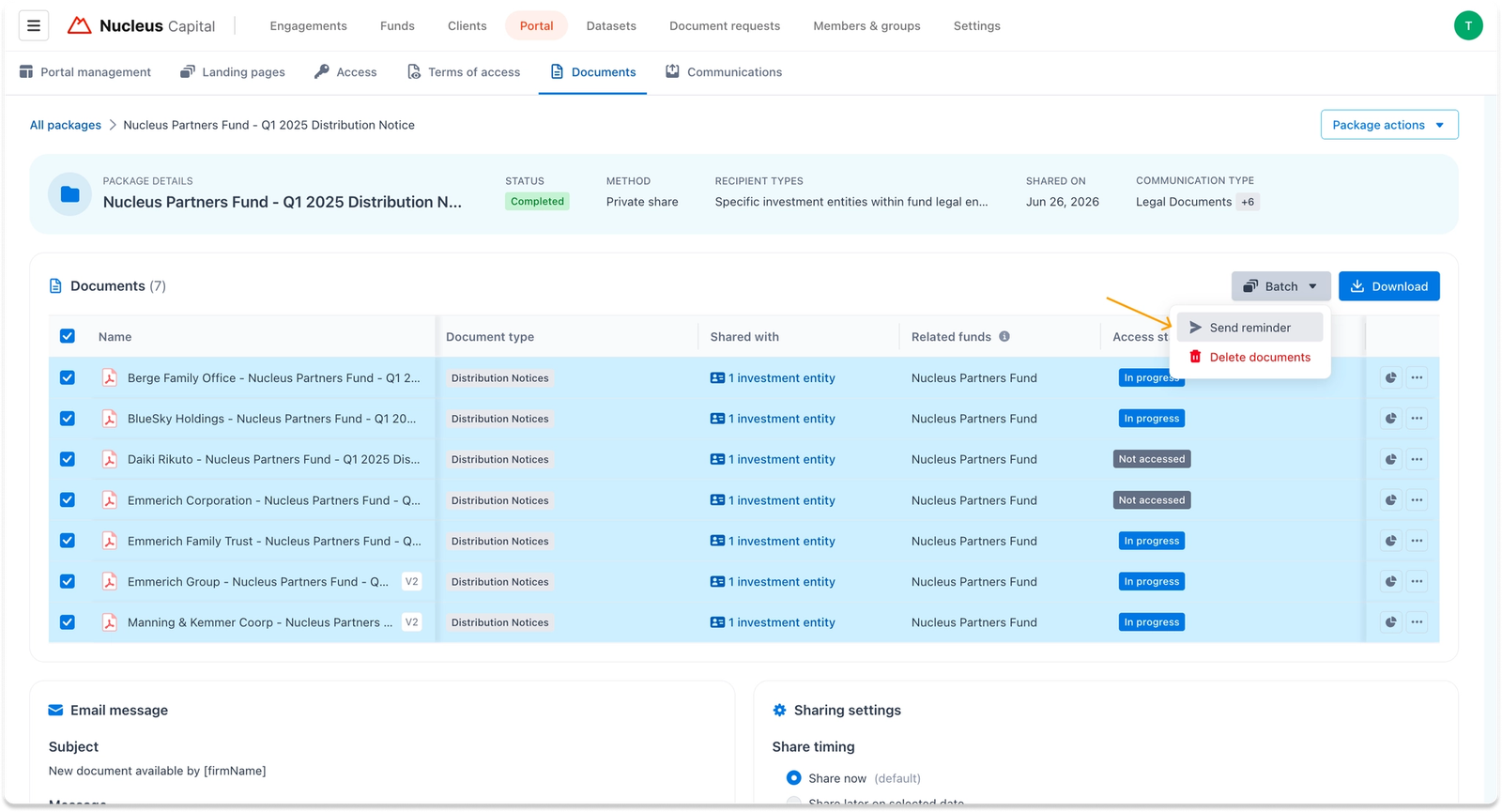
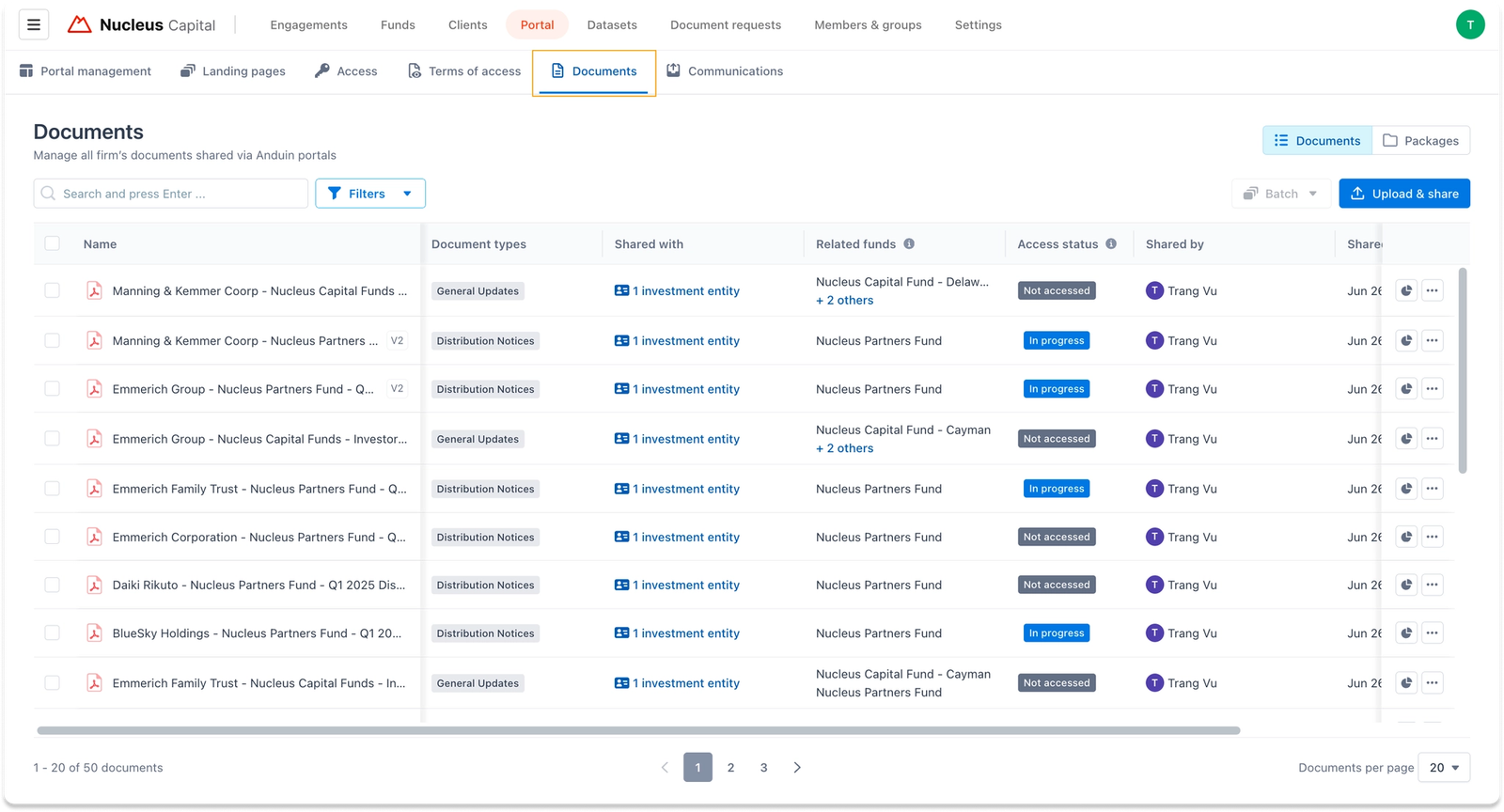
Document insights is available from the document table in three places: the global Documents tab, a Portal instance's Documents tab, and the Package detail view.
Part 1: Monitoring engagement status of all documents at a glance
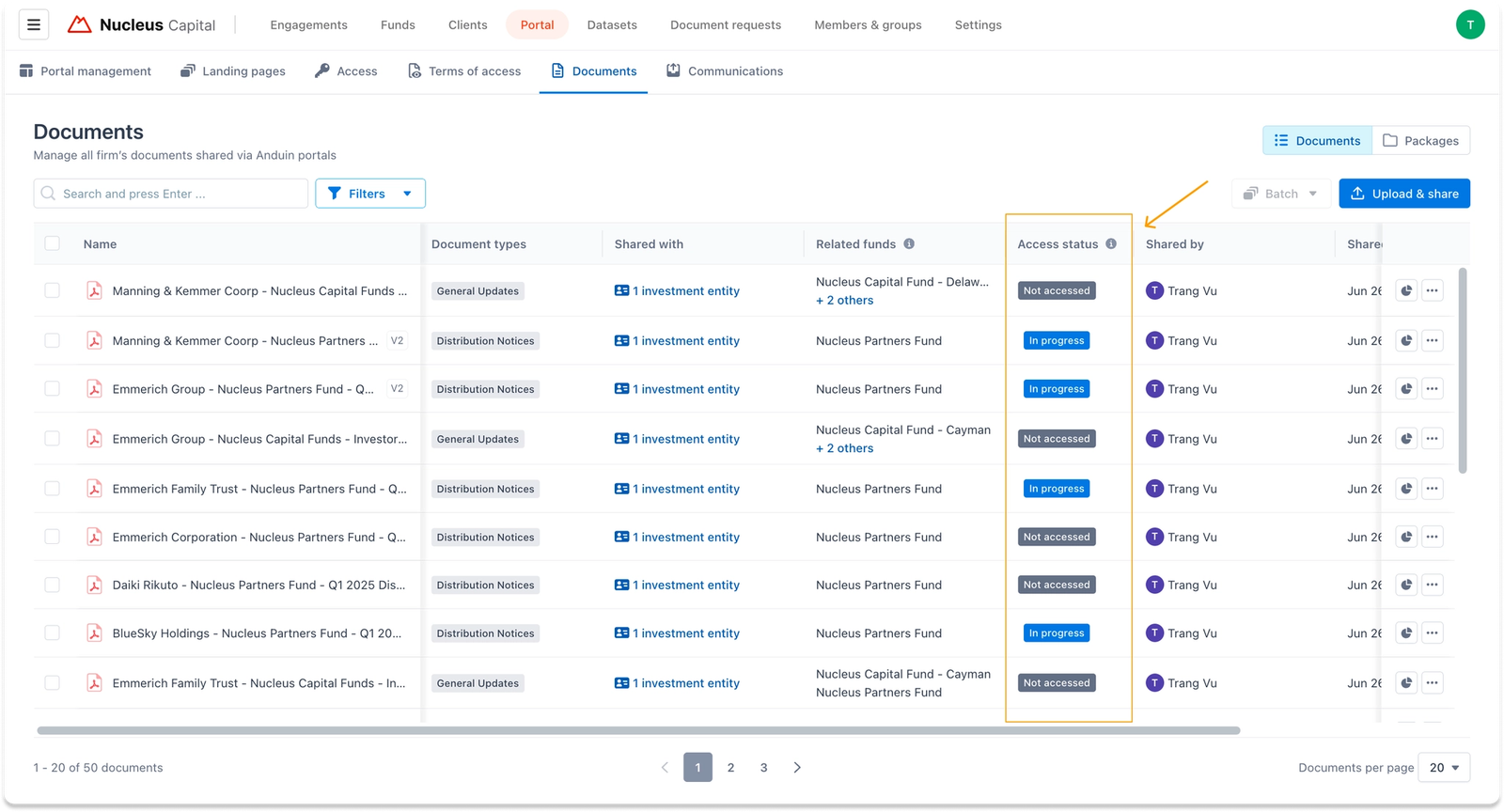
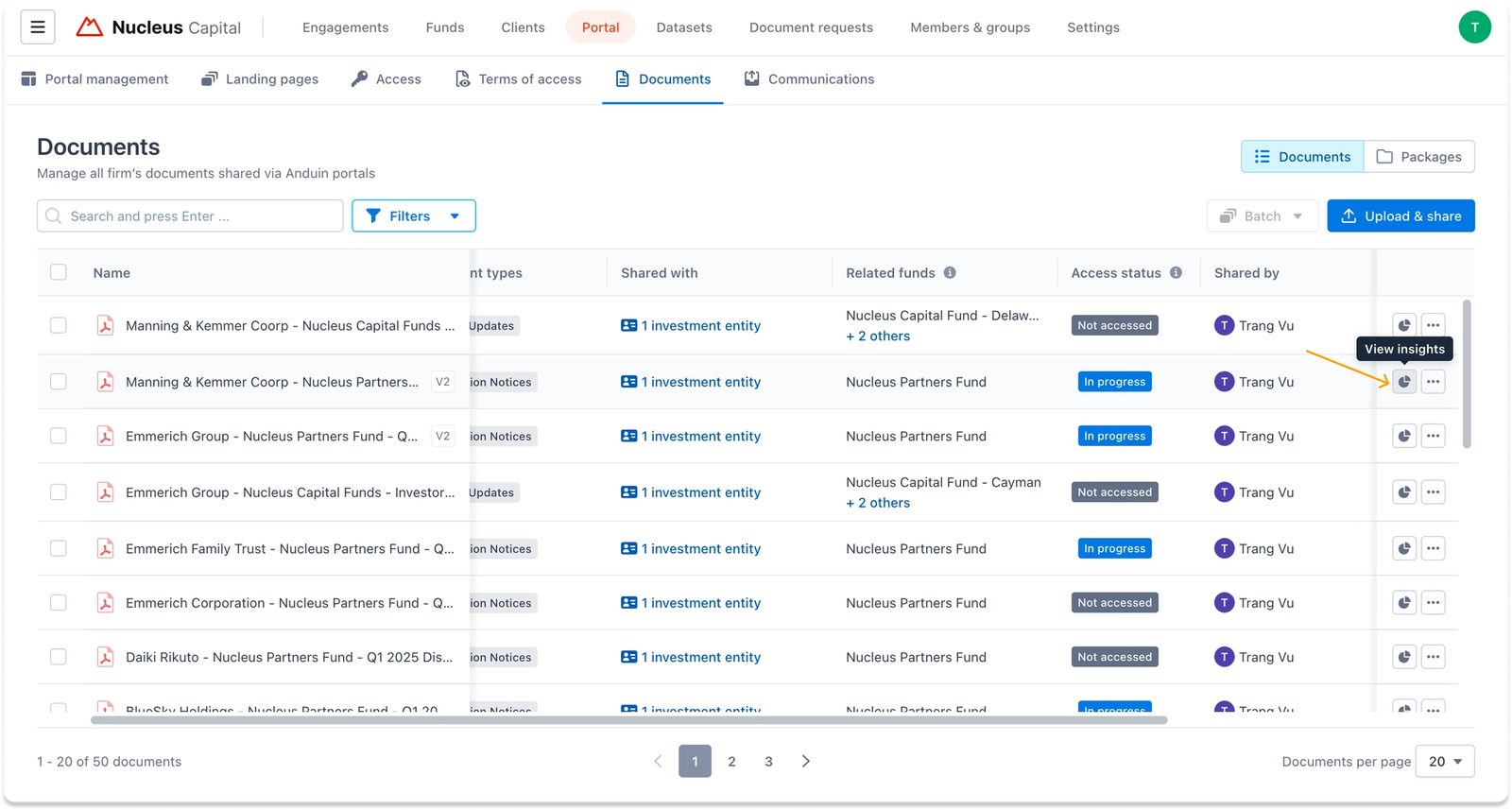
Every document row in the table includes an Access status column, giving fund admins an at-a-glance way to monitor engagement across the entire document list without opening each file individually. The status shows whether a document has been engaged with:
- In progress — at least one recipient has viewed or downloaded the file
- Not accessed — no recipient has viewed or downloaded the file yet
To dig deeper into any document's engagement, click the View insights icon button on that row. This opens the document insights panel for that document.
Part 2: Reviewing detailed insights of a document
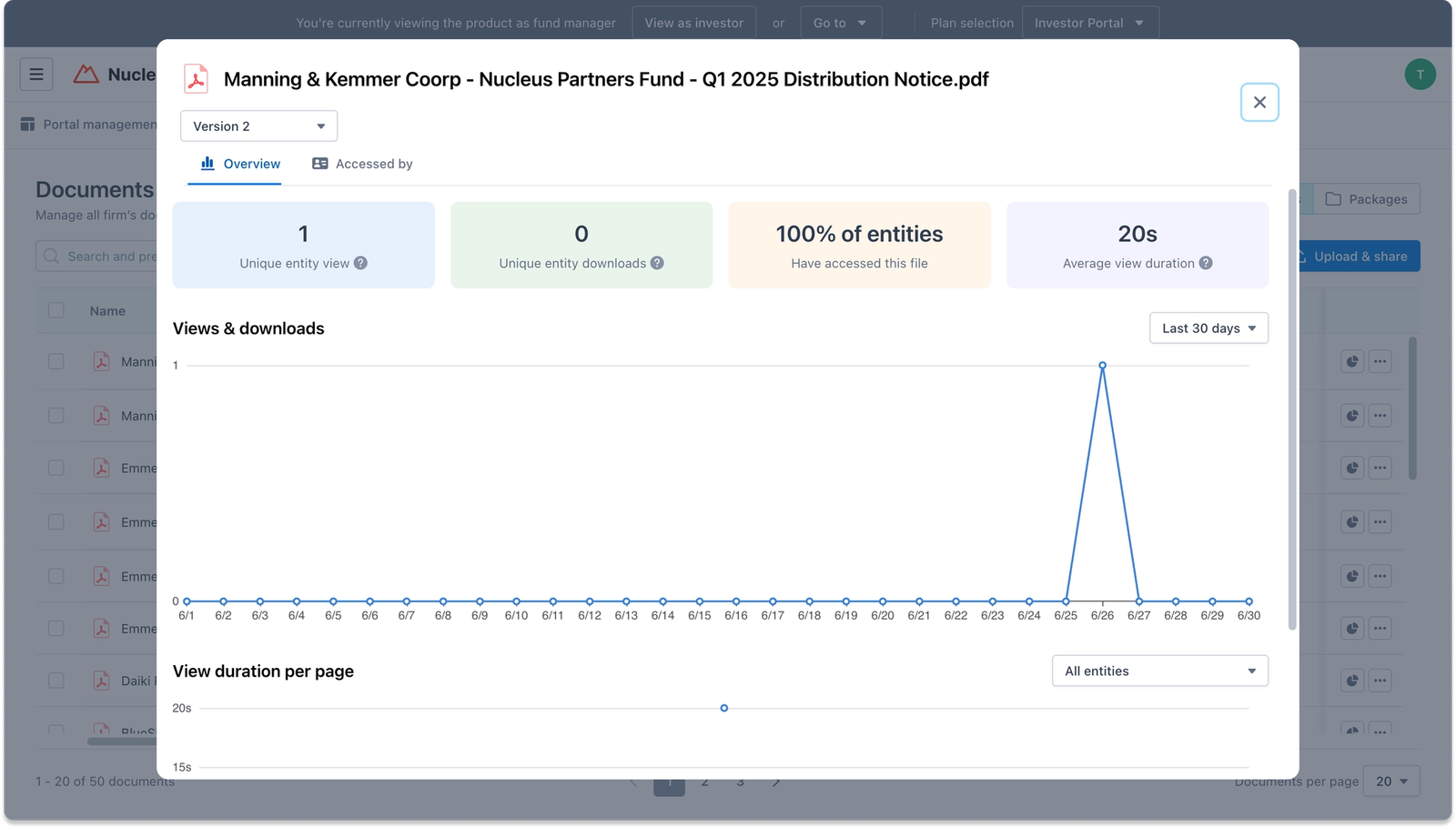
The document insights panel has two tabs: Overview and Accessed by.
Tip
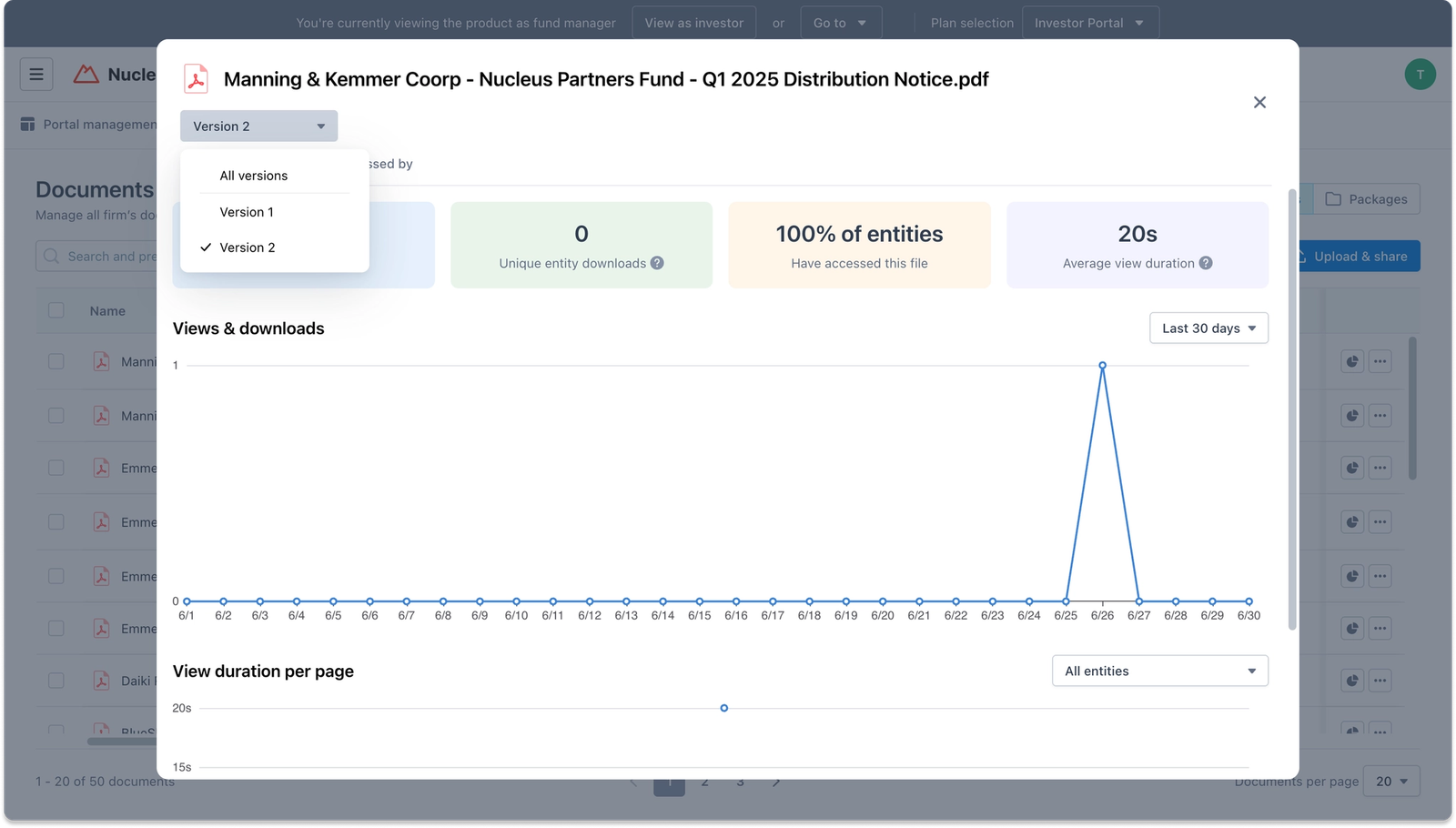
If a document has multiple versions, a version selector at the top of the panel lets fund admins switch between versions. All metrics, charts, and the recipient list update to reflect the selected version only. By default, the latest version is always selected.
1. Overview tab
The Overview tab summarizes engagement with four key metrics:
- Unique views,
- Unique downloads,
- The percentage of recipients who have accessed the file, and
- The average view duration.
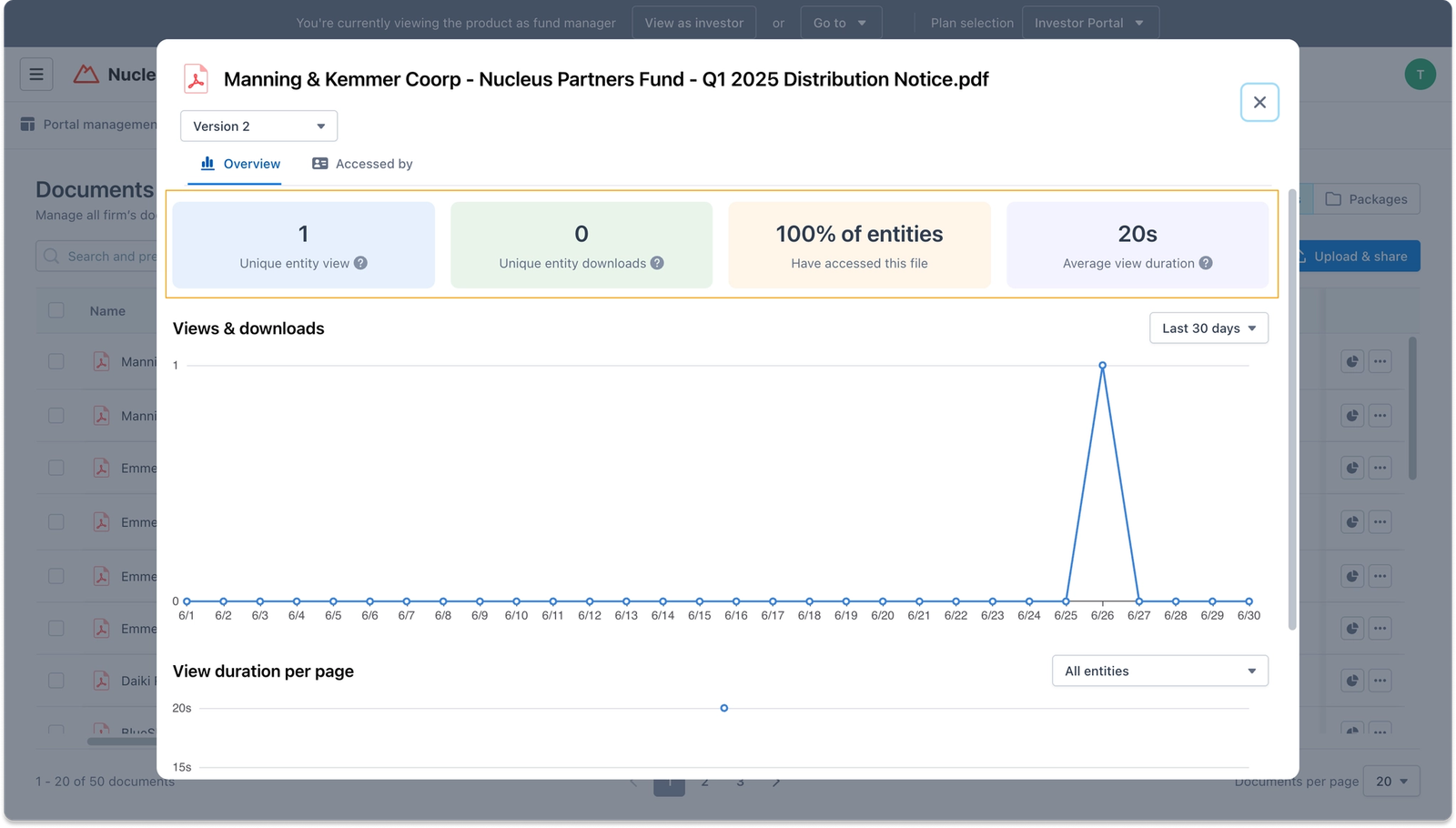
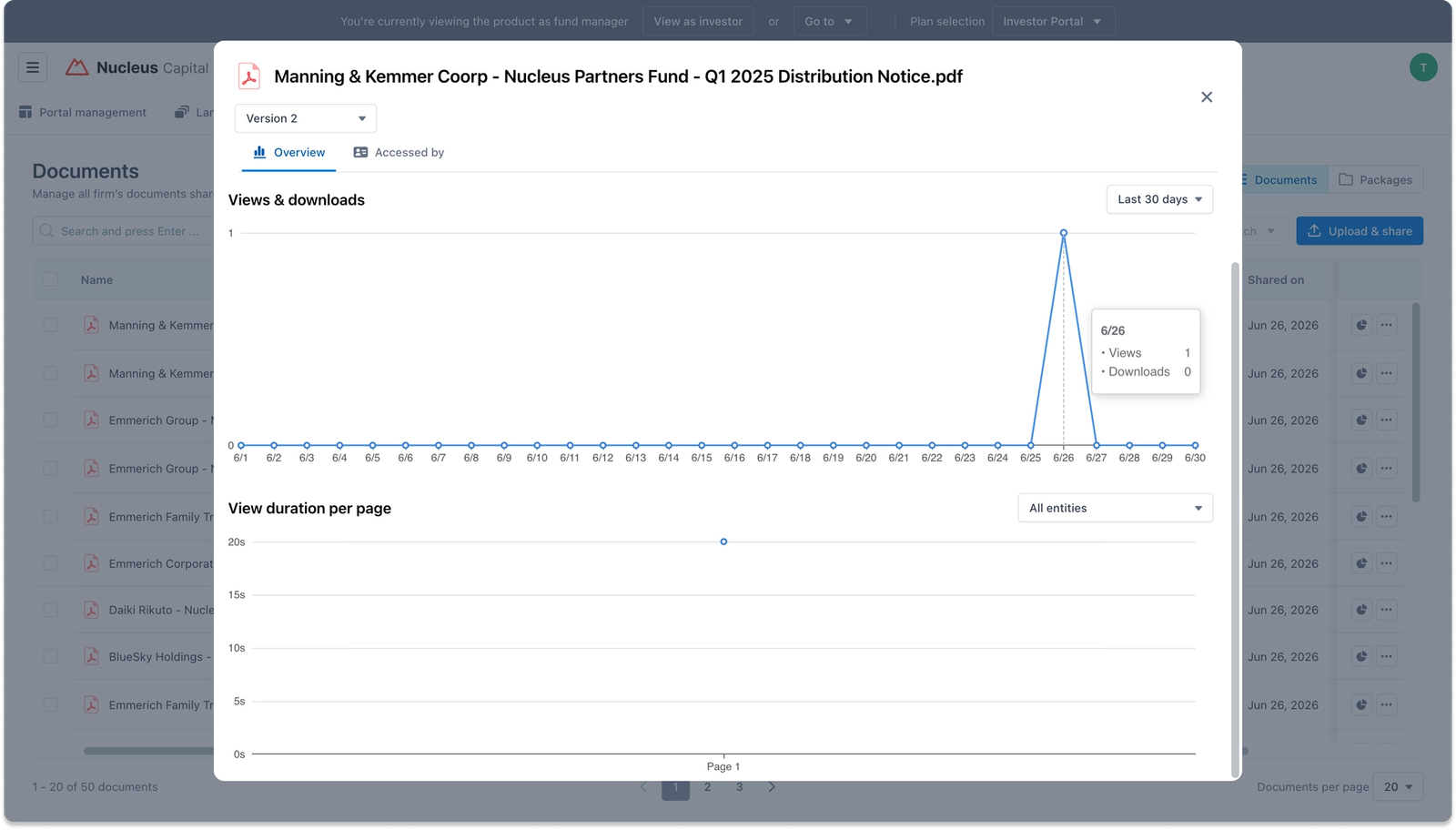
Below the metrics, the Views & downloads chart plots the combined activity of all recipients over time, with a dropdown to adjust the time range. This timeline view helps fund admins track engagement patterns over a chosen period, rather than just a single point-in-time total.
The View duration per page chart shows how long recipients spent on each page of the document, and can be filtered to show all recipients or a specific one.
2. Accessed by tab
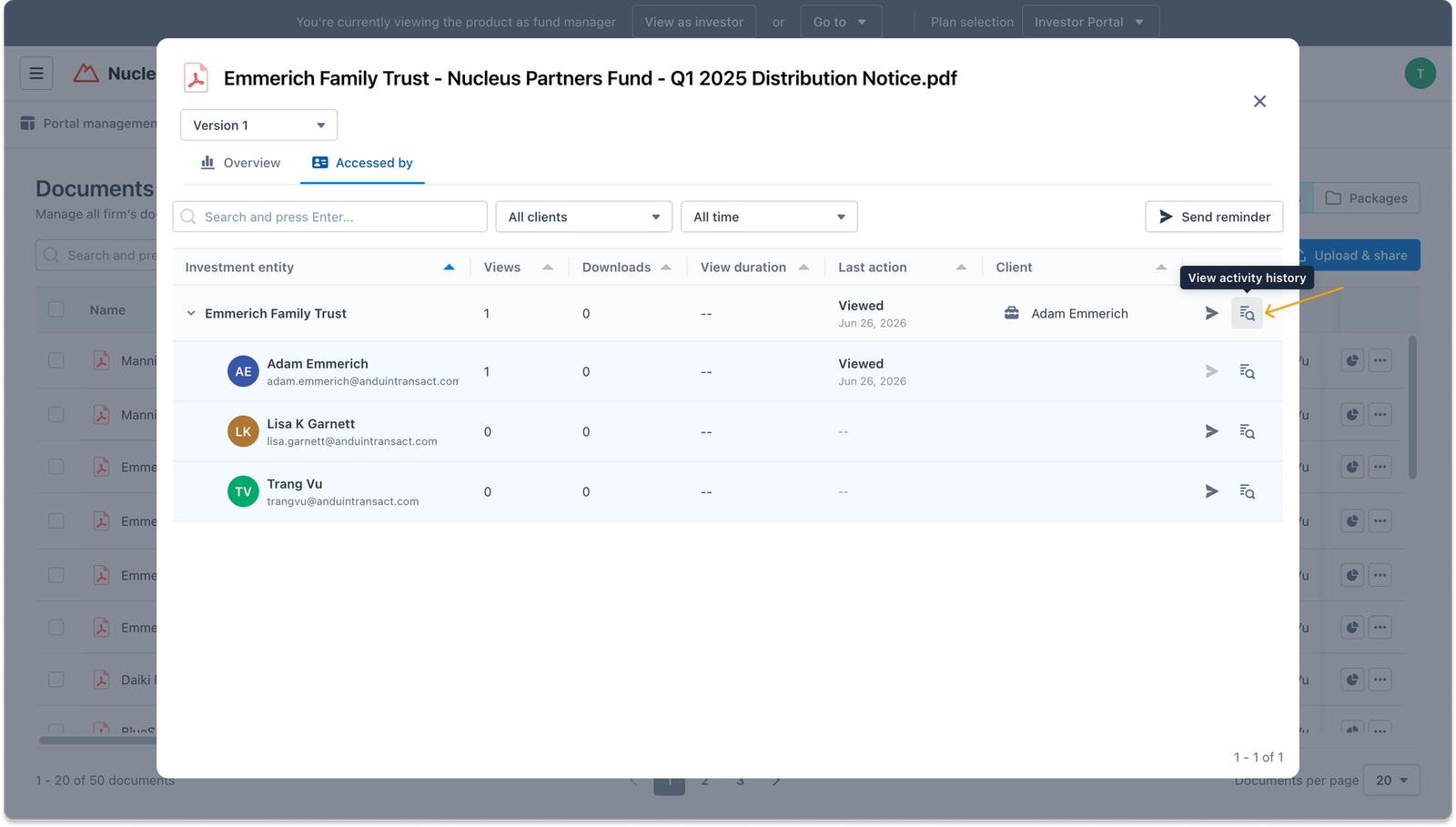
The Accessed by tab lists every recipient who has access to the document, along with their individual engagement: views, downloads, view duration, last action taken, and the client they're associated with.
The list can be filtered by client or time range, and any column can be sorted.
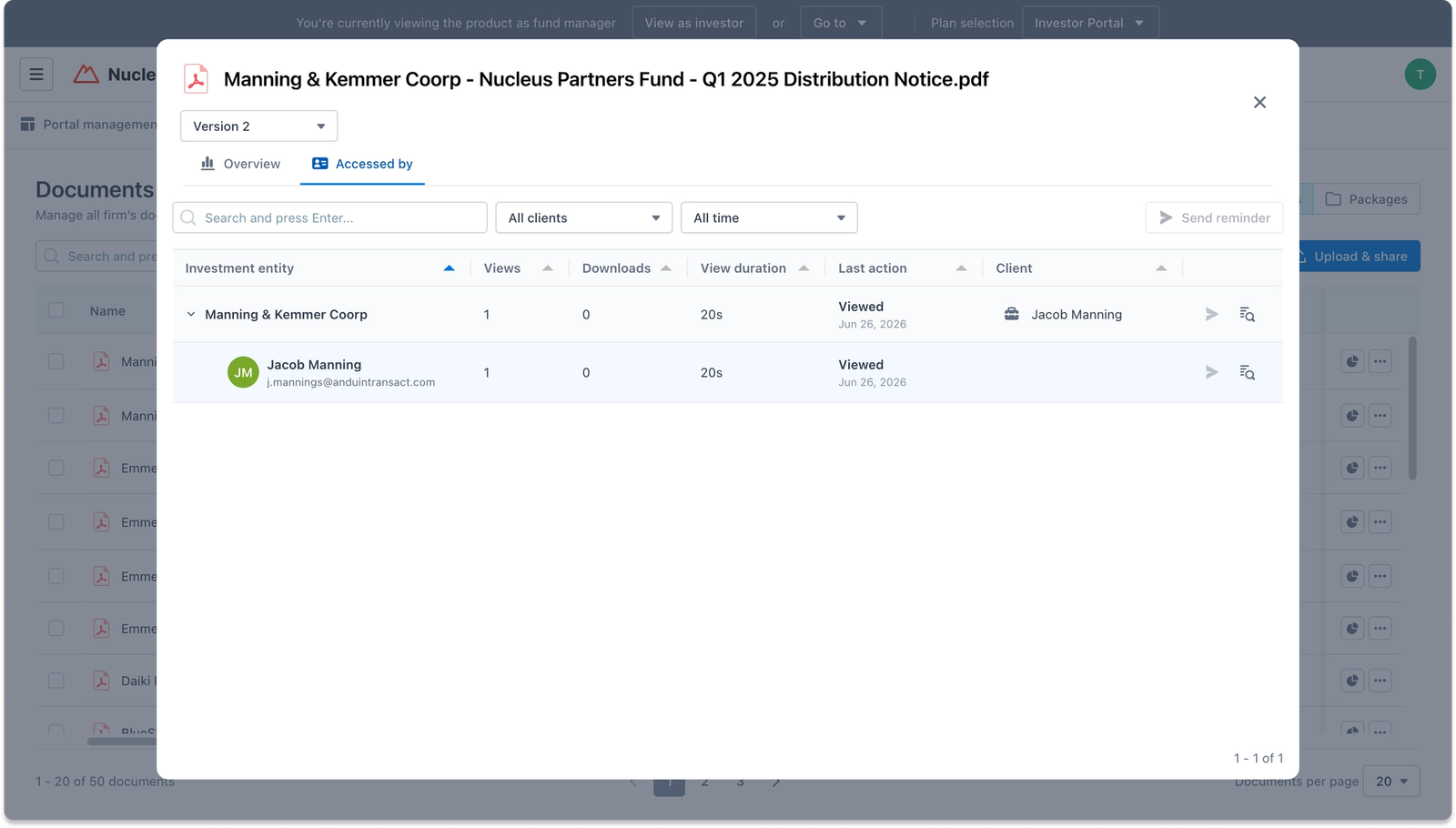
For documents shared with individual contacts, each row shows engagement data of a single recipient.
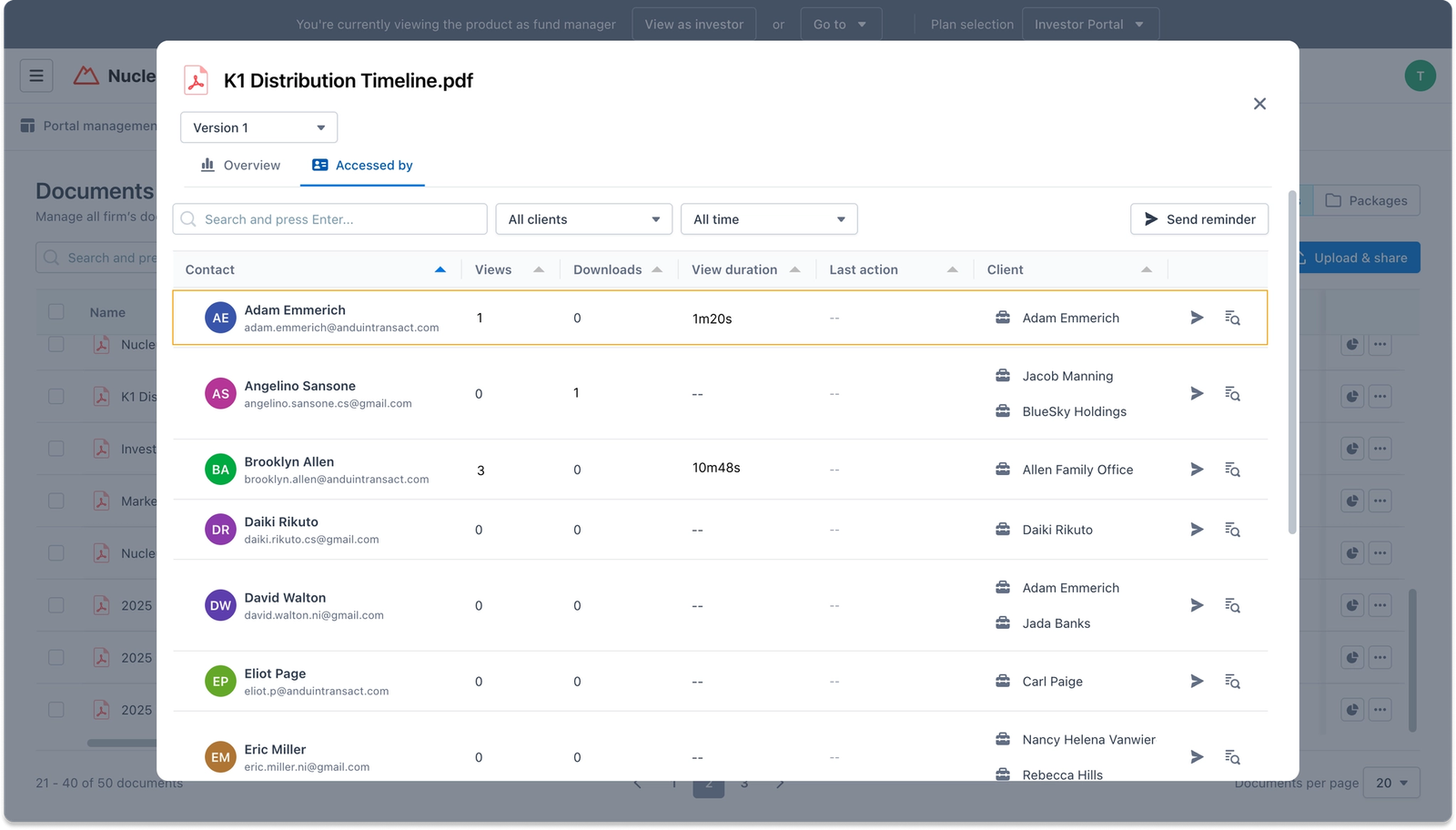
For documents shared with investment entities, the entity is shown as 1 row with its aggregated engagement, but is expandable to see the underlying contacts and how each one individually engaged.
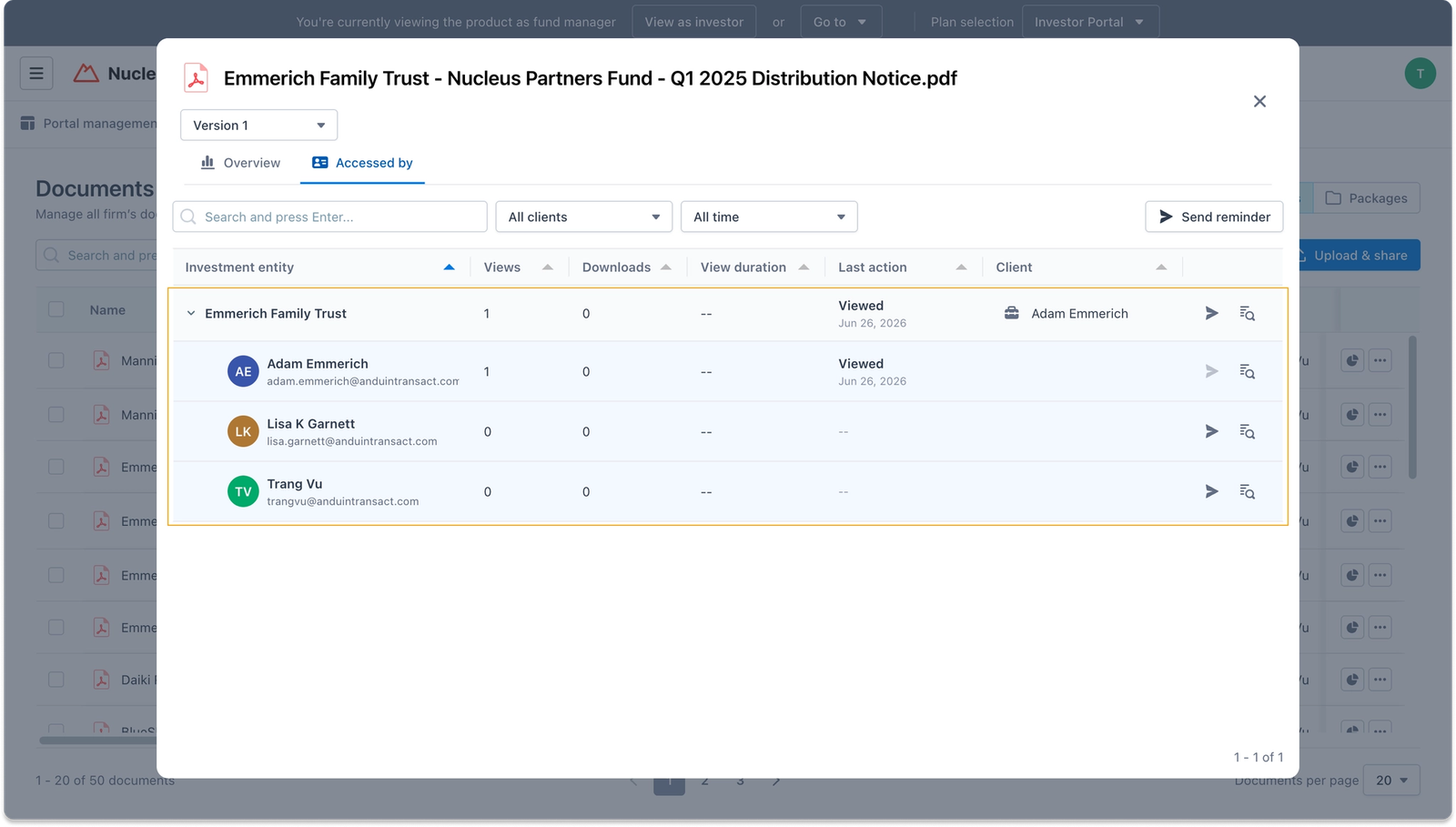
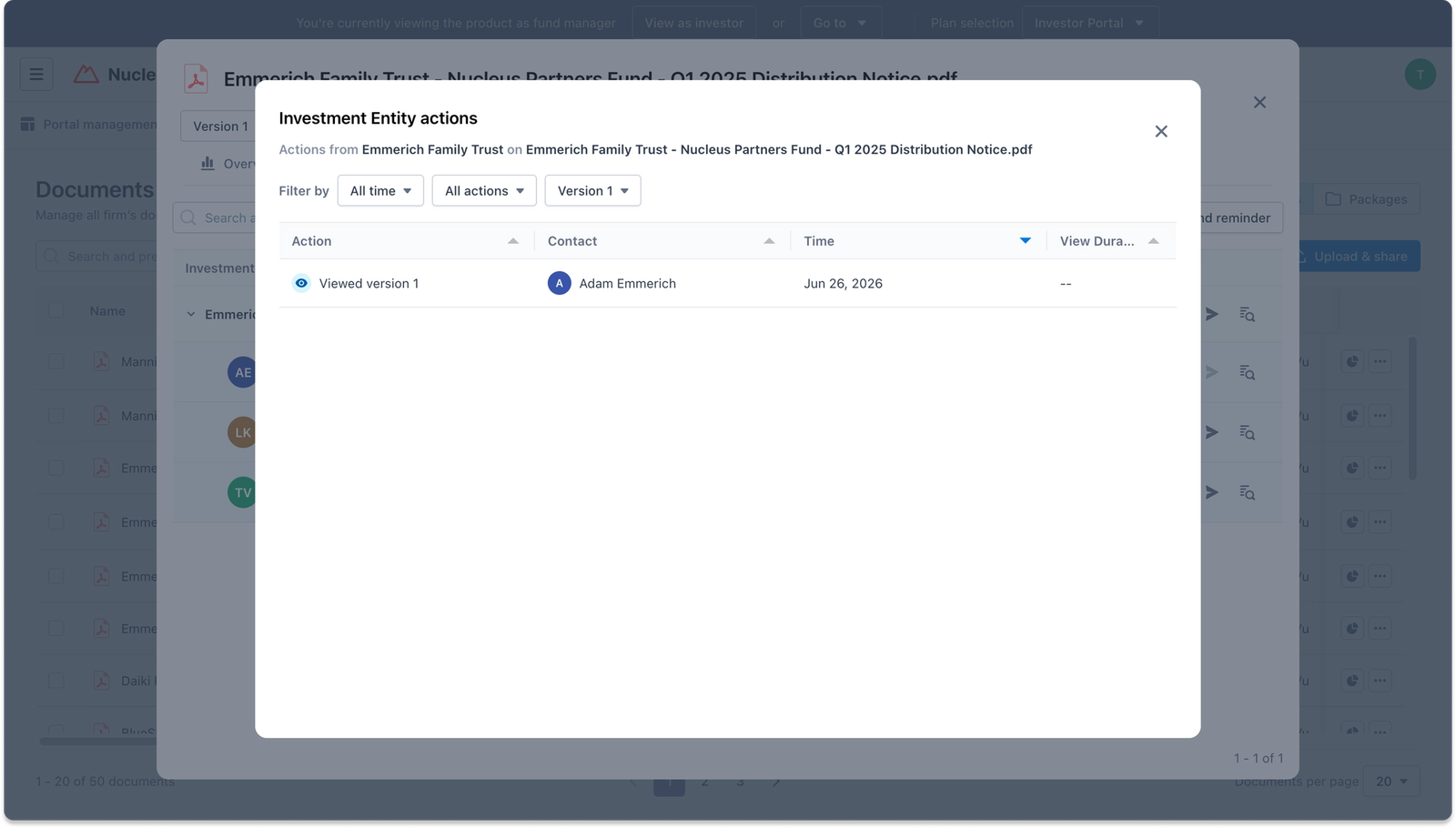
For both contacts and investment entities, clicking the View activity history icon on a row opens the full Contact/Investment entity actions log.
This shows a chronological record of every interaction with the file, including received, viewed, and downloaded events with exact timestamps and view duration.
Part 3: Sending reminders
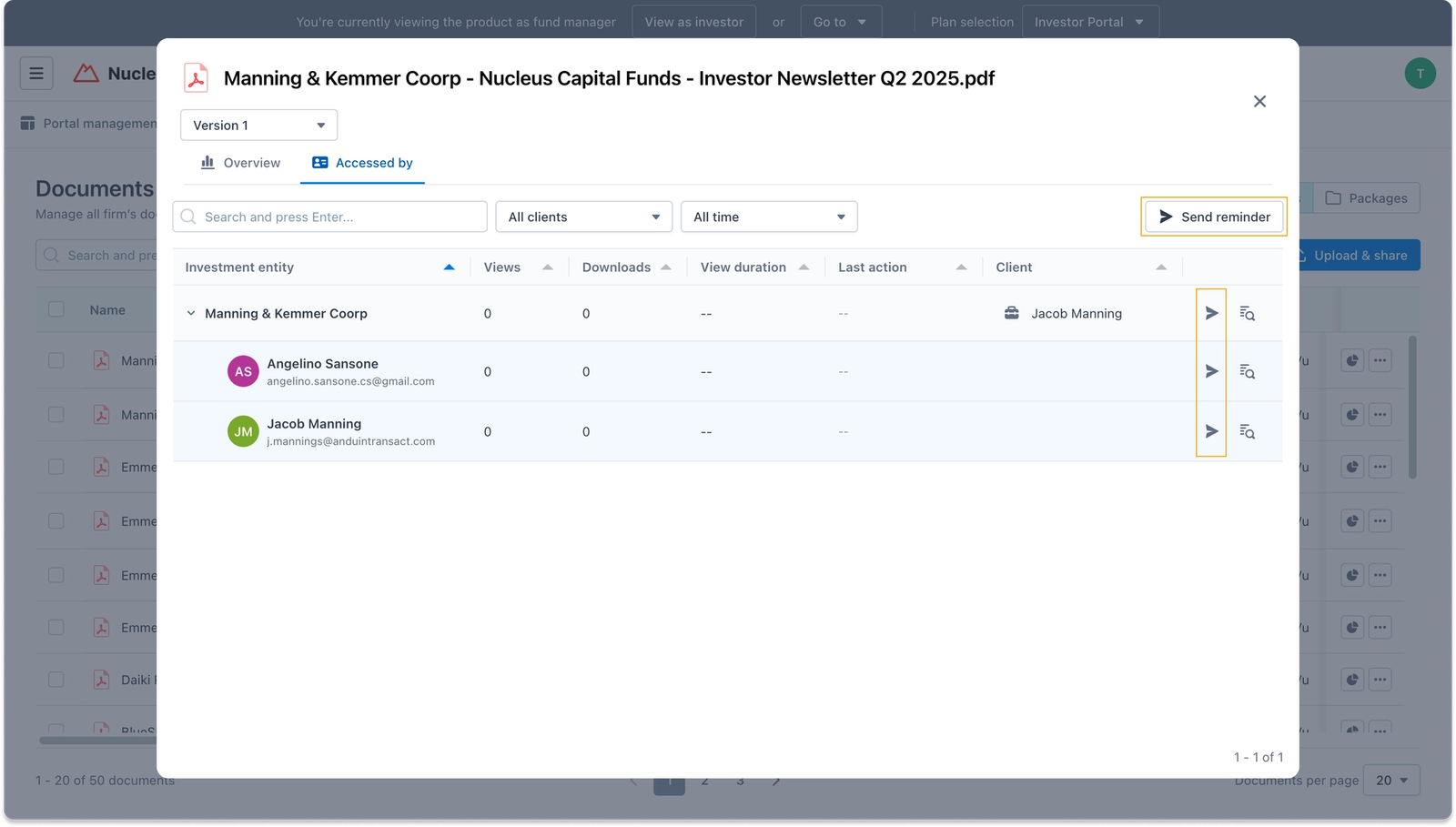
For any recipient who hasn't yet viewed or downloaded a document, fund admins can send a quick reminder without leaving the insights view. Click the Send reminder icon next to a specific contact to prompt just that recipient, or use the Send reminder button at the top of the Accessed by tab to reach everyone who hasn't engaged yet in one go.
Clicking Send reminder opens a compose modal with the recipients already filled in based on who hasn't engaged.
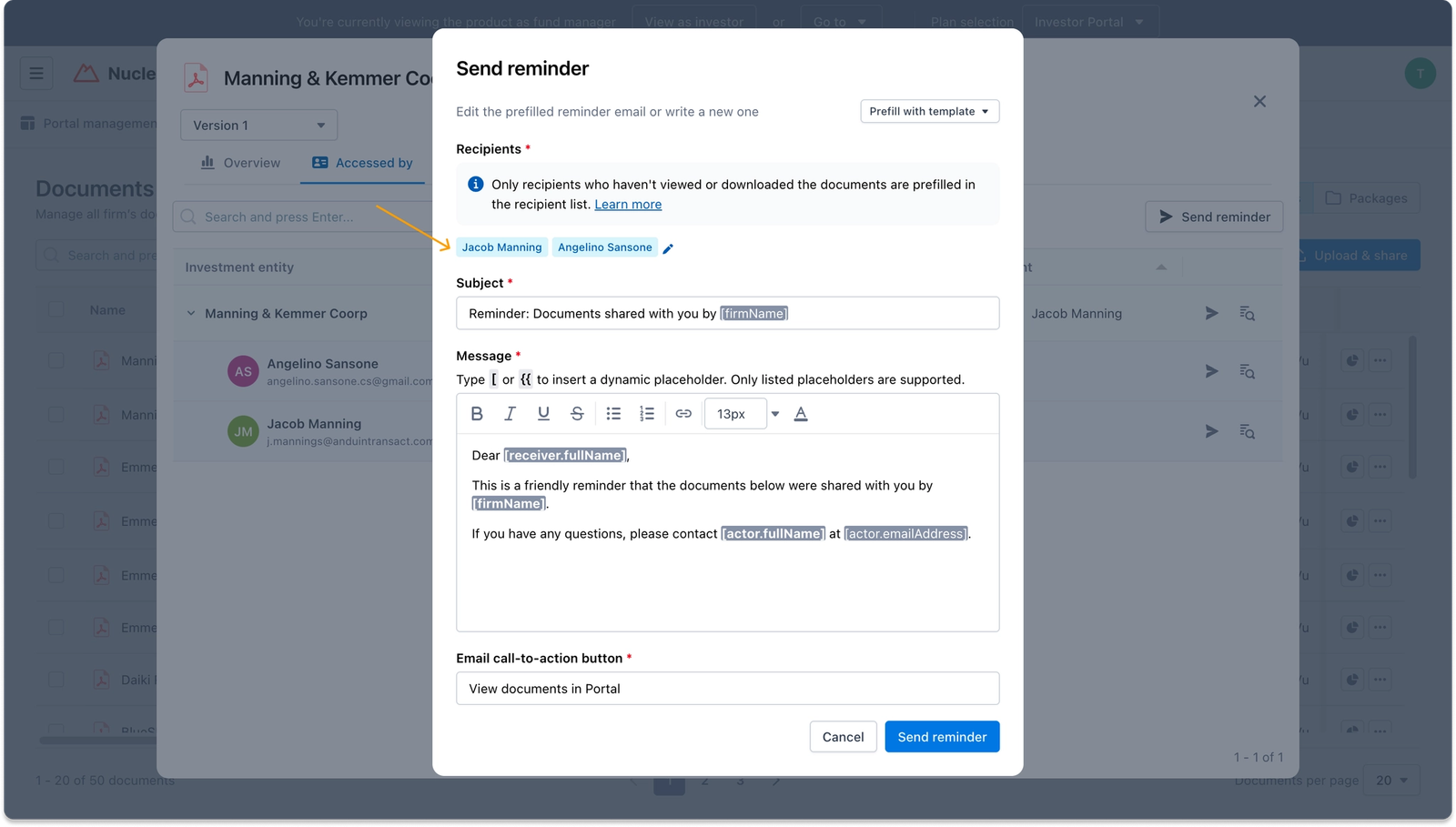
The subject, message, and call-to-action button are pre-filled using a reminder template, which can be swapped using the Prefill with template dropdown. The message also supports the same dynamic placeholders used elsewhere in the Portal, so each investor receives a personalized reminder.
Tip
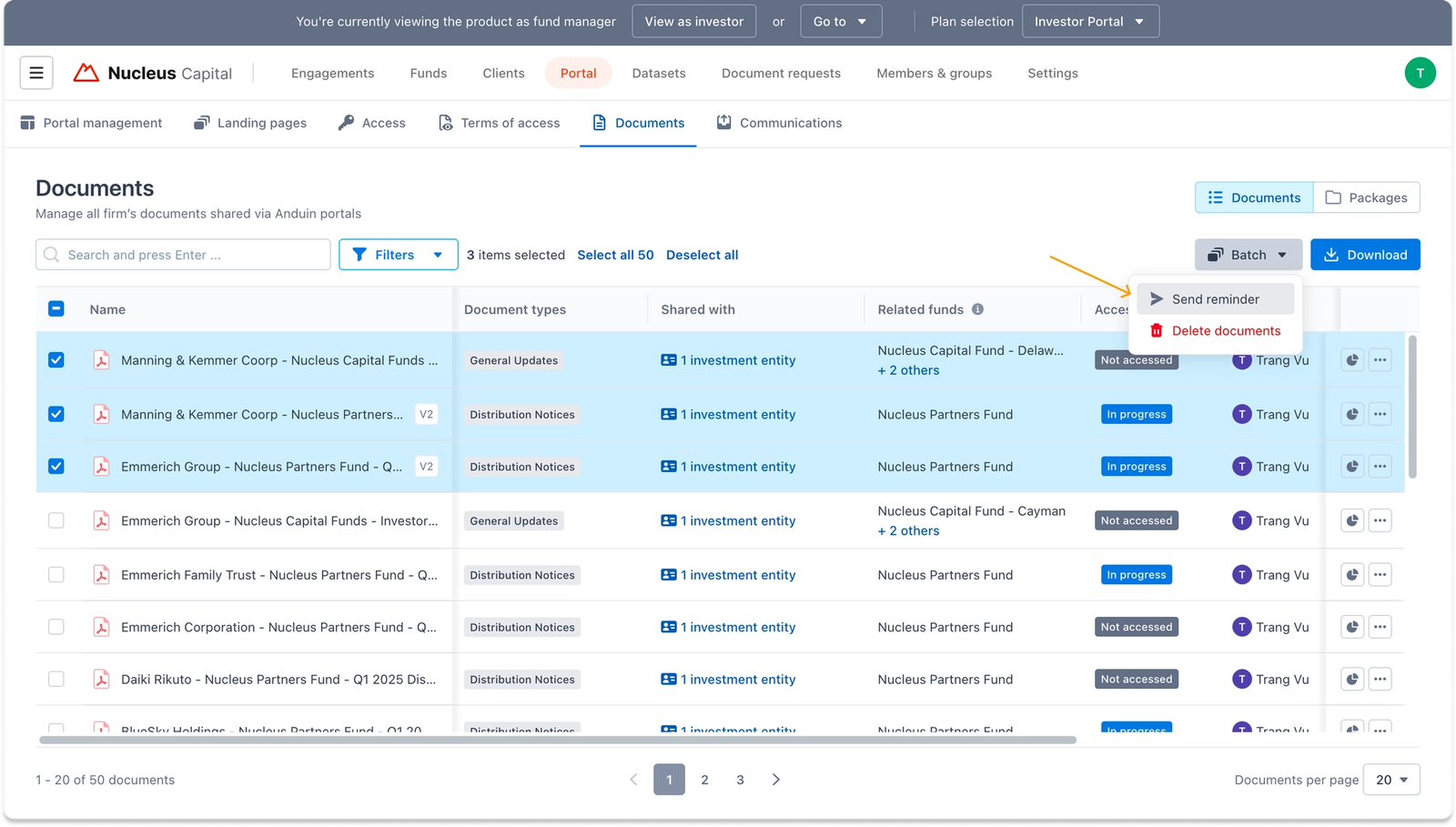
Reminders can also be sent in bulk across multiple documents at once from the Documents dashboard or the Package detail view. Each recipient automatically receives a single email listing only the documents they have access to and haven't engaged with yet, so there's no need to send reminders one file at a time.