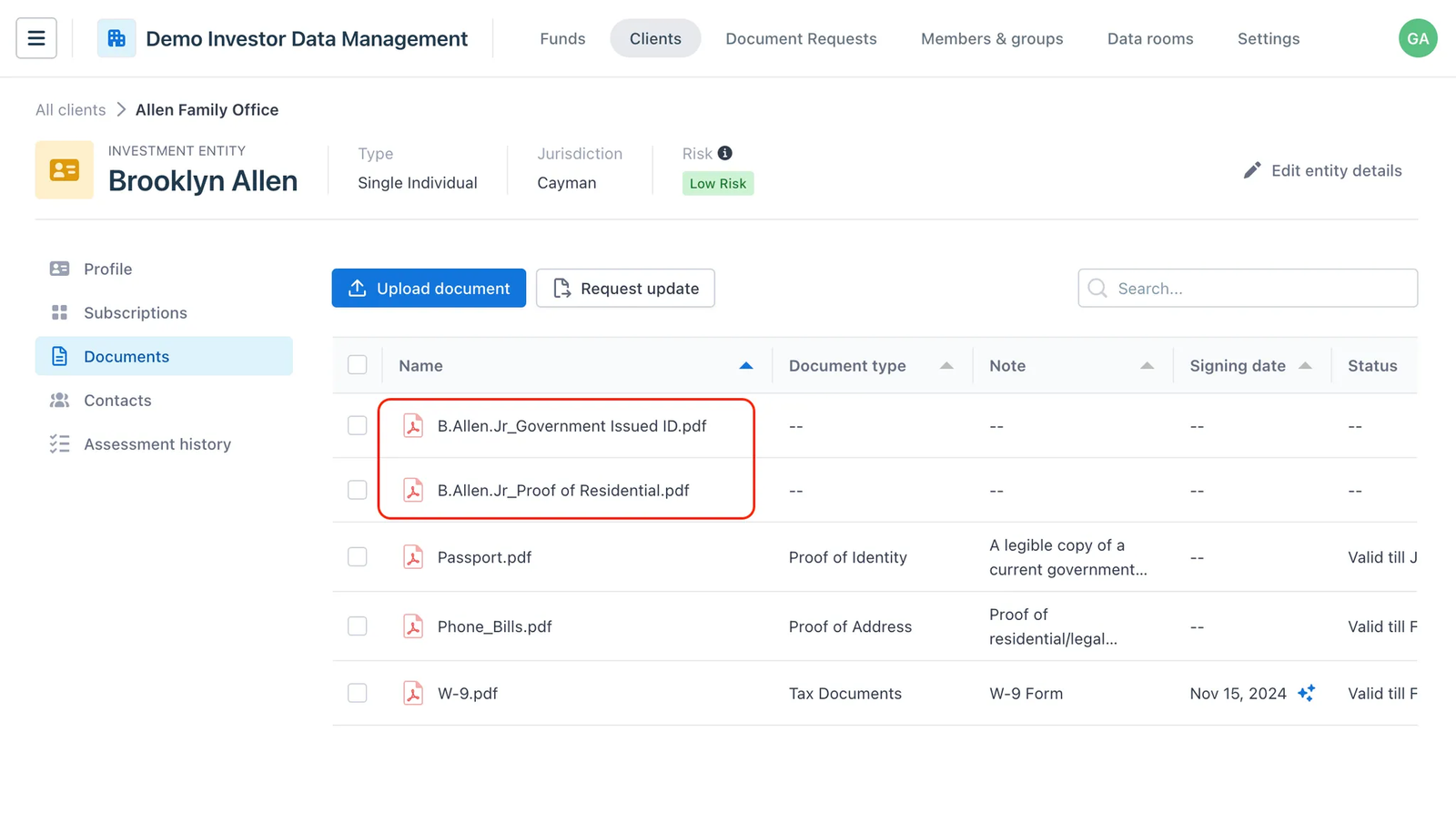
Merge Clients & Investment Entities in IDM
Introduction When importing investor data from past funds on Anduin, the system by default suggests creating a separate client for each investment entity.
Introduction
When importing investor data from past funds on Anduin, the system by default suggests creating a separate client for each investment entity. Without adjustments, this can result in multiple clients, each holding only a single investment entity.
The "Merge Clients" feature allows you to consolidate these entries, streamlining and organizing your client dashboard. This guide will walk you through how to use this feature to effectively manage and merge clients, ensuring a cleaner and more accurate client database.
1. Merge Clients
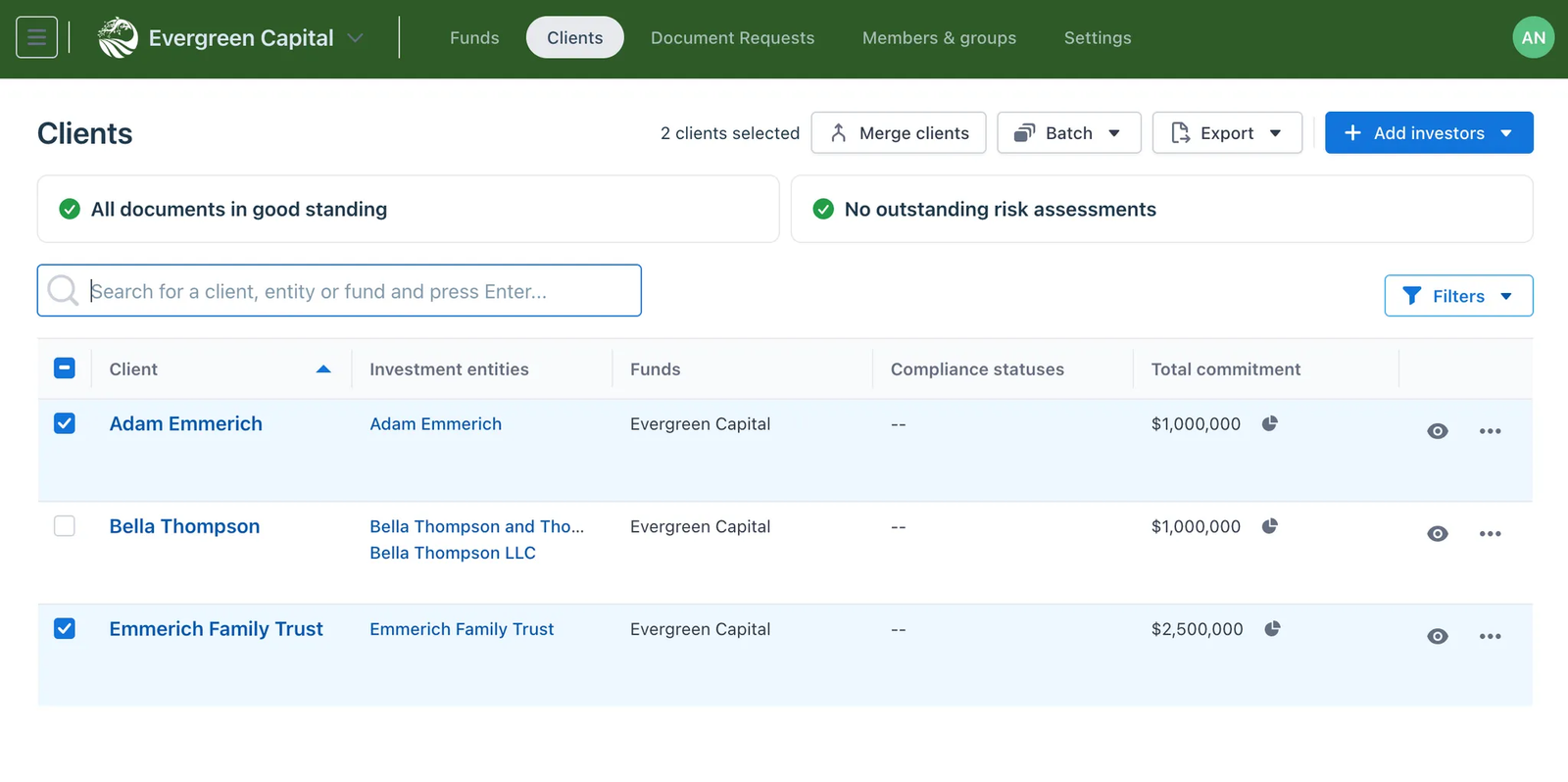
Step 1: Select the clients to merge from the Client dashboard
Check the box in front of each client to select them.
💡 Tips: Utilize the search bar and/or filters to quickly find your clients
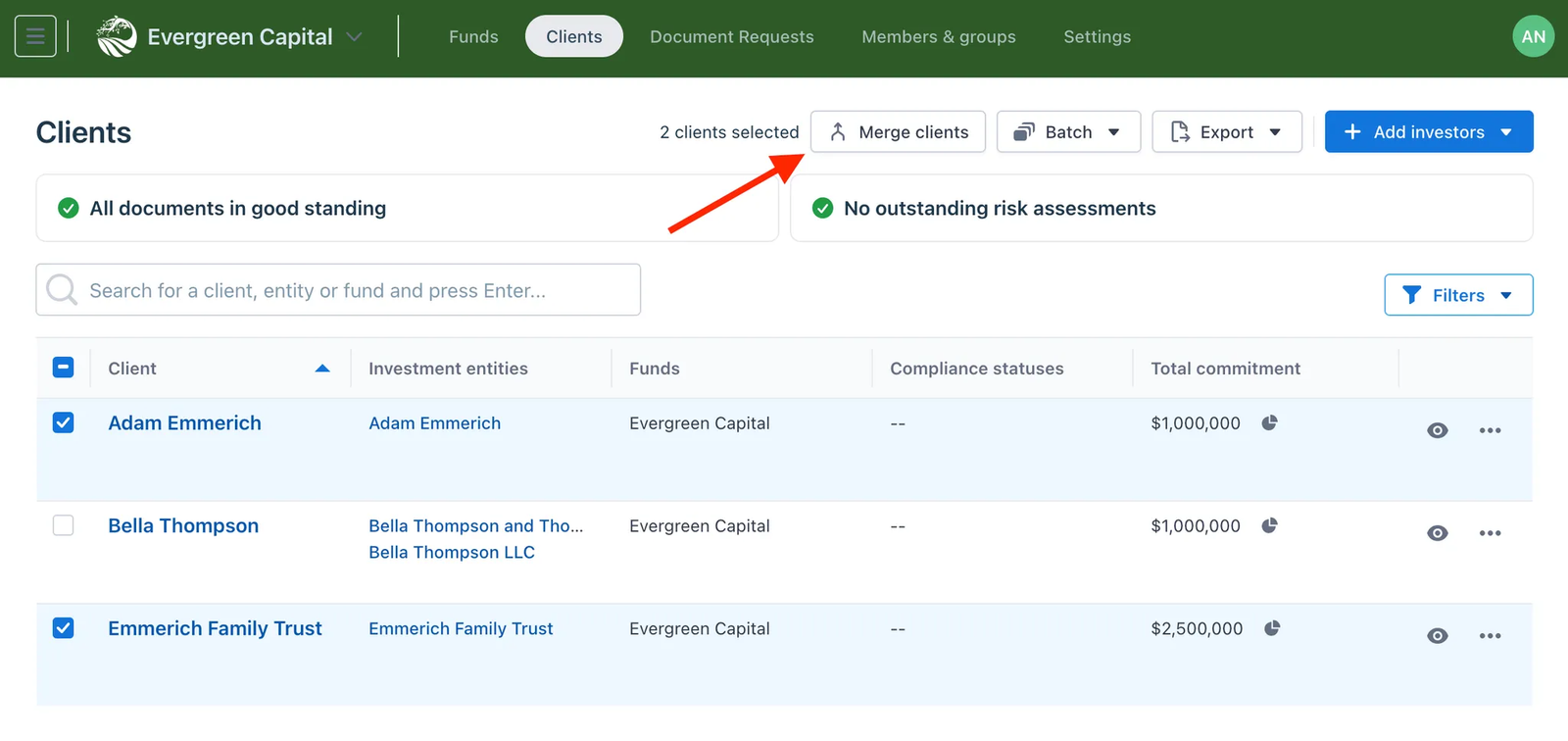
Step 2: Click the “Merge clients” button
Once you have selected the clients, the Merge clients button will appear at the top of the client table.
Click this button to continue.
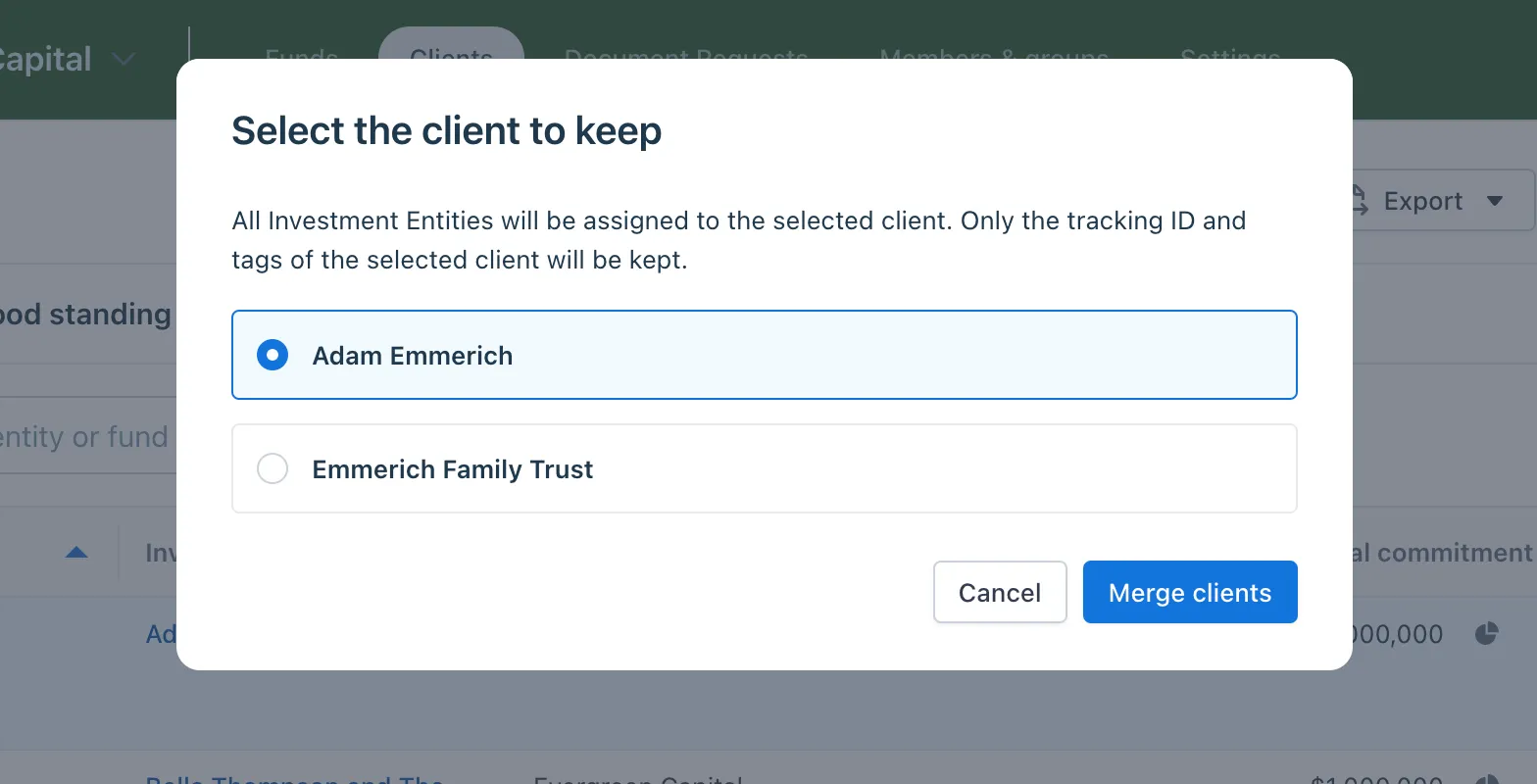
Step 3: Select the client to keep
On the “Select the client to keep” modal, select the client to which you want to move all investment entities.
The unselected client (in this example, “Emmerich Family Trust”) will be removed from IDM after the merge.
Click the Merge clients button to continue.
Step 4: Finish
The clients have been merged successfully.
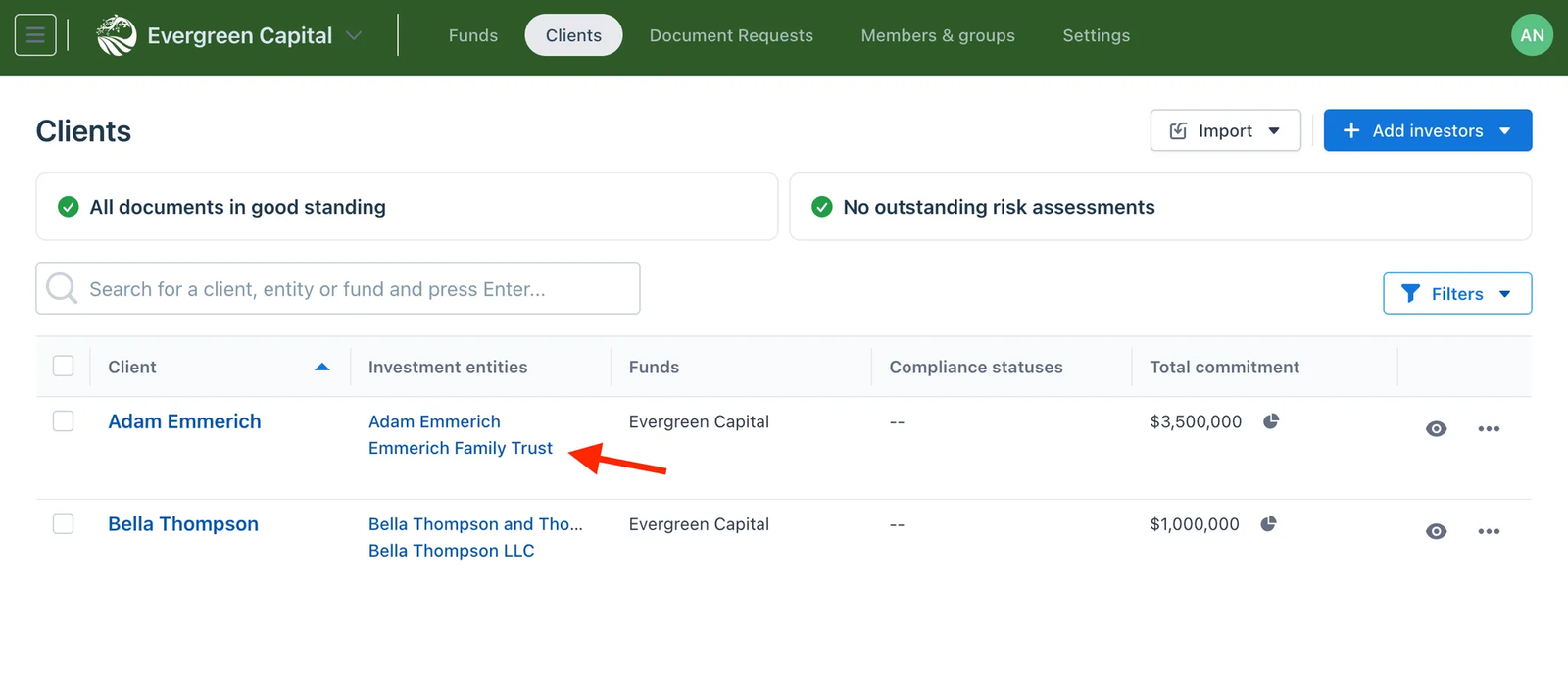
Data change after the merge
1. For Client:
Only the selected client’s metadata (ID, Tags) if any will be kept. The unselected client will be removed from IDM.
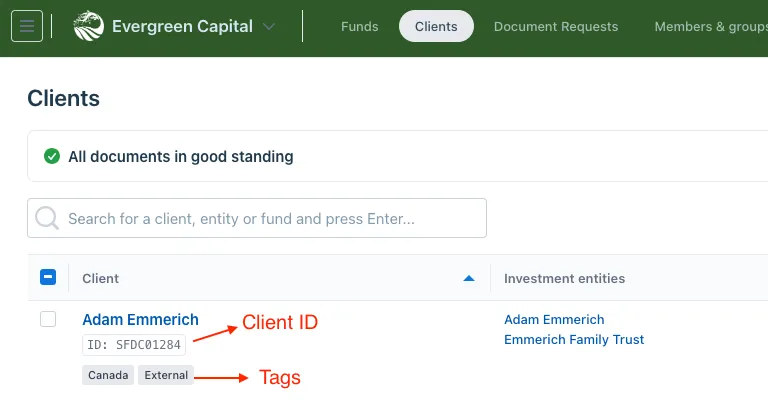
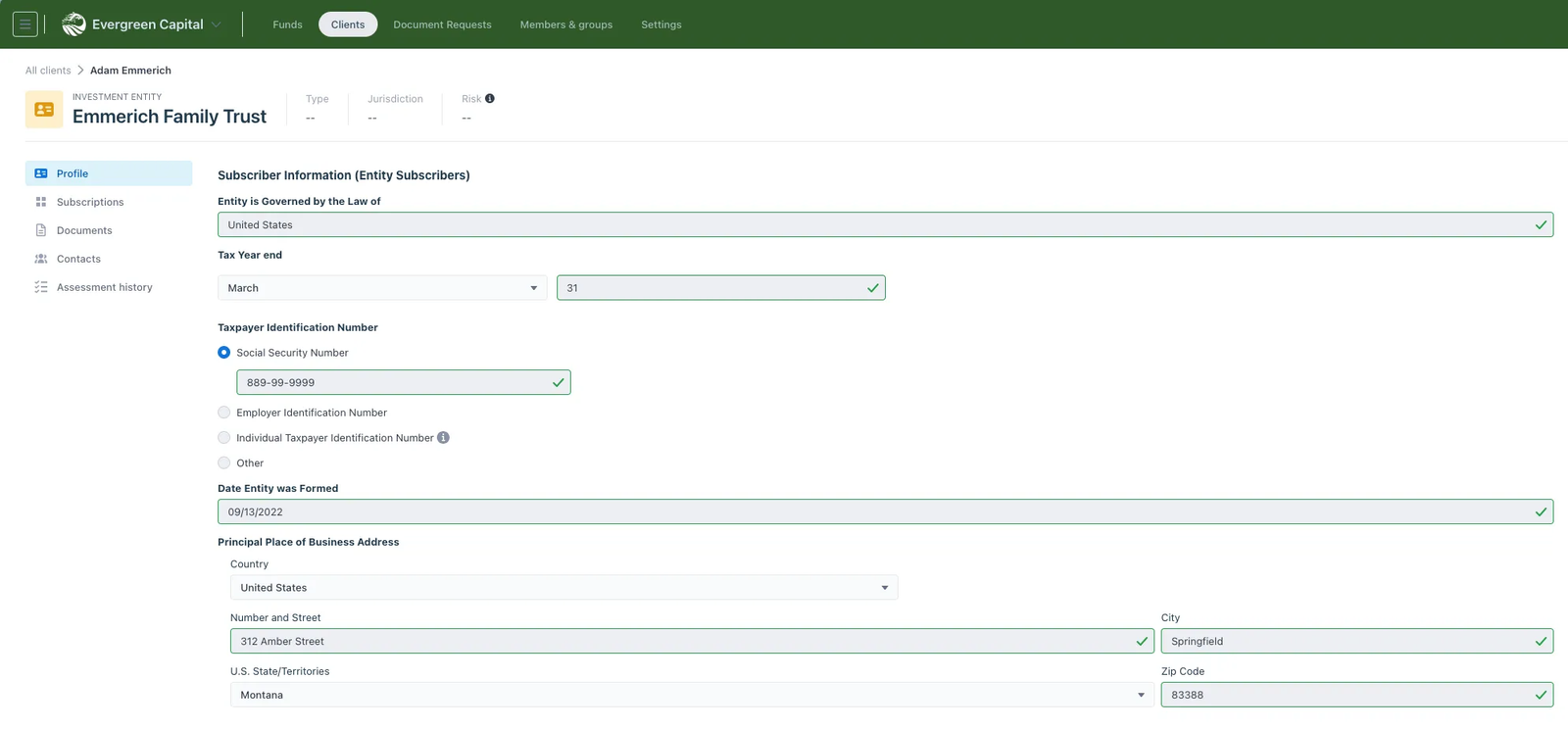
2. For Investment Entity:
All of the investment entity’s data will be kept, including:
- Profile data
- Linked subscriptions
- AML/KYC documents
- Contacts
- Risk assessment history
2. Merge Investment Entities
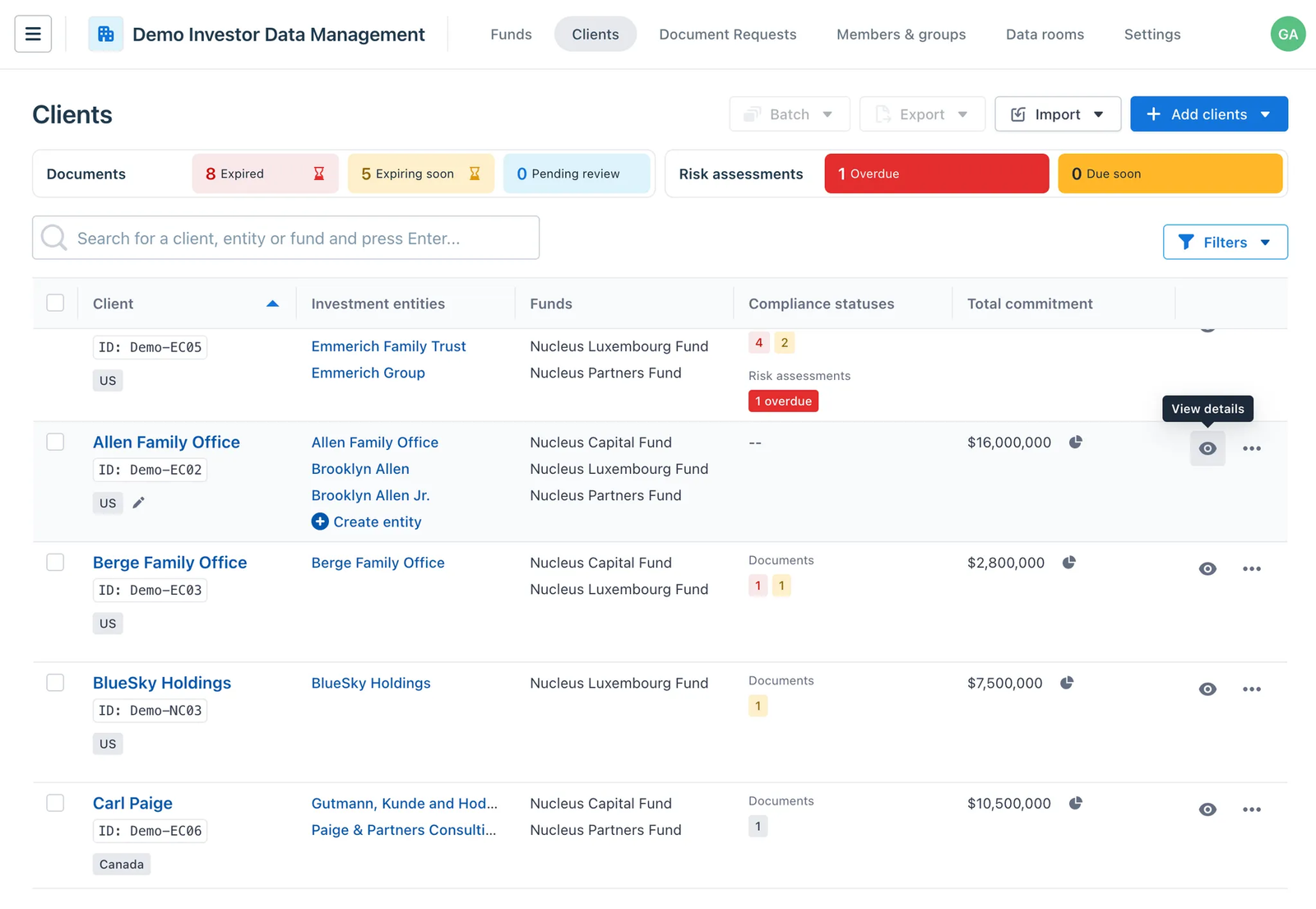
Step 1: Select the client that contains investment entities to merge
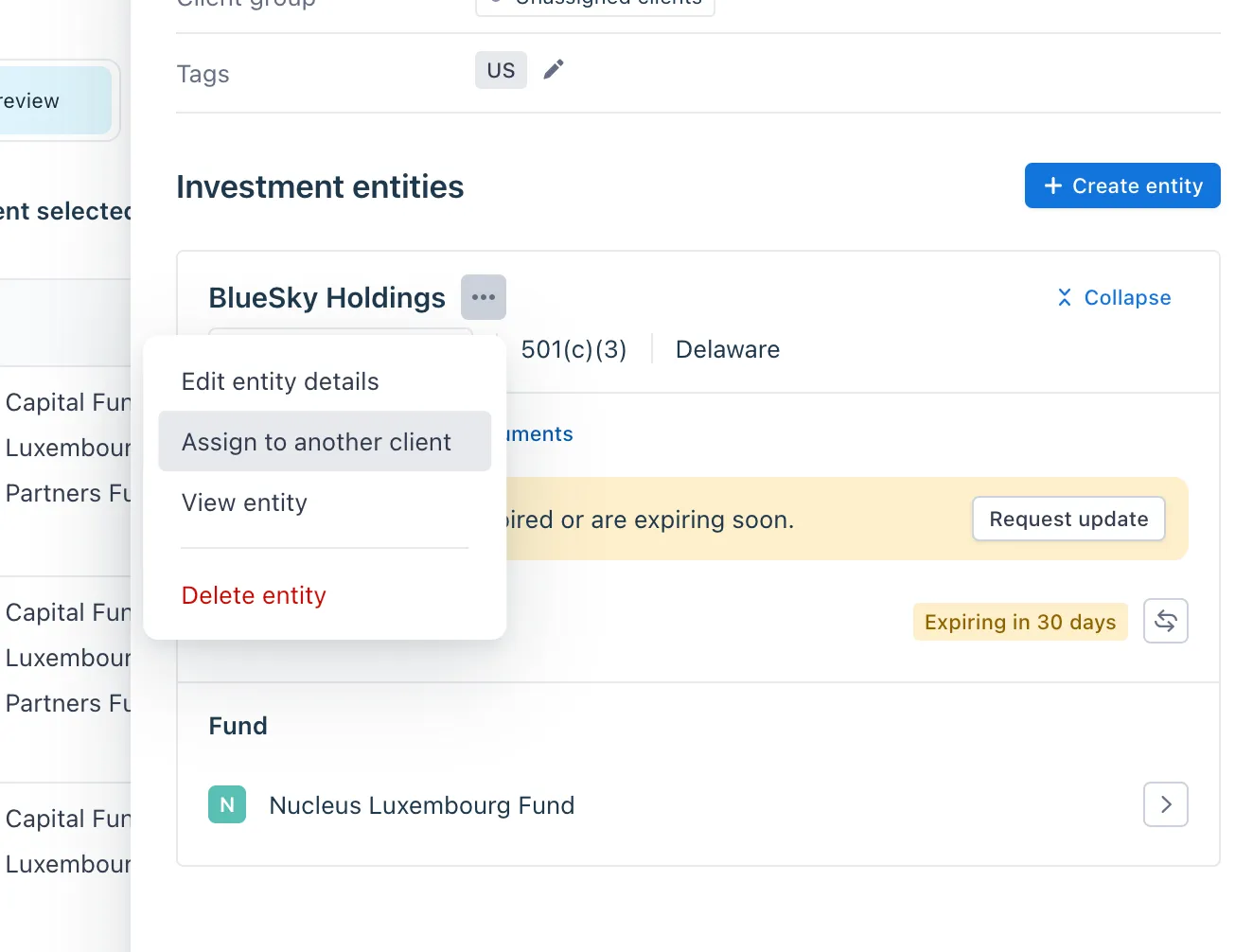
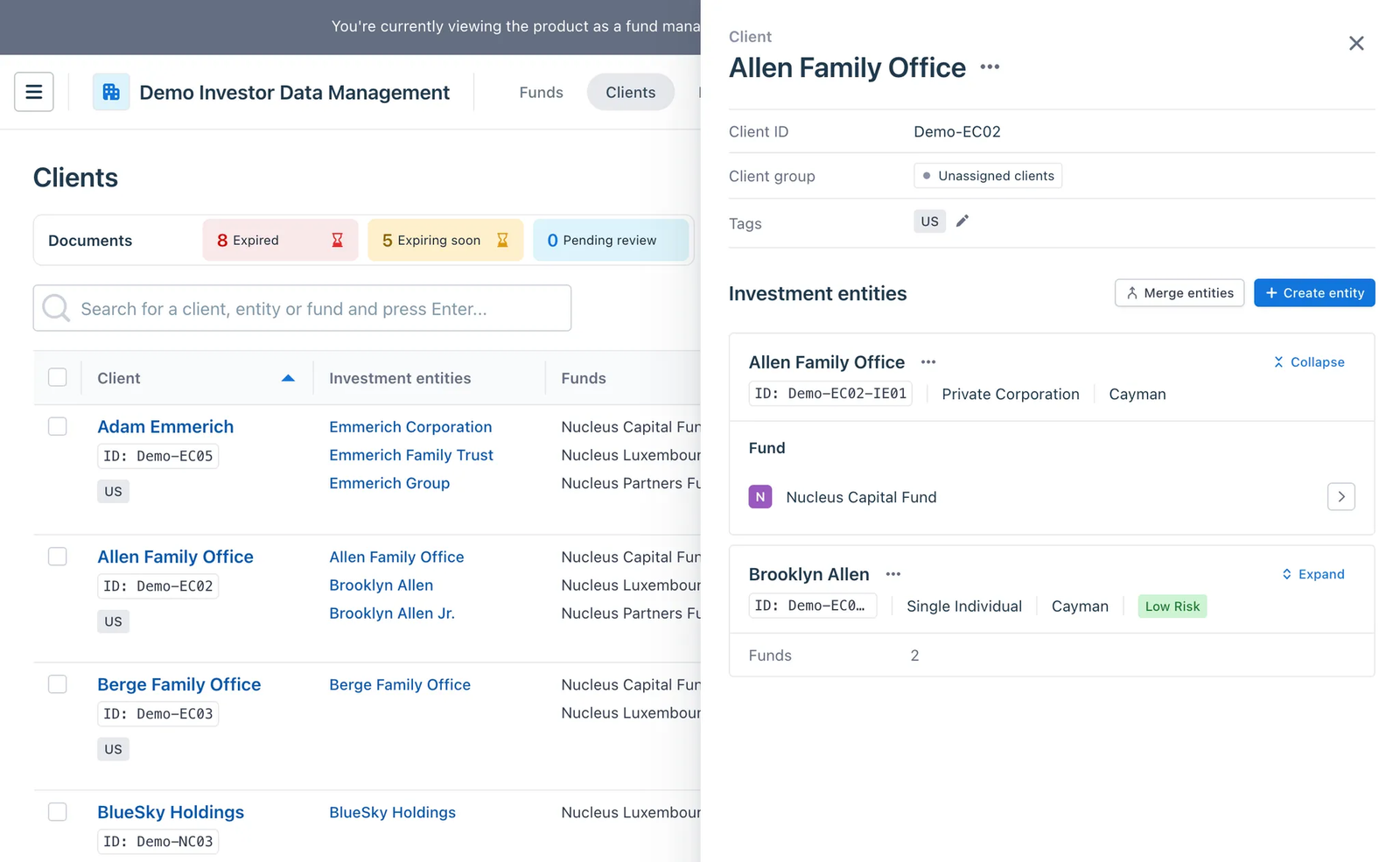
Click the eye (👁️) icon on the client row to open the “client detail” drawer. Here, you will see its investment entities.
💡 Tips:
- Utilize the search bar and/or filters to quickly find the client that contains the investment entities you need to merge.
- If the investment entities you need to merge are under different clients, you will need to move them to the same client first.
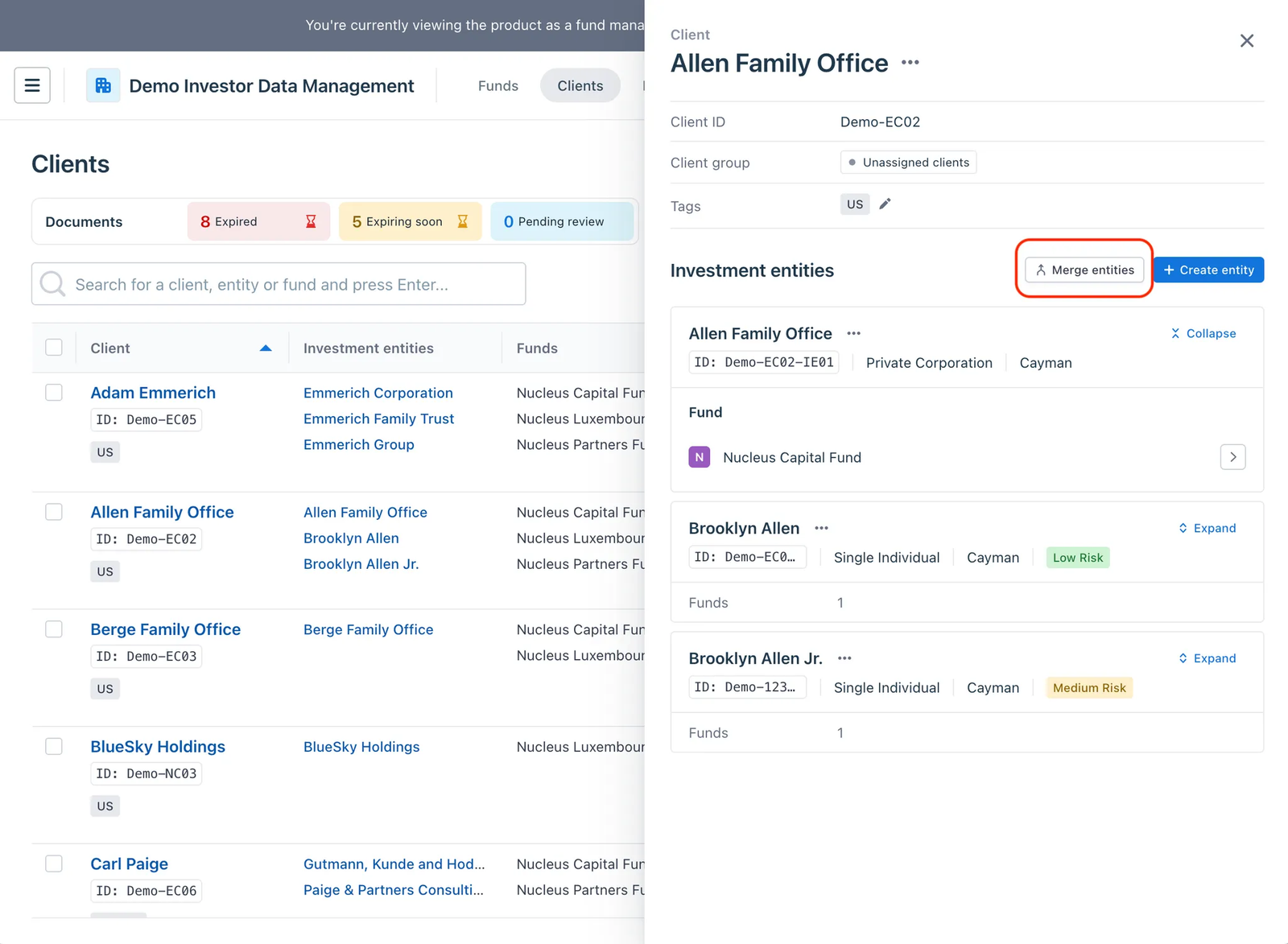
Step 2: Click the “Merge entities” button
In the “Client detail” drawer, click the Merge entities button to reveal the checkboxes for investment entity selection.
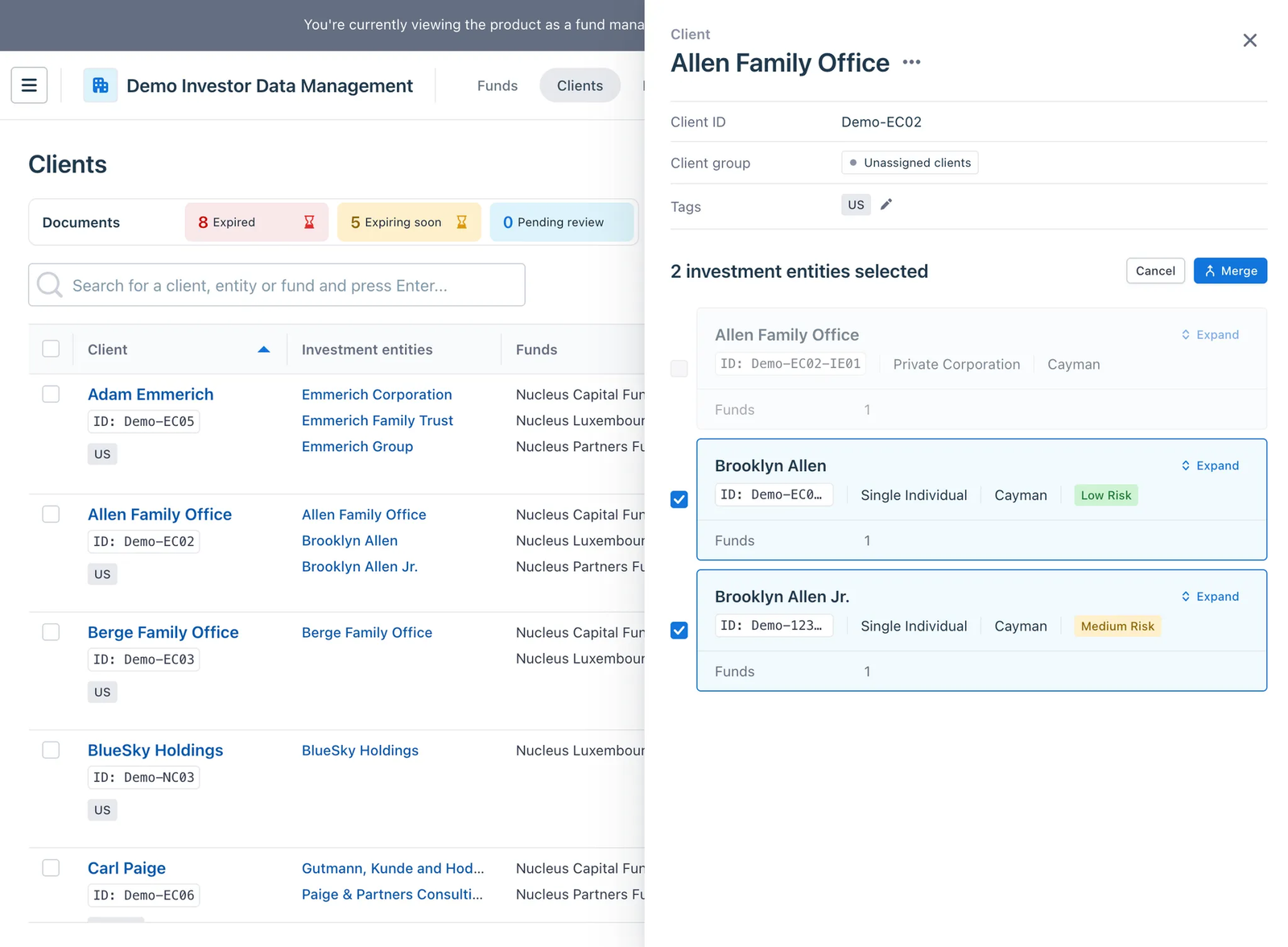
Step 3: Select the investment entities to merge
Select the investment entities that you want to merge. Then, click the Merge button to start the merging process.
Note: You can select 2 investment entities to merge at a time.
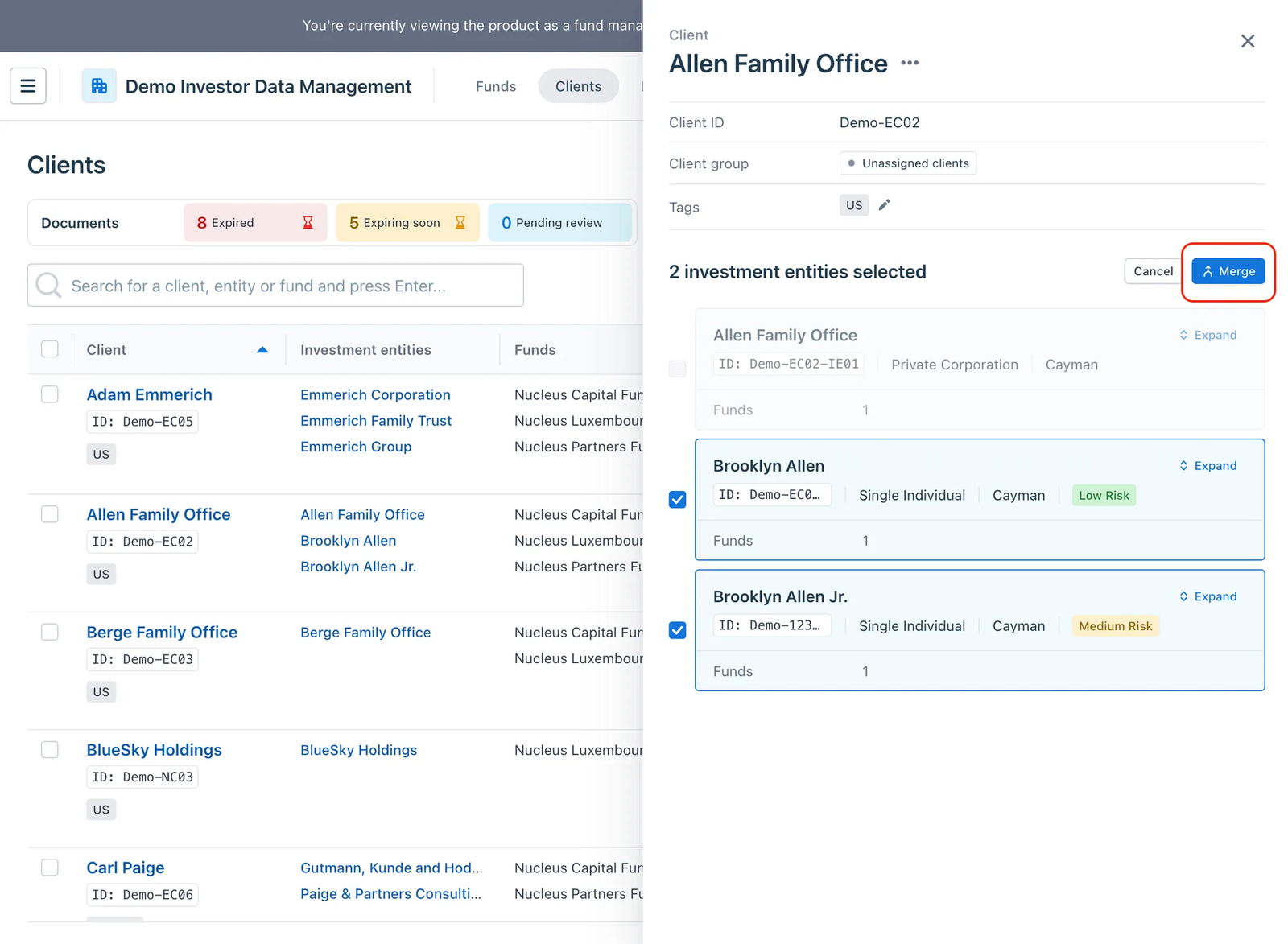
Step 4: Select the investment entity to keep
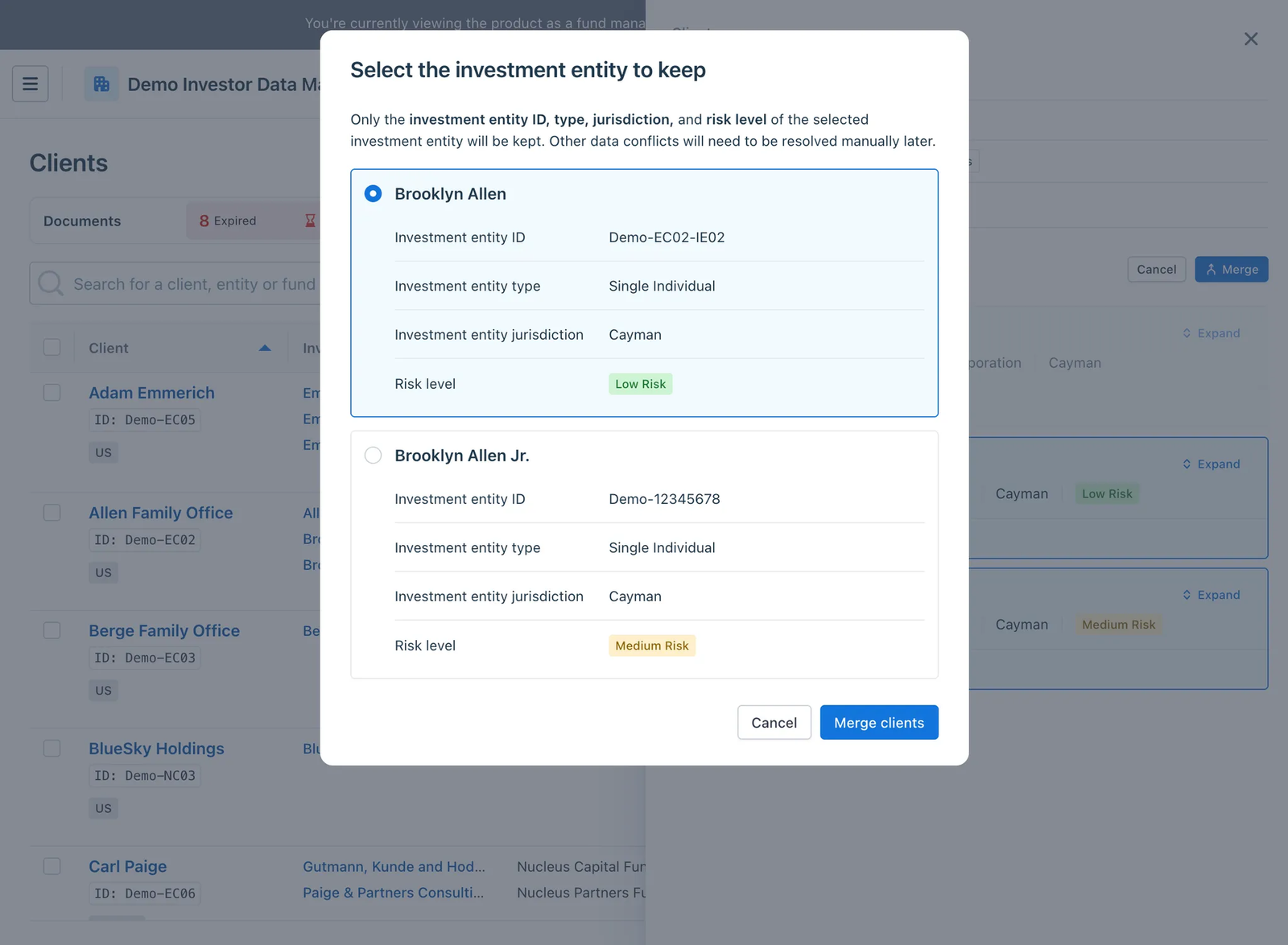
On the “Select the investment entity to keep” modal, select the investment entity you want to remain on your client base.
The unselected investment entity (in this example, “Brooklyn Allen Jr.”) will be removed from IDM after the merge.
Click the Merge button to continue.
Step 5: Resolve investment entity profile data conflicts (if any)
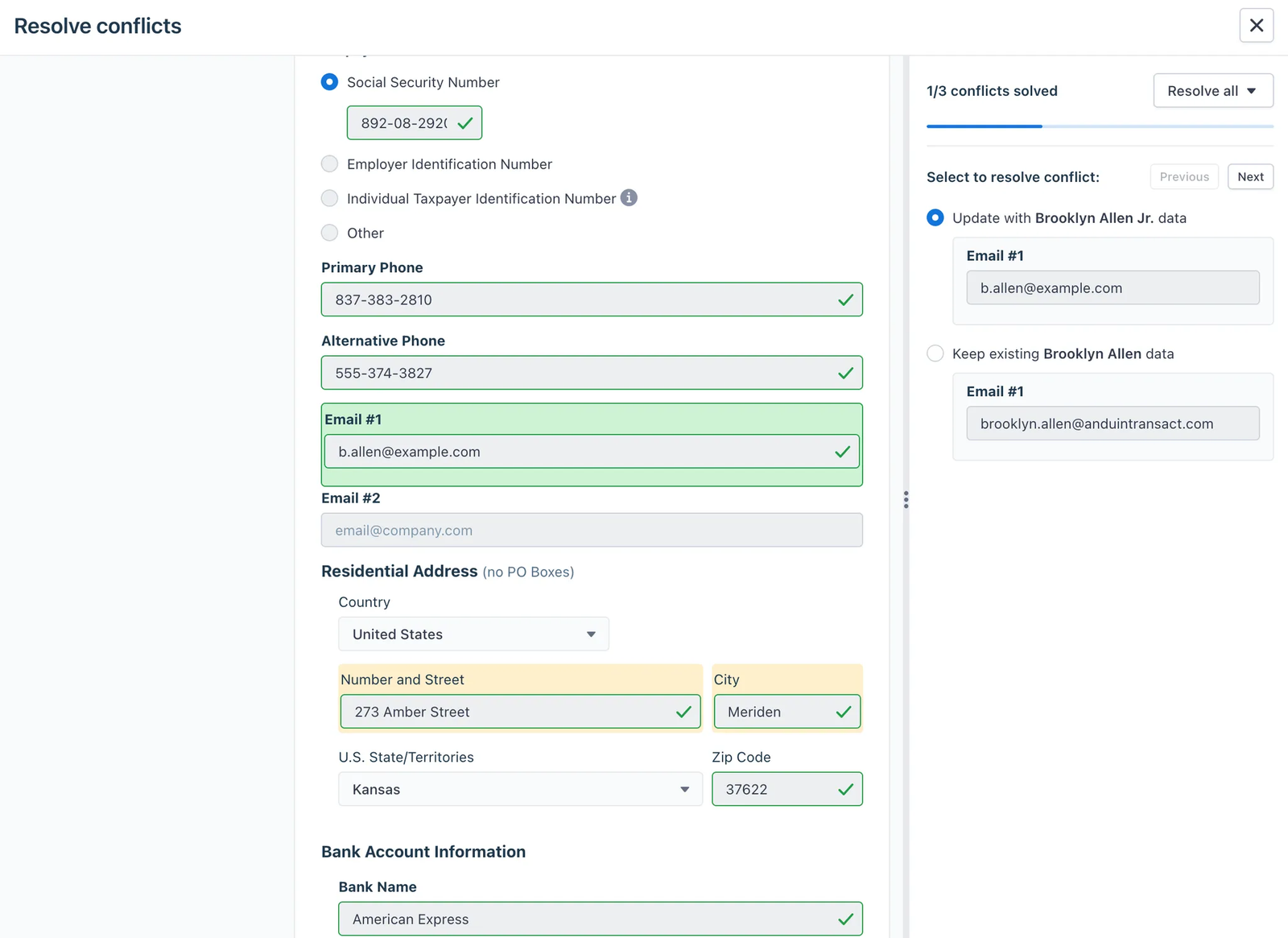
In case there are differences between the investment entities’ profile data, you can select which data points you want to keep in the final profile.
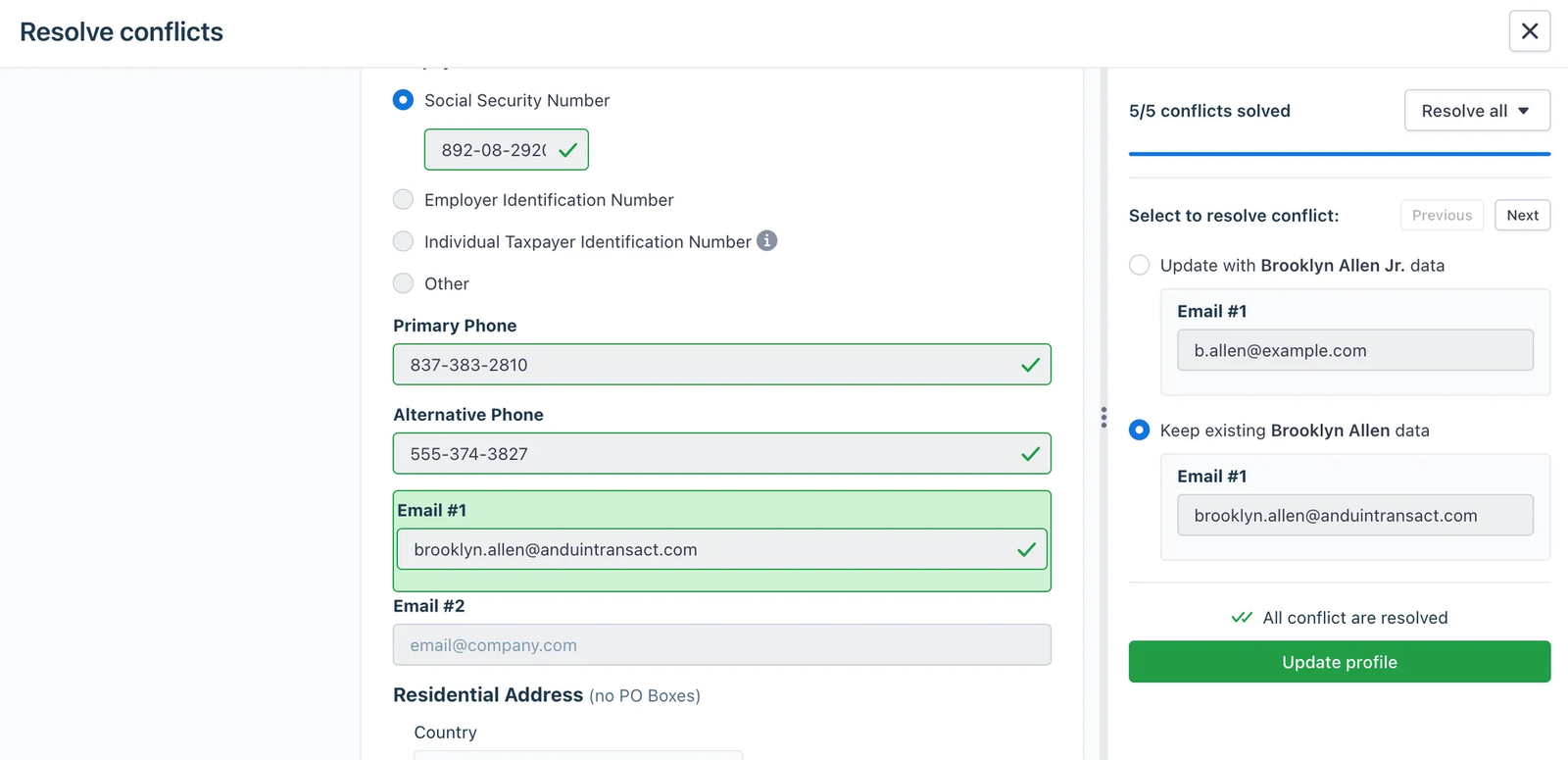
💡Tips: Use the
Resolve allbutton to quickly apply data from one investment entity to the final profile.
Step 6: Finish
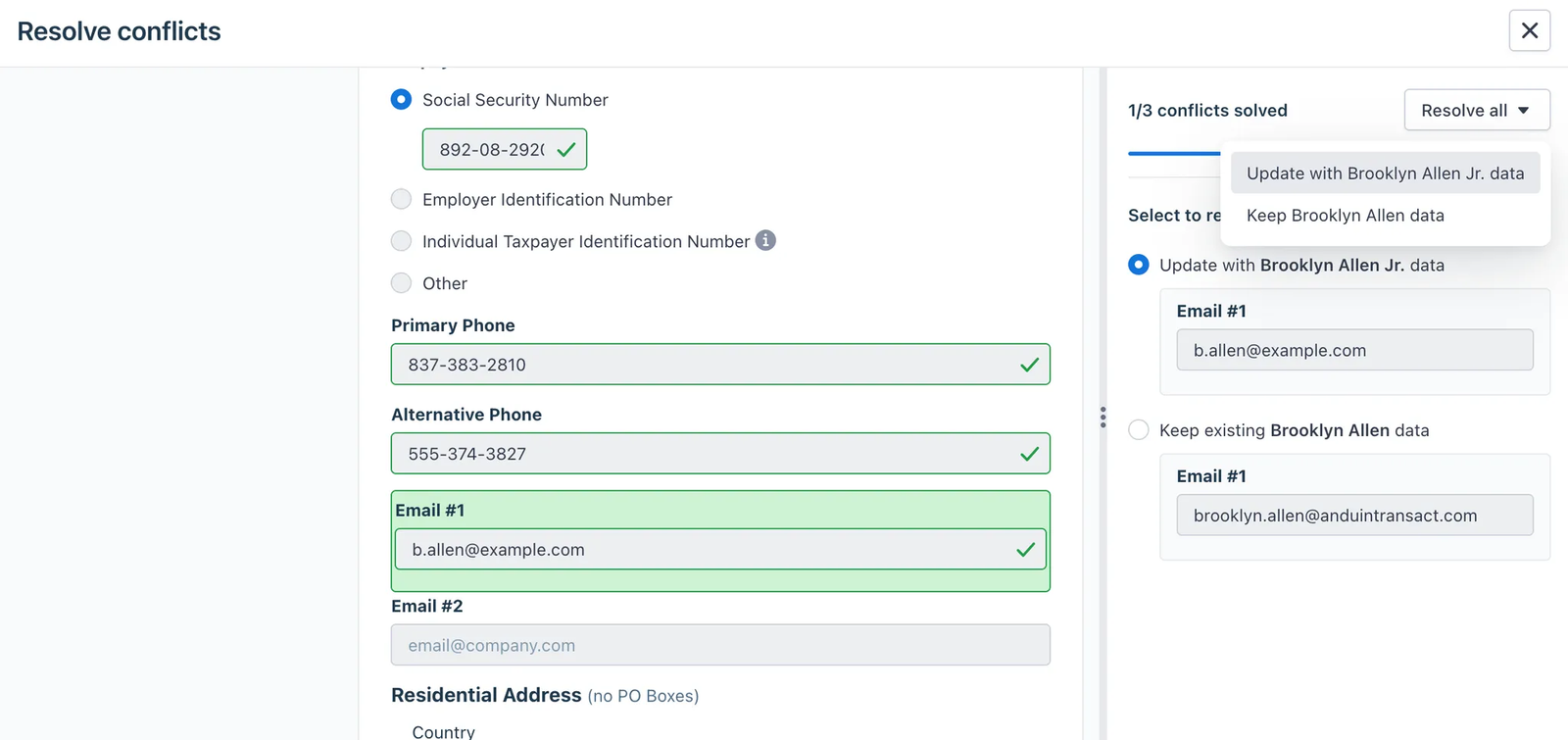
After all profile data differences (if any) have been resolved, the investment entities will be merged successfully.
Data change after the merge
- Only the selected investment entity’s metadata (ID, Tags, Jurisdiction, Risk level, Investor type) if any will be kept. The unselected investment entity will be removed from IDM.
- Subscription links, documents, and contacts of the unselected investment entity will be moved to the to the remaining one.