Data auto sync from Fund Subscription to IDM
Introduction This feature aims to offer users the flexibility to seamlessly maintain their investor database on Anduin. We provide the capability to automa
Introduction
This feature aims to offer users the flexibility to seamlessly maintain their investor database on Anduin. We provide the capability to automatically synchronize all investor data from the Fund Subscription application to Fund Data Management, encompassing the investor’s profile data, documents, and contacts.
Furthermore, users can specify how to handle any data conflicts that may arise during the process.
Pre-condition
- This feature is only available to Firm admins within the Settings tab.
- There must be at least one Fund linked to the current IDM.
Guideline
Step 0:
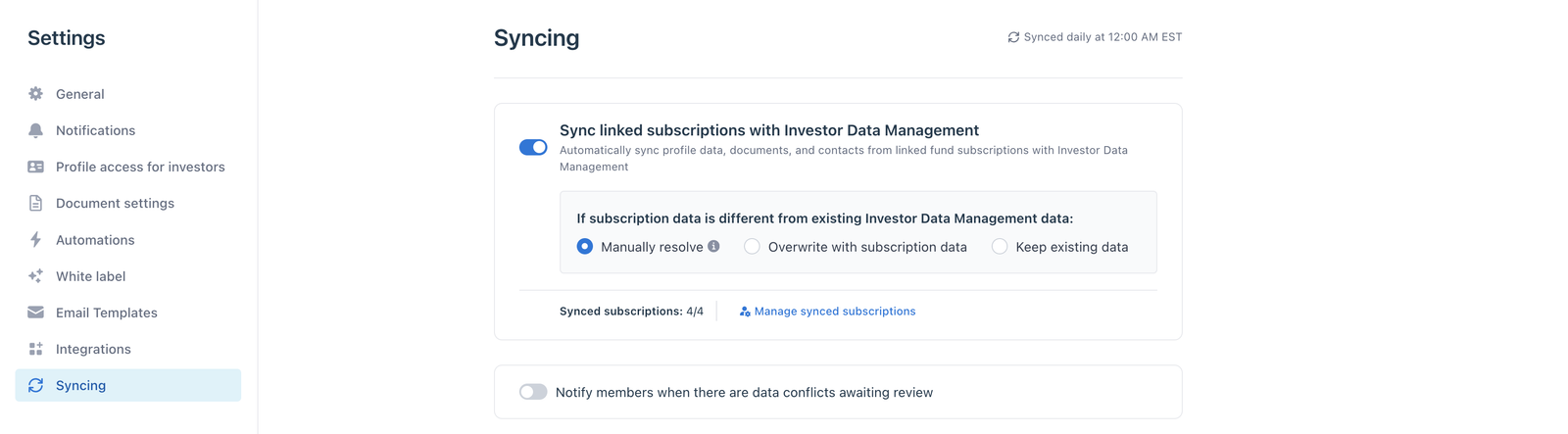
In the IDM “Settings” tab, navigate to the “Syncing” sub-tab to manage syncing preferences between Fund Subscription (FS) and IDM.
- By default, auto-sync is enabled once a Fund Subscription (FS) is linked to IDM, with the conflict resolution method set to “Manually resolve". If users prefer to stop automatic syncing, they can manually turn off the toggle at any time.
- The sync automatically brings in subscription form data, investor and collaborator contacts, and supporting documents for each investment entity
- Data sync will run every 10 minutes to ensure timely updates
Step 1: Select the source for data sync
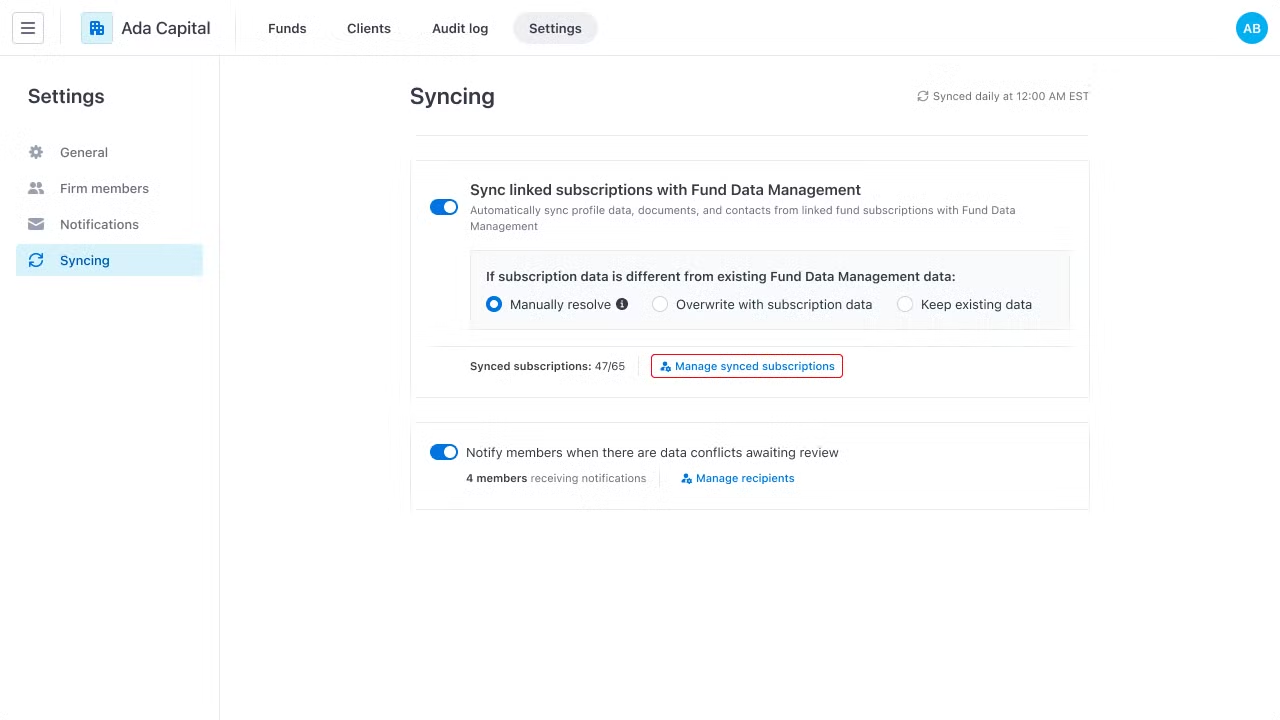
Next, click the Manage synced subscription button to open a modal where you can select which fund's data should be synced to IDM.
❗ You can only select the funds you have access to.
Step 2: Configure data conflict resolution method
After enabling data sync, the system will automatically retrieve subscription data, investor documents, and contacts from the selected funds to IDM.
❗ Subscription data is only retrieved after investors sign or submit their subscription in the Fund Subscription application.
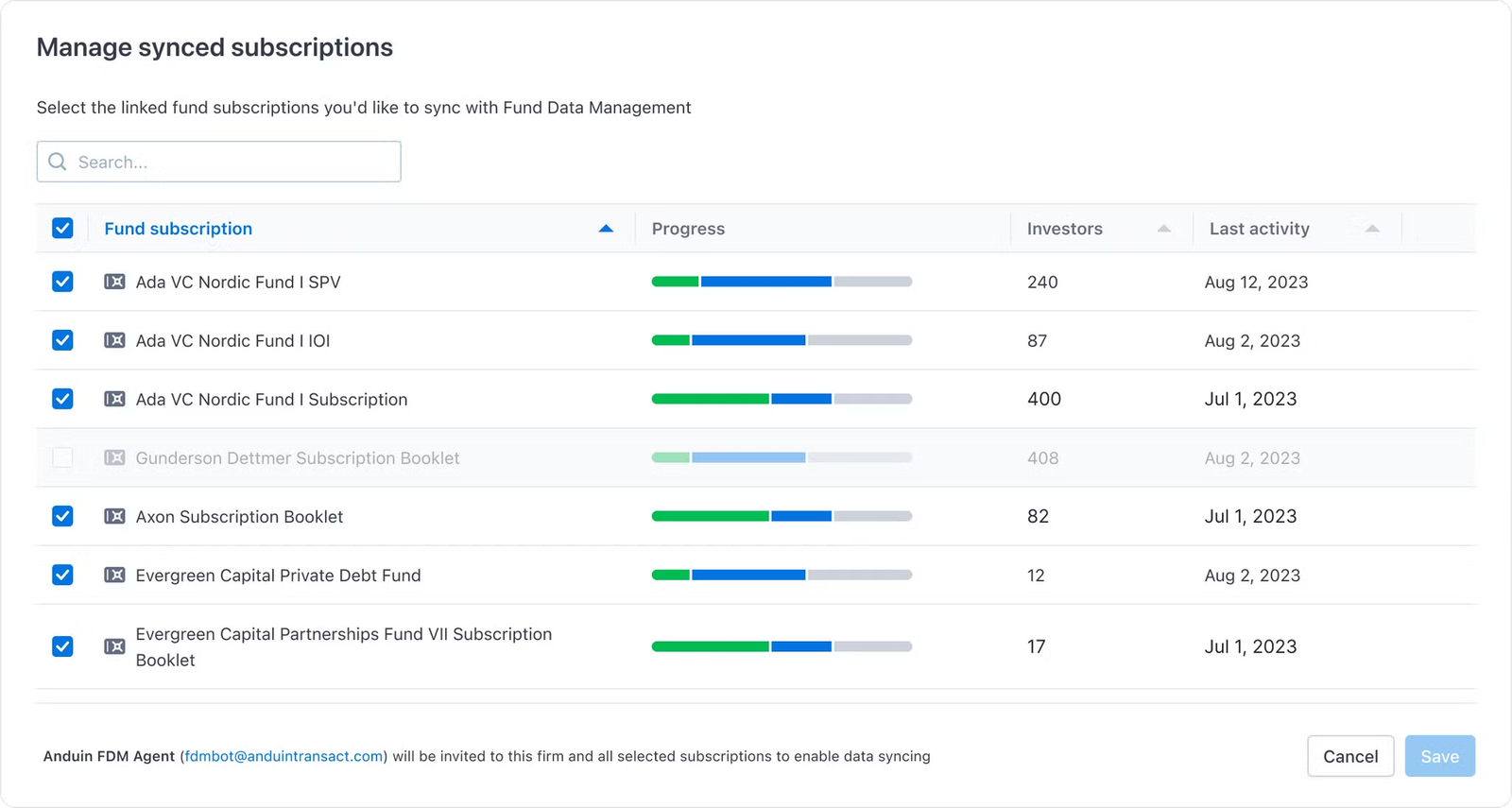
During the process, if data retrieved from the linked subscription is different from existing IDM data, you will have 3 options to resolve the conflict:
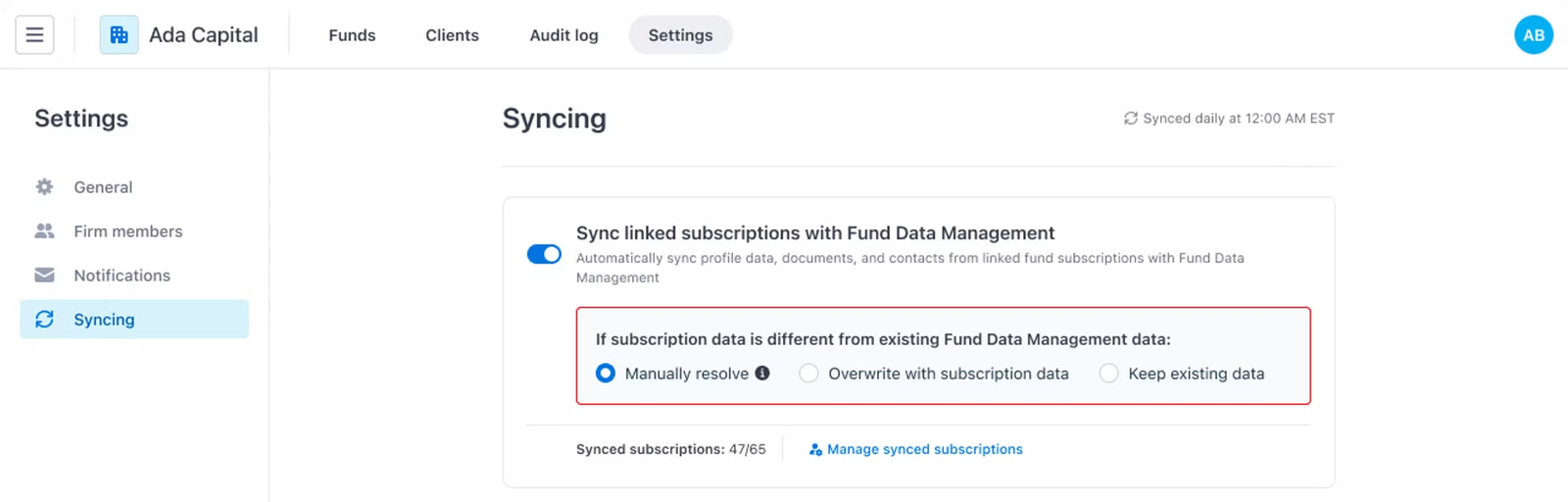
Option 1: Manually resolve
Instead of making the change automatically, the system will notify the configured recipients (Step 4 - Manage recipients) so they can intervene and resolve the conflicts manually (more details provided in the Manual conflict resolution section).
Option 2: Overwrite with subscription data
The system will automatically update the data in IDM with new data from the linked subscription.
| Field | Current IDM data | Subscription data | IDM data after syncing |
|---|---|---|---|
| Address | 843 Yael Place, Quincyborough, HI 75343-5257 | Suite 656 61562 Leonora Extensions, Haagmouth, OH 02132-4083 | Suite 656 61562 Leonora Extensions, Haagmouth, OH 02132-4083 |
Option 3: Keep existing data
The system will retain the current data in IDM and disregard the subscription data.
| Field | Current IDM data | Subscription data | IDM data after syncing |
|---|---|---|---|
| Address | 843 Yael Place, Quincyborough, HI 75343-5257 | Suite 656 61562 Leonora Extensions, Haagmouth, OH 02132-4083 | 843 Yael Place, Quincyborough, HI 75343-5257 |
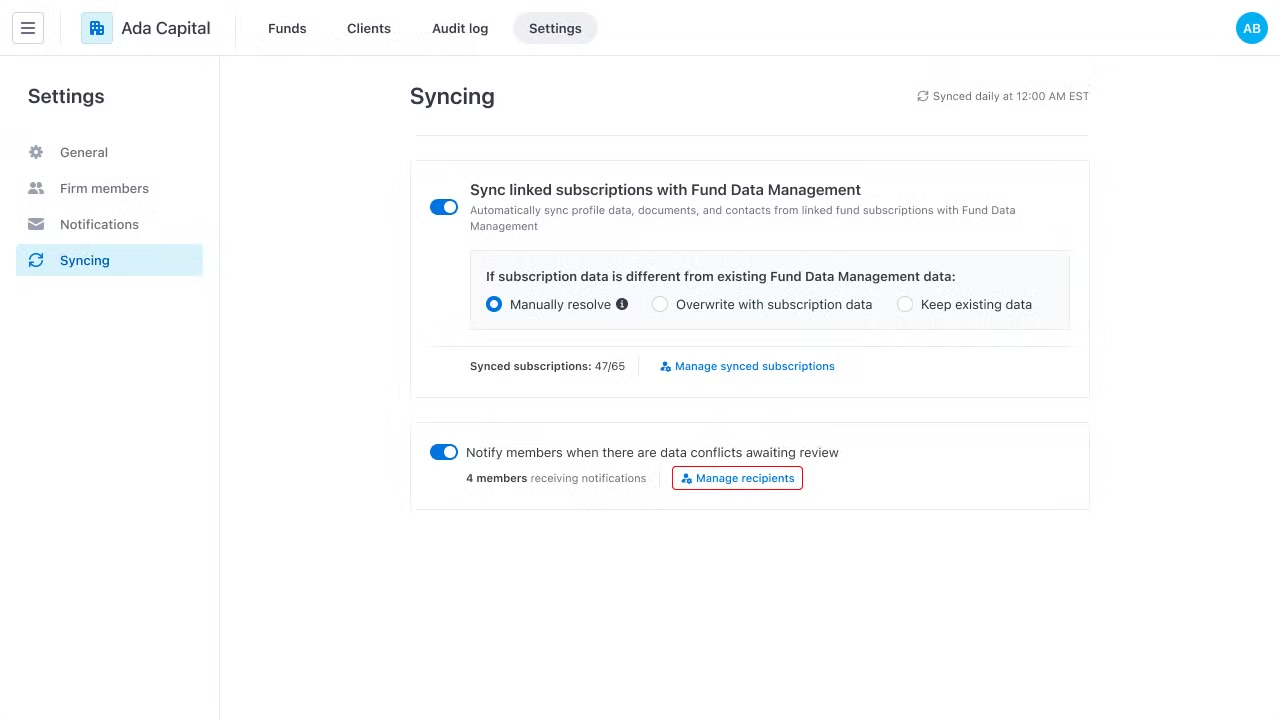
Step 3: Enable notifications and assign members to review conflicts (if “Manually resolve” is selected)
If the Manual resolve option is selected, you can choose to enable notifications for firm members about pending data conflicts by turning on the notification toggle. This setting is not enabled by default and must be configured manually.
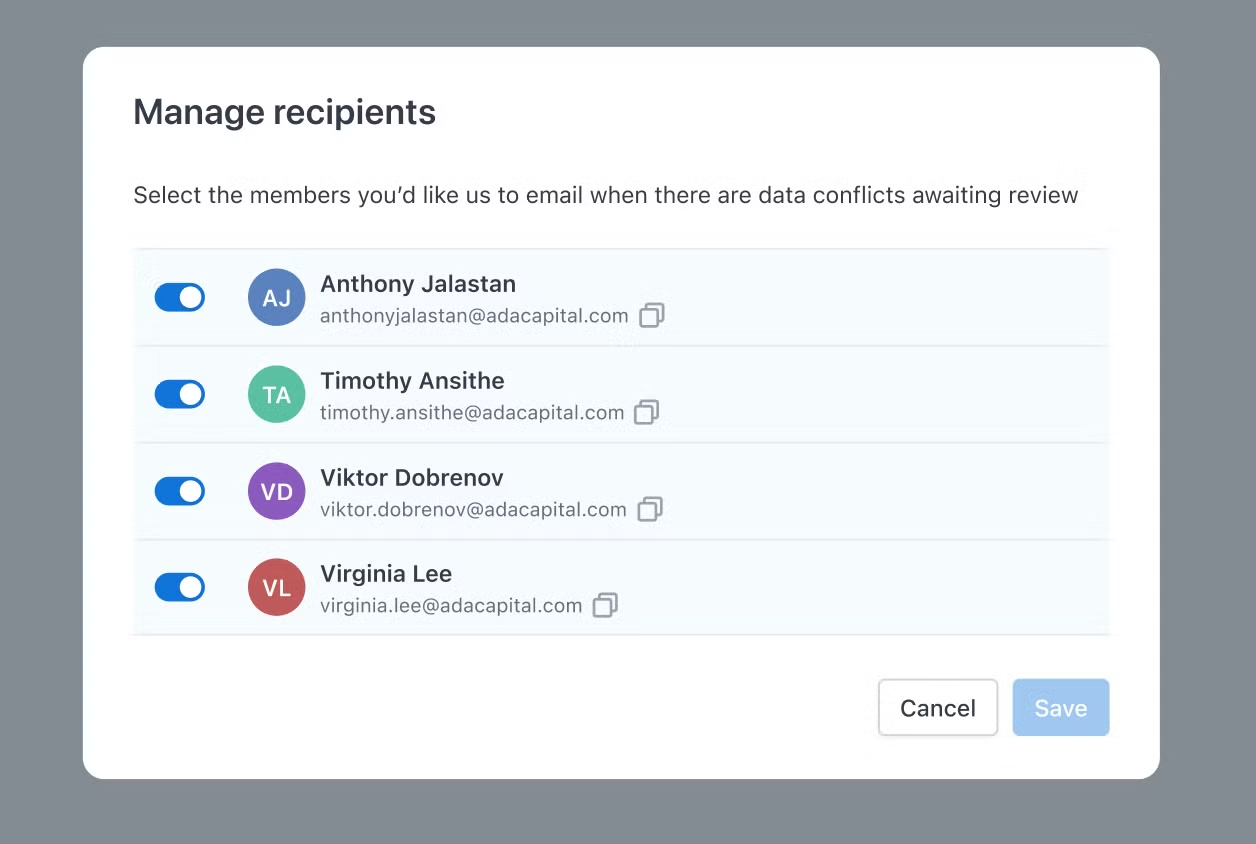
Once enabled, you can further specify which firm members will receive notifications when conflicts arise for review.
Manual conflict resolution workflow
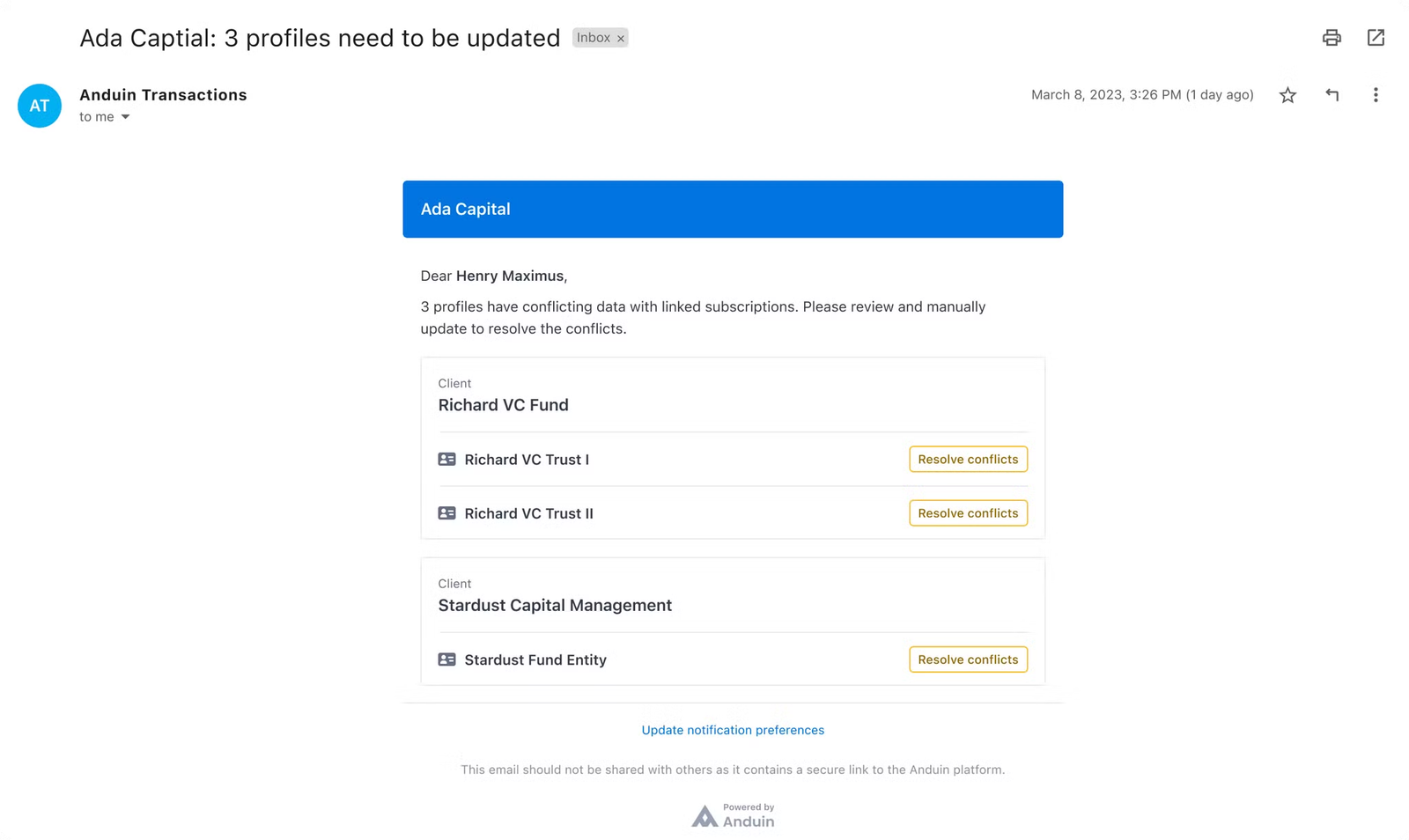
Step 1: Email notification
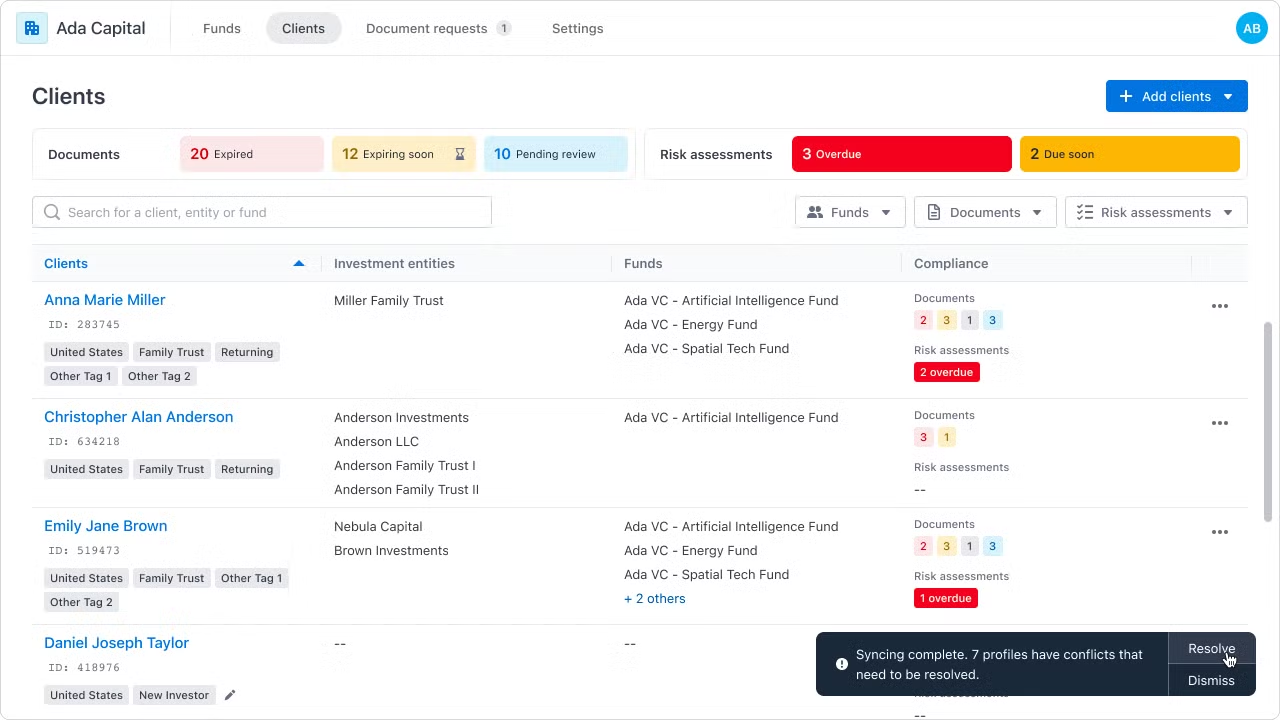
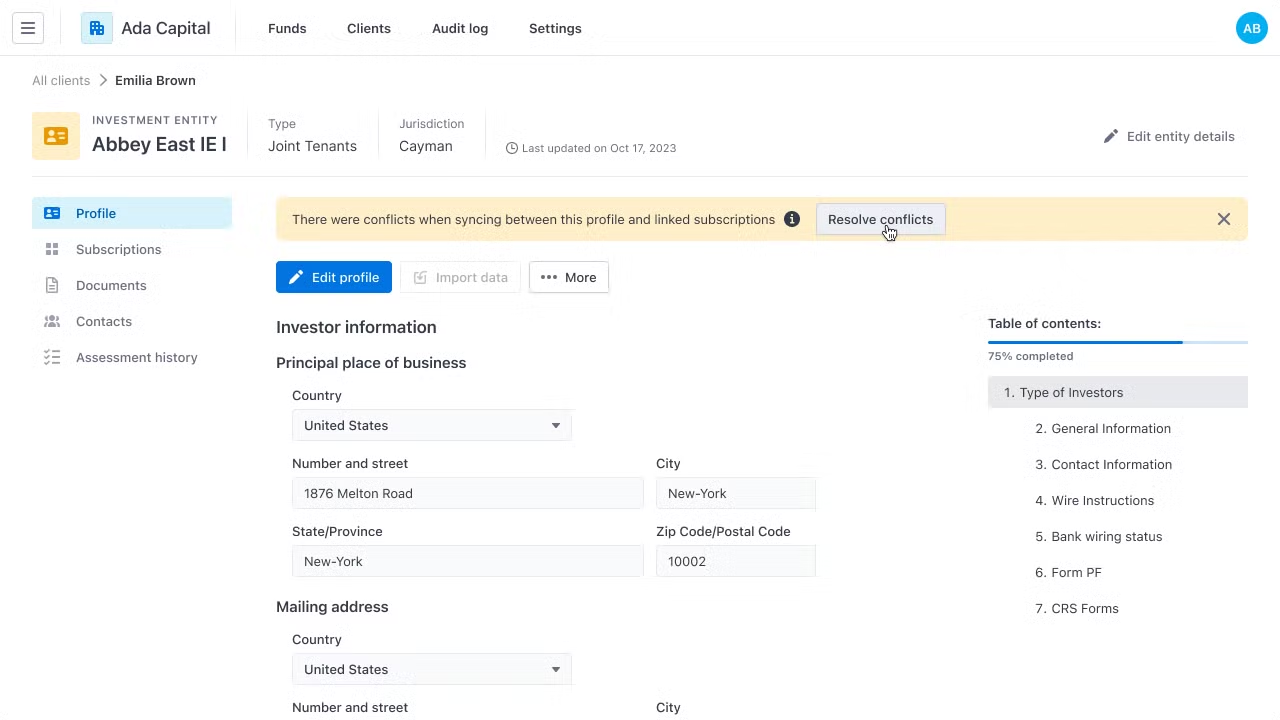
Step 2: In-app notification/signal
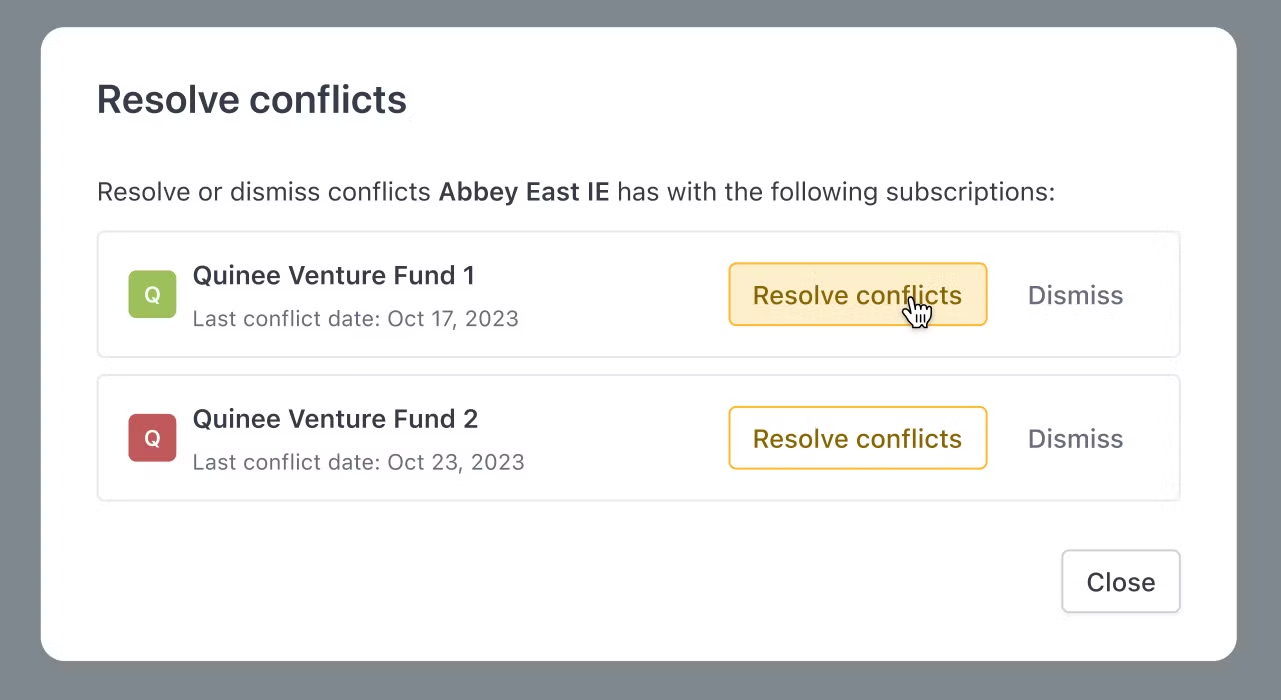
Notifications of pending data conflicts for review on both the Client dashboard and the Investment Entity page.
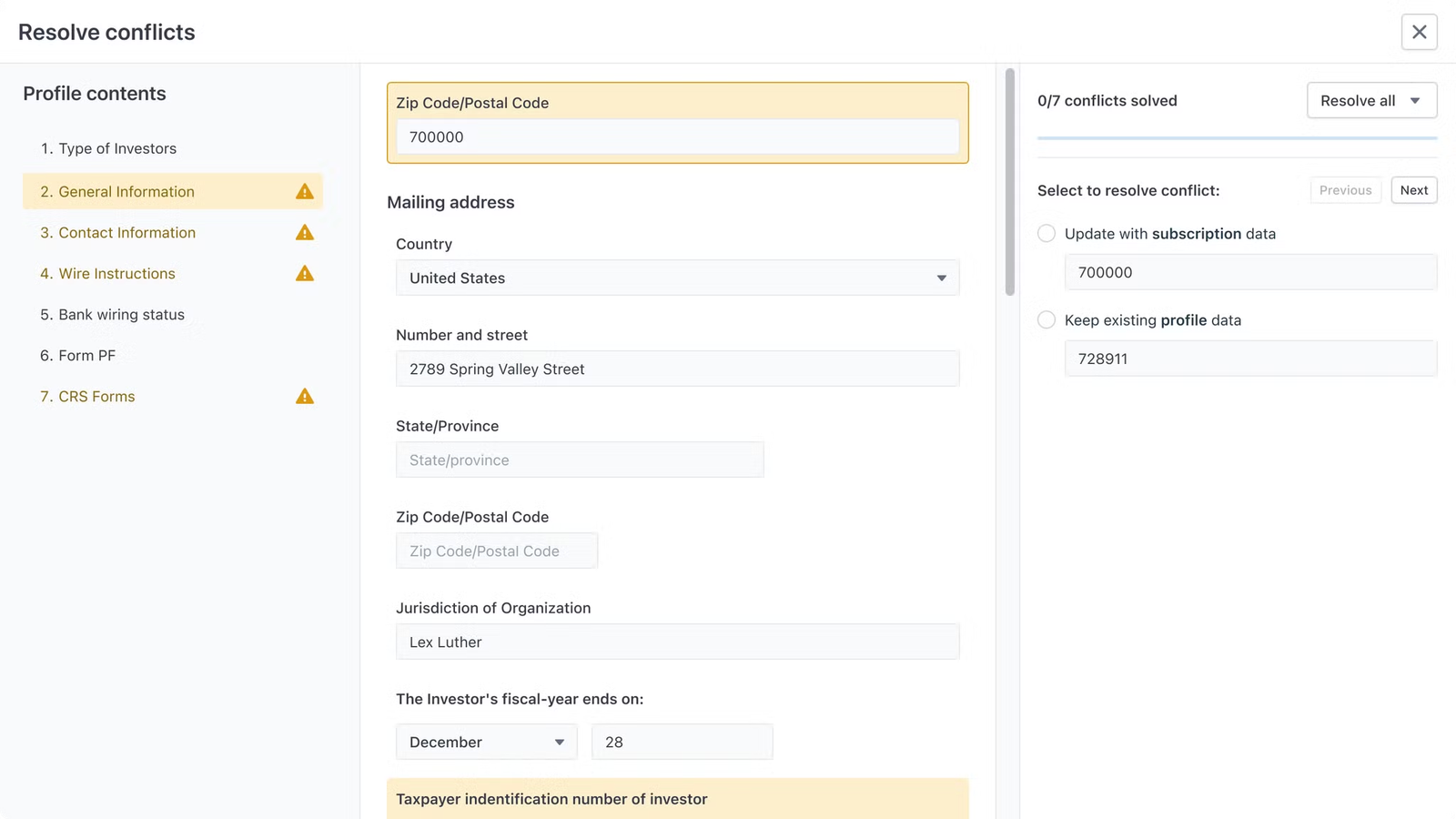
Step 3: Conflicts resolve modal
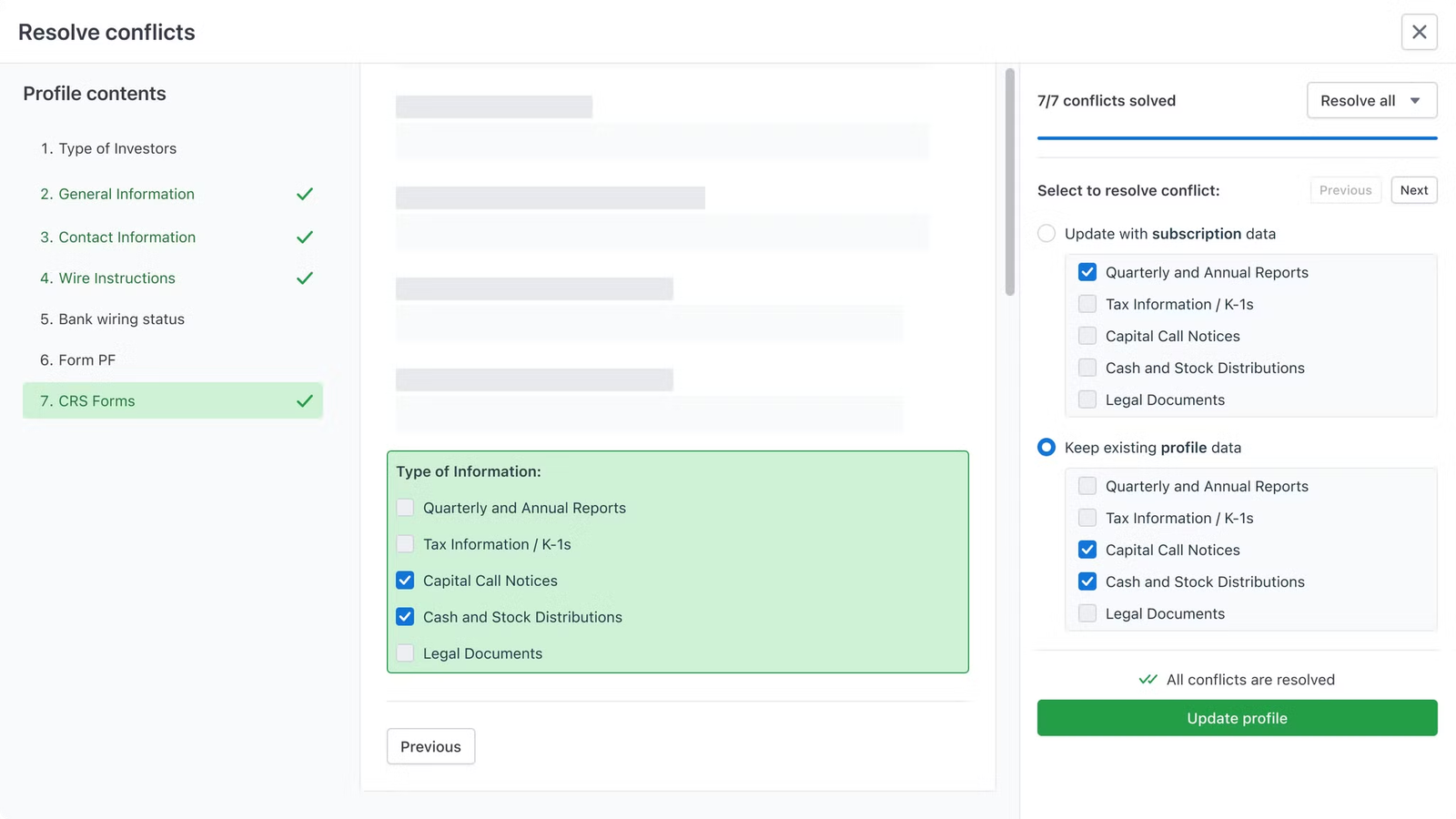
You will be prompted to resolve conflicts for one Investment Entity at a time. Differences will be highlighted to facilitate resolution. You can opt to retain the current IDM data or replace it with subscription data for each data point individually or in batch.
Once all conflicts have been settled, click Update profile to finish.
Profile is linked to more than one subscription
You will be asked to resolve the differences between the IDM data and each subscription sequentially. Alternatively, you can choose to dismiss the conflict alerts and keep IDM data unchanged.