

Set up the communication matrix for a fund
Set up the communication matrix for a new fund in one go, find investments with missing contacts, and edit one or many investments.
The fund's Communication matrix tab shows every investment in a fund legal entity with its contacts. Use it when you manage contacts fund by fund: set up the matrix for a new fund in one go, then keep it complete as investors change.
Where to find it: Funds → select a fund legal entity → Communication matrix tab.
To learn what each column means, see Set up the communication matrix: overview.
Before you start: the tab lists the fund's investments. If the fund has no investments yet, you'll see There are no investments. Click Go to investments to add an investment, or start with a transaction and IDM creates the investment for you.
1 · Set up the matrix for a new fund
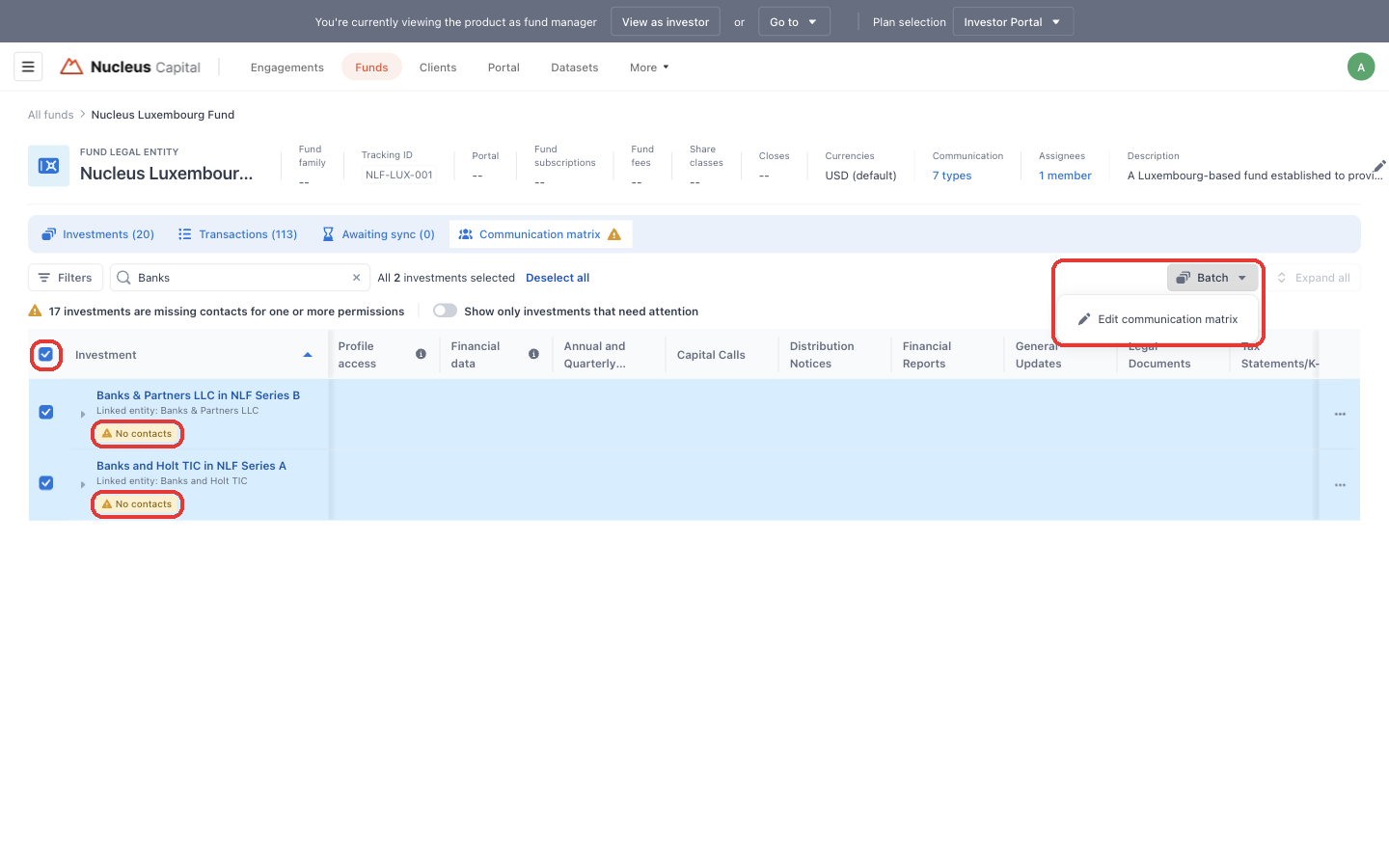
When investments are first added to a fund, they usually have no contacts yet. Each one shows a No contacts badge.
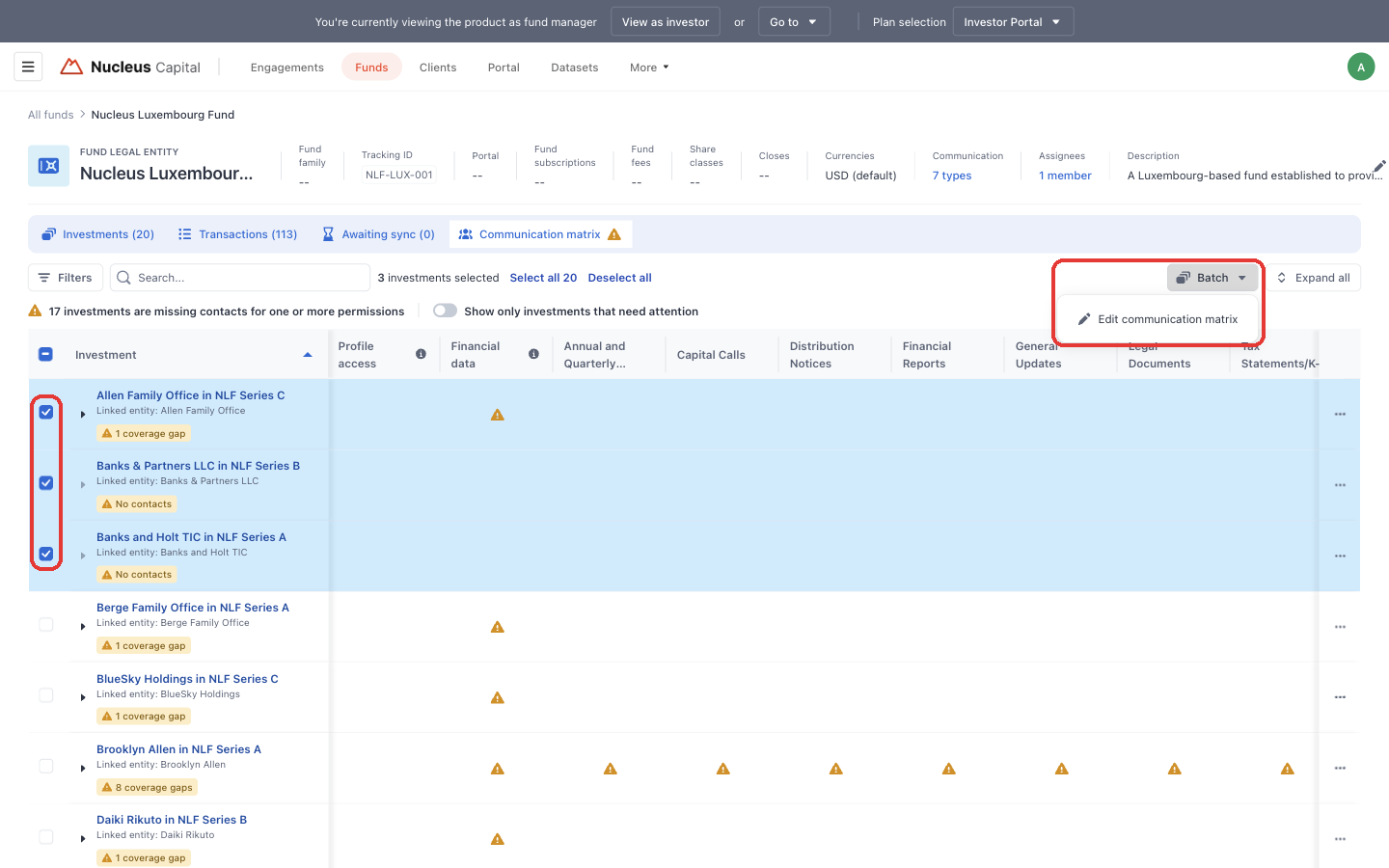
- Select the investments with the checkboxes. To select every investment, tick the box in the header or click Select all.
- Click Batch → Edit communication matrix.
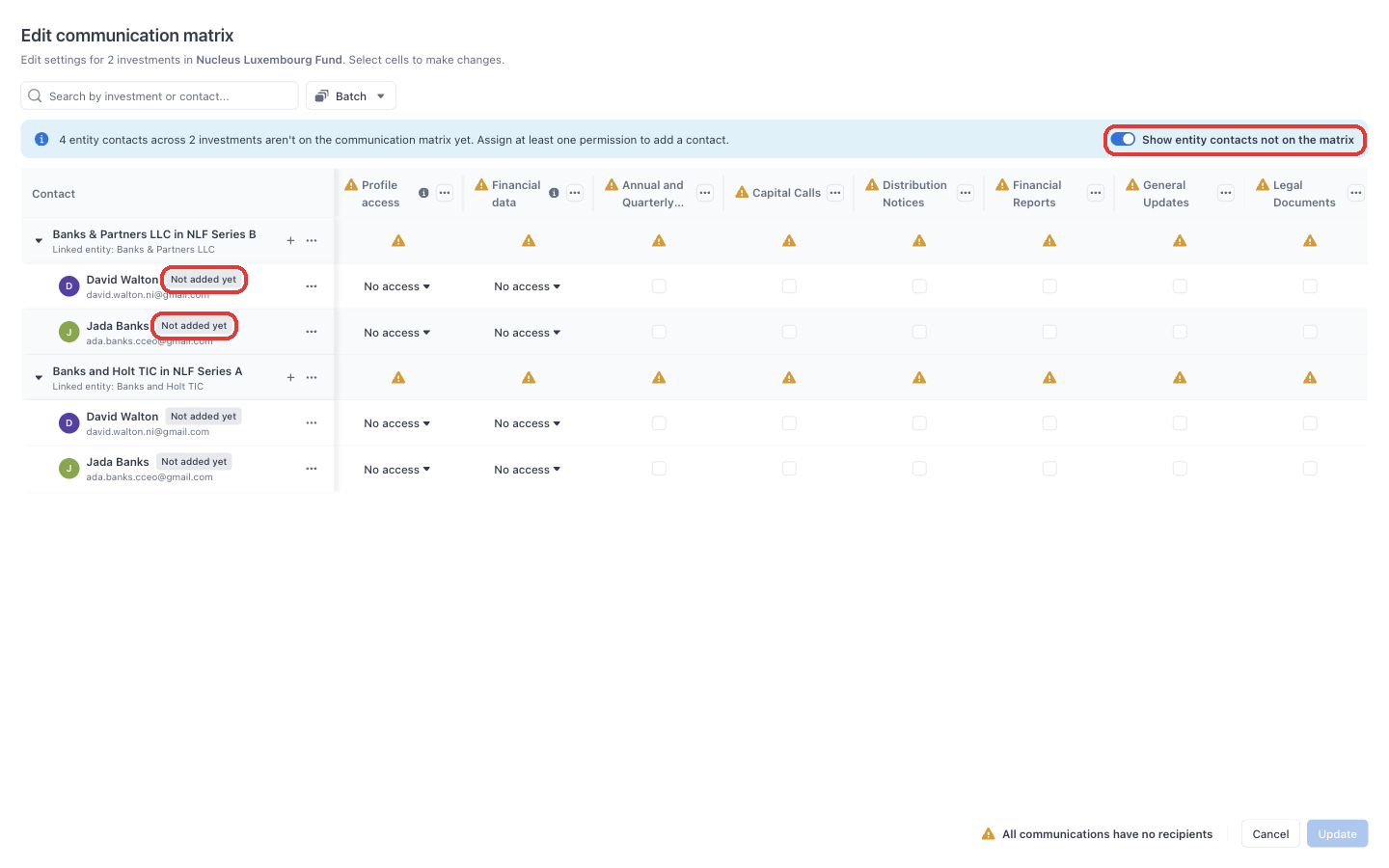
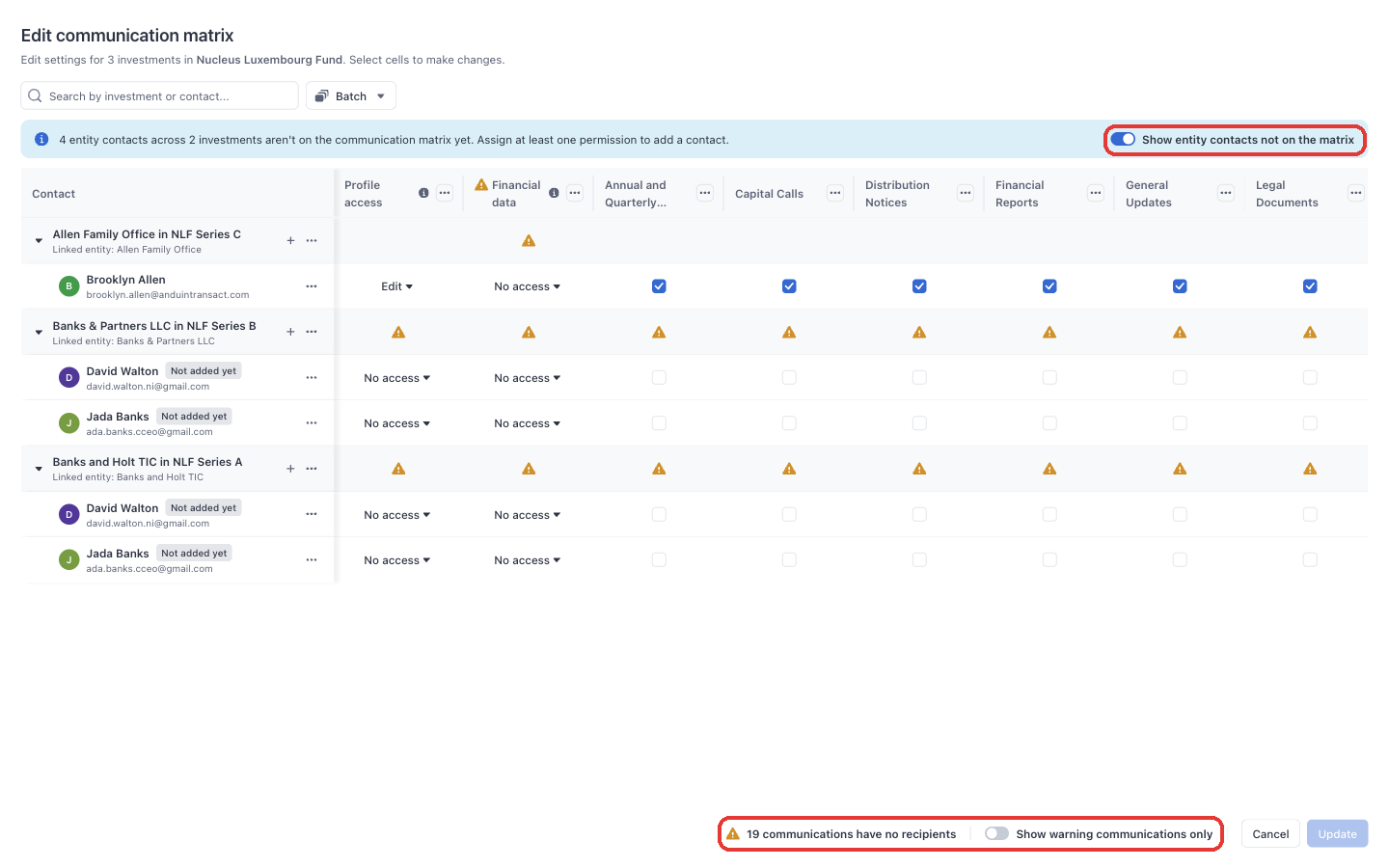
- Keep Show entity contacts not on the matrix turned on. Contacts linked to each investment entity appear under its investments, marked Not added yet.
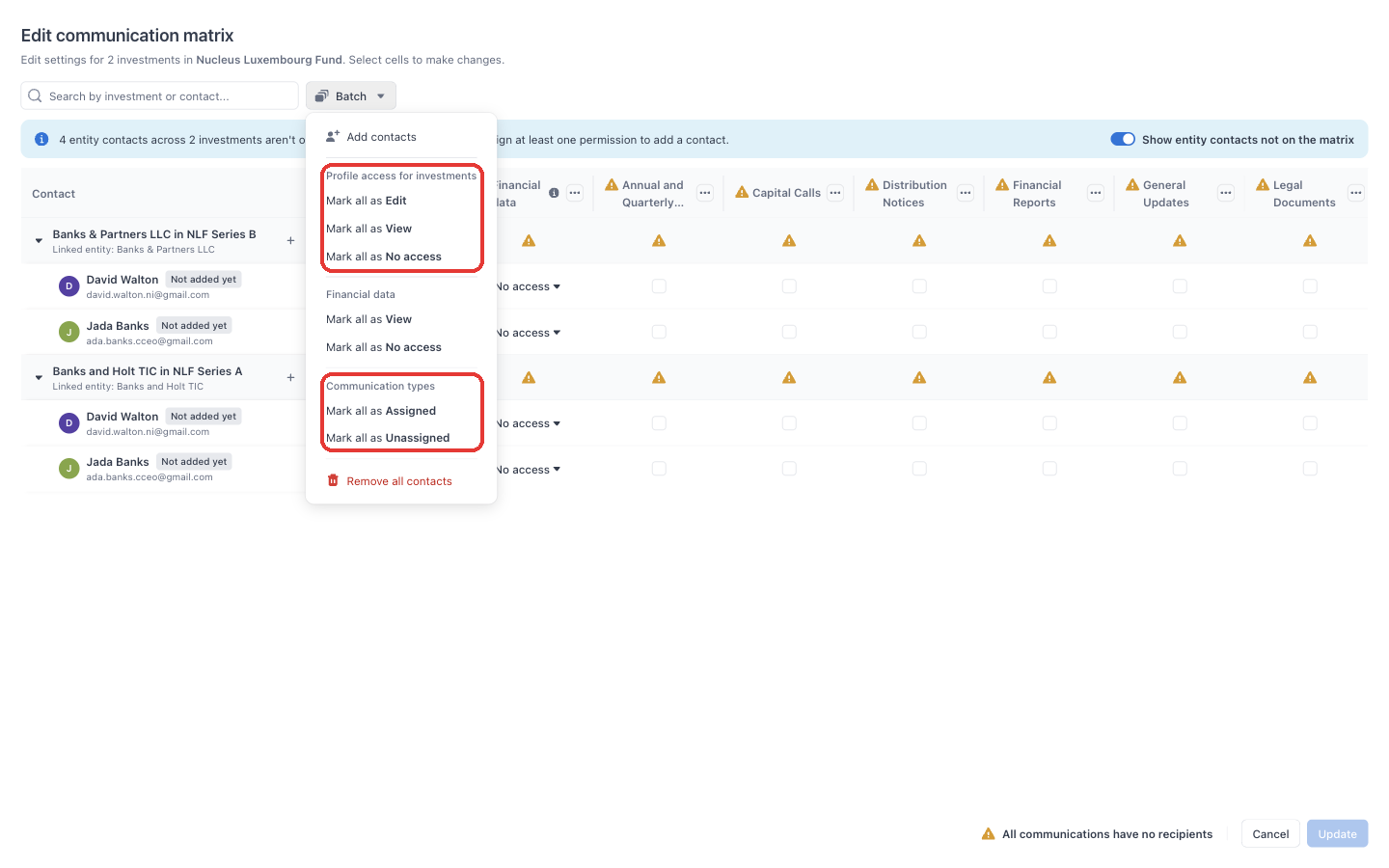
- Give the contacts their permissions. Click a cell to change one value, or open Batch to set a whole column at once:
| Batch option | What it does |
|---|---|
| Add contacts | Adds other contacts to the selected investments |
| Profile access for investments → Mark all as Edit / View / No access | Sets profile access for every contact |
| Financial data → Mark all as View / No access | Sets financial data access for every contact |
| Communication types → Mark all as Assigned / Unassigned | Turns every communication type on or off |
| Remove all contacts | Clears the matrix of the selected investments |
You can also use the ⋯ menu on a column header to change just that column.
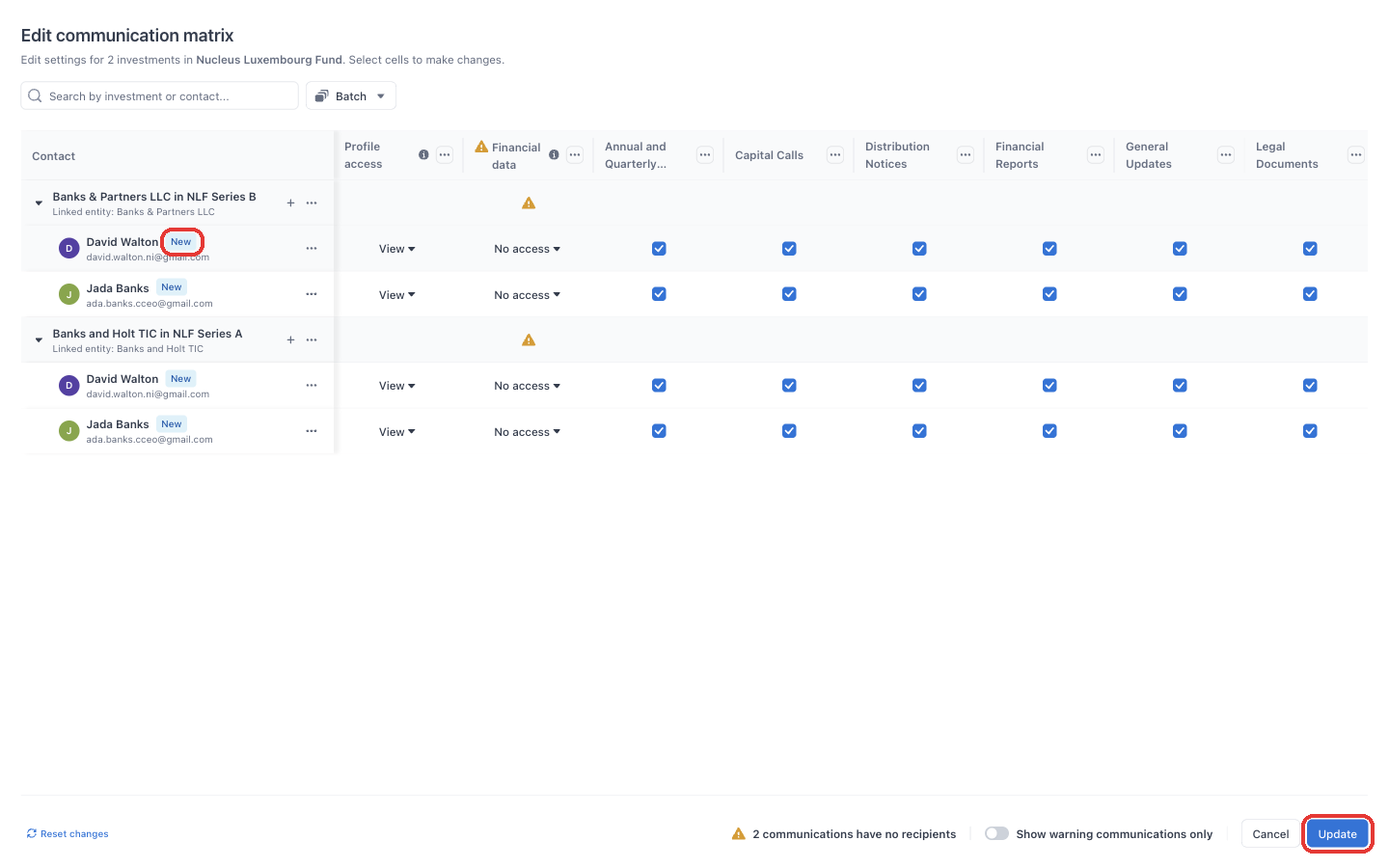
- Check the result. Contacts you gave at least one permission now show as New. A contact you leave without any permission isn't added. The footer shows how many communications still have no recipients; turn on Show warning communications only to focus on them.
- Click Update.
2 · Find gaps as investors change
A warning on the Communication matrix tab means at least one investment has a gap. The banner shows how many investments are missing contacts for one or more permissions.
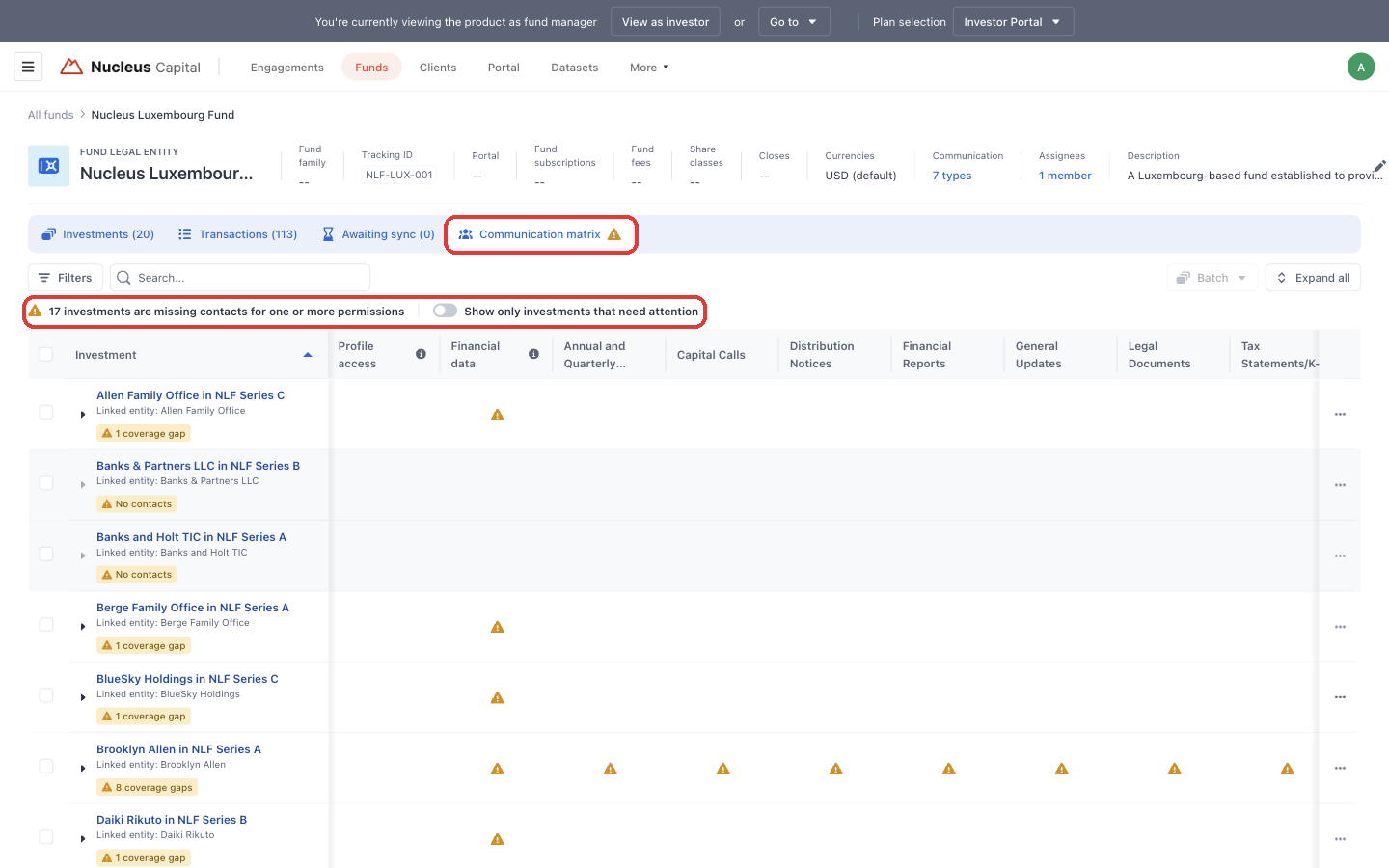
| Warning | What it means |
|---|---|
| No contacts badge | The investment has no contacts on its matrix |
| N coverage gaps badge | That many permissions or communication types have no contact |
| Warning icon in a column | No contact on this investment has that permission or communication type |
- Turn on Show only investments that need attention to hide investments without gaps.
- Click Expand all to see each investment's contacts.
- Use Filters and Search to narrow the list, for example by client, investment entity or status.
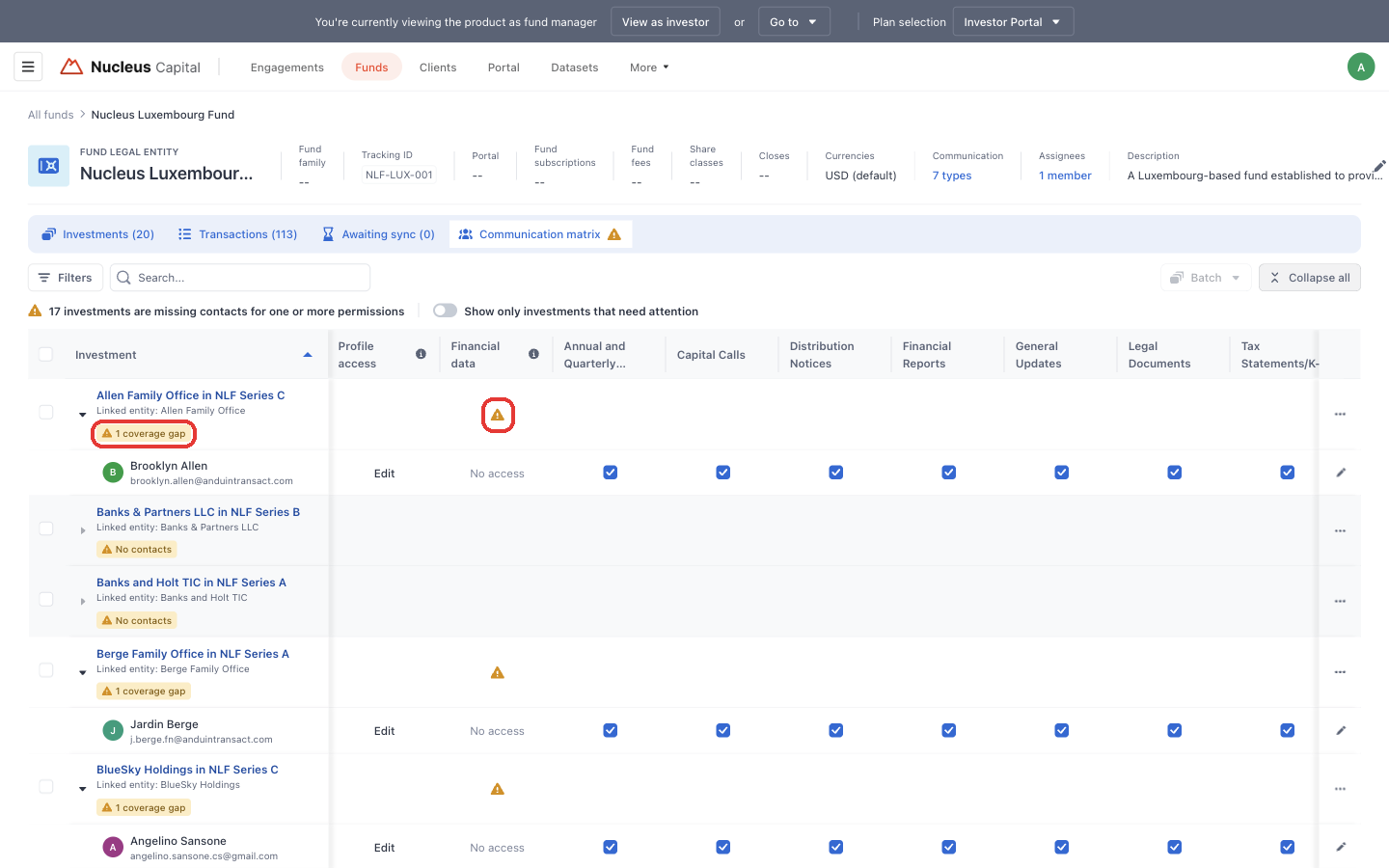
To fix gaps across several investments at once, see section 4.
3 · Edit one investment
From the fund's Communication matrix tab:
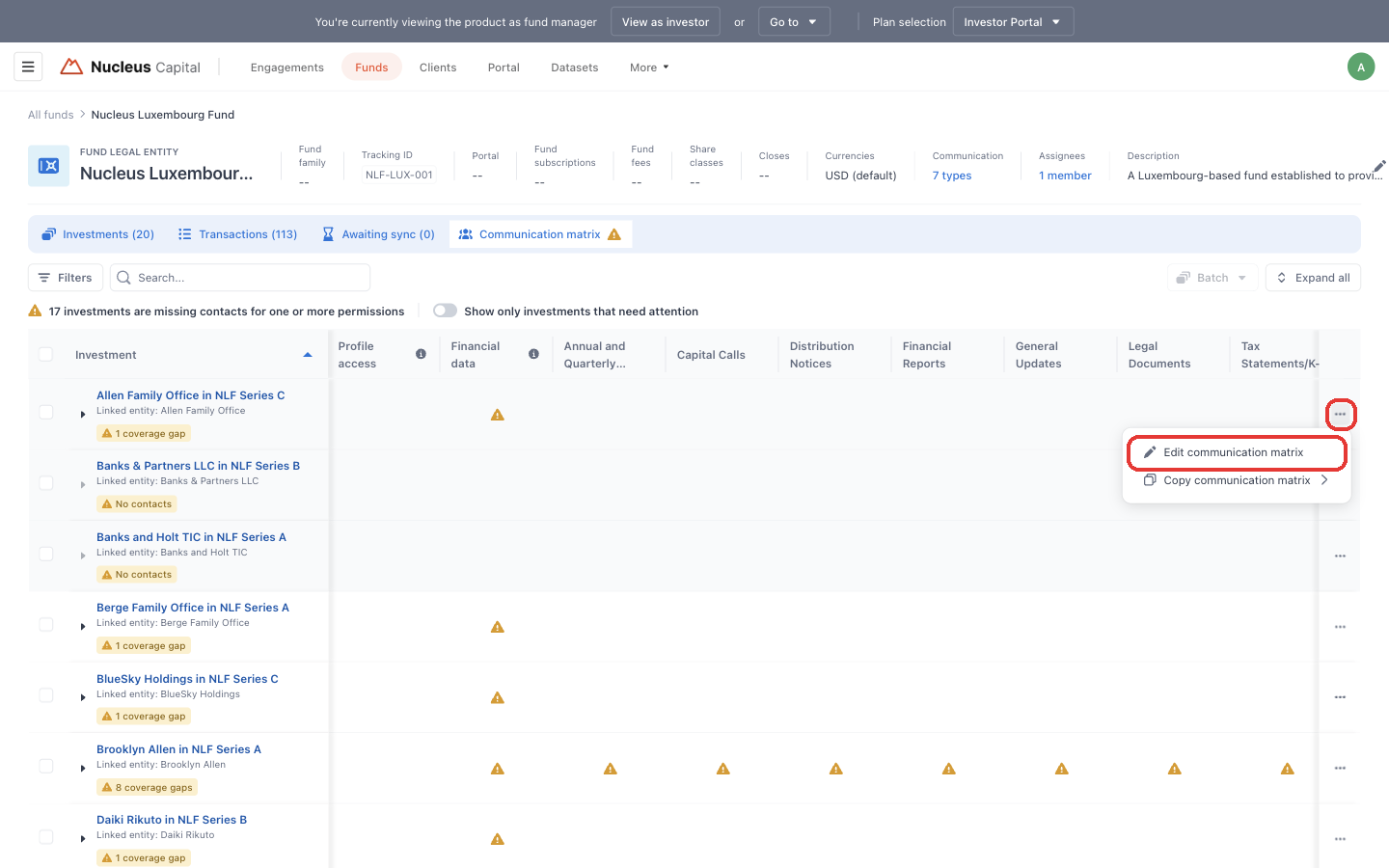
- Open the ⋯ menu on an investment row and choose Edit communication matrix.
- Or expand the investment and click the pencil on a contact row to edit it with that contact already selected.
To see one investment on its own, click its name and open its Communication matrix tab. From there you can:
- Turn on Show warning permissions only to focus on permissions that no contact covers.
- Click Edit communication matrix to change its contacts and permissions.
- Click Copy communication matrix to reuse another investment's matrix, or copy this one to others.
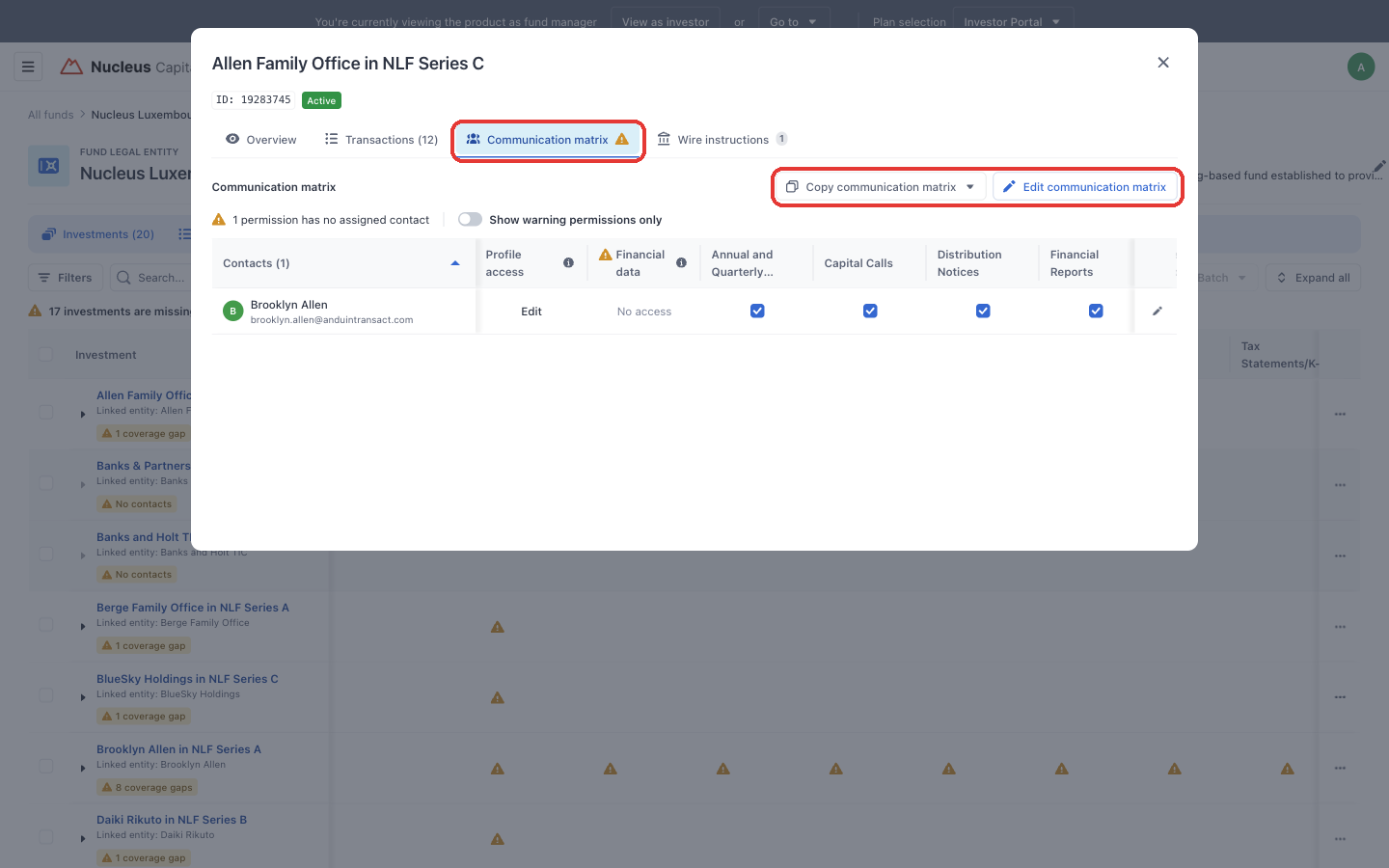
Click a cell to change it, then click Update.
4 · Edit several investments at once
Use this when investments already have contacts and you want to change them together, for example to fix the same gap across a fund.
- Select the investments with the checkboxes, or click Select all.
- Click Batch → Edit communication matrix.
- The editor shows each selected investment with its current contacts. With Show entity contacts not on the matrix turned on, contacts linked to the investment entity but not yet on the investment's matrix appear as Not added yet. Give them at least one permission to add them.
- Click a cell to change it, or use Batch and the column ⋯ menus to change many cells at once.
- Use + on an investment row to add other contacts to that investment.
- Turn on Show warning communications only to focus on communication types with no recipients. The footer shows how many communications have no recipients.
- Click Update.
If some rows or columns are empty, IDM asks you to confirm first:
| Message | What happens if you continue |
|---|---|
| Update with empty rows? | Contacts with empty rows are removed from that investment's matrix |
| Update with empty columns? | Nobody on that investment receives those communication types |
Removing a contact here removes it from the investment's matrix only. The contact stays linked to the investment entity.
5 · Reuse a matrix
If several investments should have the same contacts, set up one and copy it to the others: open the ⋯ menu on an investment row and choose Copy communication matrix. See Copy a communication matrix between investments.
6 · Good to know
- The list includes all investments, whatever their status. Use the Status filter to narrow it.
Who sees what: to check what a contact sees, go to Contacts → ⋯ → View Portal as contact.