

Set up the communication matrix from an investment entity
Add contacts to an investment entity, choose their investments and set up their communication matrix.
Set up the communication matrix from an investment entity when you want to manage everyone who acts for that entity, across all its investments. Start by adding the contacts, then set up what each one receives.
Where to find it: Clients → Entities → select an investment entity → Contacts → Communication matrix.
To learn what each column means, see Set up the communication matrix: overview.
1 · Add contacts to the entity
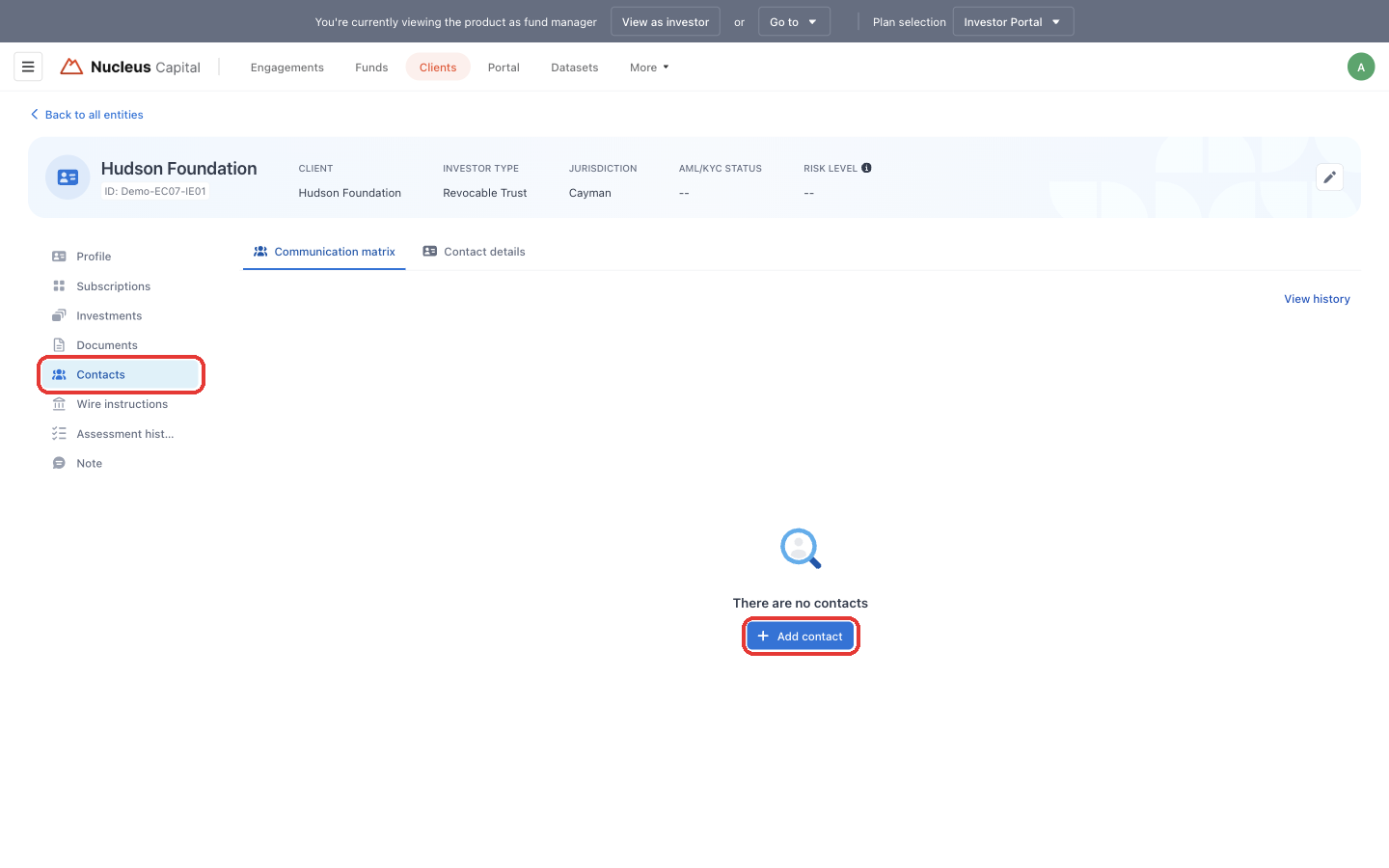
- Open the investment entity and select Contacts in the left menu.
- If no contacts are linked yet, you'll see There are no contacts. Click Add contact.
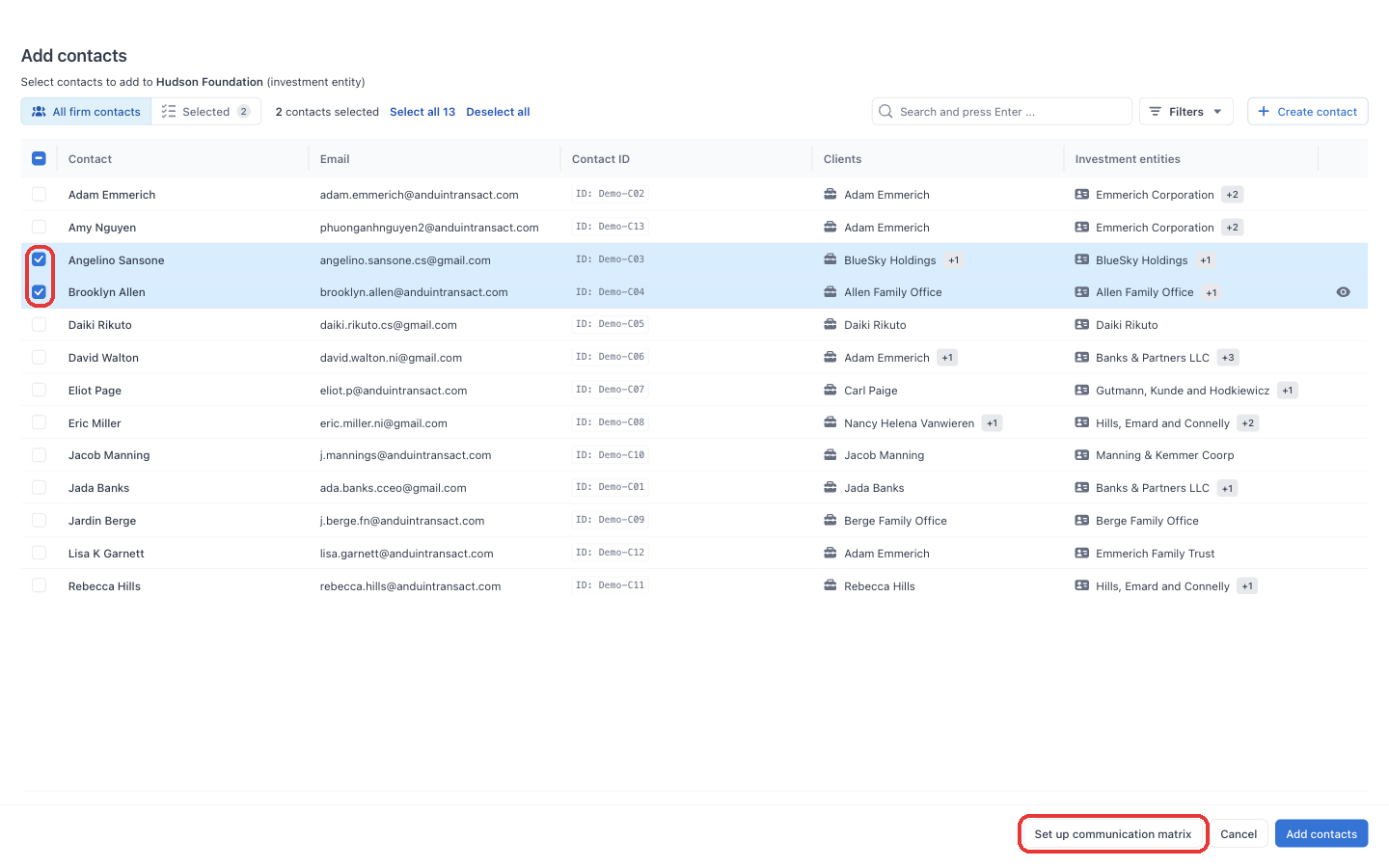
- Select the contacts to add. Search or use Filters to find them, or click Create contact to add someone new.
- Click Set up communication matrix to set their permissions now. To add them without permissions, click Add contacts instead and set up the matrix later.
2 · Choose the investments for each contact
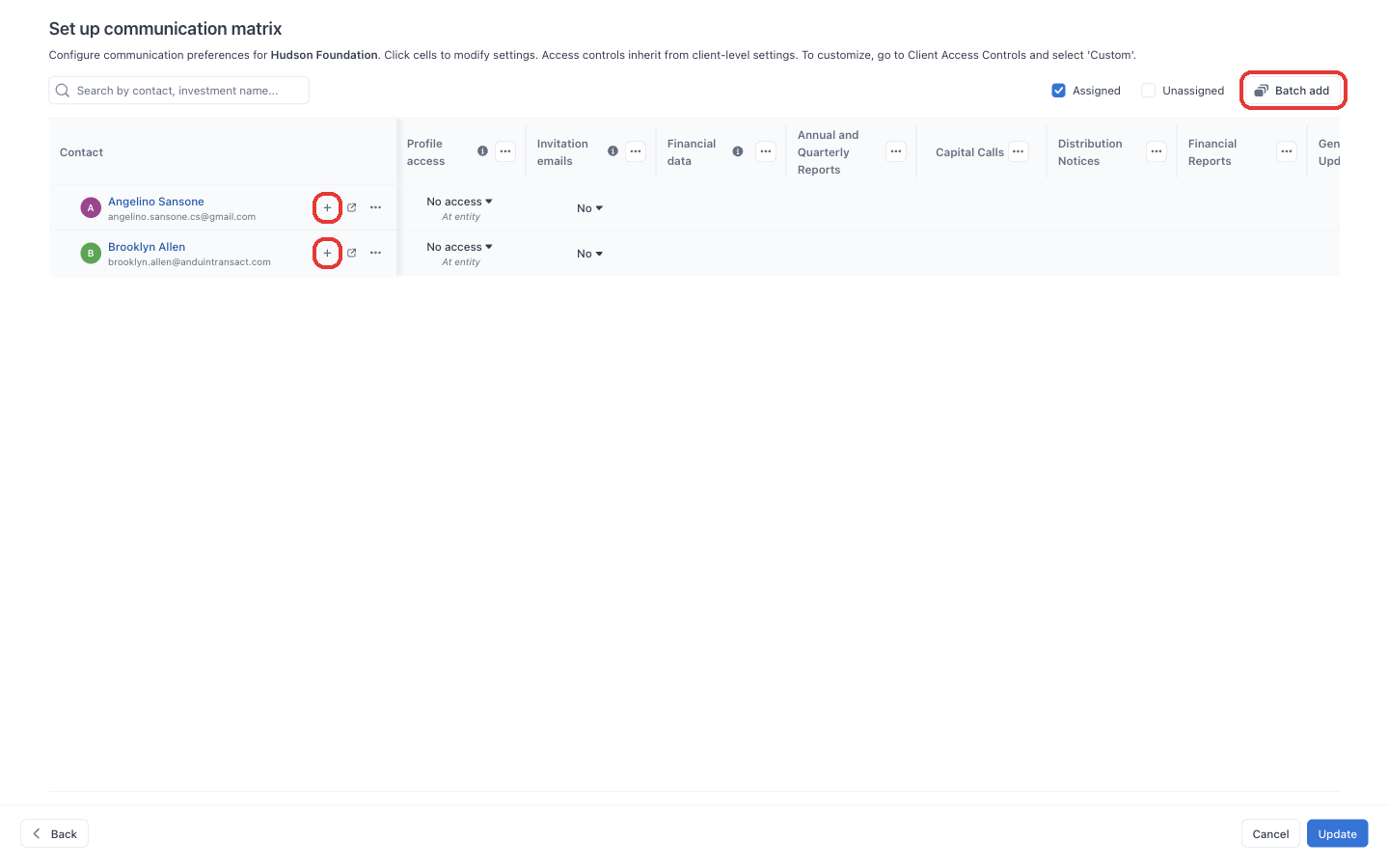
The new contacts appear with entity-level settings only: Profile access and Invitation emails. Add the entity's investments to give them investment-level permissions.
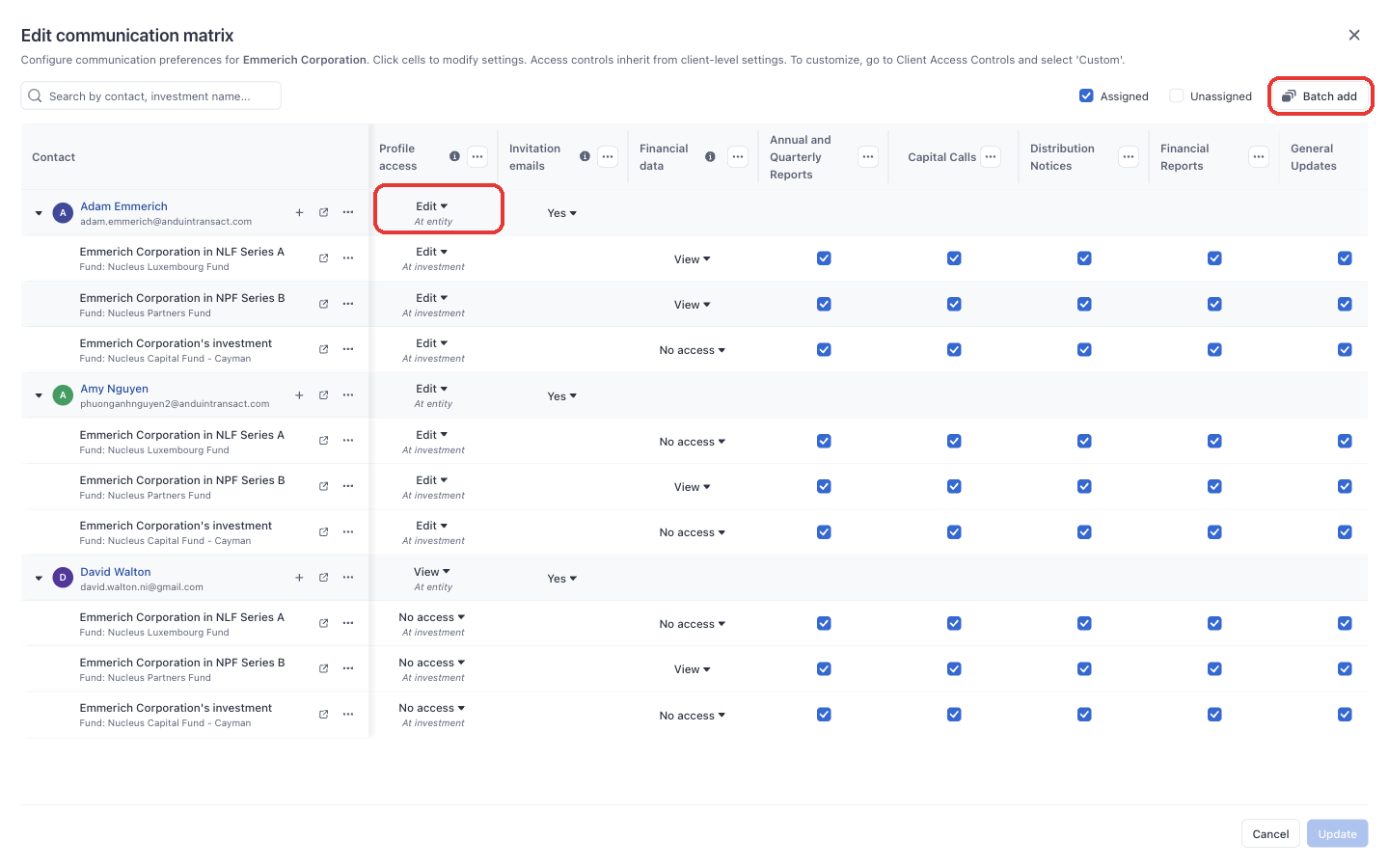
- Click + on a contact row to choose investments for that contact.
- Or click Batch add to add the same investments to every contact.
In the dialog, select the fund legal entities and investments, or click Select all, then click Add.
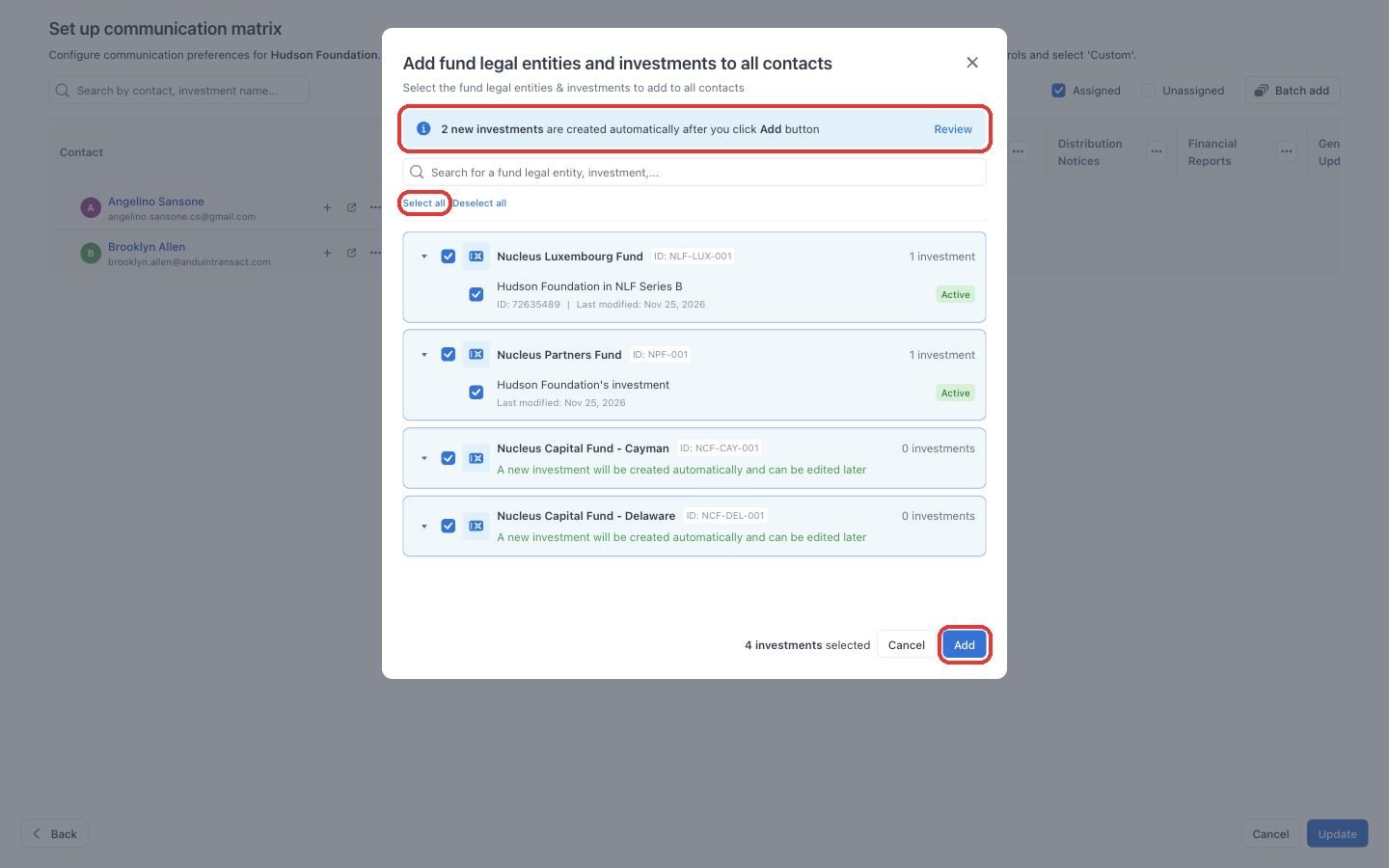
Note: if you select a fund where the entity has no investment yet, IDM creates the investment automatically when you click Add. Click Review to check the new investments; you can edit them later.
3 · Set up the matrix
- Click a cell to change it:
| Cell | Options |
|---|---|
| Profile access | No access, View or Edit, at entity level (At entity) or per investment (At investment) |
| Invitation emails (entity row) | Yes or No |
| Financial data (investment row) | View or No access |
| Communication types | Tick to turn on, untick to turn off |
- To set a whole column at once, open the ⋯ menu on its header. For example, Mark all as Edit / View / No access for profile access, or Mark all as Assigned / Unassigned for a communication type.
- Click Update.
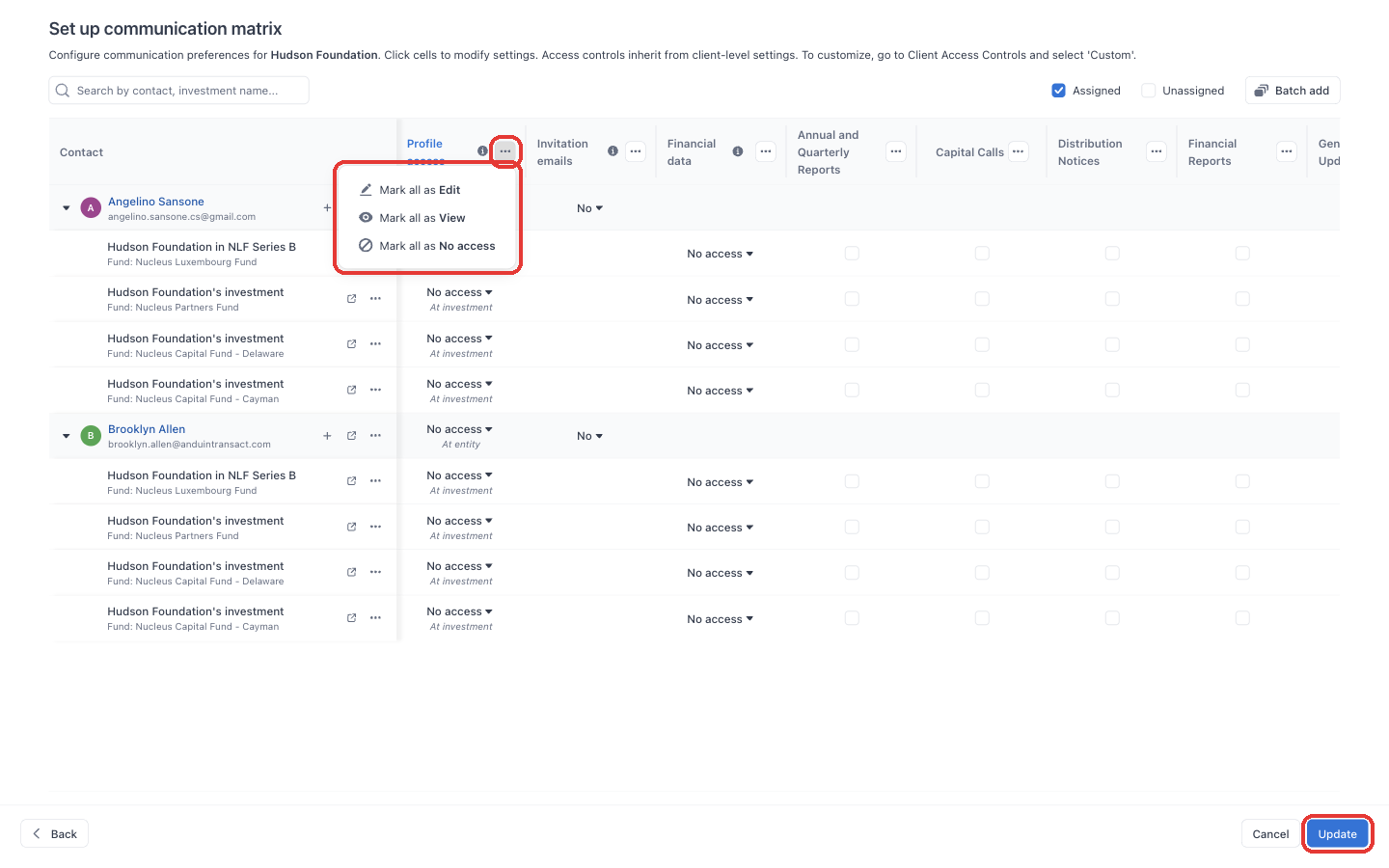
If some investments have no permissions set, IDM asks Update with empty rows? Those investments are removed from the contact's matrix.
4 · Review and update the matrix later
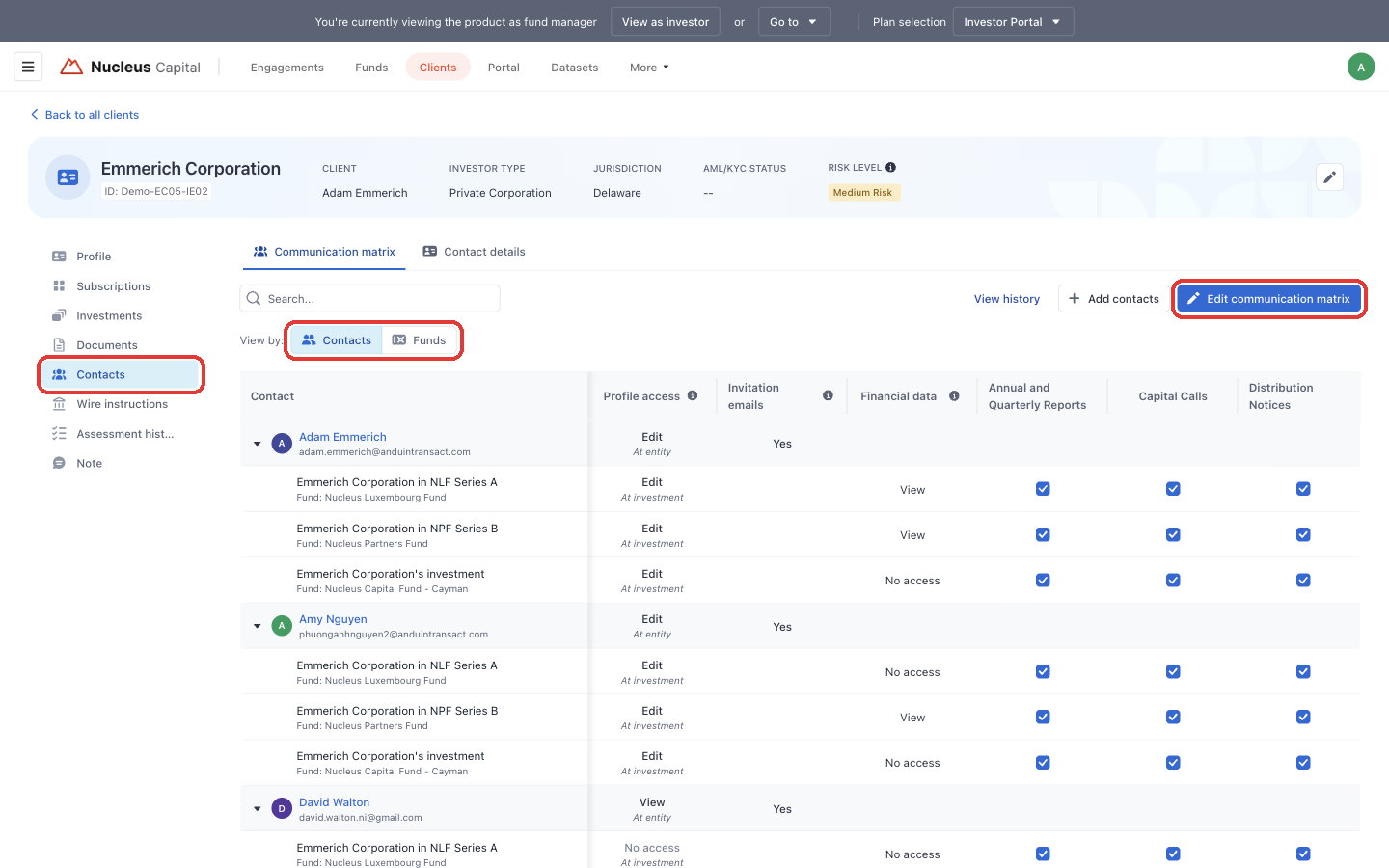
On the entity's Communication matrix tab:
- Choose View by: Contacts to see each contact and their investments, or Funds to see each fund's investments and their contacts.
- Click Add contacts to link more contacts, or View history to see past changes.
- Click Edit communication matrix to change permissions. Use + on a contact row or Batch add to add more investments.
5 · Good to know
- Access controls follow the client's settings. To set them per entity, set the client's access controls to Custom.
- A communication type that the investment's fund doesn't use shows as not applicable.
- To work on one investment across all its contacts, or on many investments in a fund, see Set up the communication matrix for a fund.
Who sees what: to check what a contact sees, go to Contacts → ⋯ → View Portal as contact.