

Configuring the Data Room
Data Rooms are highly customizable to your specific brand and needs! You have the ability to add a watermark to your documents, white label your Data Room
Update
Table of Contents
Data Rooms are highly customizable to your specific brand and needs! You have the ability to add a watermark to your documents, white label your Data Room branding, and choose how often notifications are sent out to investors in the Data Room.
Personalizing the Data Room
Settings
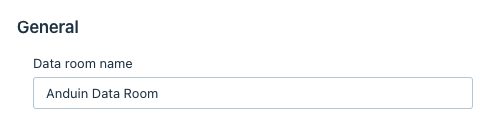
Within the Settings tab, you have the option to give your Data Room a unique name:
From the General side panel within Settings, turning on file/folder index will show an index column to all data room participants next to file/folder
Terms of Access can be easily uploaded here as well, just upload the file from your computer. You can edit who is required to fill out the TOA by clicking Manage Exceptions. You can also view who has agreed to the terms by clicking View Details
Watermarks can be added by enabling the Watermark toggle. This will add in a custom watermark to all viewed and downloaded documents. Simply add the Text, Color, Transparency, and Layout for how the watermark should appear.
Please note: Watermarks can be turned off for specific documents by clicking the Manage Exceptions option
Branding
Turning on Data Room Landing Page will enable the Home tab at the top of the screen
White Labeling allows for custom branding of the Home page. Turning this on and click customize to upload your logo and the color of the page
New Upload Notifications
From here choose how participants of the Data Room are notified of new uploads:
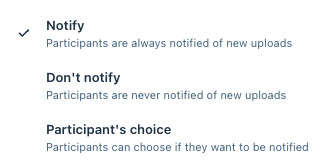
The frequency of these notifications is also customizable by choosing hourly, daily, or weekly