

How to Send Invites to Data Rooms
Once the Data Room environment is set up, admins can send out a custom invitation email to invite internal and external participants. Go to the Participant
Once the Data Room environment is set up, admins can send out a custom invitation email to invite internal and external participants.
- Go to the Participants tab at the top and click Invite.
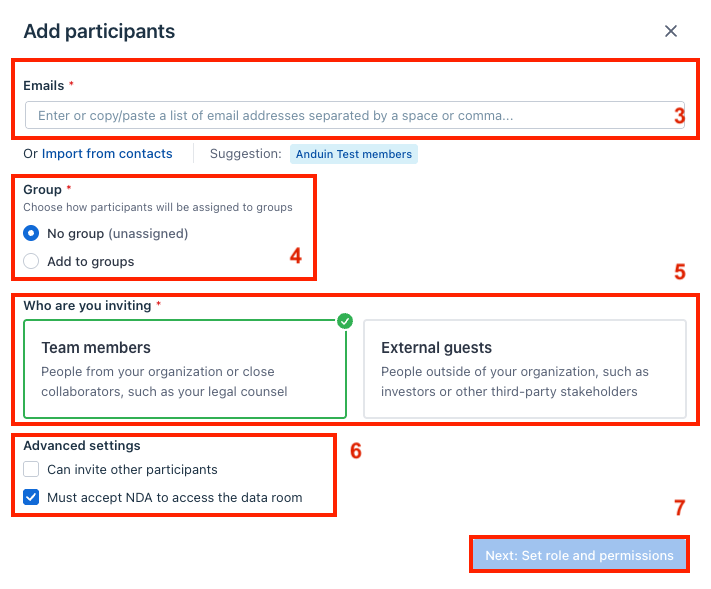
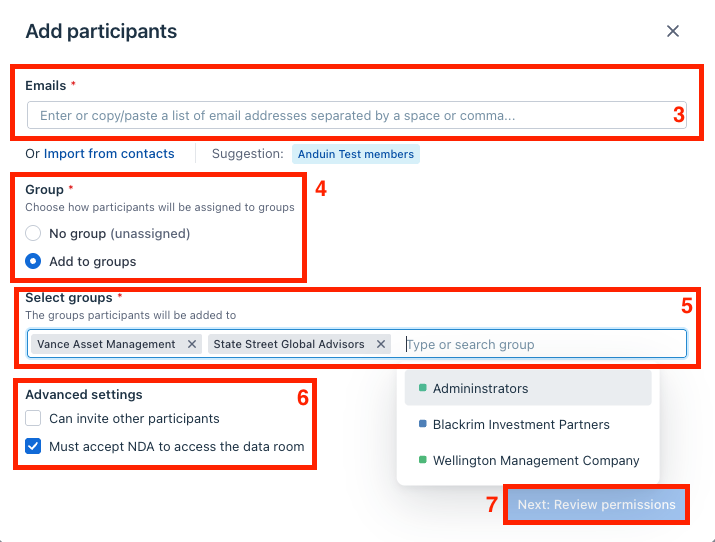
- When the below window pops up

– Enter or copy/paste the list of participants' email addresses separated by a space or comma – Select if you want to assign the participants to a group or no group If assigned to “no group”, select if the participants are Team Members or External guests If select “add to groups”, input the group name you want to assign the participants to. Multiple groups can be assigned – Set up the advanced settings
Then, click Next: Set role & permissions to proceed to the next step.
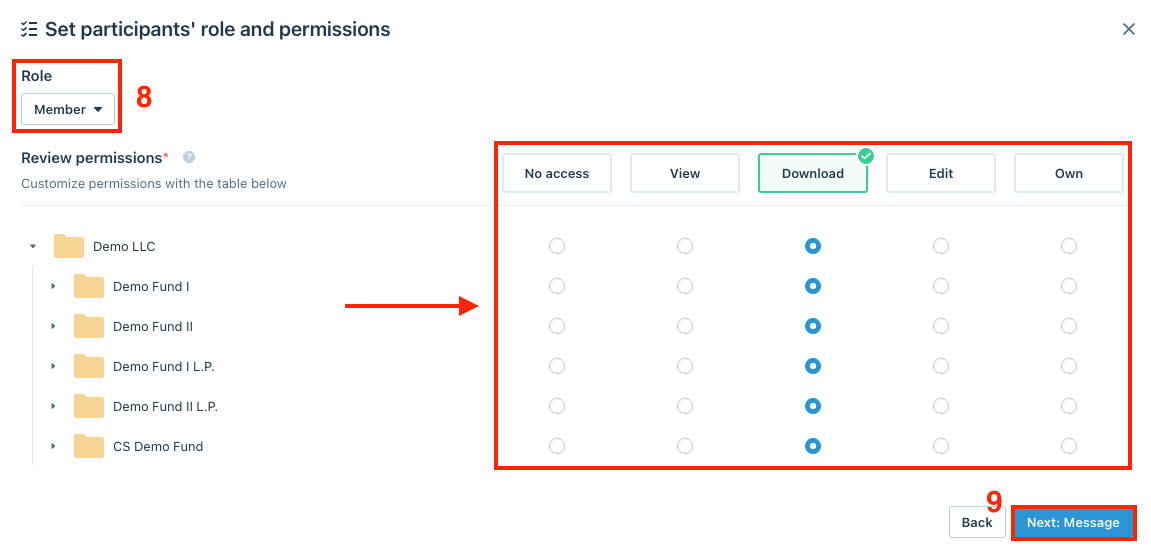
- This step depends on the admins' selection of “no group” in the previous step. Admins set the participants' role and permissions, then click Next: Message.
– If the participants are Team members, they can be set as either Admin or Member Admin: Full control over the data room. Own all files and folders. 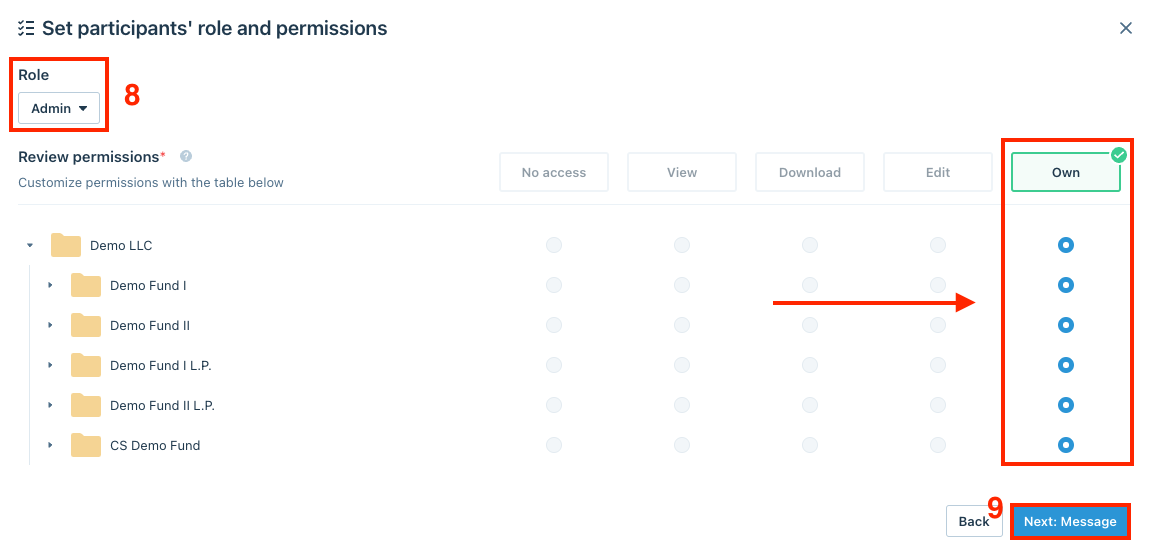
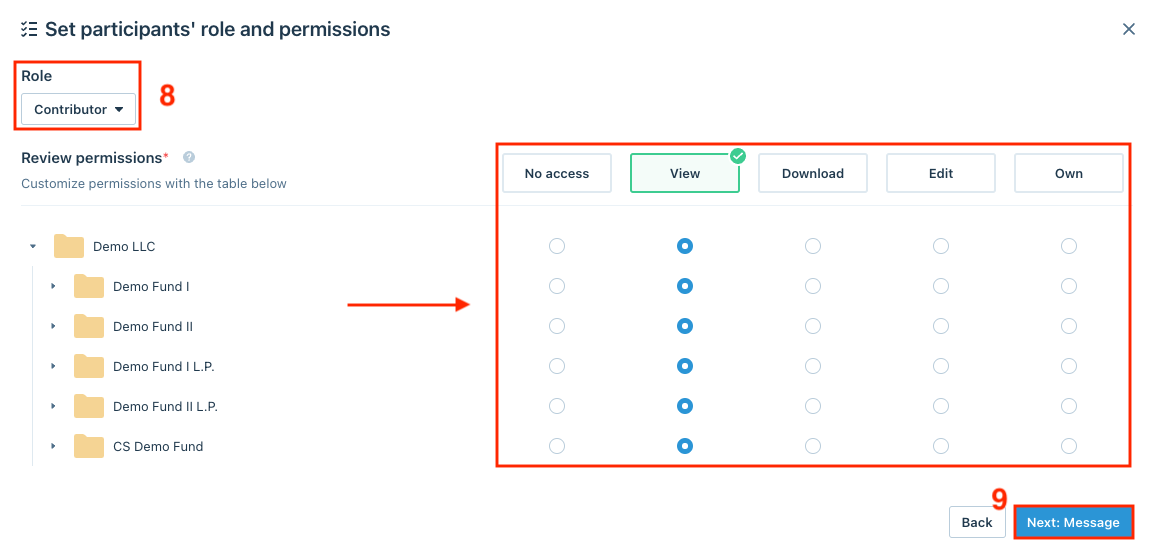
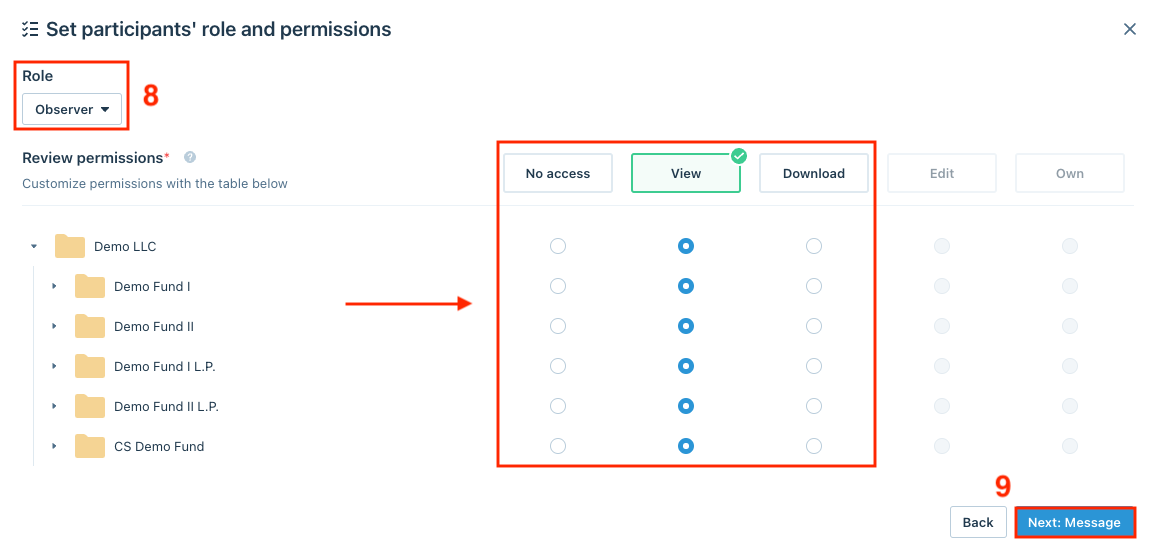
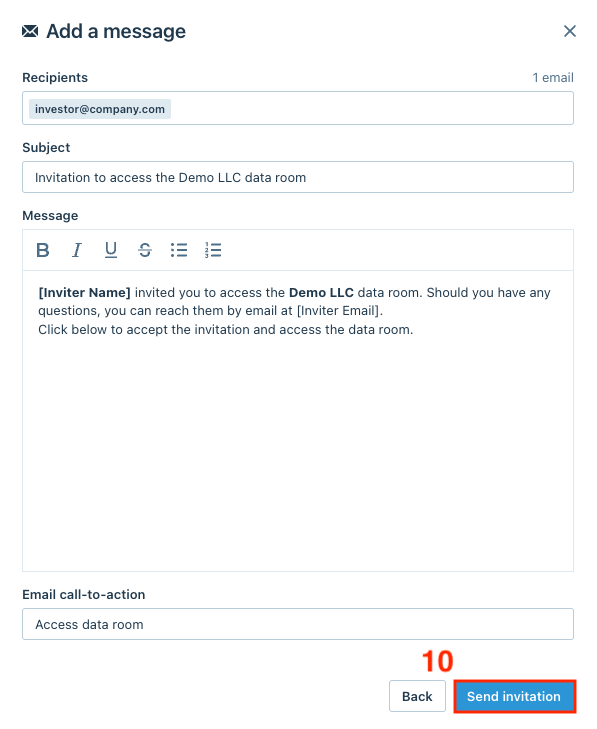
- From here, admins can customize the Email Subject, Message, and Call-to-Action button before sending out the invitation email.
Note
By default, invitations from the Data Room platform come from "Anduin Transactions" and <dataroom@anduin.app>. If you would like this to be customized, let us know! We can customize the email sender name to "{email name}" and the first part of the email address <{name}@anduin.app>