

Create custom invitation link
Public
personalizedurl
Data Room Admins can create a unique custom link to send out to potential Investors. 1. Click the Participants tab in the top Nav Bar: 2. Click the C
Data Room Admins can create a unique custom link to send out to potential Investors.
- Click the Participants tab in the top Nav Bar:

- Click the Create invitation link button:
- Enter a Custom Name for the link:

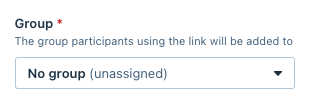
- Choose which Group(s) you would like anyone using the link to be assigned. You can select multiple groups. Participants will automatically have the groups' permissions.
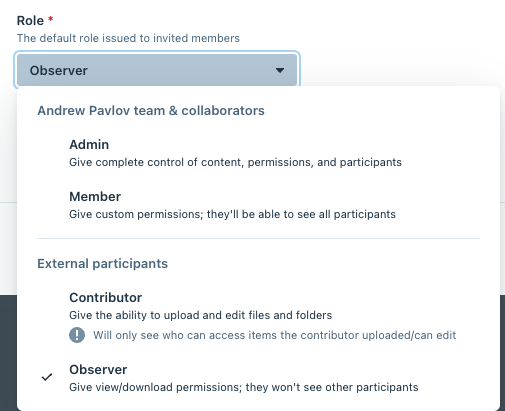
- If no group is selected in the previous step, select the Role that the users will be automatically assigned
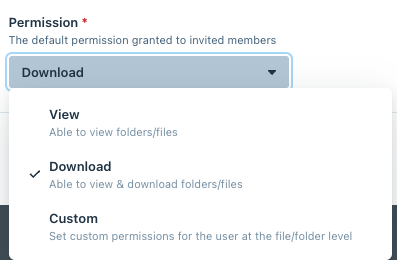
- And choose which Permission set they should have:
- Click Next
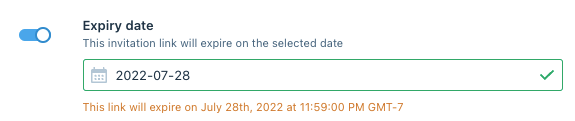
- If you would like an expiration date for the link, toggle on Expiry Link and choose a date from the calendar:
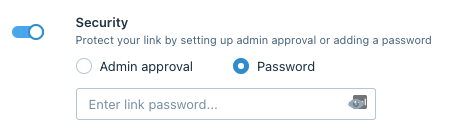
- If you would like to set a password or have invitees be approved before access to the Data Room from anyone using this link, turn on the Security toggle.
- If you would like users to accept the Terms of Access before entering the Data Room turn on Terms of Access:

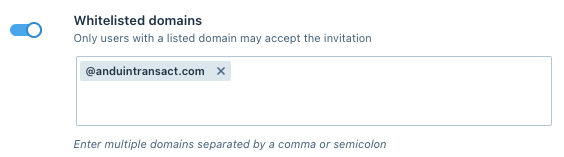
- If you would like to limit which email domains can access your Data Room, turn on Whitelist domains and enter in the domain(s):
- Click Create
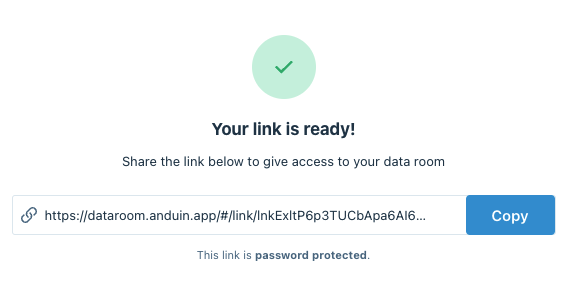
You can now use your custom link! Click the Copy button and paste it into any messages to Investors
Was this page helpful?