

White Label Data Room
Public
information roomprivate label
Data Room Managers have the ability to White Label the Data Room and add in custom logos White Labeling Your Data Room 1. In your Data Room, click the
Data Room Managers have the ability to White Label the Data Room and add in custom logos
White Labeling Your Data Room
- In your Data Room, click the Settings tab in the top Nav Bar:

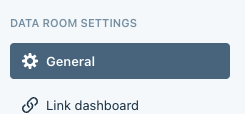
- In the left Nav Bar, click General:
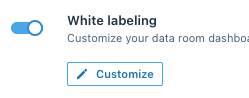
- Under the Branding section, toggle on White Labeling:

- Click the Customize button:
Data Room Branding
From here, you can update the:
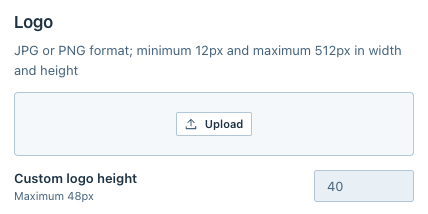
- Logo by uploading your custom image:
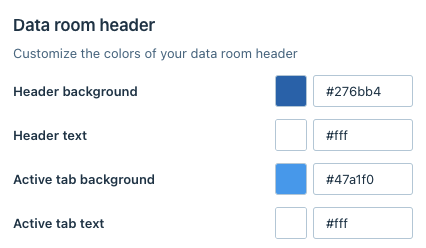
- Data Room Header:
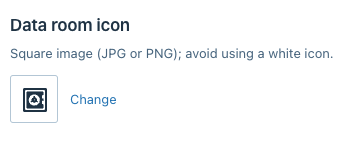
- Data Room Icon:
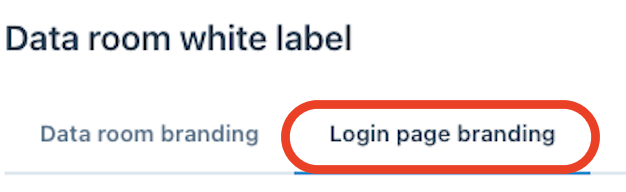
Login Page Branding
You also have the ability to update the Login Page branding from here:
Toggle On Enable Login Page Branding:

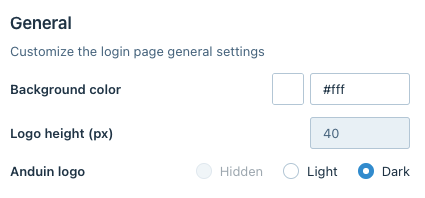
From here, you are able to adjust the Login Page colors and themes:
Was this page helpful?