

Customizing Data Room Homepage
Designed to simplify the process, our Data Room Homepage empowers users to effortlessly set up a marketing website in under 10 minutes. Below, explore th
Designed to simplify the process, our Data Room Homepage empowers users to effortlessly set up a marketing website in under 10 minutes. Below, explore the array of sections available for white-labeling on your Data Room homepage.
Getting started
You will need to enable data room landing page switch in the Setting tab
Setting tab
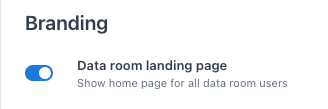
Data room landing page branding enabled
Once the data room landing page is enabled, you will see Home tab and a banner that grant you access to edit the homepage
Homepage Edit
To start editing the homepage. you will select the “edit” button

Header Section
- You can enable or disable to “show header” section
- You can customize text color, if text background is enabled, header color or header image
- You can opt to display buttons and customize its colors, labels, and the destination link/email. This button is separated from the footer’s button.

Default homepage header
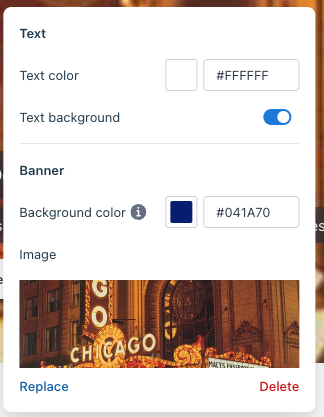
Customize modal for homepage header
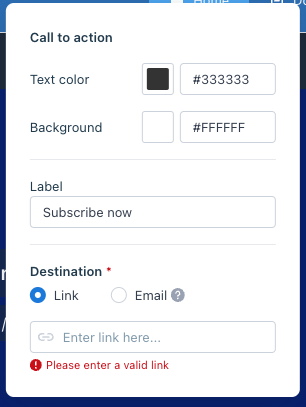
Customize modal for header's button
Introduction Section
- You can enable or disable to “show introduction” section
- You will be able to edit the title and the body content of the section
- You can upload a video or an image with a maximum size of 1GB to the section
– You can enable video autoplay
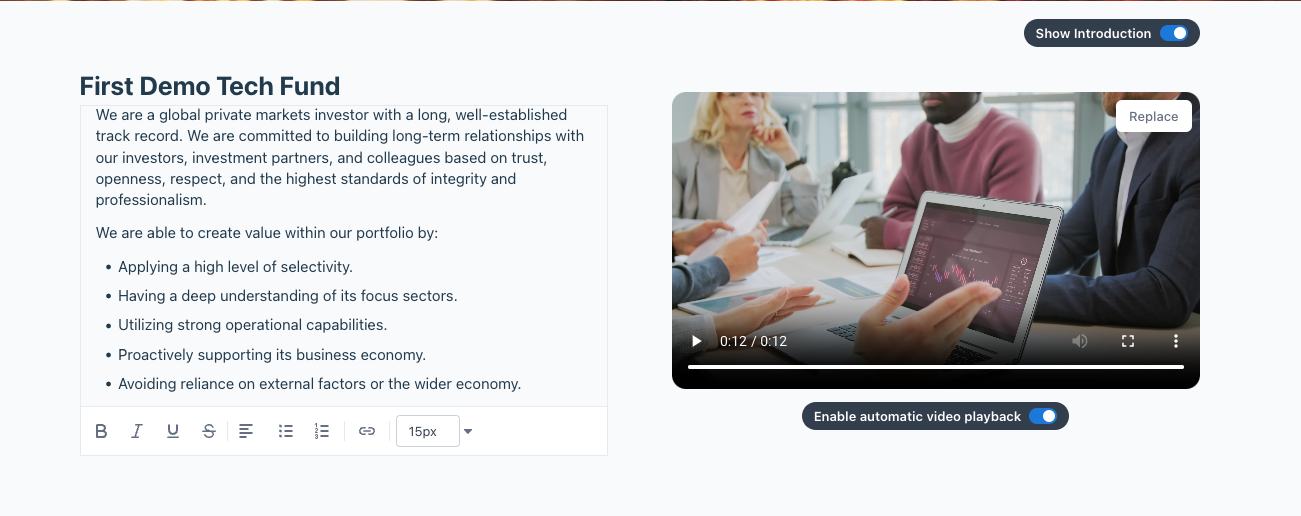
Introduction section
Reference Document Section
- You can enable or disable to “show document” section
- You can display documents uploaded to data room and reorder them
- You can customize the thumbnail for each document
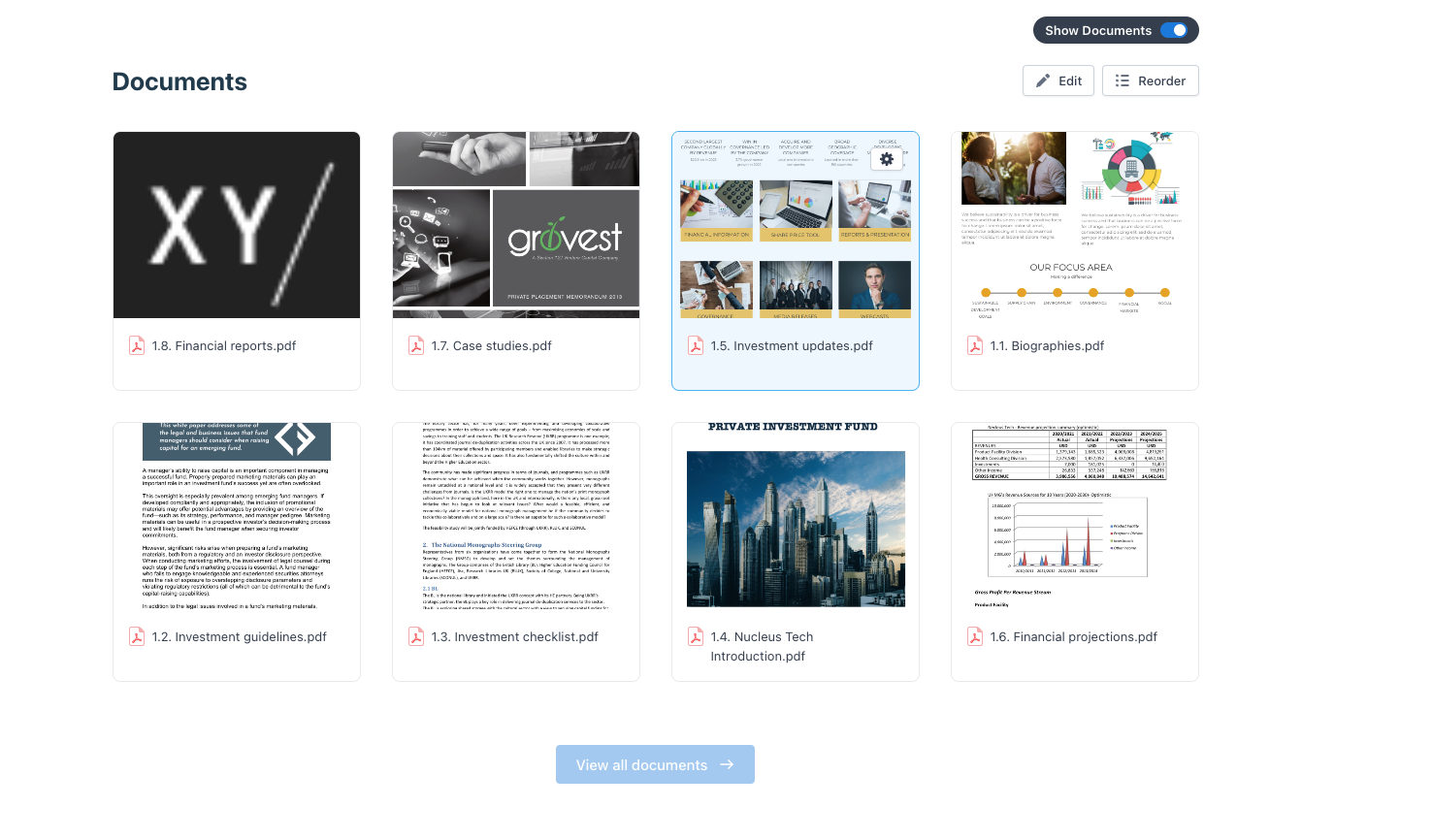
Documents section
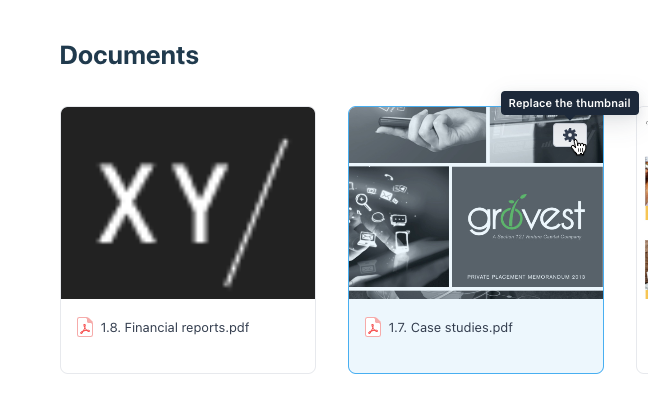
Option to replace document's thumbnail
FAQ section
- You can enable or disable to “show FAQ” section
- You can add new Q&A and edit/remove existing Q&A
– Note: There’s no section collapse, please be mindful of the amount of questions you’re adding.
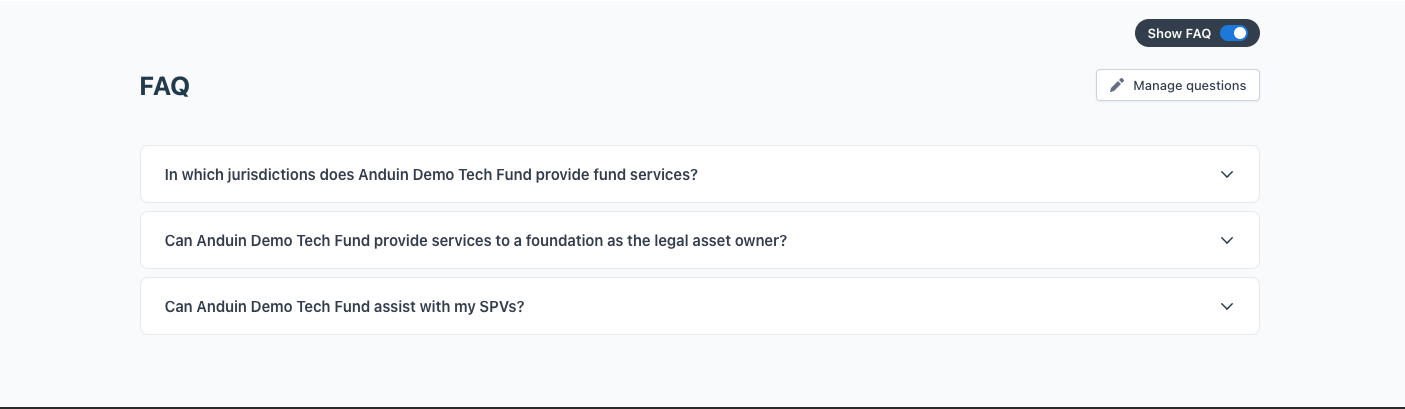
FAQ section
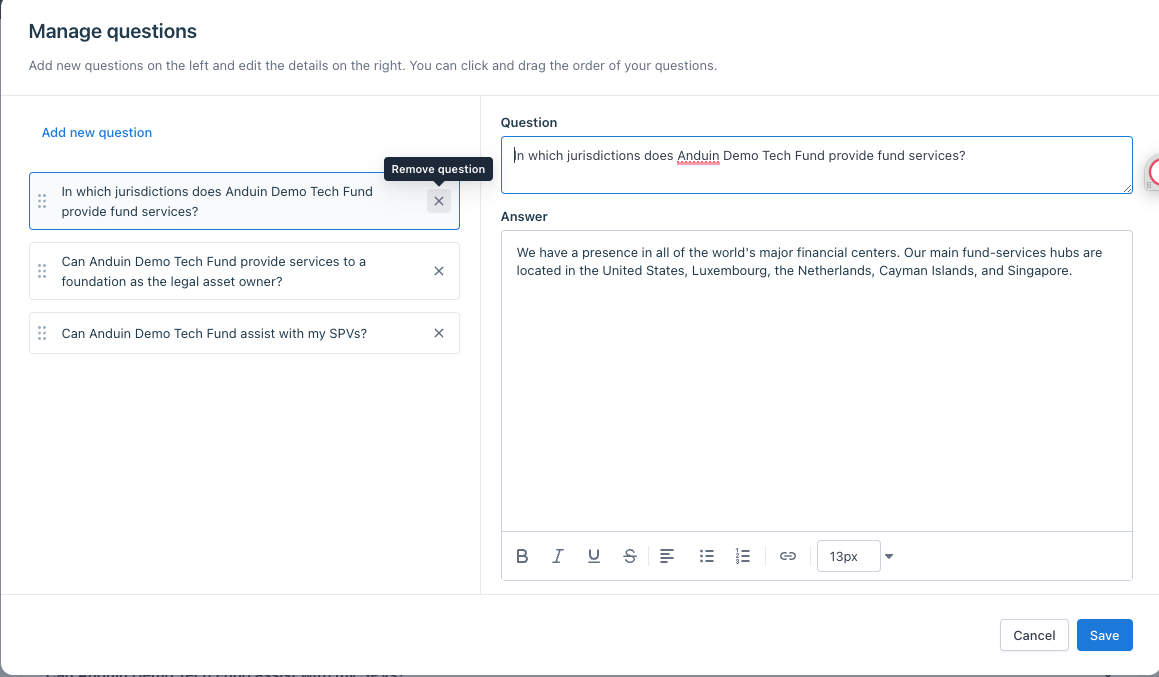
Manage FAQ modal
Footer section
- You can enable or disable to “show footer” section
- You can customize the text color and background of the footer
- You can opt to display buttons and customize their colors, labels, and destination link/email. This button is separated from the header’s button.

Footer section
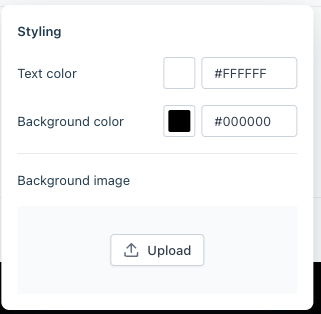
Styling modal for footer section
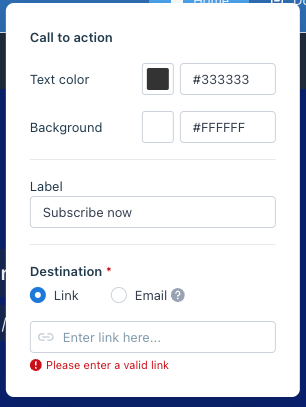
Customize modal for the button
Save changes
Once you’re finished editing the homepage, make sure to save the edits by selecting “Publish” button.
