

How to use Versioning in Dataroom
Introduction File versioning stands as an indispensable feature in storage applications and virtual data rooms, enabling fund managers to update documents
Introduction
File versioning stands as an indispensable feature in storage applications and virtual data rooms, enabling fund managers to update documents seamlessly without the need for document replacement. With version manager, fund users can now have the ability to seamlessly update and maintain multiple versions of a document without having to update permissions and reshare.
Who can update file version?
Users with “own” and “edit” rights to the files can update file version.
How to: Update file version
Step 1: Click on the “Upload new version” option in the additional menu (…) of each file.
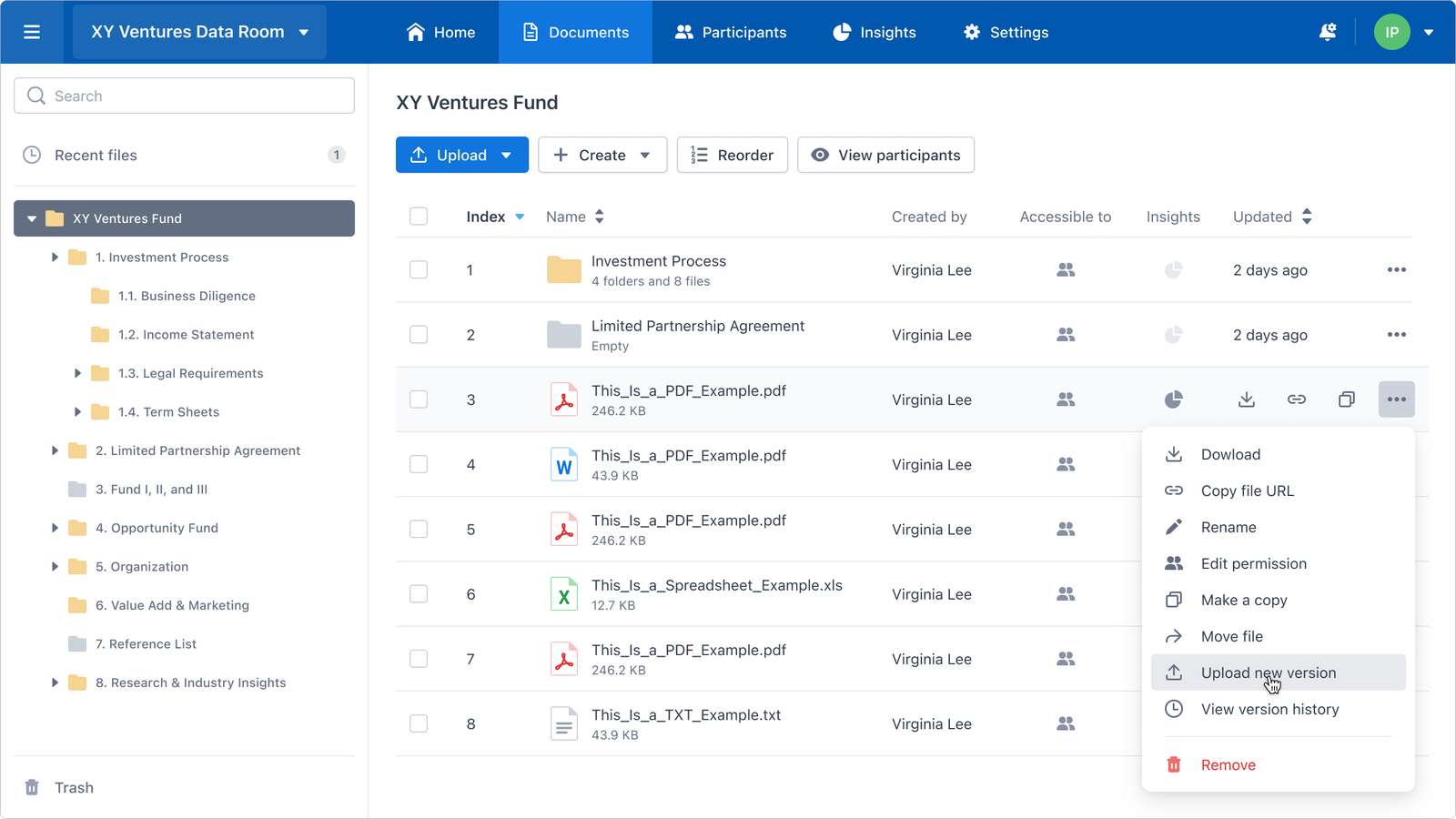
“Upload new version” option in expand menu from Datarom Documents tab
Step 2: Upload the new version of the file.
The new version can have different extensions but must be in the same format as the original file (i.e. new version of a .png file can be .jpeg but it cannot be a .mp4 file). Format types and extensions supported for each type:
- Text File: .rtf, .txt, .odt
- Microsoft Word: .doc, .docm, .docx
- Microsoft Excel: .xls, .xlsx
- Microsoft Power Point: .fodp, .odp, .otp, .pot, .potm, .potx, .pps, .ppsm, .ppsx, .ppt, .pptm, .pptx
- Image: .gif, .jpeg, .jpg, .png, .svg, .webp, .bmp, .ico
- Video: .mp4, .ogv, .webm
- Audio: .mp3, .wav, .ogg, .oga
- Internet File: .Htm, .Html
- Compressed File: .TarGz, .TarBz
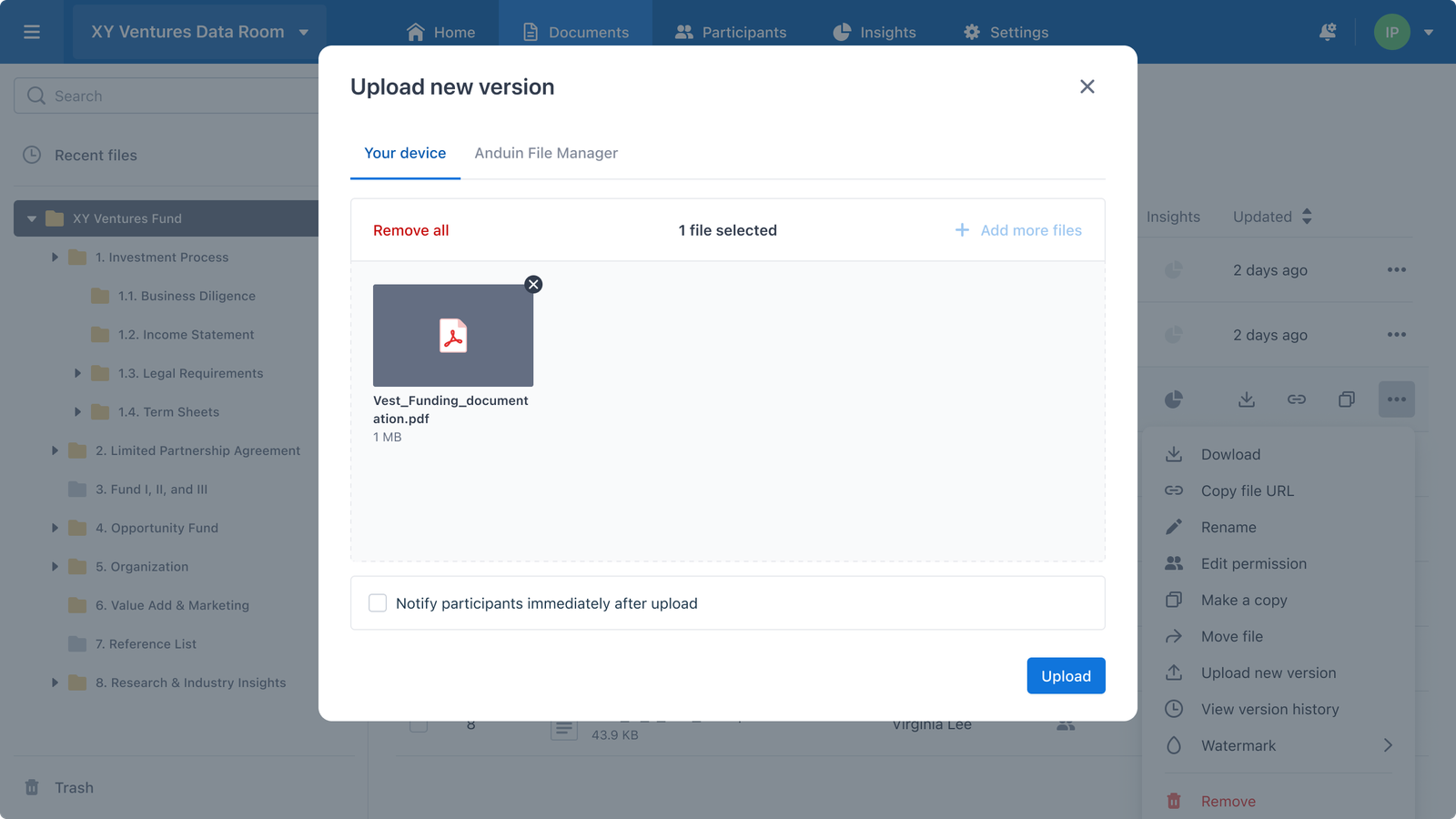
Version upload modal
Step 3: Once the update of the version is completed, there will be a popup message informing user that the process is completed.
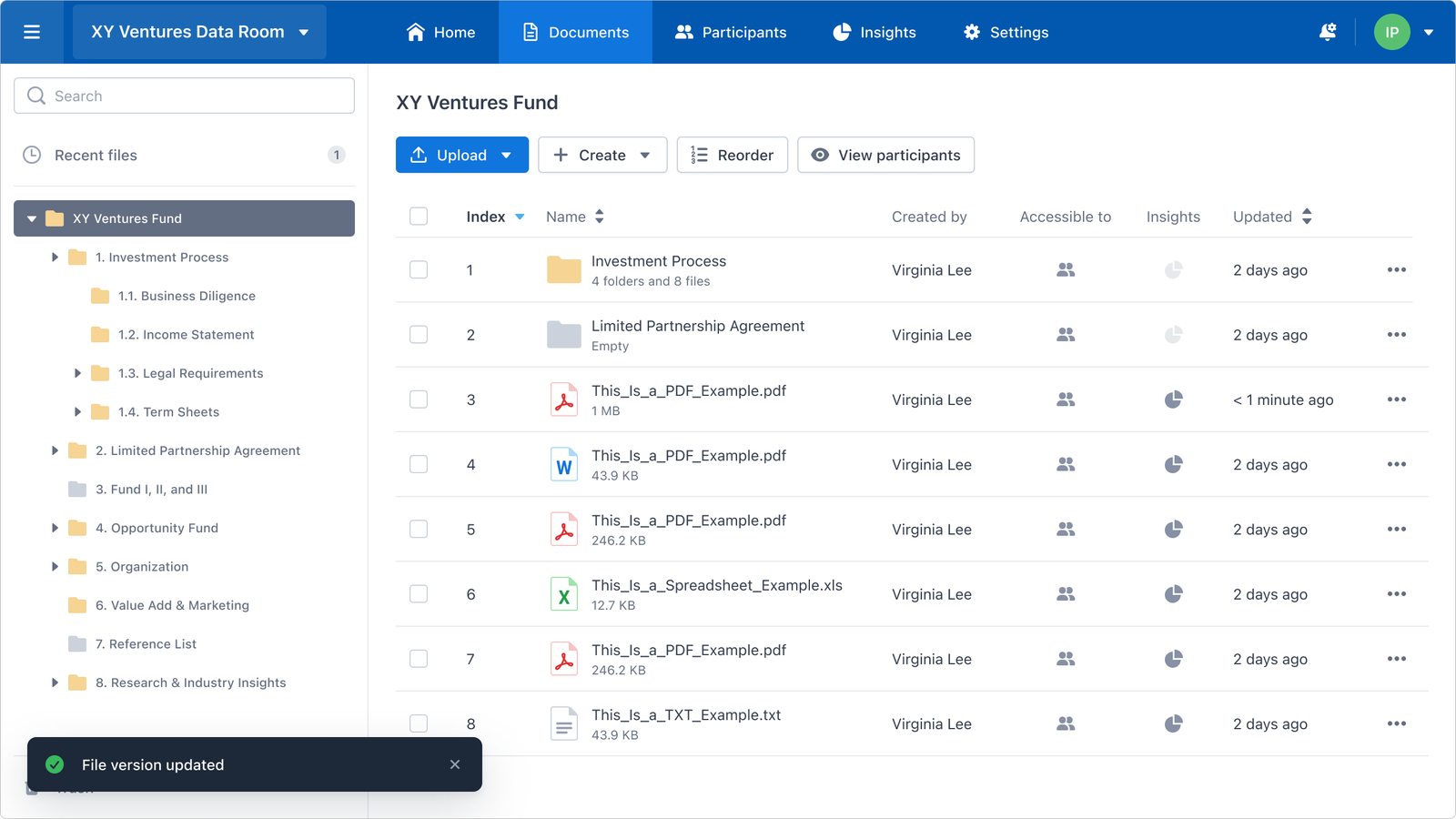
File version updated successfully.
Who can manage file versions?
Only users with Admin roles have access to manage file versions.
How to: Manage file version
Step 1: User can select the “view version history” option in the additional menu (…) of each file. This option is located right underneath the “update new version” option
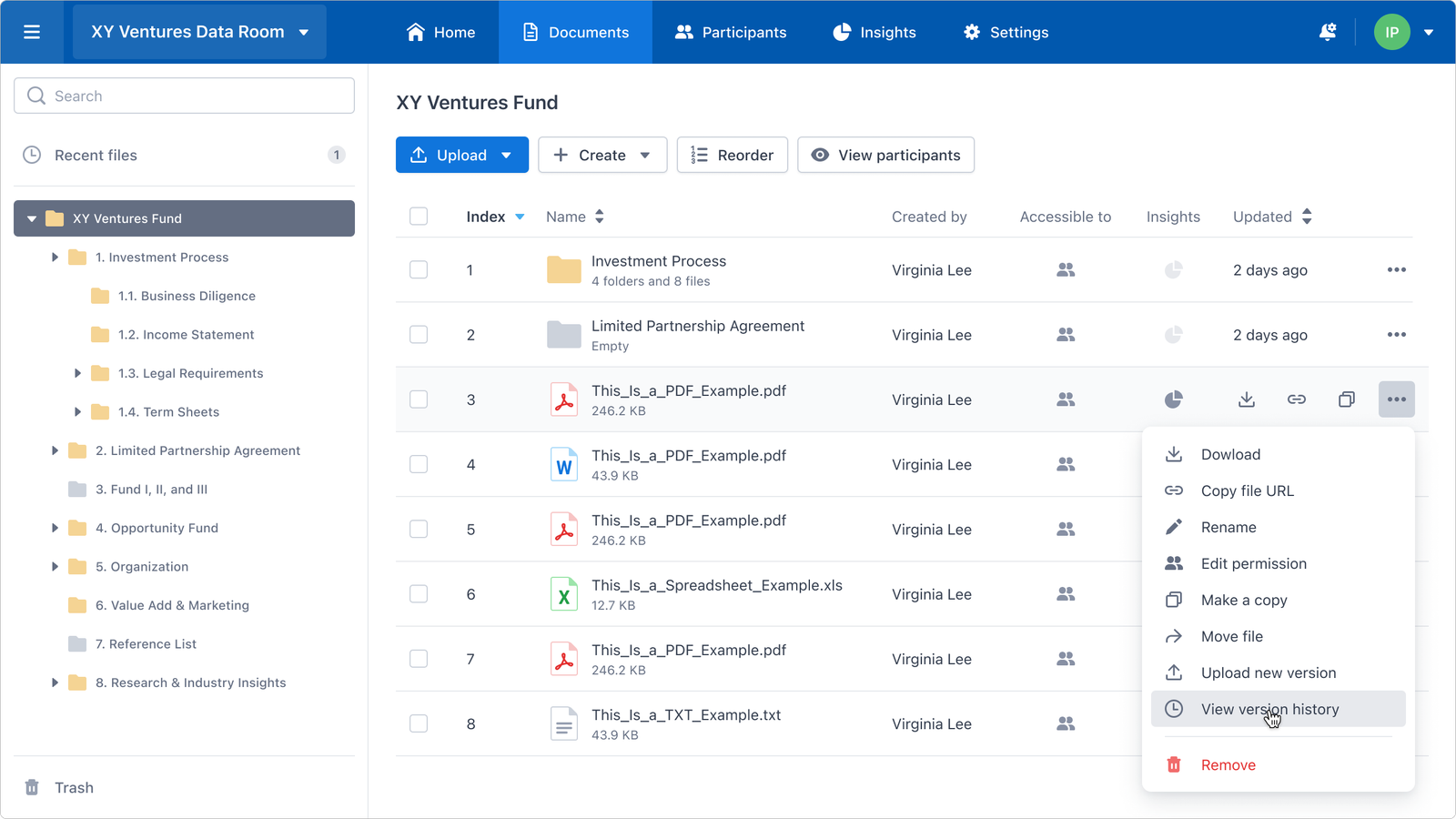
“View version history” option in expand menu from Datarom Documents tab
Step 2: In version history, the user can see a list of all previous versions and will be able to download these versions. This download action will also be counted toward the file’s insights.
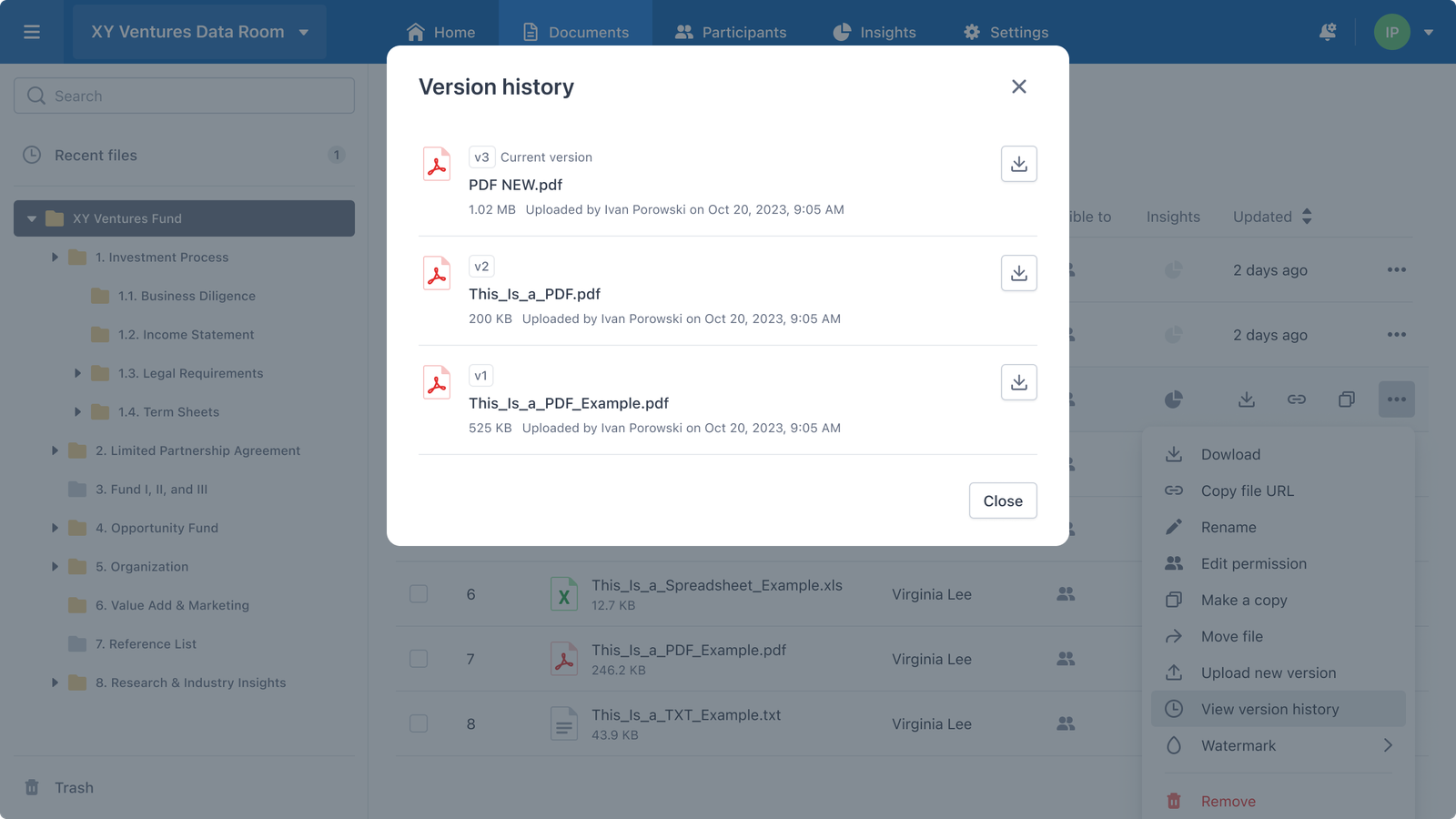
Version history modal.