AML/KYC Functionality
AML/KYC review feature allows funds to be set up so that submitted supporting documents from Investors are required to go through an additional review proc
AML/KYC review feature allows funds to be set up so that submitted supporting documents from Investors are required to go through an additional review process. Fund admins can invite reviewers to the fund and assign a specific group of investors to be reviewed.
Fund Managers and Admins have to review AML/KYC docs submitted by hundreds of investors at anytime during the onboarding process. Revewing documents as early as possible is essentially to avoiding potential delays later.
Enabling AML/KYC
- In the top Nav bar, click Settings:

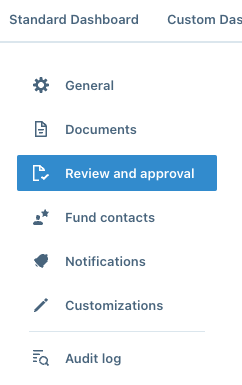
- In the left Nav bar, click Review and Approval:
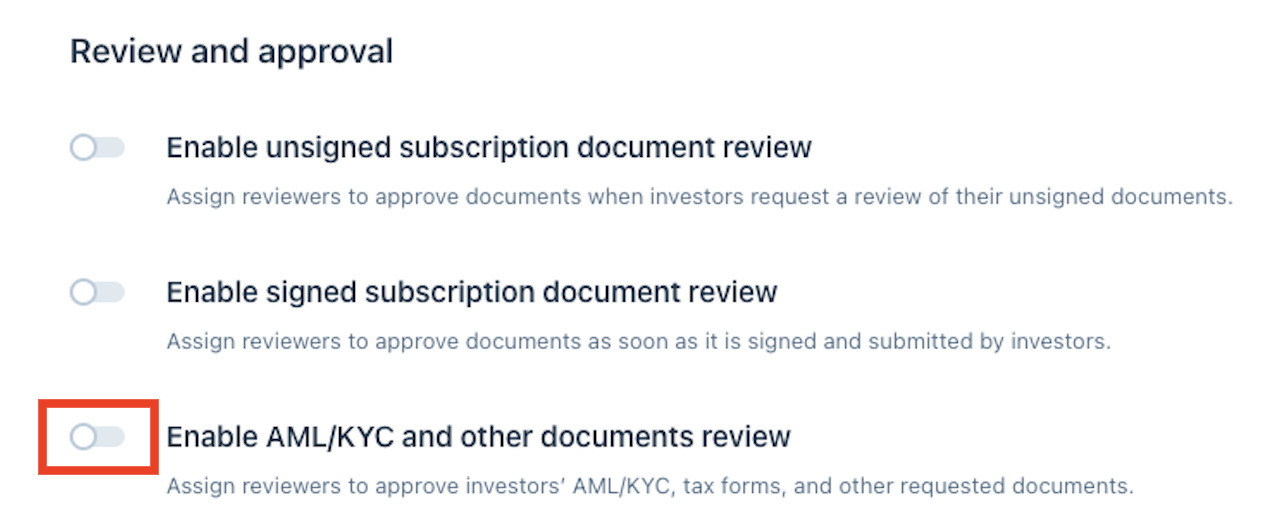
- Turn on Enable AML/KYC and other documents review:
Please Note
If you do not see Enable AML/KYC and other documents review as an option, please contact support@anduintransact.com
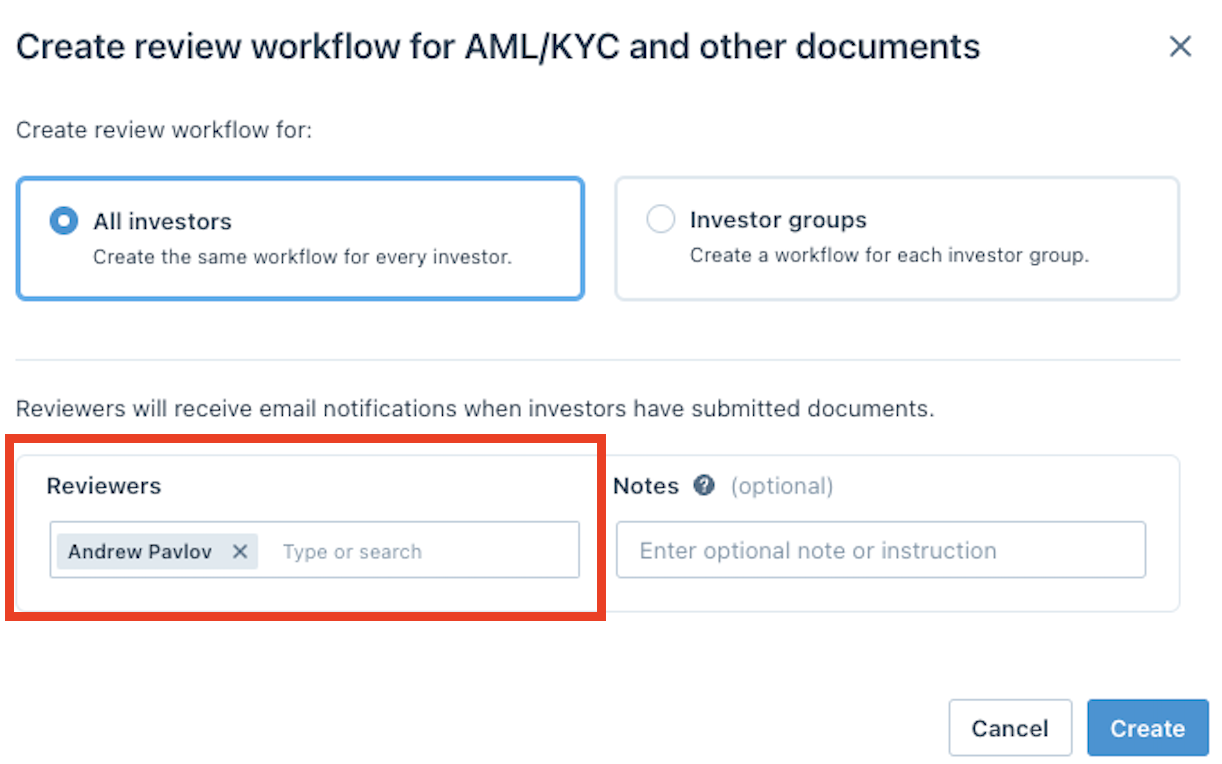
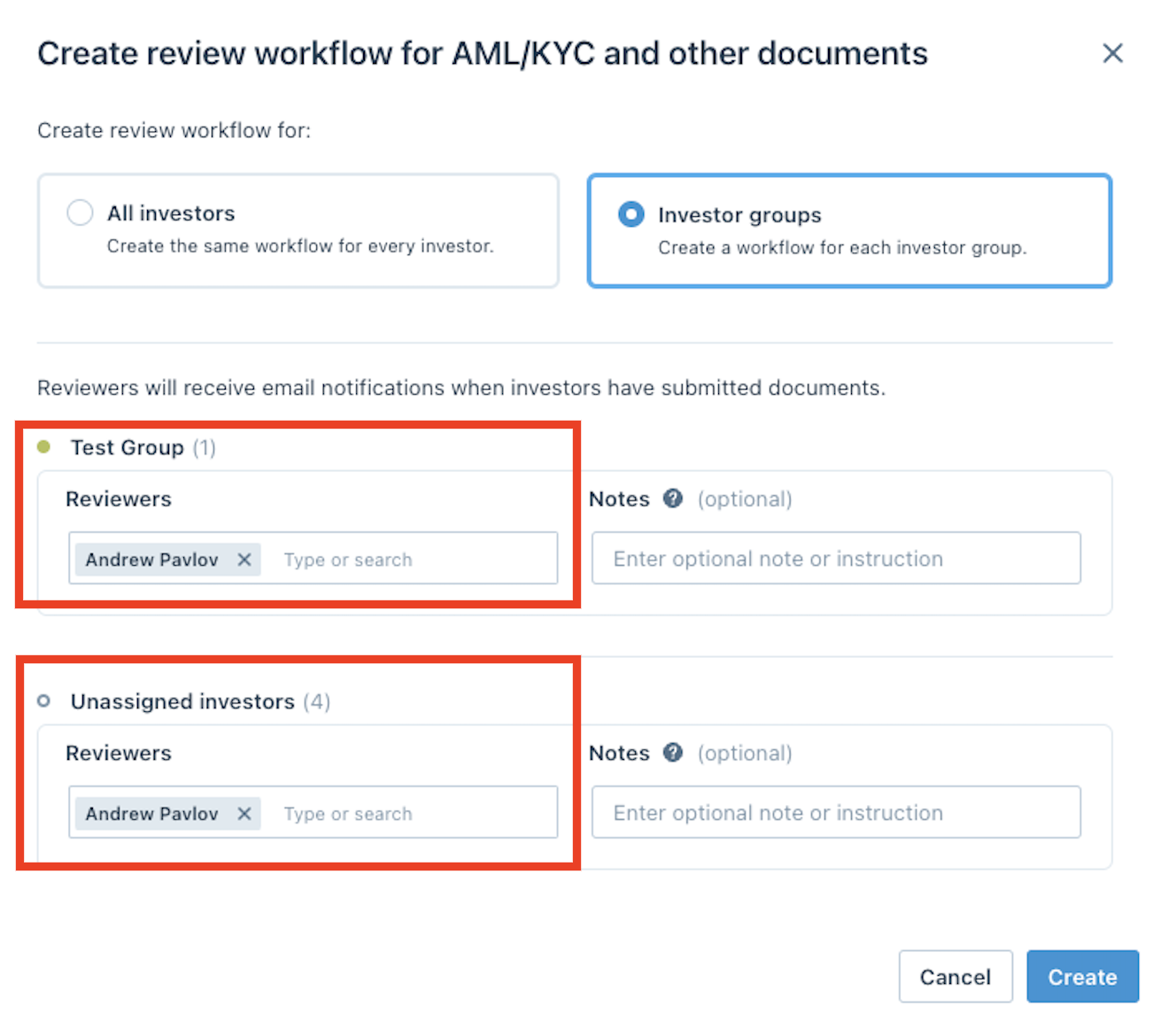
- You will be given the option to make a workflow for All Investors or for specific Investor Groups:
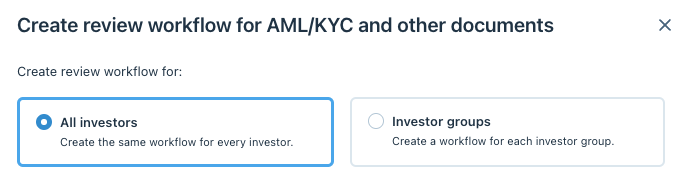
If you choose All Investors, type in the names of the reviewers in the Reviewers section and click Create:
If you choose Investor Groups, assign the reviewers for each Investor Group individually under their respective Reviewers section and click Create. The reviewer must have permission to view the targeted Investor Group, and all Investor Groups must have at least one assigned reviewer:
Requesting and Reviewing Documents
Reviewers will be notified via email when new documents are ready to be reviewed. The email is sent at most once every hour and contains notifications from several investors.
Requesting Documents
- From the Master Dashboard, click View all documents within the Investor you would like to request documents from:

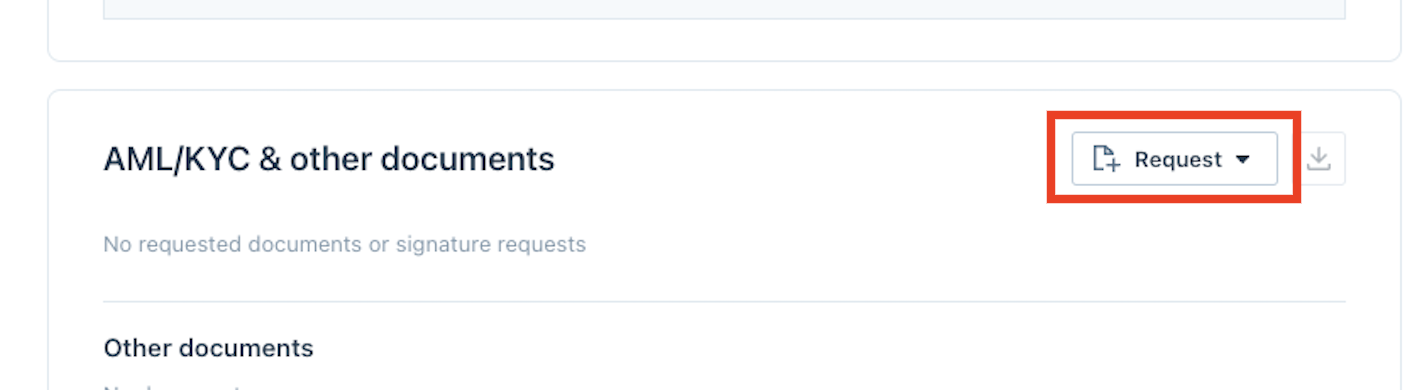
- In the AML/KYC & other documents section, choose Request:
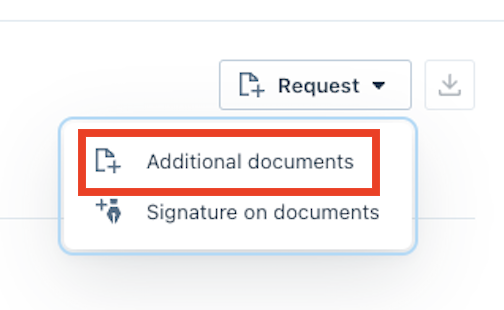
- Choose Additional Documents:
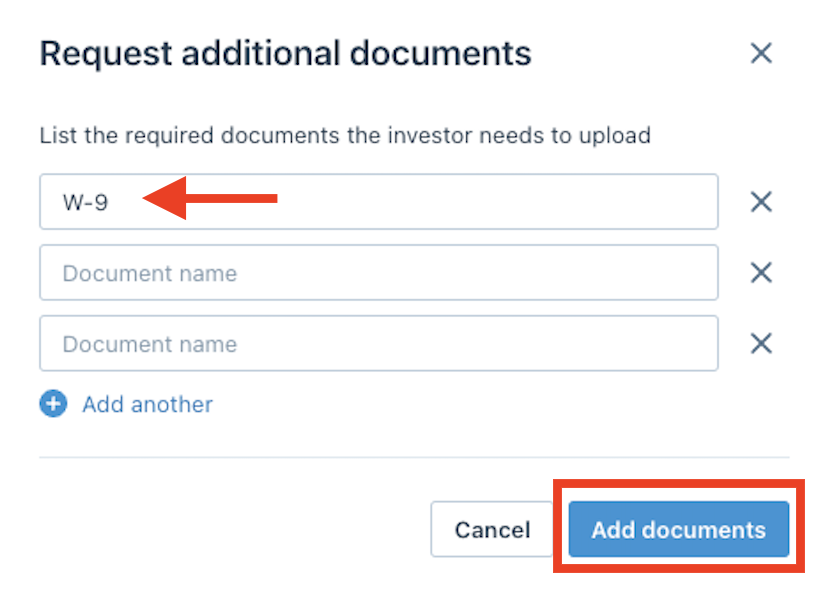
- Add in the names of the Documents you are requesting and click Add Documents:
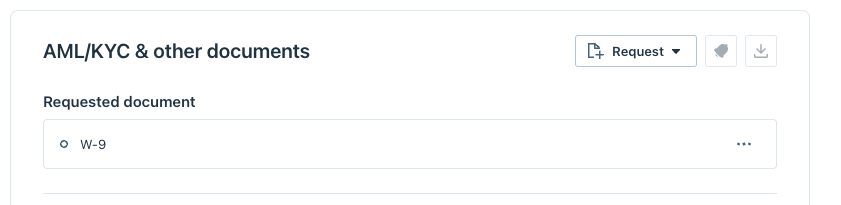
- Fund Managers and Investors will now see the document(s) listed under AML/KYC & other documents:
Reviewing Documents
Once the Investor has completed their Subscription Document they will be prompted to add in the additional requested documents. After they have submitted these documents, Reviewers can go into the Investor and review the documents.
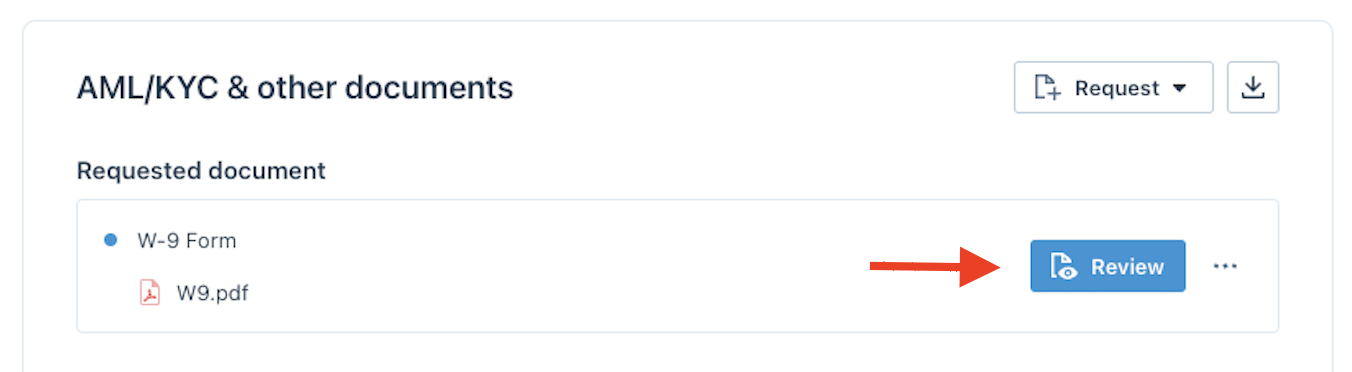
- Under AML/KYC & other documents, click Review:
- After the document loads, reviewers are given the option in the top right corner to either Request Changes to the document or Approve the document:

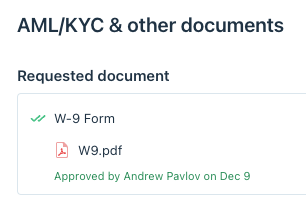
Once approved, we will display who approved the document and when it was approved: