

How to Invite Investors to the Anduin Fund Subscription platform
The investor onboarding experience begins with inviting the investor to the platform. There are two primary methods for completing this workflow from the
The investor onboarding experience begins with inviting the investor to the platform. There are two primary methods for completing this workflow from the “Add Investor” button on the platform:
- Direct Invites via single or bulk action
- Importing investors from a spreadsheet
How to Add a Single Investor
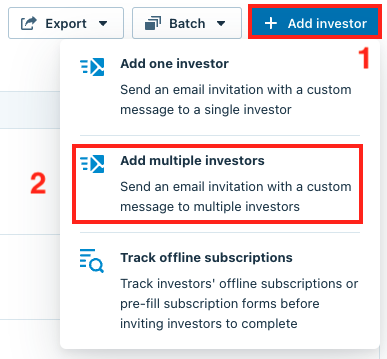
Click the +Add investor button from the right side of the Investor dashboard, then click the appropriate option depending on how many investors you want to invite.
- Add one investor allows you to send an invitation to one investor at a time.
- Add multiple investors allows you to send multiple invitations at once, or import investor contacts via a spreadsheet.
- Track offline subscriptions will allow you to add an investor to the Investor dashboard without sending them an invitation to the platform.
Note
Track offline subscriptions is primarily used for tracking investors who have completed subscription documents offline, or as a staging status if you would like to pre-fill sections of the investor's subscription documents before inviting them to the platform.
How to Add Multiple Investors
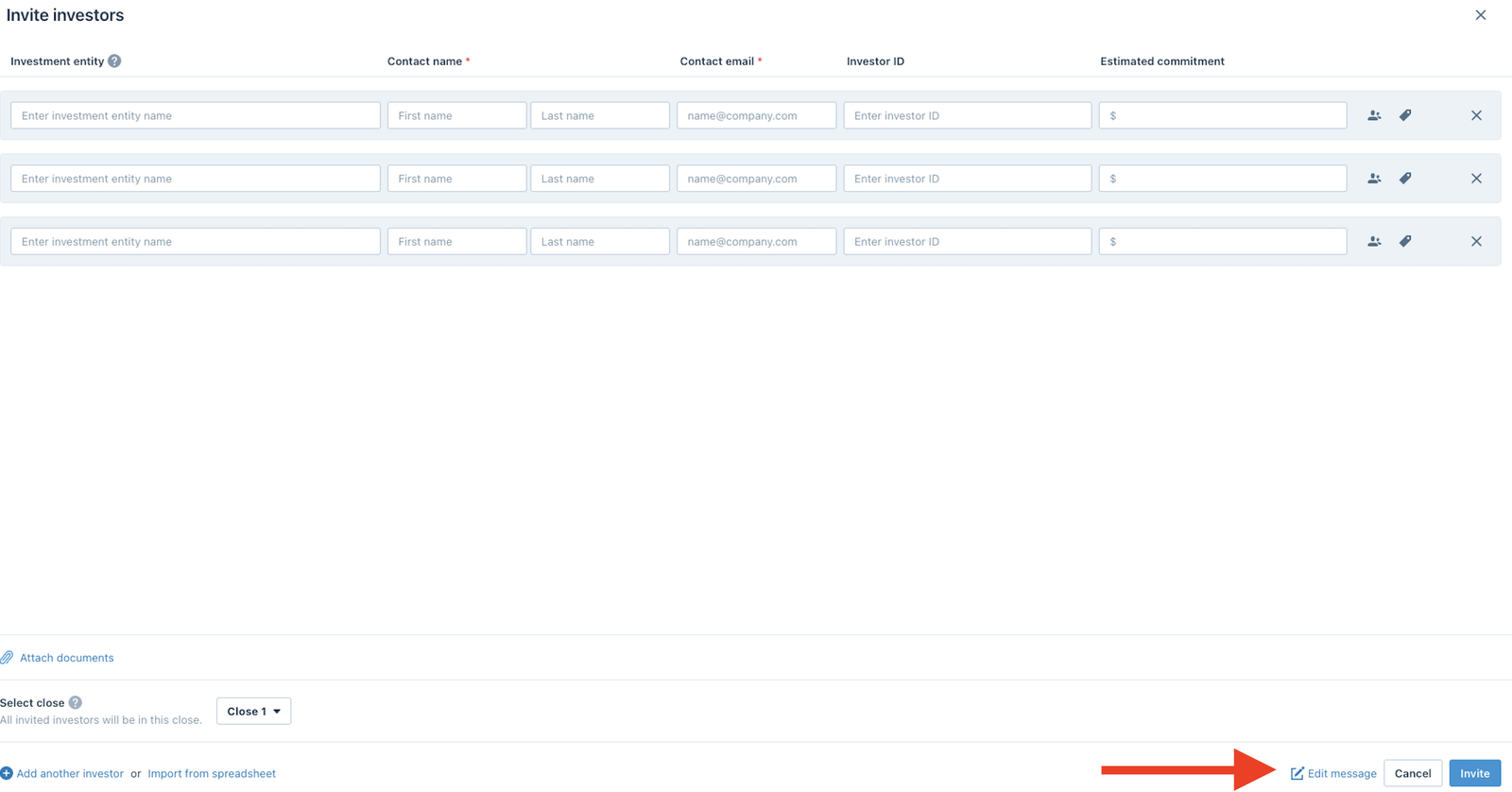
After clicking Add multiple investors, the window below will pop up on your screen. You can enter the investor's contact name, email address, Investment Entity, Investor ID, and Estimated Commitment
- The Investment Entity, Investor ID, and Estimated Commitment fields are optional
- The Investor ID and Estimated Commitment fields are not visible to investors

If there are any other contacts who should have access to the same set of subscription documents, you can click the Collaborators button to add additional contacts

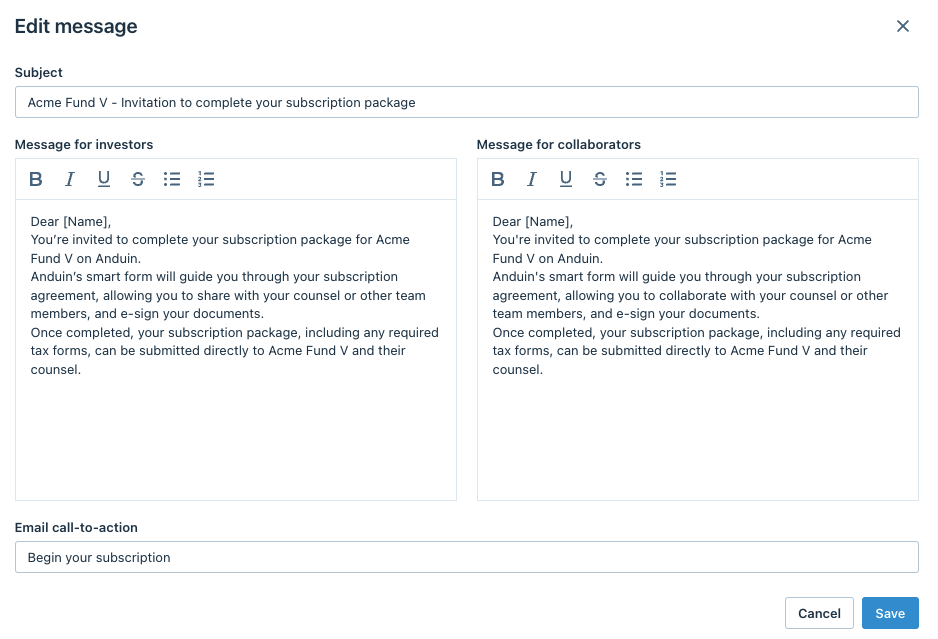
Once you have entered the investor's contact information, you can optionally review and customize the invitation messaging by clicking Edit message, then click Invite to send the invitation
Adding Additional Rows
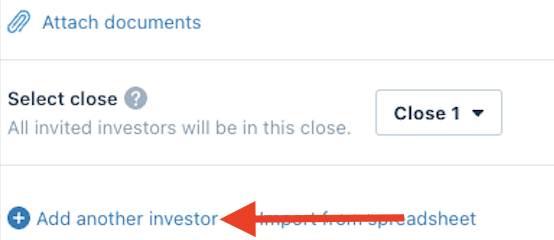
You are able to add Additional Rows to the Multiple Investor Pop Up by clicking the Add Another Investor button in the bottom left corner
Add Investors from a Spreadsheet
From the same Add multiple investors option from option 1, another invitation option is importing investors from a spreadsheet. To do this, click the Import from spreadsheet button in the bottom left of the invitation window

- The next step is to click the Download button, which will download a contact import template.
- Once you have filled out the contact import template with investor names, contact emails, firm names/investment entities (optional), investor IDs (optional), estimated commitments (optional), and collaborators (optional), you can upload the contact import spreadsheet back to the platform.
- To do this, click Upload, then click the Next: Map spreadsheet columns button.
- At the column mapping step, you will need to confirm the columns in the spreadsheet match the associated fields on the platform (ex. "First name" on the platform matches "First name" from the imported spreadsheet). Click Import data.
- Once you have clicked Import data, you will be able to review the imported data before clicking Invite.