Creating Custom Groups and Permissions
Fund members with Admin access can create new custom groups with unique custom permissions for each group. Note If the role is set to Admin, users have ful
Fund members with Admin access can create new custom groups with unique custom permissions for each group.
Note
If the role is set to Admin, users have full access to all of the Fund Subscription Resources
How to Create New Group
In the Fund Subscription, click the Permissions tab in the top Nav bar:

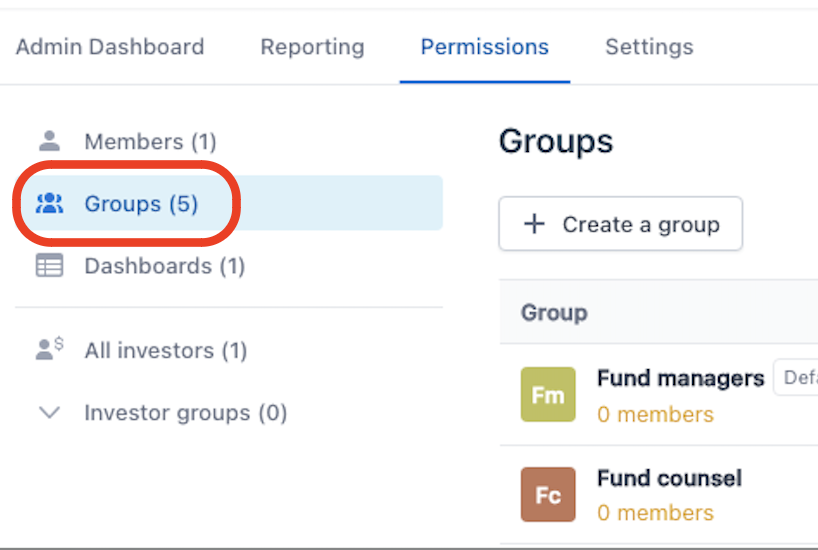
On the left Nav bar, click Groups:
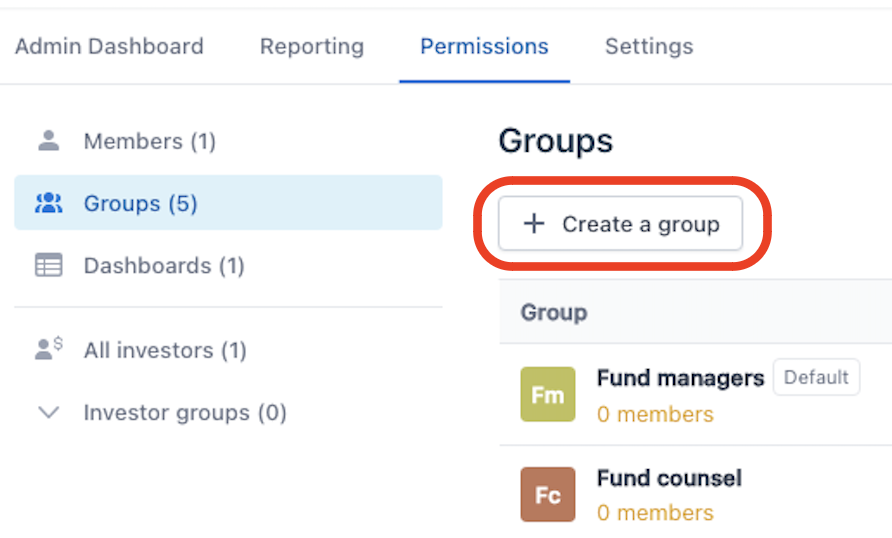
Click Create a Group:
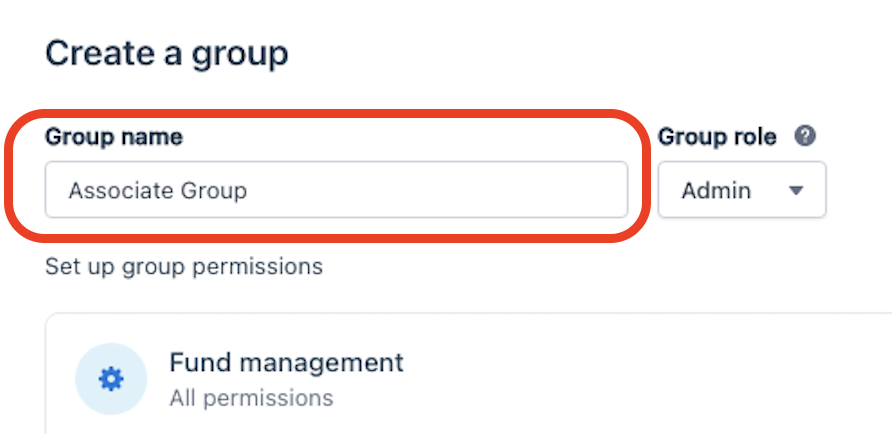
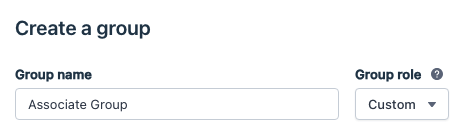
Enter in a custom name in the Group Name field:
Under Group Role, choose Custom:
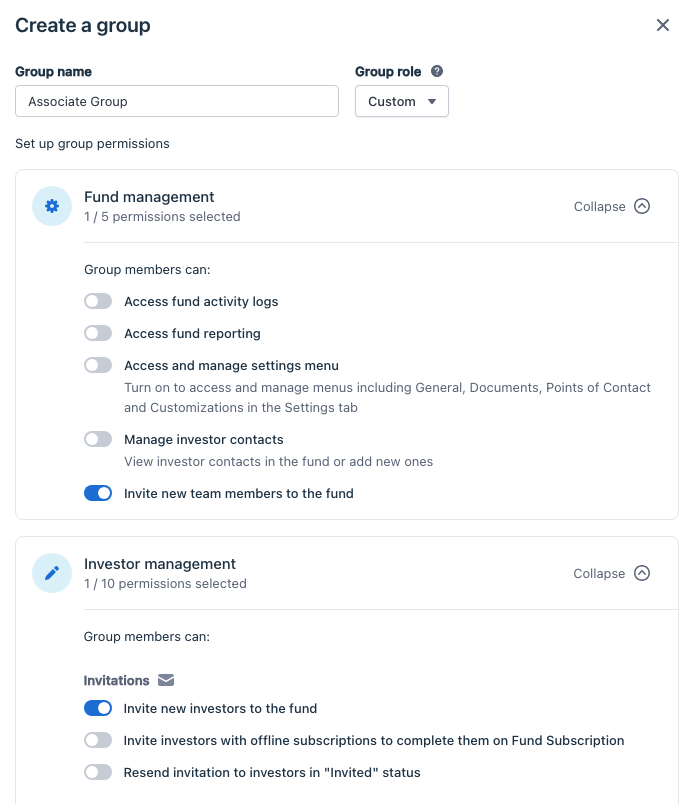
From here, you can customize the Group Permissions you would like to set for both Fund Management and Investor Management. When done, click Create Group:
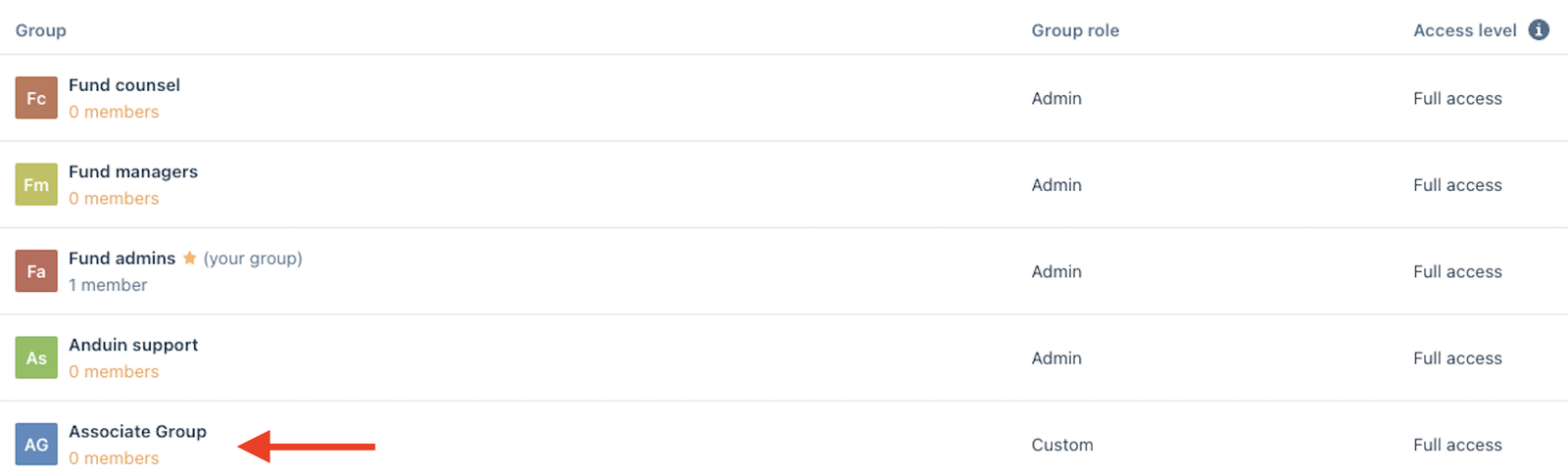
You should now see the new Group:
Move Members to the Group
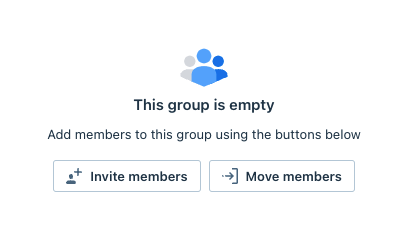
Click into the new group and there are two options to add new members:
- Invite Members - Invite new members to the group via email
- Move Members - Move existing members to the group