Learn About Filtering
Users on the fund side can use the filtering tool to search for specific groups of investors. From either the Standard Dashboard or the Advanced Dashboard,
Users on the fund side can use the filtering tool to search for specific groups of investors.
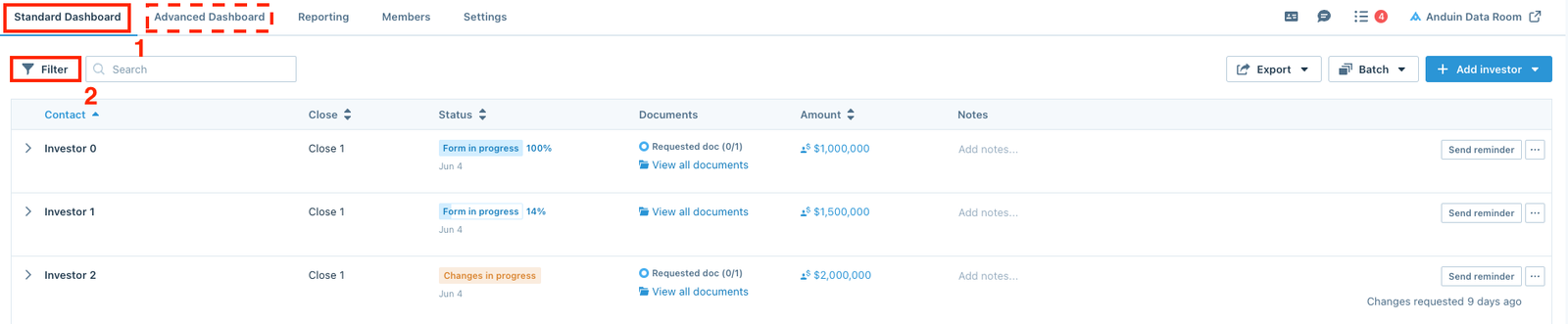
From either the Standard Dashboard or the Advanced Dashboard, click the Filter button in the upper left corner.
A filter panel will pop up on the screen allowing users to select between different options. Users can combine multiple options to filter the desired group of investors.
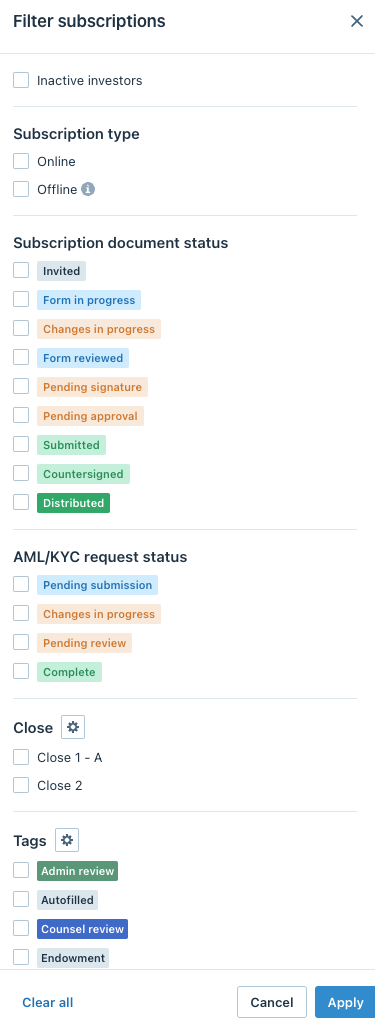
Inactive investors
Users can set up notifications for investors who have been inactive for a number of days.
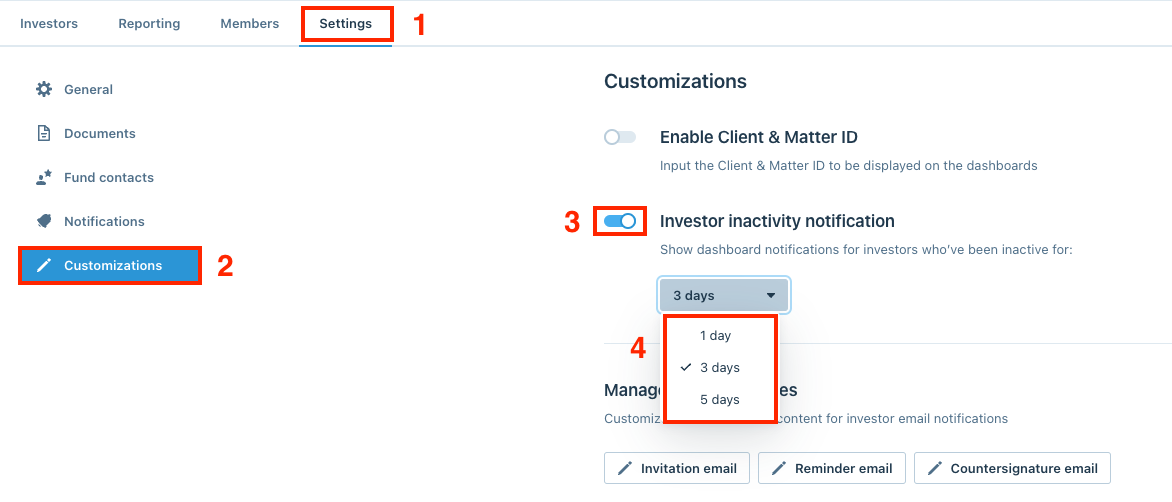
In the Settings tab, go into Customizations section and switch the Investor inactivity notification toggle on. Then select between three options: 1 day, 3 days, and 5 days to specify the period of time investors are considered being inactive
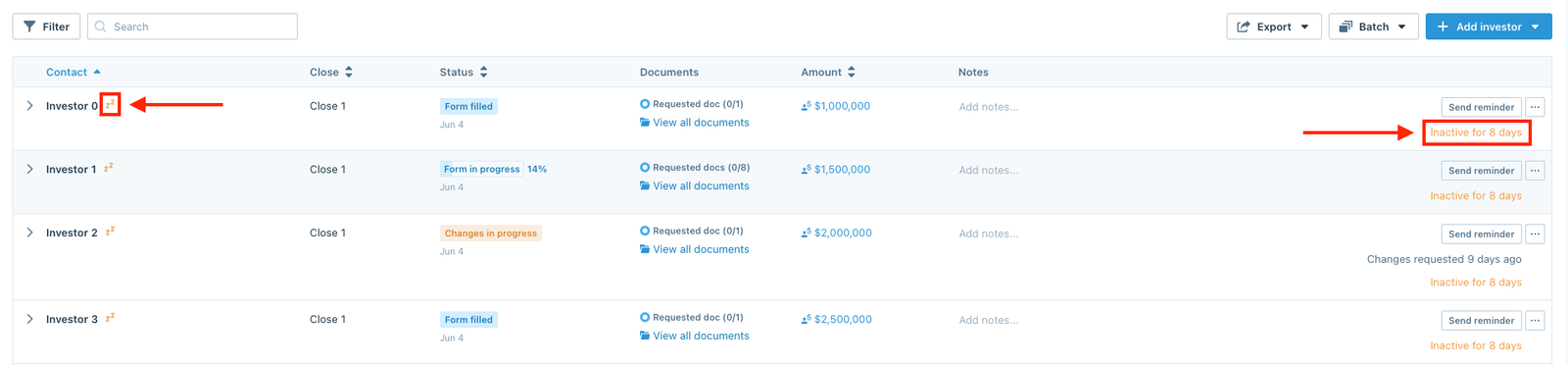
Once this has been turned on, it will show a symbol and number of days the investors have been inactive in the Investors dashboard. Users can then use the Inactive investors option to filter these investors.
Investors missing requested documents
This option will allow users to filter all investors with pending requested documents.
Subscription type
There are two subscription types:
- Online: These are investors who have been invited to complete their subscriptions on the platform.
- Offline: Offline subscriptions are to be tracked or pre-filled by the users. The system will not email investors unless the users choose to.
Status
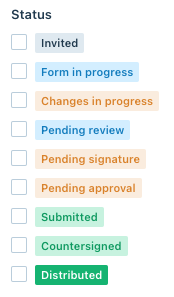
This option will allow users to filter investors by their statuses.
AML/KYC Request Status
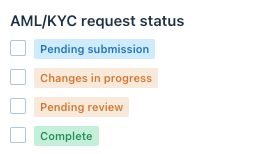
Anduin offers the ability to filter the dashboard based on the Investors AML/KYC Status:
Close
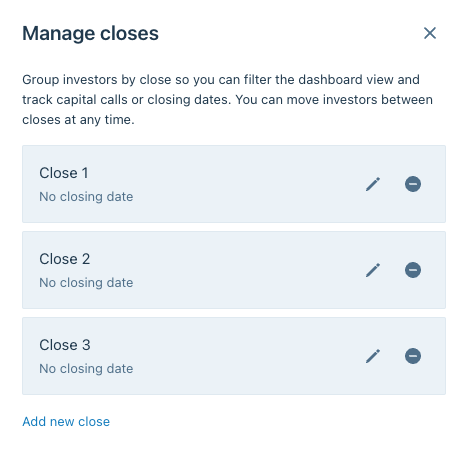
Depending on the number of closes each fund has, this option will allow users to filter investors by the close they are in.
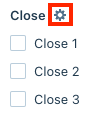
Users can click the gear symbol to manage the closes.
Tags
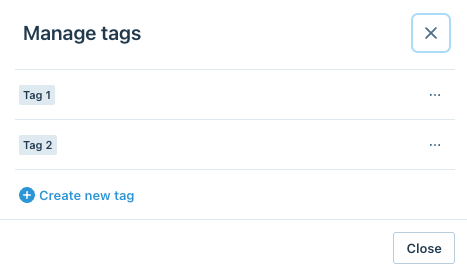
Tags are created by the users. This option will allow them to filter investors by these tags.

Users can click the gear symbol to manage the tags.
Filter by Custom Columns
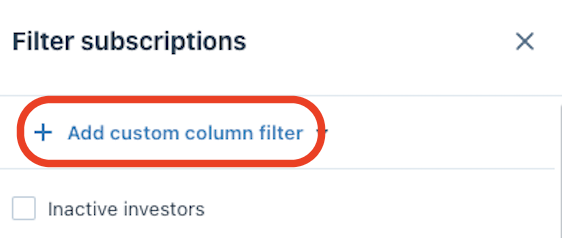
Click the Add Custom Column Filter:
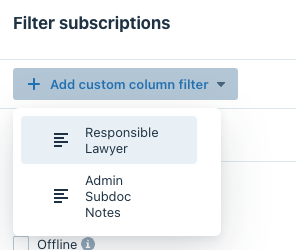
Pick which Column to filter by:
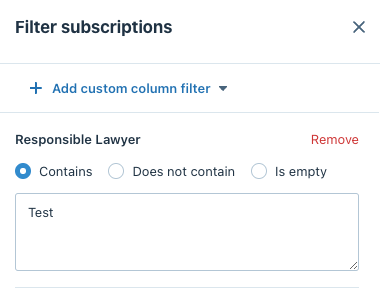
Choose one of the options, enter your filter, and click apply: