Guide to Reviewing AML/KYC Documents
Introduction In Anduin, there are several methods available for GPs to review and take action (Approve or Request Change) on AML/KYC documents. This guide
Introduction
In Anduin, there are several methods available for GPs to review and take action (Approve or Request Change) on AML/KYC documents. This guide will walk you through the different options available:
- Single AML/KYC Document Review: With this feature, you can individually approve or request changes to AML/KYC documents directly from the LPs.
- Bulk Approval for Multiple AML/KYC Documents per LP: Quickly approve multiple AML/KYC documents for a single LP. Reviewers can expedite the process and avoid the time-consuming task of reviewing each document individually, especially when managing numerous documents across multiple LPs.
- Bulk Change Request for Multiple AML/KYC Documents per LP: Select and request changes for multiple AML/KYC documents belonging to a single LP. This option consolidates multiple change requests into one email, reducing the number of notifications sent to LPs.
- Batch Approval for Multiple AML/KYC Documents cross LP:This method is similar to #2 but allows for batch actions for multiple LPs simultaneously. Reviewers can expedite the process and avoid the time-consuming task of reviewing each document individually, especially when managing numerous documents across multiple LPs.
By understanding and utilizing these methods effectively, reviewers can streamline the AML/KYC document review process and ensure compliance while minimizing administrative overhead.
Basic How to
1. How to Identify AML/KYC Documents Requiring Review
When an LP submits AML/KYC documents requiring your review, follow these steps:
- Navigate to the Master dashboard.
- Check the 'AML/KYC requests' column for the LP in question.
- If there are documents requiring review, you'll see a "Review" button.
- Click on the "Review" button to access the AML/KYC section for that LP and commence the review process.
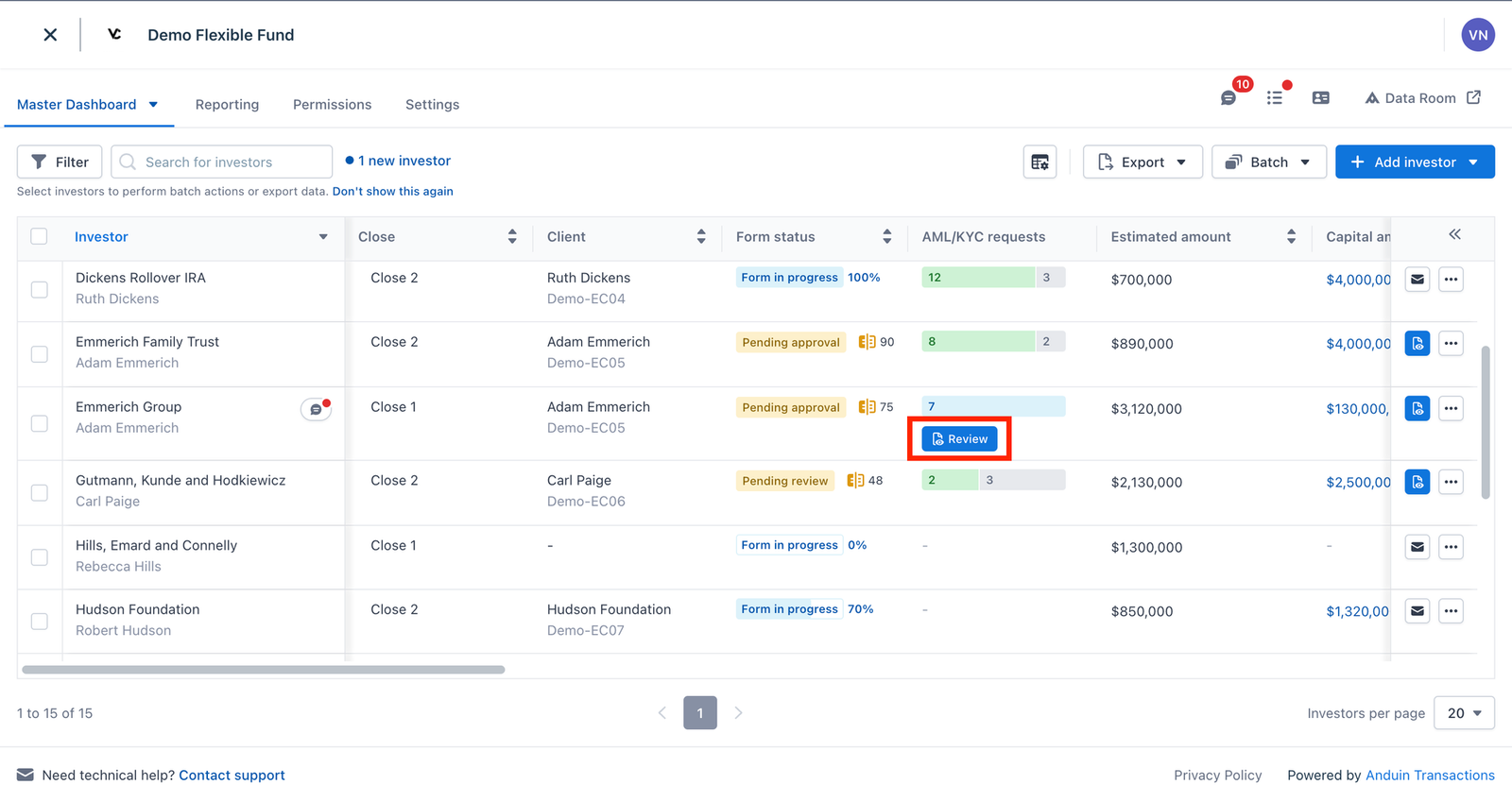
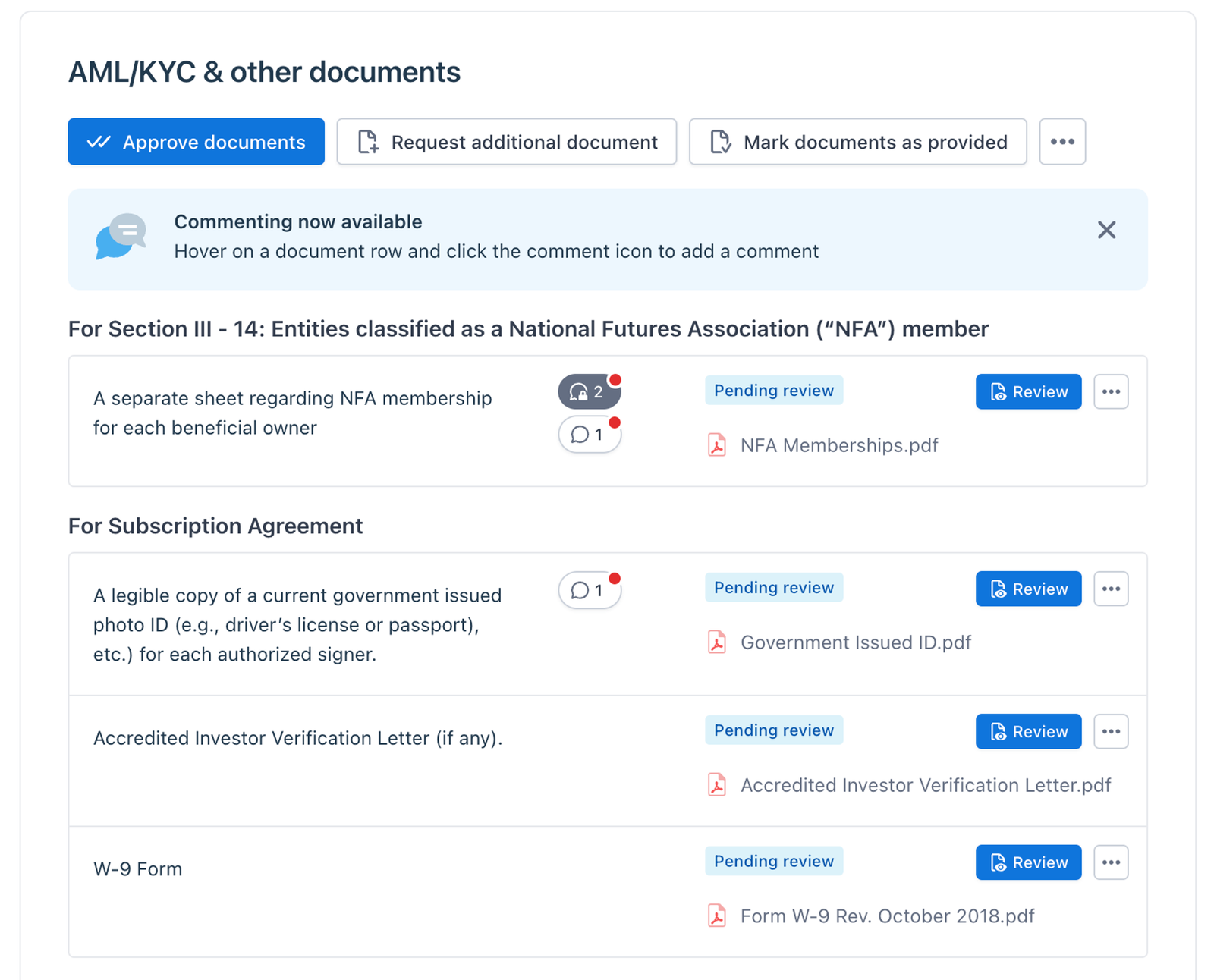
2. Single AML/KYC Document Review
For each individual AML/KYC document, follow these steps:
- Click the "Review" button next to the document you wish to review.
- You'll be directed to the review view to examine the AML/KYC document. Here, you'll have two options:
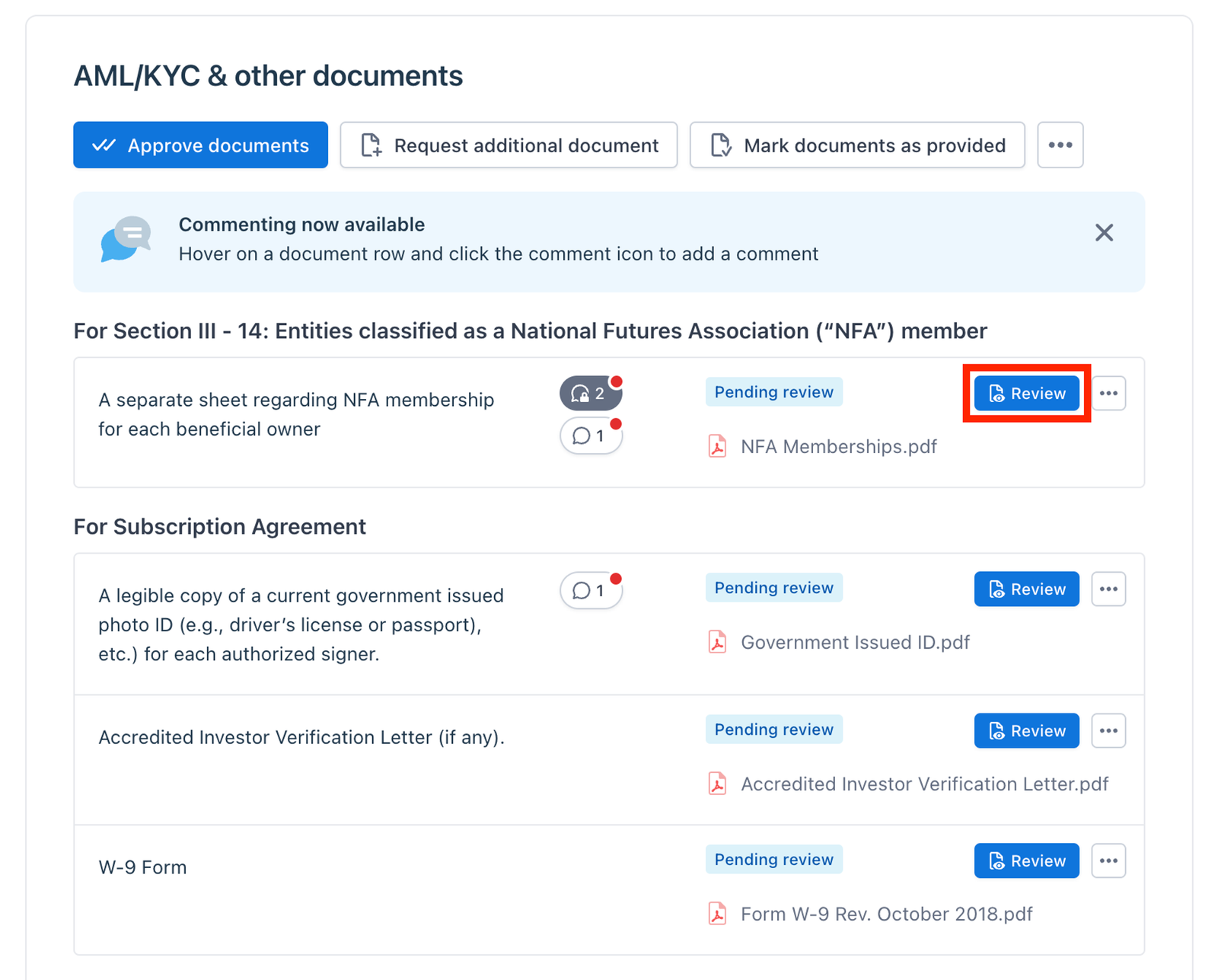
– Request Changes: If revisions are needed, select this option to request changes. – Approve: If the document meets requirements, choose this option to approve it.
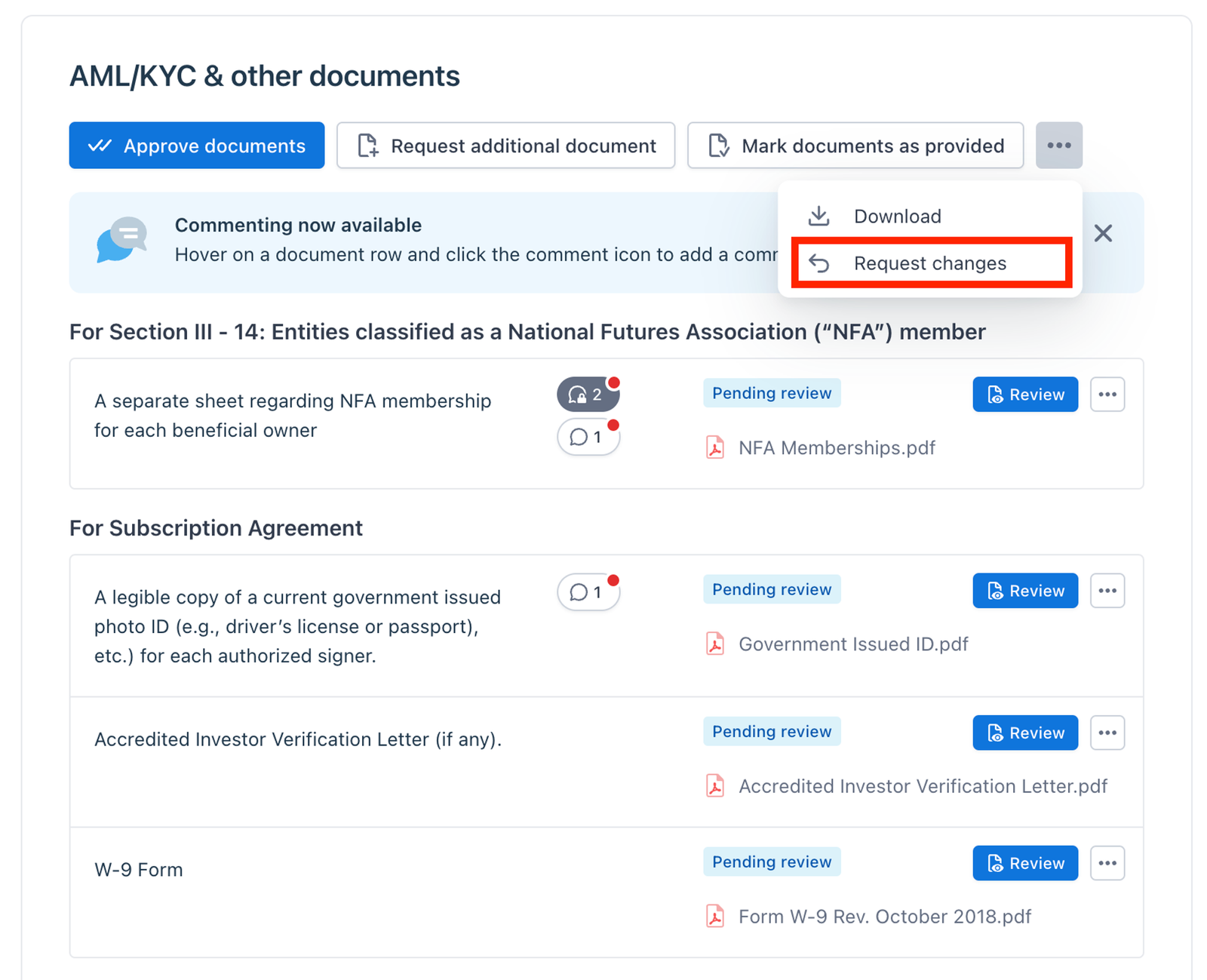
Note: You can also directly request changes to the AML/KYC document by clicking the "More" CTA and selecting "Request changes".
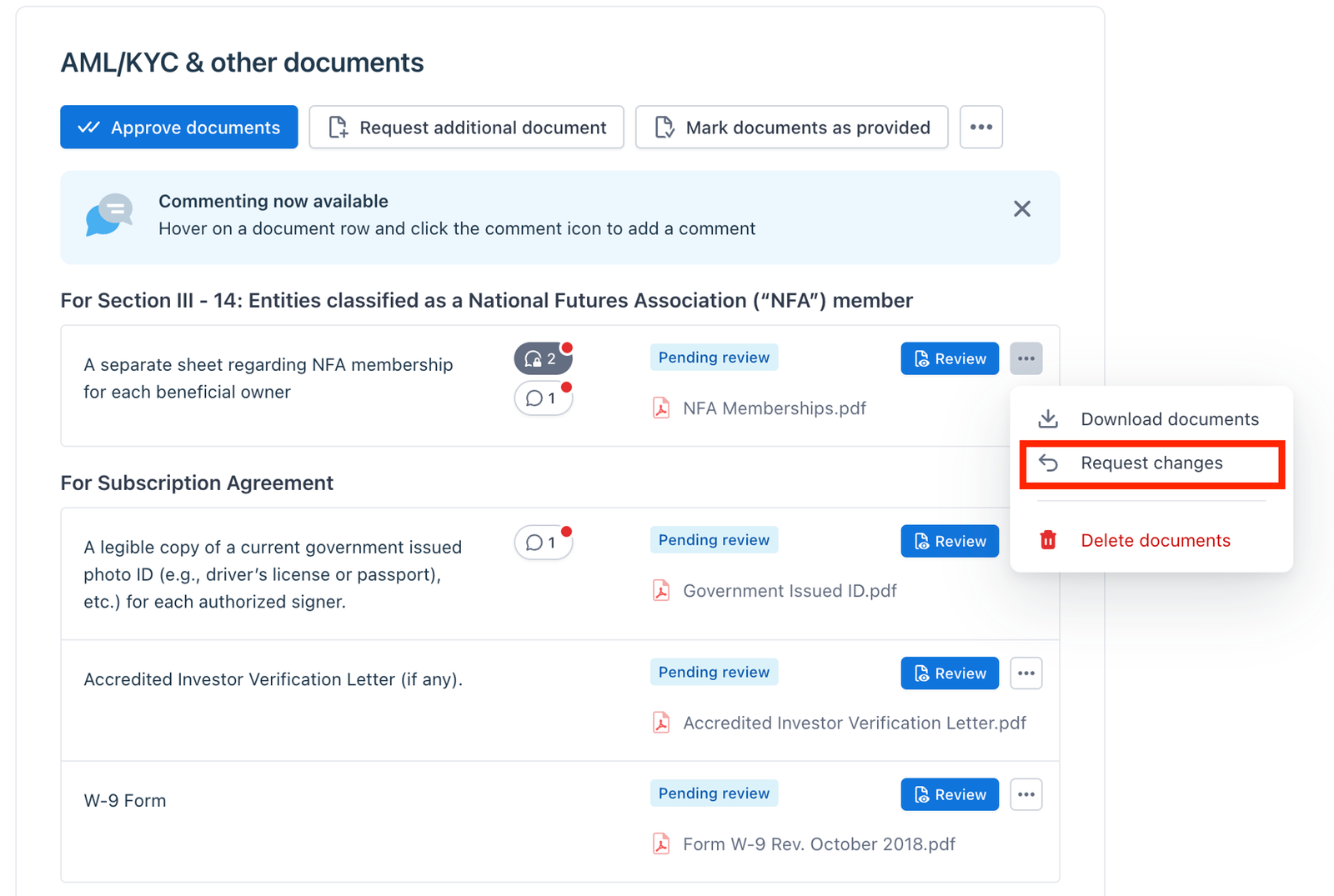
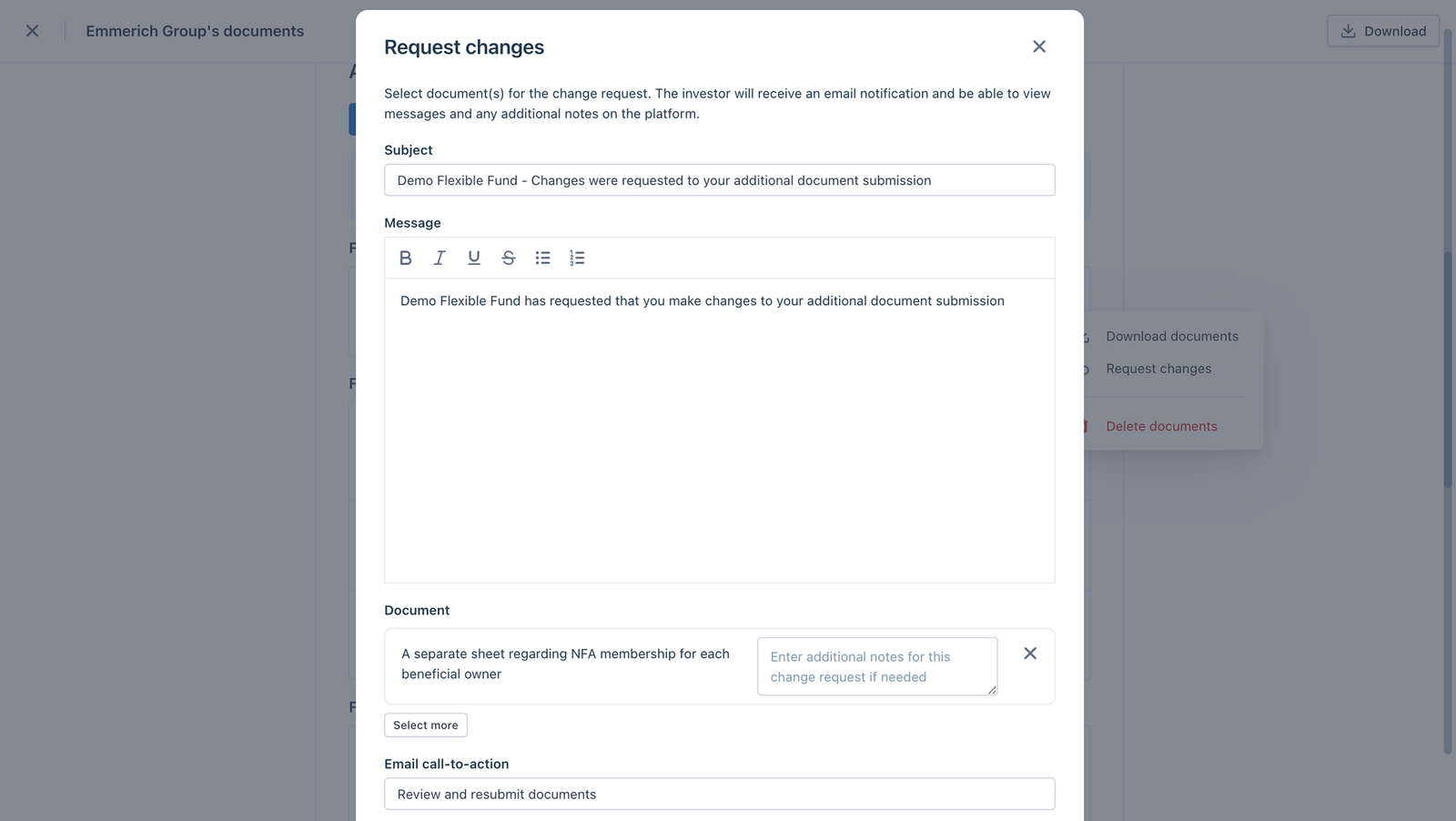
You'll be prompted to input an email message to the LP, along with any additional notes regarding the requested changes.
4. Bulk Approval for Multiple AML/KYC Documents per LP
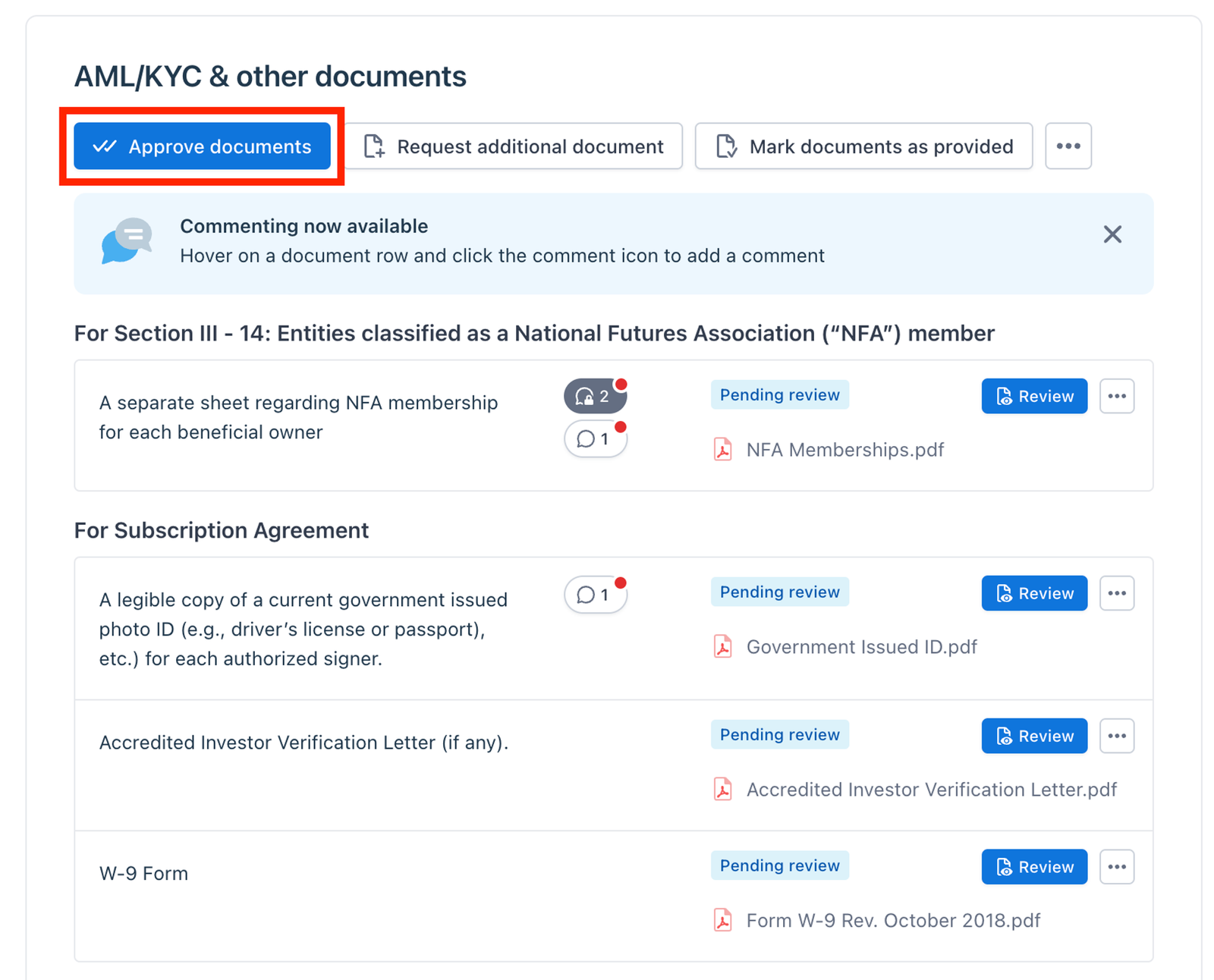
- If you possess a comprehensive list of AML/KYC documents for approval, you can streamline the process by selecting "Approve documents" to proceed with batch approval.
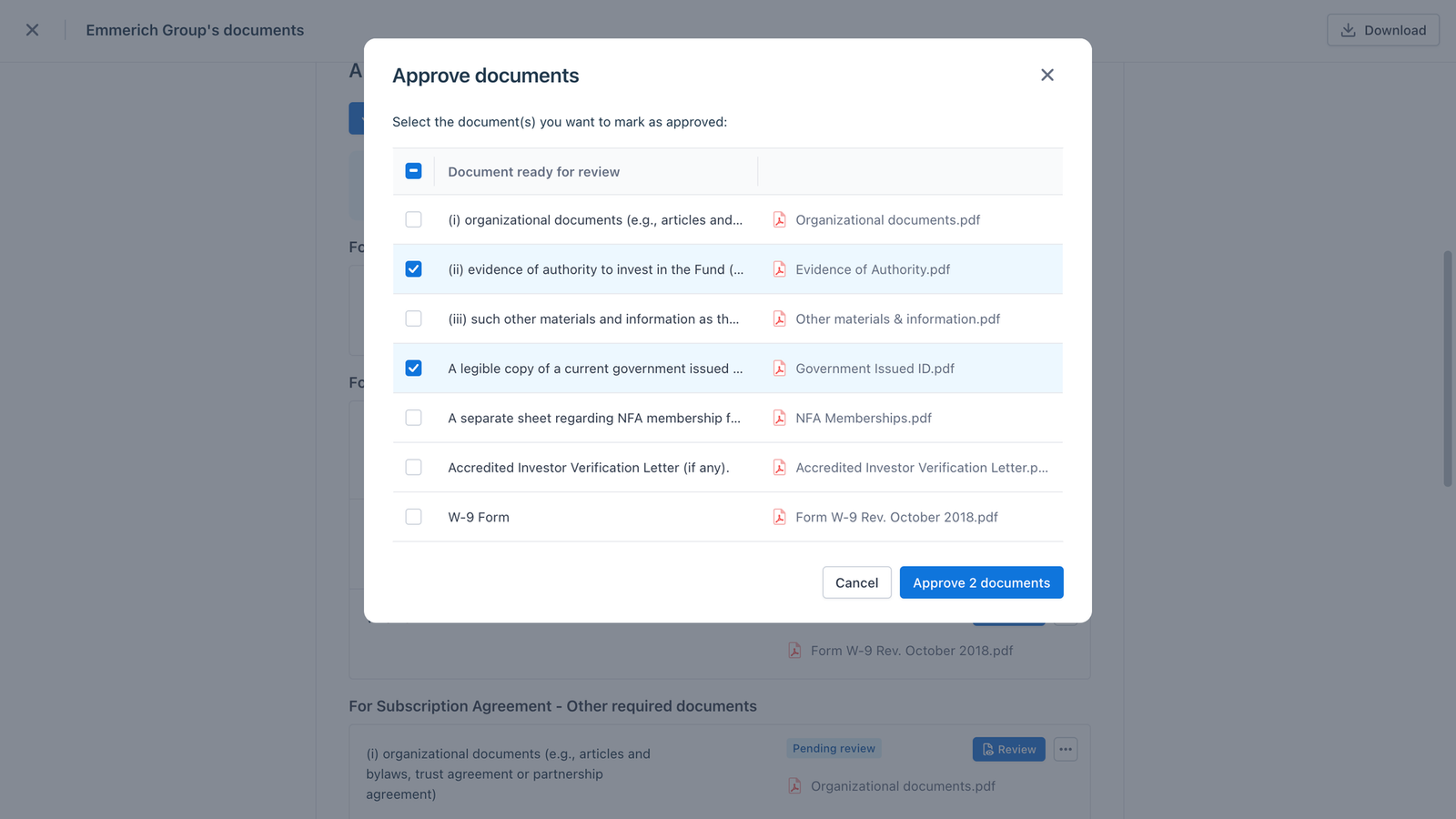
- You will then be prompted to choose the documents from the list of available AML/KYC docs eligible for your review.
5. Bulk Change Request for Multiple AML/KYC Documents per LP
If you possess a comprehensive list of AML/KYC documents for change requests, here's how to proceed:
- Select the "Request changes" button in the "More" menu to initiate batch change requests.
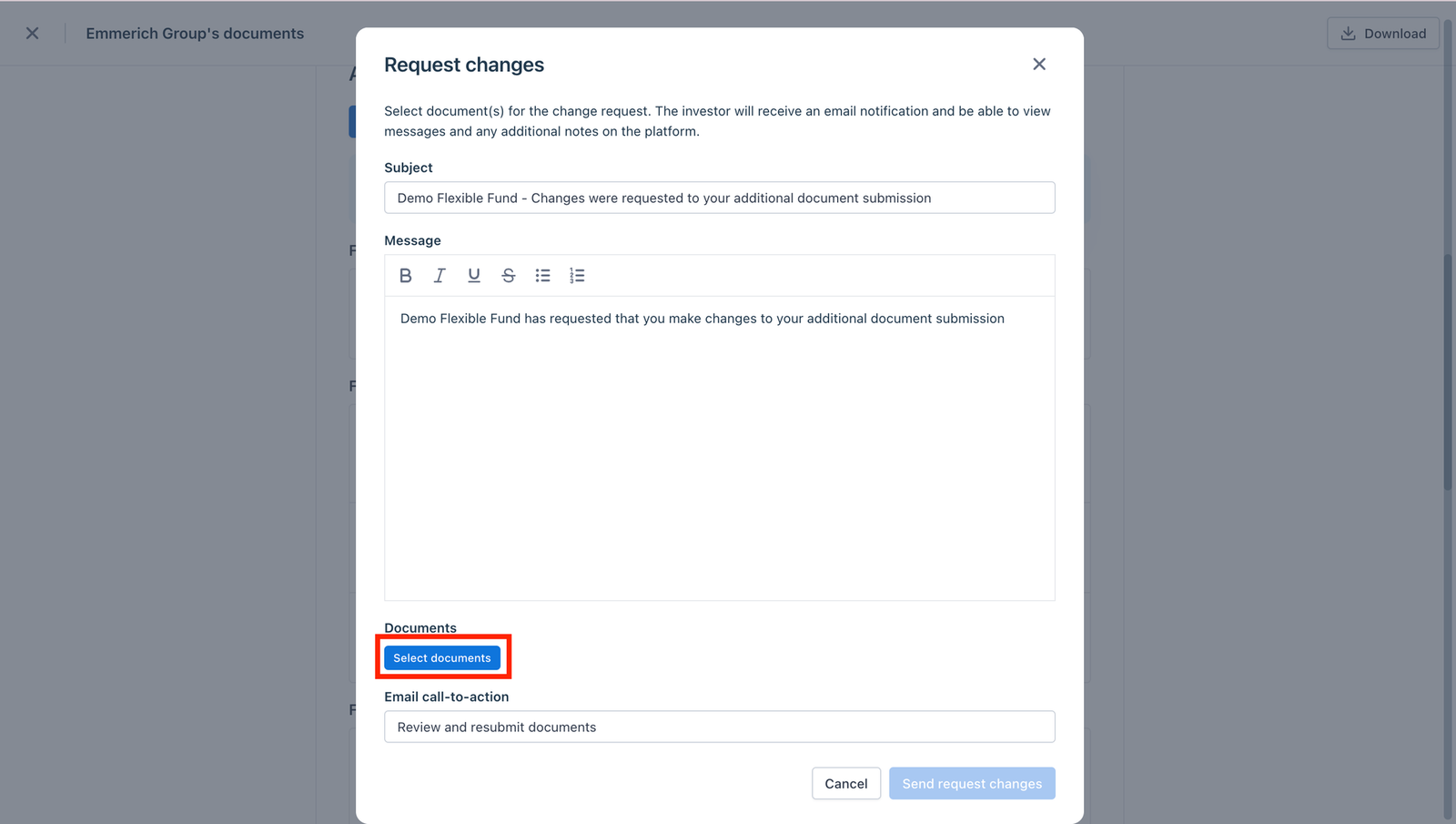
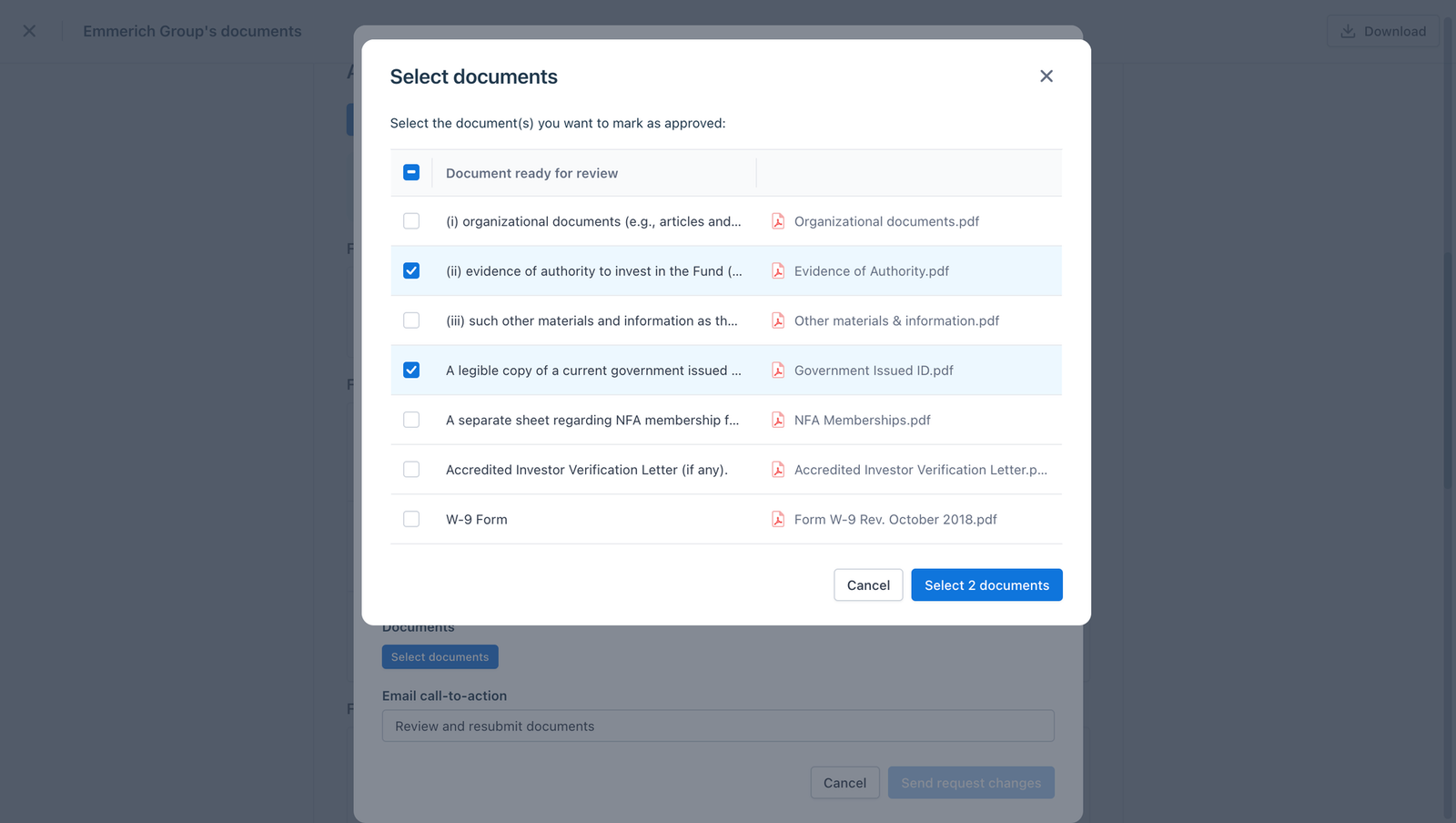
- Click "Select documents" to choose the relevant documents from the list of available AML/KYC docs eligible for your review and change requests.
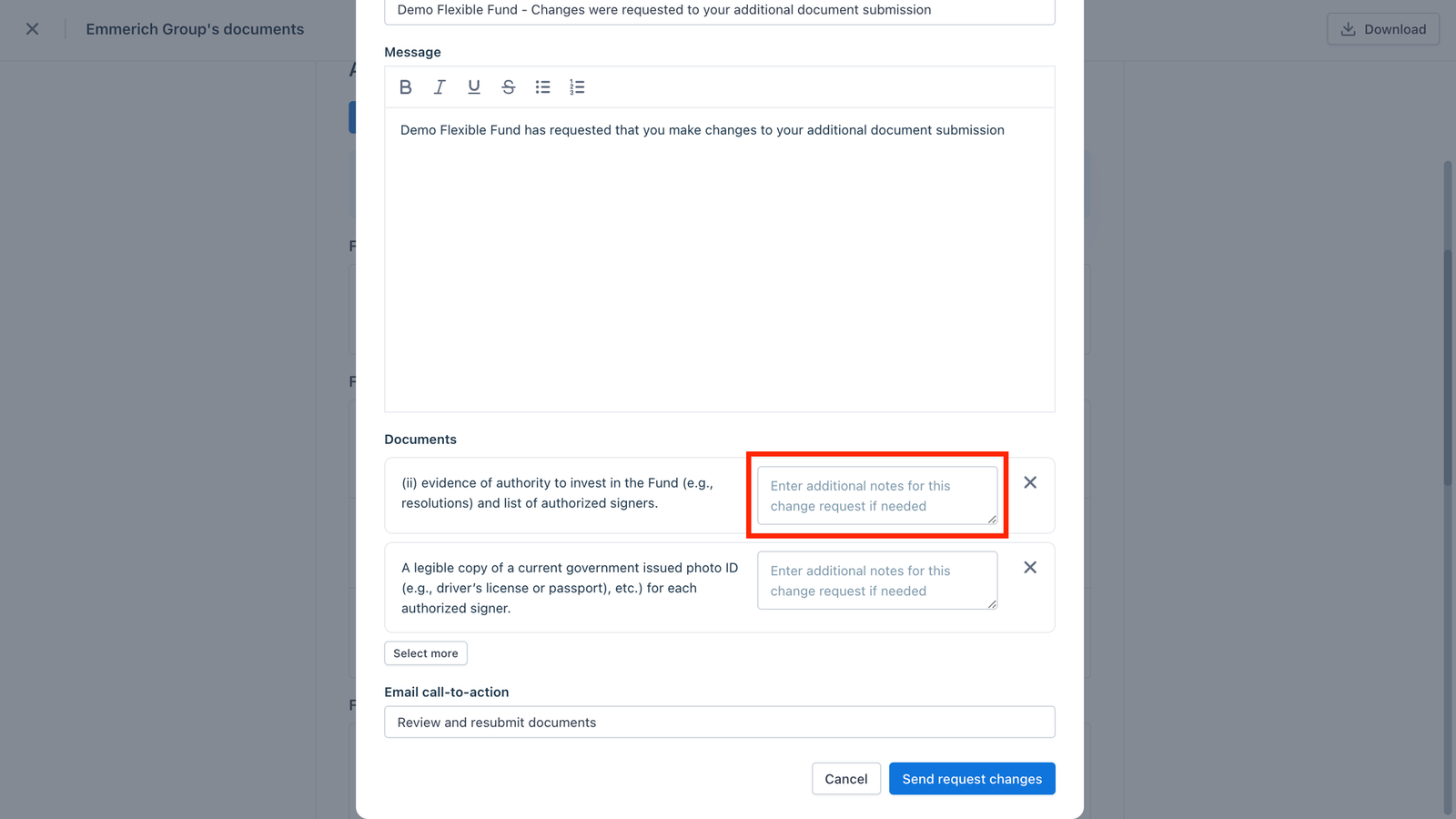
- You'll have the option to enter additional notes for each document type while drafting the request. These notes provide context for the LP, though they're not mandatory. It's advisable to include them as they'll be visible on the platform for LP reference, ensuring clarity and reducing the risk of lost communication via email.
6. Batch Approval for Multiple AML/KYC Documents cross LP
This process is similar to the single approval but allows for batch actions for multiple LPs simultaneously, expediting the review process for numerous documents.
Step 1: View List of LPs with AML/KYC Documents Ready for Review
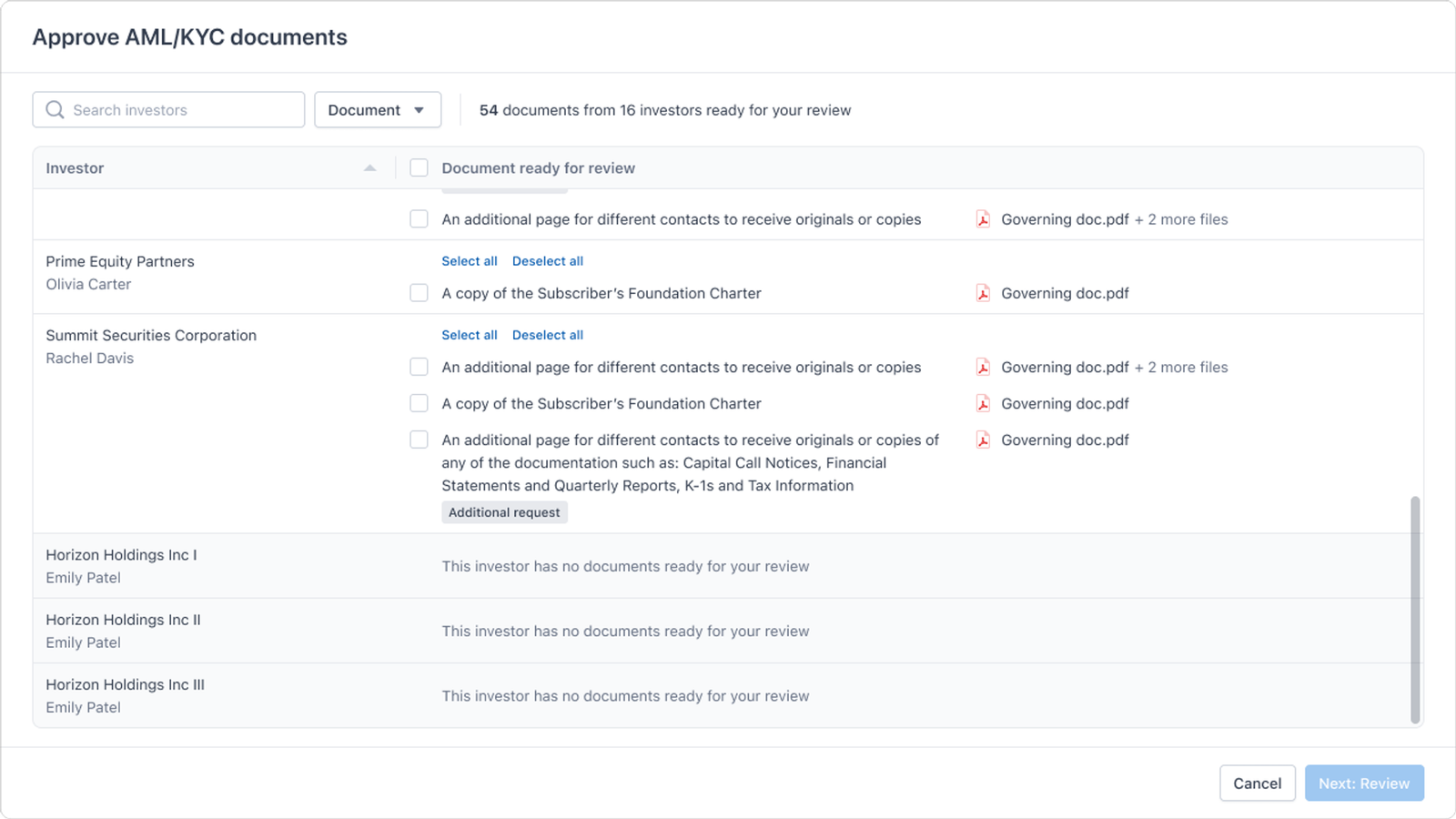
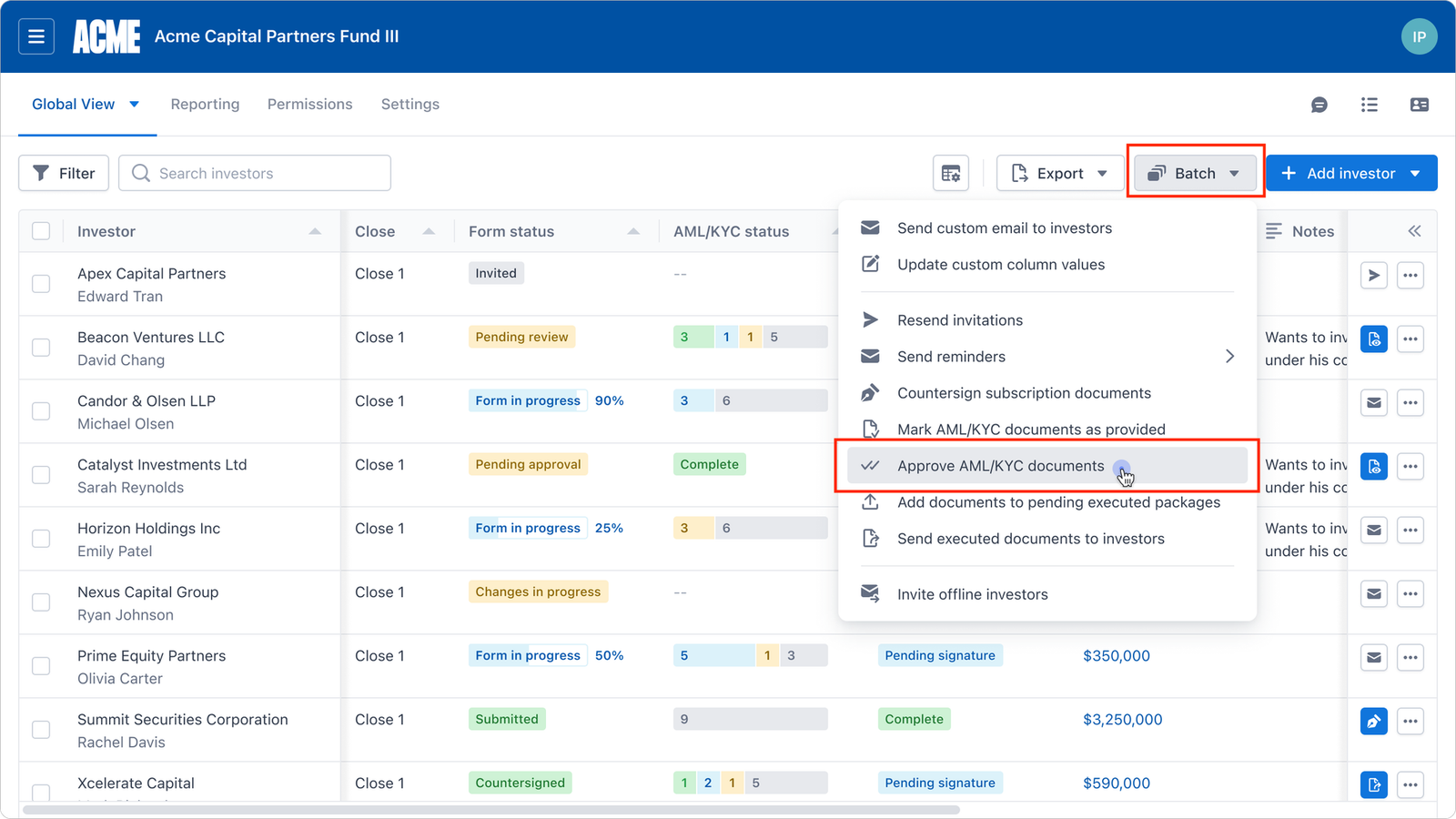
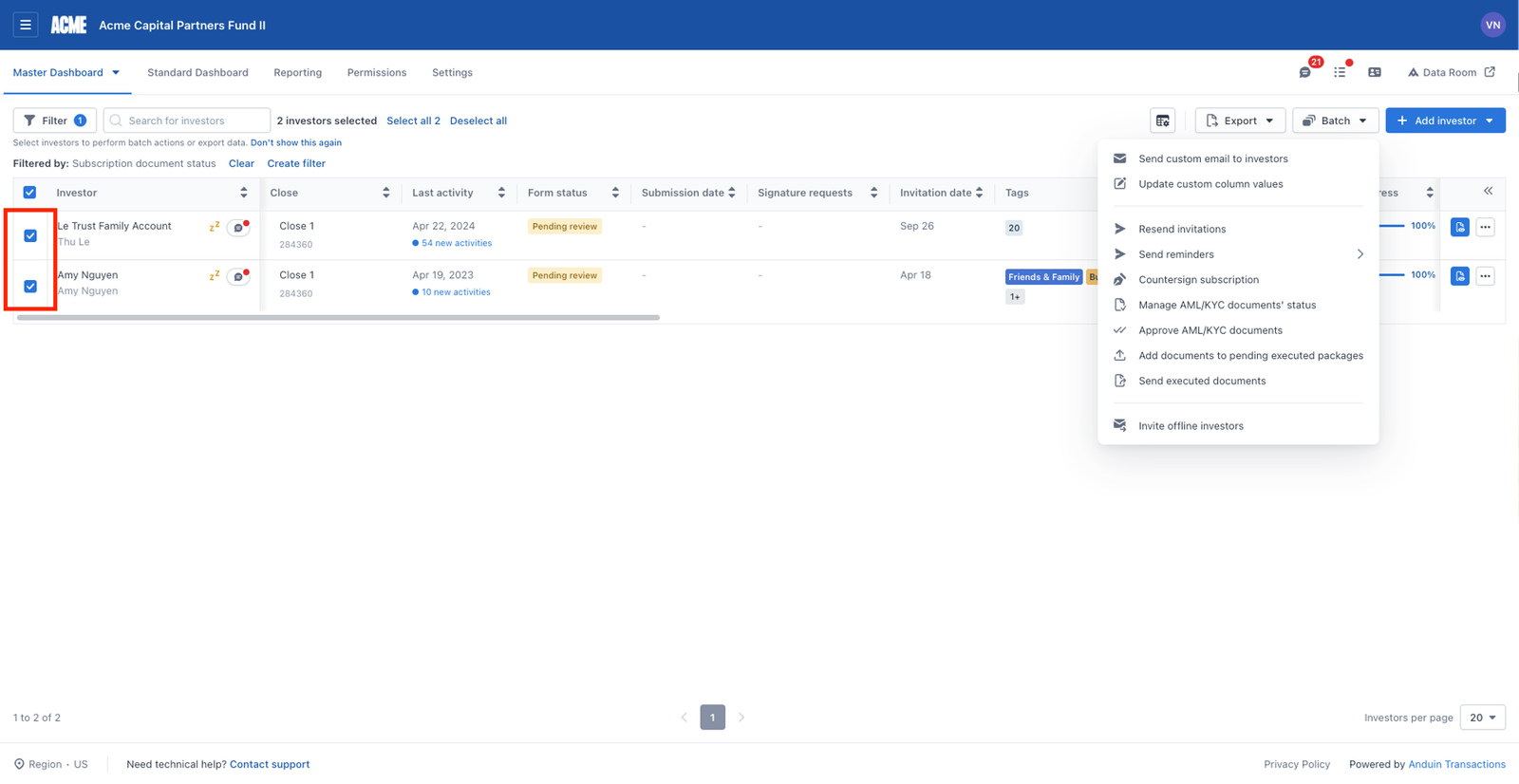
- Go to “Batch” CTA > Choose “Approve AML/KYC documents”
- You can pre-select the LPs on the Master dashboard and then batch approve their AML/KYC documents. This method is encouraged as it allows you to leverage various filters to focus on the LPs requiring your review.
Step 2: Choose AML/KYC Documents to Approve
- Only LPs and documents accessible to you (i.e., doc group assignment) will be visible.
- Some LPs will be grayed out if they don't match the criteria (e.g., no docs ready for review, or no review access).
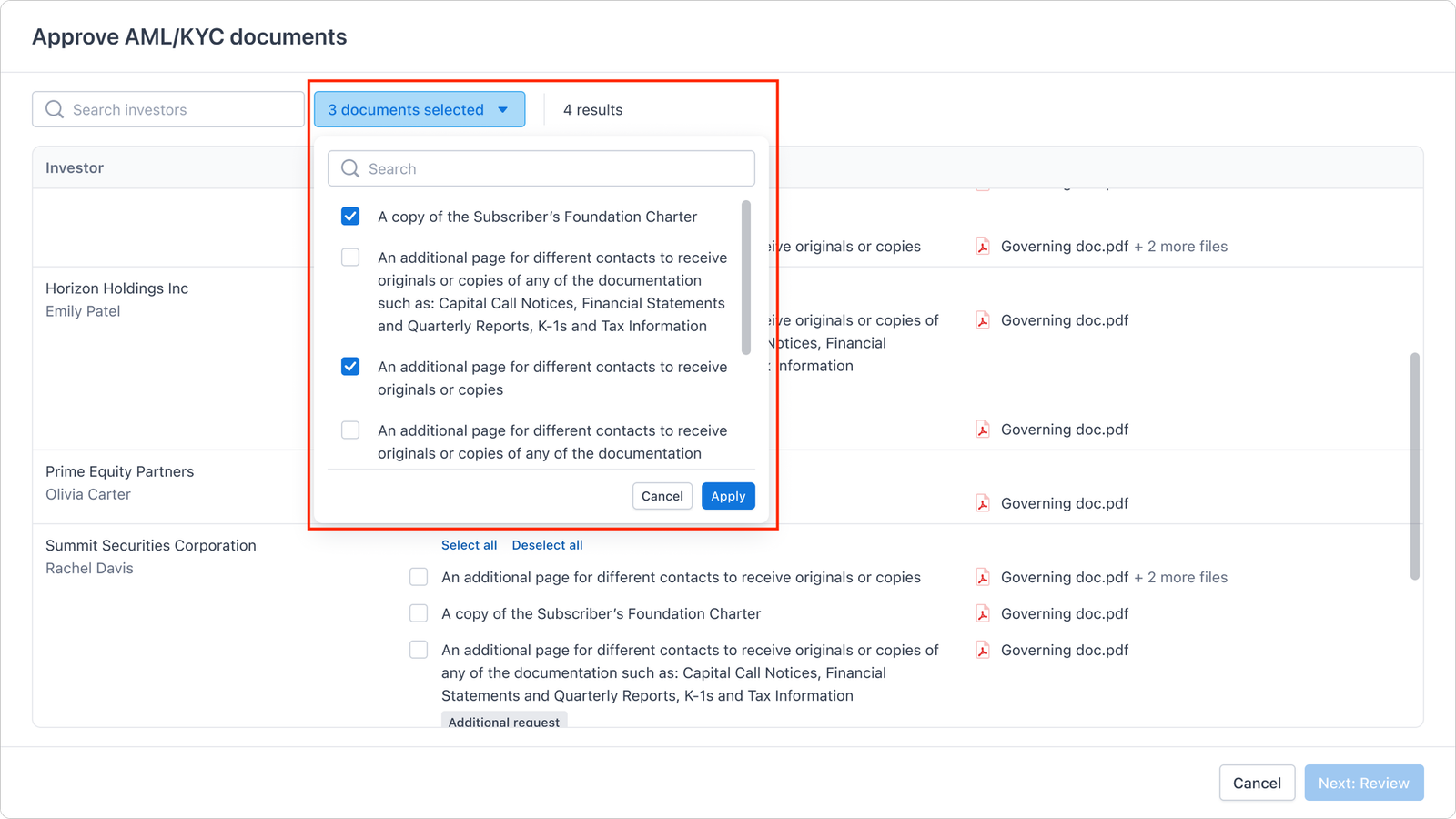
- Filter by document type to find the documents of interest.
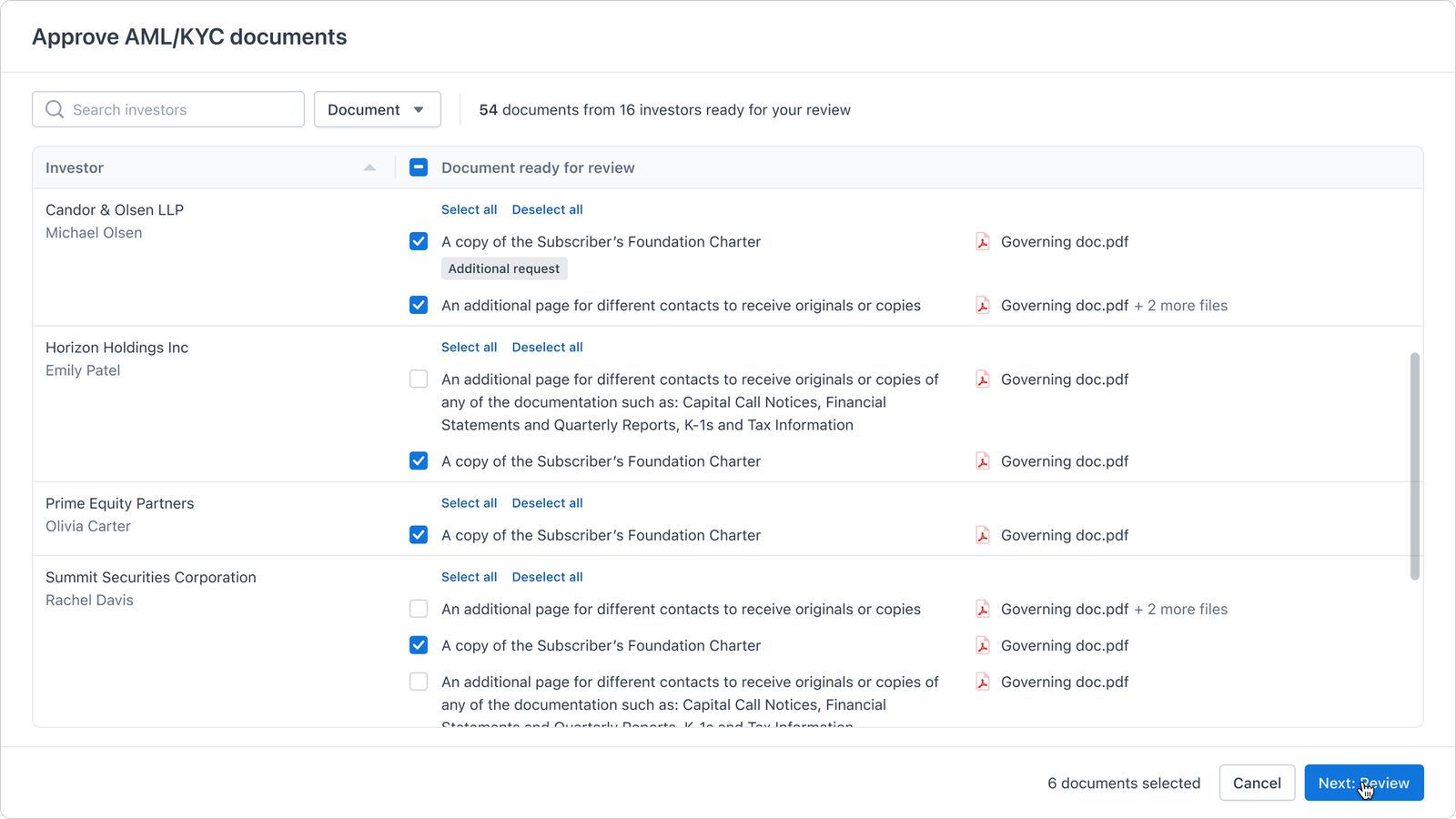
- Select any or all documents of an LP, or all documents ready for review on the screen to approve.
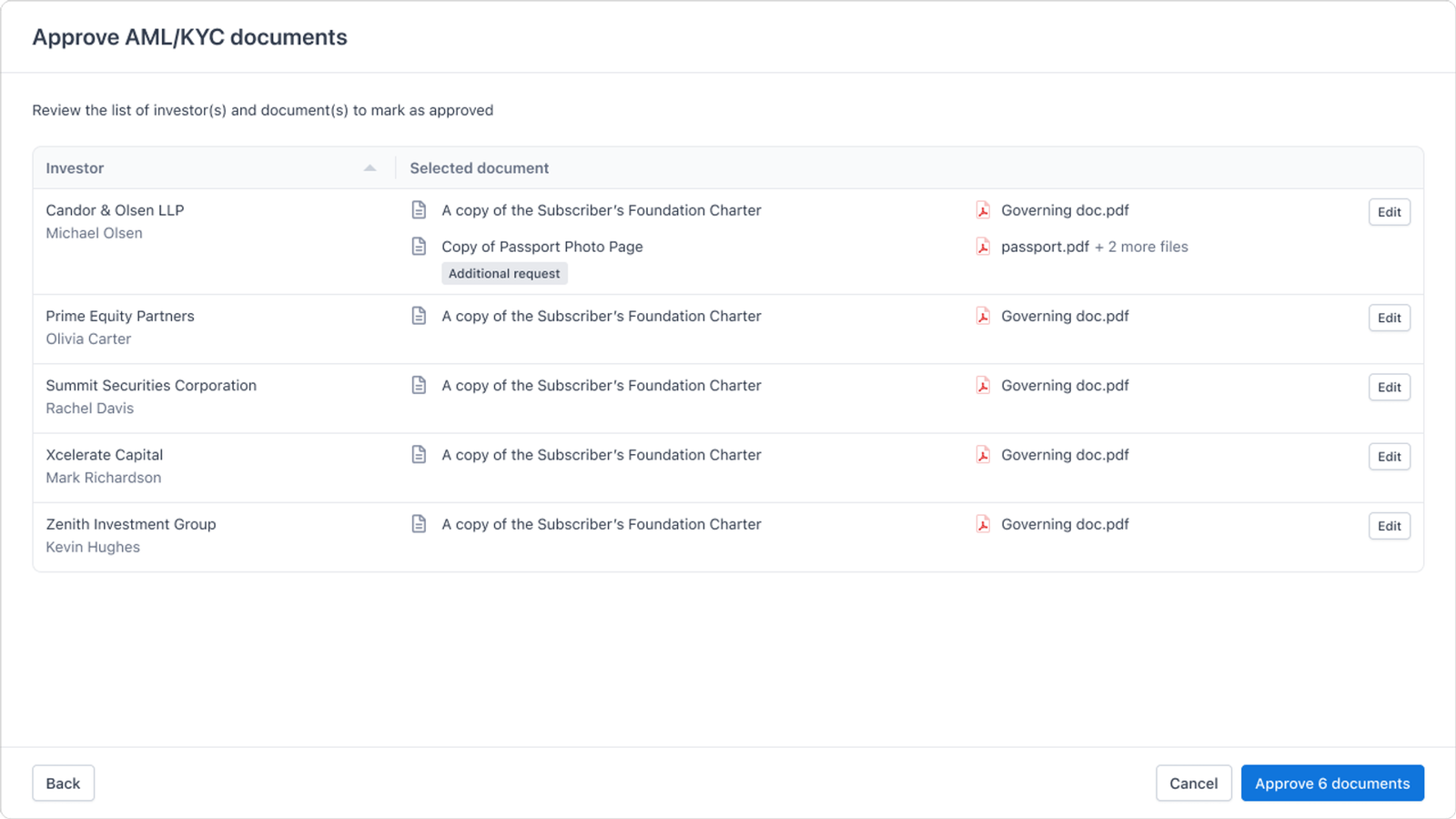
- Click “Next: Review” to review everything you have selected for each LP, with the option to edit the list and remove LPs if needed.