

Side Letter Exchange in Fund Subscription
FundSub now offers a streamlined workflow for managing side letter exchanges between GPs and LPs. This feature aims to simplify the process, enhance data c
FundSub now offers a streamlined workflow for managing side letter exchanges between GPs and LPs. This feature aims to simplify the process, enhance data centralization, and improve overall user experience, eliminating the need for off-platform communication and complex workarounds.
Why Use FundSub for Side Letter Exchange?
- Seamless Sharing & Execution: Directly share, review, revise, and sign side letters within FundSub.
- Centralized Tracking: Maintain all investor-related documents and execution records in one secure location.
- Improved Collaboration: Facilitate efficient negotiation and revision processes.
- Enhanced Transparency: Track the status of each side letter at every stage.
User Experience
1. GP Side: Managing Side Letters
1.1 Initiating a Side Letter
- GPs can initiate and manage side letters directly from a dedicated "Side Letter" section within each subscription. Side letters remain private to LPs until the GP shares the initial version (Version 1).
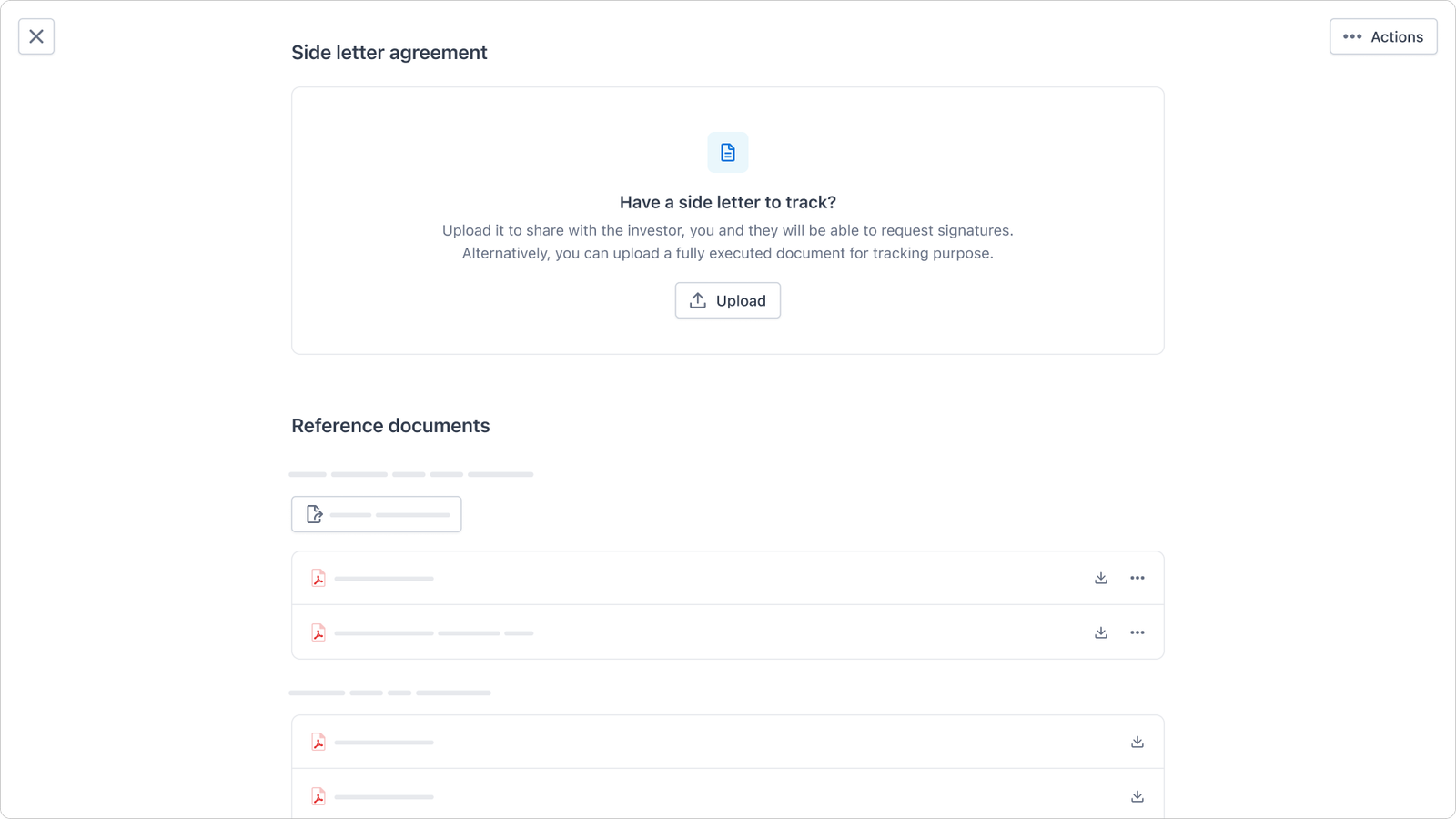
1.2 Negotiating & Tracking Side Letter Versions
- Streamlined Version Control: Create new versions to track negotiations and updates.
- Version History: Access all previous versions for reference.
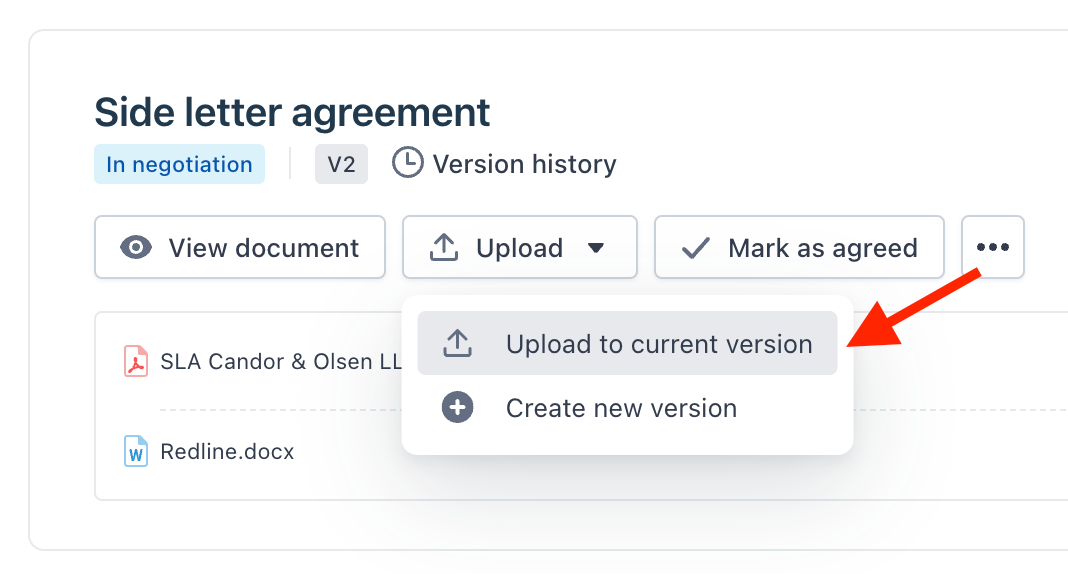
1.3 Managing Status & Tagging
- Structured Workflow: Assign clear statuses to each version (e.g., "In Negotiation," "Agreed," "Signed," "Completed").
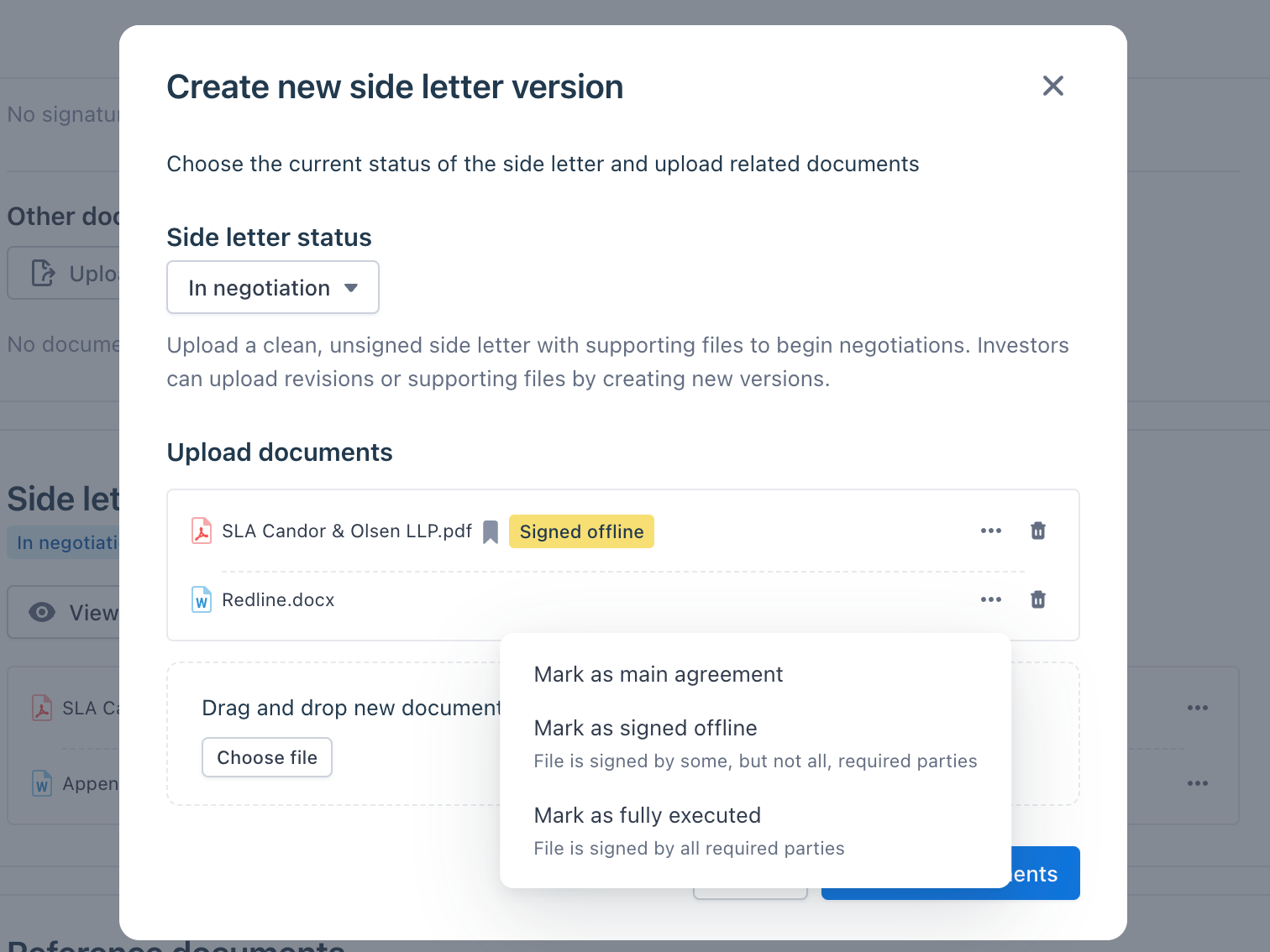
- Smart Tagging: Categorize files with tags for easy retrieval and clarity.
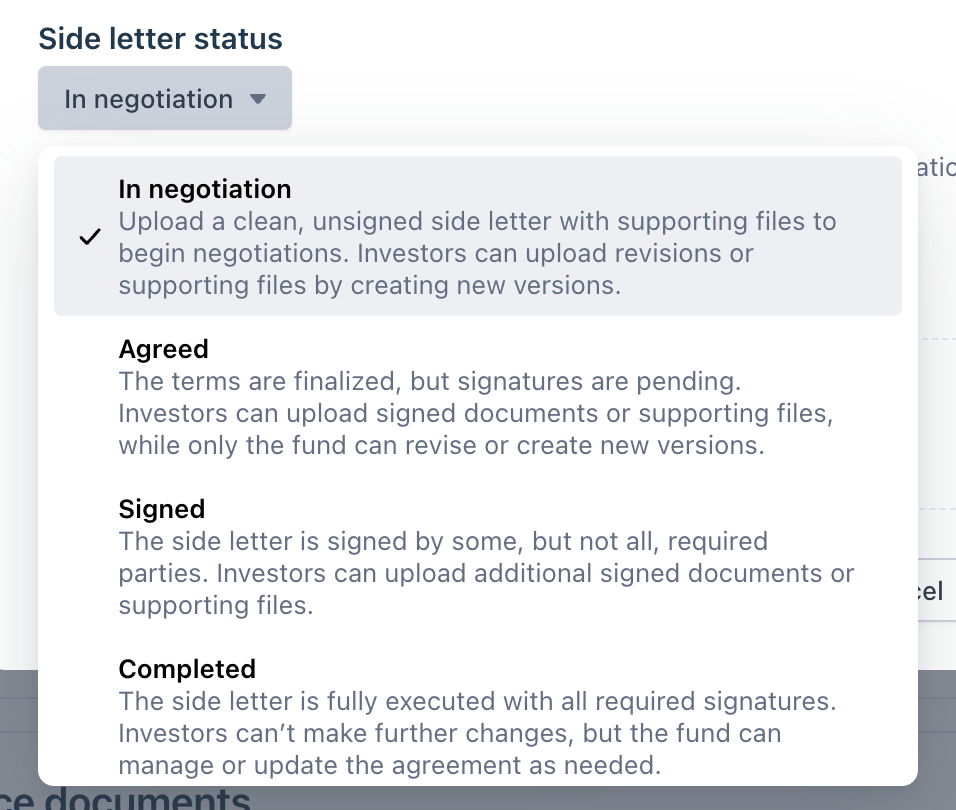
1.4 Finalizing Negotiations
Mark the status as "Agreed" to confirm finalized terms and enable e-signature requests.
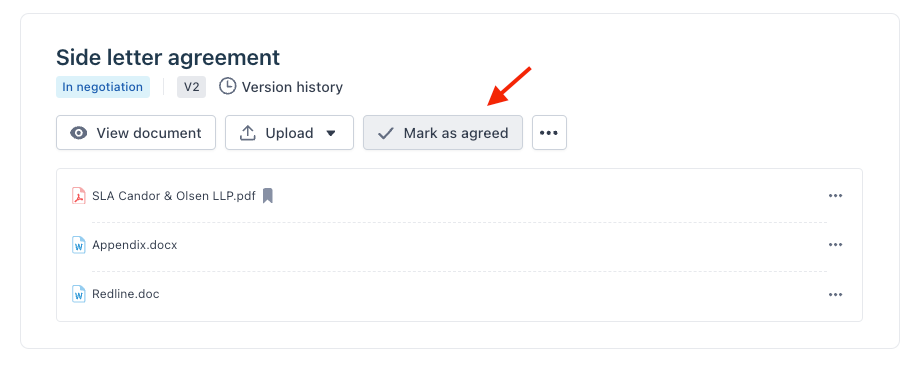
1.5 Completing Execution
Mark the status as "Completed" once all required parties have signed, ensuring proper storage and compliance.
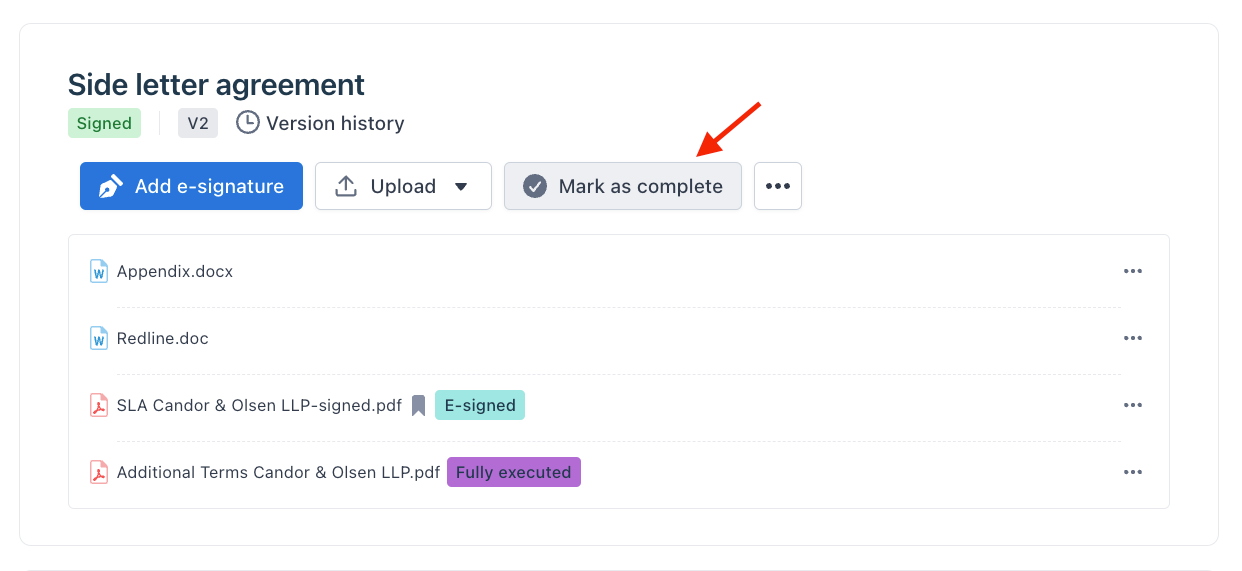
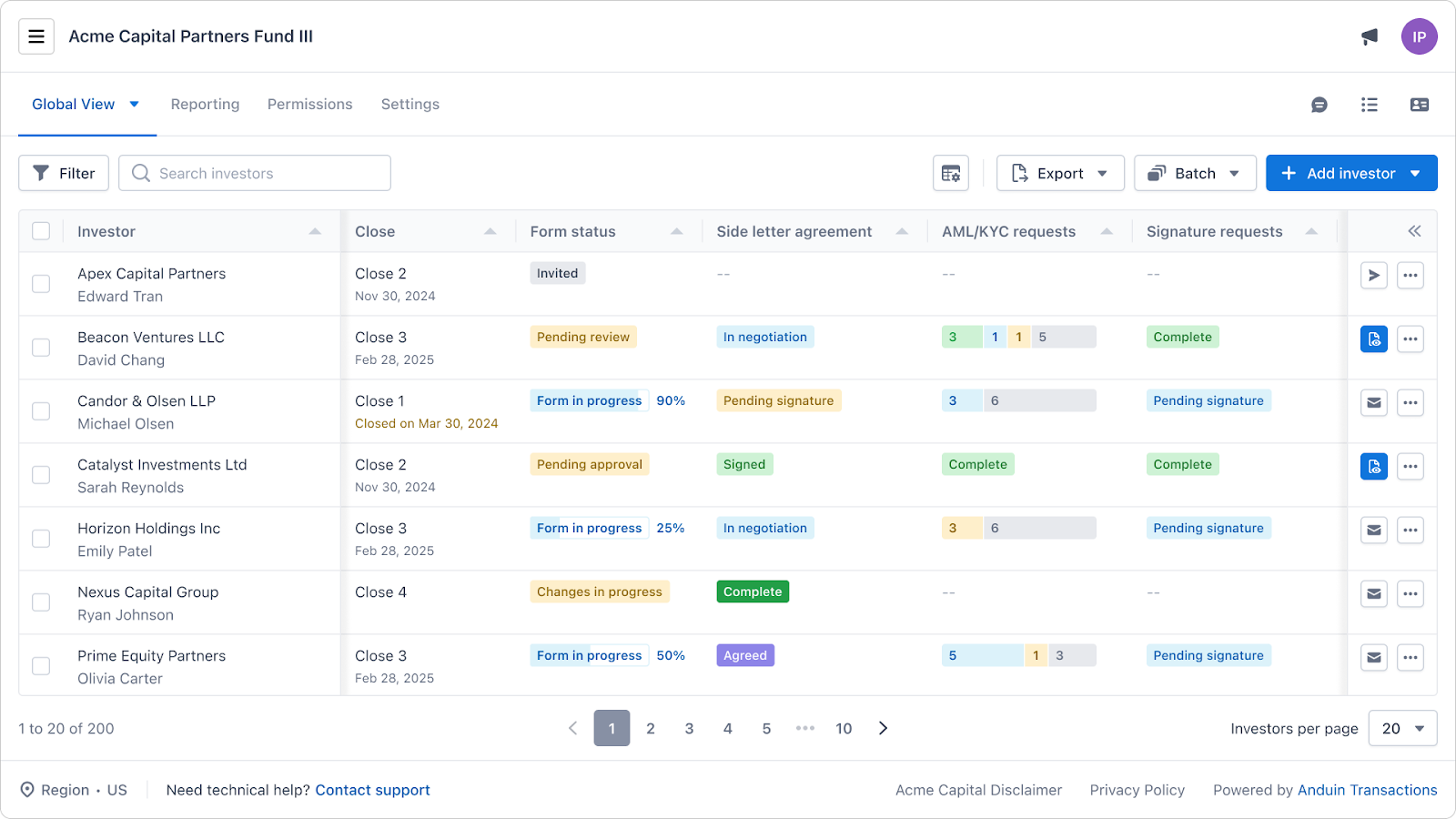
1.6 Advanced Dashboard Tracking
Utilize the "Side Letter Agreement" column on the Advanced Dashboard for real-time visibility into the status of each agreement. The status system follows these stages:
Workflow Status: In Negotiation → Agreed → Pending Signature → Signed → Completed
2. LP Side: Reviewing and Executing Side Letters
2.1 Receiving Notification
LPs receive instant email notifications when GPs share a side letter (Version 1) for review.
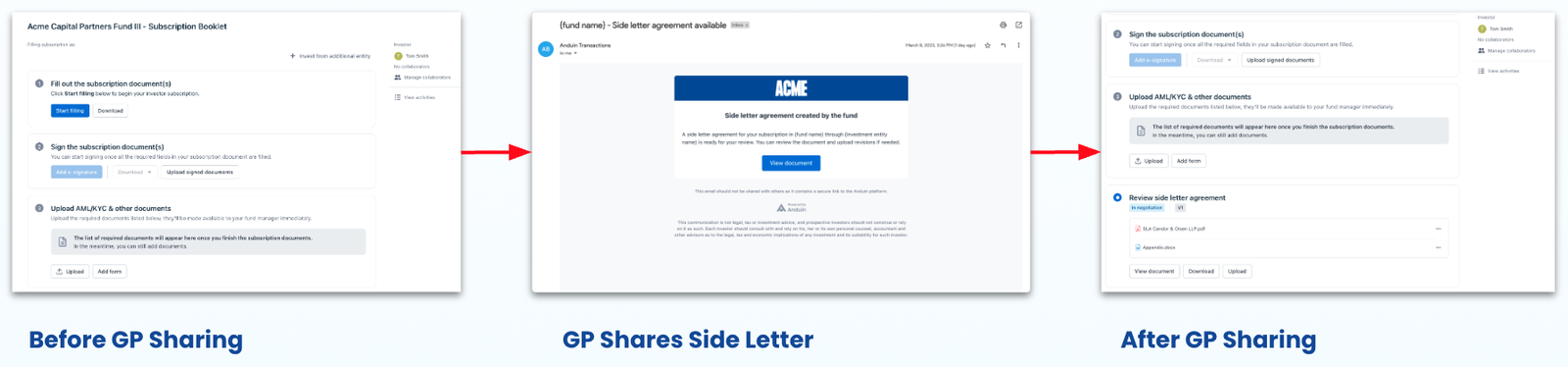
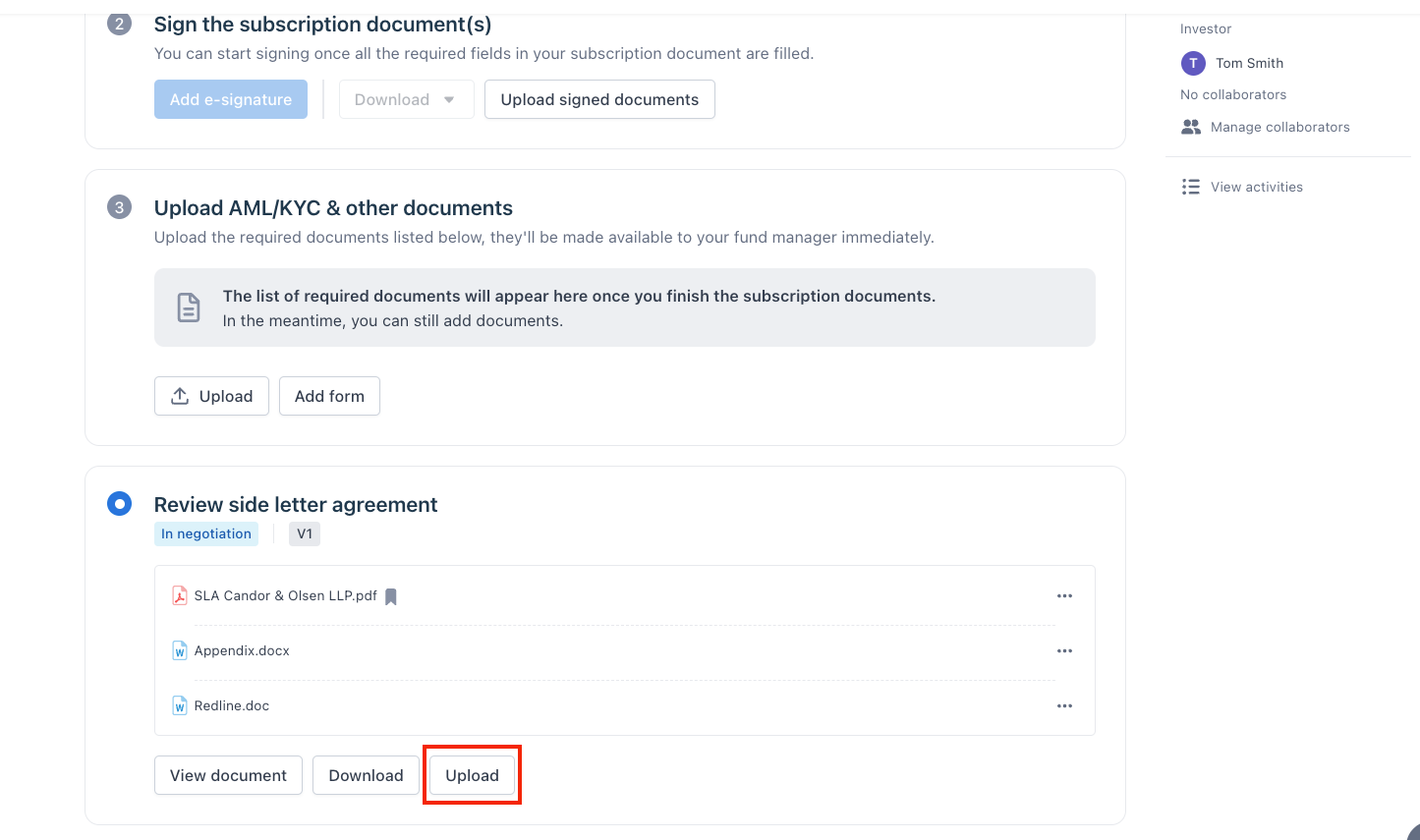
2.2 Reviewing & Uploading Revisions
- Seamless Revision Uploads: LPs can upload revised versions directly into FundSub.
- Clear Revision History: Maintain a transparent record of all revisions.
2.3 Executing Agreed Side Letters
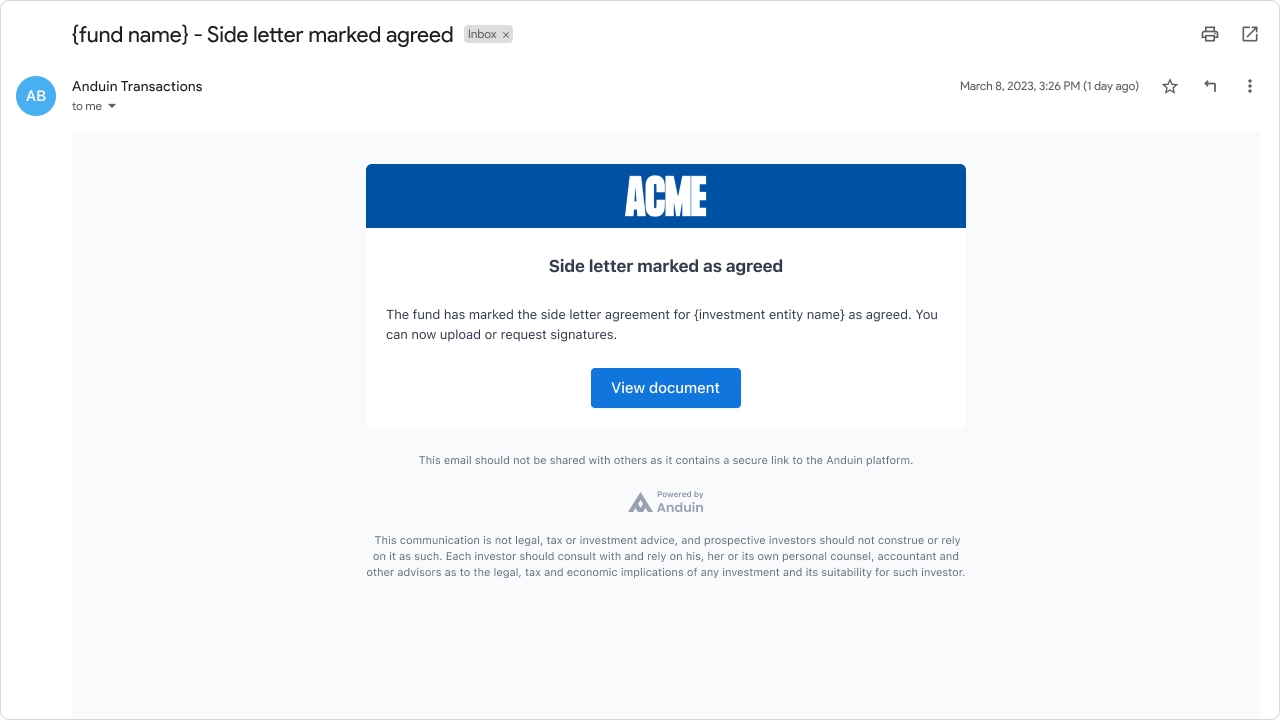
- Email Notification: LPs receive an email notification when a side letter is marked "Agreed."
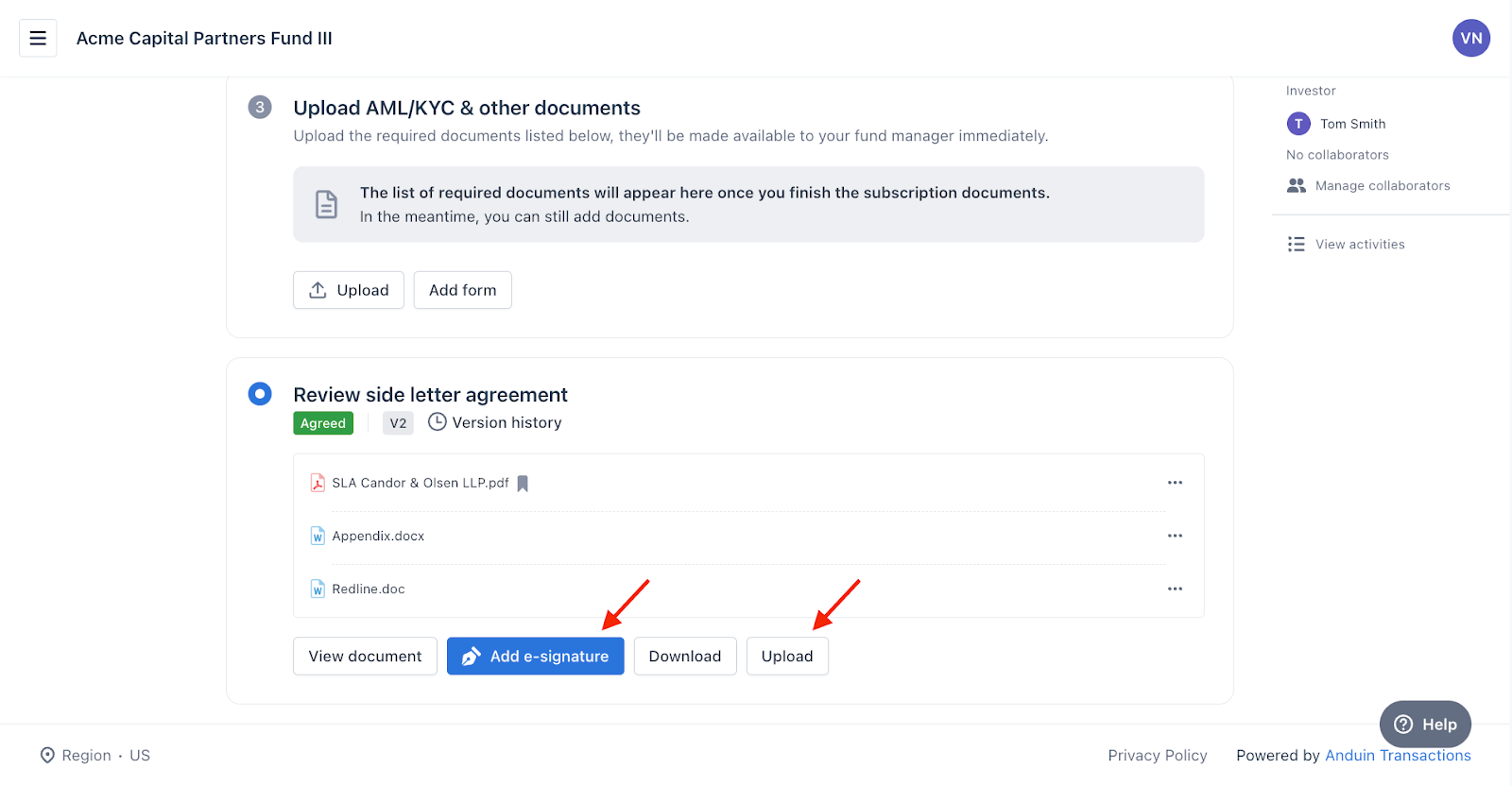
- Flexible Execution Options:
– Request an e-signature directly within FundSub. – Upload an offline-signed document.
Step-by-Step Guides
GP: Initiating a New Side Letter
- Navigate to the subscription.
- Go to the "Side Letter" section.
- Click "Create New Side Letter."
- Upload & share the initial version (Version 1) with the LP.
GP: Managing Side Letter Versions
- Open the relevant side letter.
- Click "Create New Version."
- Upload the updated document.
- Update tags and status as needed.
LP: Reviewing and Uploading Revisions
- Open the side letter from the email notification.
- Review the document.
- Click "Upload Revision" to submit a revised version.
LP: Executing an Agreed Side Letter
- Open the side letter from the "Agreed" notification email.
- Choose to either request an e-signature or upload an offline-signed document.
- Follow the on-screen instructions.
For further assistance, please contact our support team.