

Create Supporting Documents Review Groups
Public
support groupsdocument review
You may find that you need to control which users can review which AML/KYC documents to reduce the risk of documents being erroneously approved or rejected
You may find that you need to control which users can review which AML/KYC documents to reduce the risk of documents being erroneously approved or rejected or marked as not applicable. Here are the steps to create the groups and assign supporting documents to the group
- In the top nav bar, go to Settings:

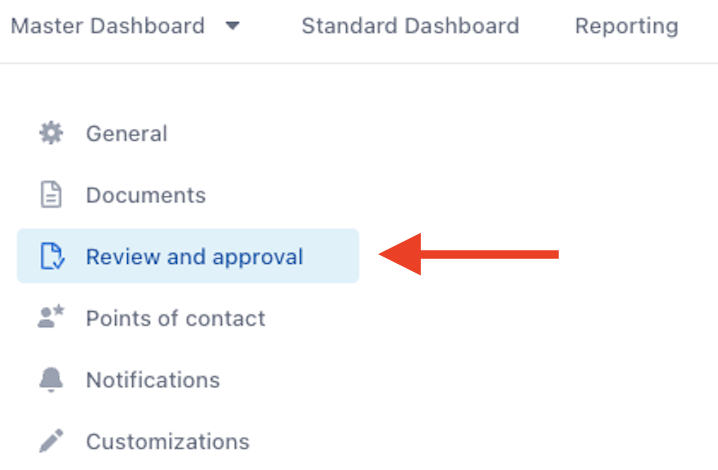
- In the left nav bar, go to Review and Approve:
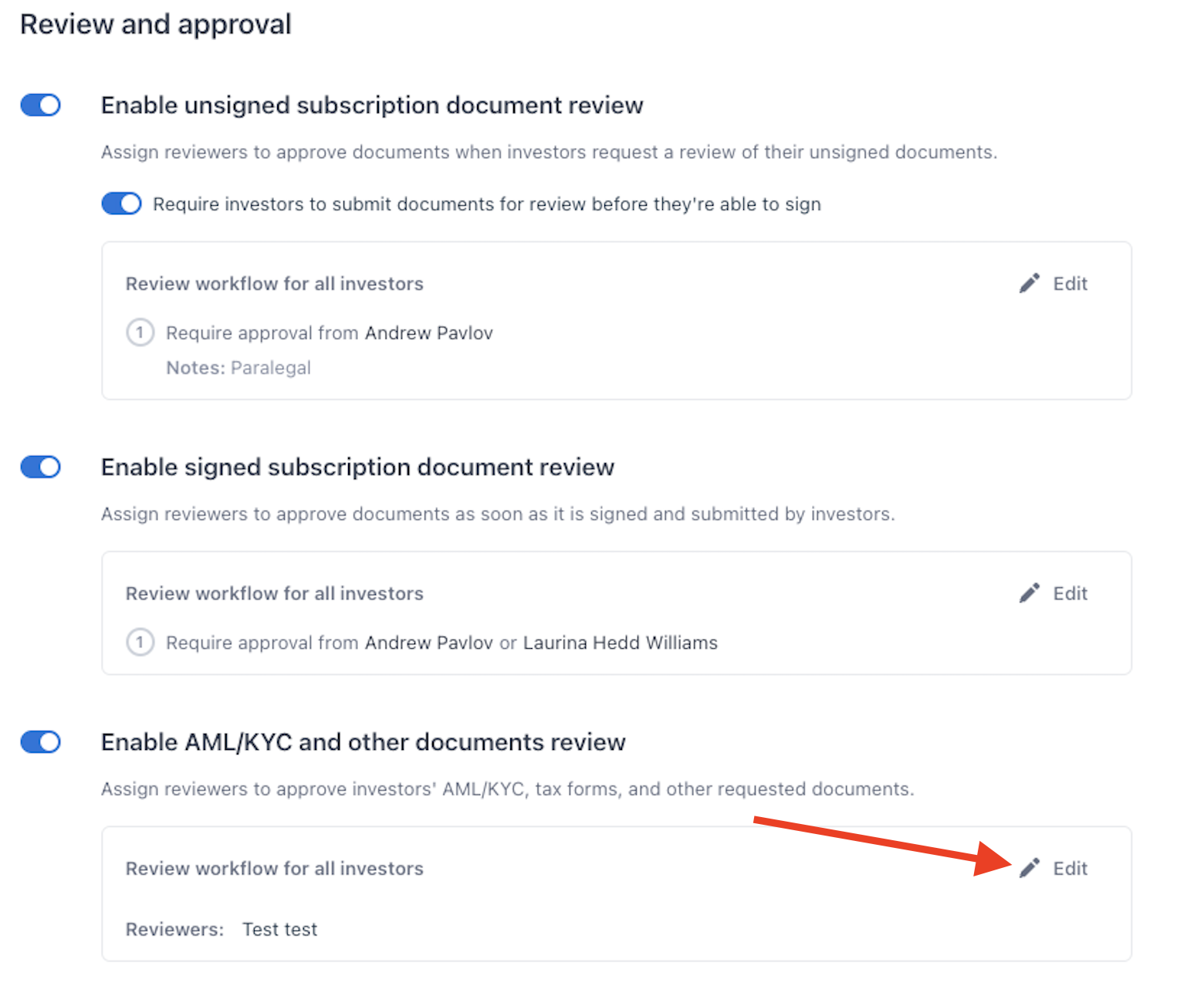
- Under Enable AML/KYC and other documents review, click edit:
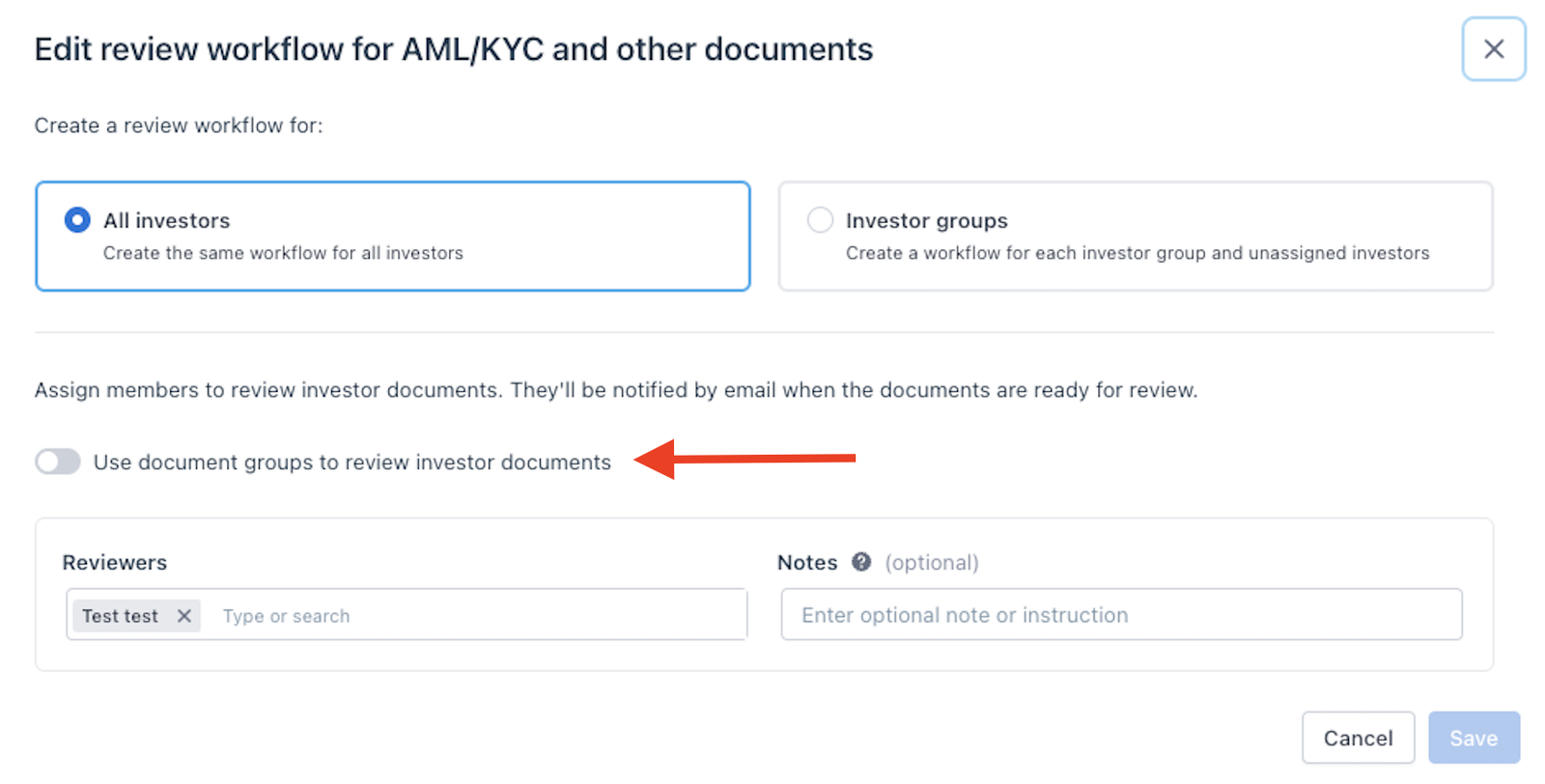
- From here, turn on Use document groups to review investor documents:
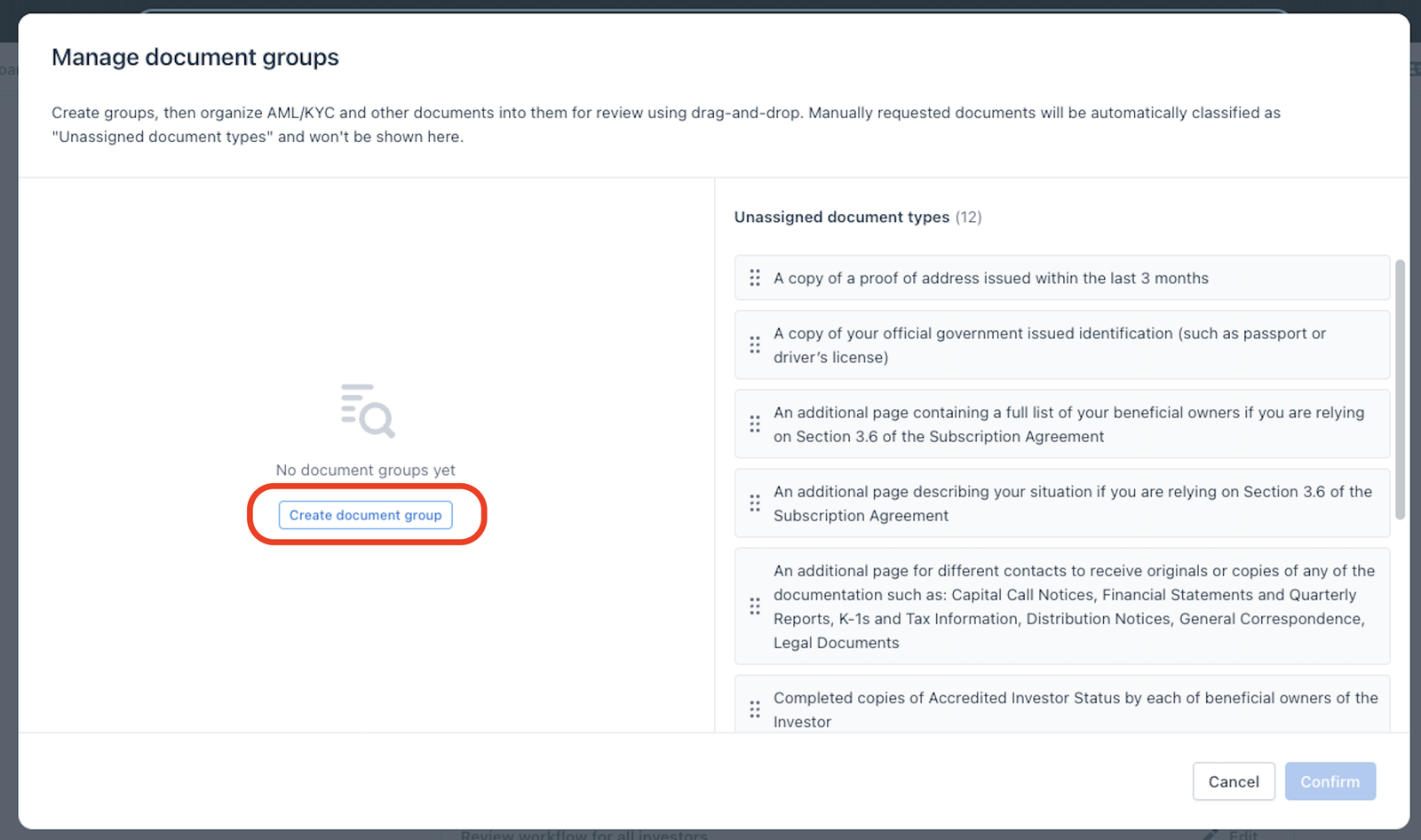
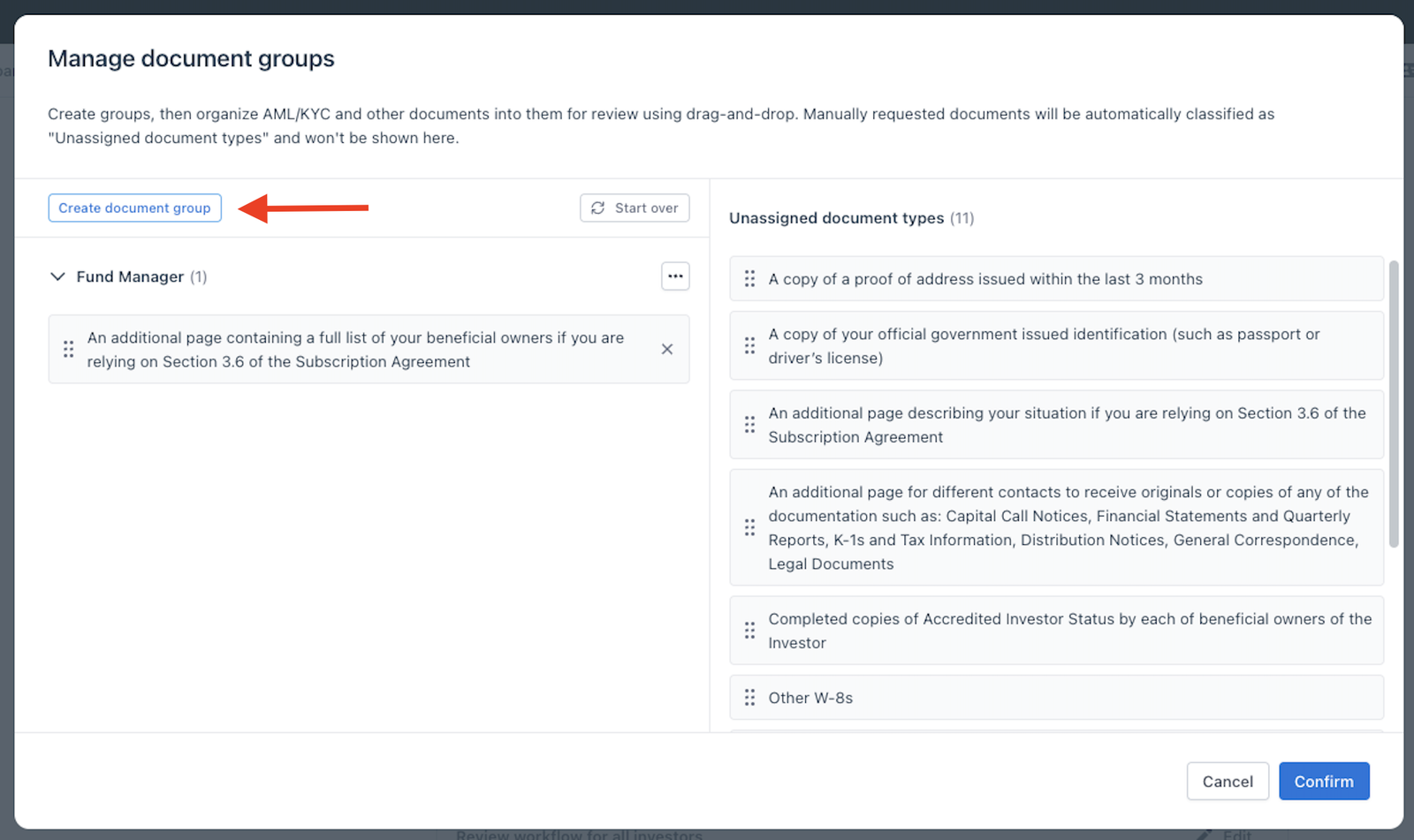
- Select Create document group:
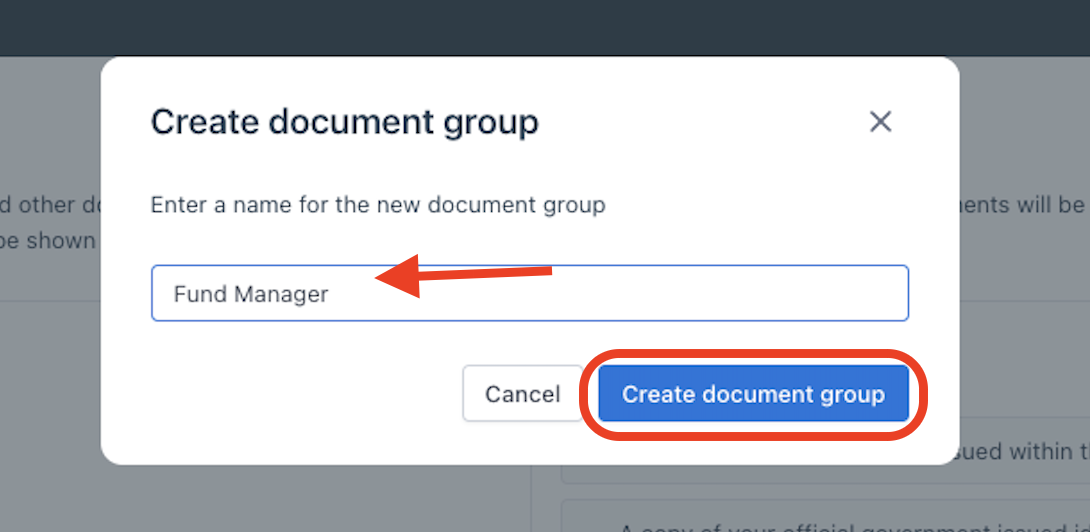
- Enter in a document group name and click Create document group:
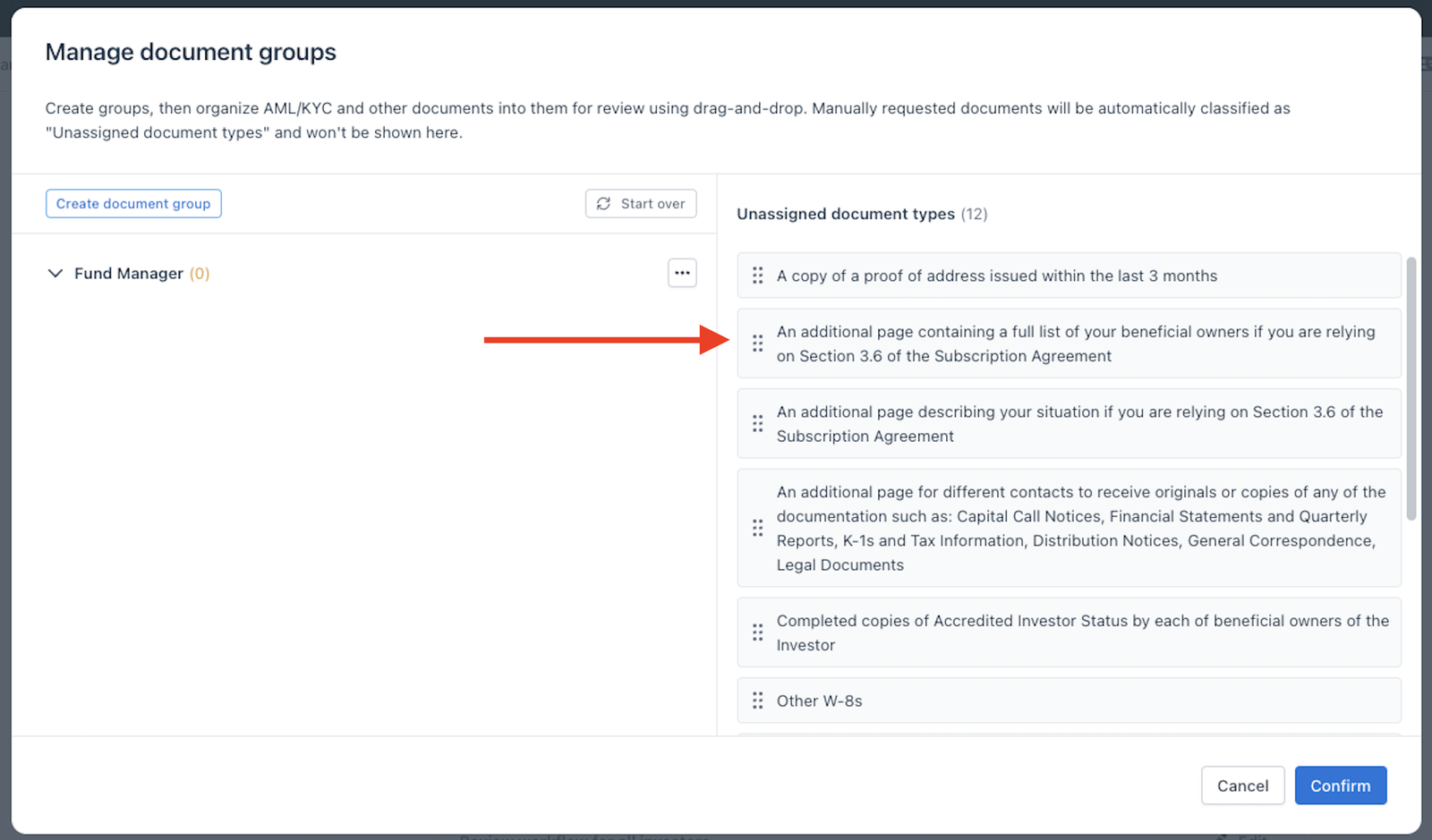
- Grab the documents from under Unassigned document types on the right side and drag it under the Documents Review group on the left:
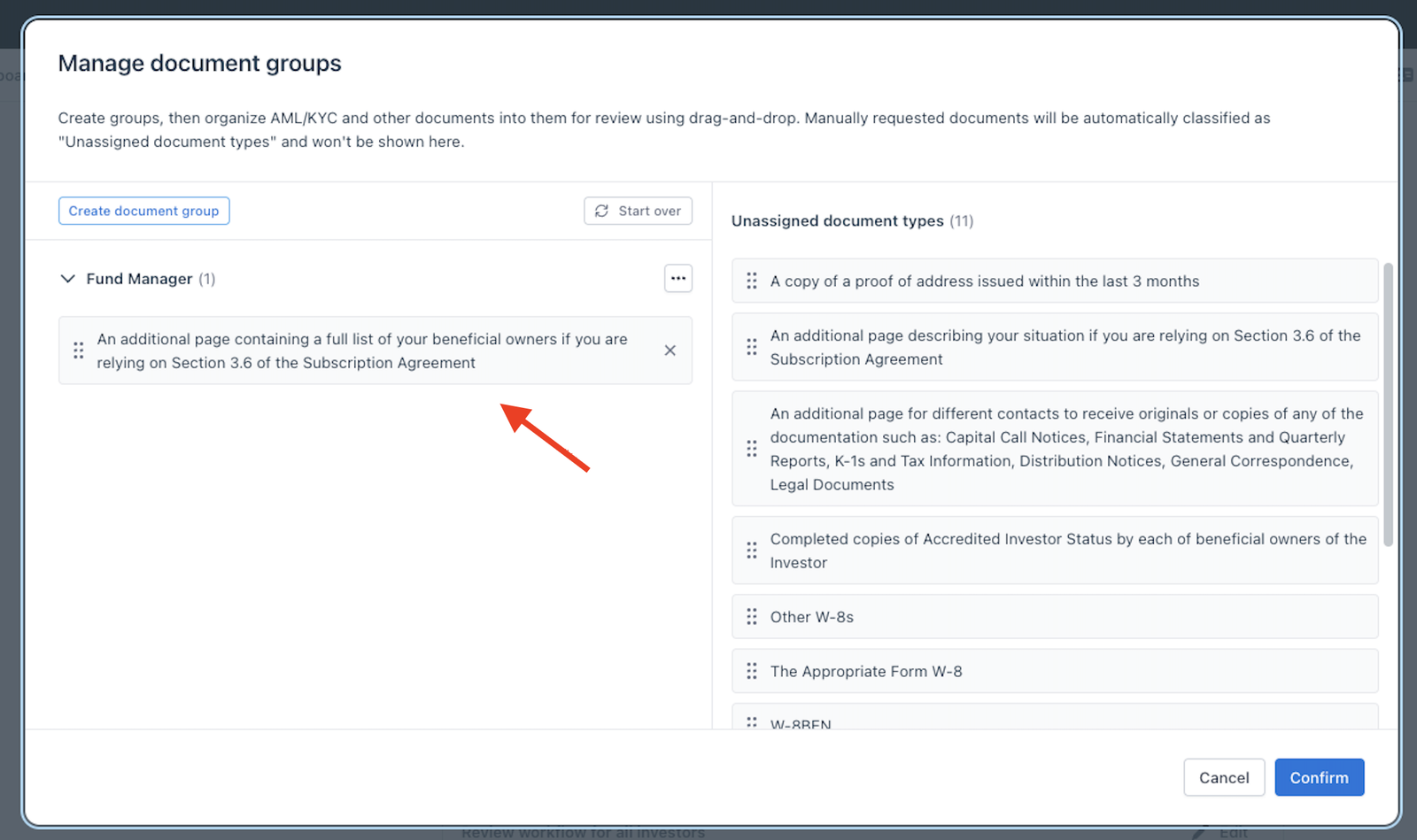
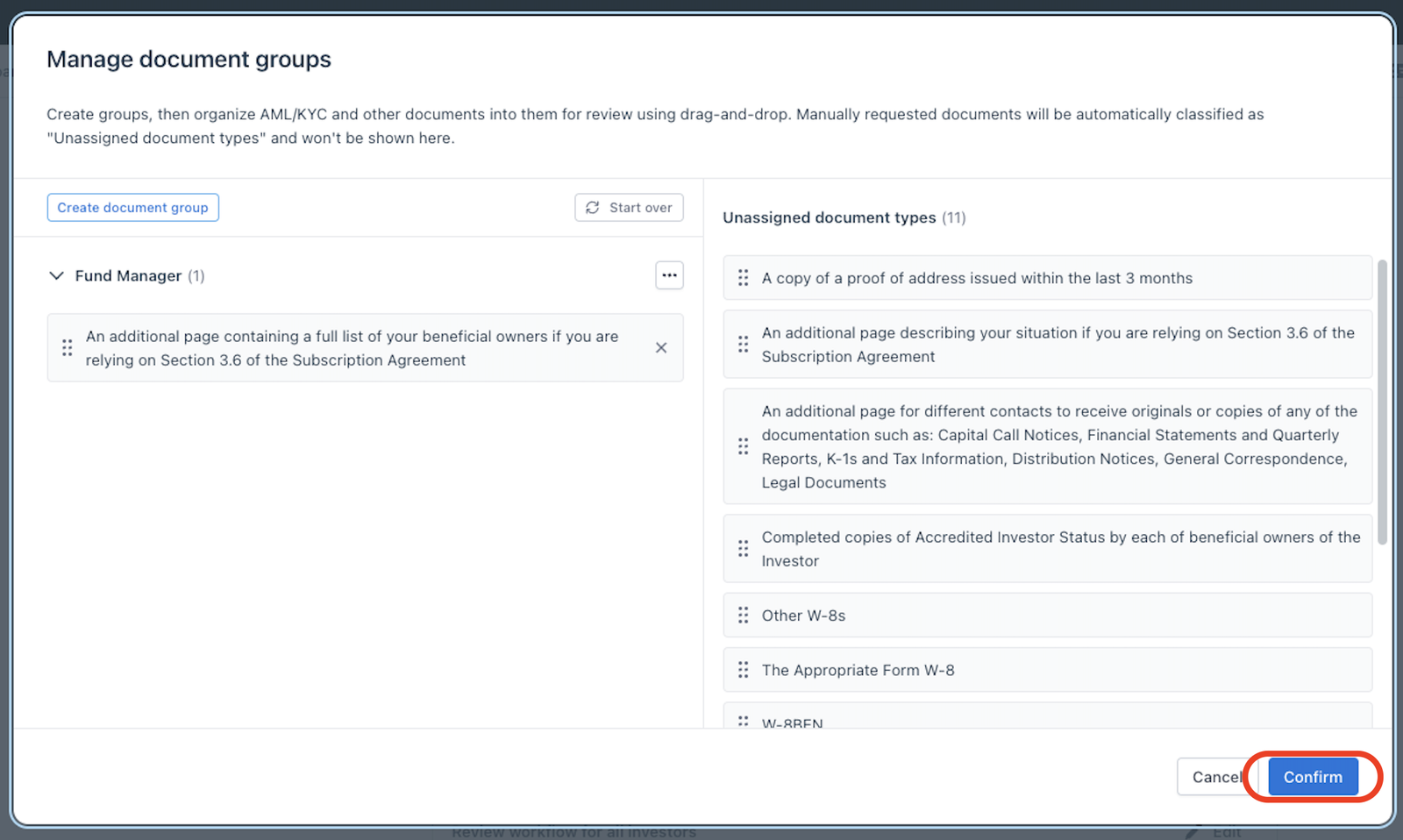
- Once you have chosen all of the documents for the group, click Confirm:
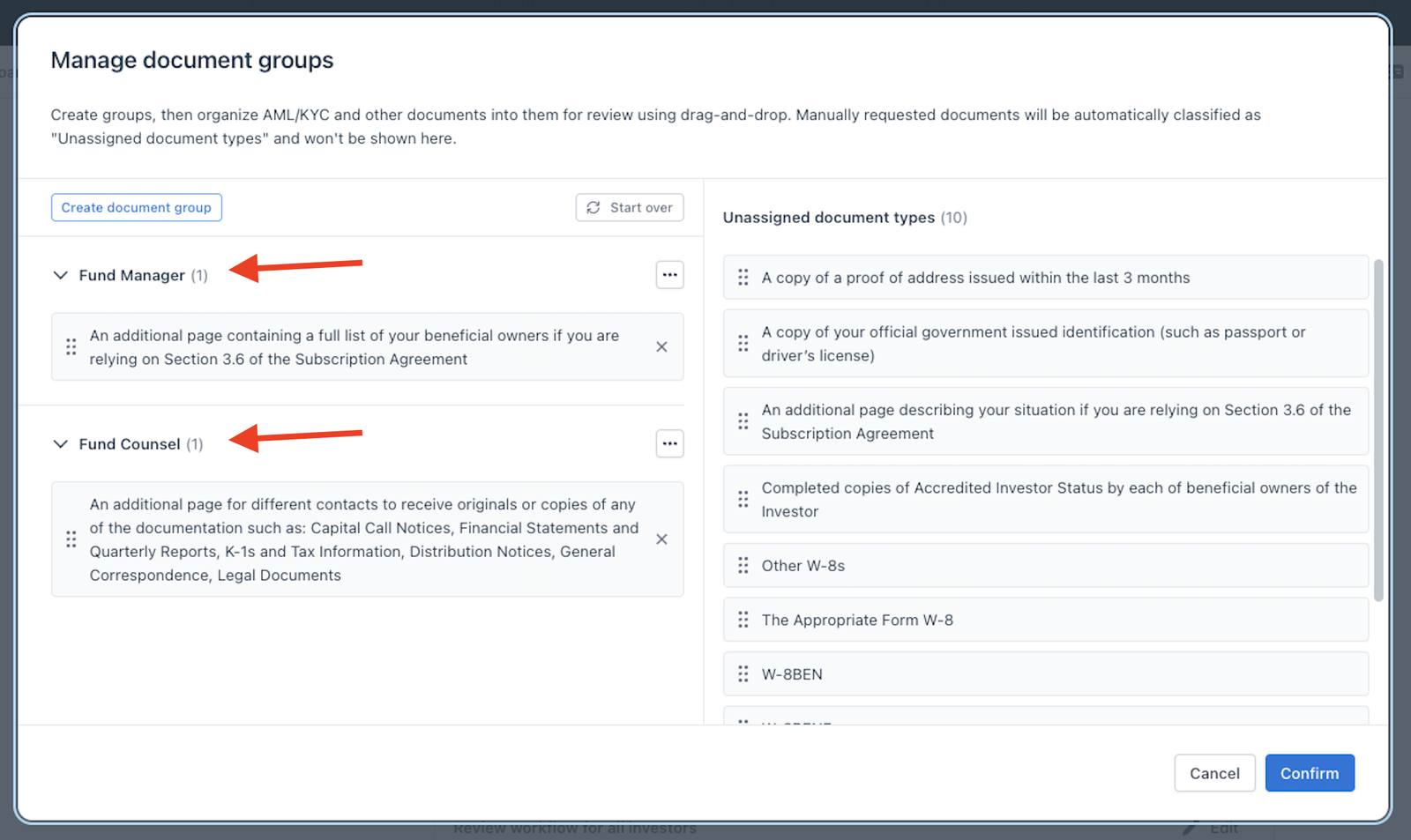
Please note, to create a second group click Create document group:
From here, follow the same steps above to assign a name and documents to a second group:
Was this page helpful?