Learn about the Groups section in Permissions tab
Groups section is where fund managers can manage the groups and group settings in the fund subscription platform. On the main screen, fund managers can see
Groups section is where fund managers can manage the groups and group settings in the fund subscription platform. On the main screen, fund managers can see all the groups, and their roles.
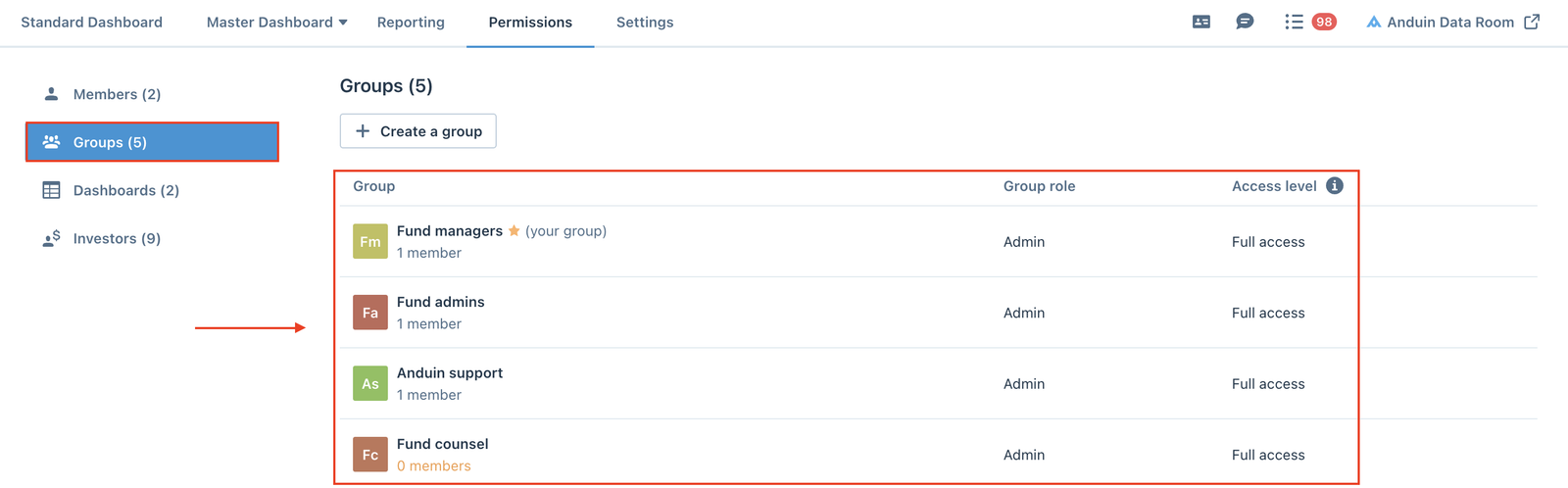
There are four default groups in the Groups tab with the default Admin role and Full Access on the platform including:
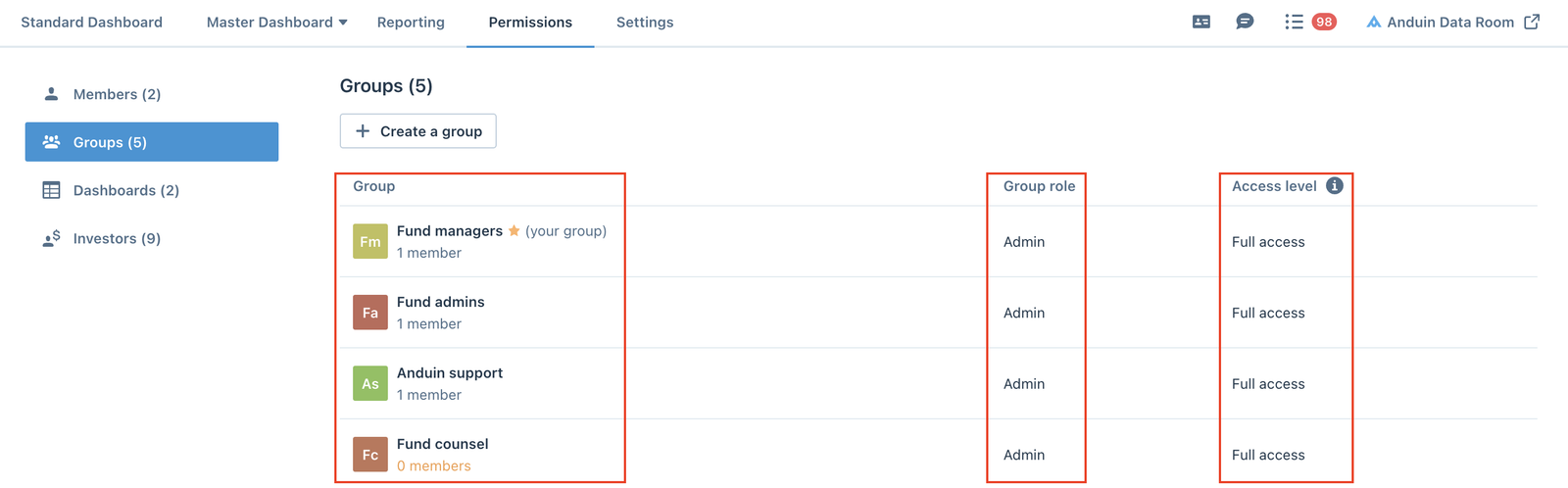
- Fund managers: this is the default administrator group of the environment and it cannot be deleted
Warning: Once members are added to this group, it will always require at least one member to remain in the group.
- Fund admins: this is the group for fund administrators.
- Anduin support: this is the group for the Anduin Support team.
- Fund counsel: this is the group for fund counsellors. Apart from the Fund managers group, the other three groups and any custom groups can be deleted from the environment.
Create a group
Fund managers can create a new group via Permissions → Groups → Create a group
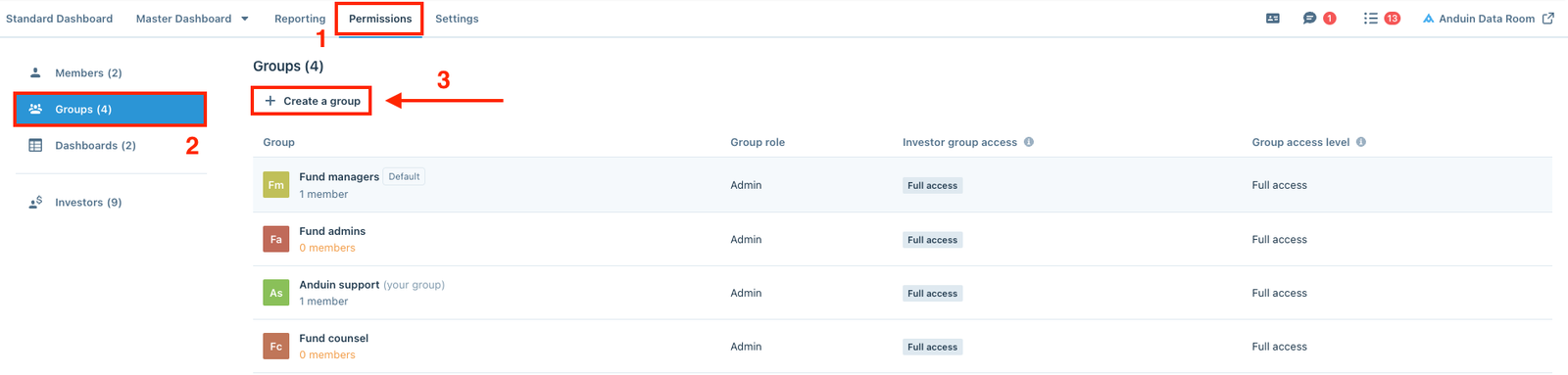
In the Create a group window, enter the Group name and select the Group role from the dropdown list (the role can be “Admin" or “Custom”), then click Create group.
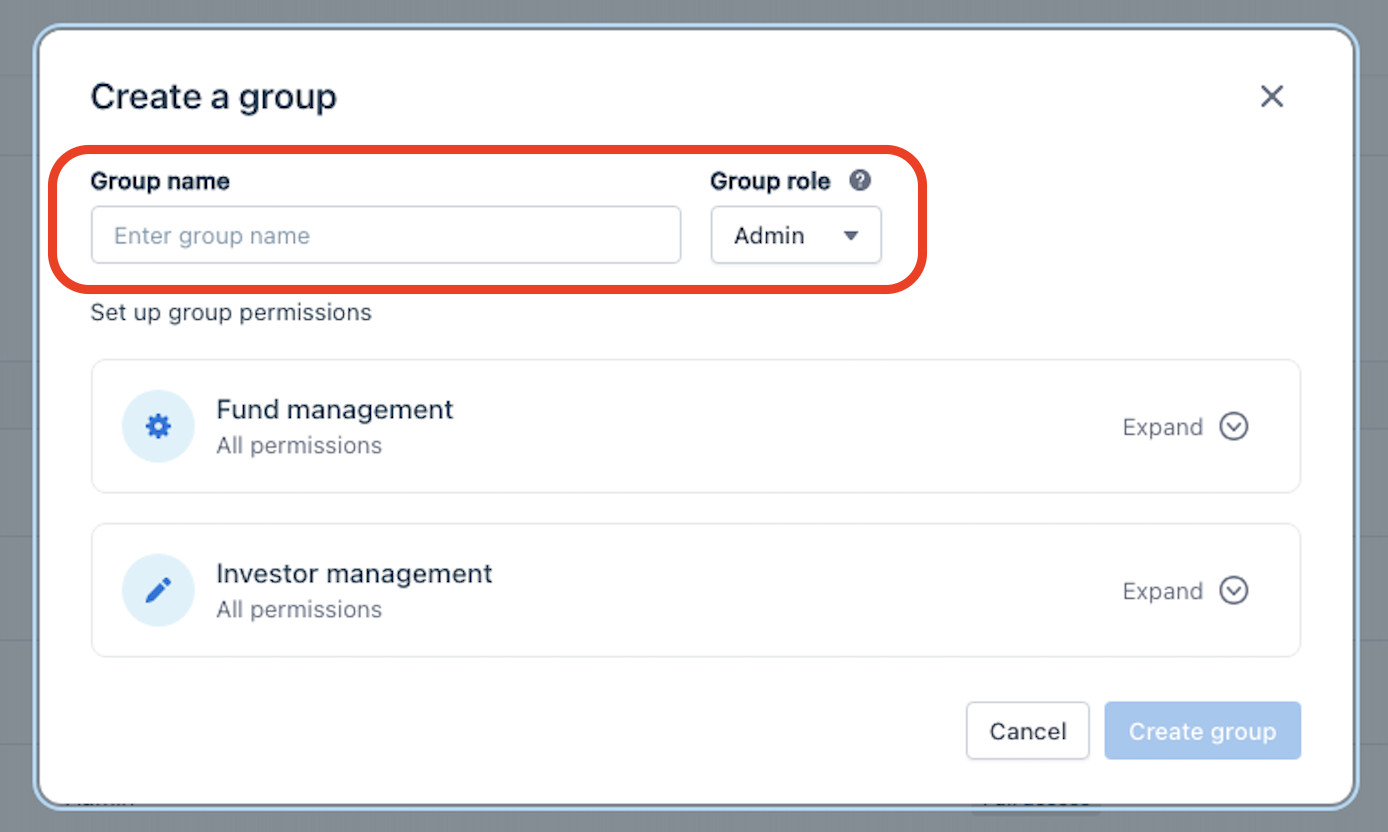
- If the group role is “Admin" → All the toggles will be enabled by default to all admin management permission including creating new groups, inviting investors, and reviewing subscriptions.
- If the group role is “Custom" → Default is “No access” to “Create new group" and “Review subscriptions". Admin can choose if the new group can “invite investors” or not.
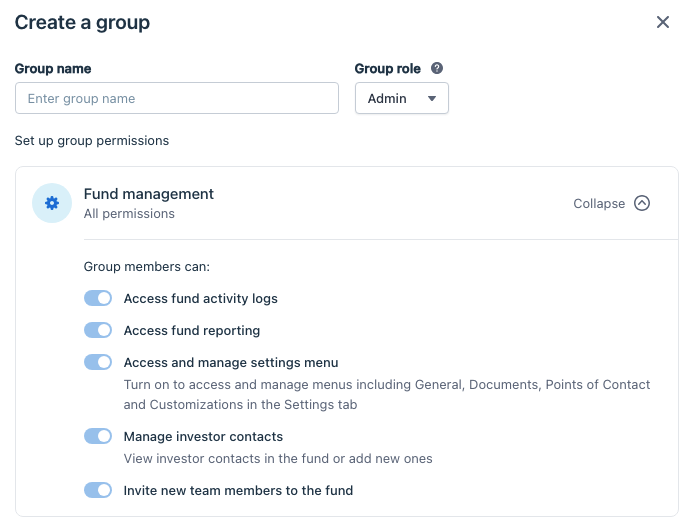
If Fund Management, you can update the settings here:
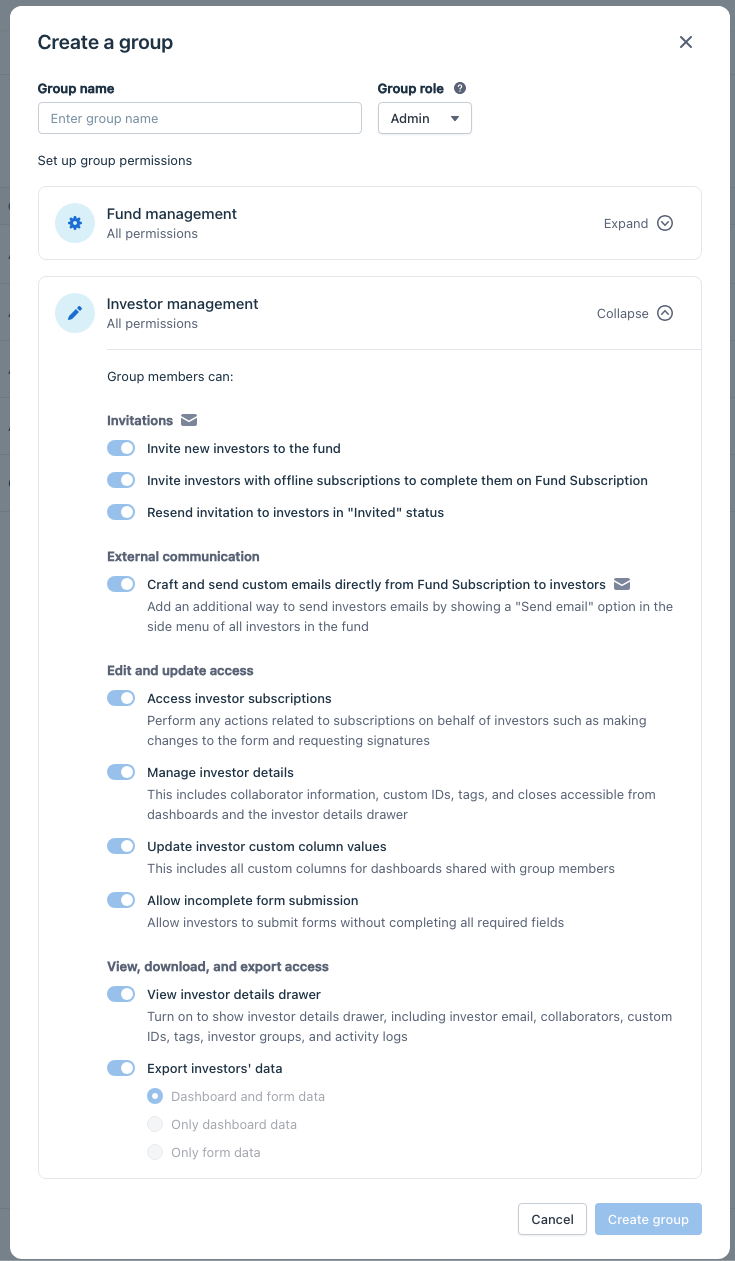
If Investor Management, you can update these custom settings:
Add members to a group
From the group details, you can either Invite membersto the current group or Move members from other groups to the current group.

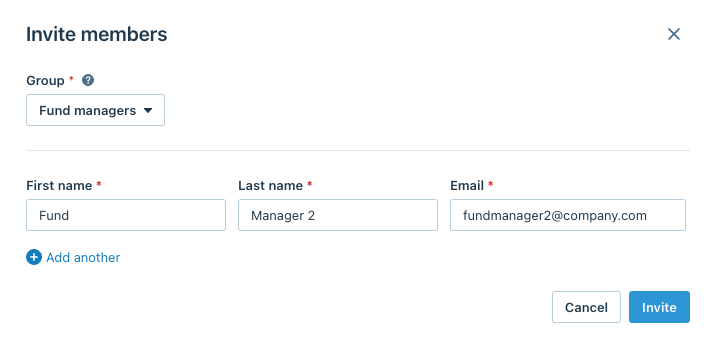
Invite new members
Enter the new members' details (First Name, Last Name, and Email), add additional rows for multiple members if needed > then click Invite.
Move members from other groups
- Select members from other groups you want to move to the current group
- Selected members will inherit permissions from their new group. Old permissions role will be revoked.
Complete adding members: after inviting the new member, if the current group did not have any access to the dashboard or investor data, there will be a message to notify the fund managers.

Manage group visibility
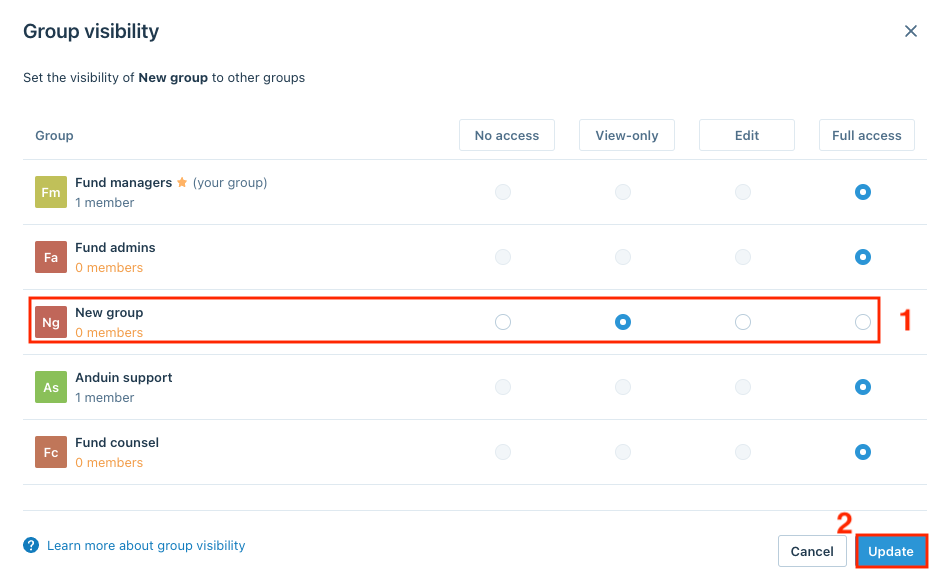
Fund managers can set up the visibility of a group to other groups via Group actions > Manage group visibility

- No access: Can only view group name and number of members
- View-only: Can view the group name, number of members, and the group's permission matrix
- Edit: Same as 'View only' plus the ability to manage group members, rename the group, and edit the group's permission matrix.
- Full access: Same as 'Edit' plus the ability to grant/remove group access.