

Request Signature on Documents
Public
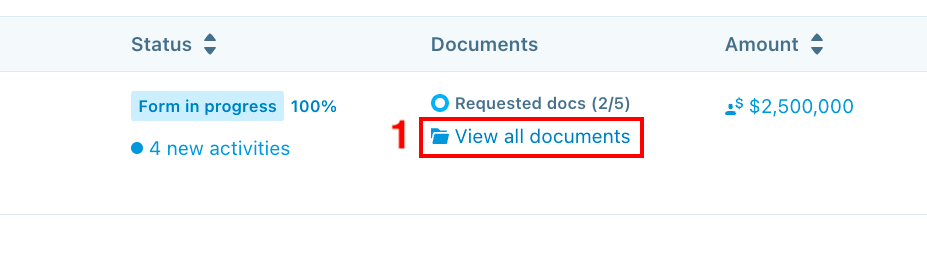
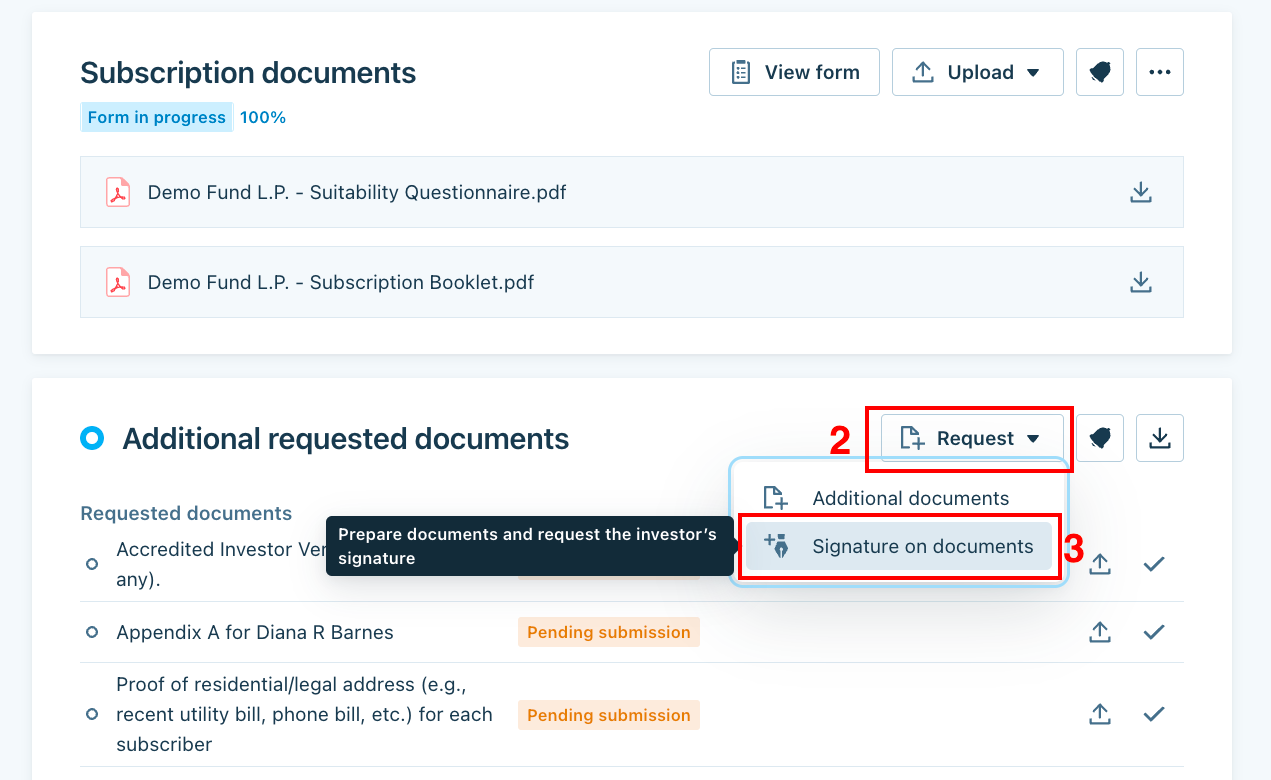
Click the View all documents button on the investor's row of the dashboard From within the pop-up window, click Request Click Signature on documents Sele
Click the View all documents button on the investor's row of the dashboard
- From within the pop-up window, click Request
- Click Signature on documents
[](https://t7510096.p.clickup-attachments.com/t7510096/0dc88f48-851a-4fe7-ae6e-7c5a27aa3c70/image.png)
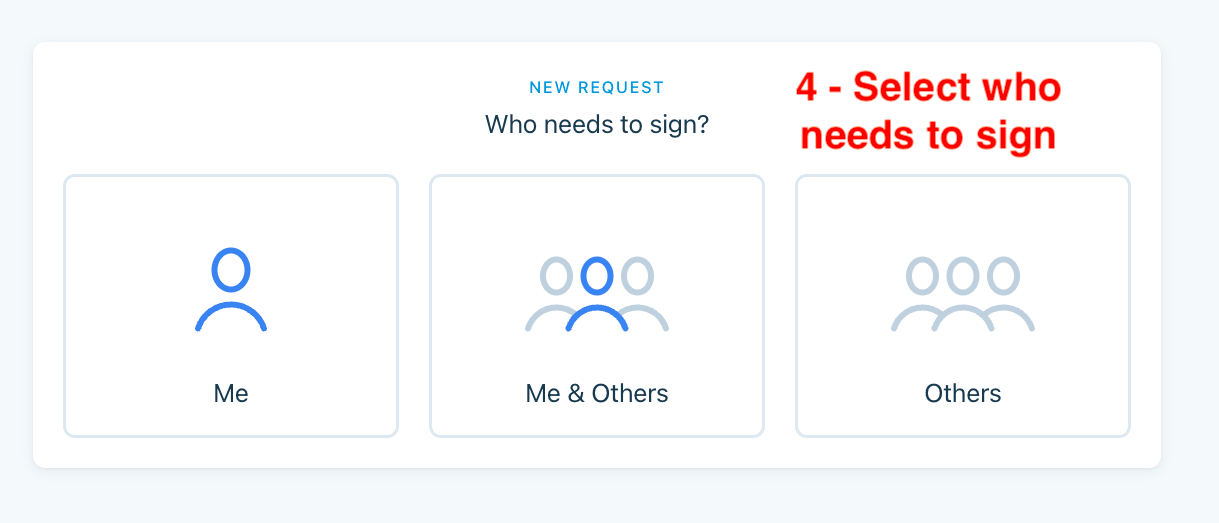
- Select who needs to sign. If you are only sending the request to the investor, select Others. If the document needs to be signed by yourself as well as others, select "Me & Others
[](https://t7510096.p.clickup-attachments.com/t7510096/a4bd1925-40c7-4b29-be67-51c05fbf7920/image.png)
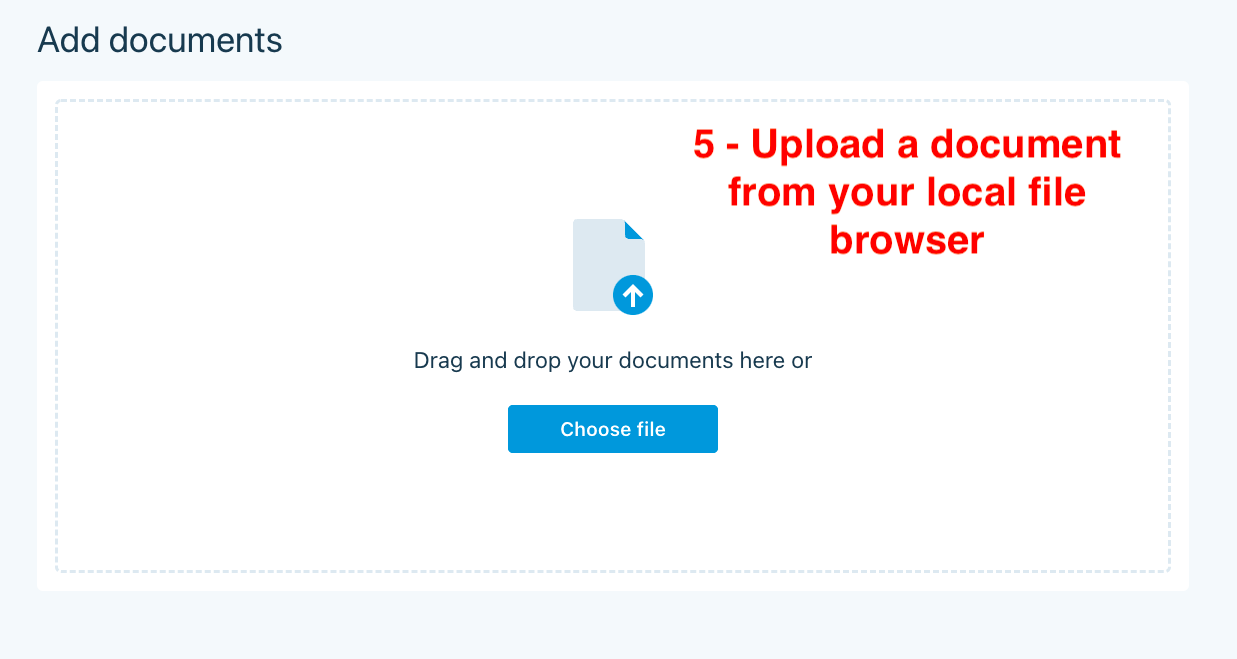
- Upload the document from your local file browser
[](https://t7510096.p.clickup-attachments.com/t7510096/f2e05a6f-5ea4-4b0d-b0c7-91f2f3658faa/image.png)
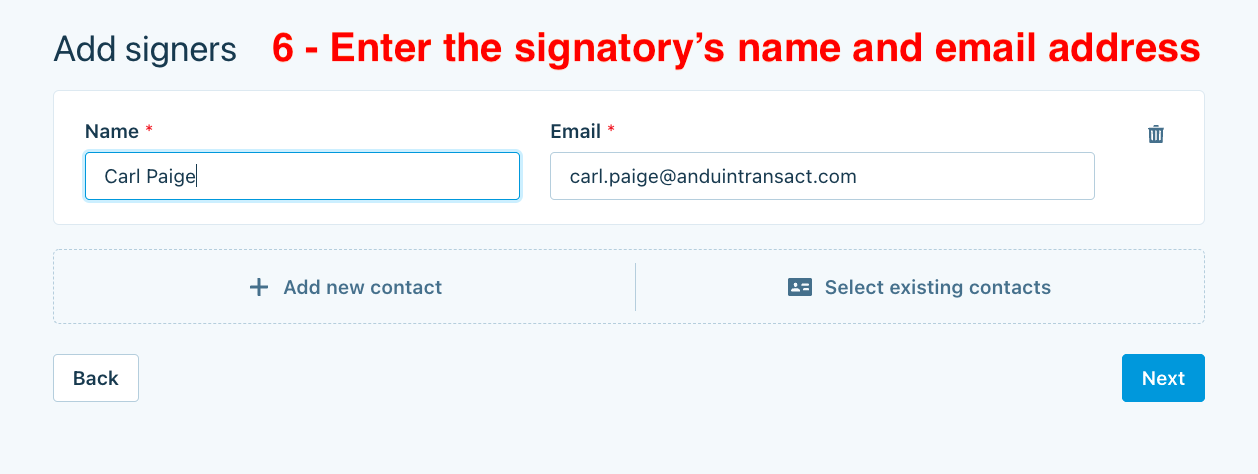
- Enter the signatory's name and email address
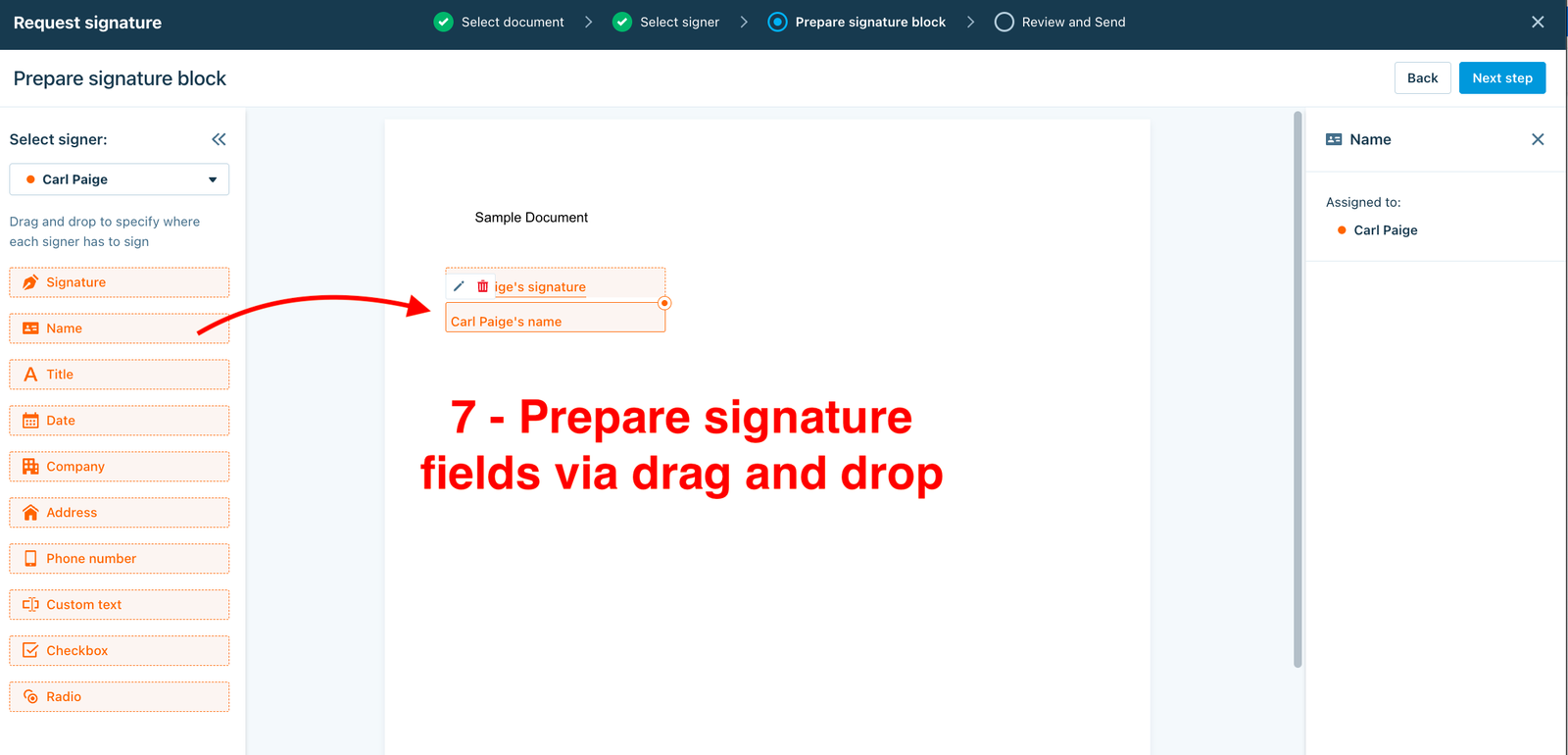
- Within the e-signature preparation workspace, drag and drop the appropriate signature fields from the sidebar on the left of the screen.
- Note: If you are preparing signature roles for multiple signatories, use the Select signer dropdown menu in the sidebar to ensure you are preparing signature locations for each appropriate signatory.
- Once you finish preparing signature locations, click Next step in the top right corner.
[](https://t7510096.p.clickup-attachments.com/t7510096/d18befc5-9c5c-4c6b-aafe-c45bf5999c7f/image.png)
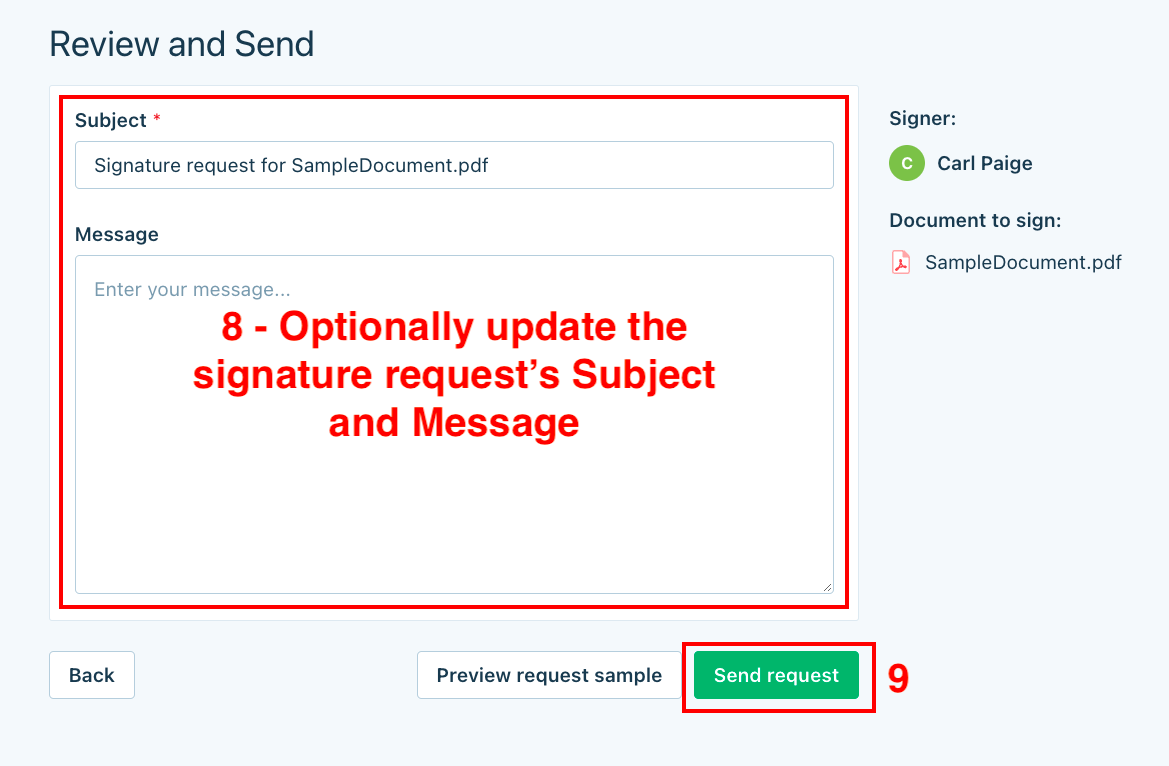
- Optionally, you can customize the subject and message of the e-signature request
- Once the signature request is ready to be sent, click Send request
[](https://t7510096.p.clickup-attachments.com/t7510096/484064d5-dcf6-4f6d-a8eb-341f7142e084/image.png)
Was this page helpful?