

Guide to assign and manage comments
Introduction Fund admins often struggle to manage investor comments effectively once they are made. This leads to ambiguity about who is responsible for re
Introduction
Fund admins often struggle to manage investor comments effectively once they are made. This leads to ambiguity about who is responsible for responding, resulting in delays in addressing LP queries.
Anduin Fund Subscription provides GPs with a powerful tool to efficiently manage incoming comments. This feature streamlines communication and collaboration between assigners and assignees, improving overall workflow efficiency.
Basic How to
1. How can I assign a comment?
Step 1: Locate the comment threads needing assignment in the following locations:
- Form Comment Side Drawer: Access via "View Form" in the Sub Doc section block within "View All Documents."
- AML/KYC Comment Side Drawer: Access by clicking on a comment or initiating a new comment on any AML/KYC documents within “View All Documents.”
- Comment Inbox: Access by clicking on the comment button on the top right of the fund manager dashboard or each investor row on the master dashboard.
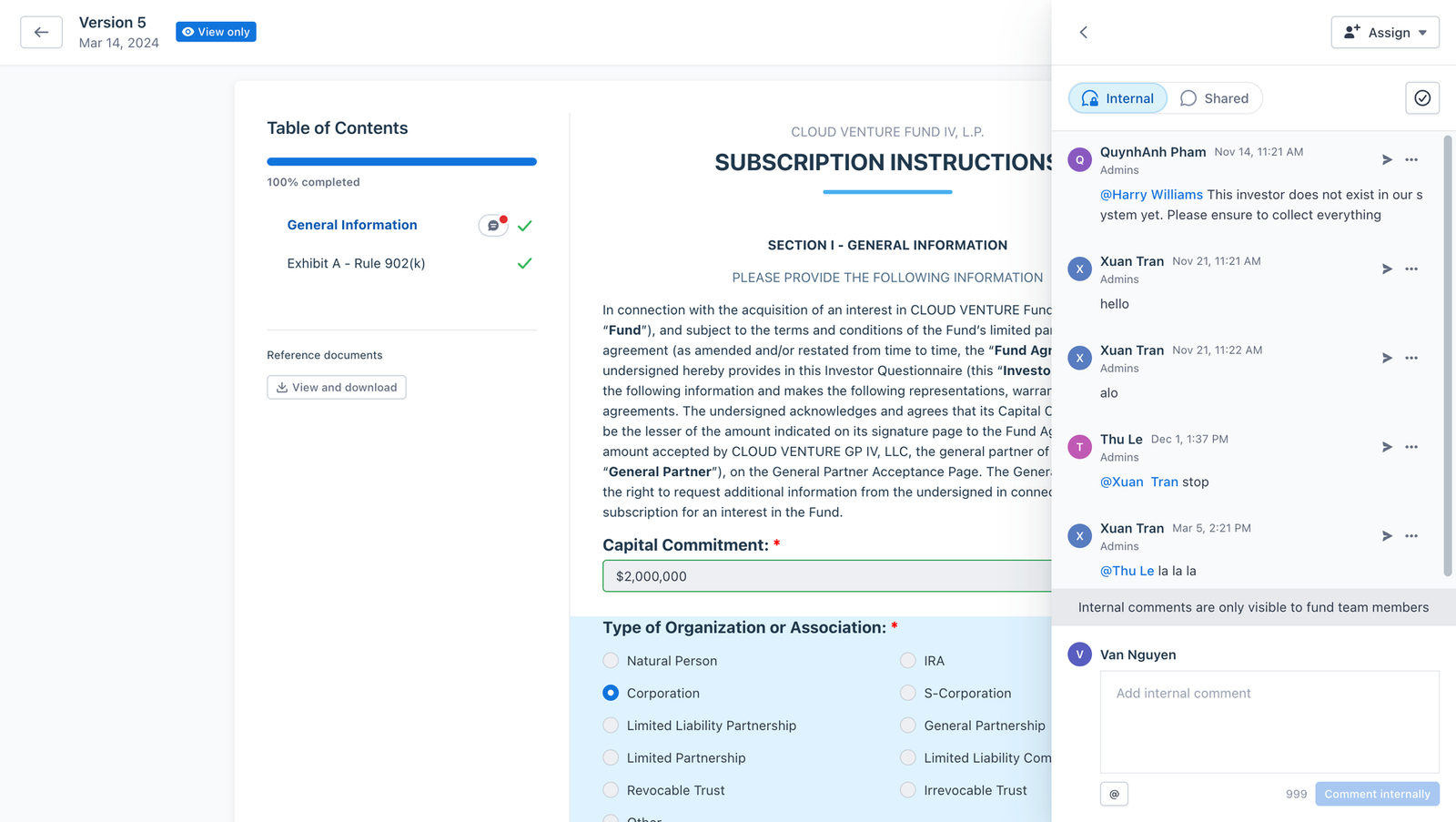
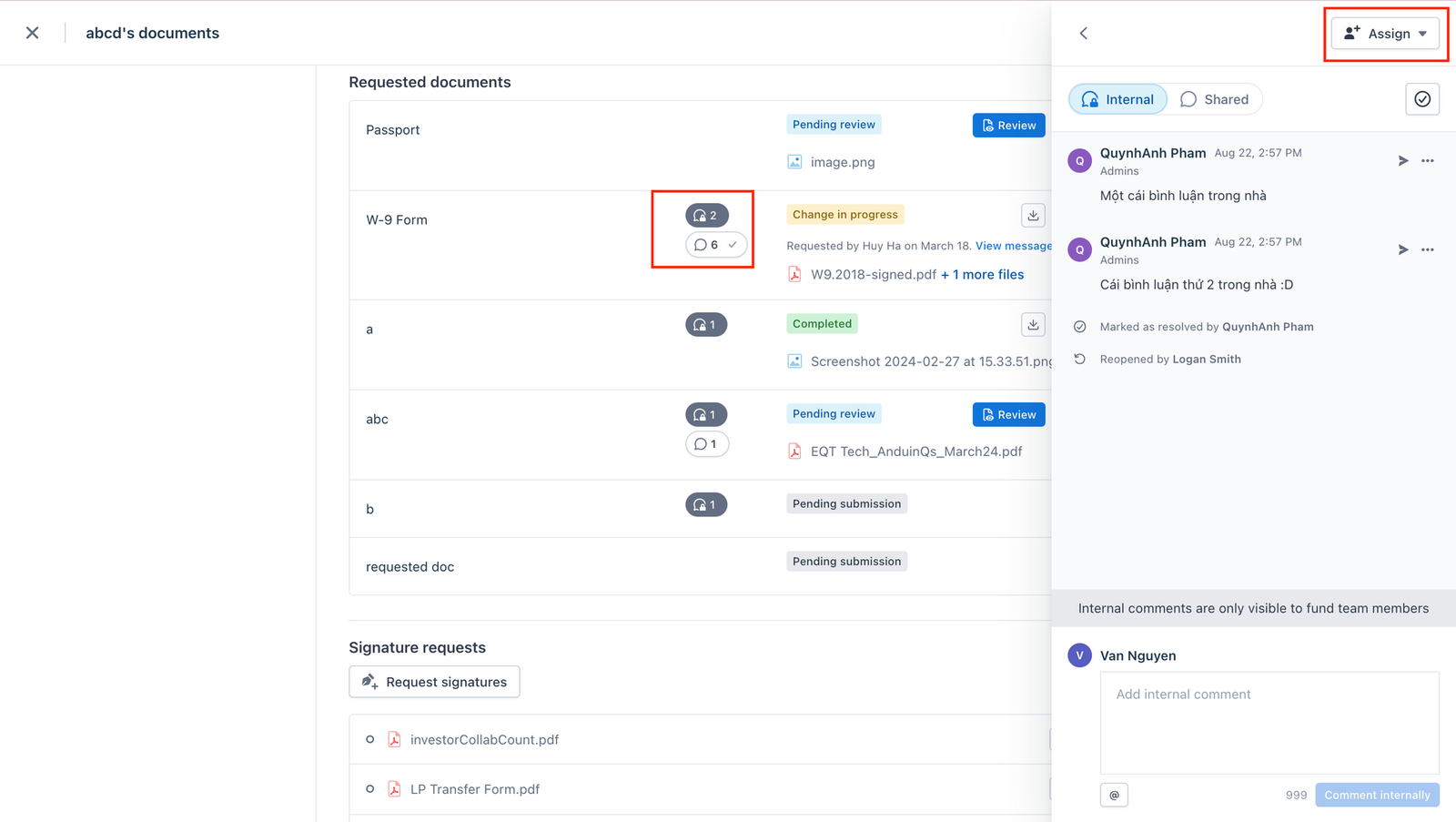
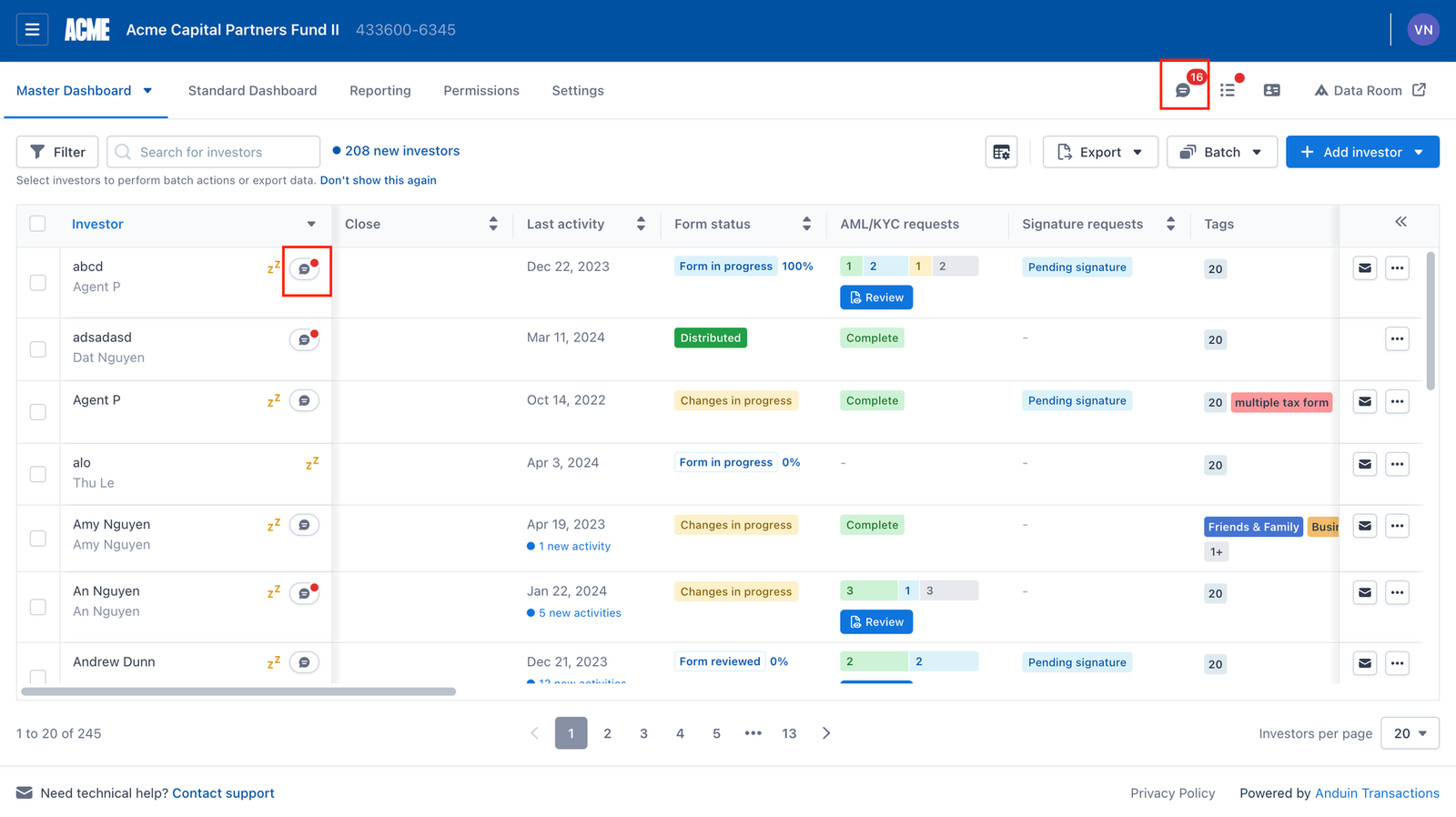
– You can navigate to the Unassigned tab to see all comments that are currently not assigned to anyone. This allows you to find a suitable assignee to address that comment promptly.
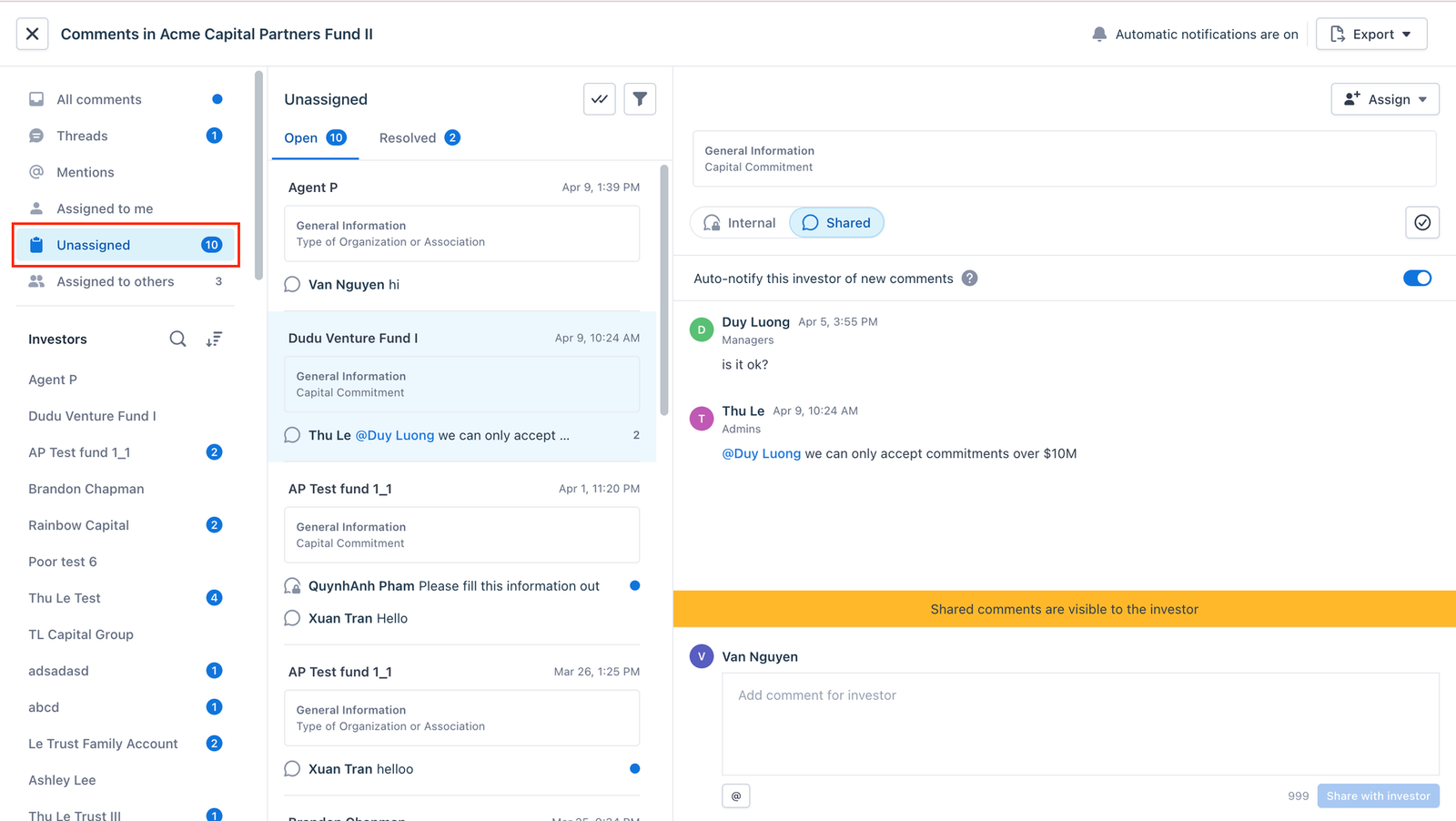
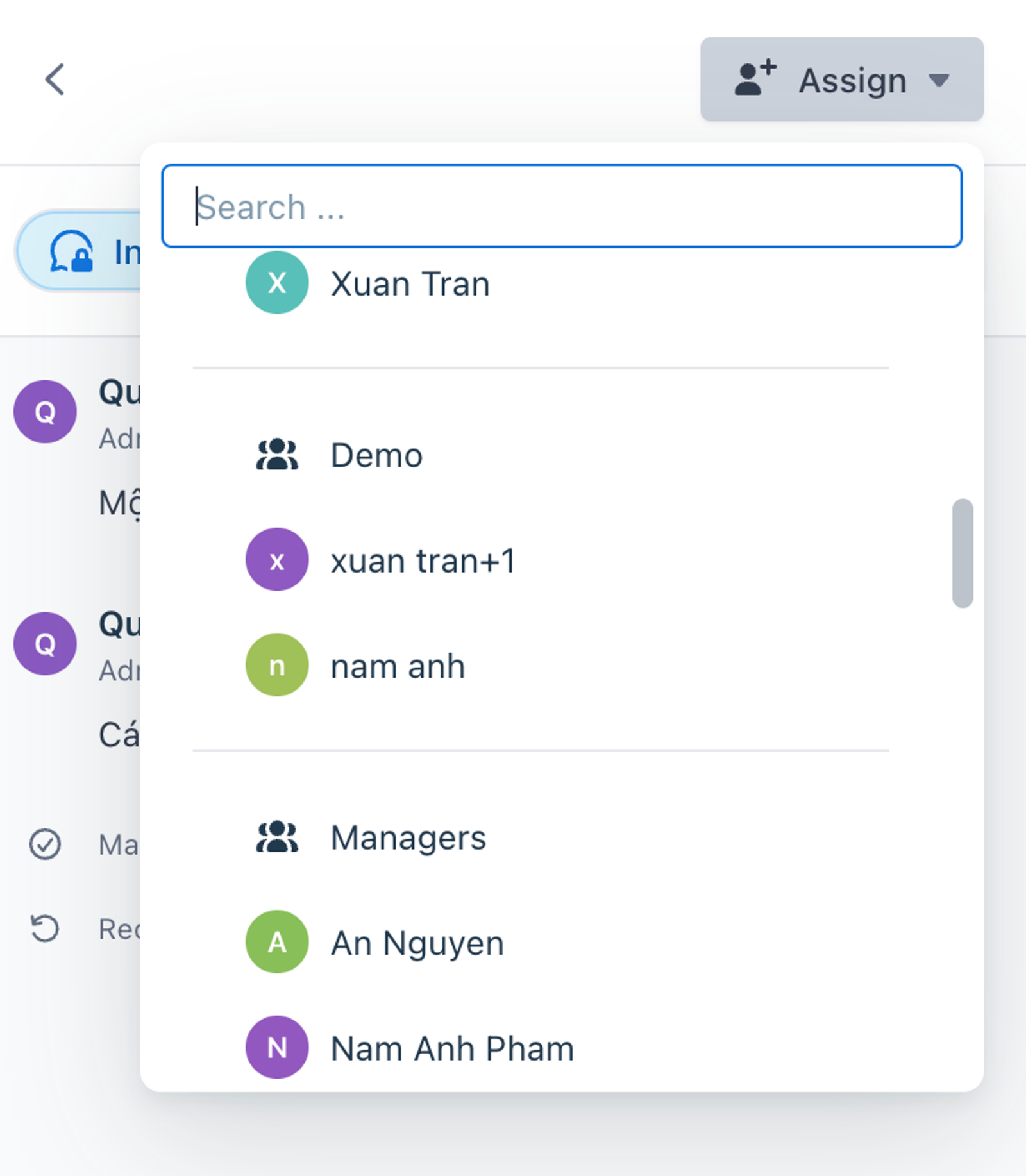
Step 2: Select the assignee by choosing either a team member or a group
2. How to handle mistaken comment assignment
If you've made a mistake in assigning a comment, you can:
- Unassign: Click “Unassigned” or click again on the current assignee to remove the assignment.
- Reassign: Click on another team member or group to assign the comment to them instead.
3. How to Stay Aware of Assigned Threads?
To stay aware of threads assigned to you or your team, follow these steps:
- Email Notifications: We support email notifications for user assignments to new threads. Keep an eye on your email inbox for notifications about newly assigned threads.
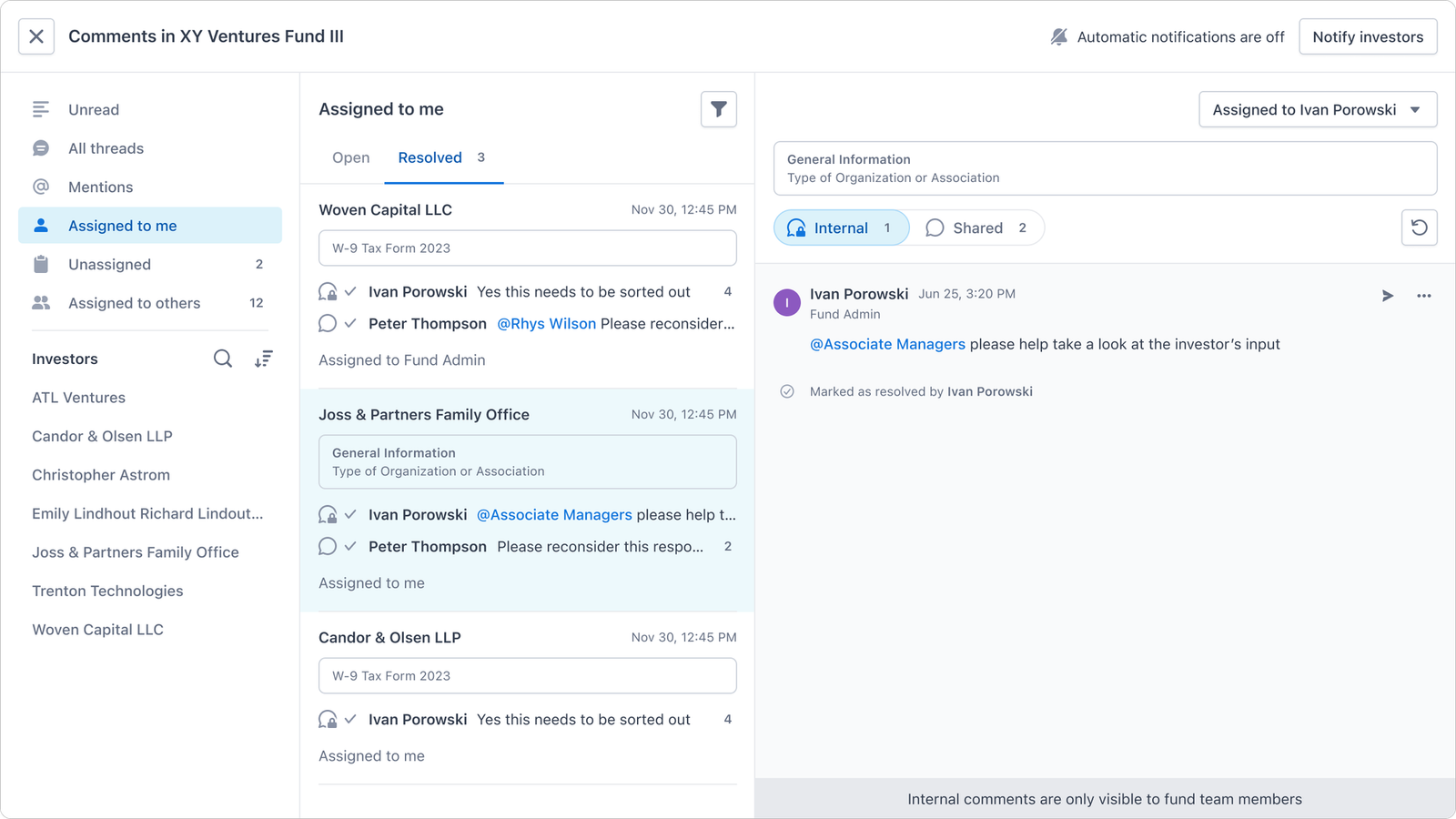
- Inbox View - Assigned to Me Tab: Check the "Assigned to Me" tab in the Inbox view. A new blue number next to this tab indicates new assignments for you. This allows you to quickly identify and access threads assigned to you.
4. How to resolve threads assigned to me?
To resolve threads assigned to you, note the following:
- If either the Shared or Internal thread remains open, the commenting anchor point will be listed in the "In Open" tab.
- To resolve threads assigned to you, either you or the investor must mark both the Shared and Internal threads as resolved. This ensures effective resolution of the thread and removes it from the "In Open" tab.
5. FAQ
Where can I assign users?
Comment assignment is available in both Document view & Inbox View.
Who can GP side users assign?
- GP-side users can assign themselves, other GPs within their group, and GPs from other groups (with granted access).
- It's important to note that LP-side users cannot be assigned, and only one GP or one GP group can be assigned at a time.
Can GPs assign comment separately within internal threads and shared threads?
No. Assigning a thread means assigning the entire commenting anchor point; we do not support assigning only internal or shared threads.
How can users be notified of the threads to which they are assigned?
We currently support email notifications for user assignments to new threads.
Additionally, users can check the Inbox view - Assigned to Me tab. A new blue number next to this tab indicates new assignments for them.
Do I need access to the GP group to assign them?
If you have no-access to a GP group, you won’t be able to assign any user in that group or that entire group.
When does a thread move from the "Open" state to the "Resolved" state?
- If either the Shared or Internal thread is still open, the commenting anchor point will be listed in the In Open tab.
- Moves to the Resolved tab only when both the Shared and Internal threads are marked as resolved.