

Deleting Custom Groups
Public
Fund Admins are able to delete the Custom Groups that they have created Note Deleting a Group will delete all of the users inside the group. Please move
Fund Admins are able to delete the Custom Groups that they have created
Note
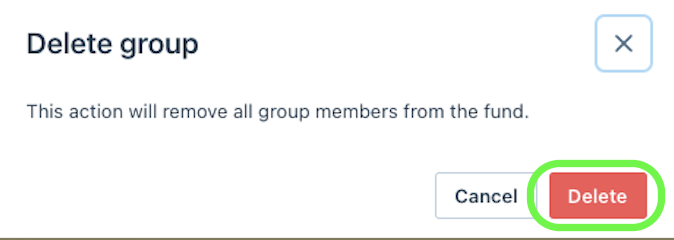
Deleting a Group will delete all of the users inside the group. Please move the users before deleting if you would like them to retain access to the Fund Subscription
Deleting a Group
- Click the Permissions tab at the top of the Nav Bar:

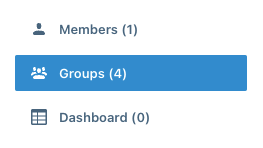
- Choose Groups on the left Nav Bar:
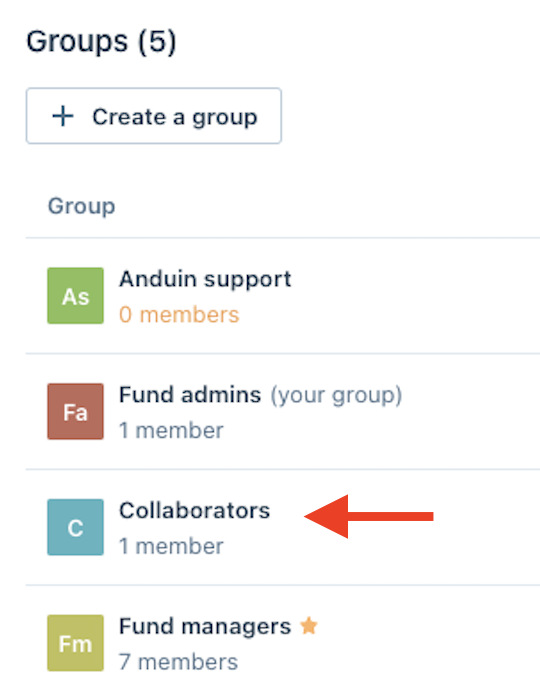
- Click into the Group you would like to delete:
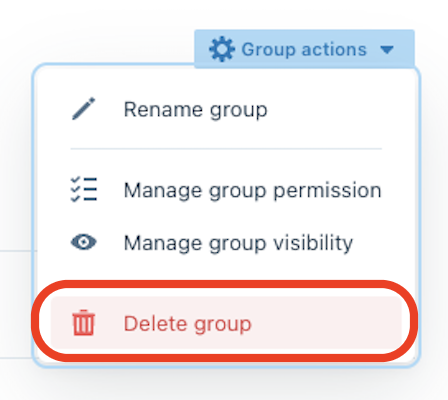
- Click Group Actions on the far top right of the page:

- From the dropdown menu, choose Delete Group:
- Choose Delete:
Was this page helpful?