

Countersign subscriptions in a batch
Who this is for: Fund managers and fund admins countersigning many submitted subscriptions at once. What you'll do: Select subscriptions, assign signers, f
Who this is for: Fund managers and fund admins countersigning many submitted subscriptions at once.
What you'll do: Select subscriptions, assign signers, fill investor-specific fields, and send countersign requests — saving your progress and resuming any time from the signers step onward.
How long: A few minutes to set up a batch. From the signers step onward, your progress saves automatically in the background.
When to use this
Use batch countersign when you're:
- Countersigning many submitted subscriptions in one pass instead of one at a time
- Splitting preparation across sessions — starting now and finishing later without redoing work
- Sharing preparation with colleagues — anyone on the fund team can open a saved preparation and continue it
If you only need to countersign a single subscription, countersigning it directly from the subscription is faster.
Before you start
- You need fund manager or fund admin permission on the fund. The Countersign subscriptions option only appears for these roles.
- Subscriptions must be in Submitted status. Invited and form-in-progress subscriptions appear disabled and can't be selected.
- A batch uses one signing method. E-signed and uploaded (offline-signed) subscriptions are prepared in separate batches.
- Saving progress is turned on per fund. If you'd like it enabled for yours, contact our Customer Success team.
How to countersign subscriptions in a batch
The preparation opens as a full-page flow from the fund dashboard. Before the Add signers step, nothing is saved. From Add signers onward, everything auto-saves — exiting the flow keeps your progress.
Step 1 — Open batch countersign
- On the fund dashboard, select the investors you want to countersign. You can skip this and select later.
- Click Countersign subscriptions.
- Choose Start new preparation. To pick up saved work instead, choose Continue on saved preparations — see Resume or edit a saved preparation below.
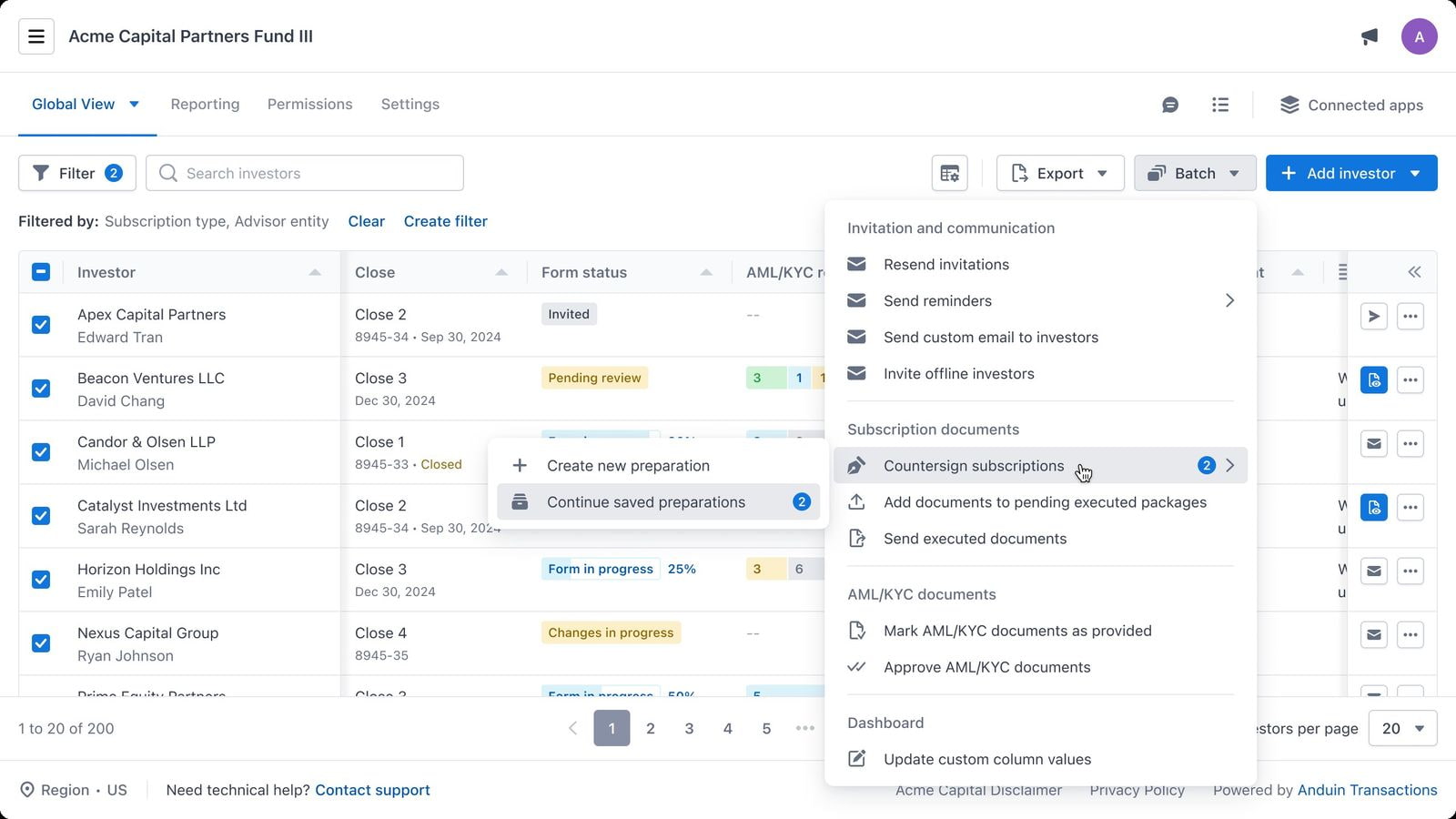
If you selected investors on the dashboard, a confirmation modal shows your selection first. With no dashboard selection, you go straight to selecting subscriptions.
Step 2 — Select subscriptions
- Pick the tab for the signing method: E-signed or Uploaded.
- Check the subscriptions to include.
Switching tabs clears your current selection — you'll see a warning first. Subscriptions already in another preparation are flagged in the list. You can still select them; a separate preparation starts alongside your colleague's, and whichever batch is sent first applies to the countersign request.
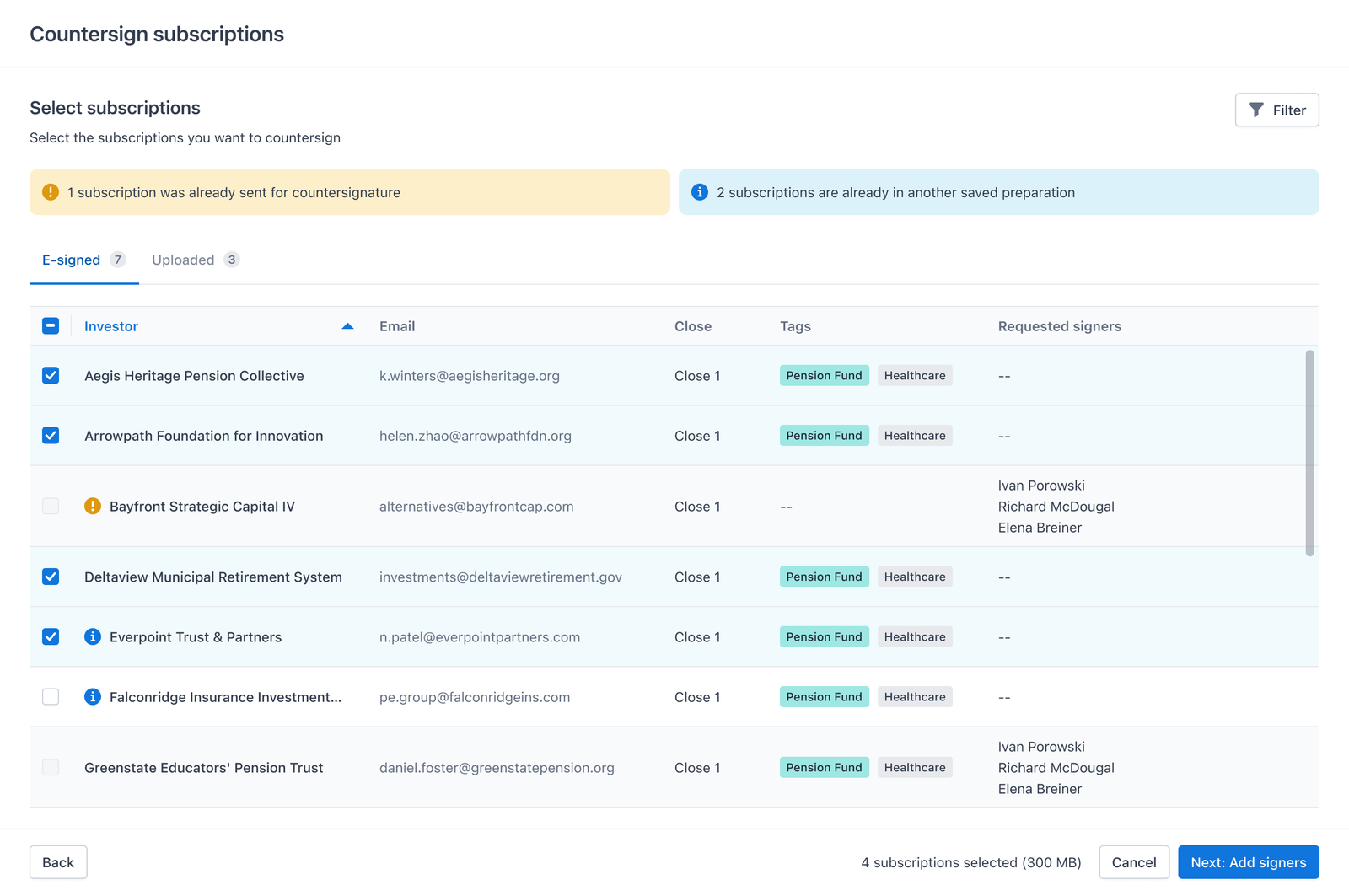
Step 3 — Add signers
- Assign the signers who will countersign on behalf of the fund.
Saving begins here. You'll see a Save and close control and a "Saved X ago" indicator.
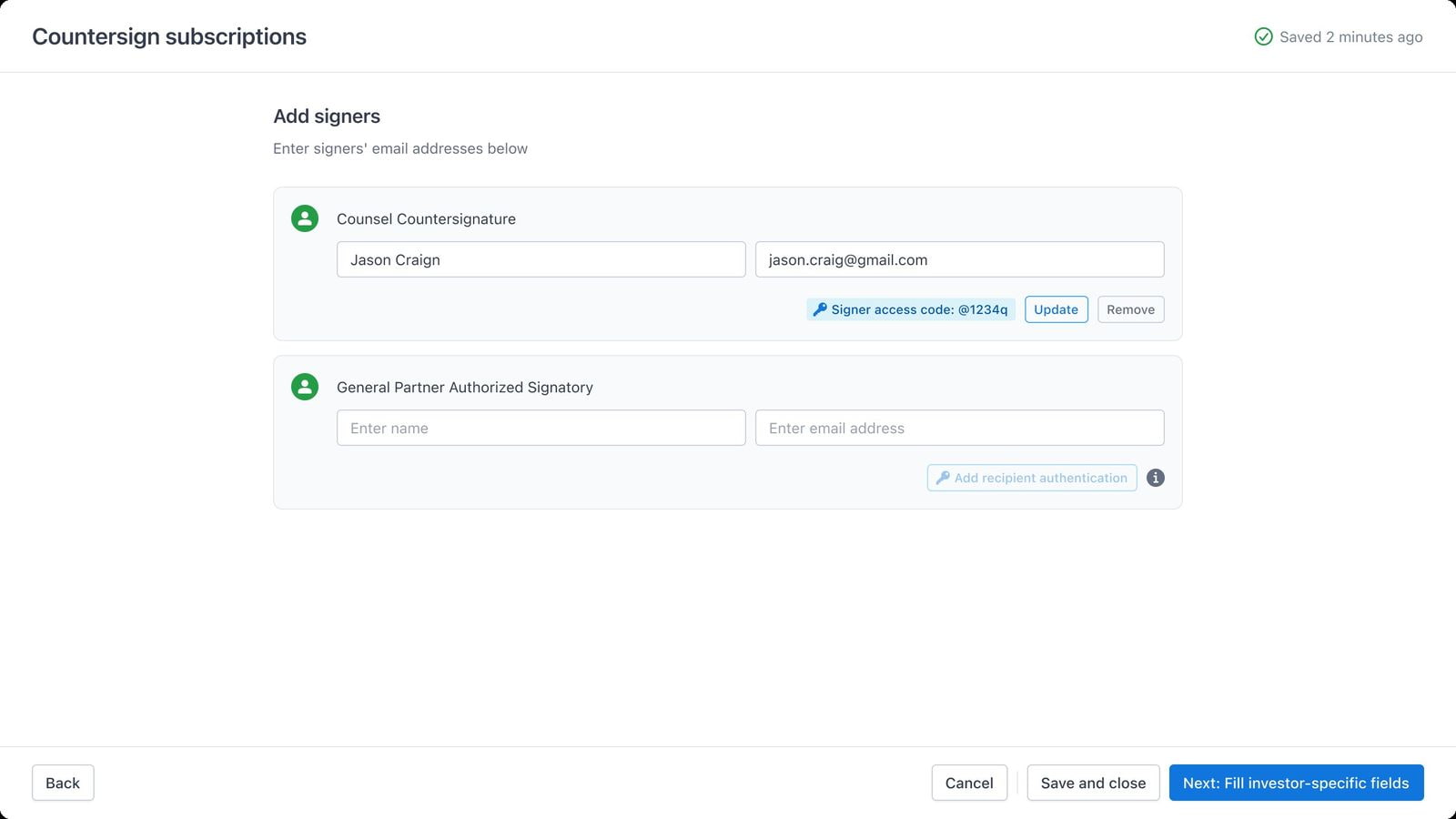
💡 Pro tip: From this step onward you can close the tab, switch devices, or hand the batch to a colleague — the preparation keeps everything you've entered.
Step 4 — Fill investor-specific fields
- Enter commitment amounts and other investor-specific values for each subscription in the batch.
💡 Pro tip: You can export this screen at any point. The exported file carries the currently prefilled data — investor amount, accepted amount, and fund-filled fields.
Step 5 — Prefill signer fields
- Review and prefill the fields assigned to your signers.
Step 6 — Review and send
- Check the summary of subscriptions, signers, and amounts.
- Send the countersign requests.
For uploaded (offline-signed) subscriptions the flow is shorter: select the offline-signed subscriptions, add signers, then place signature fields on each document. Auto-save also starts at the add-signers step, and Save and close is available on the prepare-fields screen.
Resume or edit a saved preparation
- Click Countersign subscriptions, then Continue on saved preparations.
- Select a preparation from the list. Each one shows its subscription count, signing type, who created it, the latest preparer, the step it was saved at, and the last update time.
- Continue — you're walked through every step again with the previously entered data shown, so you can review before moving on.
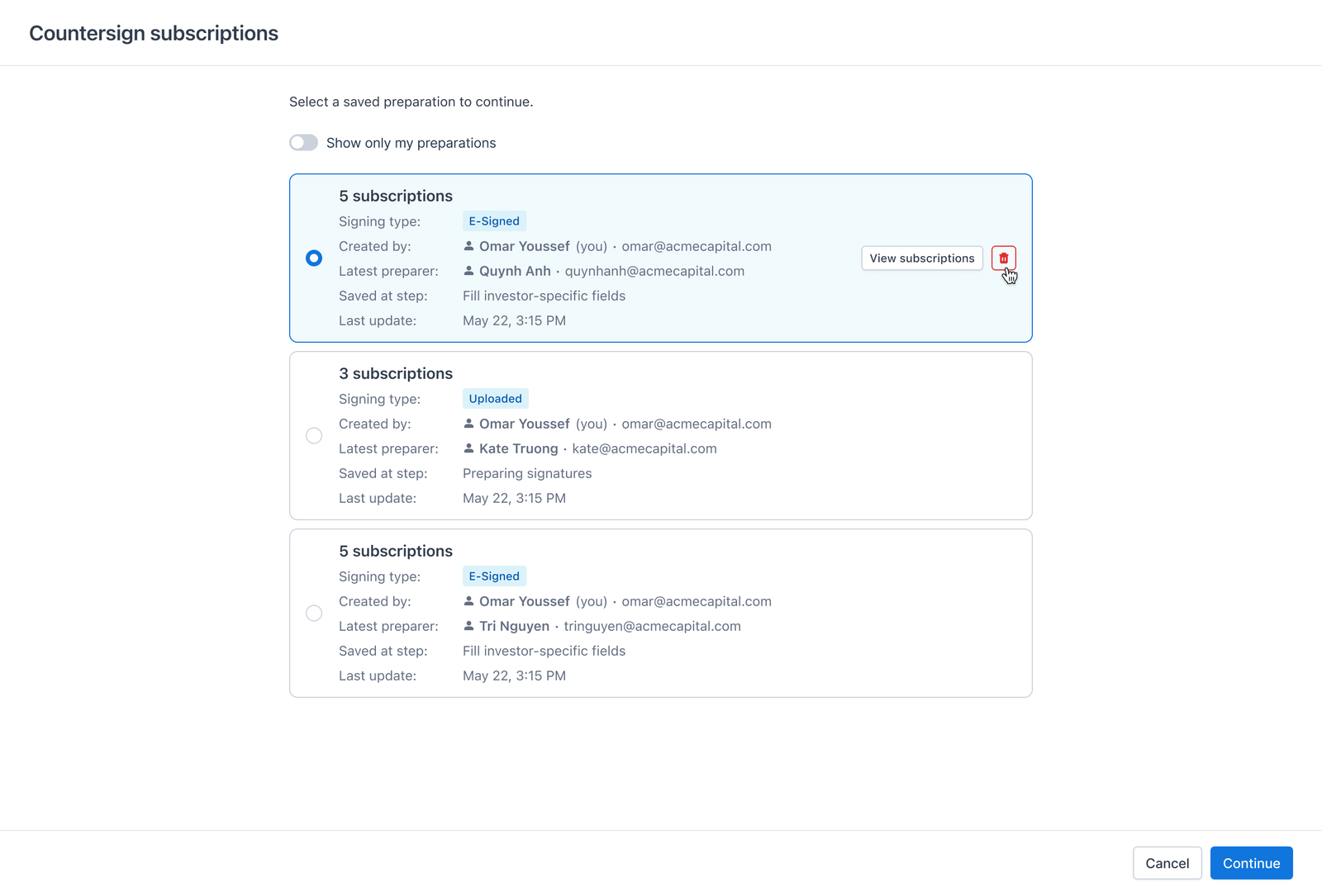
While editing, you can change any previously entered data or add more subscriptions: go back to the select-subscriptions screen and click Add. Added subscriptions must use the same signing method as the rest of the batch — the other method's tab is disabled with a tooltip explaining why.
- To leave, click ✕. Your progress is saved and you return to the dashboard.
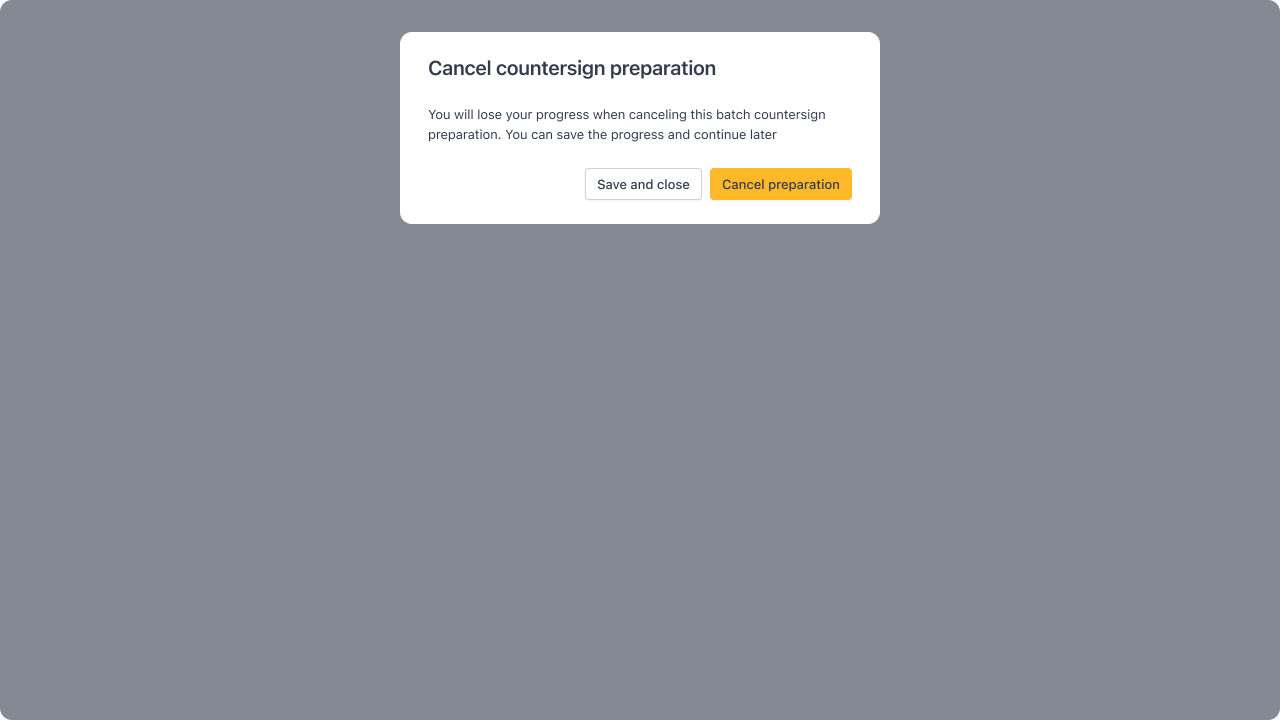
- To discard a preparation, click Cancel and choose Cancel preparation. Only the person who created the batch and fund admins can delete an in-progress preparation. This can't be undone.
What happens after you send
- Save and close (or exiting with ✕) stores the batch and returns you to the dashboard. The batch appears under Continue on saved preparations for the whole fund team.
- Two people can open the same saved preparation — both see the latest saved data.
- After you send, the countersign requests go out to your signers and the preparation leaves the saved list. Those subscriptions then show as already sent in anyone else's preparation, disabled with a note naming the sender.
Reports you can download
| Report | When it's available | What's in it |
|---|---|---|
| Investor-specific fields export | On the fill investor-specific fields step | The currently prefilled data — investor amount, accepted amount, and fund-filled fields |
Common errors and what they mean
| What you'll see | What it means | What to do |
|---|---|---|
| Subscription disabled and unchecked, with a note naming a sender | Countersign requests for it were already sent by another fund manager. | Nothing to do. Only the first sent request is valid. |
| Signing-method tab disabled with a tooltip (in a saved batch) | A batch can't mix e-signed and uploaded subscriptions. | Start a separate batch for the other signing method. |
| Notice that some subscriptions are no longer available | Their status changed — for example, submitted to executed or countersigned. | Nothing to do. Review the remaining subscriptions and continue. |
| "Some investors aren't visible to you" | The preparation includes investors you don't have access to. | Click Create new preparation. You get a batch with only the investors you can access, and the work already done for them is copied over. |
| "Already in this batch" | The subscription you tried to add is already included. | Nothing to do. |
FAQ
Can a batch mix e-signed and uploaded subscriptions? No. A batch uses one signing method. Prepare e-signed and uploaded subscriptions in separate batches.
Can a colleague continue a preparation I started? Yes. Anyone on the fund team can open any saved preparation — theirs or yours — and is walked through each step with the data already entered.
What happens if I close the browser mid-preparation? From the add-signers step onward everything auto-saves. Reopen the batch from Continue on saved preparations and pick up where you left off. Before the signers step, selections aren't saved yet.
How do I discard a preparation? Click Cancel, then Cancel preparation. This deletes all entered data and can't be undone. Only the batch creator and fund admins can delete an in-progress preparation.
What happens if two of us open the same saved preparation at once? You both see the batch with the latest saved data.
What happens if a subscription in my saved batch is voided or countersigned elsewhere? It's removed from the batch automatically, and the batch screen shows a notice that some subscriptions are no longer available for preparation.
How do I get saving progress enabled? Contact our Customer Success team and they'll turn it on for your fund.