How to Upload Documents on Behalf of the Investors
There are two ways to upload documents on behalf of the investors. “View all documents” window From the Investors dashboard, use the Filter button or the S
There are two ways to upload documents on behalf of the investors.
“View all documents” window
From the Investors dashboard, use the Filter button or the Search bar to find the investor, then click View all documents.
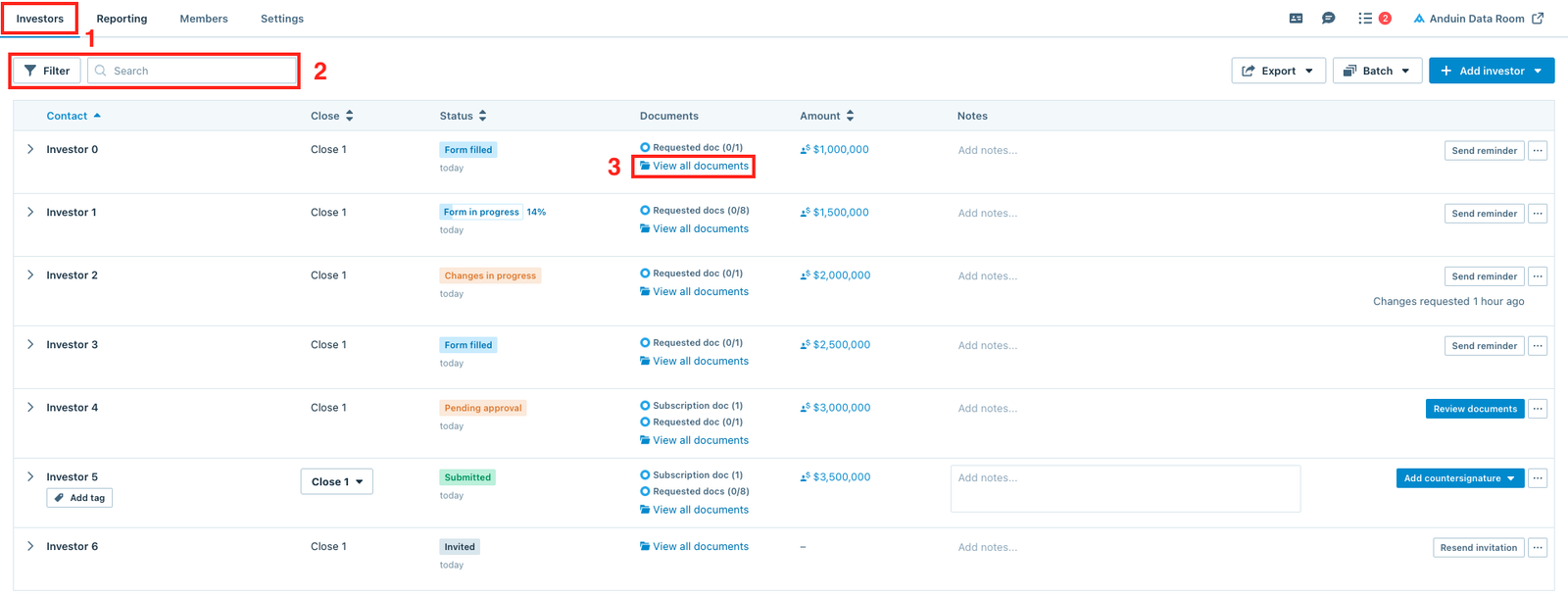
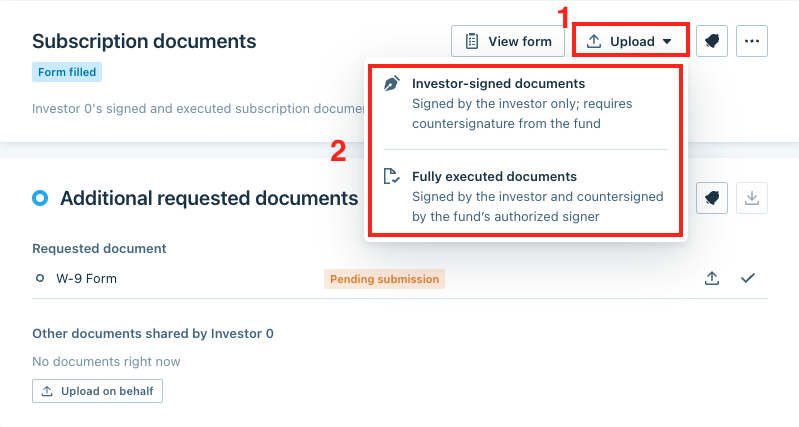
To upload the investor's subscription documents, click Upload.
- If the documents have only been signed by the investor, select Investor signed subscription documents. This will progress the investor's status to Pending approval (which can be skipped if the documents have already been reviewed outside of Anduin)
- If the documents have been signed by the investor and the GP acceptance page has been signed and inserted outside of the platform, select Fully executed sub docs. This will progress the investor's status immediately to Distributed, meaning the investor would receive an email notification that their subscription documents have been countersigned and accepted.
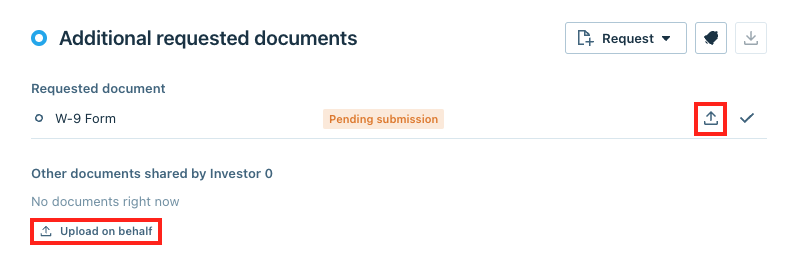
To upload additional requested documents or other documents, click the Upload symbol or the Upload on behalf button.
“Upload documents” option from the (…) menu
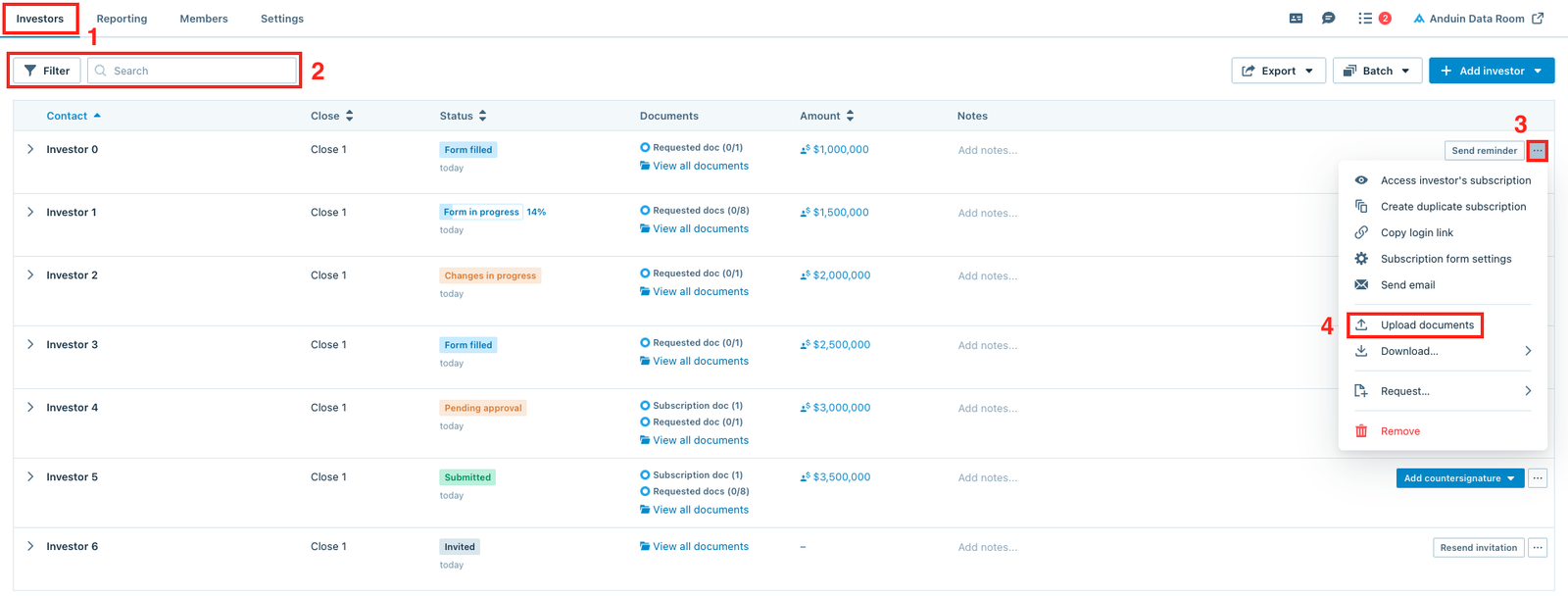
From the Investors dashboard, use the Filter button or the Search bar to find the investor, then click the (…) menuand select the Upload documents option.
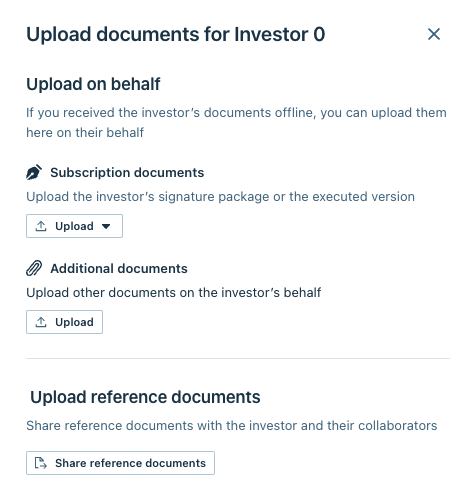
The window below will pop up, select the suitable option to upload the documents.
- To upload the investor's subscription documents, click the Upload buttonunder the Subscription documents section.
– If the documents have only been signed by the investor, select Investor signed subscription documents. This will progress the investor's status to Pending approval (which can be skipped if the documents have already been reviewed outside of Anduin) – If the documents have been signed by the investor and the GP acceptance page has been signed and inserted outside of the platform, select Fully executed sub docs. This will progress the investor's status immediately to Distributed, meaning the investor would receive an email notification that their subscription documents have been countersigned and accepted.
- To upload other documents, click the Upload button under the Additional documents section.
- To share reference documents specifically for the investor and their collaborators only, click the Share reference documents button under the Upload reference documents section.