

Learn about the Master Dashboard in Fund Subscription
Anduin just updated the Advanced Dashboard in fund subscription with a new name, which is now called a Master Dashboard. Master Dashboard is a customizable
Anduin just updated the Advanced Dashboard in fund subscription with a new name, which is now called a Master Dashboard.
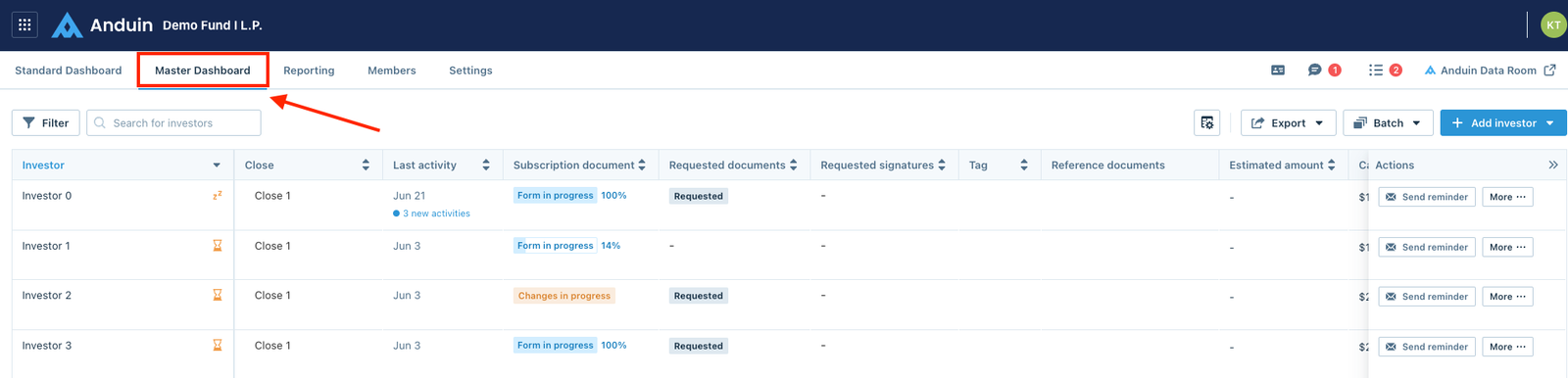
Master Dashboard is a customizable version of the Standard Dashboard, which gives fund users more options to customize their view.
First glance at the Master Dashboard
Master Dashboard shows investors' data in columns with a collapsible Actions menu on the right side of the screen. In the Actions menu, there is a Next action button and the More menu which is similar to the (…) menu in the Standard Dashboard.
How to edit the Master Dashboard
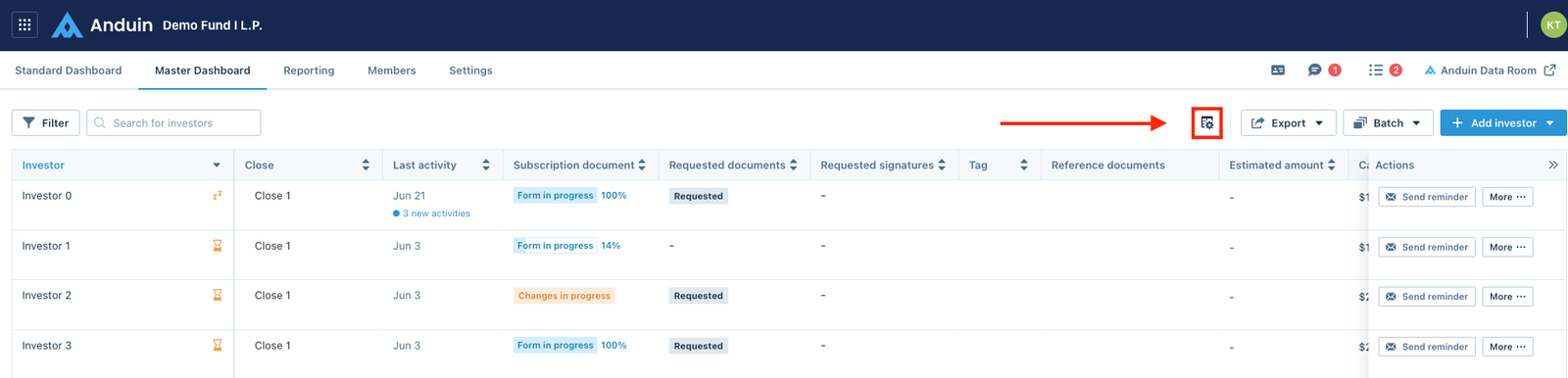
From the Master Dashboard, fund users can click the gear button on the upper part of the dashboard to access the Dashboard settings.
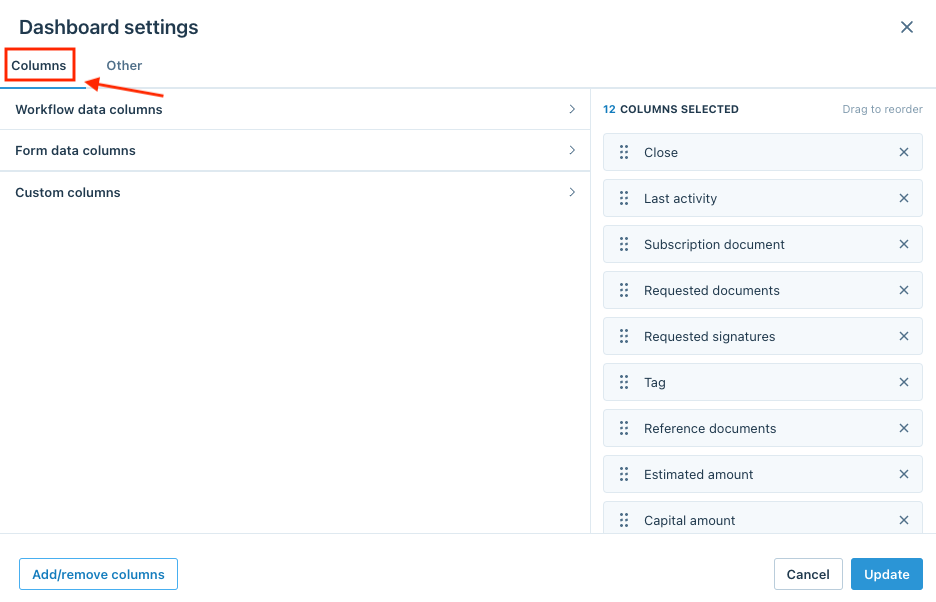
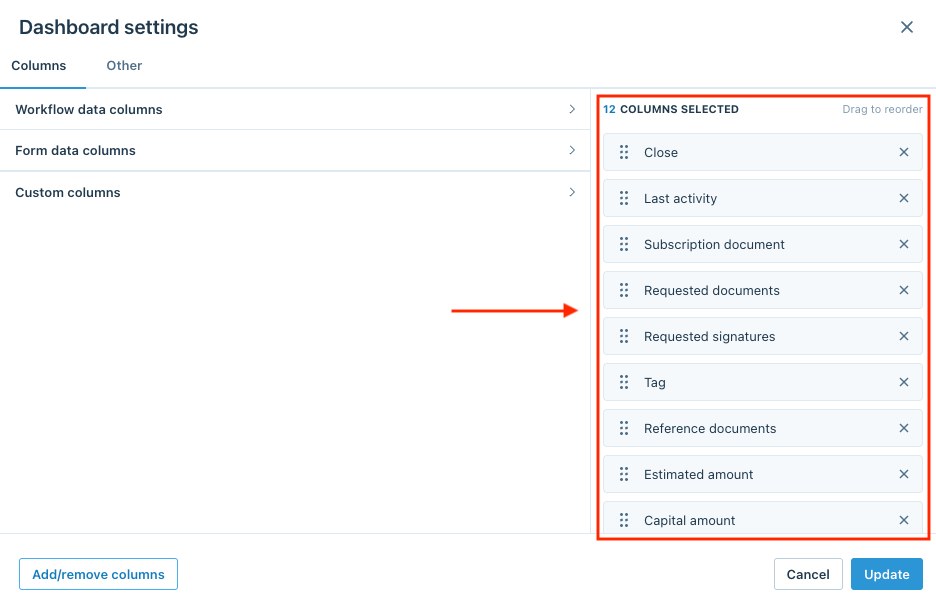
The Dashboard settings window below will pop up with multiple options fund users can use to customize the Master Dashboard.
- Columns tab: To manage the columns in Master Dashboard.
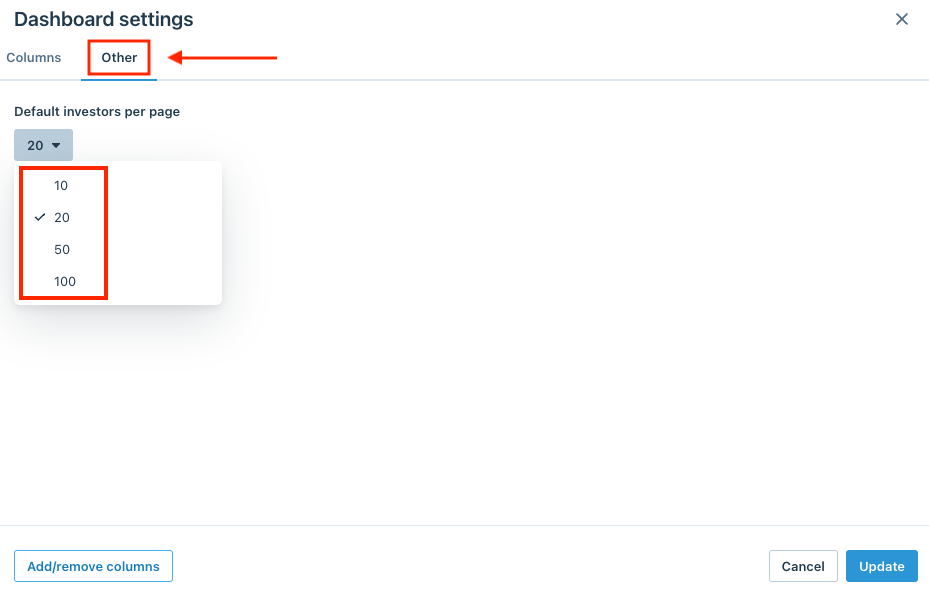
- Other tab: Other settings within Master Dashboard.
– Default investors per page: fund users can set up the number of investors that display per page.
- Columns selected: Columns that have already been selected to show in the Master Dashboard. Fund users can drag and drop the columns to reorder the column positions in the Master Dashboard.
Add columns to the Master Dashboard
From the Columns tab, there are two ways fund users can add additional columns to the dashboard view or remove existing columns from it.
Existing options from the dropdown lists
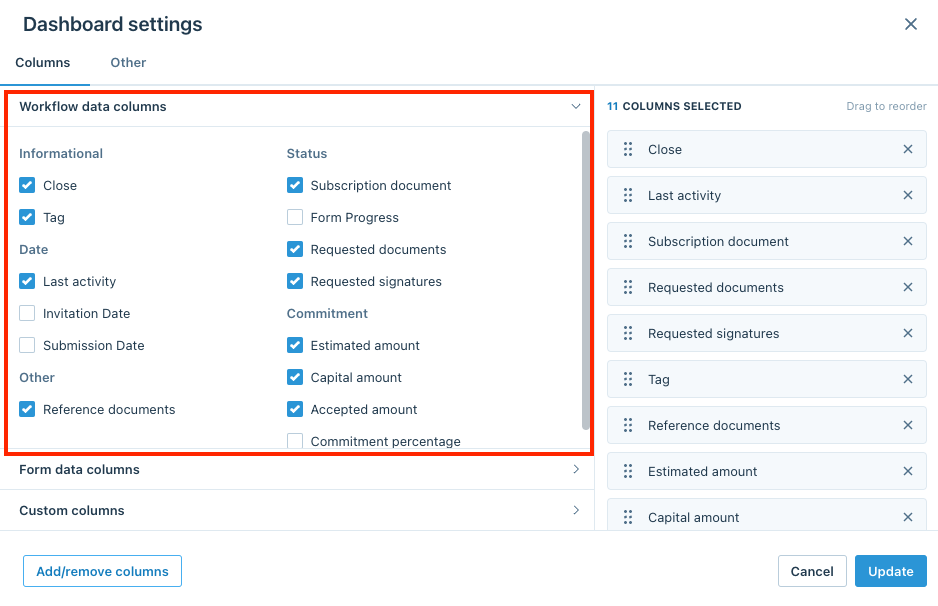
There are three dropdown lists including:
- Workflow data columns: List of default columns in the Master Dashboard and fund users can select the columns by ticking the checkboxes.
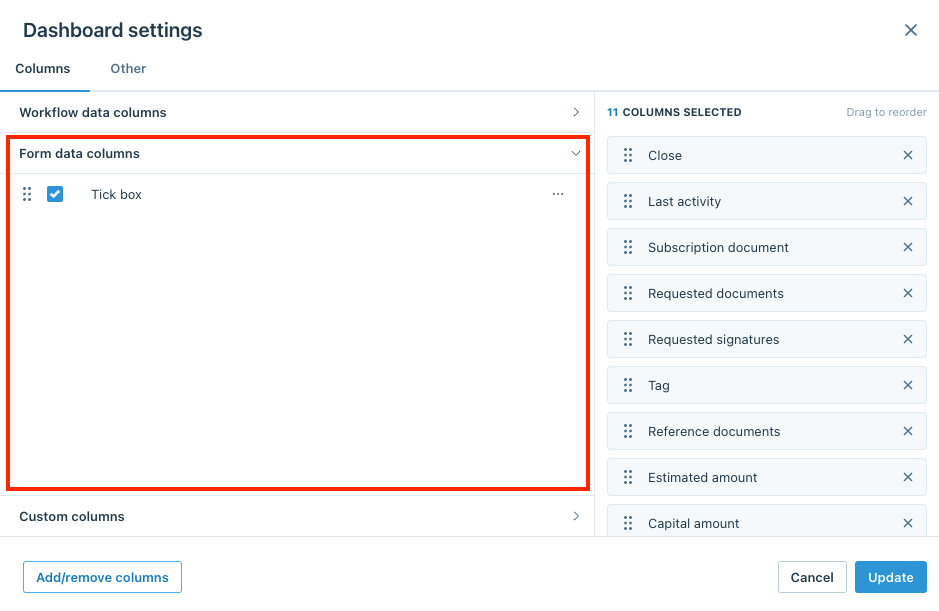
- Form data columns: List of columns created from specific form data. Please contact our Support team at support@anduintransact.com if you want to create columns from your form data.
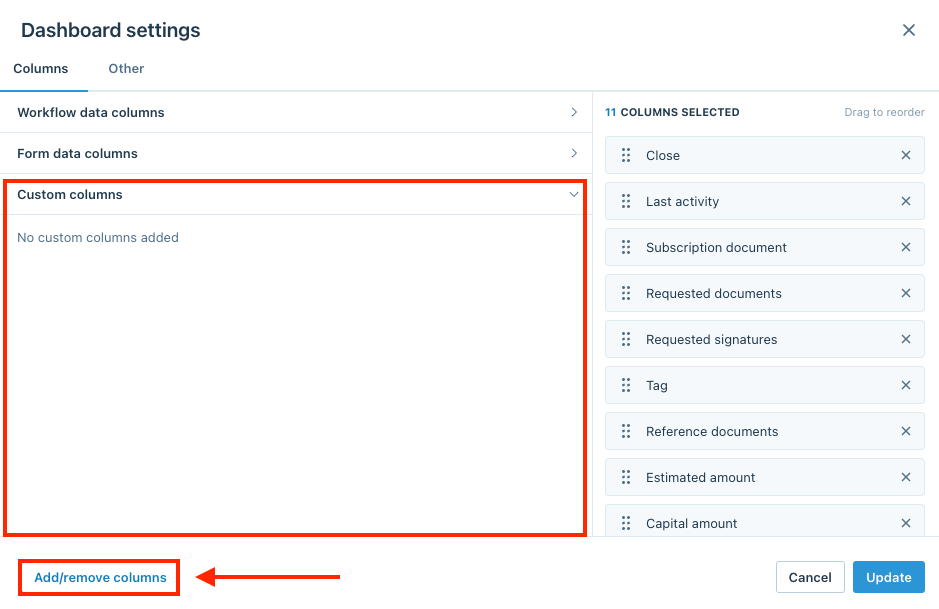
- Custom columns: List of custom columns created by fund users using the Add/remove columnsbutton. Fund users can create different column types including:
– Note – Date – Currency – Single select – Multiple select – Checklist
Create new columns
Fund users can create new columns by clicking the Add/remove columns button at the bottom of the window.
From the Add/remove columns window, click Create new.
In the Create new column window, enter the Name and Description for the column and select the column type from the Type dropdown list, then click Add to create the column.
After creating the columns, fund users can click the (…) menu at the end of each option to Edit column.
Remove columns from the Master Dashboard
Fund users can remove columns from the Master Dashboard by clicking the (X) symbol at the end of of each option, then click Update to save the settings.