

How to Manage Export Templates and Export data with Anduin
This user guide provides a comprehensive overview of the permissions and user experience associated with managing and exporting data using our system. It i
This user guide provides a comprehensive overview of the permissions and user experience associated with managing and exporting data using our system. It is divided into two main sections: Permissioning and User Experience.
Section A: Permissioning outlines the different permissions required to manage export templates and export data. It specifies the roles that can create, edit, and delete templates and clarifies the permissions needed for a user to export data based on their access level.
Section B: User Experience focuses on the practical aspects of using the system, such as creating new export templates and exporting data. This section aims to guide users through the steps required to efficiently manage and utilize export templates.
Please note that Anduin also provides one public API for getting information on all export templates and another one for exporting data.
A. Permissioning
1. Permission to Manage Export Templates
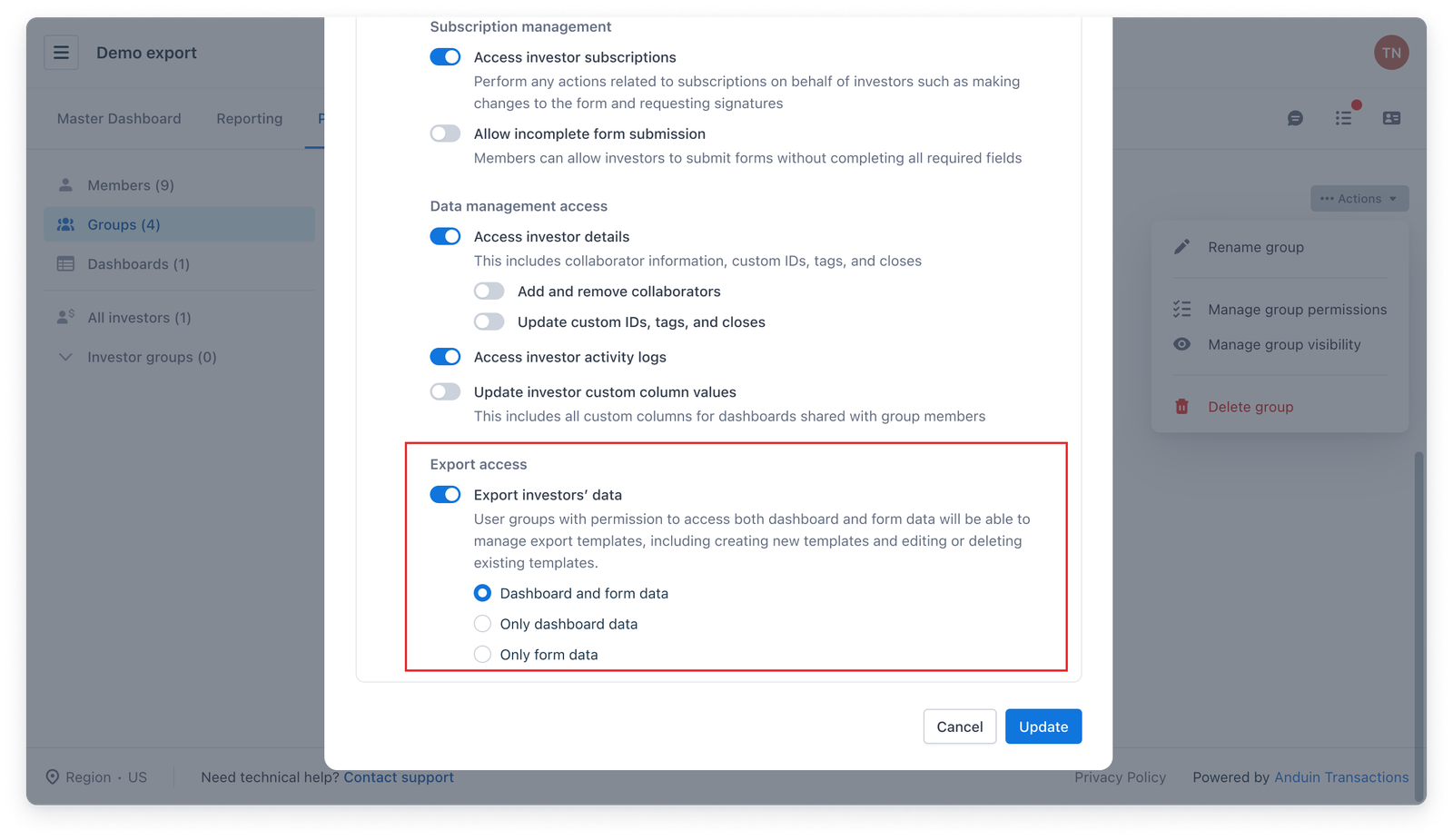
Permissions for managing export templates, including creating, editing, and deleting templates, can be controlled either by admins, or a group with access to both the dashboard and form data.
2. Permission to Export Data
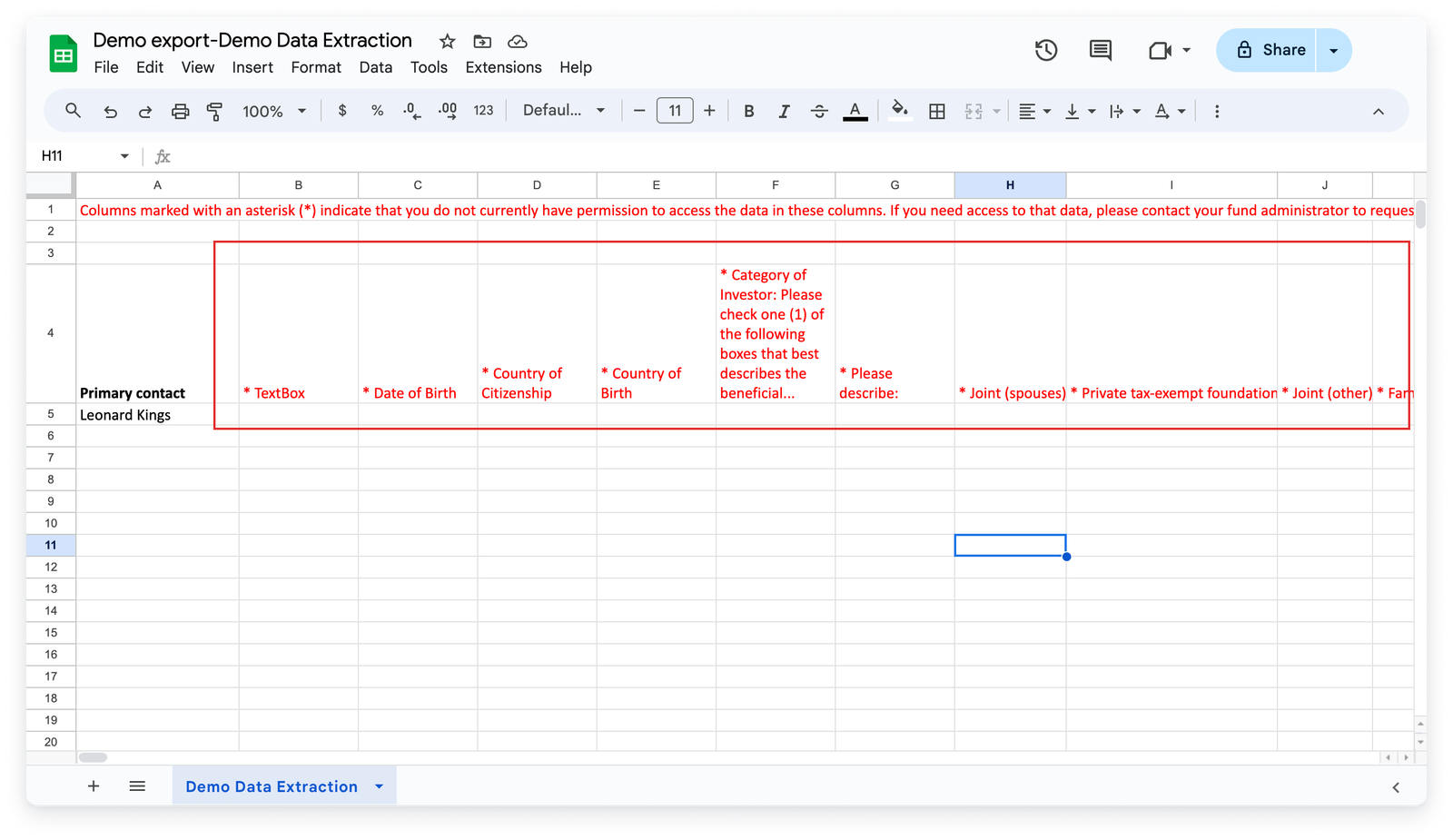
Users with the permission to export data can access all export templates, but they may only export the data types they have access to. For example, if a user group can only export dashboard data, they will only be able to use export templates for dashboard data.
B. User Experience
1. Creating a New Export Template
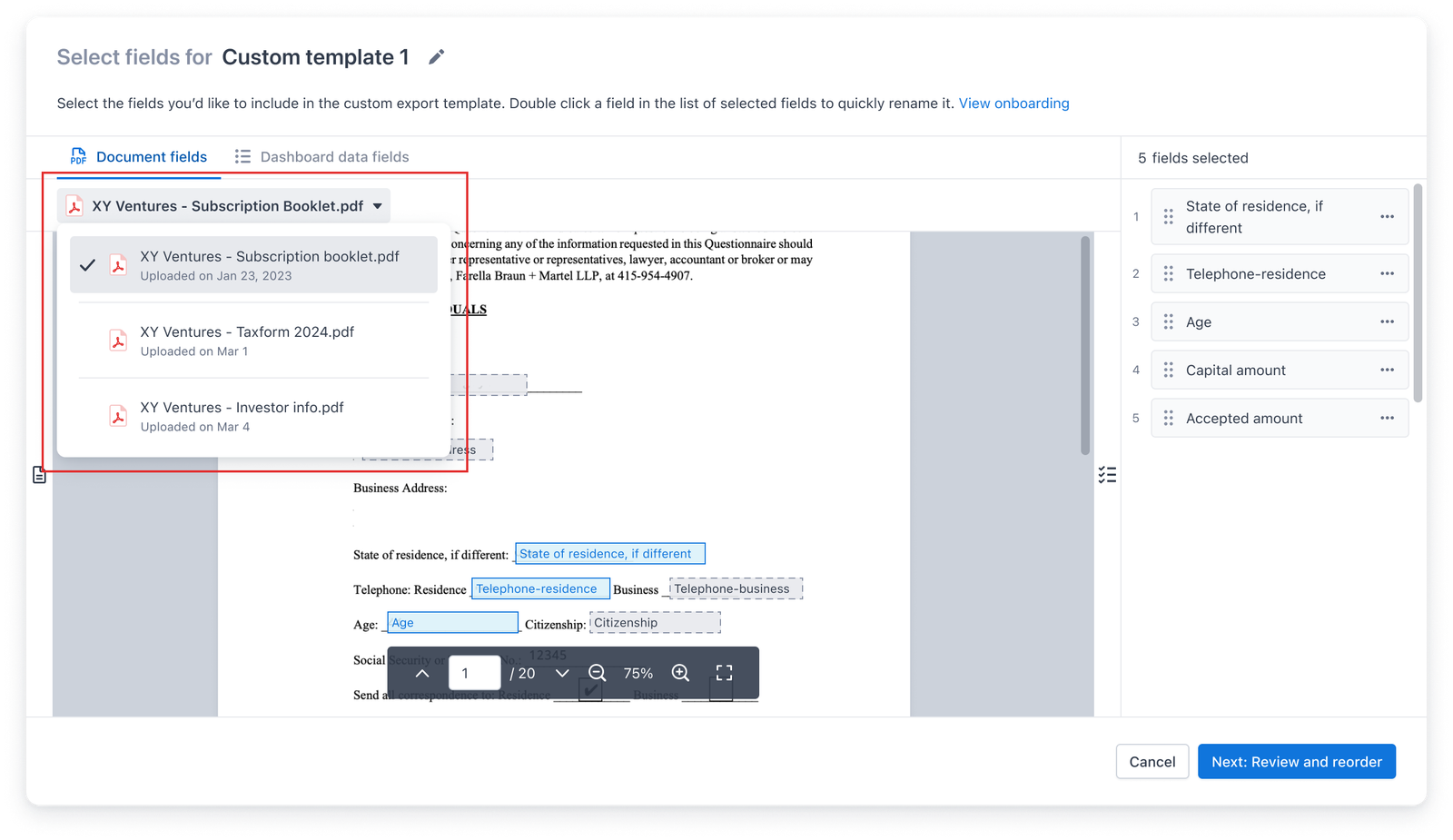
Users with the required permissions can create a new export template by navigating to Export → Create Custom Template.
- Users can navigate through the subscription PDF and select the fields they want to include in the template.
- Users can quickly select all fields per page, rename fields, and rearrange columns.
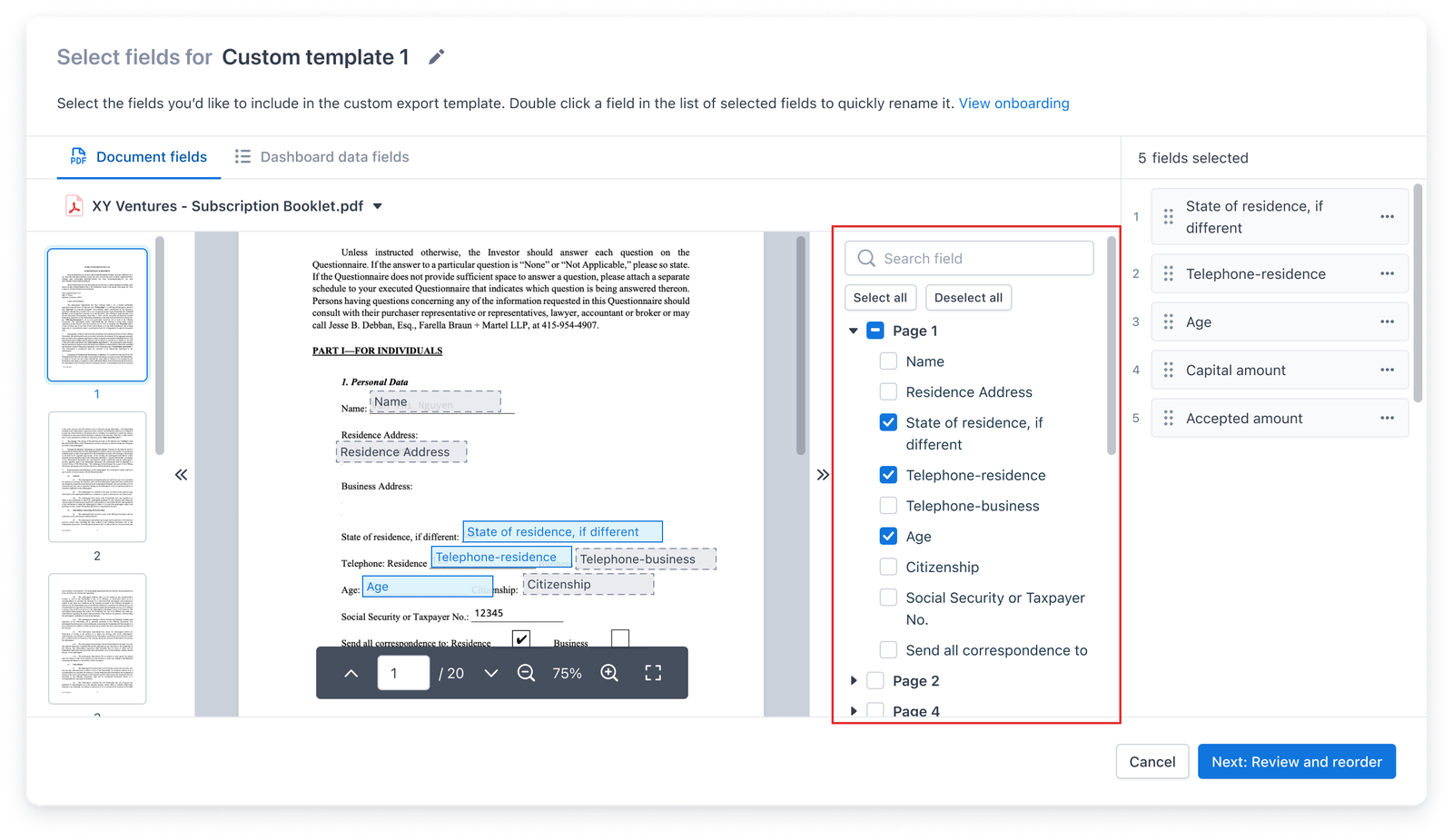
- Workflow data, such as the investor name, close status, and AML/KYC status, can be included. Form data (if set up) and any custom columns created within the Dashboard can also be selected.
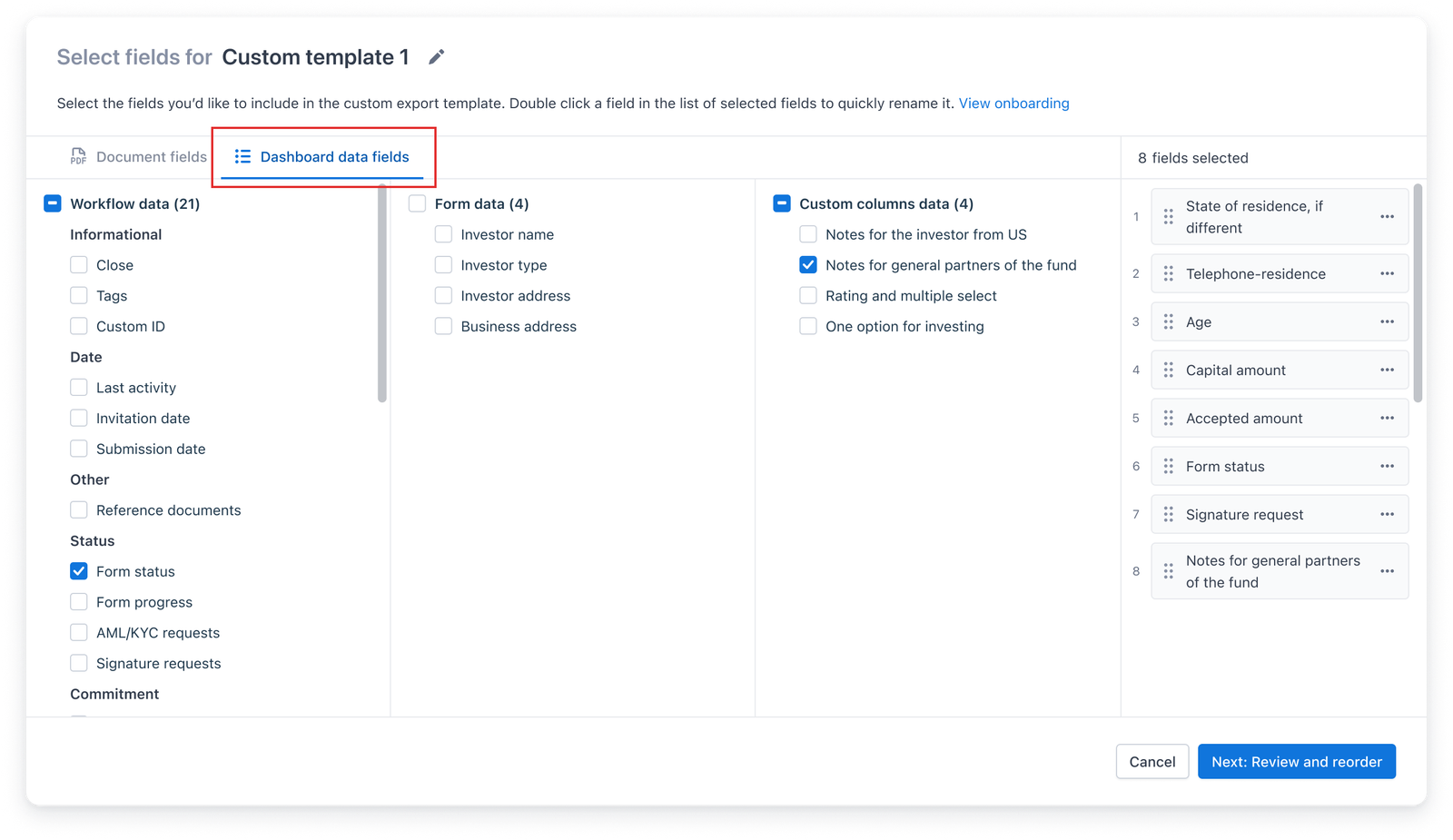
- A final review allows users to edit field names, remove fields, and add additional data before finalizing the template.
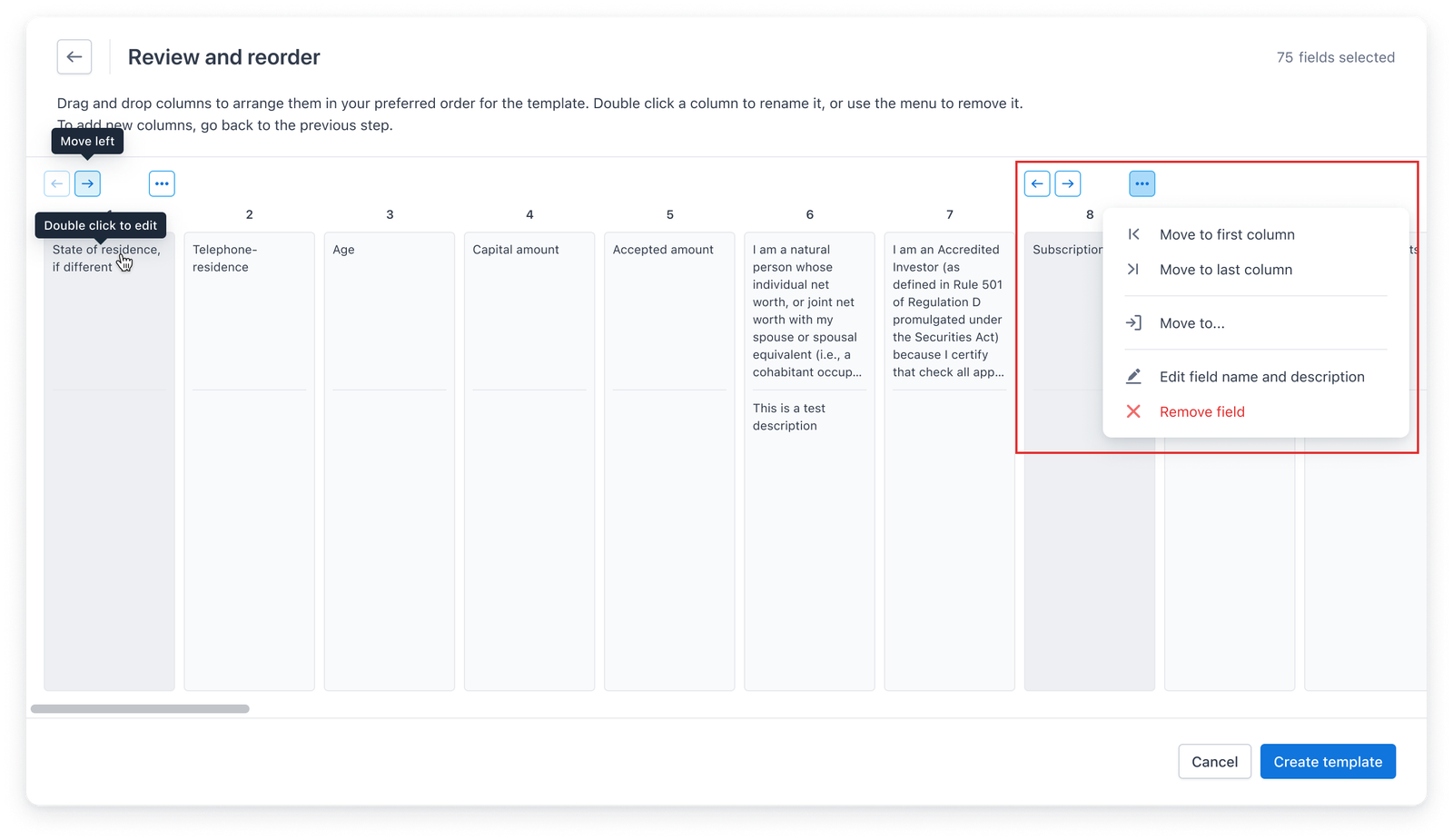
Once the user clicks on "Create Template," the new template will be accessible in the Export menu on the Master Dashboard. GP users can edit or remove existing templates as needed. These actions are logged in the Fund audit log for security and tracking purposes.
2. Exporting Data
A user may only access and download the type of data they're permitted to (e.g. dashboard data) using the relevant export templates.