How to Countersign Documents and/or Request others’ Countersignatures
Users can countersign or request signatures from one or multiple GPs. Add Countersignature Countersign for a single investor From the Investors dashboard,
Users can countersign or request signatures from one or multiple GPs.
Add Countersignature
Countersign for a single investor
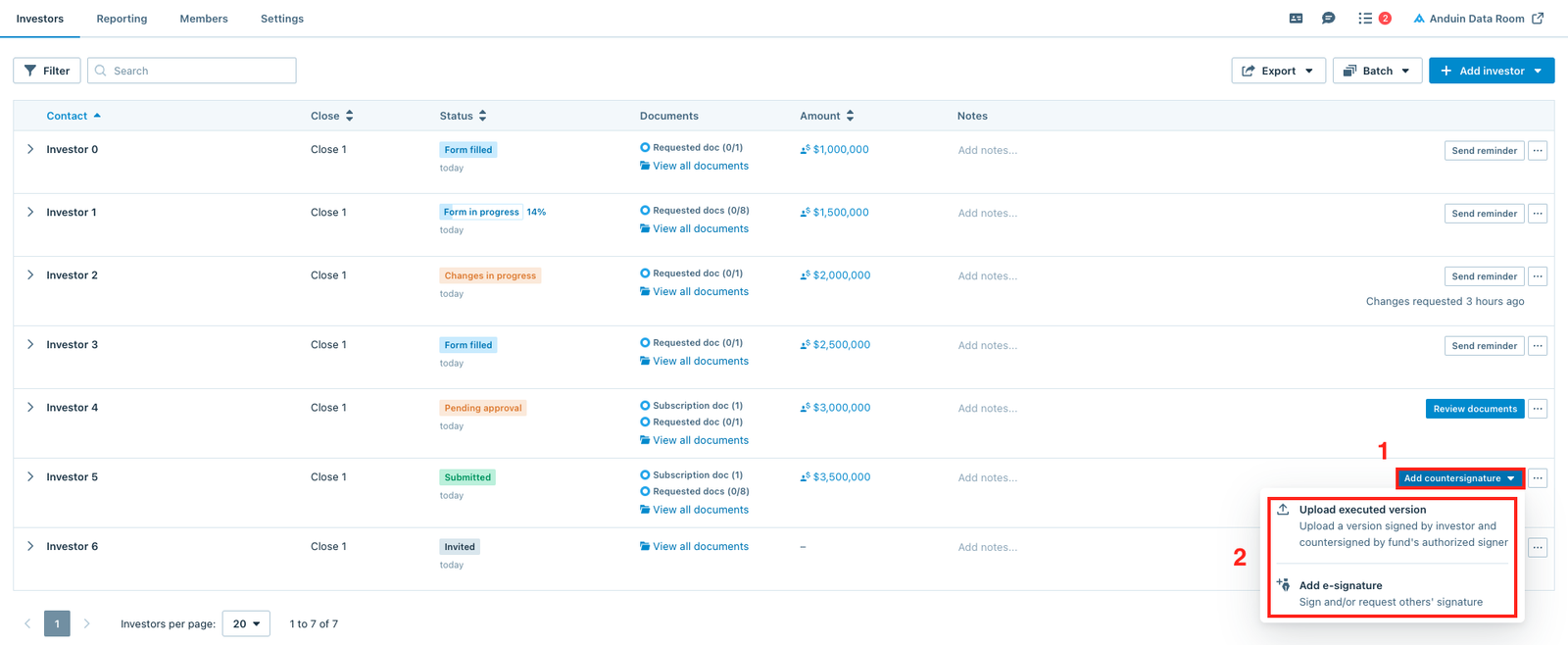
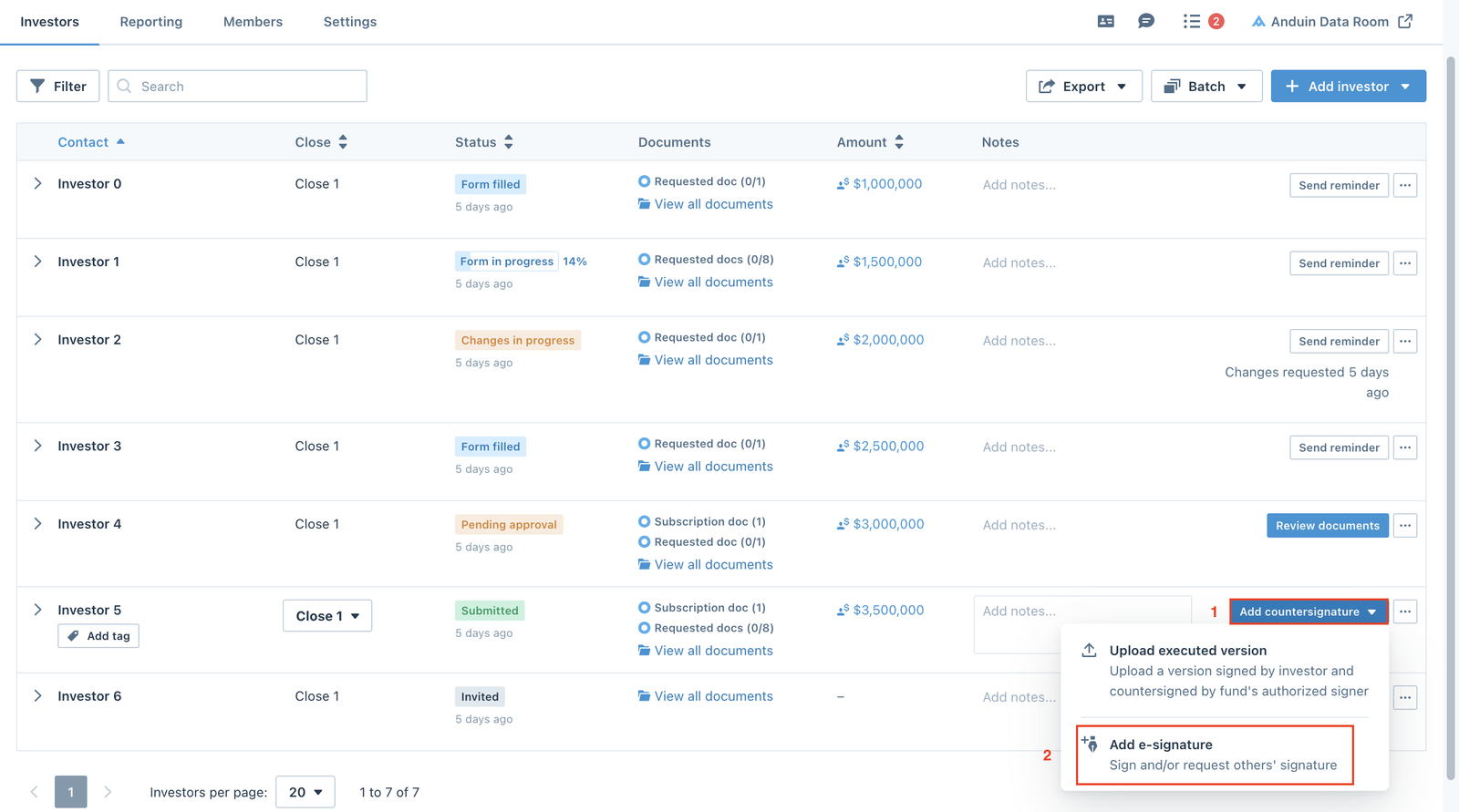
From the Investors dashboard, use the Filter button or the Search bar to find the investor in the Submitted stage, then click Add countersignature button.
- Select the Upload executed version option if you want to sign offline (wet sign) and upload the signed version to the platform.
- Select the Add e-signature option to sign/and or request others’ signatures.
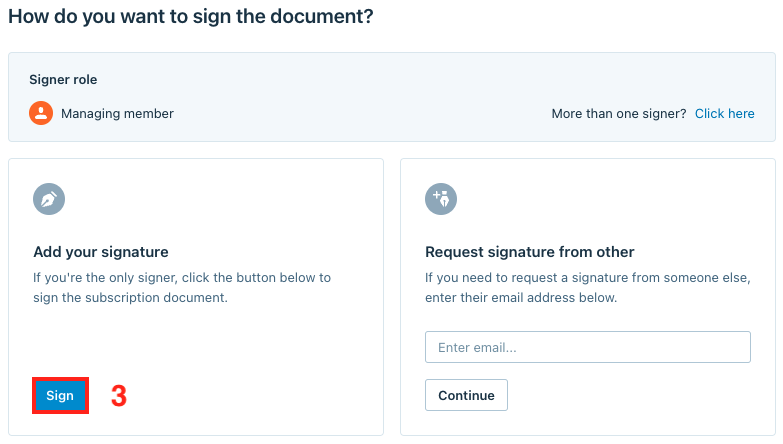
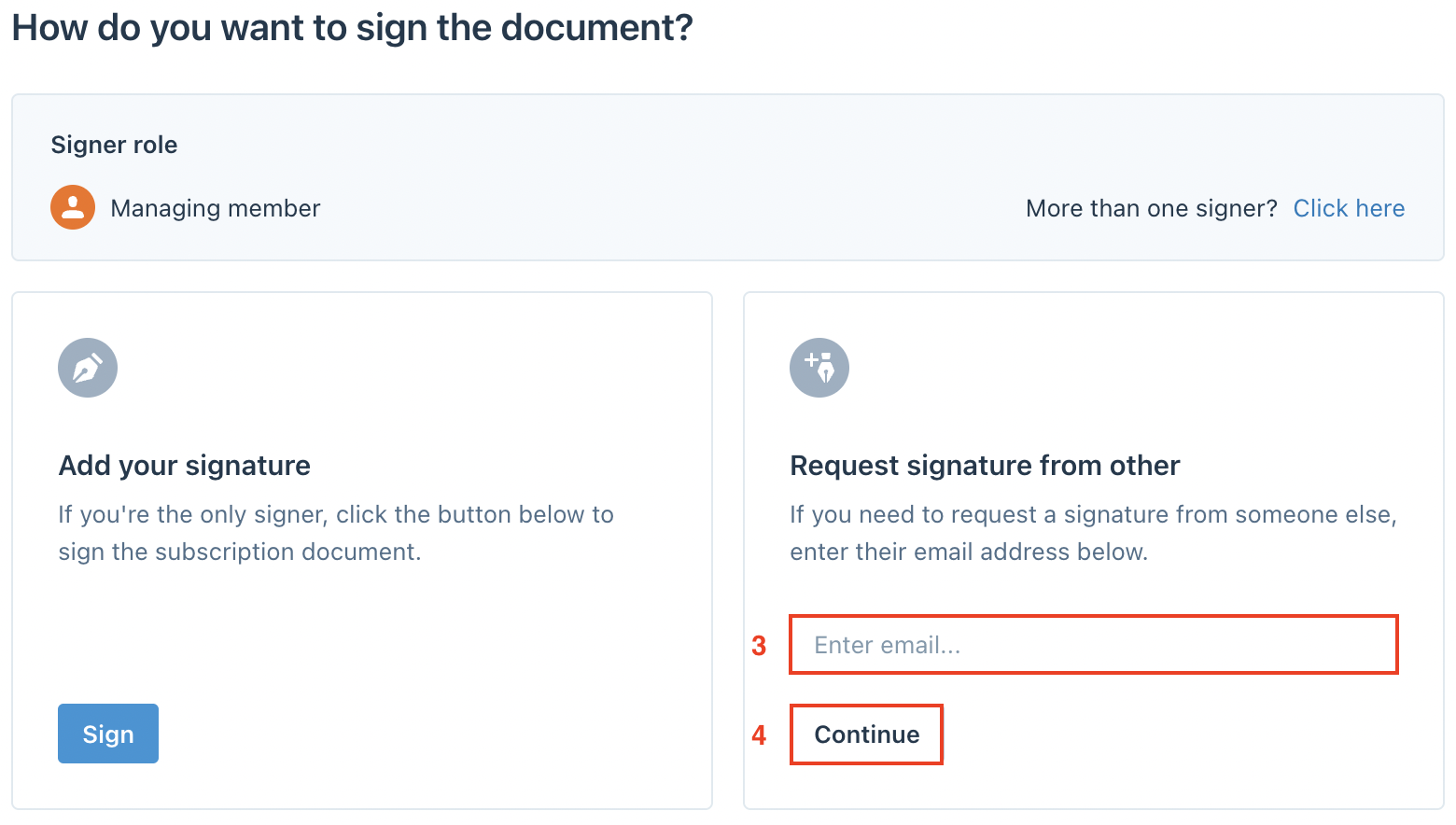
After selecting Add e-signature, the window below will pop up on the screen, click Sign.
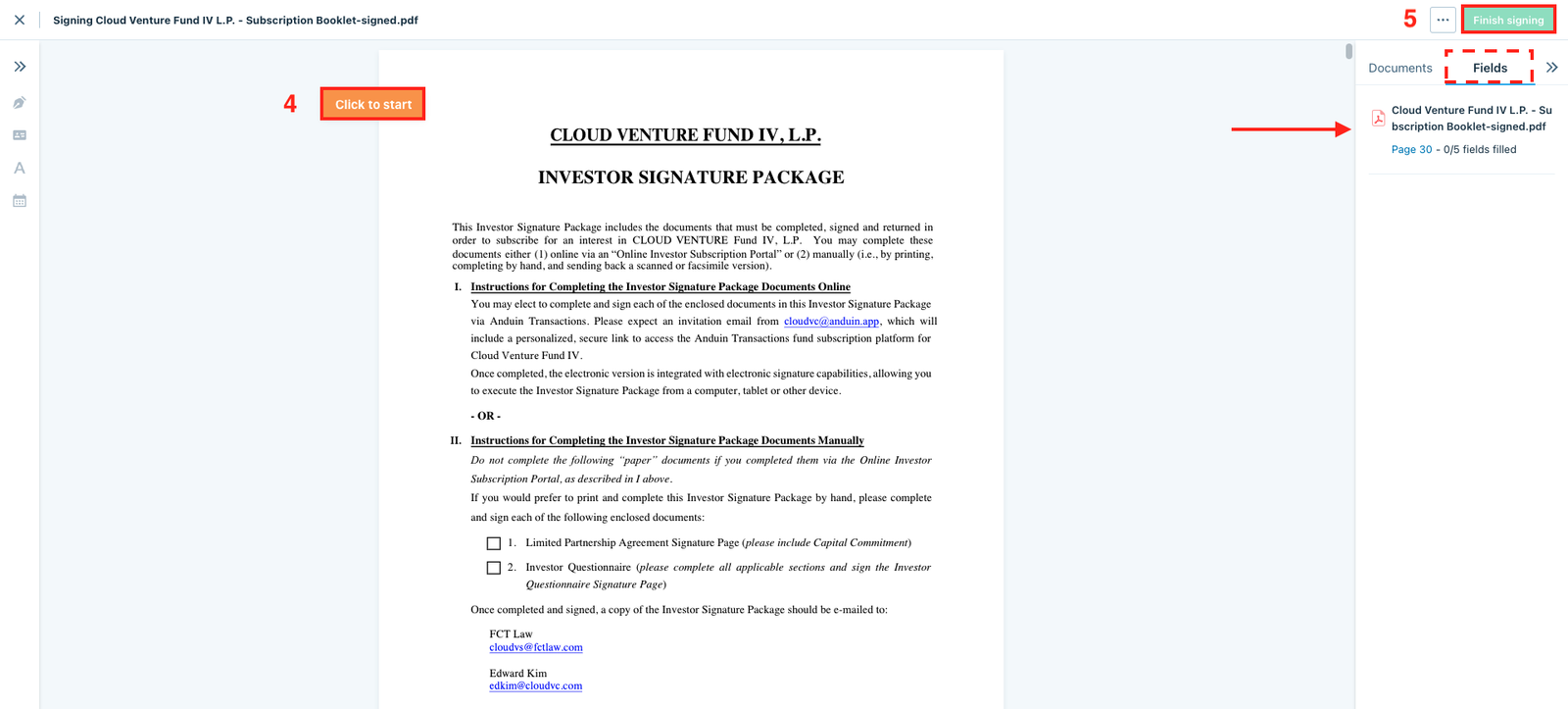
In this stage, click the Click to start button to start adding signature and other information. Once finished, click Finish signing.
Delete
Note
Users can switch to the Fields section and check to make sure all the fields are filled.
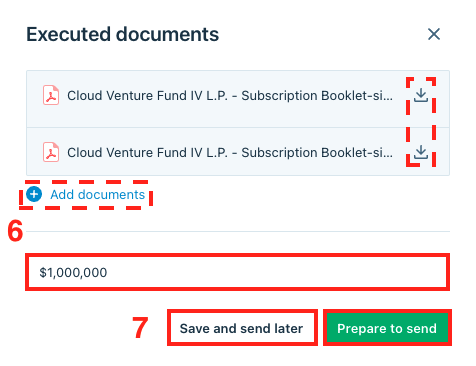
Users can download the signed documents and the signature certificate or Add documents (optional). Double-check the Accepted capital commitment amount and either Save and send later or Prepare to send the executed package straightaway.
Instruction video
Countersign for multiple investors
From the Investors dashboard, click the Batch button and select the Countersign documents option.
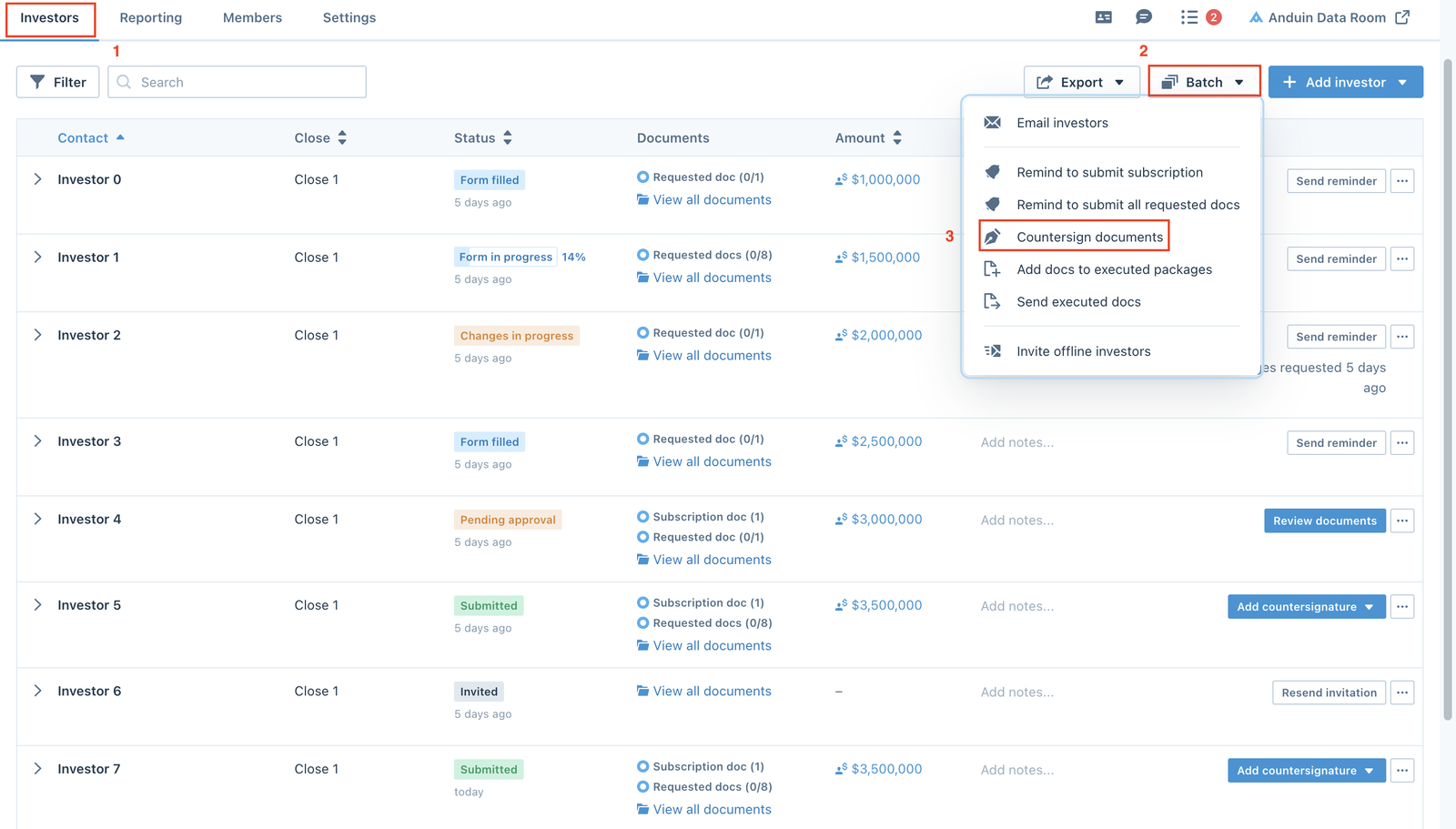
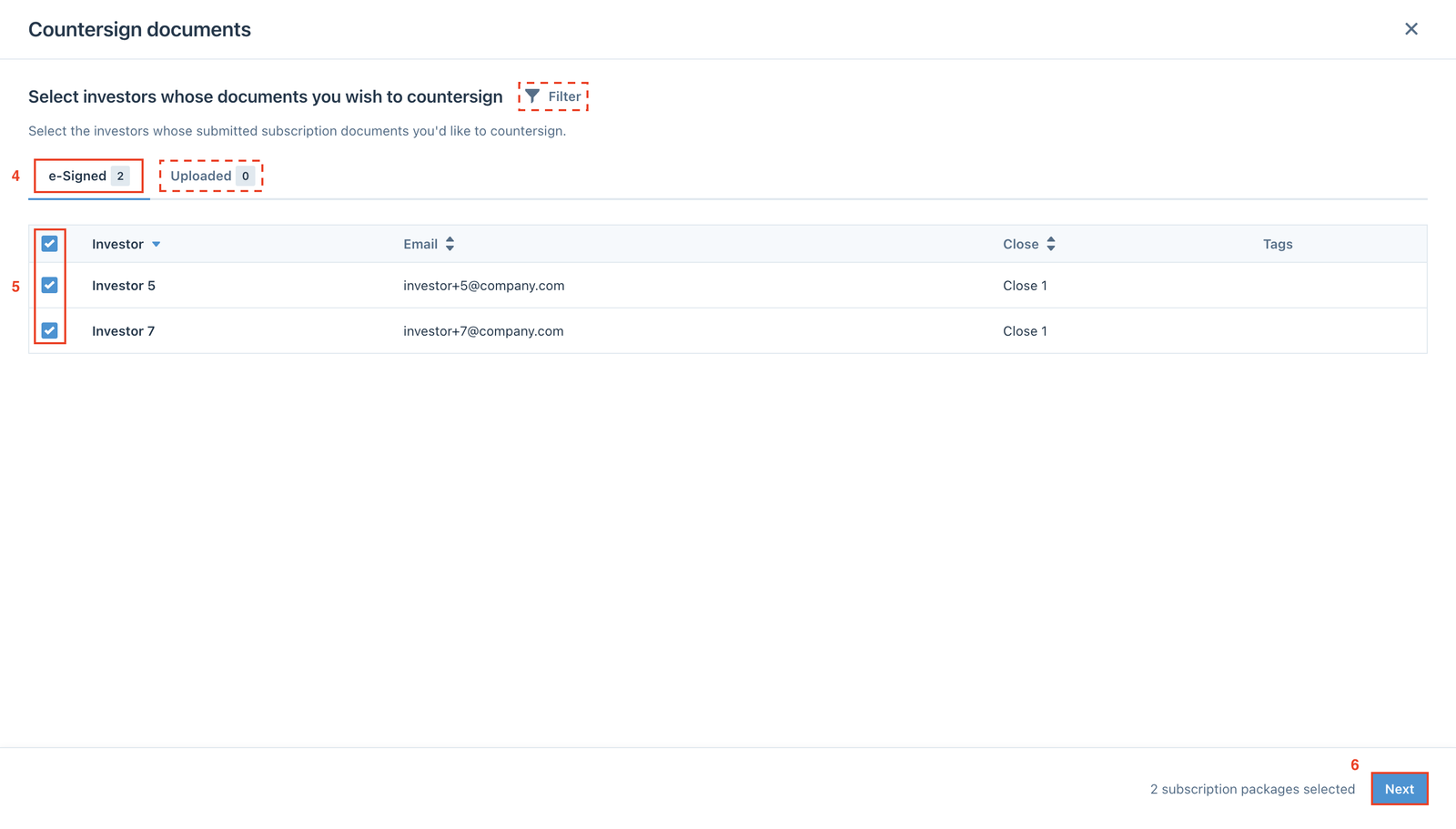
Users can use the Filter feature to filter specific types of investors, select between e-Signed or Uploaded documents, and tick the Investors box to select all investors or tick specific investors only, then click Next.
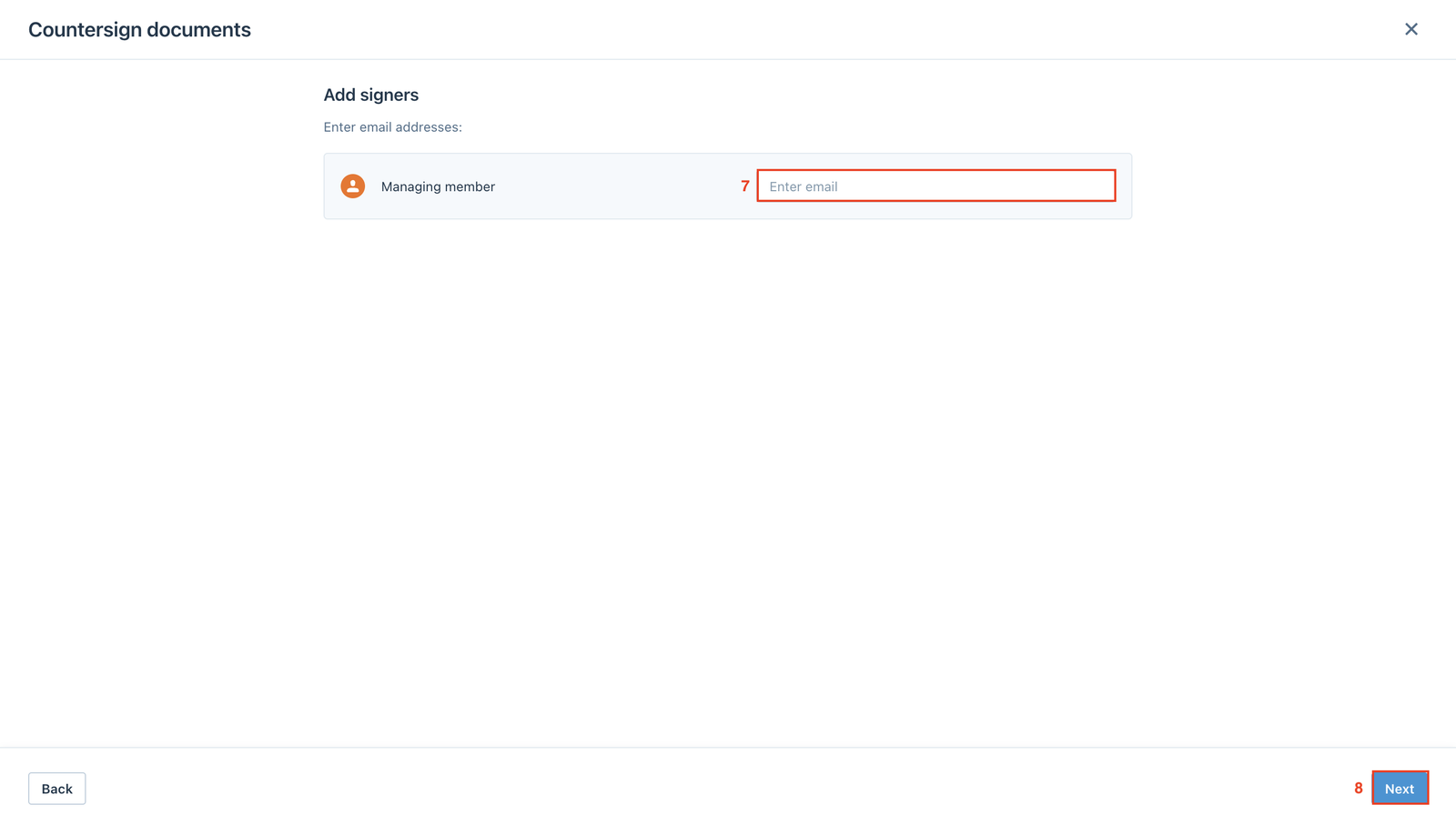
Next step, users enter their email addresses and click Next.
Enter the Commitment amount for each investor, then click Next.
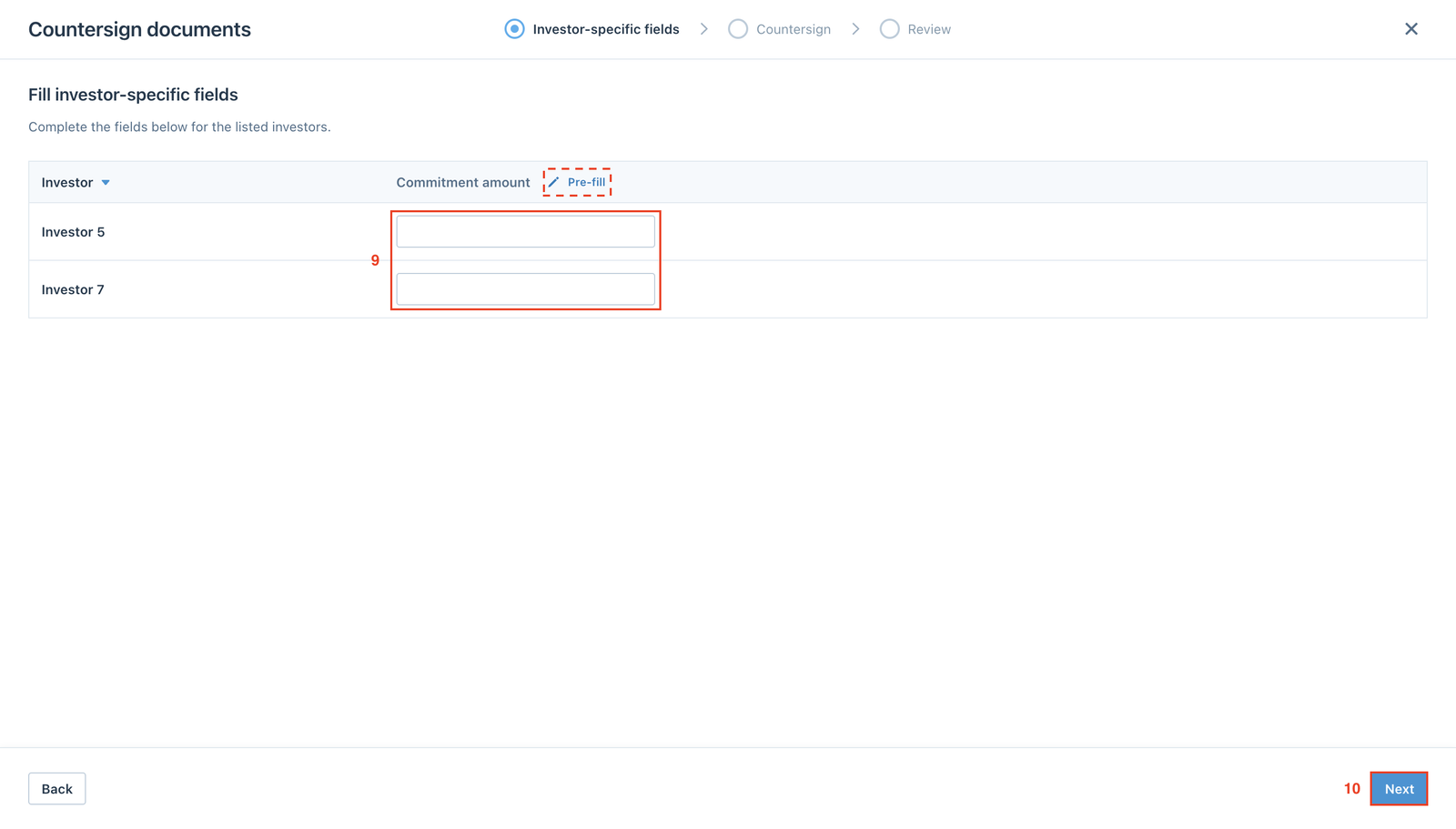
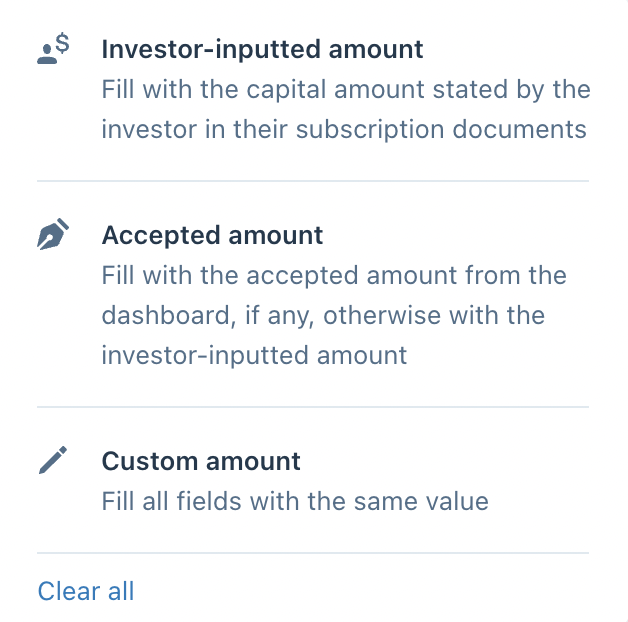
Users can also use the Pre-fill tool and select between three options:
- Investor-inputted amount
- Accepted amount
- Custom amount
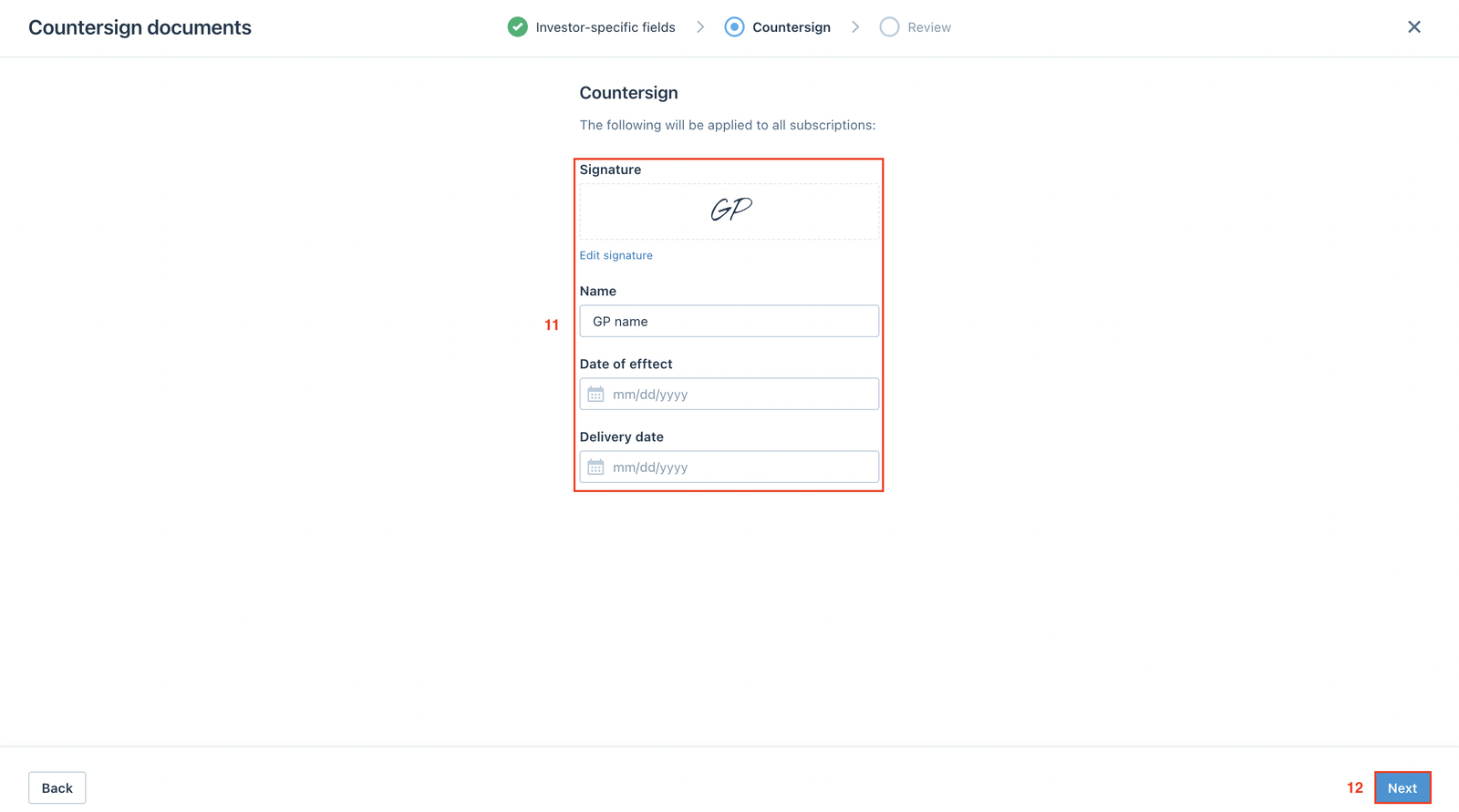
Sign and enter the required information, then click Next.
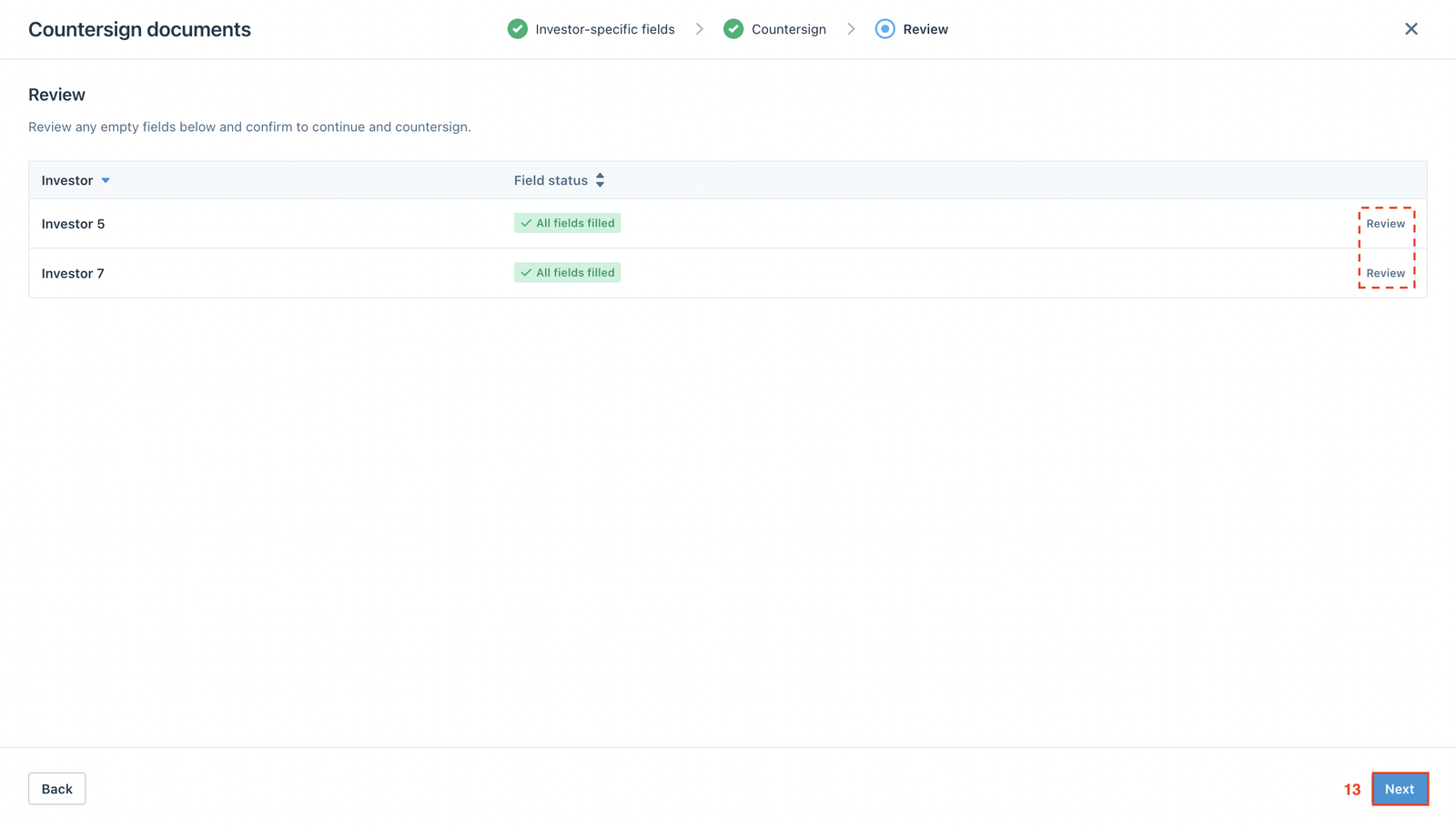
In this next step, users can click Review to review each investor individually or click Next to review all investors together.
Users can switch to the Fields section and click on each investor's document to check all the fields. Once completed, click Finish and execute.
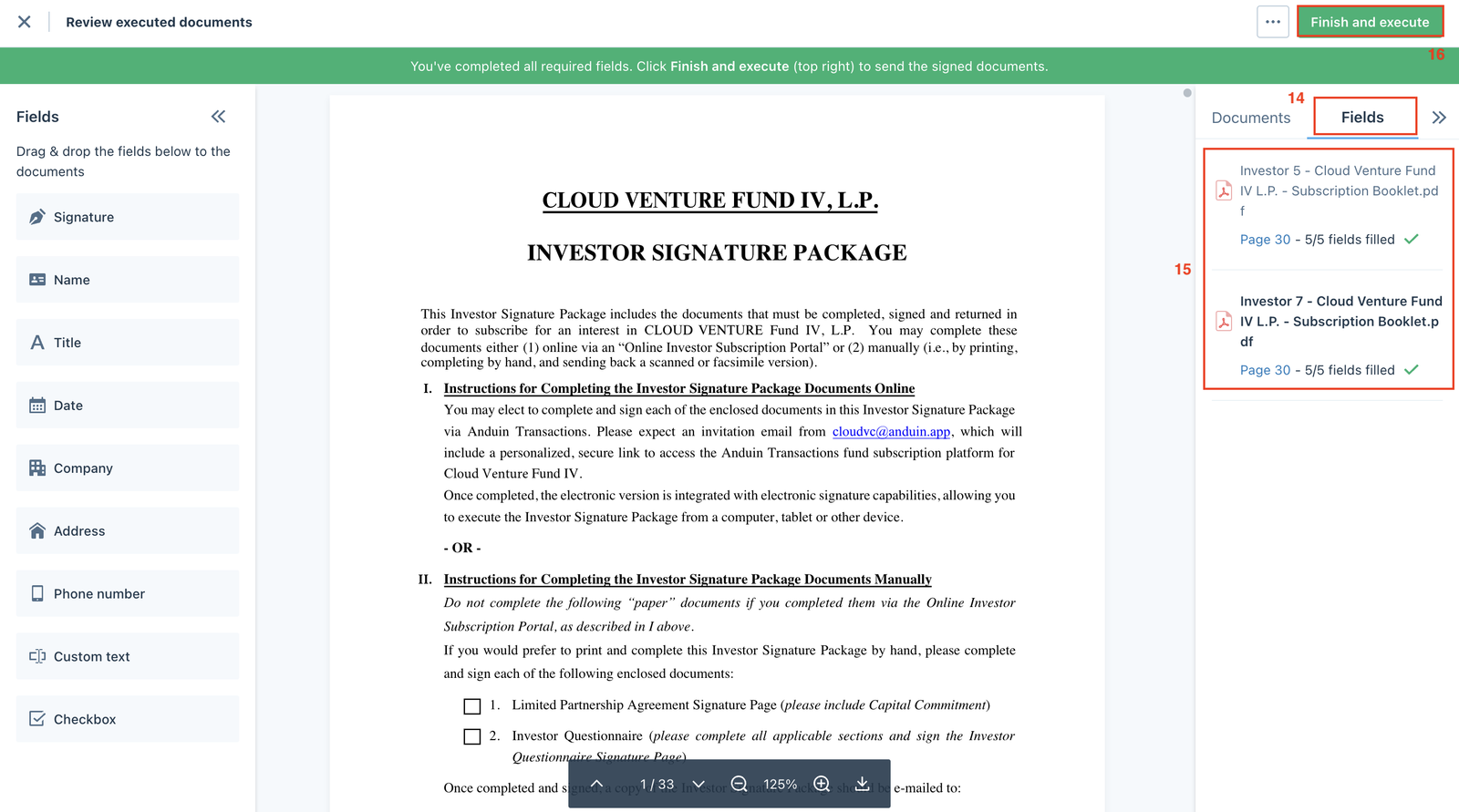
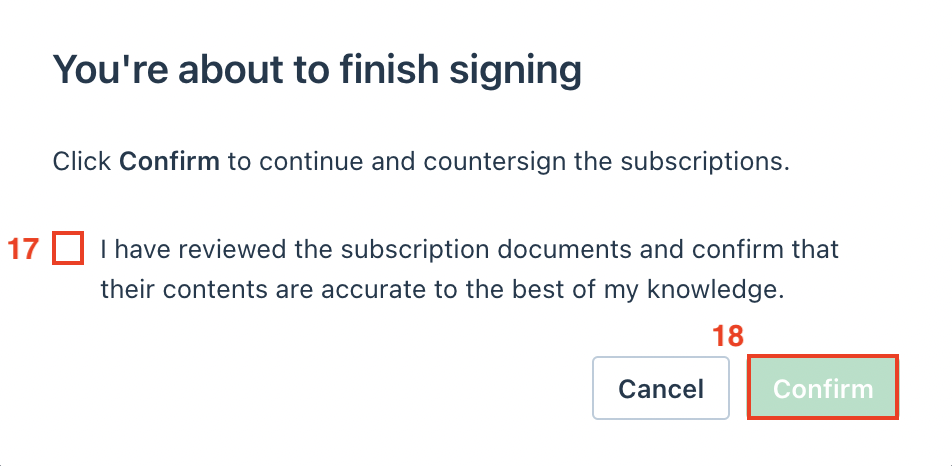
Tick the box and click Confirm to finish signing.
Instruction video
Request countersignatures
Request countersignatures for a single investor
From the Investors dashboard, use the Filter button or the Search bar to find the investor in the Submitted stage. Click the Add countersignature button and select the Add e-signature option.
Request a single countersignature
Enter the GP's email address in the Request signature from other section and click Continue.
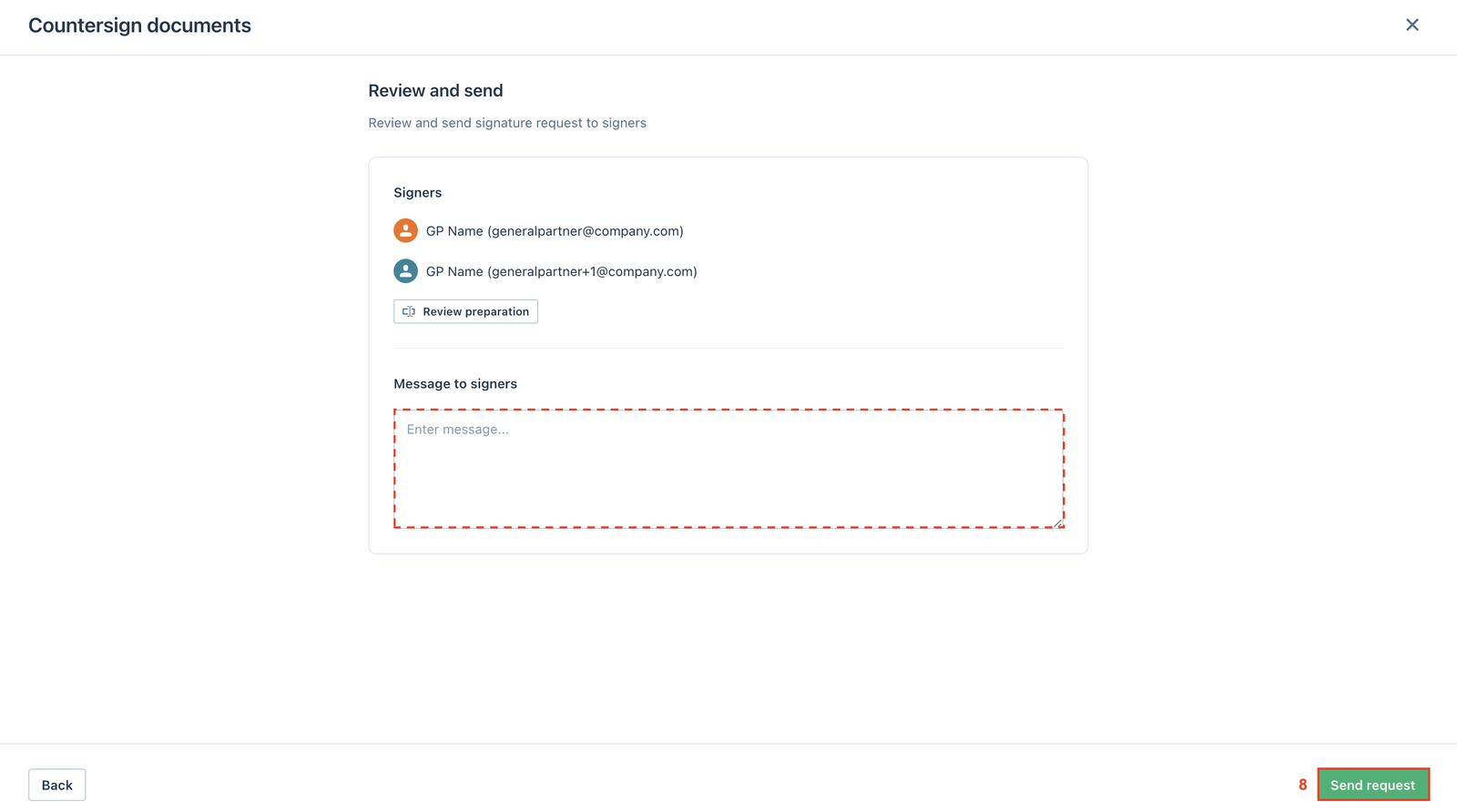
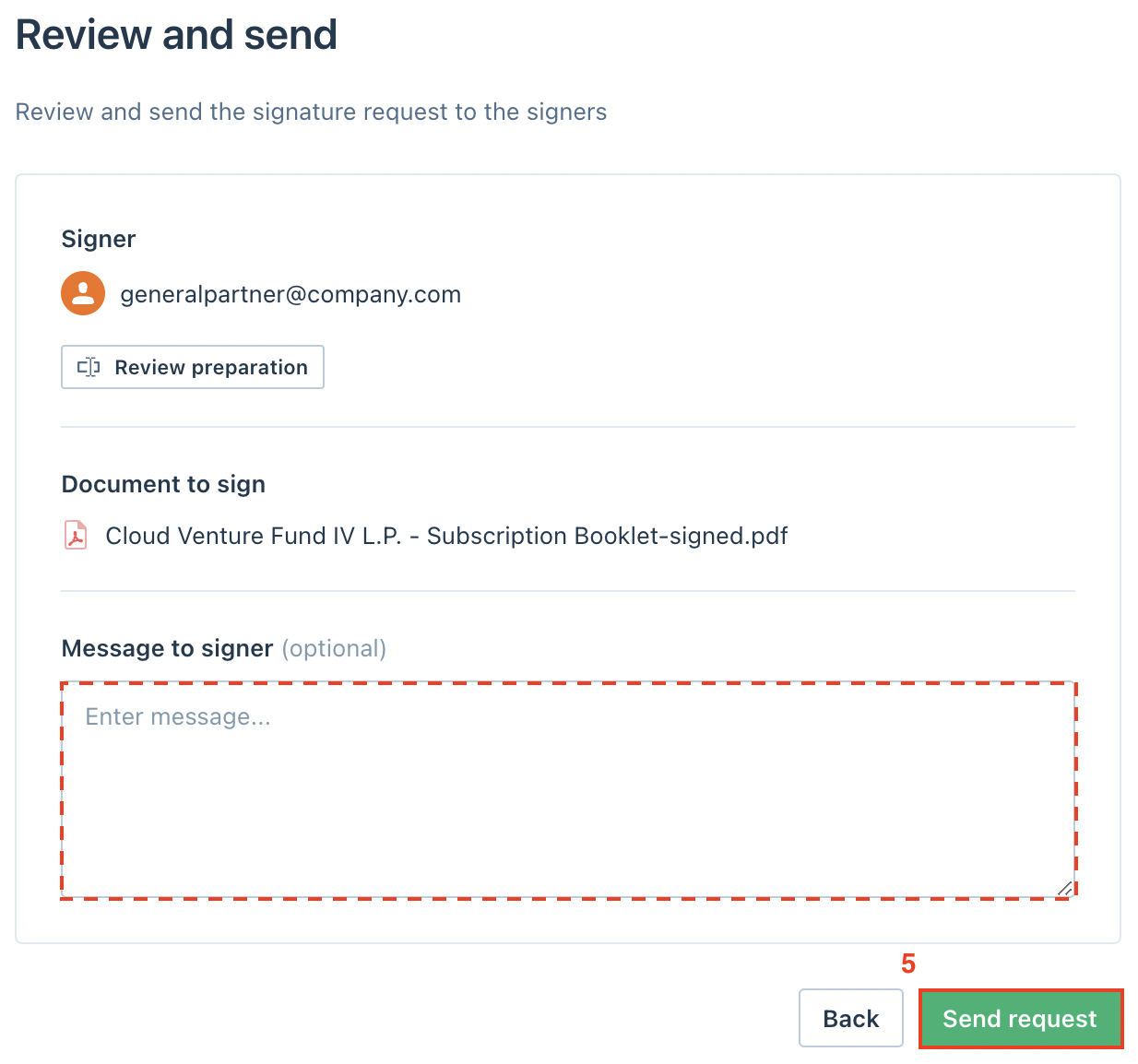
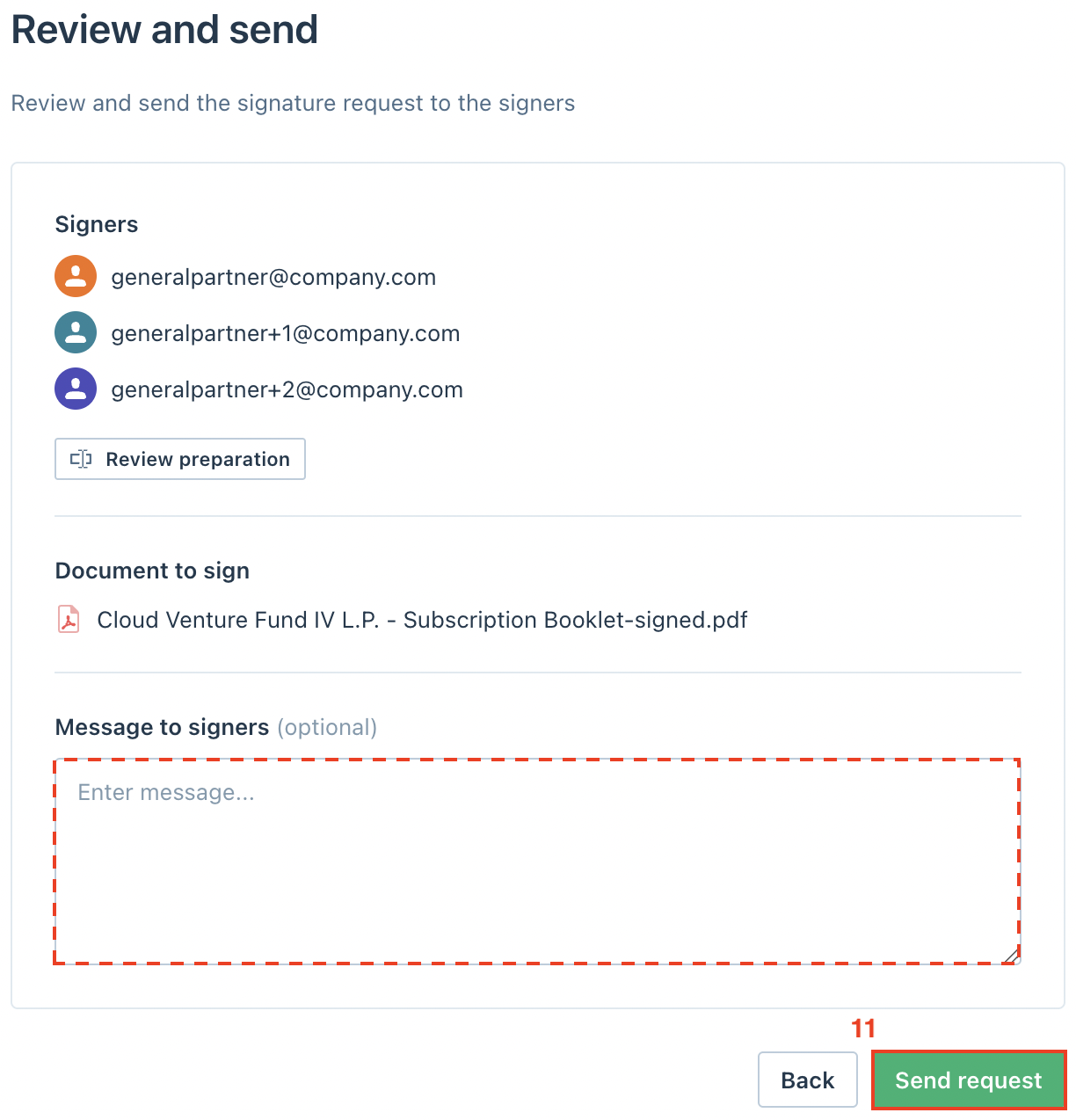
Users can add a message to the signer (optional), then click Send request to request a signature from the GP.
Instruction video
Request multiple countersignatures
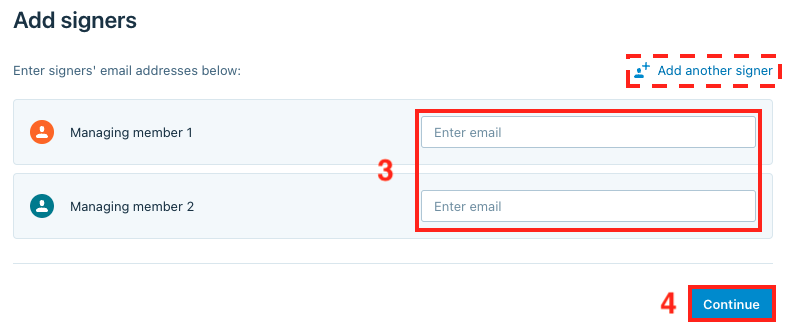
For documents that require multiple countersignatures, enter the GPs' email addresses in the fields. Users can also use the Add another signer button to add additional fields, then click Continue.
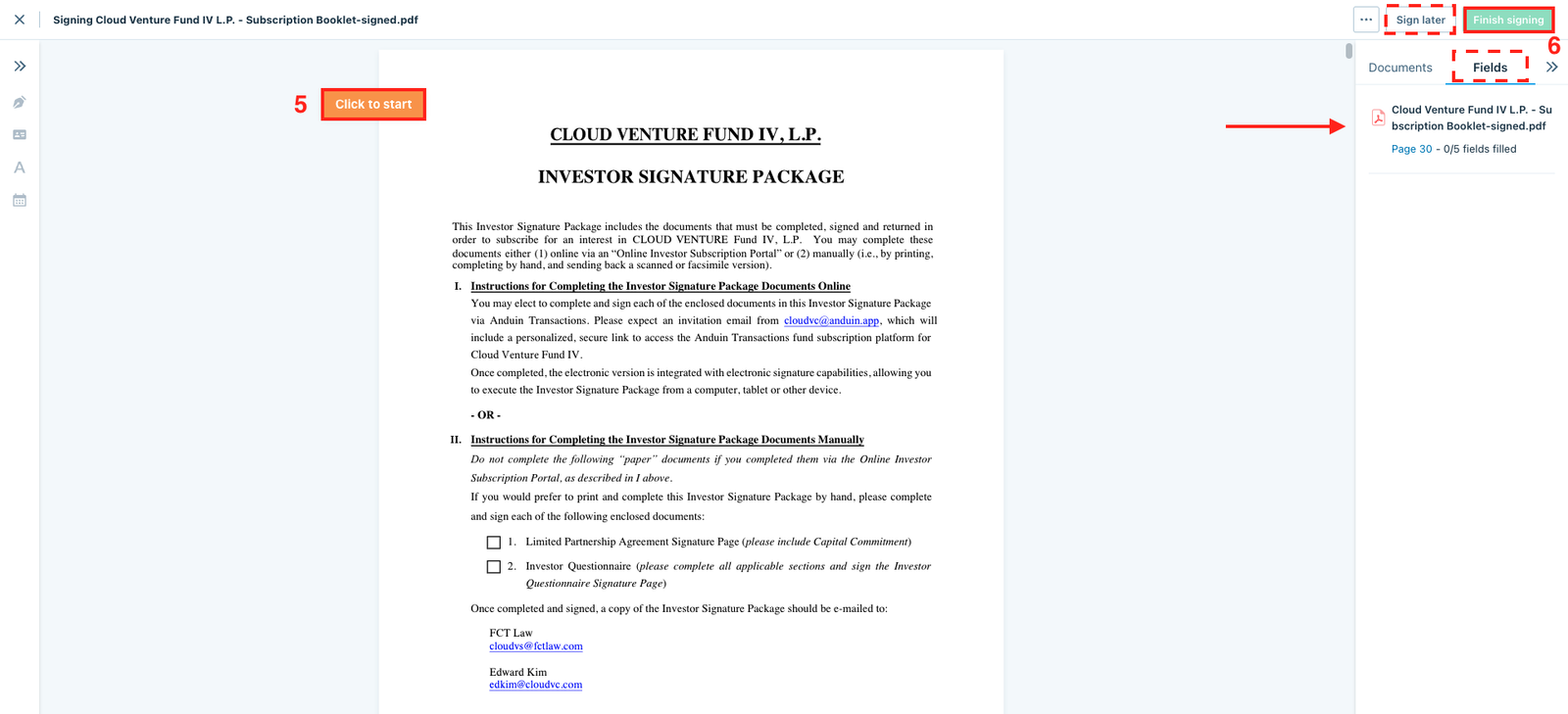
If the user is one of the signers, they can select the Sign later option or click the Click to start button to add signatures and other information. Once finished, click Finish signing.
Delete
Note
Users can switch to the Fields section and check to make sure all the fields are filled. your text here
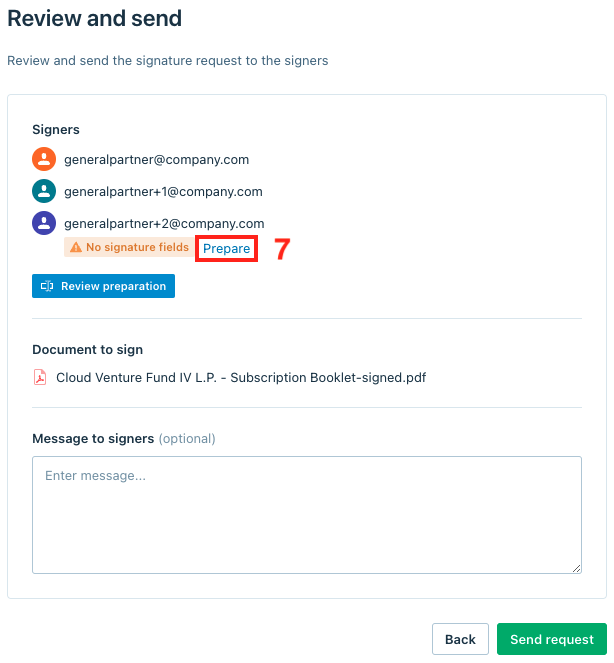
If users add additional signers, there might be no signature fields for them. In that case, click the Prepare button to prepare the signature fields for the additional signers.
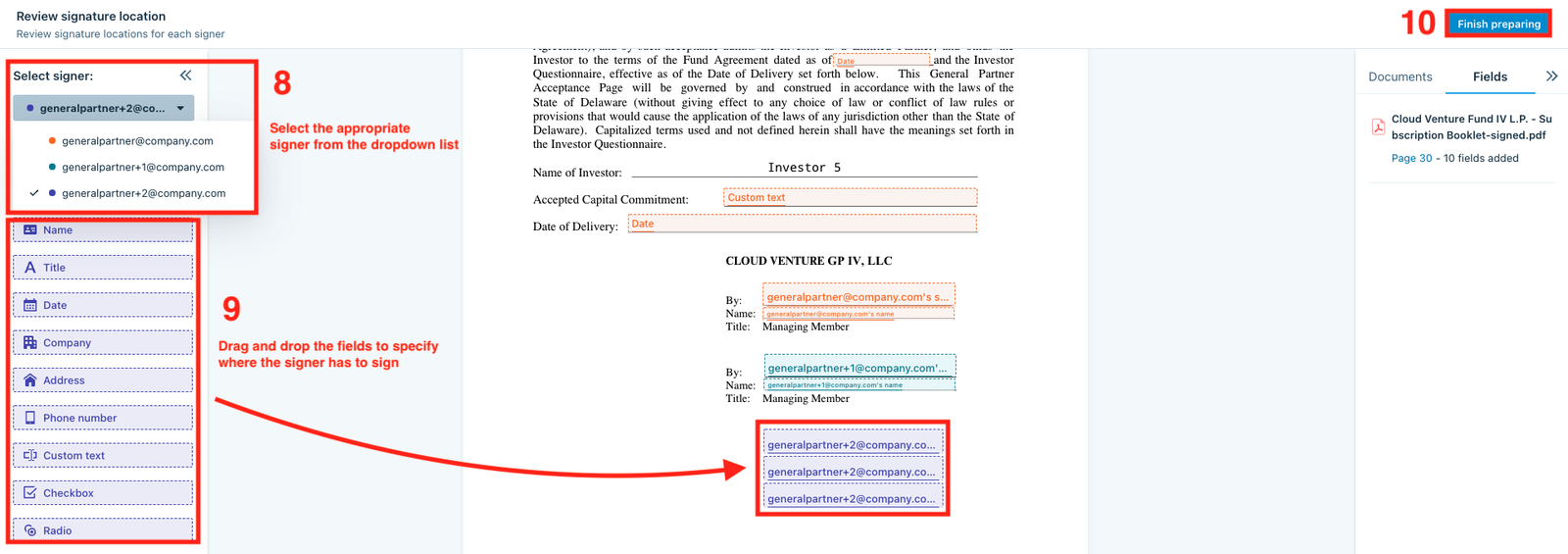
Users can select the appropriate signer from the dropdown list. Drag and drop the fields to specify where the signer has to sign, then click Finish preparing.
In the next window, users can add a message (optional), then click Send request to request signatures from other GPs.
Each signer will receive an email with a call-to-action link that will bring them directly to the documents to sign.
Instruction video
Request countersignatures for multiple investors
From the Investors dashboard, users can click the Batch button and select the Countersign documents options to request countersignatures for multiple investors.
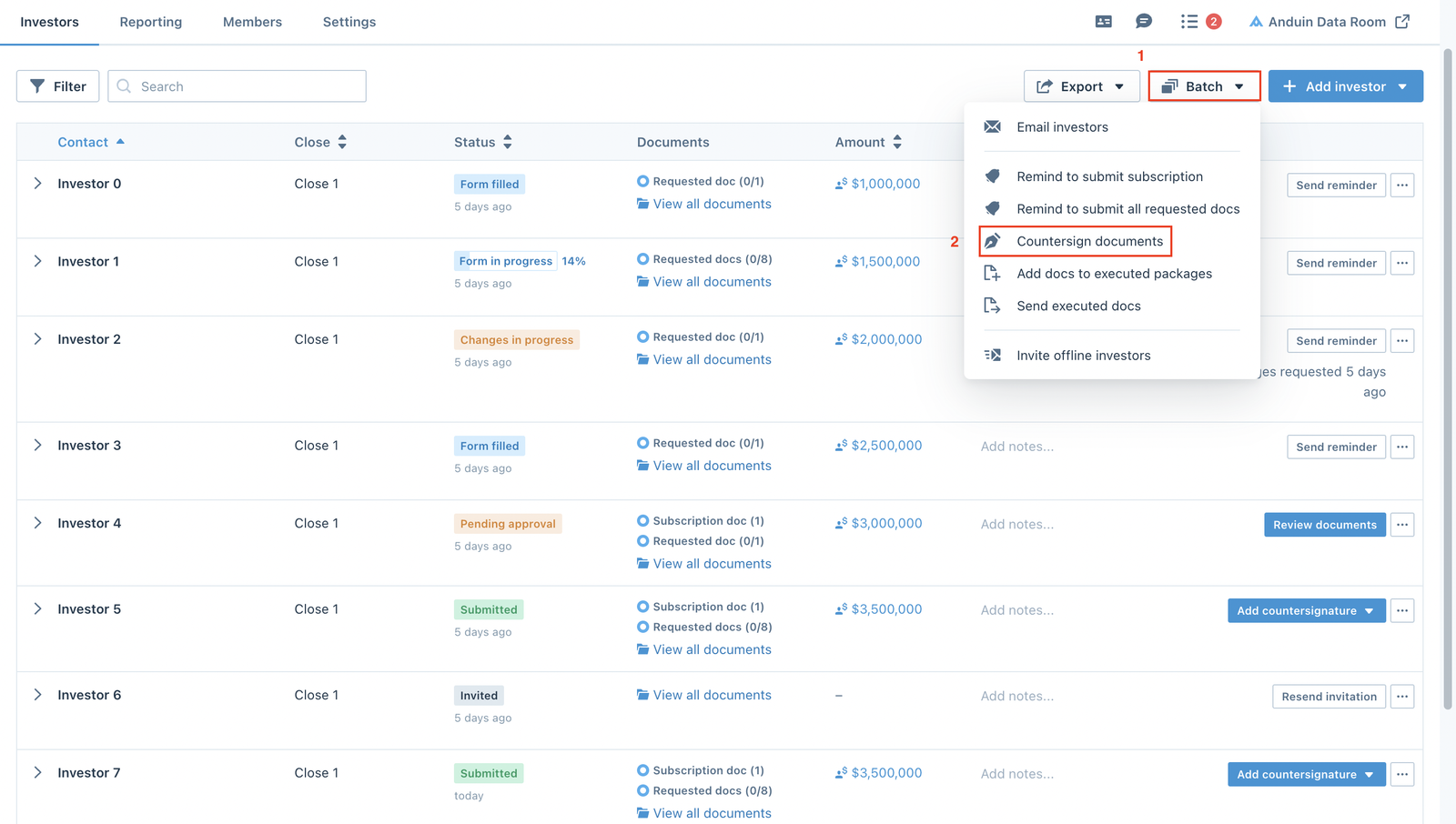
Users can switch between e-Signed (smart forms filled and e-signed) or Uploaded (offline subscription documents) section. They can either use the Filter tool to select specific groups of investors or tick the Investor box to select all investors, then click Next.
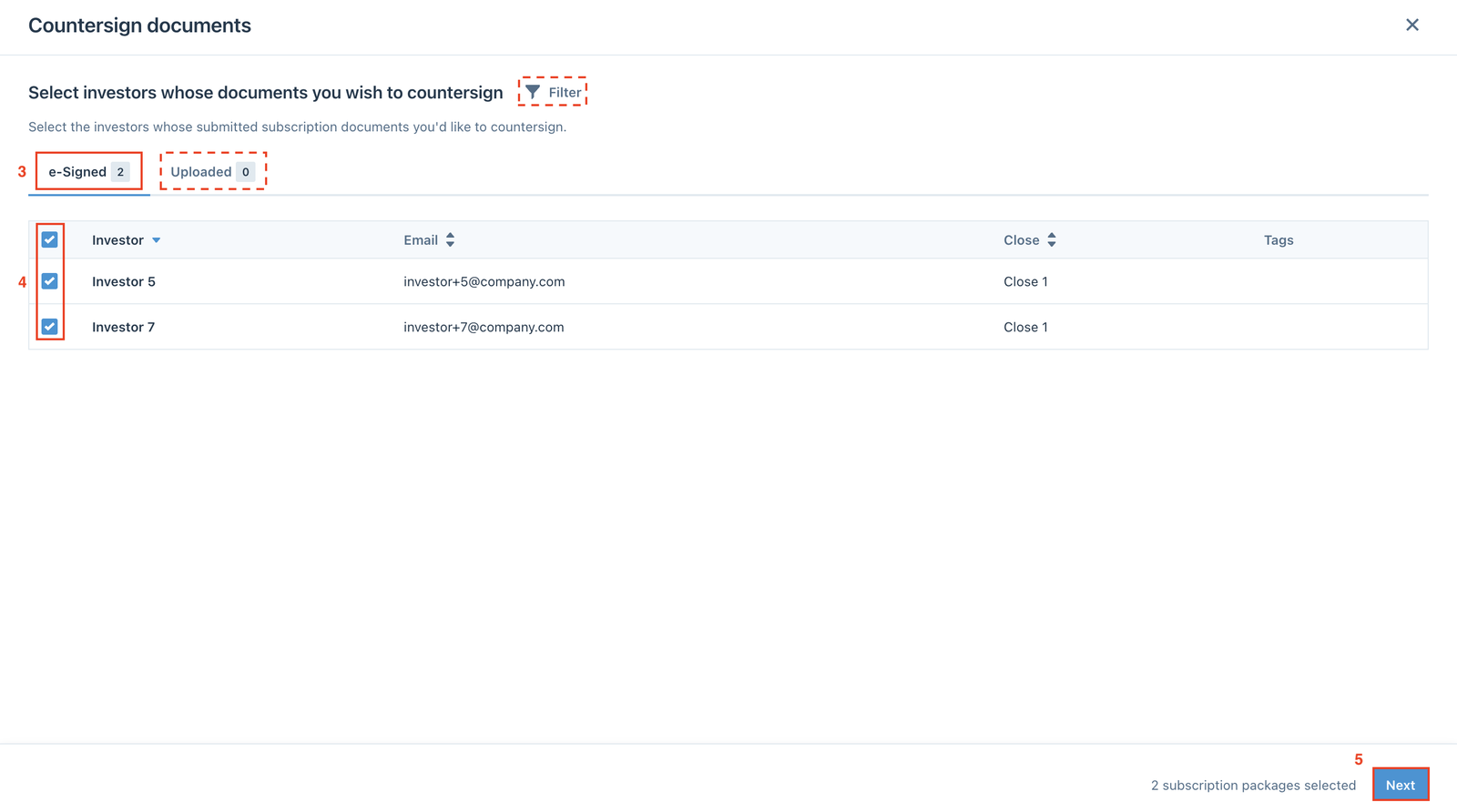
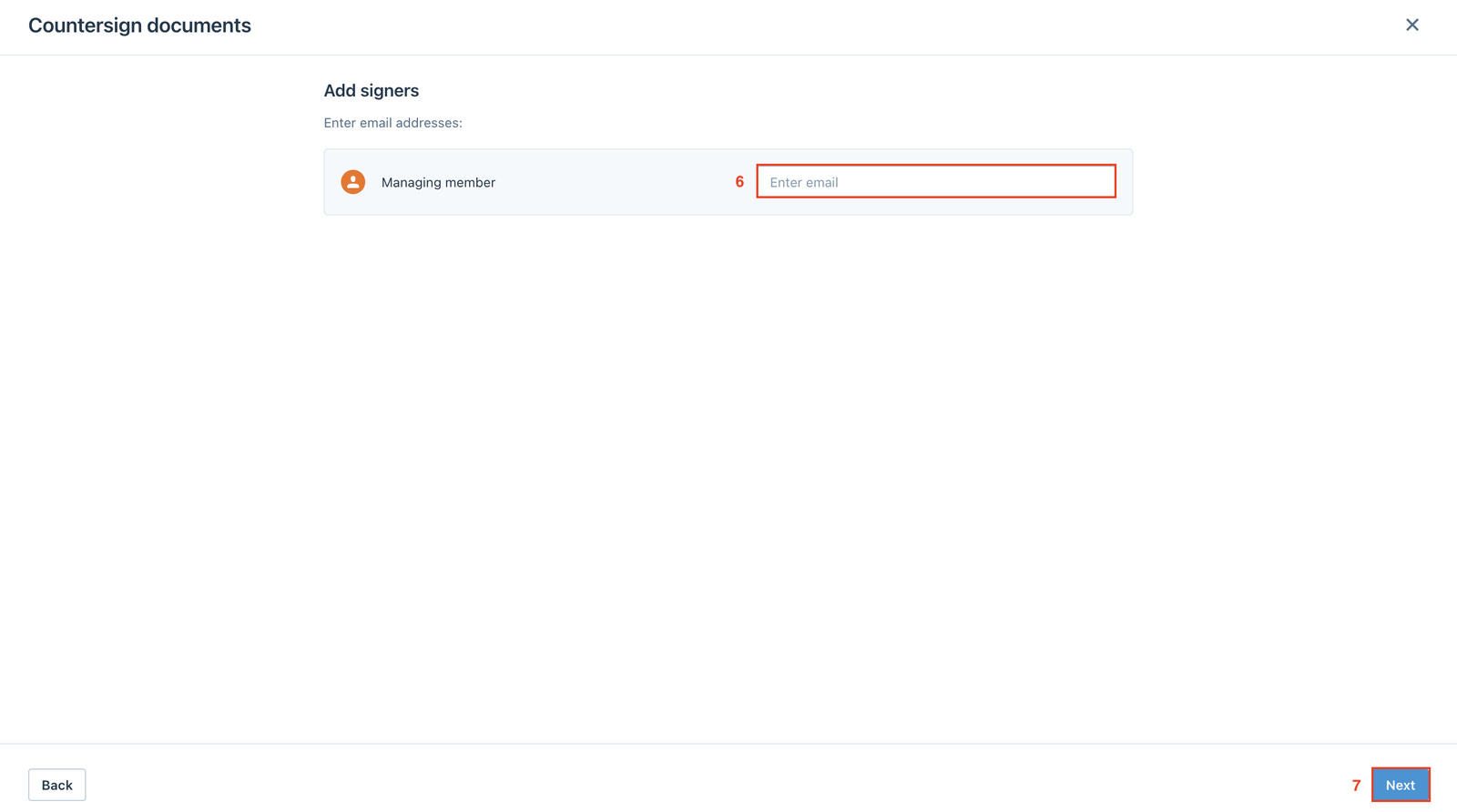
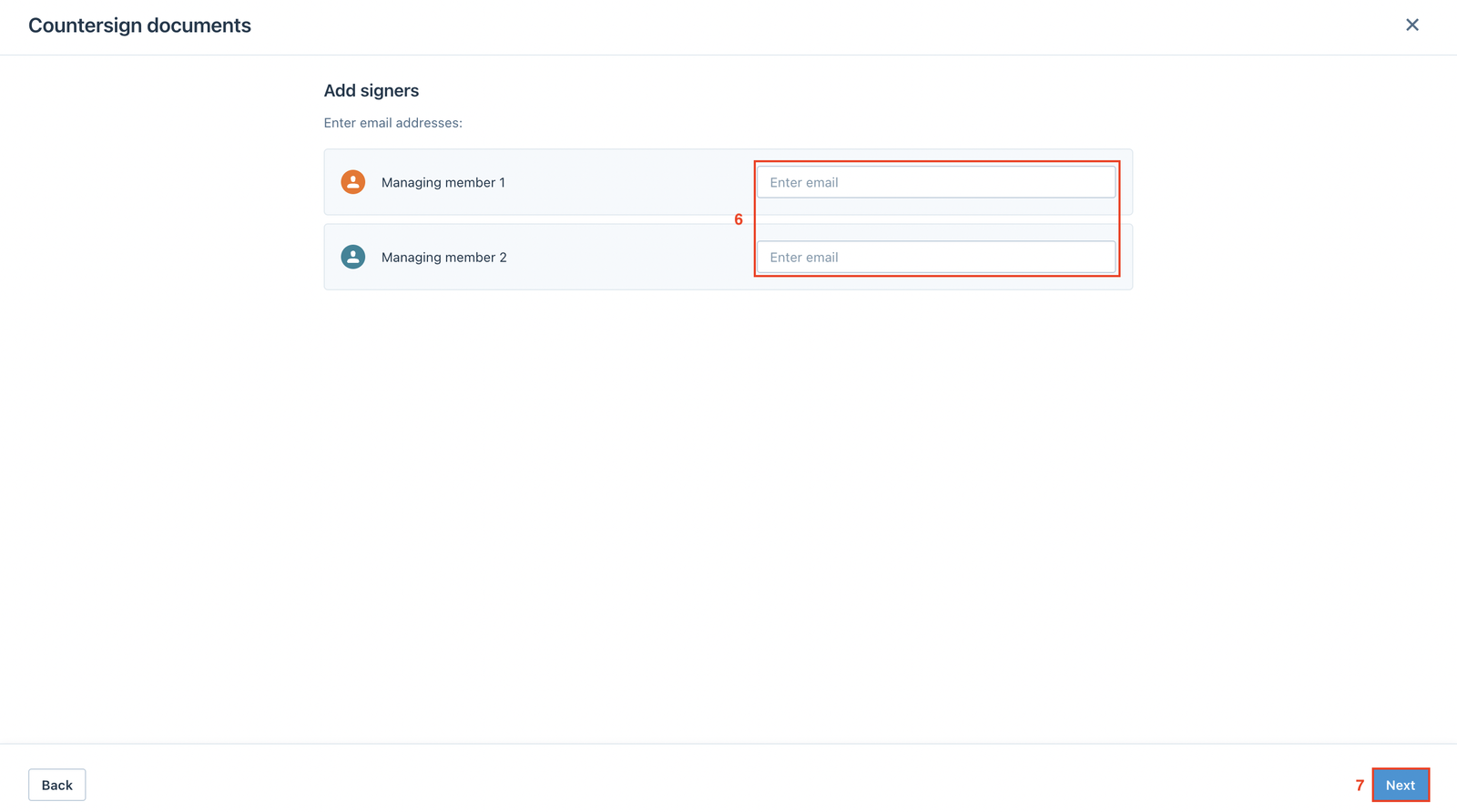
Depending on the number of countersignatures, enter the GPs’ email addresses and click Next.
- One countersignature
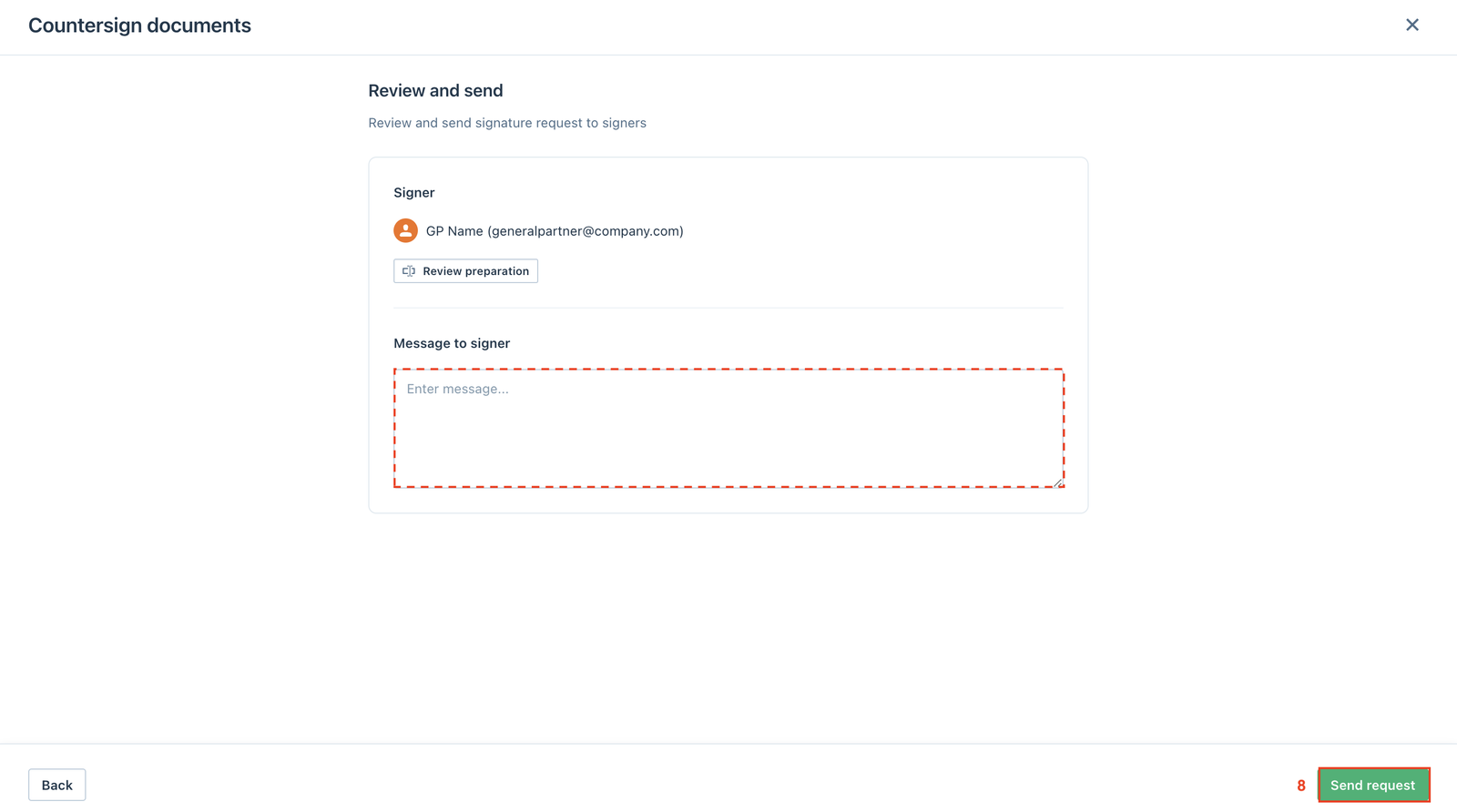
Users can add a message to the signer, then click Send request to request a signature from the signer.
Instruction video
- Multiple countersignatures
Similarly, users can add a message to the signers, then click Send request to request signatures from the signers.